Have you ever picked up your iPad and found messages or photos that were meant for your iPhone? It can be startling to see your personal information popping up where you didn’t expect it. If this has happened to you, you’re not alone.
Many people search for ways to stop their iPads and iPhones from sharing information. Maybe you share your iPad with your family and want to keep your personal stuff private.
Or perhaps you’re planning to sell your iPad and need to make sure none of your data stays on it.
Whatever your reason, it’s important to know how to control what your devices share. Apple makes it easy for your gadgets to work together, but sometimes that can lead to information showing up where you don’t want it.
Don’t worry, though. You’re about to learn how to take control of your device sharing. In this article, you’ll find out exactly how to stop your iPad from accessing your iPhone’s data.
Whether it’s photos, messages, or other personal info, you’ll learn how to keep it where you want it. Ready to make your iPad and iPhone work the way you need them to? Let’s get started.
How to completely separate your iPhone and iPad
1. Log out of your Apple ID
Before selling or giving away your iPad, the most crucial step is to log out of your Apple ID. This ensures all your personal data is removed from the device.
This process is similar to signing out of your Apple ID when unpairing other Apple devices.
- Open Settings on your iPad.
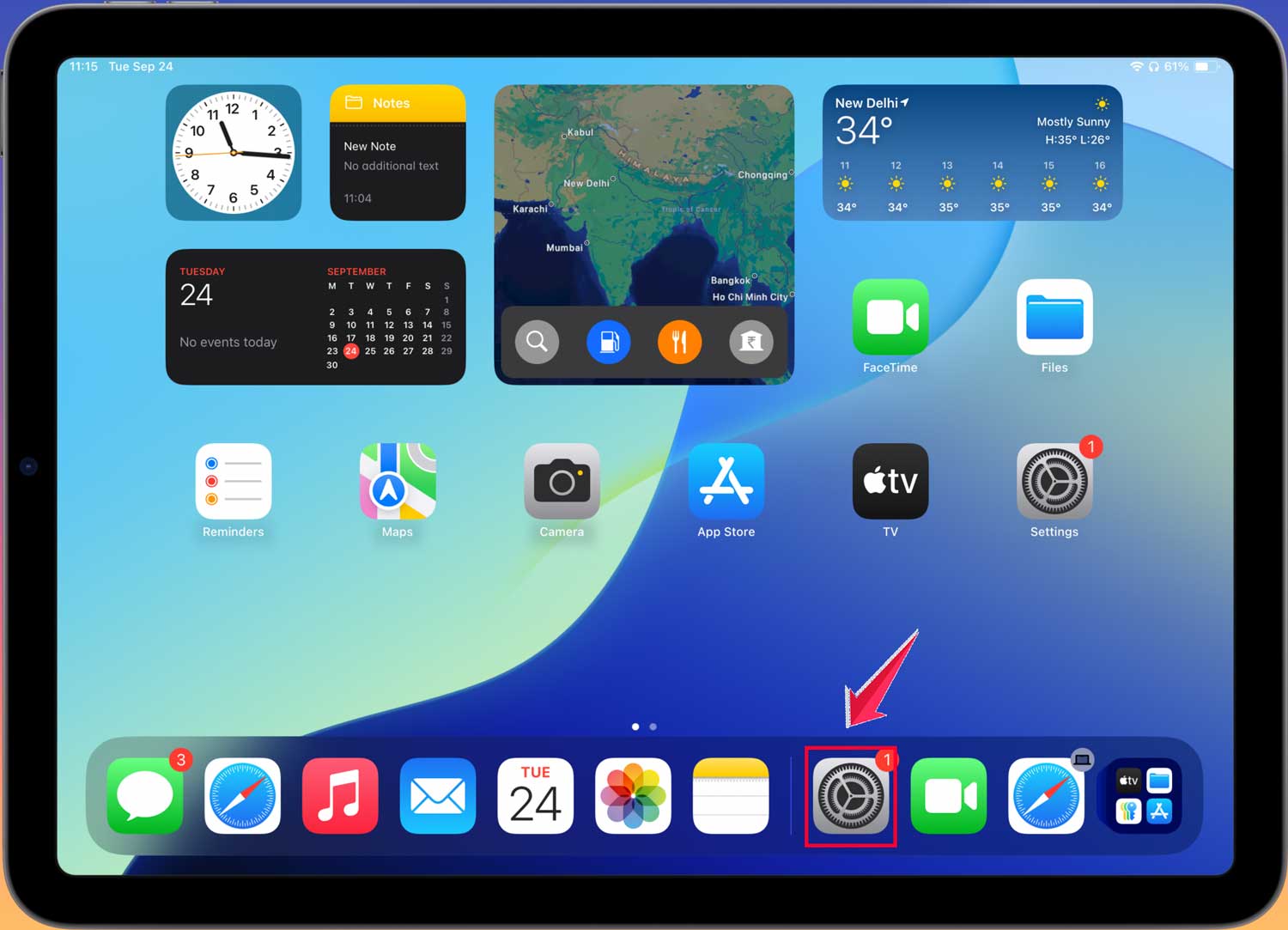
- Tap your name at the top.
- Scroll down and tap Sign Out.

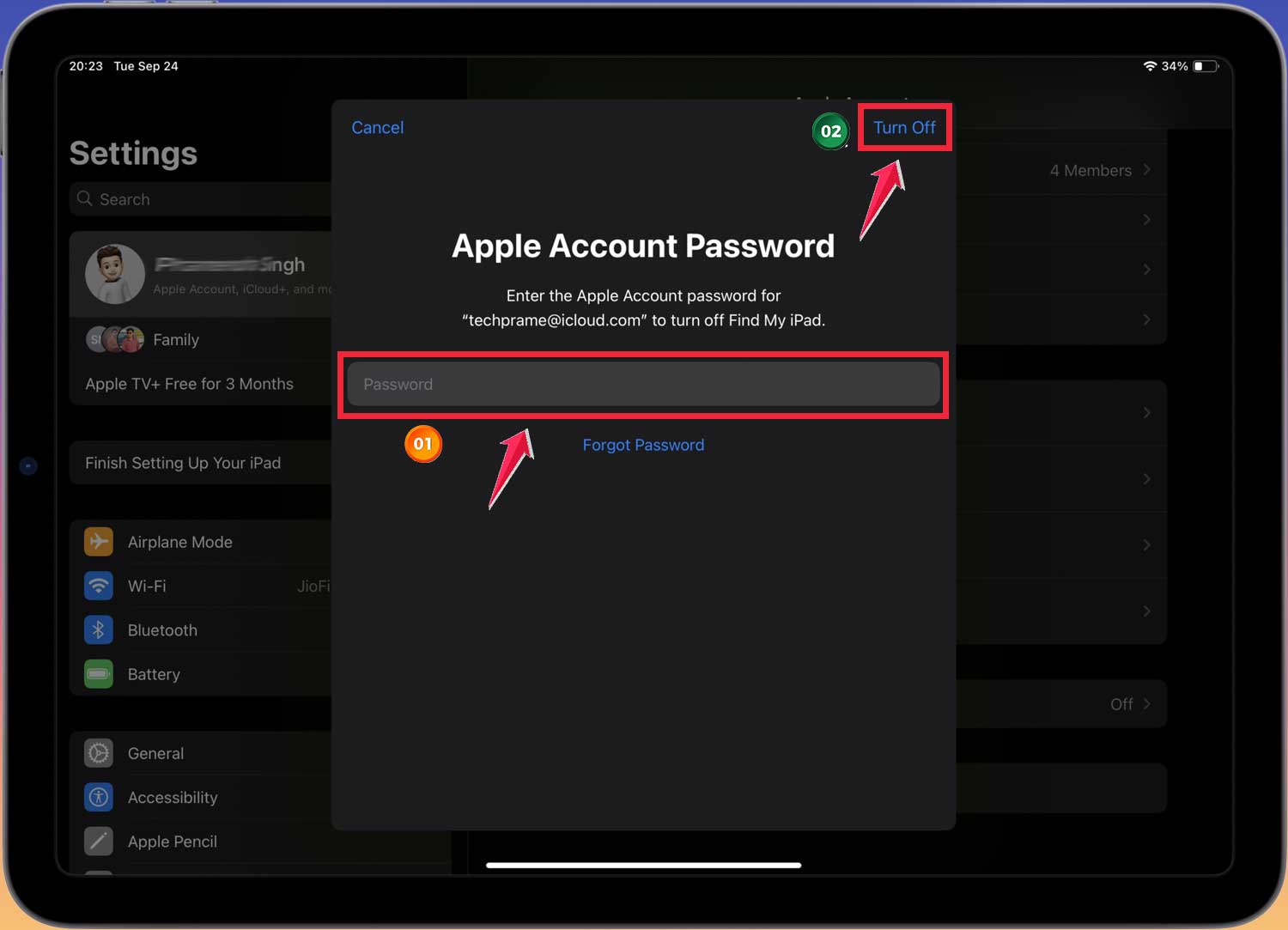
- Enter your Apple ID password and tap Turn Off.
2. Stop specific apps from syncing
If you want to keep using both devices but prevent certain apps from sharing data:
- Go to Settings > [Your Name] > iCloud.
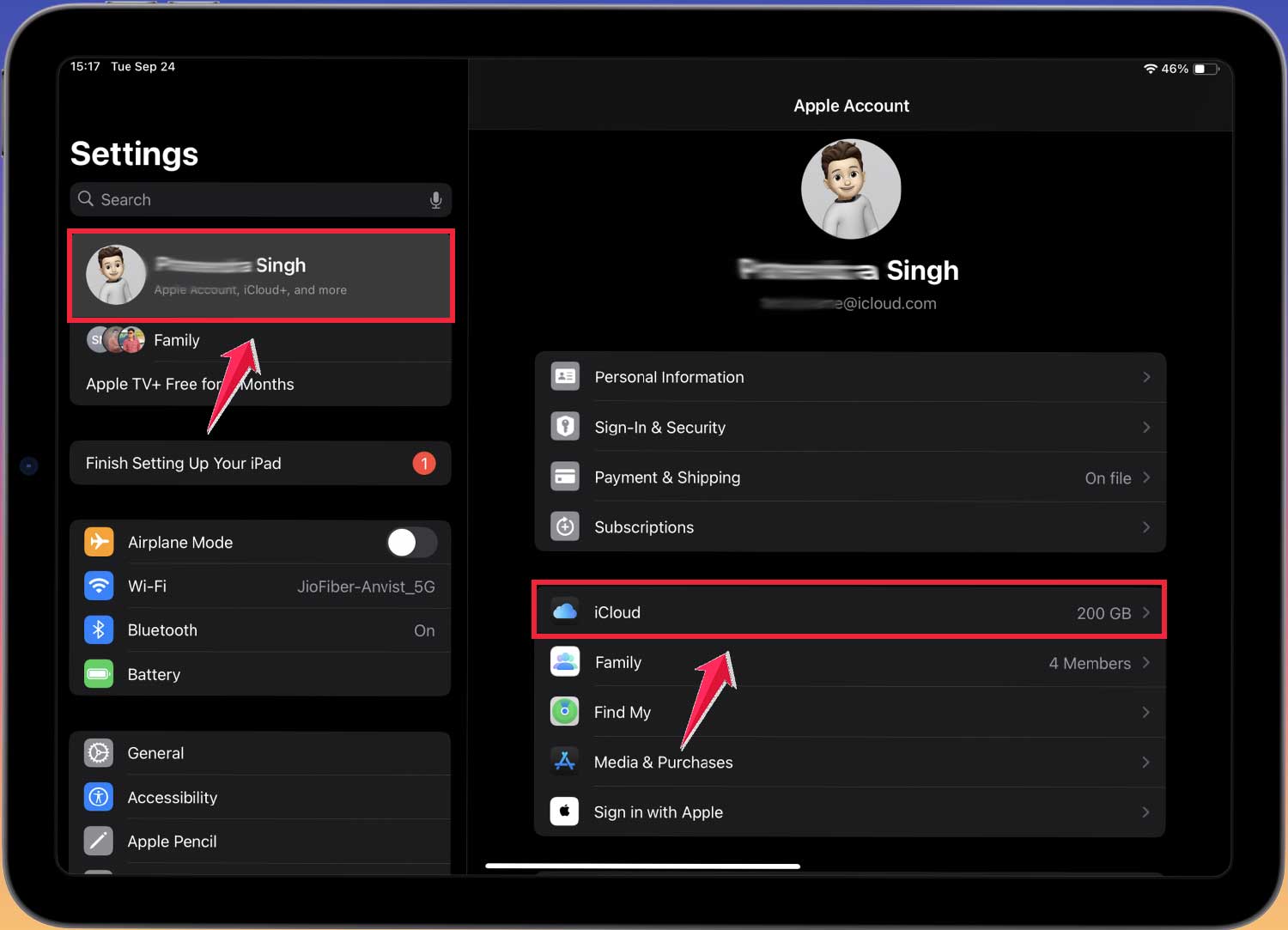
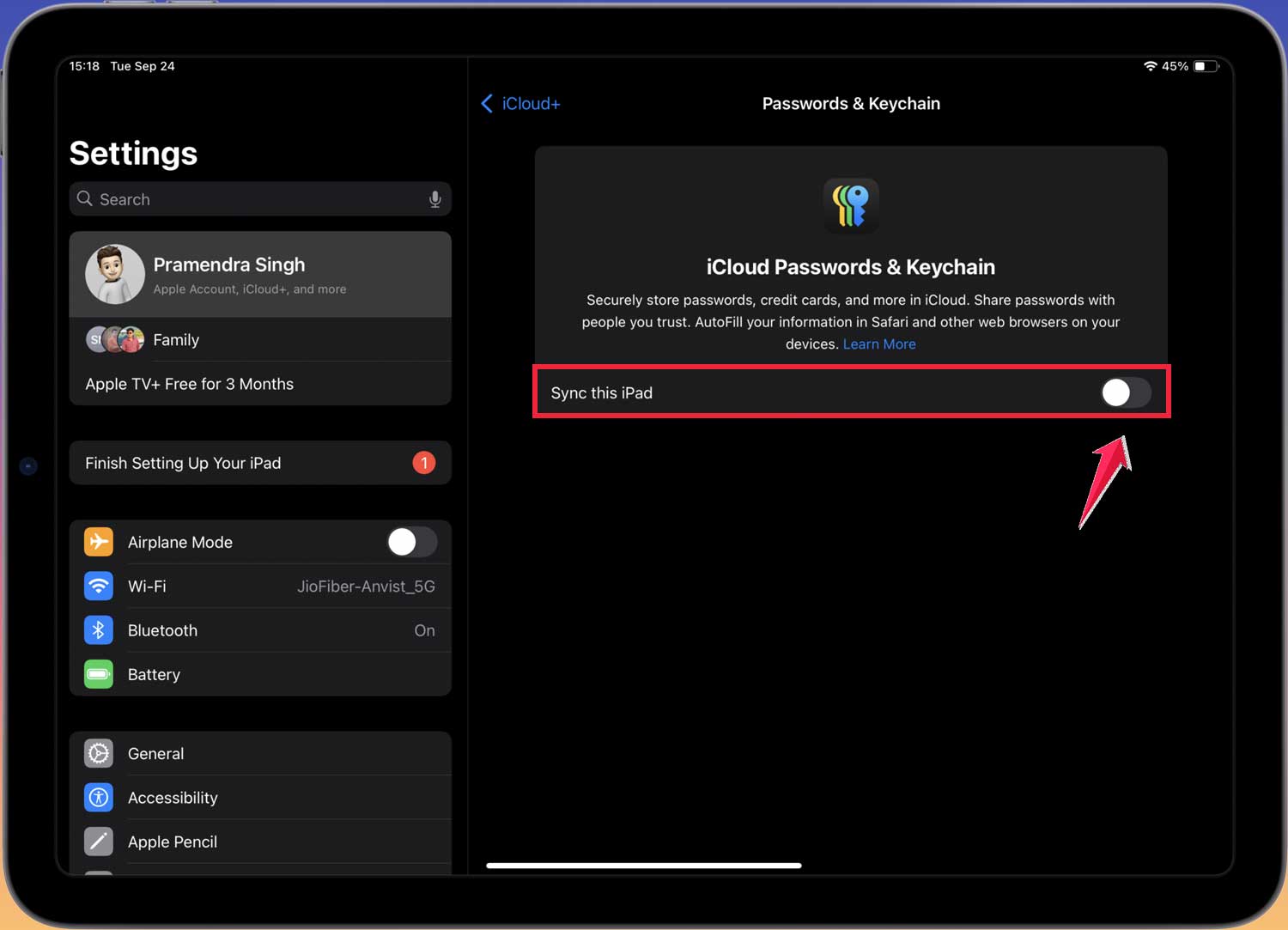
- Tap See All to see all syncing apps.
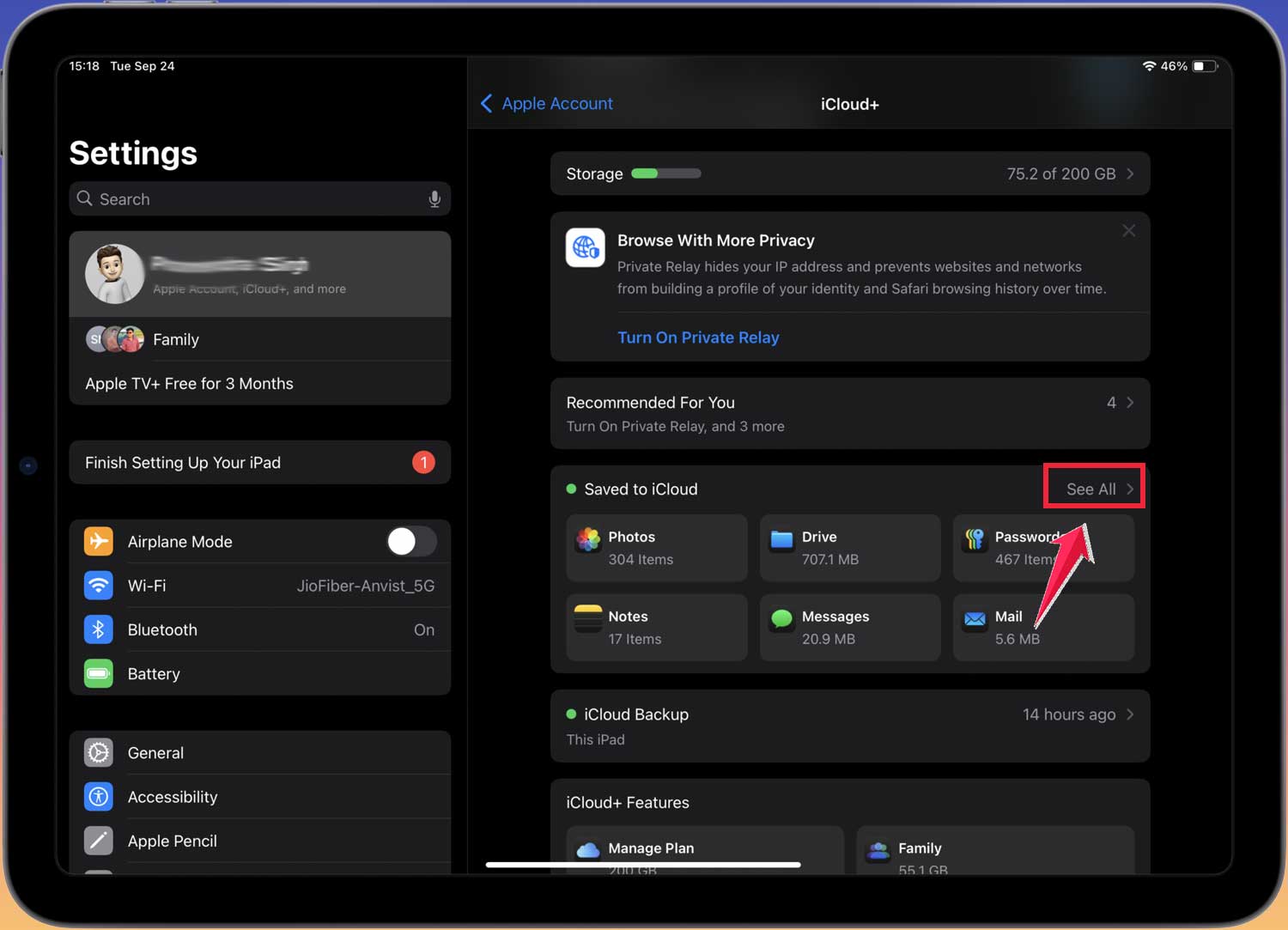
- Toggle off the apps you don’t want to sync.
3. Disable iMessage on iPad
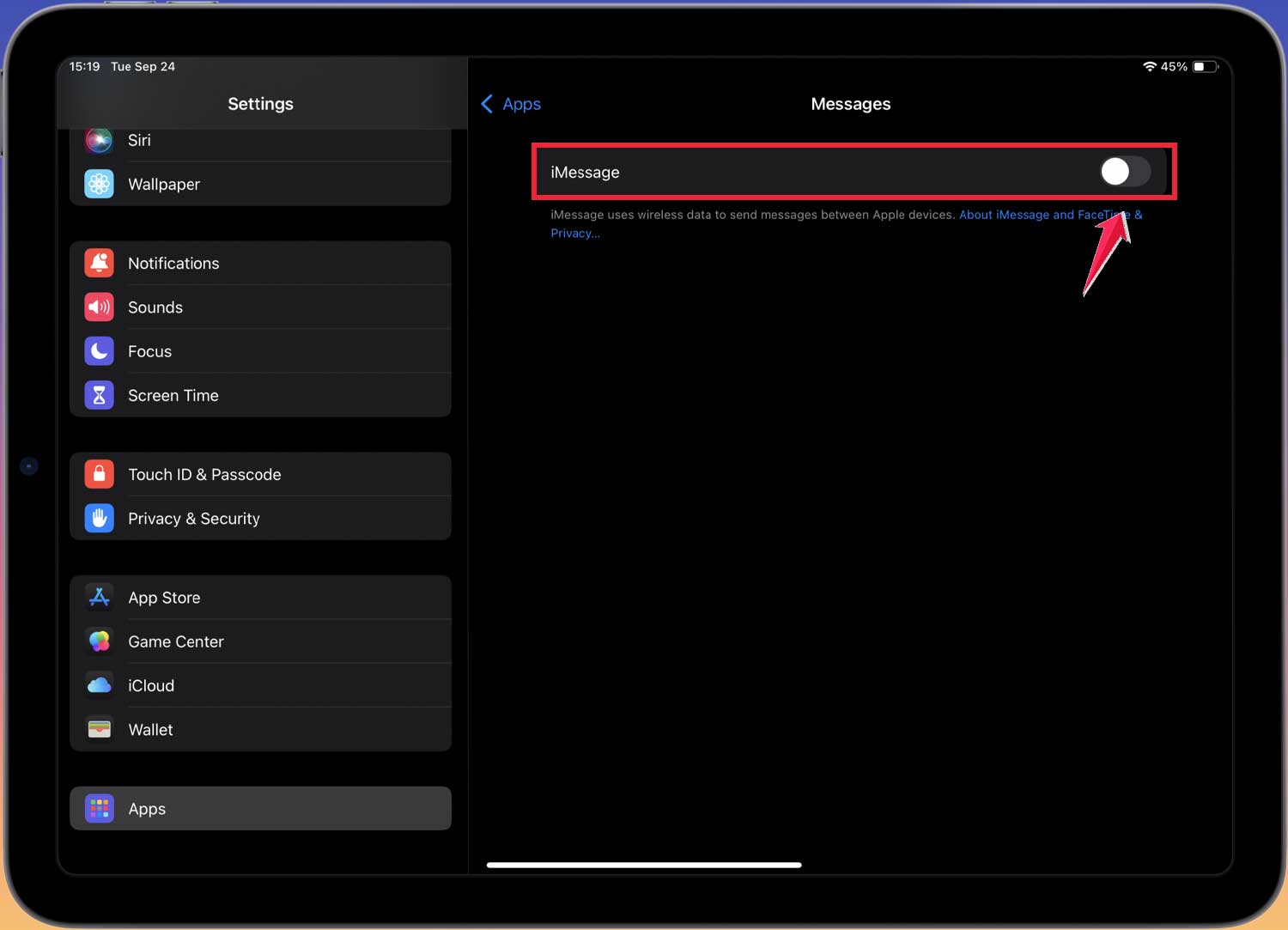
To stop receiving iPhone messages on your iPad:
- Open Settings on your iPad.
- Tap Messages.

- Switch iMessage to off.
4. Prevent iPhone calls from ringing on iPad
To stop your iPad from ringing when your iPhone gets a call:
- On your iPhone, go to Settings > Phone.

- Click on “Calls on Other Devices.“
- Find your iPad and toggle it off.

5. Stop automatic app downloads
To prevent apps downloaded on one device from appearing on the other:
- Go to Settings.
- Tap on App Store.
- Turn off App Downloads.

6. Disable iCloud Photos
To stop photos from syncing between devices:
- On your iPad, go to Settings > Apps > Photos.

- Toggle off iCloud Photos.

7. Use Family Sharing
If you want to share some content but keep other things private, consider setting up Family Sharing:
- Go to Settings > [Your Name] > Family.
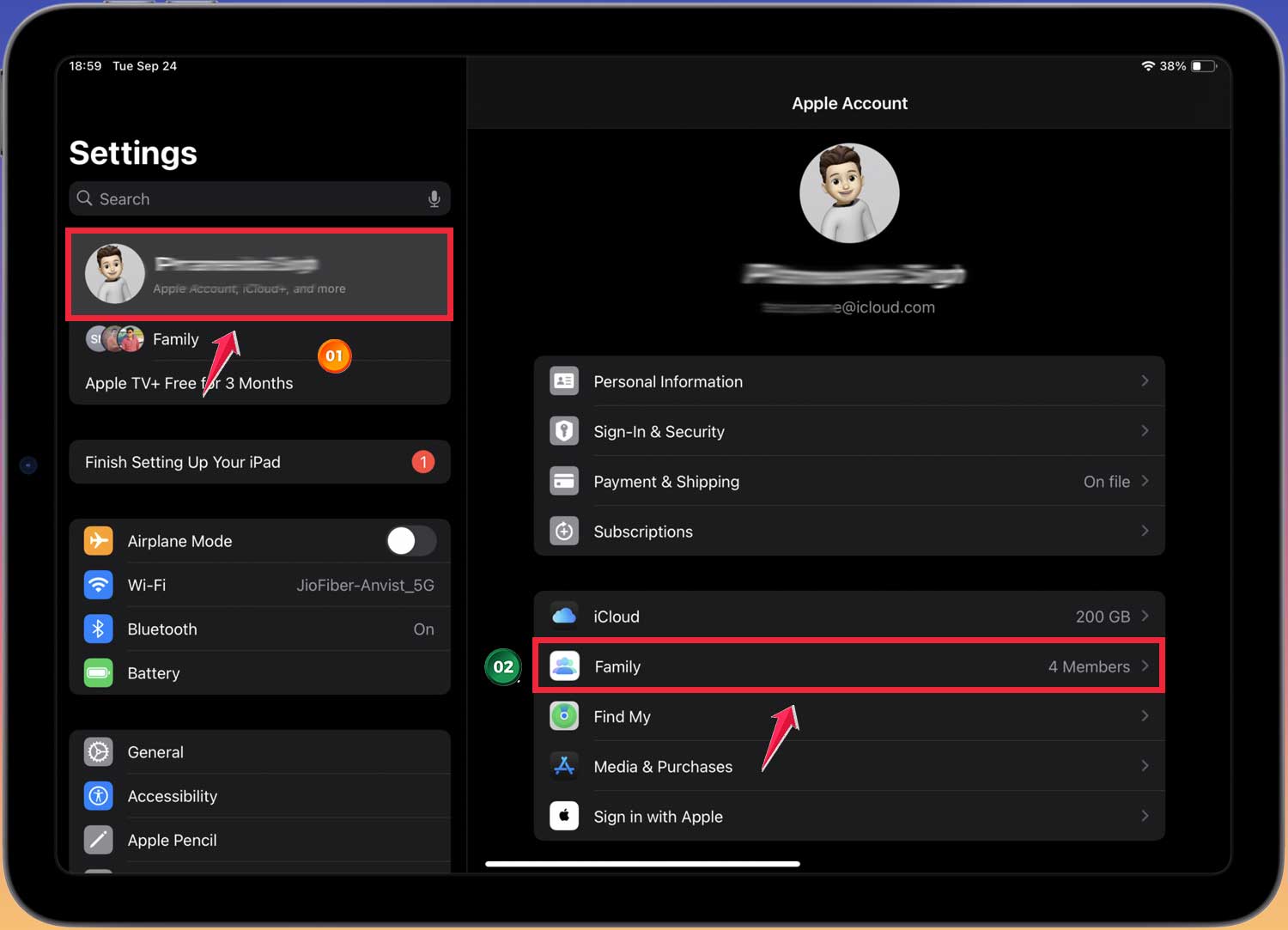
- Tap Add Member to set up accounts for family members.

- Click on Invite Other.
- Choose which services to share.

8. Create a separate Apple ID
For complete separation, consider creating a new Apple ID for your iPad:
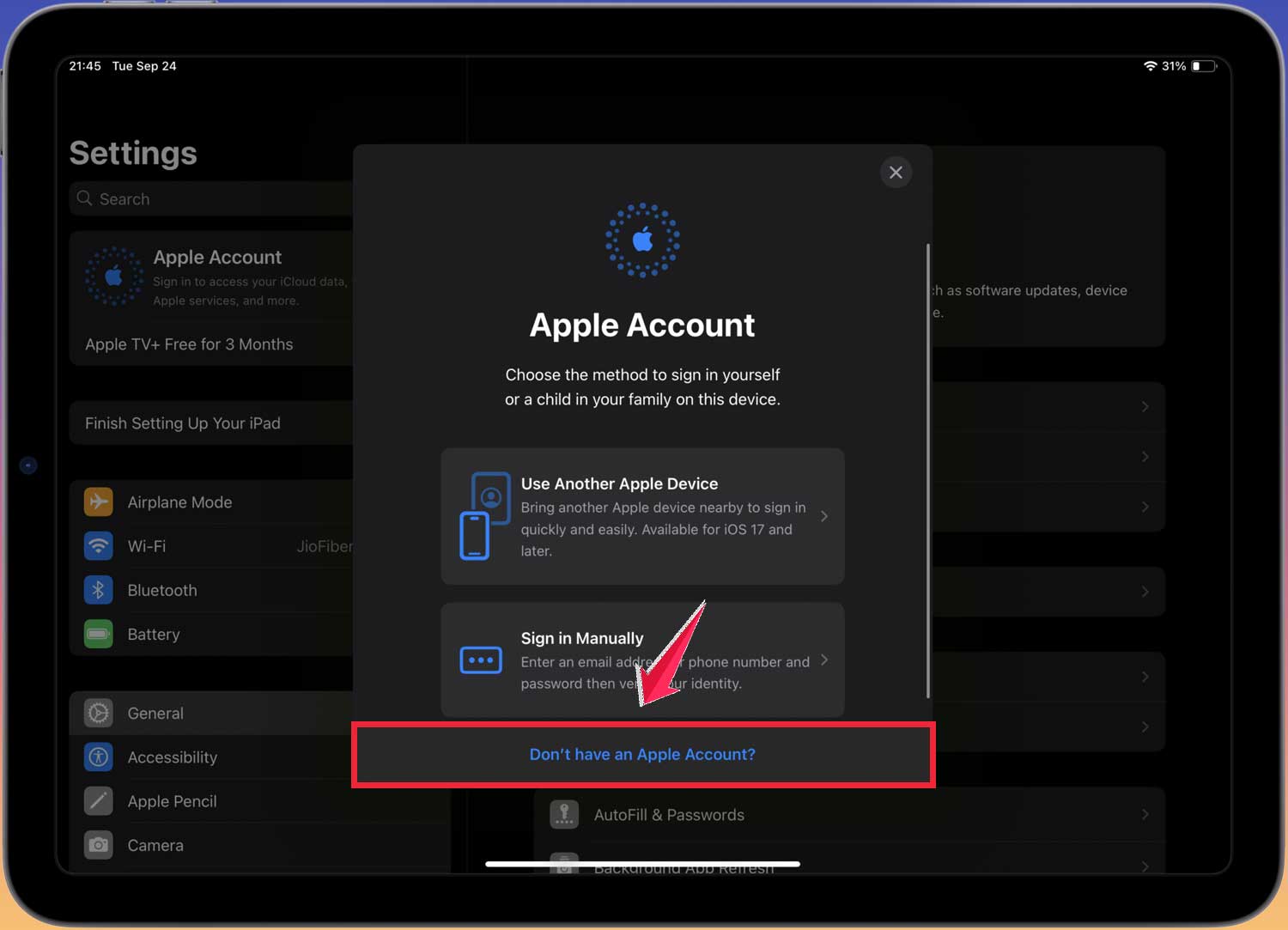
- Sign out of your current Apple ID.

- Go to Settings and tap Sign in to your iPad.

- Choose Don’t have an Apple ID or forgot it? to create a new one.
- Follow the prompts.
9. Reset your iPad
As a last resort, you can completely reset your iPad to factory settings:
- Go to Settings > General > Transfer or Reset ipad.

- Tap Erase All Content and Settings.

Make sure you’re ready before you factory reset your iPad this way. Remember, you don’t have to use all these methods. Choose the ones that best fit your needs. The goal is to find the right balance between privacy and convenience.
The takeaway
Keeping your iPhone and iPad from sharing information isn’t as complicated as you might think. With a few simple steps, you can control what data moves between your devices and protect your privacy.
We’ve covered several ways to stop your iPad and iPhone from syncing. You can log out of your Apple ID, turn off iMessage, stop call forwarding, and disable photo syncing.
These methods give you more control over your personal information and make it easier to share your iPad with others or prepare it for sale.
Some people think that once devices are linked, they can’t be separated. That’s not true. Apple gives you tools to manage your device connections, and you can always change these settings as your needs change.
The most important thing to remember is that you have control over your devices and your data. Take a few minutes to adjust your settings, and you’ll have the privacy and separation you want. Your digital life is in your hands. Make it work for you.
What do you think about these methods for keeping your iPhone and iPad separate? Have you tried any of them?