Ever feel like your Mac is running a bit slower than usual? It might be because of hidden files taking up space without you even knowing.
As you use different apps on your Mac, they create temporary files and something called “cache” files. These are like digital sticky notes that help apps work faster, but they can pile up over time.
Even if you don’t see them, these hidden files can slow down your computer as you keep using more and more apps.
So, how about we do some digital spring cleaning? By clearing out these temporary files, you can help your Mac run smoother and free up space for the things you really need.
Let’s walk through how you can tidy up your Mac and get it running like new again!
What Are Temporary and Cache Files on Your Mac
Let’s talk about those hidden files on your Mac that you might not even know exist. These are called temporary and cache files, and they’re actually trying to help your computer work faster and smoother. But like anything else, too much of a good thing can slow you down.
Here’s what these files are all about:
Browser Cookies. When you visit websites, they leave little digital crumbs called cookies. These help your browser remember things like your login info or preferences on that site. It’s handy, but over time, these can pile up.
System Logs. Your Mac keeps a diary of sorts, jotting down what it’s been up to. These old entries can take up space after a while.
App Cache. Apps save bits of information so they don’t have to keep downloading the same stuff every time you use them. It’s like keeping frequently used items on your desk instead of in a drawer.
Document Versions. When you’re working on a file, your Mac saves snapshots of it along the way. It’s a safety net in case something goes wrong, but these can add up quickly.
How To Find Temporary Files on Your Mac
Finding where your Mac stores these temporary files is straightforward.
Ensure all your applications are closed to prevent any file usage conflicts. Here’s how you can find them:
- Open Finder.

- Click on Go > Go to Folder.

- Type in
~/Library/Caches/and press Enter.

This will open the folder where your Mac stores most of its temporary files, allowing you to see what’s occupying your space.
How To Delete Temporary Files On A Mac Manually?
Ready to give your Mac a good cleanup? Here’s how you can get rid of those temporary files that might be slowing things down.
But first, a word of caution: always back up your important stuff before you start. You can use “Time Machine”, “iCloud”, or even an external drive for this.
#1 Remove system temporary files
- Close all your apps. If any are being stubborn, you can force them to close by pressing “Command + Option + Esc“.

- Open “Finder” on your Mac.
- Here’s a neat trick: press “Shift-Command-G“. This opens a special menu.

- In this menu, type “~/Library/Caches/” and hit “Return“.
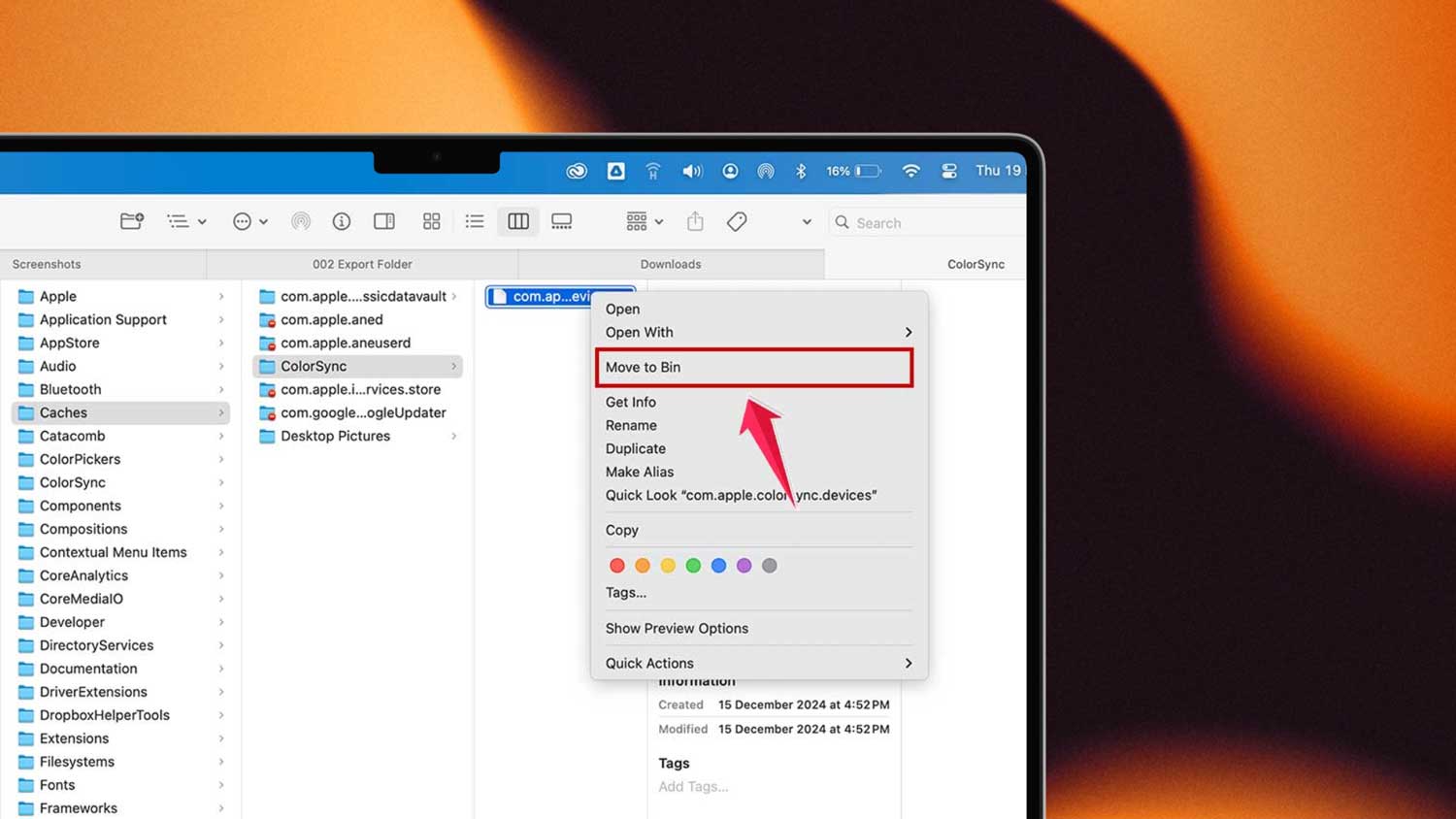
- You’ll see a bunch of folders. Don’t delete everything! Look for folders you recognize, like ones with app names you use.
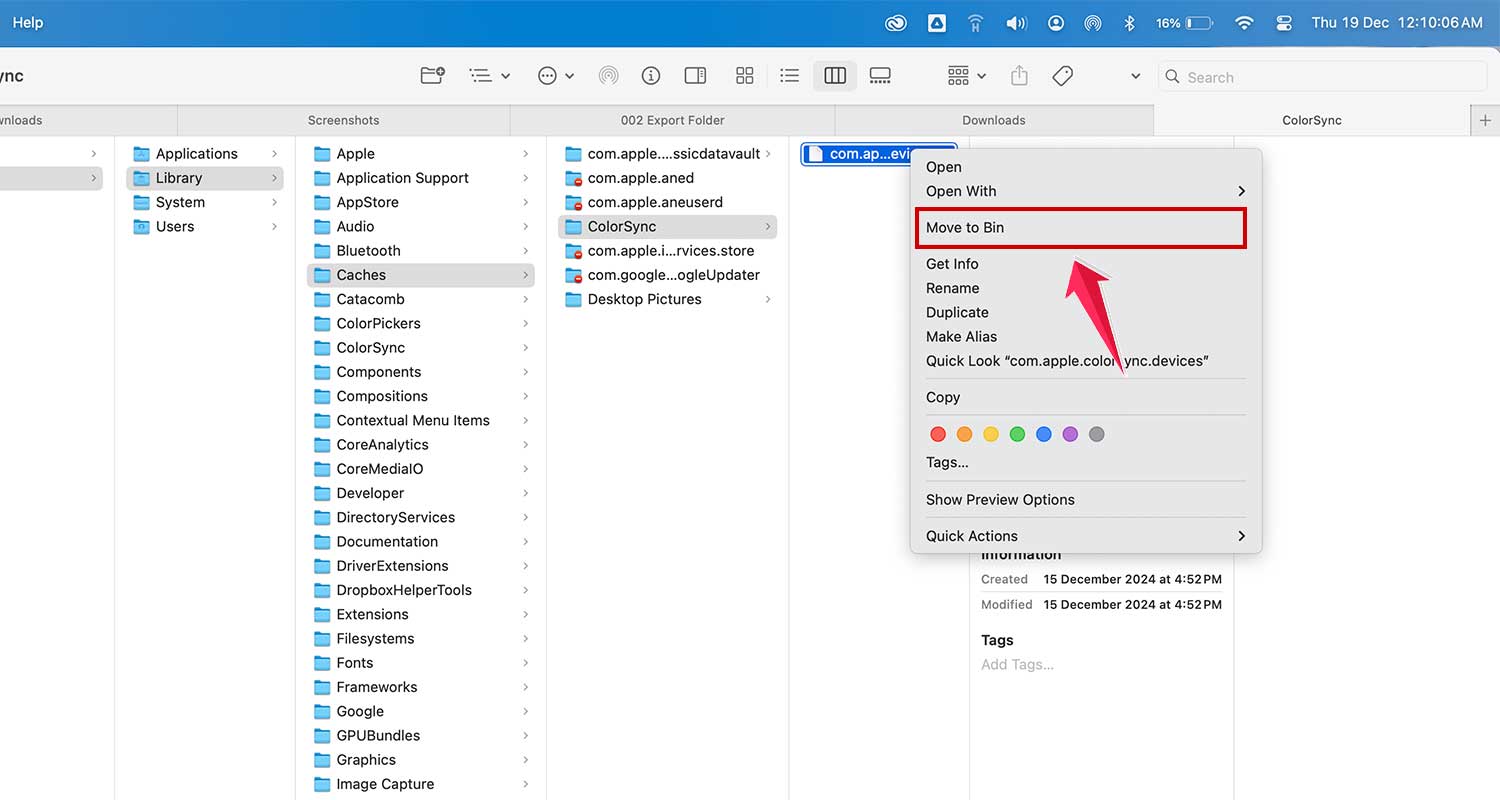
- When you find files you’re sure you don’t need, right-click and choose “Move to Bin“. Or just drag them to the Trash if that’s easier.
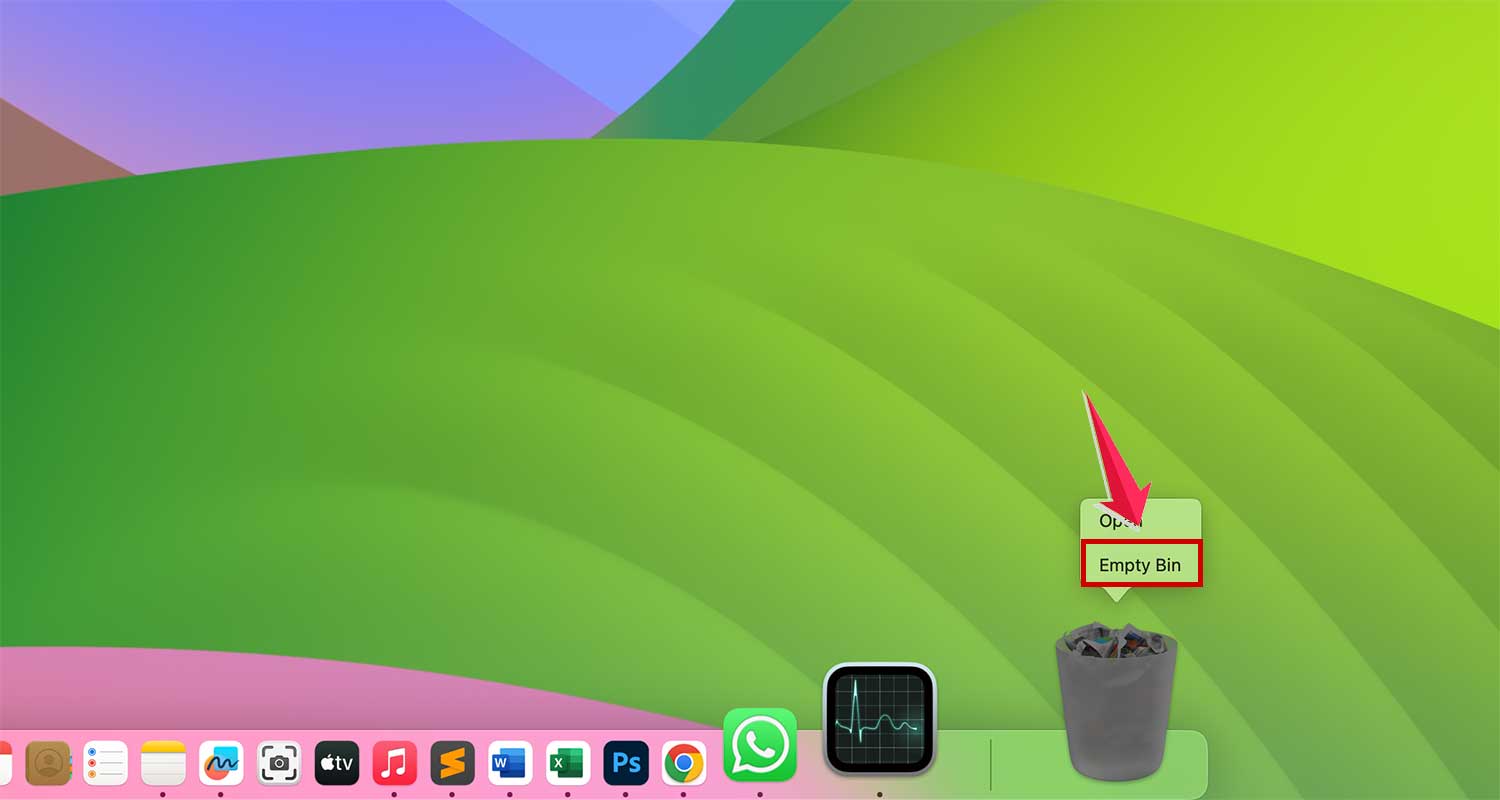
- Once you’re done, empty your Bin to free up that space.
#2 Delete Browser Cache
Cleaning out your browser’s cache can help speed up your web browsing and free up some space on your Mac. Let’s walk through how to do this for two popular browsers: Safari and Chrome.
For Safari users:
- Open up Safari on your Mac.
- Now open Safari’s settings.

- Click on the “Advanced” tab.
- Look for a box that says “Show Features for web developers” and check it.
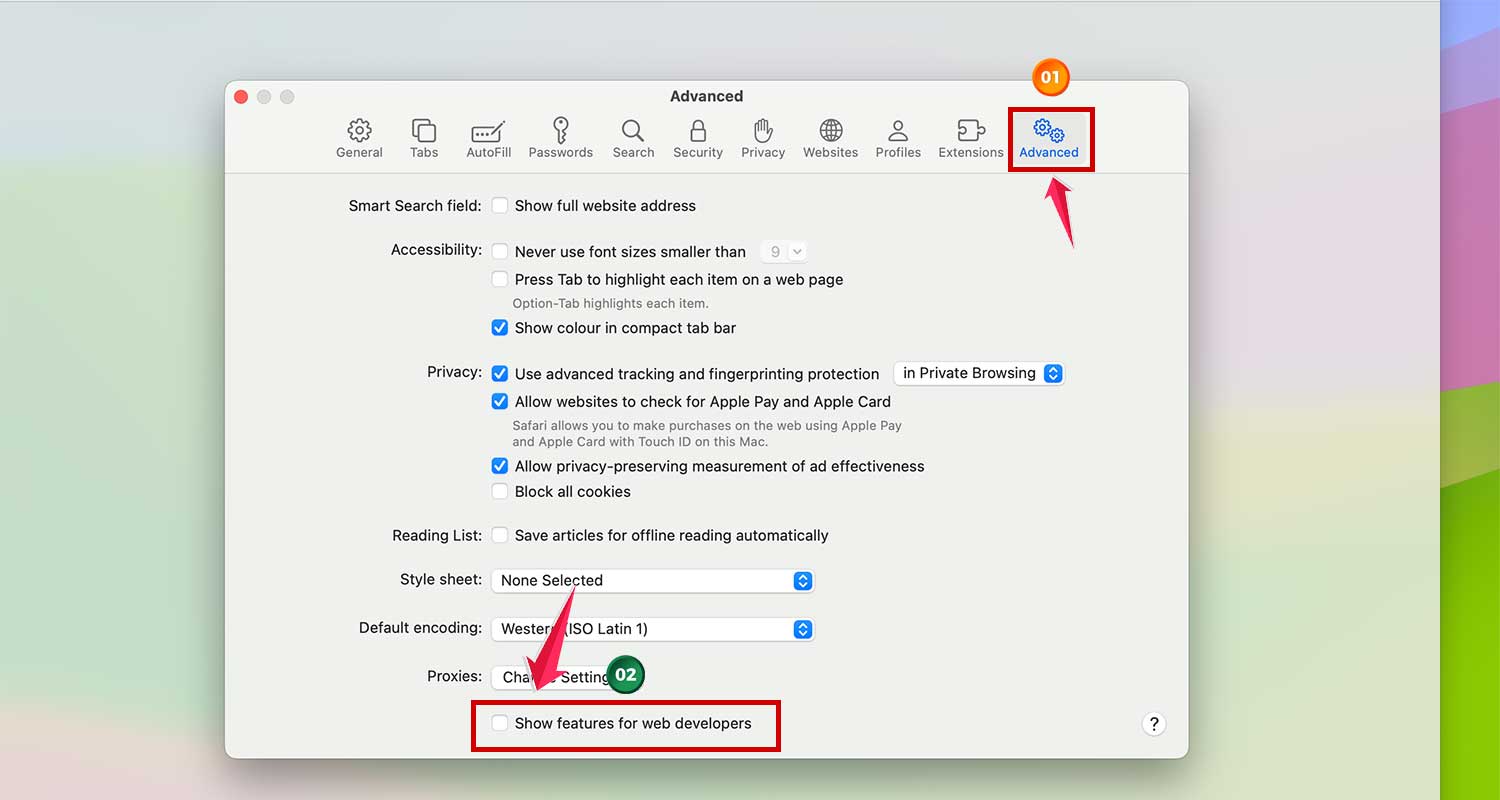
- Now you’ll see a new “Develop” option in the menu at the top of your screen.
- Click on “Develop” and choose “Empty Caches“.

That’s it! You’ve just cleared out Safari’s cache.
For Chrome users:
- Open Chrome on your Mac.
- In the address bar at the top, type “chrome://settings/” and hit enter.

- On the left side, click on “Privacy and security“.

- Look for “Delete browsing data” and click on it.

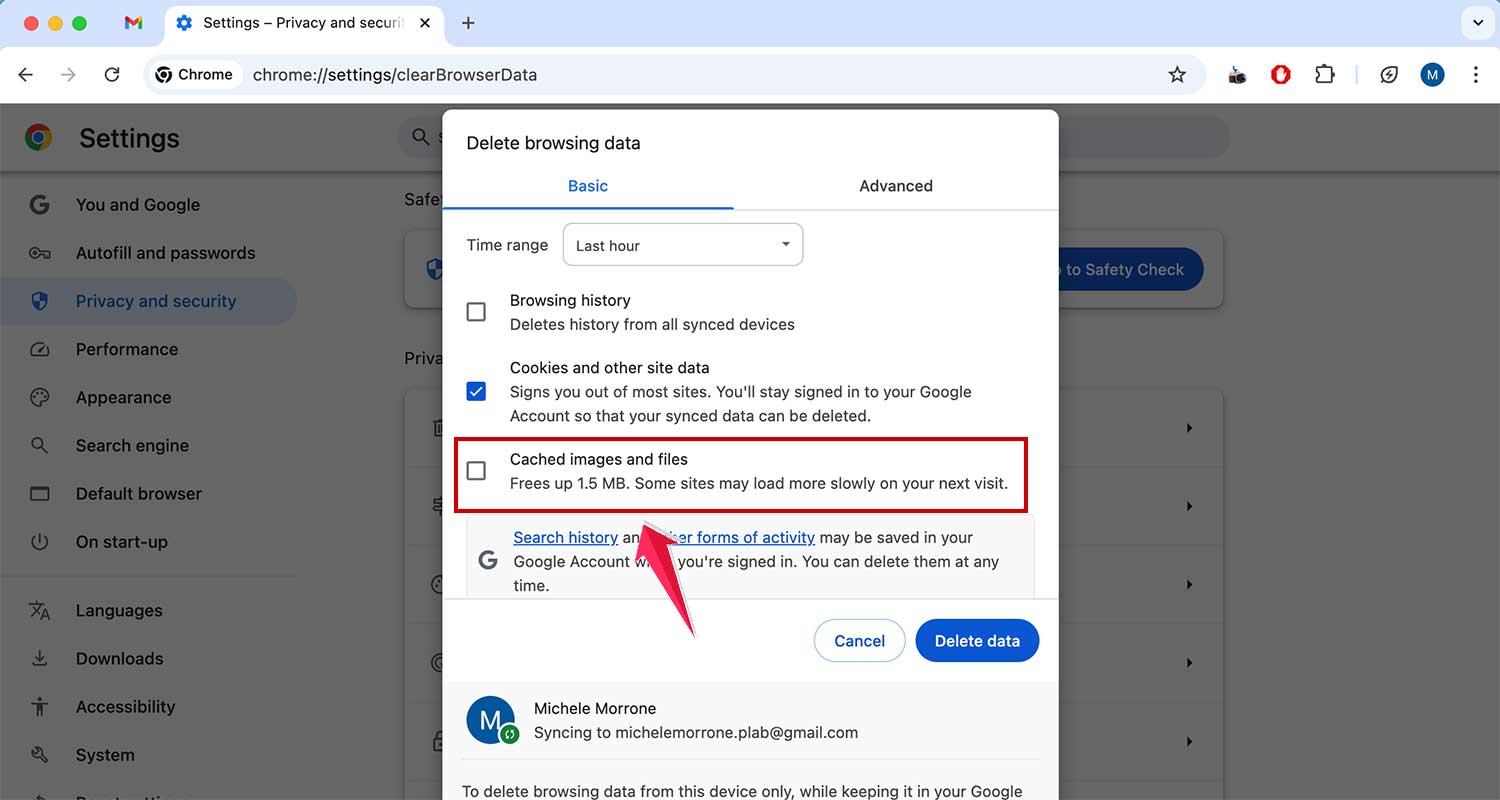
- You can choose how far back you want to clear. Maybe just the last hour, or maybe all time – it’s up to you!

- Make sure “Cached images and files” is ticked.
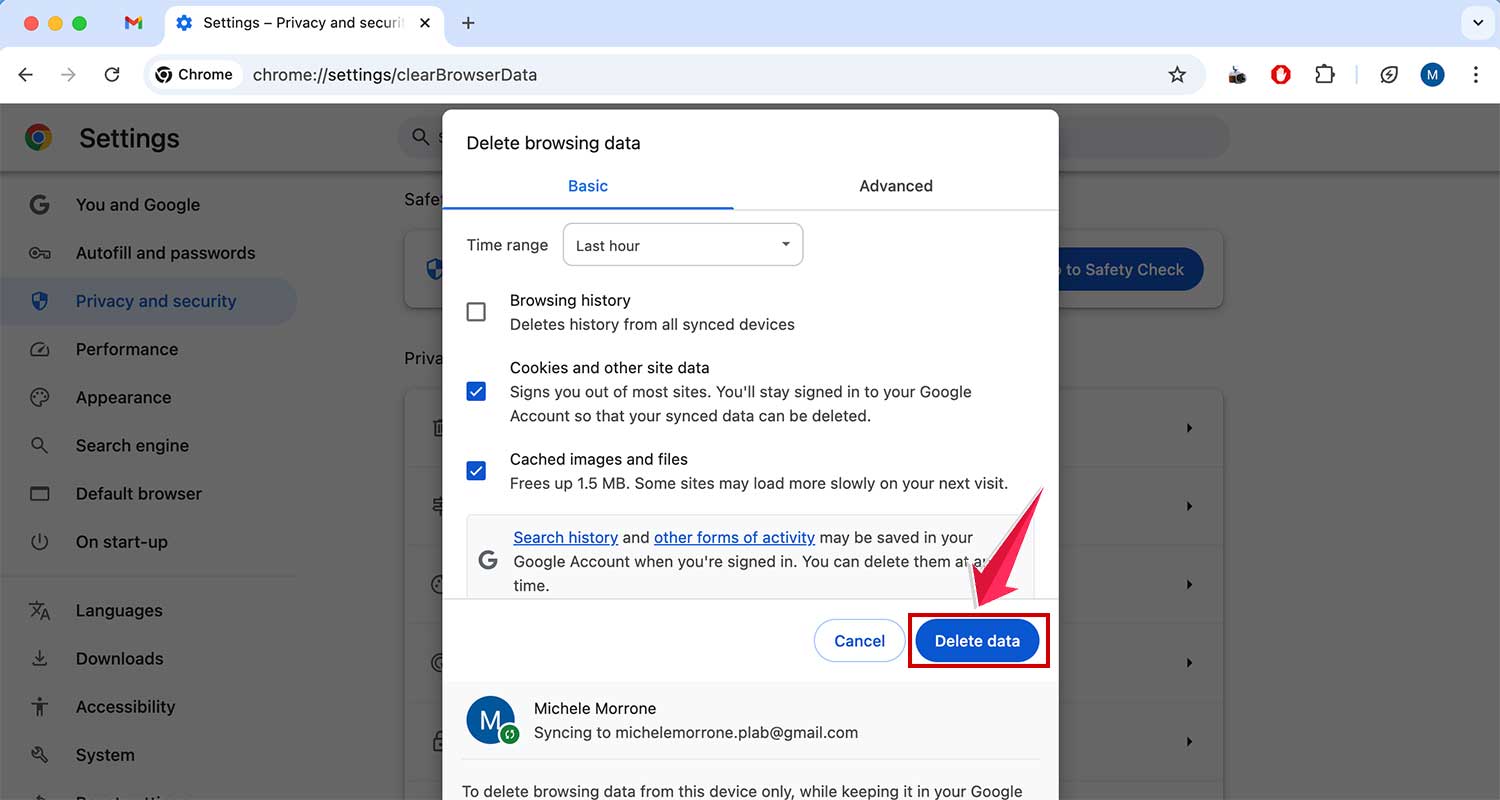
- Hit “Delete data” and you’re done.
#3 Restart your Mac
I can’t stress enough how important it is to restart your Mac from time to time. It’s a simple habit that can really boost your computer’s performance.
When you restart your Mac, your Mac clears out all those temporary files that have been piling up. You don’t have to go looking for them yourself – it just happens automatically.
Any programs that were running in the background get shut down. These can sometimes slow your Mac down without you even realizing it.
Also, your Mac gets a chance to run important updates and do some housekeeping. It can’t do these tasks while you’re using it, so a restart gives it the opportunity.
How to restart your Mac:
- First, save any work you have open.
- Close all your apps.
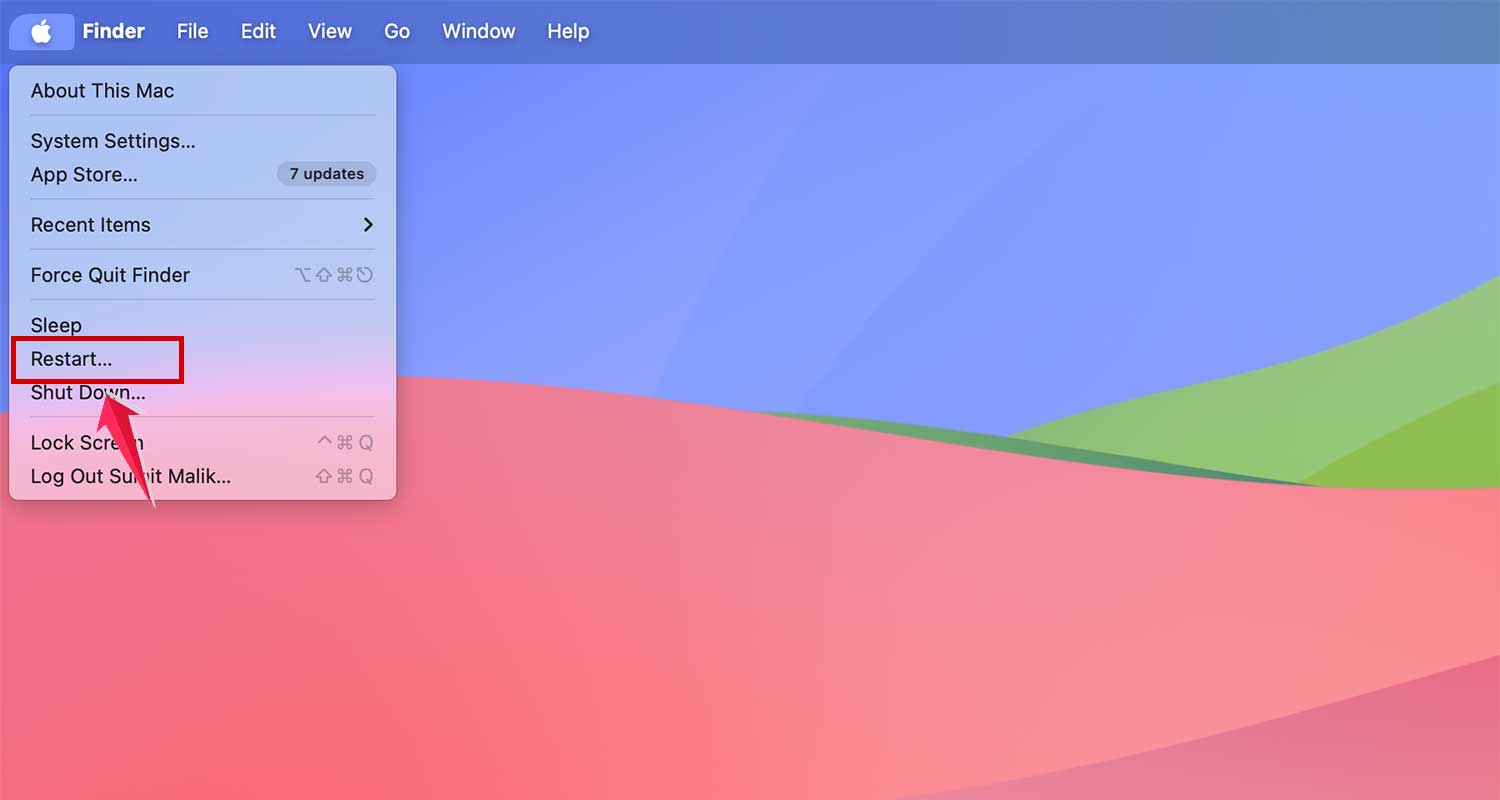
- Click on the little apple icon in the top left corner of your screen.
- Choose “Restart” from the menu that pops up.
Try to make restarting your Mac a regular habit, like maybe once a week. It’s an easy way to keep things running smoothly.
Wrapping Up
You’ve now got the tools to keep your Mac running smoothly.
Whether you choose to roll up your sleeves and do the cleaning yourself or use a program to do it for you, the important thing is that you’re taking care of your Mac.
It’s like giving your computer a spa day – it’ll thank you by running faster and lasting longer.
Remember, a little bit of maintenance goes a long way. You don’t need to do this every day, but making it a part of your routine can really pay off.
Maybe set a reminder to do a quick clean-up once a month?
By keeping your Mac tidy, you’re not just making your life easier now – you’re helping your computer stay healthy for the long haul.
And that means more time for you to focus on what you really want to do with your Mac, instead of waiting for things to load.