Did you know that over 5 billion emojis are sent daily on Facebook Messenger alone? Emojis have become a huge part of how we communicate.
But sometimes, your iPhone’s emoji keyboard can get cluttered with ones you don’t use anymore.
Your iPhone keeps track of the emojis you use most often. This can be helpful, but it can also lead to a messy emoji keyboard.
Maybe you’ve used certain emojis for a specific event, and now they’re always popping up. Or perhaps you just want a fresh start with your emoji choices.
Clearing your emoji history isn’t just about tidying up. It’s about personalizing your texting experience. It ensures your most-used emojis reflect your current communication style.
Plus, it can help protect your privacy if you share your device with others. (Speaking of privacy, you might also want to know how to hide apps on iPhone.)
In this guide, you’ll learn how to manage your emoji history on your iPhone. We’ll cover simple methods to influence your frequently used emojis.
You’ll also find out what happens after you clear your history and how to make the most of your emoji keyboard. Ready to declutter your digital expressions?
Why clear your emoji history?
You might want to refresh your emoji history for several reasons. Sometimes, emojis you’ve used for a specific event or conversation can clutter your frequently used section. This can make it harder to find the emojis you currently need.
Privacy is another important concern. If you’re lending your phone to someone, you may want to keep your emoji choices private. Your emoji history can reveal a lot about your conversations and relationships.
For instance, if you’ve been using lots of heart emojis, it might hint at a romantic relationship you’d prefer to keep discreet.
Remember, your digital footprint includes even the smallest details like emoji use. By taking control of your emoji history, you’re maintaining better privacy and a more personalized texting experience.
Can you clear your emoji history on iPhone?
There’s no direct “clear emoji history” button on your iPhone.
Apple designed the emoji keyboard to learn from your usage and automatically update the “Frequently Used” section.
While you can’t completely erase your emoji history with one tap, there are several ways to influence it.
If you can’t delete emoji history, what to do then?
Even though you can’t directly clear your emoji history, you can take steps to reshape it. Here are three methods you can try:
1. Use emojis less frequently
The simplest way to influence your emoji history is to change your usage. If you stop using certain emojis, they’ll gradually disappear from your “Frequently Used” section.
The keyboard adapts to your current usage patterns over time, so your most recent choices will start to dominate.
2. Reset your keyboard dictionary
If you want a more drastic change, you can reset your entire keyboard dictionary. Here’s how:
- Open the Settings app and tap “General“.
- Scroll down and tap “Transfer or Reset iPhone“.

- Tap “Reset“.
- Choose “Reset Keyboard Dictionary“.
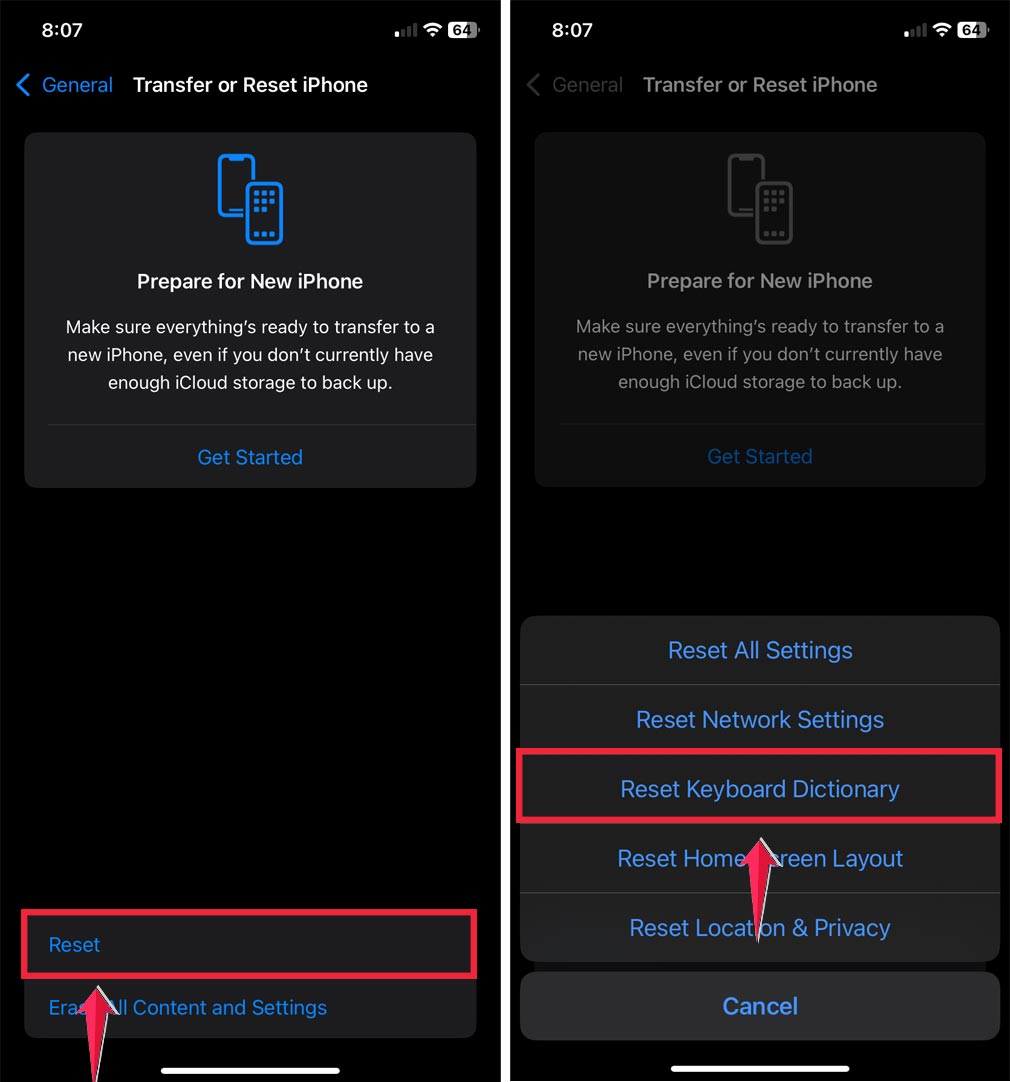
Keep in mind that this will clear all your custom words and typing shortcuts too, not just emojis. It’s like giving your keyboard a fresh start.
3. Disable emoji predictions
If you’d rather not see emoji suggestions at all, you can turn off predictive text:
- Go to Settings and tap “General“.

- Tap “Keyboard“.
- Turn off the toggle for “Predictive Text“.

This helps if you prefer a cleaner typing experience, similar to when you enable dark mode in Safari for a more minimal view.
How iPhone determines frequently used emojis
Your iPhone’s keyboard is pretty smart. It automatically learns which emojis you use most often without any setup on your part. It considers two main factors:
- How often do you use each emoji?
- How recently have you used them?
Emojis you use a lot or have used very recently are more likely to appear in your “Frequently Used” section.
This tracking is specific to your device and your usage, so your frequently used emojis won’t be the same as anyone else’s, even if you’re using the same iPhone model.
Why can’t you delete individual emojis
You might be wondering, “Can’t I just delete the emojis I don’t want?” Unfortunately, no.
The emojis on your iPhone are part of the operating system. You can’t remove individual emojis from this set. New emojis are added through iOS updates, but you can’t delete existing ones.
This design ensures that all iPhone users have access to the same set of emojis, which is important for consistent communication across devices.
While it might seem limiting, it actually helps maintain compatibility in emoji usage across the Apple ecosystem.
How to manage emoji sizes in messages
Emoji sizes can affect how your messages look and feel. Here’s what you need to know:
- Emojis sent alone (without text) appear large in iMessage.
- You can send up to 3 large emojis per message.
- Emojis sent with text appear in standard size.
You can’t permanently change the size of emojis in the keyboard or reduce their size in messages. However, you can control how they appear:
- To send smaller emojis, include them with text.
- To send large emojis, send them without any text.

If you want to adjust the overall text size, which affects emojis in text:
- Go to Settings.
- Tap “Display & Brightness“.

- Tap “Text Size“.
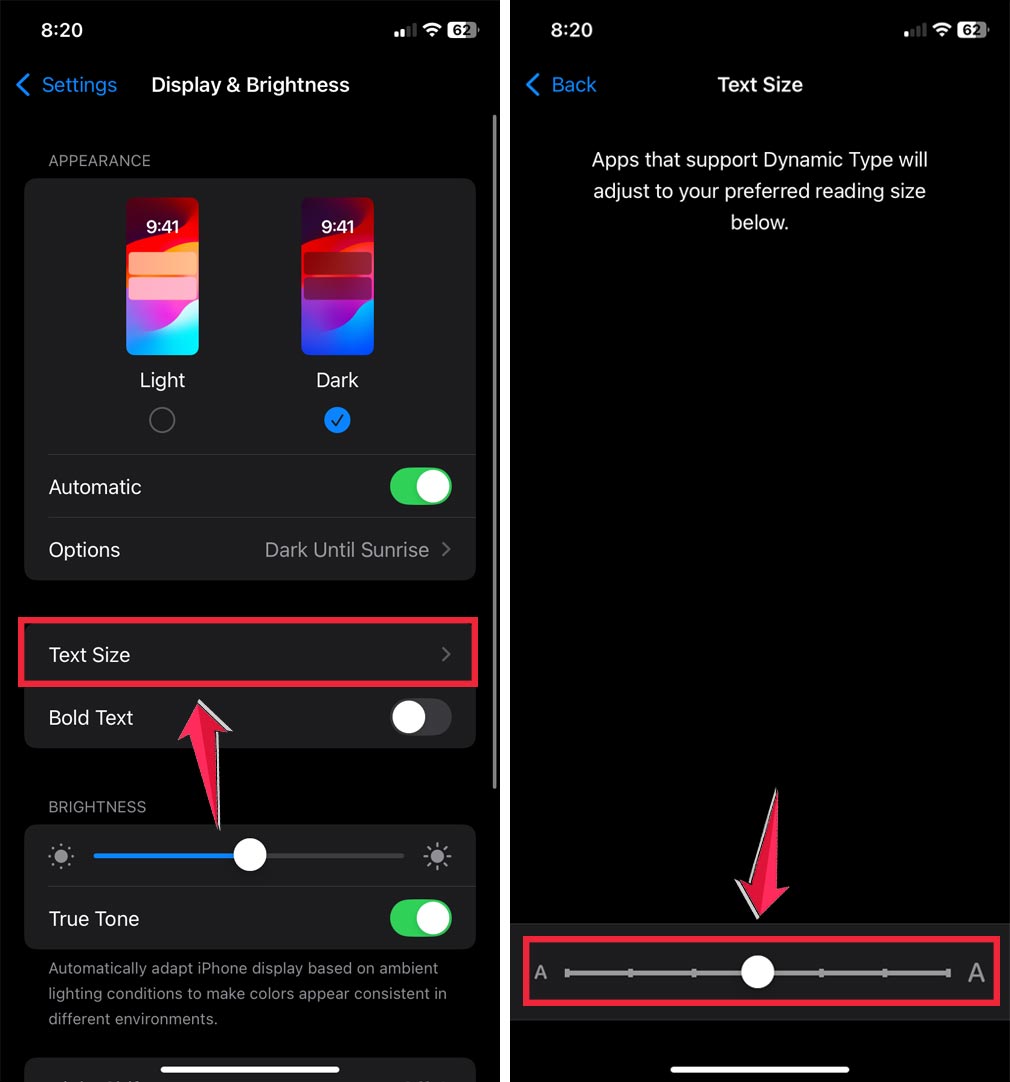
For other ways to customize your typing experience, you might also want to learn how to turn off floating keyboard on iPad. Remember, this affects all text, not just emojis.
Remember these tips for efficient emoji use on iPhone
Now that you understand how emoji history and sizing work, here are some tips to make your emoji experience even better.
Finding emojis quickly
- Recently used emojis appear first when you open the emoji keyboard.
- Use the category icons at the bottom of the emoji keyboard to find specific types.
- The search feature in the emoji keyboard can help you find specific emojis quickly. Just type a description of the emoji you’re looking for.
Using emojis effectively in iMessage
- Send standalone emojis for emphasis. Remember, up to three will appear large.
- Mix emojis with text for more nuanced messages. These will appear in standard size.
- Use the Memoji sticker feature for personalized emoji-like stickers. You can manage these in Settings > General > Keyboard > Memoji Stickers.
The takeaway
Managing your emoji history on iPhone isn’t about finding a magic “clear” button. It’s about understanding how your device learns from your habits and taking steps to shape that learning.
You can influence your frequently used emojis by changing your usage patterns, resetting your keyboard dictionary, or turning off predictive text.
These methods give you more control over your emoji experience without compromising the overall functionality of your iPhone’s keyboard.
Remember, you can’t delete individual emojis from your iPhone. They’re part of the operating system. But that doesn’t mean you’re stuck with a cluttered emoji keyboard.
By applying the strategies discussed in this article, you can keep your emoji selection fresh and relevant to your current communication style.
If you’re looking for more ways to customize your iPhone, you might also enjoy how to use live photo wallpaper on iPhone.
Ultimately, the goal is to make your digital conversations more expressive and enjoyable. Whether you’re an emoji enthusiast or a selective user, these tips will help you tailor your iPhone’s emoji keyboard to your needs.
So go ahead, take charge of your emoji experience, and let your digital expressions truly reflect you.
I’d love to hear your thoughts on managing emoji history. Share your experience in a single-line comment below!