Are you a Mac gamer who loves sports simulation games? You’ve probably used EA’s Origin platform to buy and play your favorite titles.
Most of the time, Origin works without a hitch, letting you jump right into your games. But what if Origin suddenly stops working on your Mac?
Don’t worry – this is a common problem, and there are easy ways to fix it.
In this guide, you’ll learn how to get Origin up and running again, so you can get back to gaming in no time.
What is Origin?
Origin is EA’s special platform for Mac users who want to buy and download EA games. You can think of it as EA’s version of Steam, but just for their own games. Here’s how it works:
- You create an EA account
- You download the Origin application to your Mac
- You can then buy and download EA games directly through Origin
The great thing about Origin is that it handles all the authentication for your EA games. As long as you’re logged in, you can play any game you’ve bought whenever you want.
So, if Origin isn’t working, it can really put a damper on your gaming plans. But don’t worry – we’re here to help you fix it.
Why is Origin not working on Mac?
Let’s figure out why Origin might be giving you trouble. There could be a few reasons, from software hiccups to account issues, or even your Mac’s settings. Before we get into specific fixes, try restarting your Mac – sometimes that’s all it takes! If that doesn’t work, here are some common problems and how to solve them:
#1 Origin won’t open
If Origin refuses to launch, it might be because your Mac’s operating system is too old. Origin needs macOS Catalina or a newer version to work properly. If your Mac is running an older version, updating your system should get you back to gaming.
Here’s what you can do:
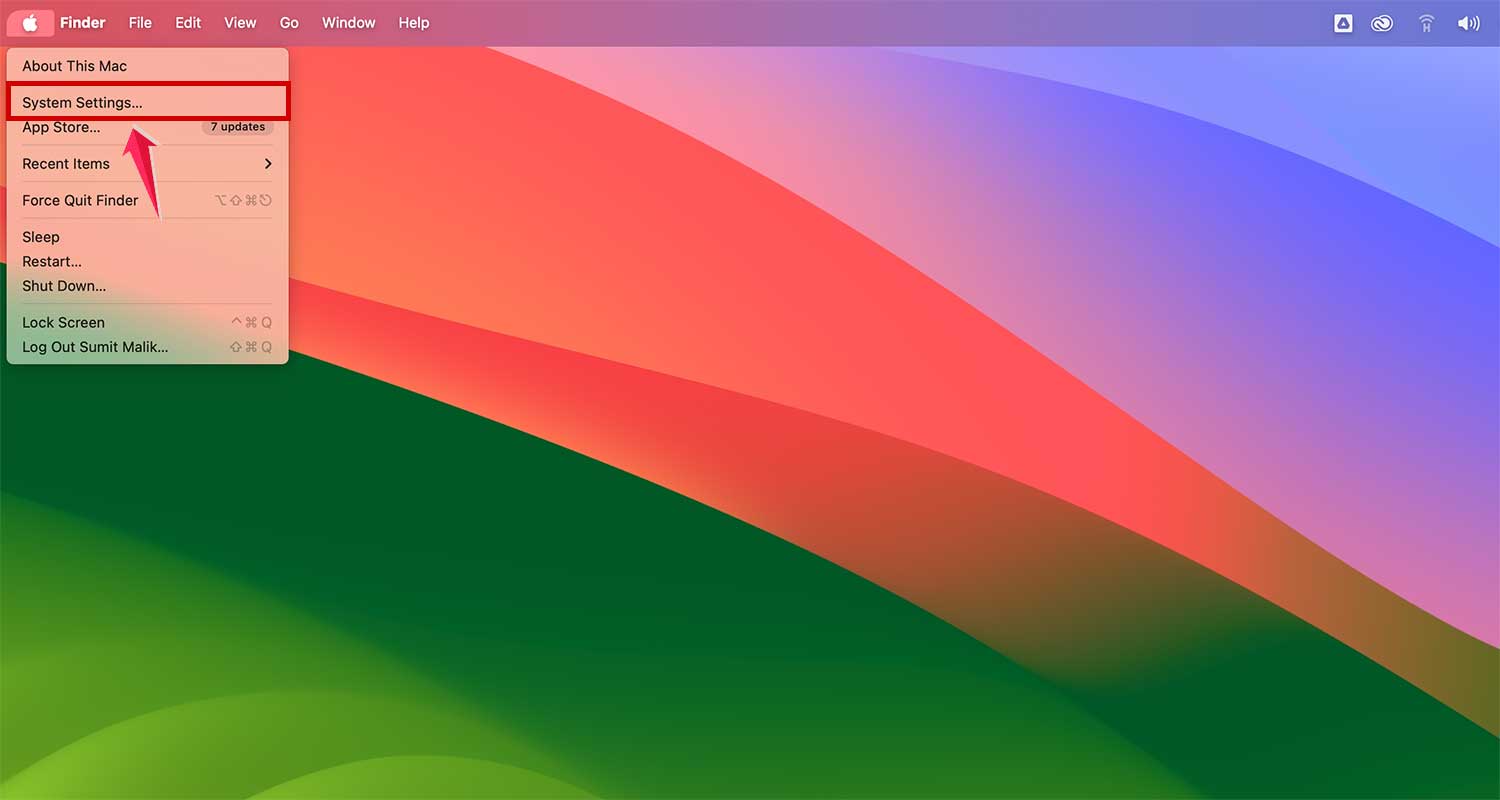
- Click on the Apple menu in the top-left corner of your screen and Go to System Settings.
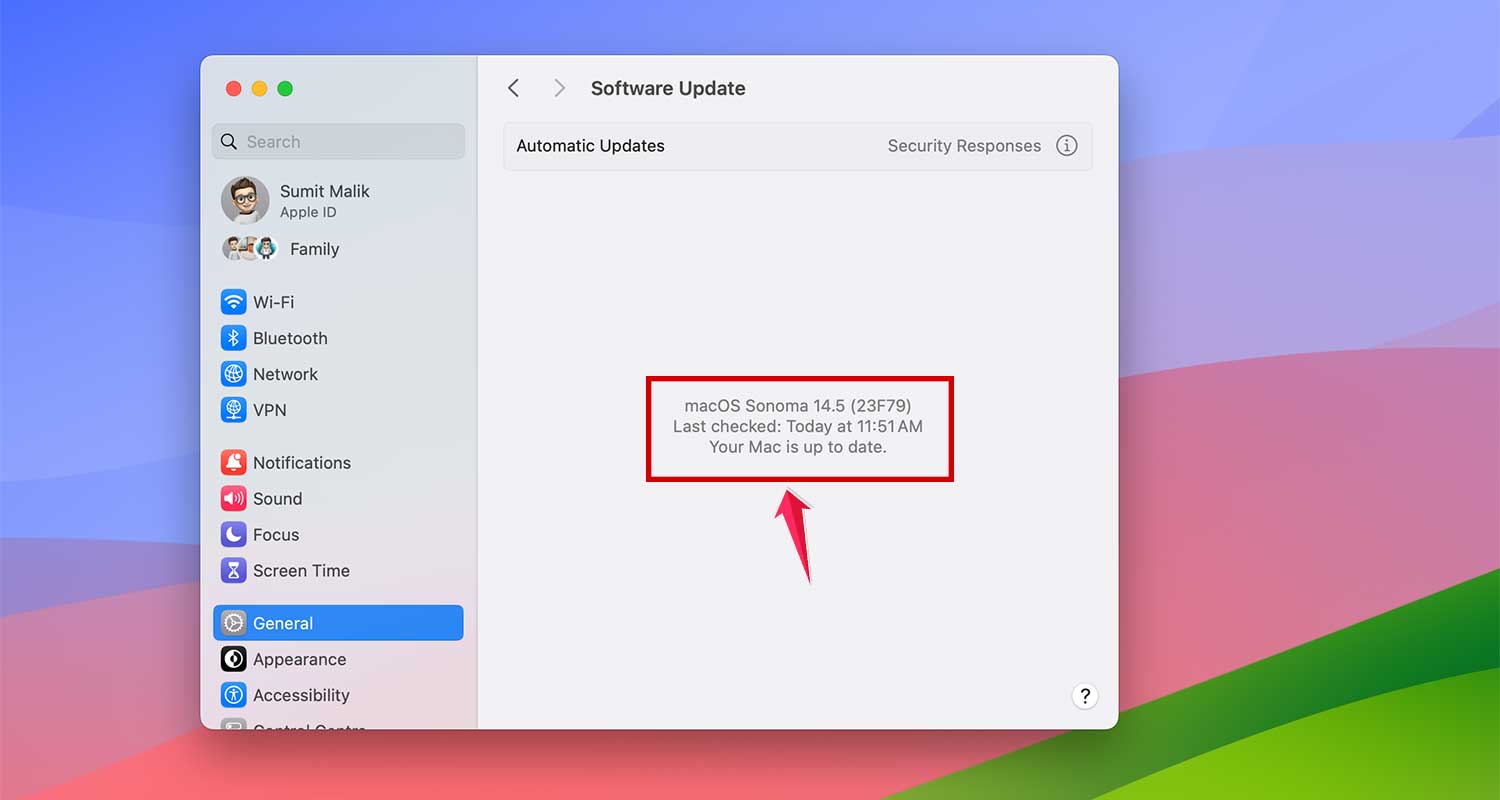
- Now go to General > Software Update.

- If an update is available, follow the prompts to install it. If not, it will show “ Your Mac is up to Date”
#2 Origin is frozen or unresponsive
Sometimes, Origin might open but then just sit there, not responding. This often happens because of a security setting called ‘Login Verification’. Here’s how you can fix it:
- Close Origin completely
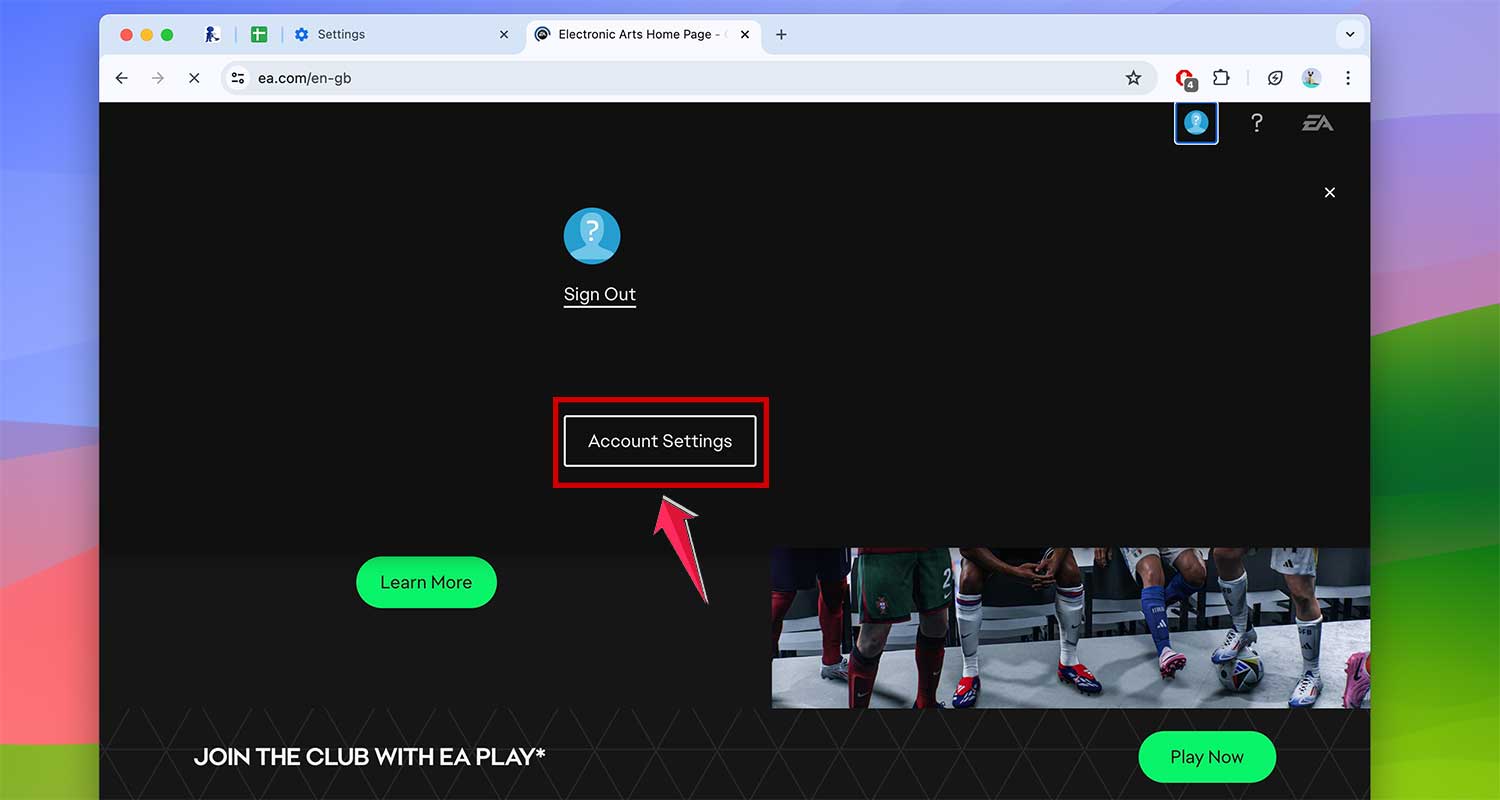
- Go to EA’s website and log in to your account.
- Click on your profile icon and select ‘Account Settings’.
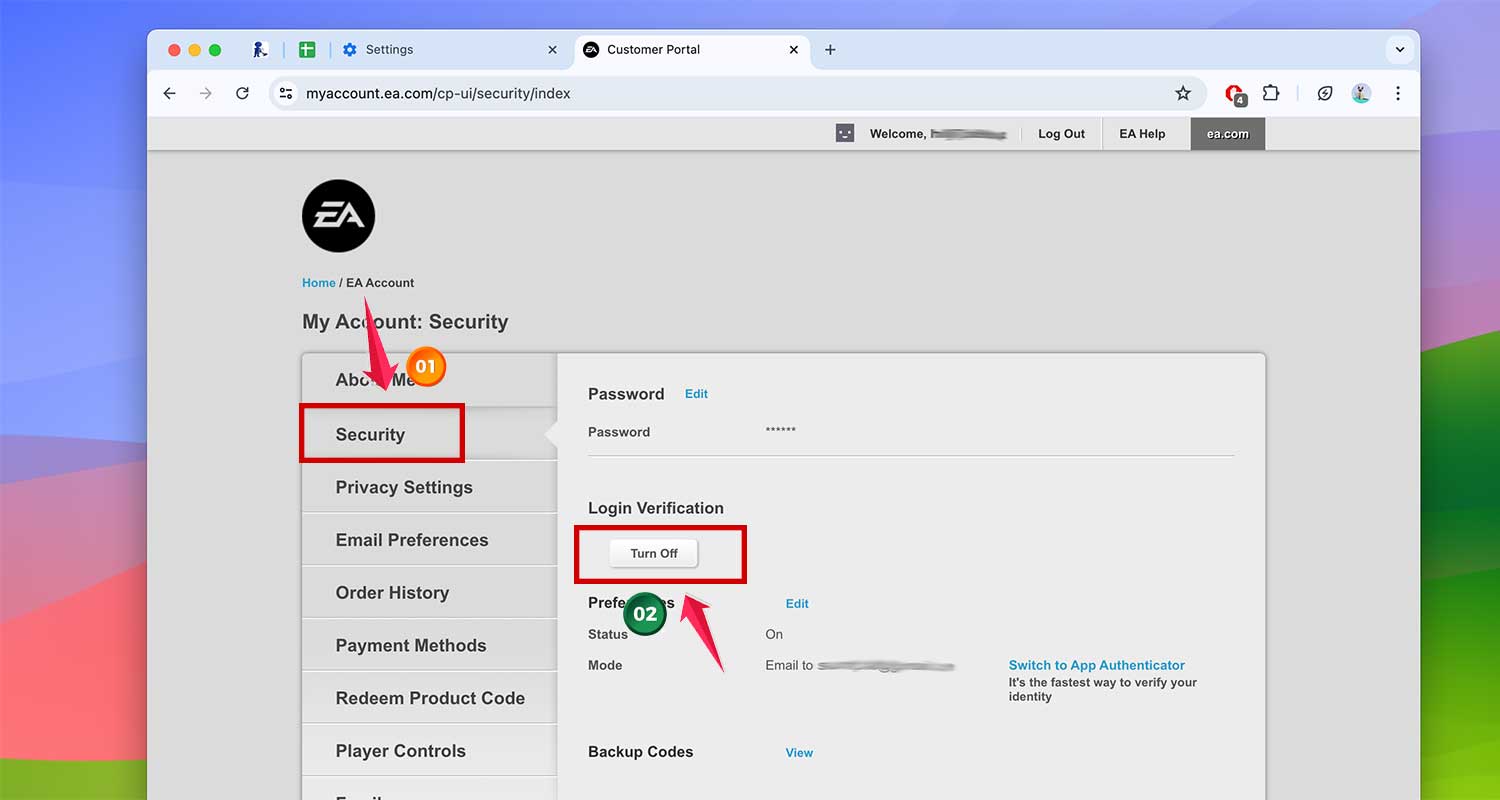
- Look for ‘Security’ and find the ‘Login Verification’ option.
- Turn off ‘Login Verification’.
- Now try opening Origin again.
#3 Origin isn’t loading your games
Sometimes, a bug in “macOS” can stop Origin from working properly. To fix this:
- Make sure your “macOS” is up-to-date. Most bugs get fixed in new updates.
- Go to “System Settings” > “General” > “Software Update”
- If you see an update available, follow the instructions to install it. If not, it will show “Your Mac is up to date”.
This might solve your Origin problem and get your games loading again.
#4 Origin keeps crashing or isn’t working right
If Origin keeps closing unexpectedly or just isn’t working the way it should, it might be because of conflicts with background programs on your Mac. Here’s what you can do:
1. Restart your Mac in “safe mode”. This only loads the essential programs your Mac needs to run.
- How you do this depends on whether you have an Intel-based Mac or an Apple Silicon Mac. You can find instructions on Apple’s website.
2. Once in safe mode, try opening Origin. If it works fine now, that means one of your background programs was causing the problem.
3. To figure out which program is the troublemaker:
- Restart your Mac normally
- Go to “System Settings” > “General” > “Login Items”
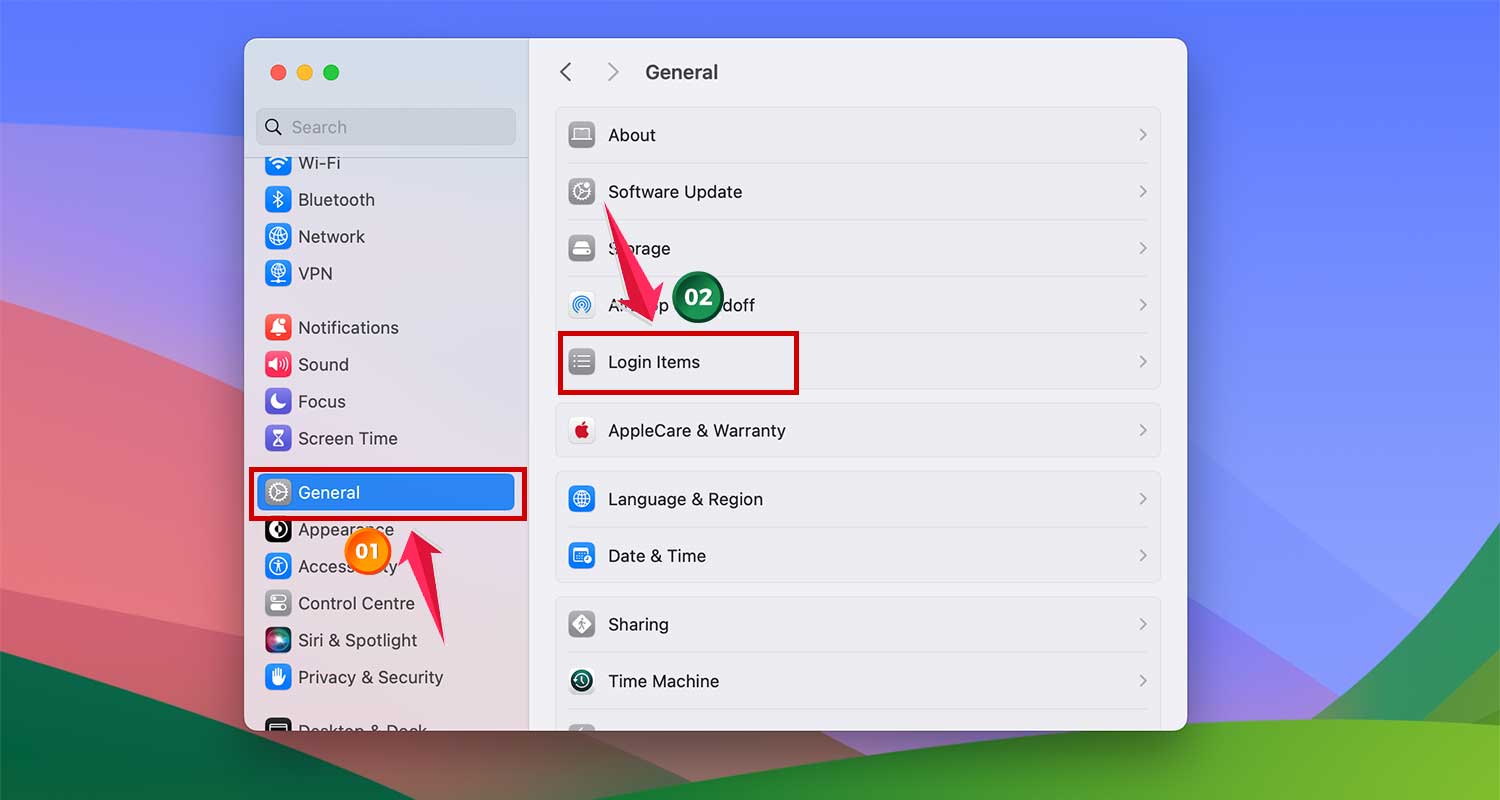
- Turn off all the programs listed there
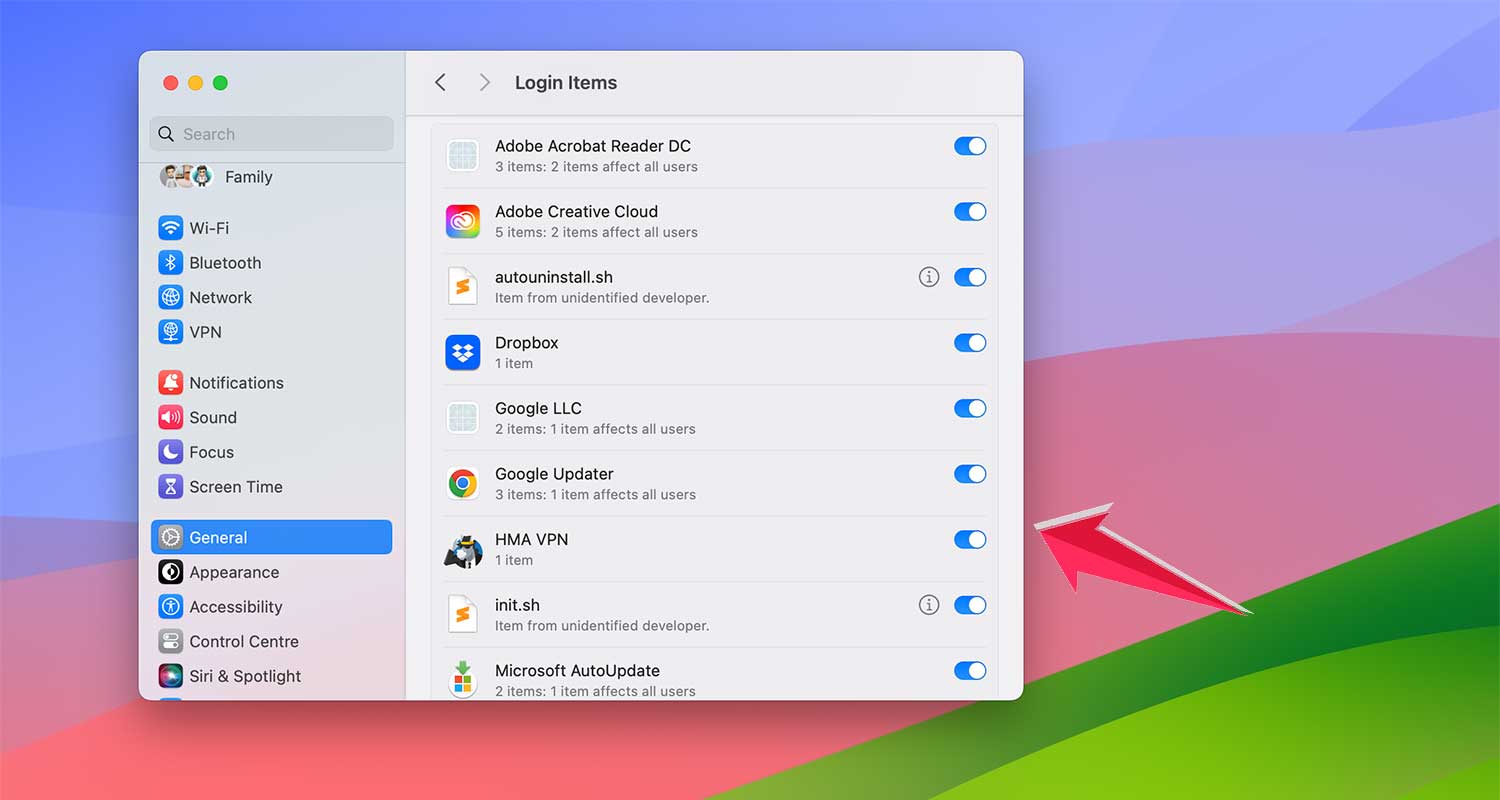
- Restart your Mac
- Turn these programs back on one by one, restarting your Mac each time
When Origin starts having problems again, you’ll know which program is causing the issue
#5 Origin isn’t working because of messed-up settings
Sometimes, Origin’s settings files can get corrupted, which stops it from working properly. Here’s how you can fix this:
- Find the folder on your Mac where Origin keeps its settings files.
- Delete these files (don’t worry, Origin will create new ones)
- Open Origin again
When you reopen Origin, it will create brand new settings files. This often solves the problem.
#6 Origin’s settings keep getting messed up
If Origin’s settings seem to get corrupted frequently, EA has a special tool to help. It’s called the Origin reset tool, and it’s designed specifically for this problem. Here’s what to do:
- Download the Origin reset tool from EA’s website
- Follow the instructions that come with the tool to reset Origin.
This should help Origin work normally again.
#7 Origin keeps asking for your password
If Origin keeps asking you to log in over and over, there might be a problem with how it’s checking your identity. EA has another tool that can help with this:
- Download the Origin diagnostic tool from EA’s support page.
- Find the file you just downloaded and double-click it to run it.
- Wait for the tool to finish its job.
- Try opening Origin again.
This tool helps Origin figure out what’s wrong with the login process.
By methodically addressing these issues, you can enhance your Origin usage on Mac, ensuring a smoother and more reliable gaming experience.
Conclusion
Dealing with Origin problems on your Mac might seem tricky at first, but don’t worry – you’ve got this!
We’ve walked through several ways to fix the most common issues, from simply restarting your Mac to using special tools from EA.
By following these steps, you should be able to solve most Origin problems on your own.
But if you’re still stuck, remember that EA’s customer support is always there to help. They’re just a click away and can provide extra guidance if you need it.
Keep this guide bookmarked for quick reference. With these tips in your back pocket, you’ll be back to playing your favorite EA games in no time.