Did you know that thousands of spyware apps are out there, letting people spy on others without them knowing? It’s a scary thought, but it’s true. Your iPhone might be more vulnerable than you think.
You might believe your Face ID or Touch ID keeps your phone safe. But what if someone close to you, like a partner or co-worker, gets their hands on your phone?
They could snoop through your messages, photos, and other private stuff. Even worse, they might install sneaky apps to track everything you do.
This isn’t just about strangers trying to hack your phone. Sometimes, it’s the people we know who might try to peek into our digital lives.
Maybe you’ve noticed your phone acting weird, or you just have a gut feeling something’s off. Don’t worry. There are ways to find out if someone’s been messing with your iPhone.
In this article, you’ll learn how to check if anyone has been accessing your iPhone without your knowledge.
We’ll walk through some simple steps you can take to protect your privacy and catch any sneaky behavior.
Can you see when your iPhone was unlocked?
When you’re wondering how to check your iPhone’s unlock history, it’s important to understand that Apple doesn’t provide a direct way to view a complete list of when your iPhone was unlocked.
However, don’t worry. There are still several methods you can use to detect if someone has accessed your iPhone without your permission.
In the next section, we’ll explore various techniques that can help you monitor your iPhone’s activity and potentially uncover unauthorized access.
While these methods don’t provide a straightforward unlock history, they offer valuable insights into your device’s usage patterns and security.
How to check your iPhone’s unlock activity?
While Apple doesn’t provide a direct unlock history, there are several ways to check if someone’s been using your iPhone without permission. Here are some methods you can use:
1. Screen Time shows your phone’s activity patterns
One of the easiest ways to monitor your iPhone usage is through the Screen Time feature. Here’s how you can use it:
- Go to Settings
- Scroll down and tap Screen Time
- Select See All Apps & Website Activity
- Choose Day or Week to view your usage summary

If you notice unexpected increases in pickups or app usage, it might indicate unauthorized access.
2. App ‘Last Used’ dates can uncover sneaky behavior
Your iPhone keeps track of when apps were last used. To check this:
- Open Settings
- Tap General
- Select iPhone Storage
- Scroll down to see your apps
- Tap Size and sort by Last Used Date
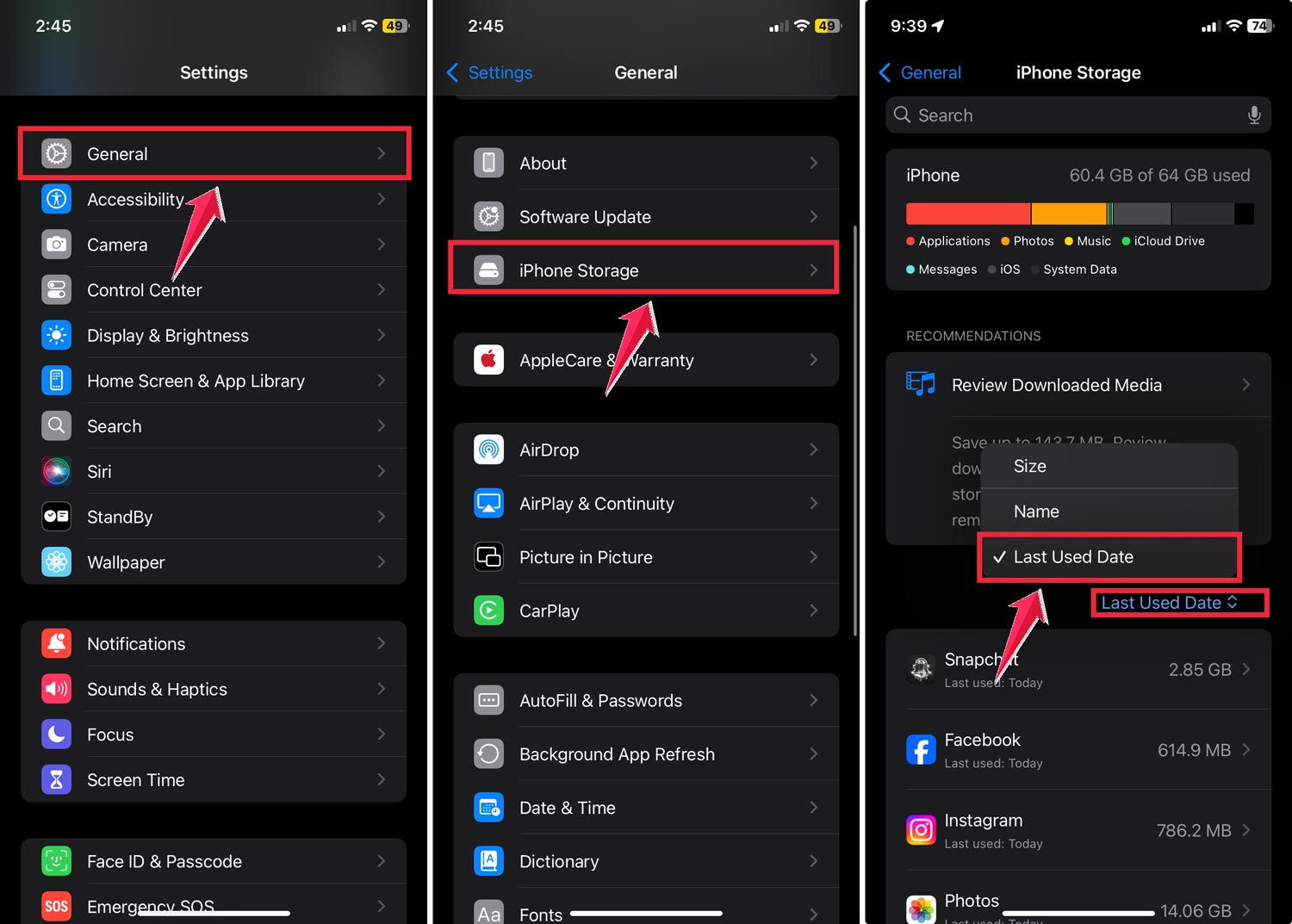
If you see apps used at times you don’t remember using them, someone else might have accessed your phone.
3. Intruder detection apps catch unauthorized users red-handed
Apps like iAntiTheft can help identify unauthorized phone use. These apps can:
- Sound an alarm when someone tries to unlock your phone
- Take a silent photo of the person attempting to access your device
- Record the date and time of unlock attempts
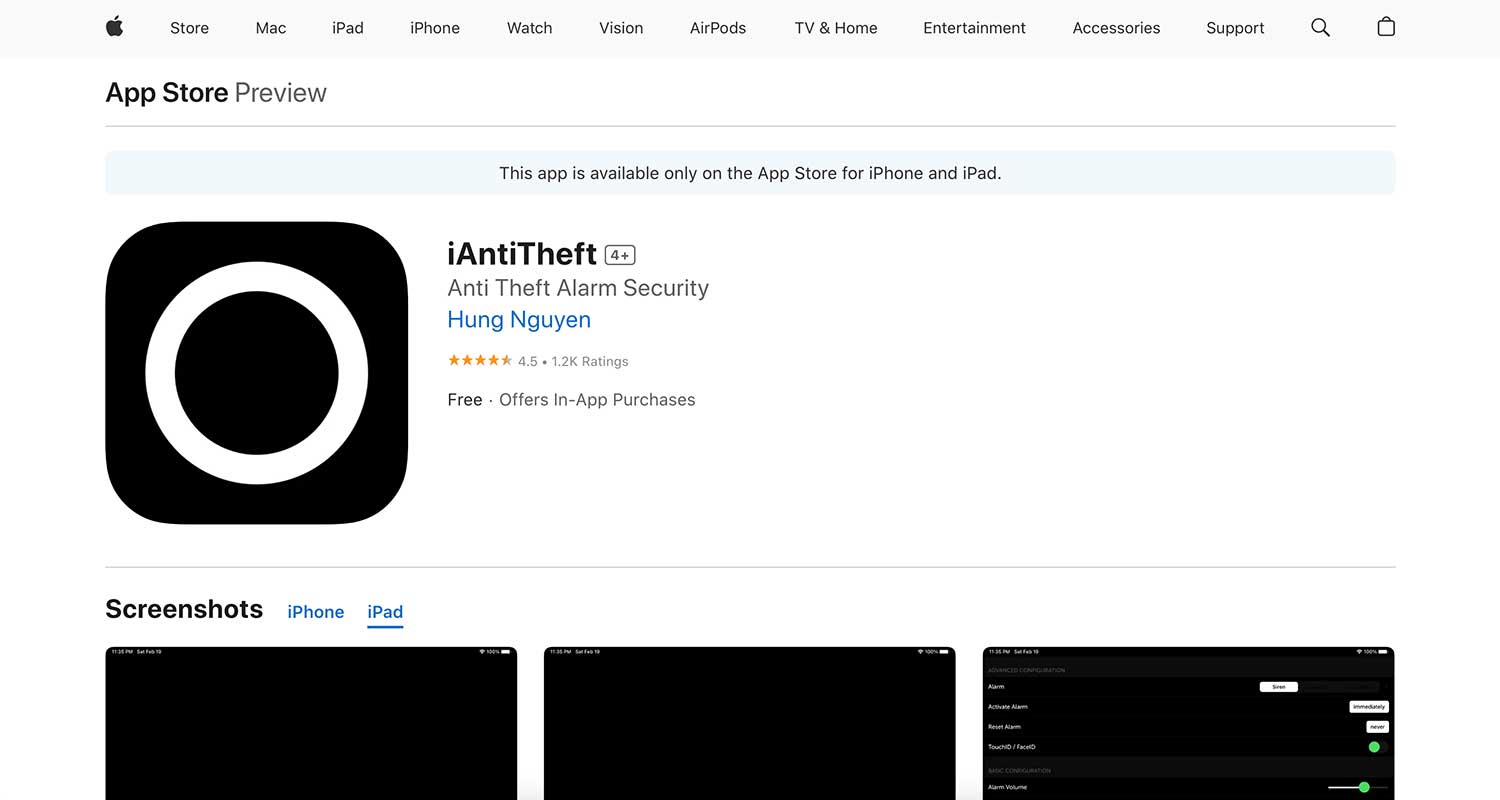
This gives you concrete evidence of any unauthorized access attempts.
4. Your iPhone’s analytics data holds hidden clues
While complex, your iPhone’s analytics data can reveal usage patterns. To access this:
- Go to Settings
- Tap Privacy & Security
- Scroll to Analytics & Improvements

- Select Analytics Data
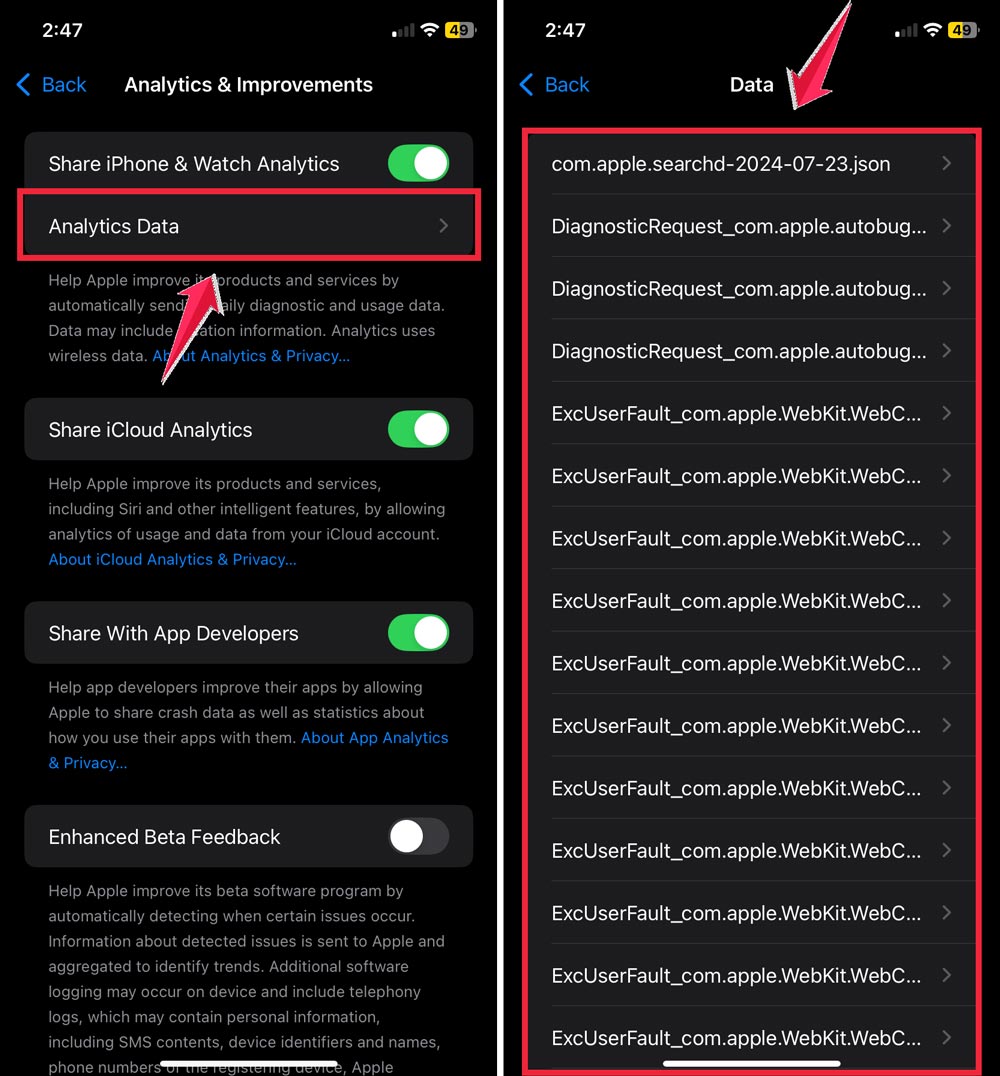
For help decoding this information, check how to decode iPhone analytics data. This data might require expert interpretation, but it can provide insights into your device’s usage.
5. Messaging apps can reveal your last online status
Apps like WhatsApp, Facebook Messenger, and Telegram show when you were last active. If these times don’t match your actual usage, it could indicate unauthorized access. For WhatsApp:
- Open WhatsApp settings
- Tap Privacy
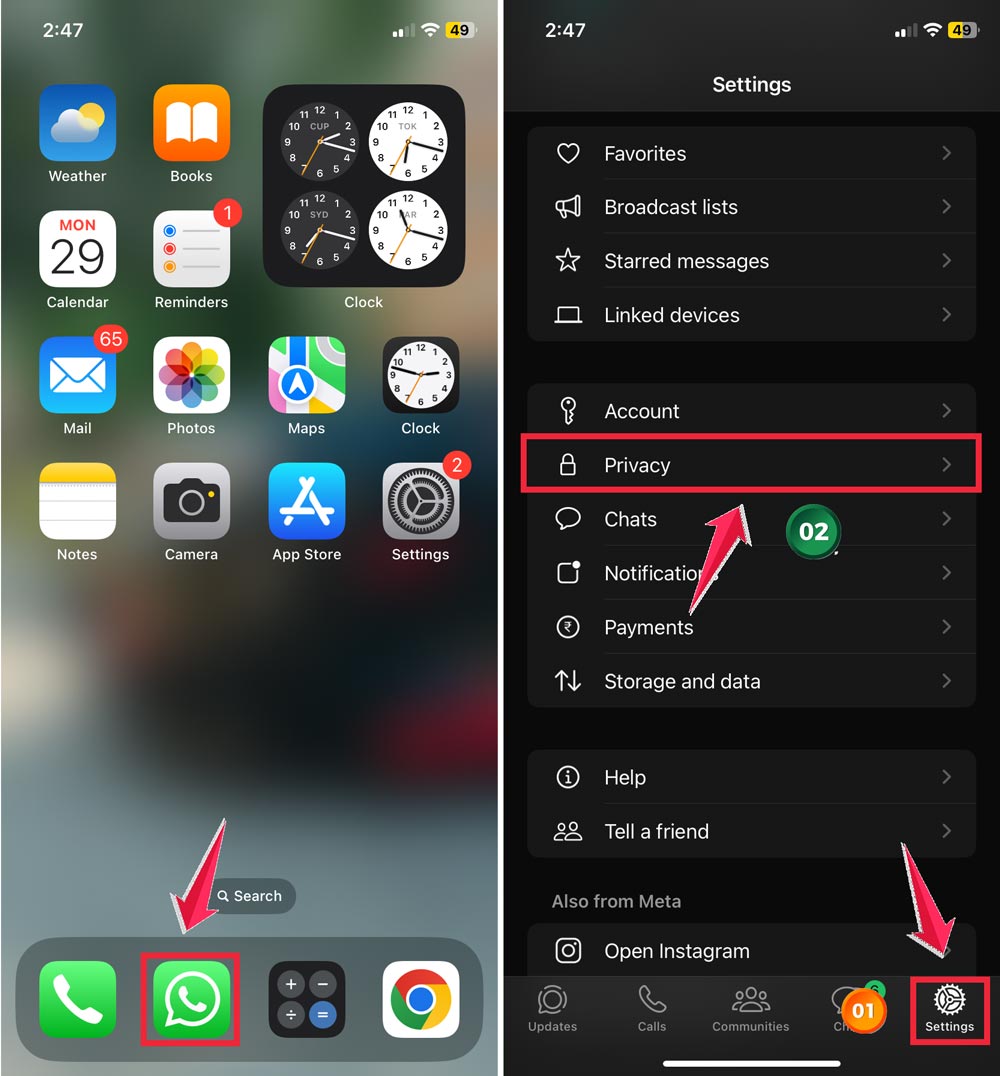
- Select Last Seen & Online
- Choose My Contacts for better privacy

6. Lock screen notifications tell a hidden story
Pay attention to your lock screen notifications. If they disappear without you clearing them, someone might be accessing your phone.
7. Recently opened apps expose unexpected activity
To check recently used apps:
- Swipe up from the bottom of your home screen
- Pause in the middle and release

This shows all recently opened apps. Any unfamiliar ones could indicate unauthorized use.
8. Battery usage patterns reveal secret app activity
Your battery usage can show which apps have been active. To check:
- Open Settings
- Tap Battery
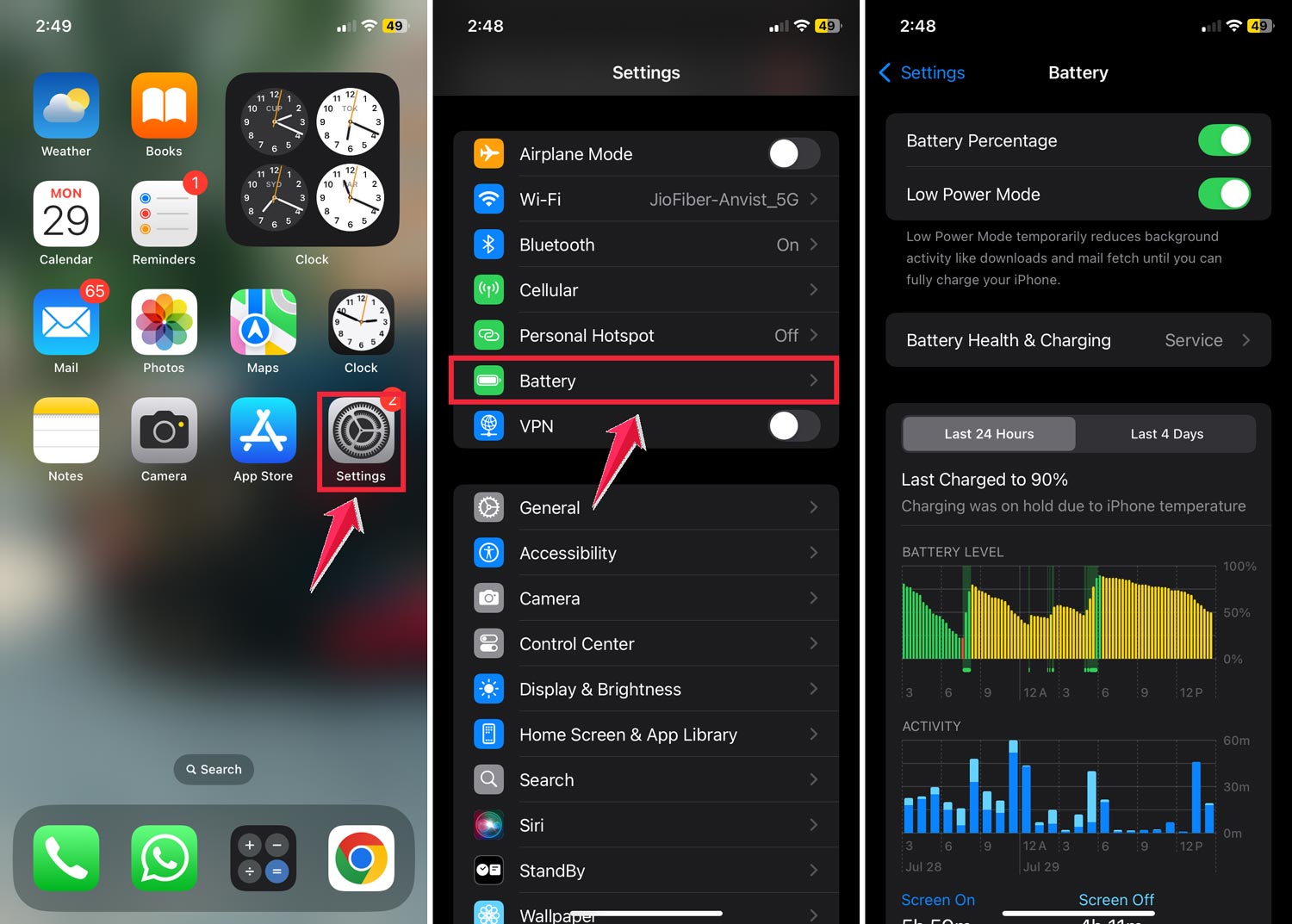
Look for unexpected app activity in your battery usage report.
9. Security scans uncover hidden spyware
Run a security scan using an app like Certo to detect:
- Spyware
- Tracking apps
- Keyloggers
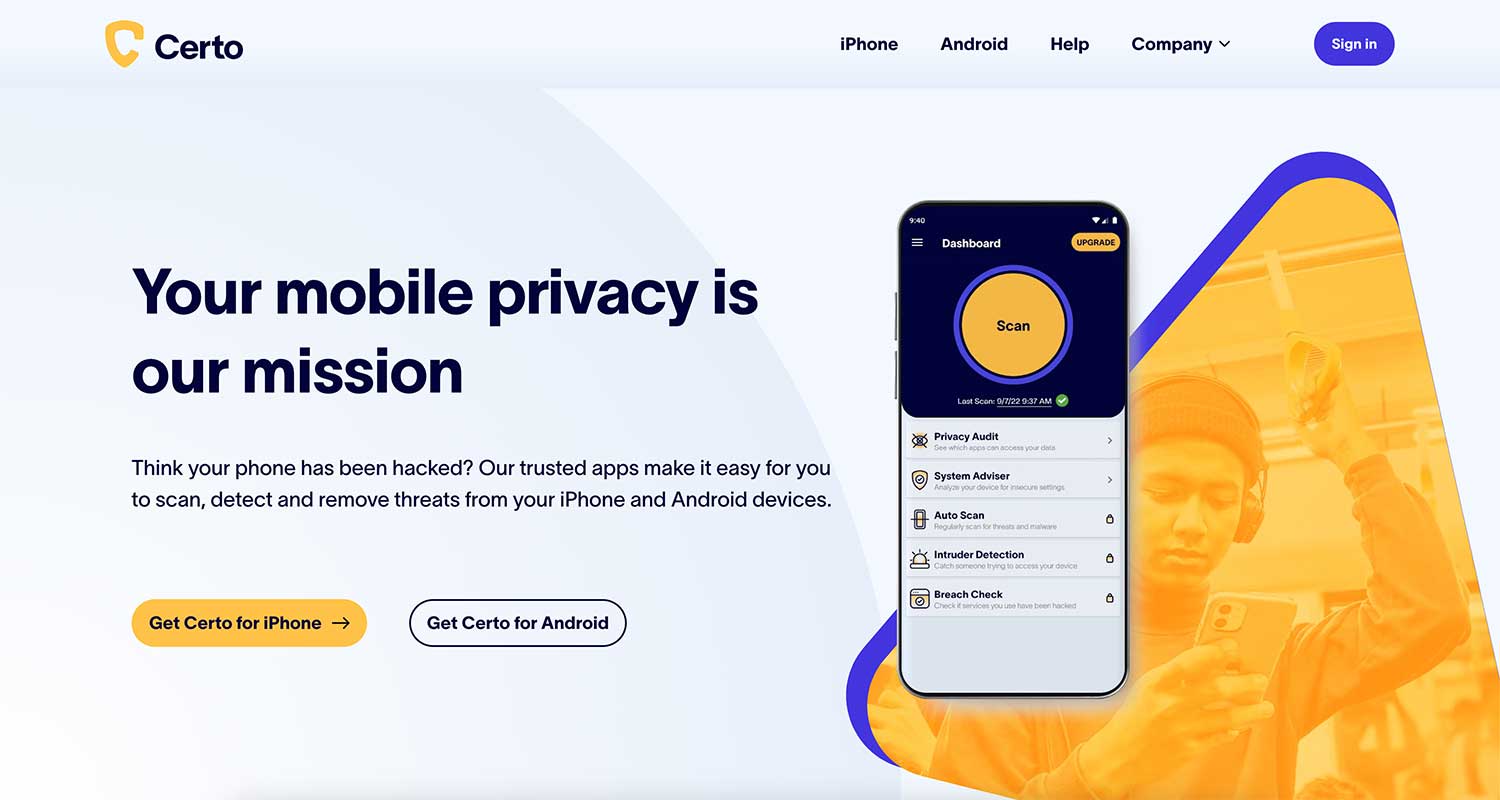
These scans can also suggest security settings to protect your phone.
10. Unusual data usage might signal spyware activity
Spyware often consumes extra data. To check your data usage:
- Go to Settings
- Select Cellular or Mobile Data
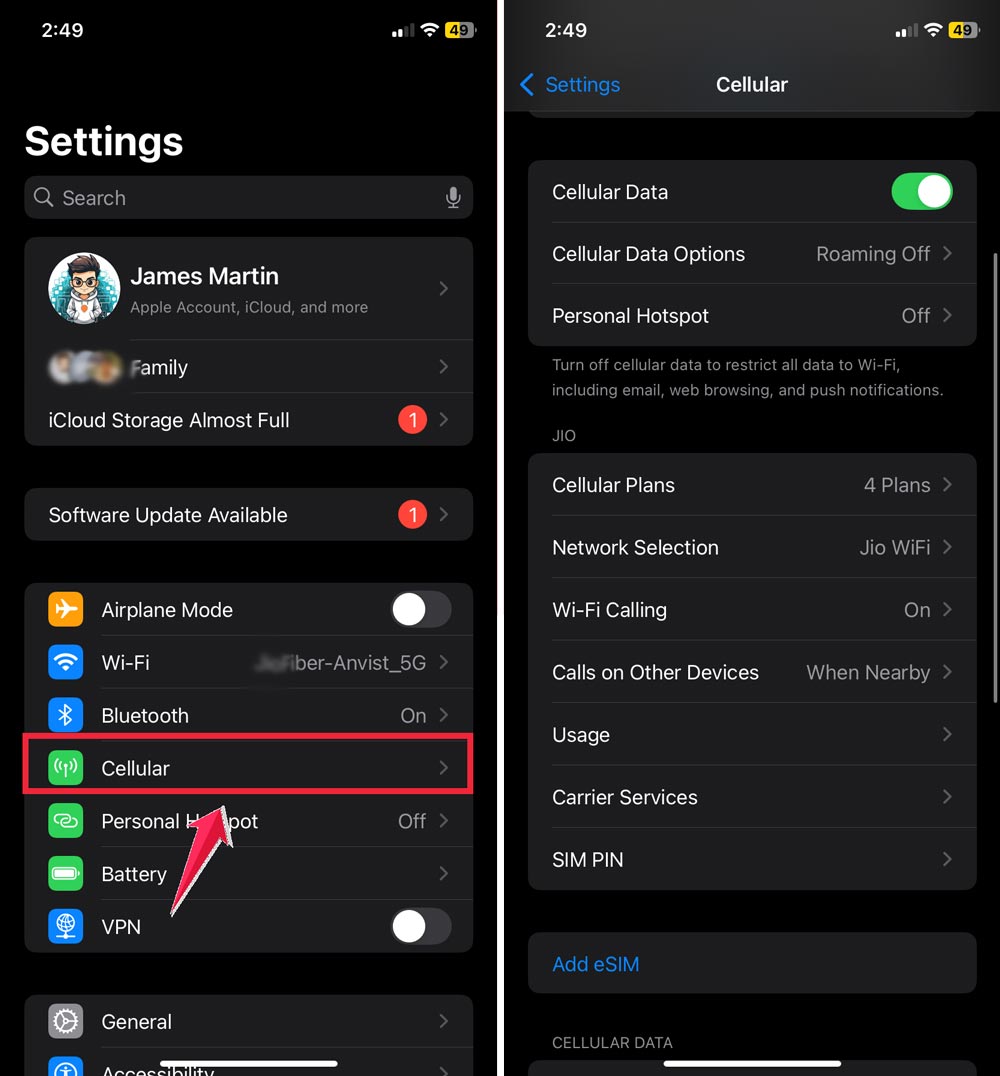
Look for unexplained increases in data usage, especially when you’re not on Wi-Fi.
11. Two-factor authentication adds an extra layer of security
Enable two-factor authentication for your Apple ID to prevent unauthorized access:
- Go to Settings
- Tap your name at the top
- Select Sign-In & Shipping
- Turn on Two-Factor Authentication
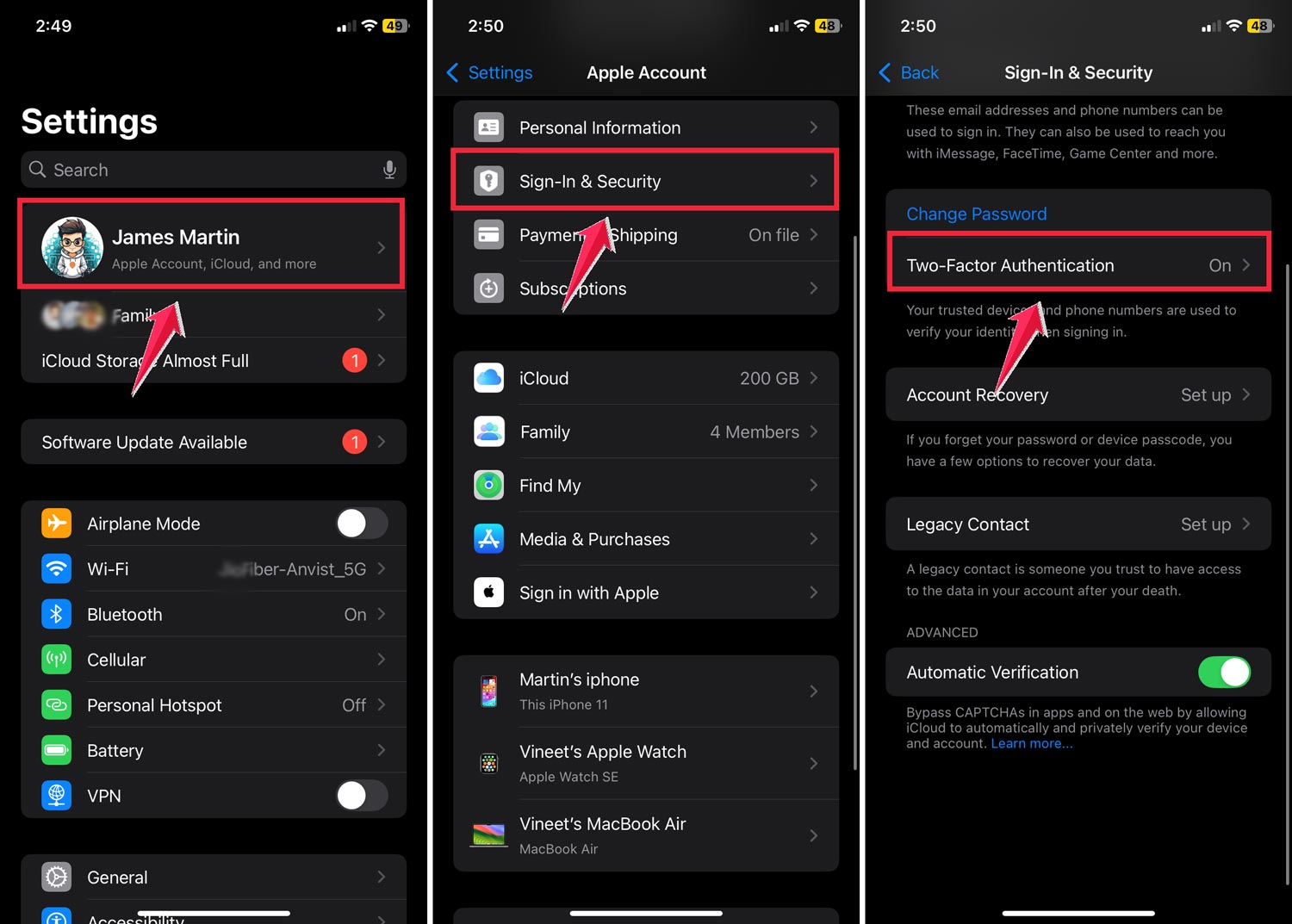
This ensures that even if someone knows your password, they can’t access your account without a second form of verification.
12. Location services can track your iPhone’s movements
Check your Location Services to see if your phone has been somewhere you haven’t:
- Go to Settings
- Tap Privacy & Security
- Select Location Services
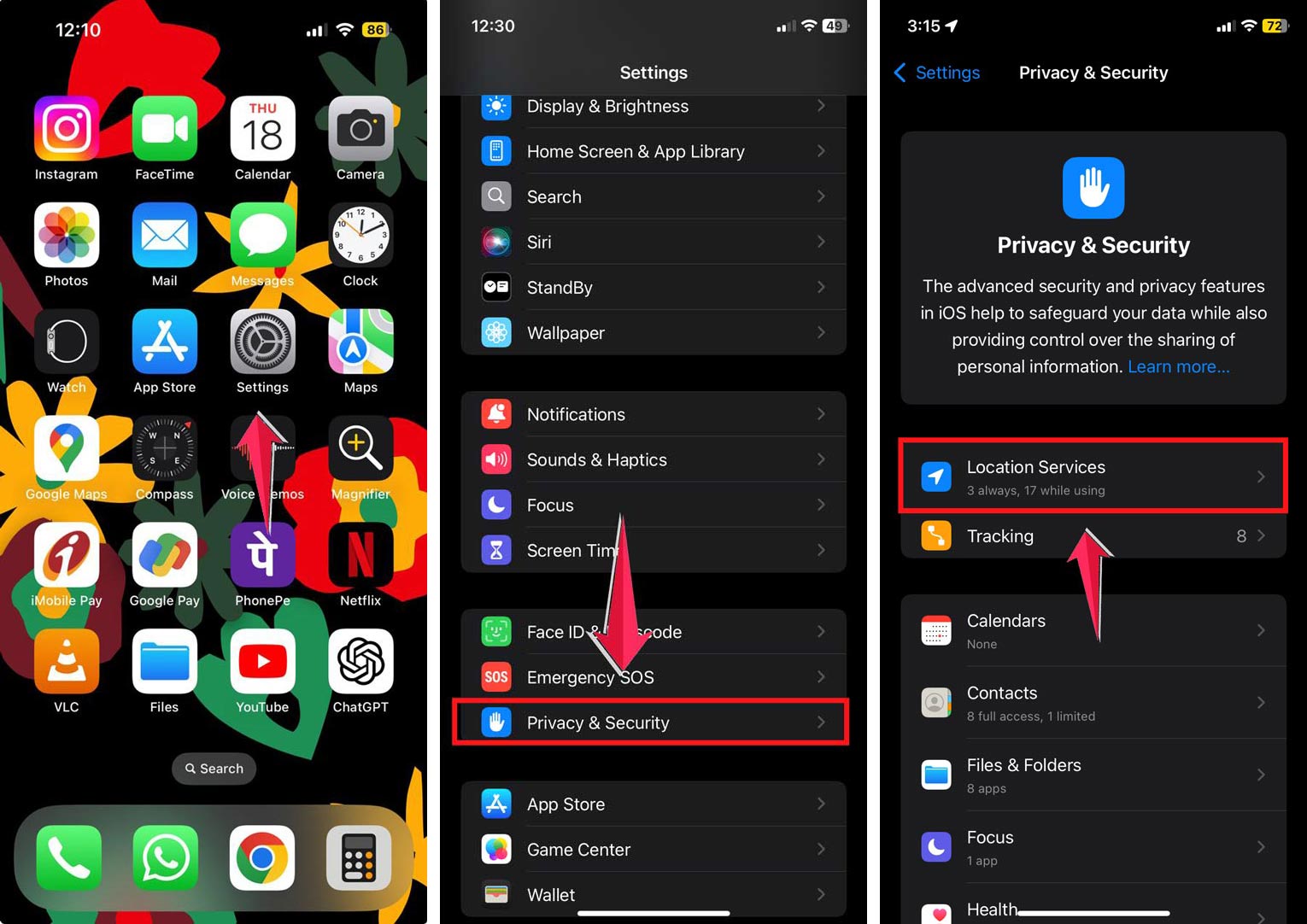
- Scroll down to System Services
- Tap Significant Locations
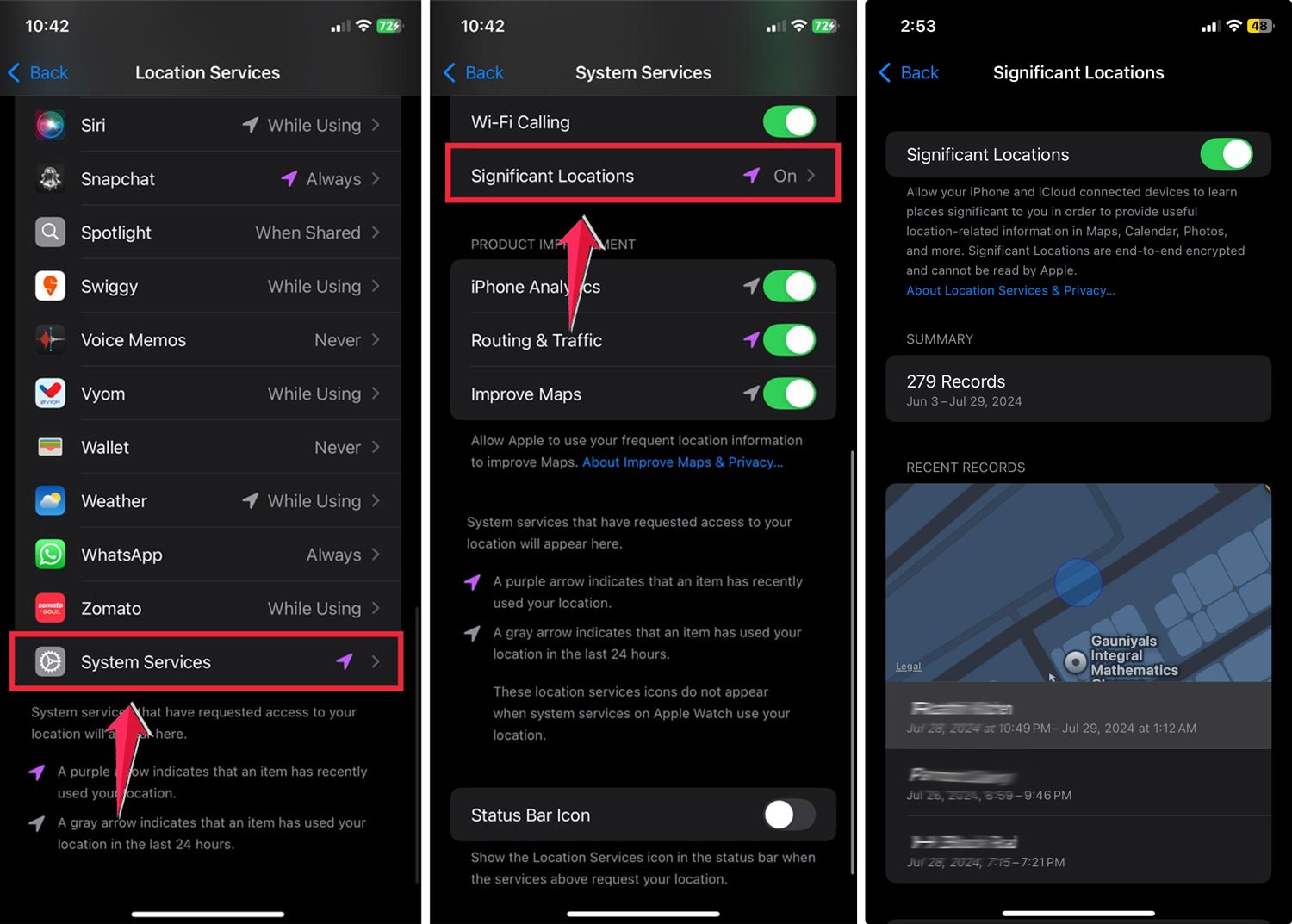
This shows the places your iPhone has been. Any unfamiliar locations could indicate unauthorized use.
If you’re curious about device tracking beyond iPhones, you can also find someone else’s iPhone.
13. Regular password changes keep intruders out
Change your passcode regularly to maintain security:
- Go to Settings
- Tap Face ID & Passcode (or Touch ID & Passcode)
- Enter your current passcode
- Scroll down and tap Change Passcode
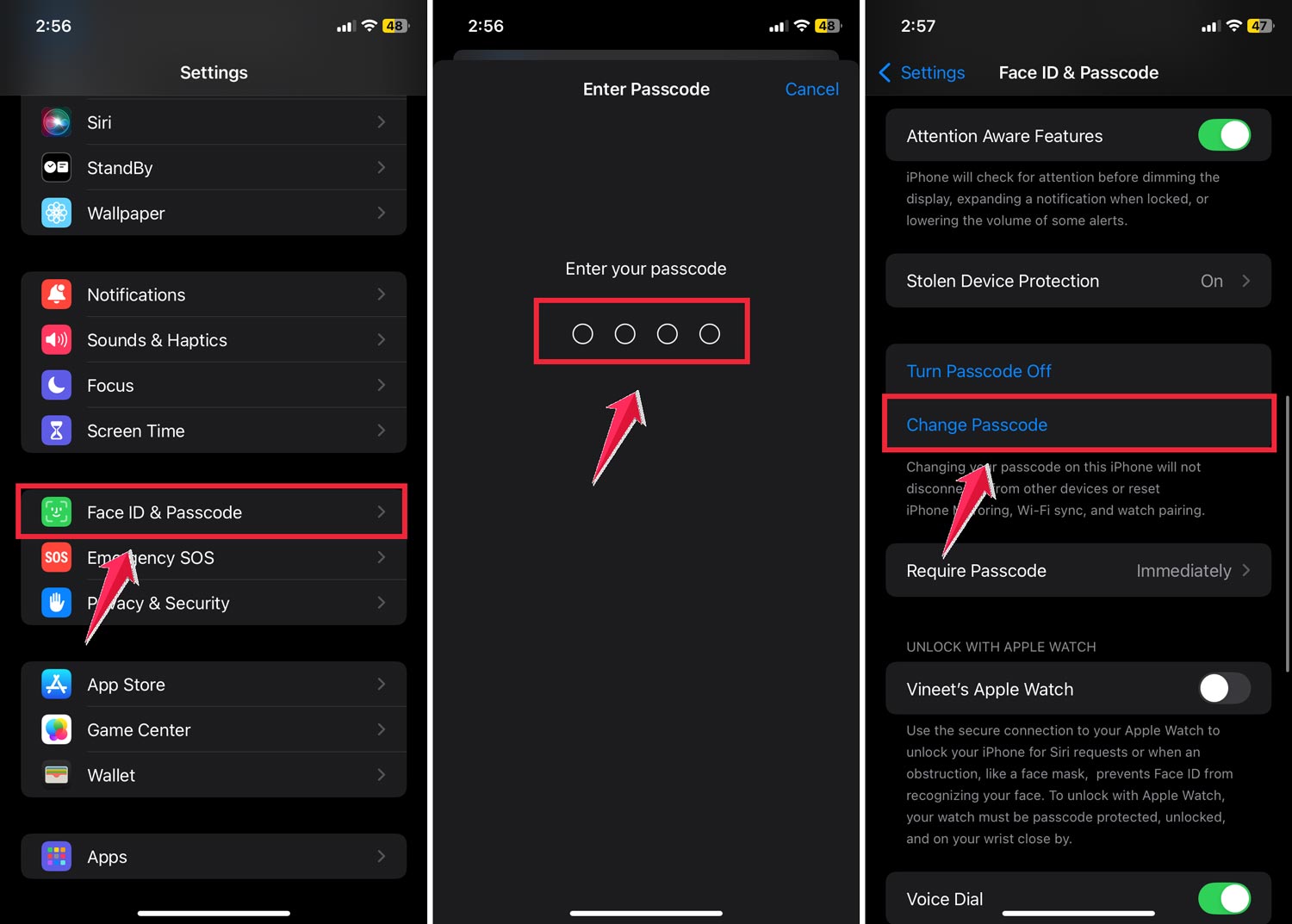
A new, complex passcode makes it harder for others to guess and access your phone.
By using these methods, you can keep a close eye on your iPhone’s activity and catch any unauthorized access. Remember, it’s important to respect others’ privacy and use these techniques responsibly.
If you suspect someone is consistently accessing your phone without permission, it’s best to have an open conversation or seek help from a professional if needed.
The takeaway
Keeping your iPhone safe is super important these days.
While you can’t get a list of every time your phone was unlocked, you now know several ways to check if someone’s been poking around your device without your okay.
You’ve learned about using Screen Time, checking when apps were last used, and even running security scans. These are all great tools to help you protect your personal stuff.
Don’t forget about simple things like two-factor authentication and changing your password regularly. They’re really effective at keeping snoopers out.
Some folks think that once they set up Face ID or Touch ID, their iPhone is totally safe. But as we’ve seen, that’s not always true.
Someone determined enough might still find a way in.
So stay alert (you can even check how to know if someone’s phone is off if you’re worried) and use the tricks we’ve talked about to keep your private information private. Remember, you’re in charge of your iPhone’s security!
What do you think about these iPhone security tips? Have you tried any of them? We’d love to hear from you. Just leave a quick comment below!