Have you ever started typing in Safari only to see the search suggestions disappear? It can be quite annoying, right?
Don’t worry, many people experience this issue, and it can slow you down when you need quick information.
Those suggestions are not just handy. They save you time. They remind you of sites you’ve visited and suggest ideas you might not have considered. So, when they vanish, it can feel like you’re doing extra work.
So, what’s going on? Safari might not be fetching suggestions as it should. This can happen for a few reasons: a weak internet connection, a changed setting, or Safari needing a refresh.
But don’t fret! I’m here to help you fix it. We’ll look at common causes and provide easy steps to get those suggestions back.
What Causes Safari Search Suggestions to Disappear?
Let’s explore what might be causing this. No need to worry. Most issues are easy to fix. Here’s what could be happening.
1. Weak Internet Connection
Safari relies on a good internet connection to fetch suggestions. If your Wi-Fi or mobile data is weak, Safari can’t load the information.
Try switching connections. If you’re on Wi-Fi, see if mobile data works better, or the other way around. If your internet is slow or unstable, that might be the problem.
2. Safari Needs an Update
If you haven’t updated Safari in a while, that might be the issue. Outdated apps can misbehave. Updates fix bugs and improve features, including search suggestions.
If you’ve been putting off updates, now’s a good time to do it.
3. Changed Safari Settings
Sometimes, settings change without us noticing. You might have accidentally turned off search suggestions, or a recent update might have changed them.
Check your Safari settings to make sure suggestions are enabled. This is usually an easy fix.
4. Temporary Bug
Software can be tricky. Glitches happen. Your device might have a small bug affecting Safari, but the good news is that these bugs often resolve with a quick restart or minor adjustments.
Stay calm. We’ll fix this step by step.
Safari Search Suggestions Not Appearing. Let’s Fix It Together
Now, let’s get into solutions. These steps are simple, and you don’t need to be a tech expert.
I’ll guide you through each one so we can get Safari working smoothly again.
#1 Check Your Internet Connection
First, let’s rule out internet issues. Safari needs a strong connection for suggestions.
If your connection is weak, Safari might not load helpful data. Let’s check:
- Switch between Wi-Fi and mobile data. One may work better than the other.
- Restart your Wi-Fi router by unplugging it for 30 seconds and then plugging it back in.
- Test your connection by opening another app or website. If they’re slow or not loading, that’s likely the issue.
Once you’re sure your internet is solid, head back to Safari and try typing in the search bar again.
#2 Ensure Safari Is Updated
Next up, let’s make sure Safari is running the latest version. Updates fix bugs and improve features, including search suggestions.
Here’s how to check for updates:
- Open the App Store.
- Search Safari in the search box,
- If available, tap “Update” next to it

If there’s no Safari update, make sure your iOS is up to date too. Sometimes Safari updates come bundled with system updates.
#3 Check If Search Suggestions Are Enabled
Now, let’s look at your Safari settings. If search suggestions are turned off, Safari won’t show anything, even if everything else is working.
Do this:
- Open your device’s Settings.
- Scroll down and tap Apps.
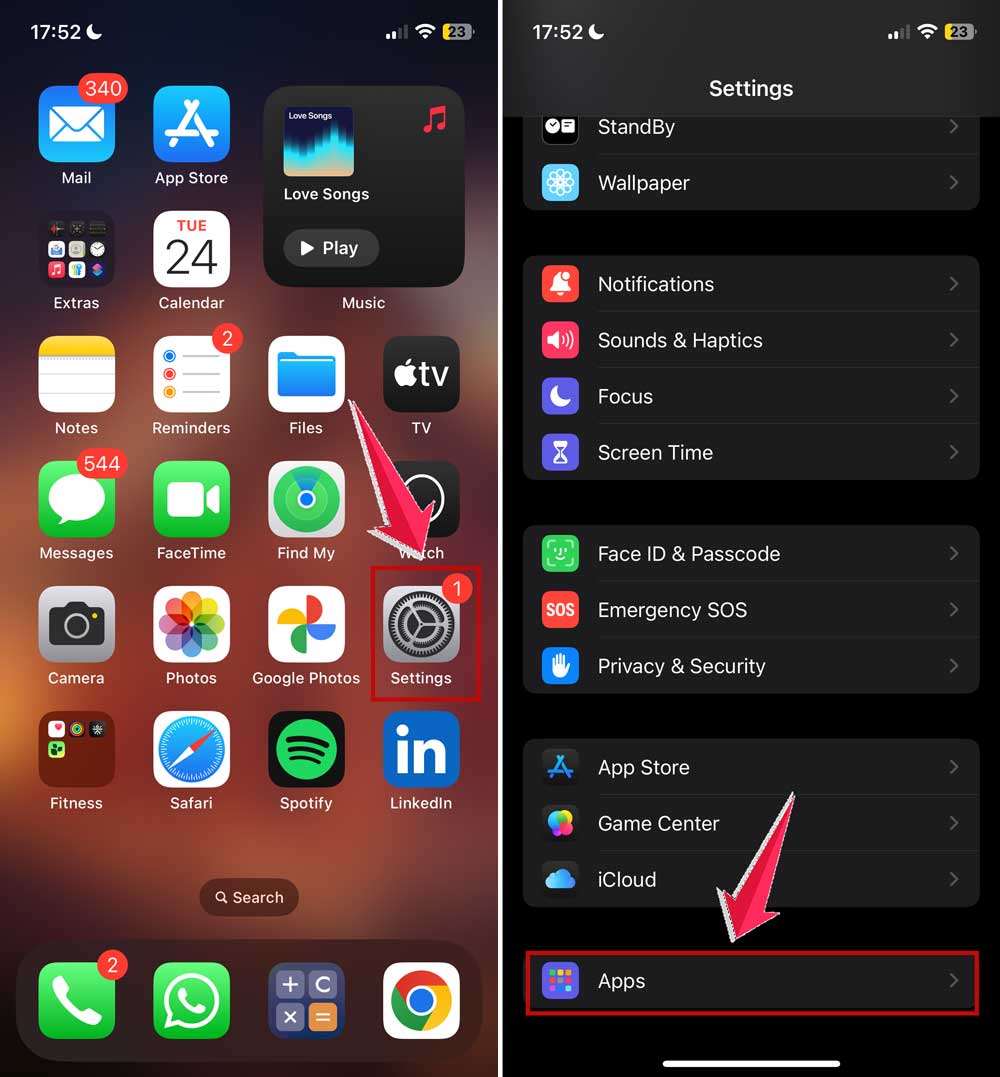
- Tap Safari.
- Look for the option that says “Search Engine Suggestions” and “Safari Suggestions”.
- Make sure both are turned on.
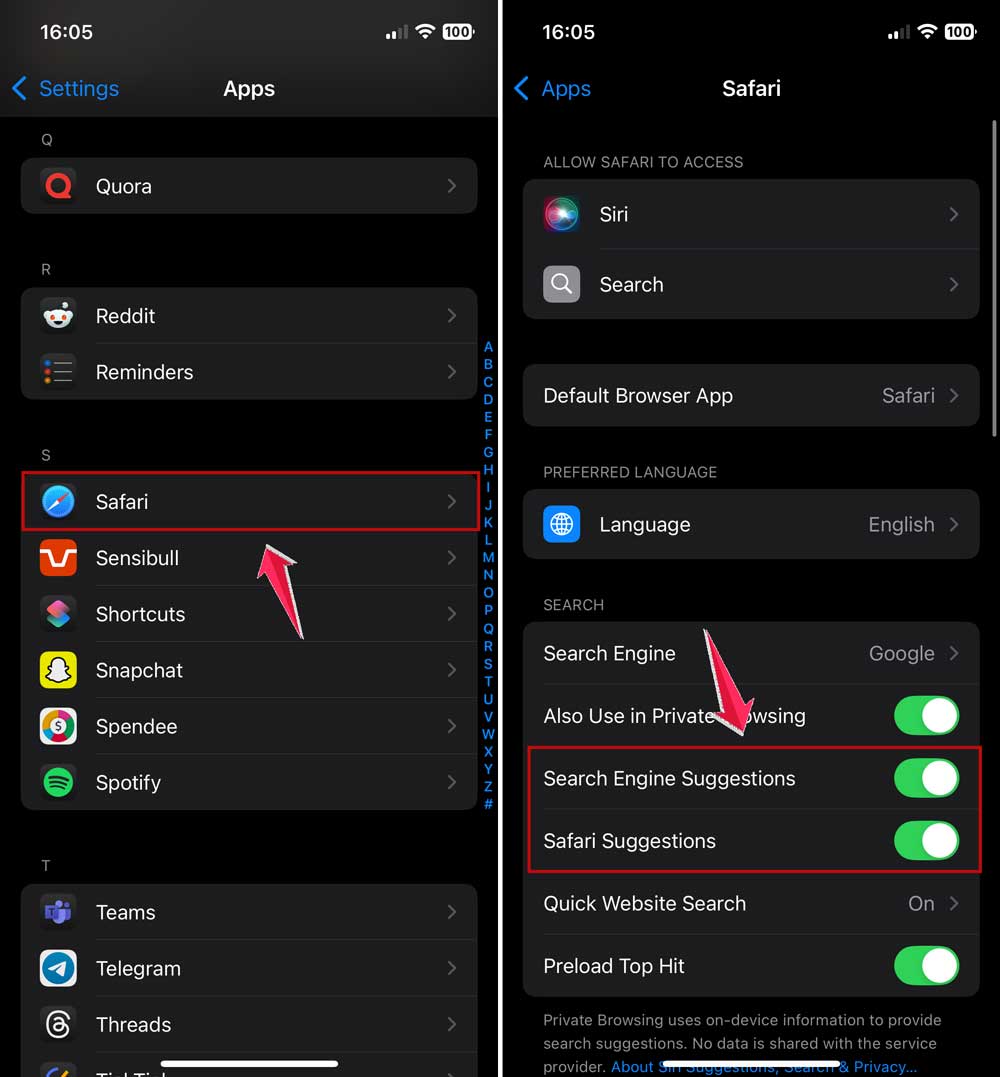
If one or both were off, turn them back on and test Safari again. That could be all it takes.
#4 Clear Your Safari Cache
Sometimes, old data stored in Safari can mess things up. Clearing the cache gets rid of temporary files that might be causing problems.
Here’s how to clear it:
- Open Settings.
- Tap Apps.
- Tap Safari.
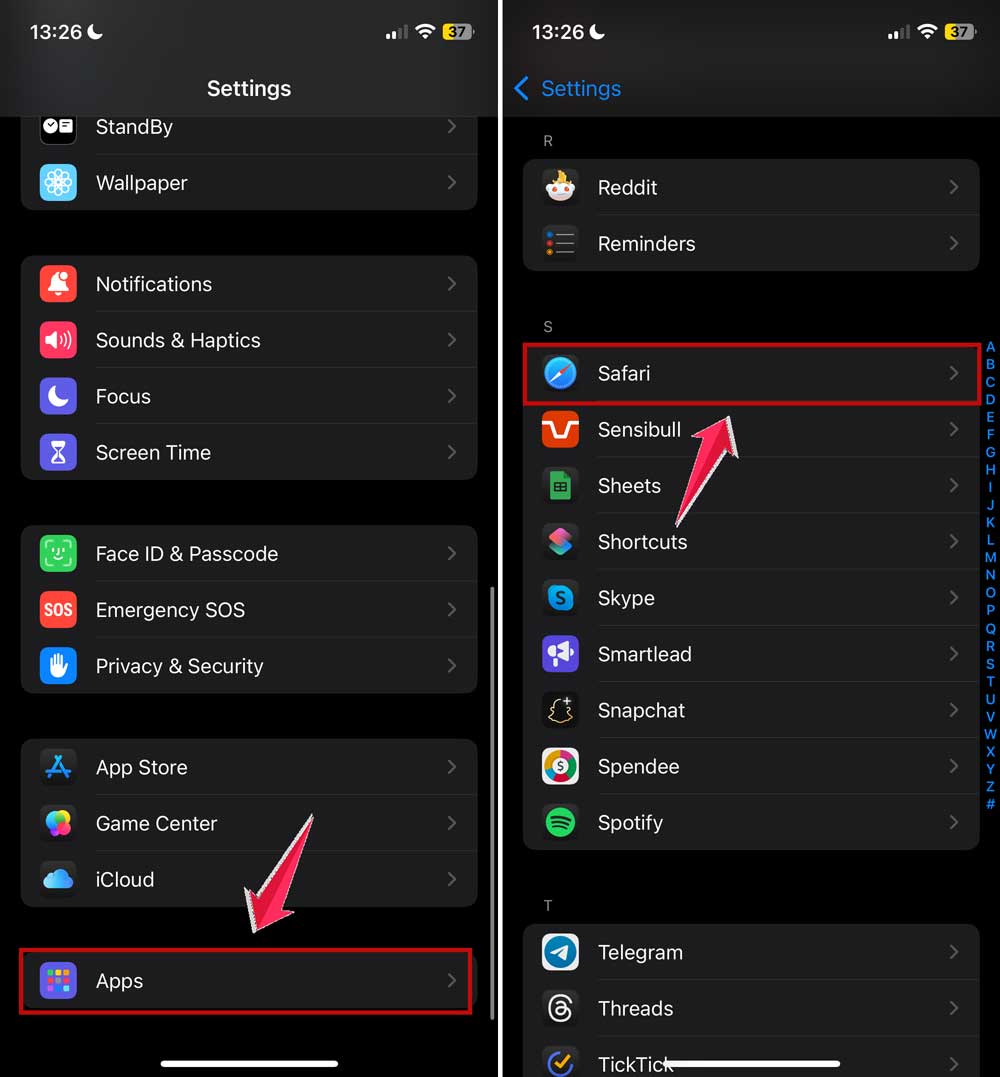
- Scroll down and tap Clear History and Website Data.
- Confirm when asked.

Don’t worry. This won’t remove your saved passwords or bookmarks. It just clears temporary stuff.
#5 Give Your Device a Quick Restart
Still not working? Let’s try the classic fix: restarting your device.
Here’s what to do:
- Press and hold the power and volume down buttons until the slider appears.
- Slide to power off.
- Wait about 30 seconds.

- Press and hold the power button and volume down buttons again to turn it back on.
Once your device is back on, open Safari and try typing in the search bar. Fingers crossed!
#6 Try Safe Mode
If you’ve added extensions to Safari, one of them might be causing trouble. To test that, try using Safari in Safe Mode. This turns off all extensions temporarily.
If suggestions work in Safe Mode, then one of your extensions is the problem. You can go back and disable them one by one to find the troublemaker.
#7 Reset Safari Settings for a Fresh Start
Still having issues? You can reset Safari’s settings without erasing your entire device. This gives Safari a clean slate.
Do this:
- Go to Settings > Apps.
- Tap Safari.
- Scroll down and tap Advanced.

- Then tap Website Data.
- Tap Remove All Website Data.
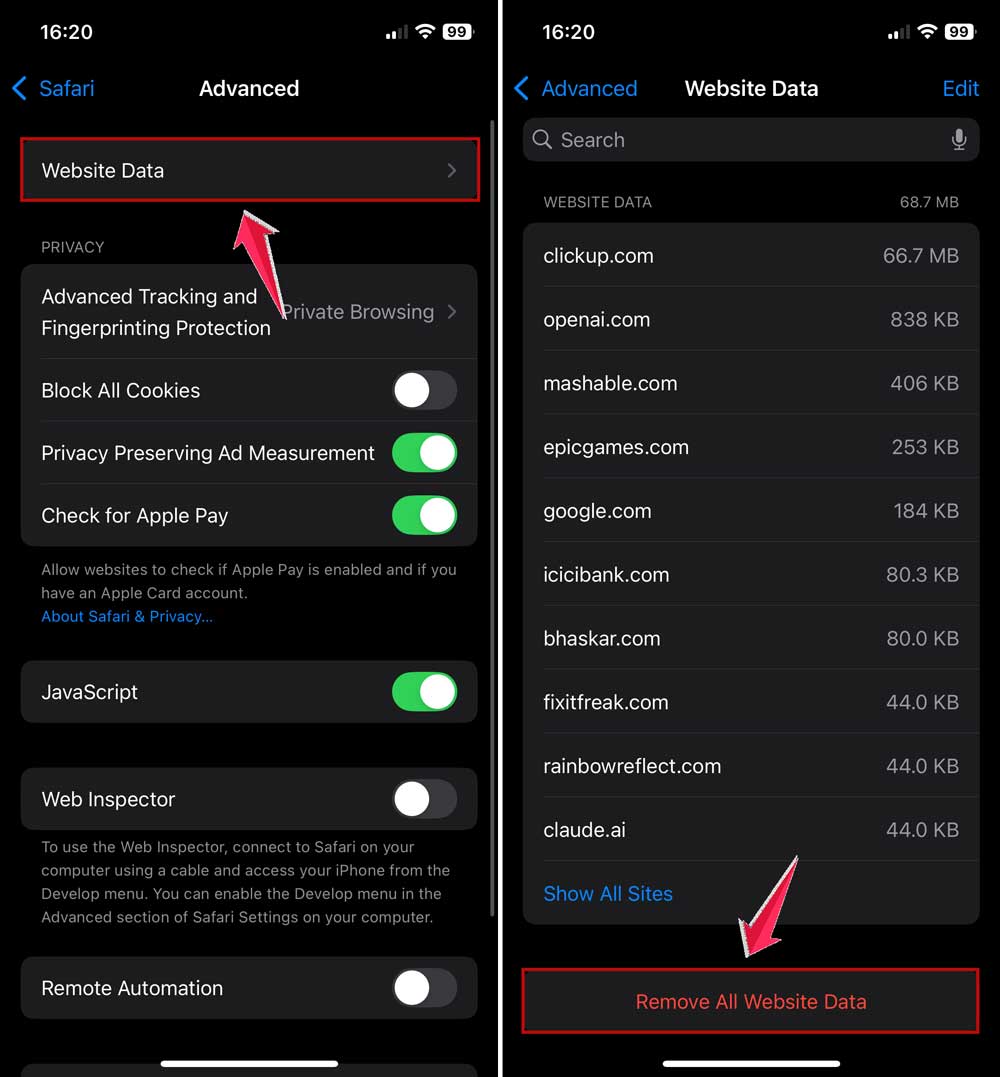
Then go back and restart Safari. It’s like giving it a fresh start.
#8 Consider System Updates
Sometimes the issue isn’t Safari. It’s your iPhone or iPad itself. A system update can fix bugs and improve performance.
Here’s how to check:
- Go to Settings.
- Tap General.
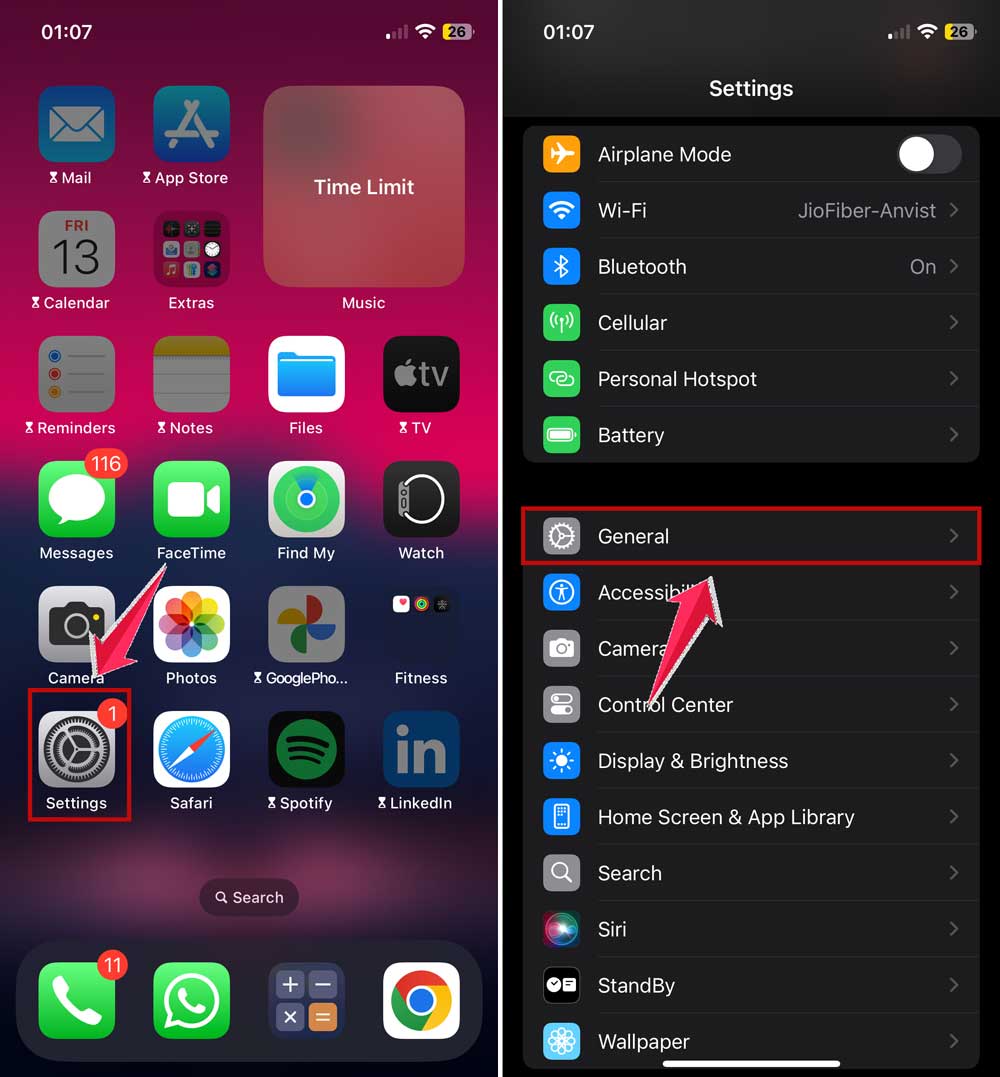
- Tap Software Update.
- If an update is available, tap “Download and Install”.

After the update, open Safari and test it again.
#9 Test Another Search Engine
Safari lets you choose your search engine. Try switching it up. Maybe your current one isn’t playing nice with Safari suggestions.
Here’s how:
- Open Settings.
- Tap Apps.
- Tap Safari.
- Tap Search Engine.
- Pick a different one (like Google, Yahoo, Bing, or DuckDuckGo).

Try Safari again and see if the suggestions come back.
#10 Contact Apple Support
If nothing seems to work, it might be time to seek some help.
Visit the Apple Support website or head to the Apple Store if there’s one nearby. They can check if there’s a deeper issue with your device.
The Takeaway
Safari search suggestions not appearing? It’s frustrating, but now you know what to do.
Start by checking your internet connection. Then ensure Safari is updated and that search suggestions are enabled in settings.
Usually, it’s a small fix. To fix the problem, you can clear the cache, restart your device, or change search engines.
If all else fails, Apple Support is there to assist. You’re not alone in this.
Please let me know in the comments if any of these fixes worked for you. If you discovered another solution, I’d love to hear about it!