Is your iPhone feeling a bit too warm? You’re not alone. Many iPhone users experience this issue, and it’s more than just a minor inconvenience.
A hot iPhone can cause several problems. It might slow down, drain its battery faster, and, in extreme cases, even suffer long-term damage.
You’ll learn why your iPhone heats up, simple ways to keep it cool, and how to protect your device from overheating.
Let’s dive in and discover how to keep your iPhone running smoothly and at a comfortable temperature. With these tips, you’ll be able to use your phone without worrying about it overheating.
Reasons Why Your iPhone Is Getting Hot
Let’s explore why your iPhone might be heating up. Understanding these reasons can help you keep your device cool and running smoothly.
#1 Check For Power-Hungry Apps
Some apps are real energy hogs. They make your iPhone’s processor and graphics chip work extra hard, which generates more heat. These usually include:
- Games with impressive graphics
- Video streaming apps like Netflix or YouTube
- GPS apps for navigation
#2 Don’t Use iPhone While Charging
Using your iPhone while it’s plugged in and charging puts extra strain on both the battery and processor.
It’s like asking your phone to do two big jobs at once, which can really heat things up. If your iPhone gets hot while charging, there might be other causes worth checking out.
#3 Software Issues
Sometimes, the problem is hidden in your iPhone’s software. If your operating system is outdated, it might have bugs that make your phone work harder than necessary.
Overheating often goes hand in hand with iPhone battery draining fast. And outdated software is usually the culprit. Also, having lots of apps running in the background can make your phone overheat.
#4 Hardware Problems
Physical issues with your iPhone can also cause overheating. These might include:
- A damaged or swollen battery
- A faulty charger or charging port
- Problems with the processor itself
Now that you know why your iPhone might be getting hot, let’s move on to some solutions to help keep it cool.
How to Fix an iPhone That’s Getting Hot
Is your iPhone feeling like a hot potato? Don’t worry, you’re not alone.
Many iPhone users experience this issue, and it’s more than just uncomfortable. It can potentially harm your device.
Let’s dive into some detailed solutions to help you cool down your iPhone and keep it running smoothly.
1. Manage Power-Hungry Apps
Some apps are real energy guzzlers, making your iPhone’s processor and graphics chip work overtime. This extra effort generates heat. Here’s how to handle these apps:
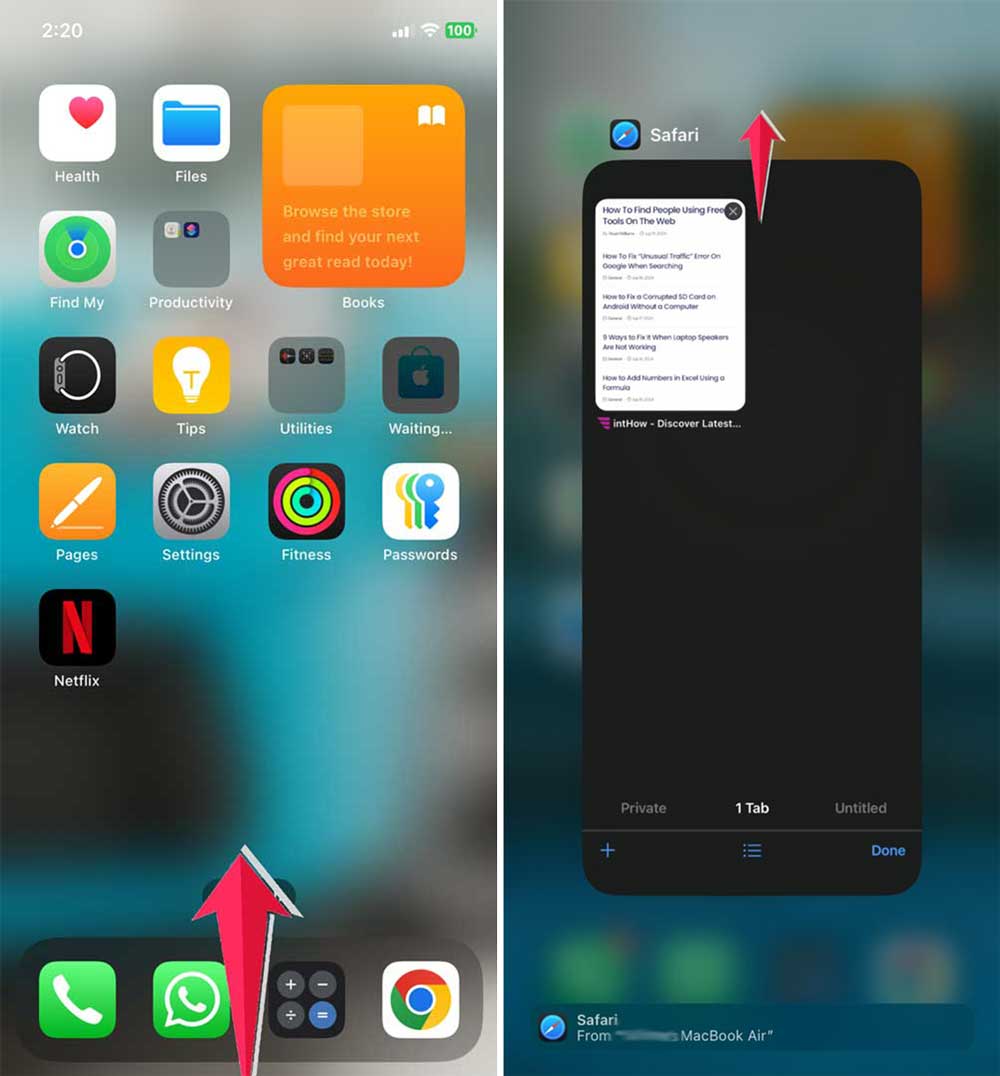
Close unused apps:
- Swipe up from the bottom of your screen to open the app switcher.
- Find the app you want to close.
- Swipe up on the app to close it.
Turn off background app refresh:
- Go to “Settings”
- Tap “General”

- Select “Background App Refresh”
- Toggle it off for all apps or select specific apps

This feature stops apps from updating in the background, saving energy and keeping your iPhone cooler.
2. Let Your iPhone Rest While Charging
Using your iPhone while it’s charging is like asking it to run a marathon while eating a big meal. It’s too much work at once! Try these tips:
- Avoid using your iPhone while it’s plugged in, especially for demanding tasks like gaming or video streaming.
- If you must use it, stick to light tasks like texting or checking emails.
- Try charging in short bursts instead of one long session. This can help manage heat buildup.
3. Keep Your iPhone’s Software Updated
Outdated software can cause your iPhone to work harder than necessary. Here’s how to check for updates:
- Go to “Settings”
- Tap “General”
- Select “Software Update”
- If an update is available, follow the on-screen instructions to download and install it

Keeping your iPhone up-to-date helps squash bugs that might be causing overheating issues.
4. Optimize Your iPhone’s Settings
Several settings can impact your iPhone’s temperature. Let’s go through them:
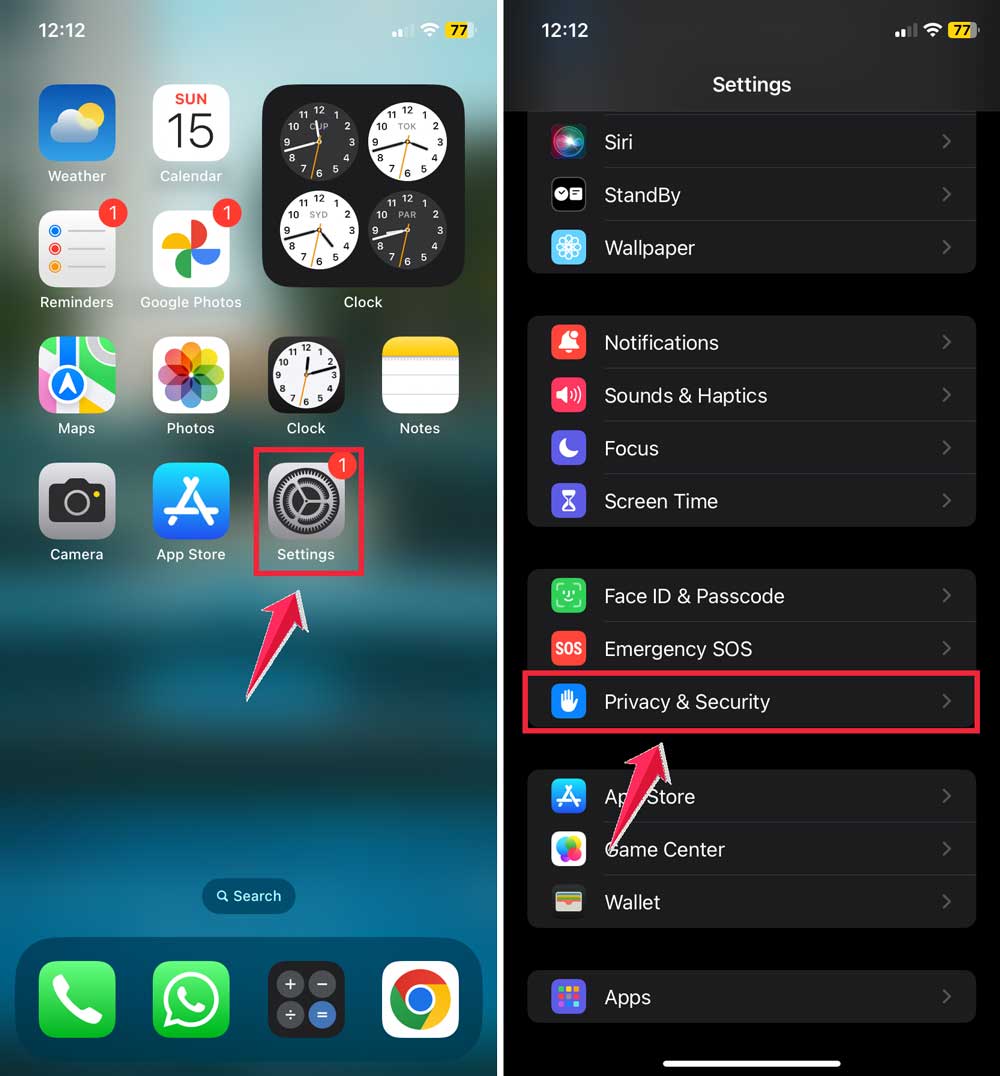
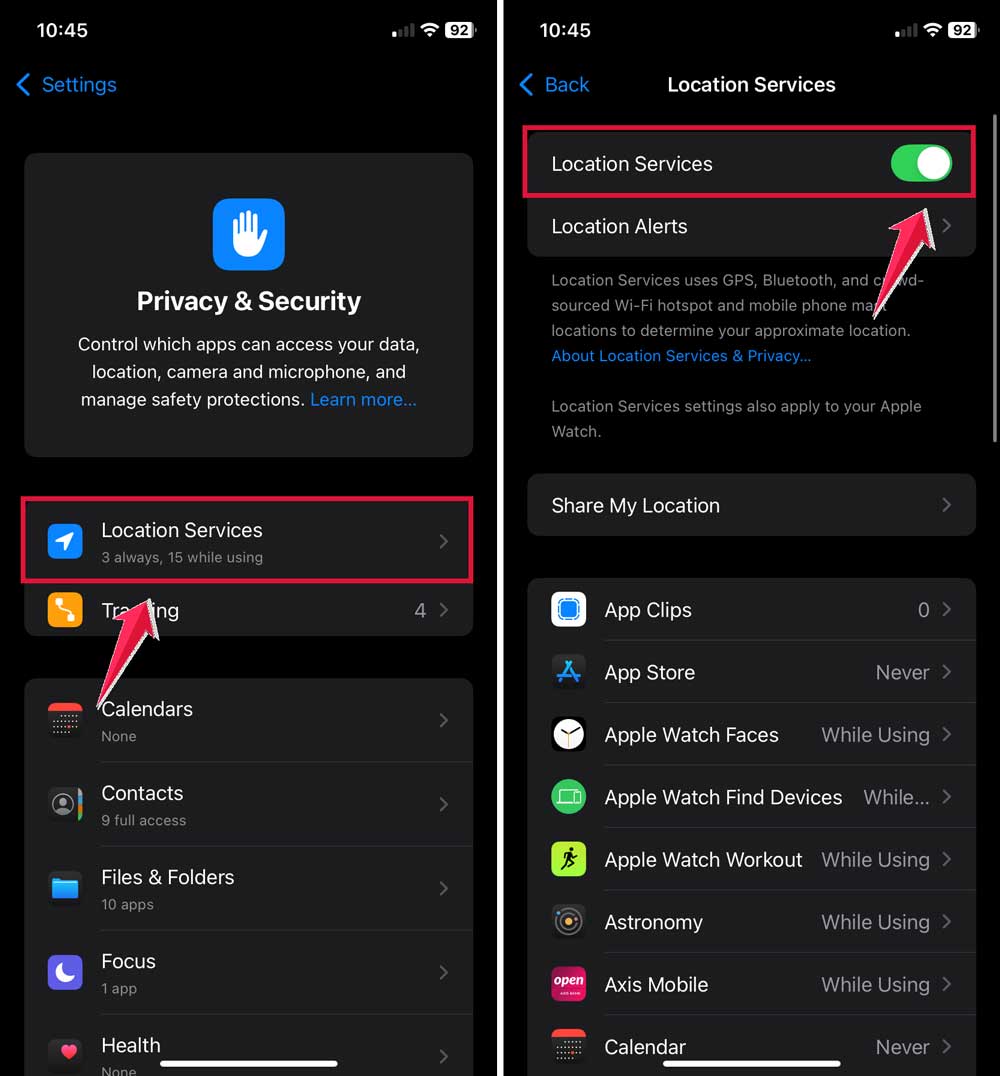
Turn off Location Services:
- Open “Settings”
- Tap “Privacy & Security”
- Select “Location Services” and toggle it off
Reduce screen brightness:
- Swipe down from the top-right corner to open Control Center
- Drag the brightness slider down to a comfortable level

Use Airplane Mode in areas with poor reception:
- Swipe down from the top-right corner to open Control Center
- Tap the airplane icon to enable Airplane Mode

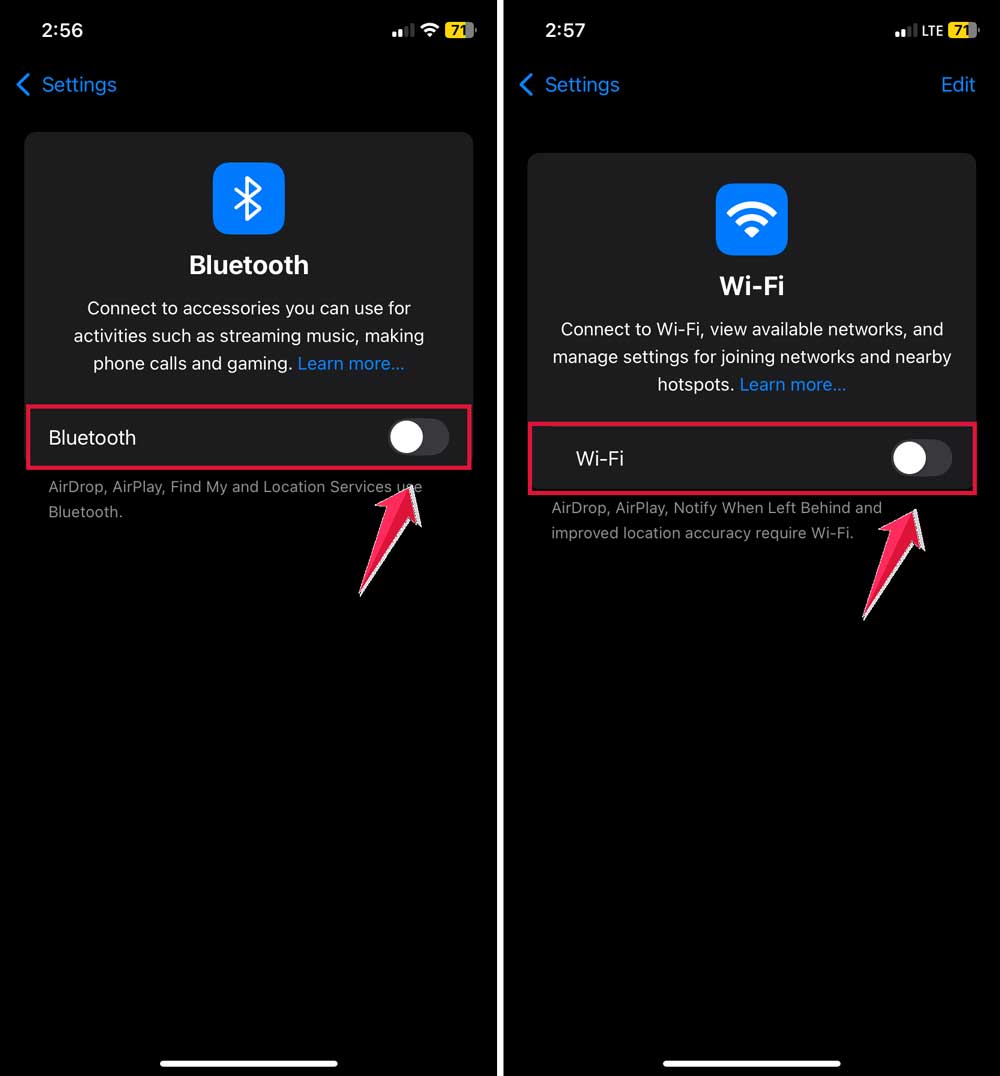
Disable Wi-Fi and Bluetooth when not in use:
- Go to “Settings”.
- Toggle off Wi–Fi and Bluetooth.
5. Create a Cool Environment for Your iPhone
Your iPhone’s environment plays a big role in its temperature:
- Avoid using your iPhone in direct sunlight or very hot environments.
- If it’s feeling warm, try placing it in front of a fan or near an air conditioning vent.
- Never put your iPhone in the refrigerator or freezer. This can cause serious damage!
6. Check Your Battery and Charger
Sometimes, the problem lies with your iPhone’s battery or charger:
- If you suspect your battery is faulty, visit an Apple Store or authorized repair center for a check-up.
- Always use Apple-certified chargers and cables. Cheap, off-brand accessories can sometimes cause overheating.
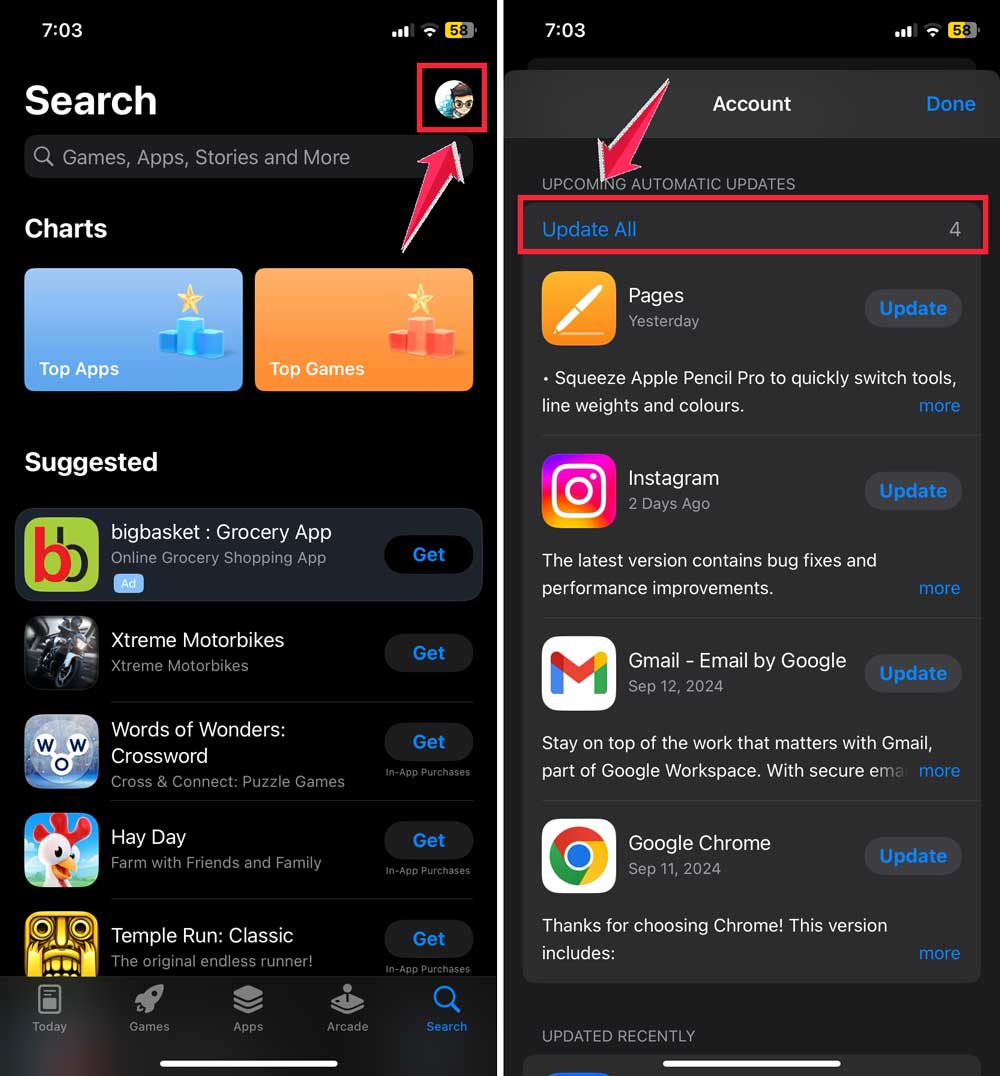
7. Update Your Apps
Outdated apps can clash with your iPhone’s latest software, leading to overheating. Here’s how to update them:
- Open the App Store
- Tap your profile icon at the top right
- Under “Available Updates”, select “Update All”
8. Choose the Right Case
Your iPhone’s case can affect its ability to dissipate heat:
- Look for cases with ventilation holes.
- Consider cases made from heat-conducting materials like aluminum or thermoplastic polyurethane (TPU).
- If your iPhone feels particularly hot, try removing the case for a while to help it cool down.
9. Use Low Power Mode
Low Power Mode can help reduce your iPhone’s workload:
- Go to “Settings”
- Tap “Battery”
- Toggle on “Low Power Mode”
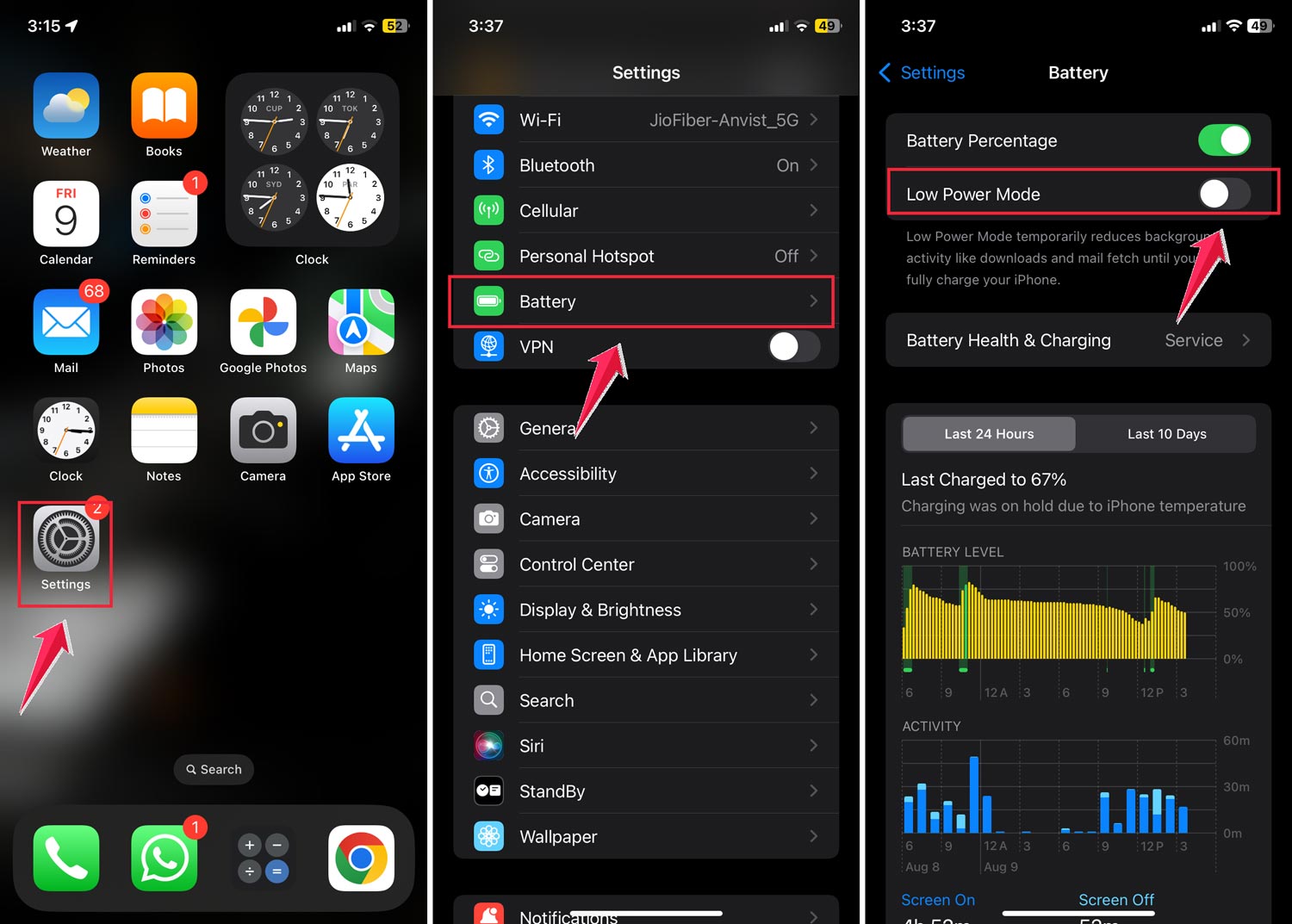 This mode turns off some features and background activities, which can help prevent overheating.
10. Manage Automatic Downloads
Constant background downloads can strain your iPhone’s processor. Here’s how to turn them off:
- Go to “Settings”
- Click on Apps.
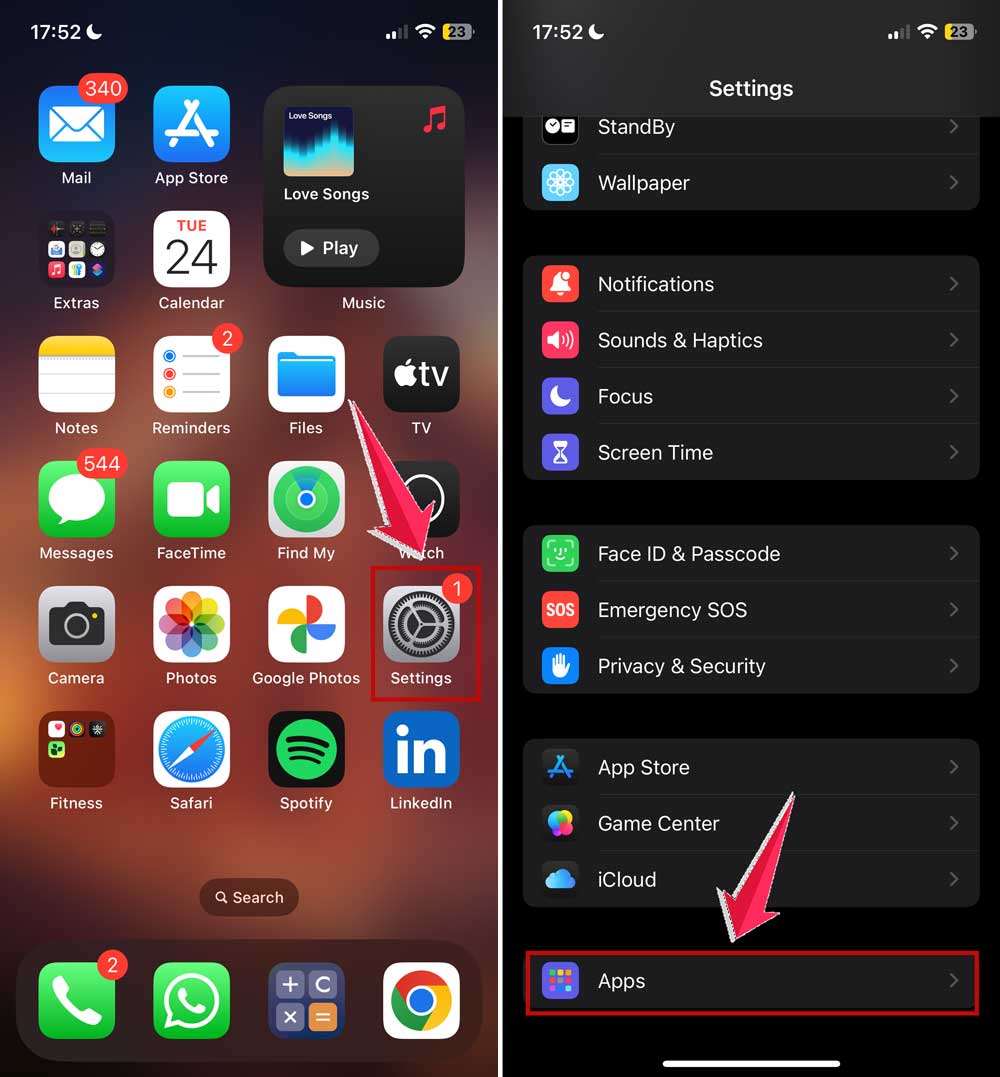
- Tap “App Store”
- Under “Automatic Downloads”, toggle off “Apps” and “App Updates”

By managing downloads manually, you can reduce unnecessary work for your iPhone.
11. Reset All Settings
If all else fails, resetting your iPhone’s settings can sometimes resolve overheating issues:
- Go to “Settings”
- Tap “General”
- Choose “Transfer or Reset iPhone”

- Select “Reset”
- Tap “Reset All Settings”

Remember, this will reset all your preferences, but won’t delete any personal data.
12. Seek Professional Help
If your iPhone continues to overheat despite trying these tips, it’s time to get expert help:
- Visit an Apple Store or authorized repair center.
- Explain the issue to the technicians. They can diagnose and provide the best solution for your specific situation.
Remember, addressing overheating issues promptly is crucial. It could be a sign of a more serious hardware problem, so don’t hesitate to seek professional help if needed.
13. Manage Your Storage
A cluttered iPhone can work harder than necessary, potentially leading to overheating. Here’s how to keep your storage optimized:
- Check your storage usage.
- Delete unnecessary apps and files: Review your apps and files, removing those you no longer need.
- Use iCloud or other cloud services: Offload photos, videos, and documents to the cloud to free up local storage.
- Clear app caches: Some apps like Safari and Spotify allow you to clear their caches, which can help free up space.
14. Avoid Extreme Temperatures
Your iPhone is designed to work best between 32° to 95° Fahrenheit (0° to 35° Celsius). Here are some tips to protect it from extreme temperatures:
- Never leave your iPhone in a car on a hot day.
- Avoid using your iPhone in direct sunlight for extended periods.
- In cold weather, keep your iPhone close to your body to maintain its temperature.
15. Monitor Battery Health
A deteriorating battery can cause your iPhone to work harder and generate more heat. Here’s how to check your battery health:
- Go to “Settings”
- Tap “Battery”
- Select “Battery Health & Charging”

If your battery health is below 80%, consider getting it replaced at an Apple Store or authorized service provider.
Monitoring your battery also gives you an idea of how long your iPhone will last.
16. Use Optimized Battery Charging
This feature helps reduce battery aging by delaying charging past 80% in certain situations:
- Go to “Settings”.
- Tap “Battery”.
- Select “Battery Health & Charging”.
- Toggle on “Optimized Battery Charging”.

Learn how to monitor your charge cycles and optimize charging on your iPhone for long-term battery health.
17. Be Cautious with Wireless Charging
Wireless charging can generate more heat than wired charging. If you use wireless charging:
- Remove your iPhone case if it’s thick or made of metal.
- Ensure your iPhone is properly aligned on the charging pad.
- If you notice excessive heat, switch to wired charging.
18. Avoid Processor-Intensive Tasks in Hot Environments
In warm conditions, try to avoid:
- Playing graphics-intensive games
- Editing videos or photos
- Using augmented reality apps
These tasks make your iPhone work harder, generating more heat.
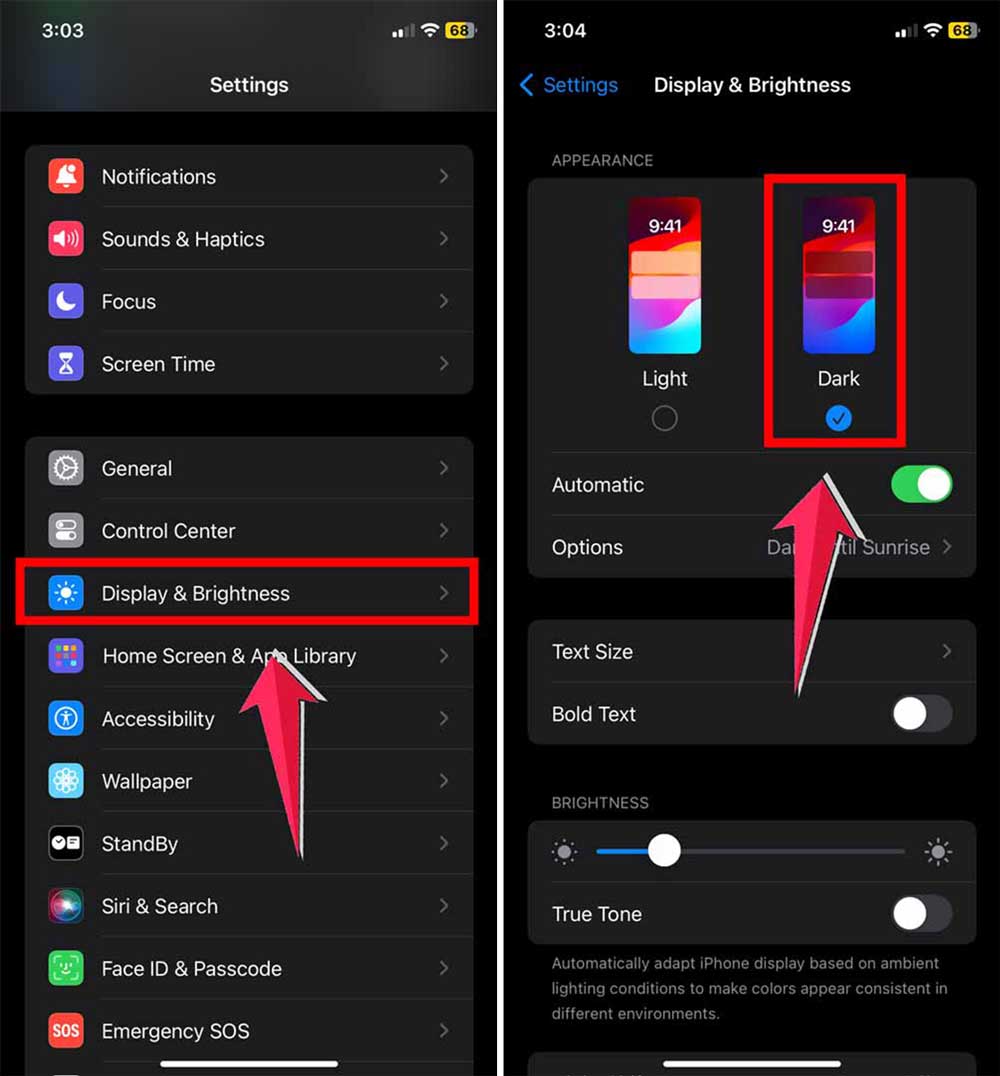
19. Use Dark Mode
Dark Mode can help reduce screen brightness and potentially lower heat generation:
- Go to “Settings”.
- Tap “Display & Brightness”.
- Select “Dark” under Appearance.
20. Restart Your iPhone Regularly
A regular restart can help clear out temporary files and reset processes that might be causing your iPhone to overheat:
- For iPhones with Face ID: Press and hold the side button and either volume button until the power off slider appears.
- For iPhones with a Home button: Press and hold the side (or top) button until the power off slider appears.
Slide to power off, then press and hold the side (or top) button again to turn your iPhone back on.
21. Check for Malware
While rare, malware can cause your iPhone to work overtime. To protect your device:
- Only download apps from the official App Store.
- Keep your iOS updated to the latest version.
- Be cautious when clicking links or downloading attachments from unknown sources.
Still unsure? Here’s how to tell if your iPhone is jailbroken. A common cause of hidden overheating risks.
22. Use Content Blockers in Safari
Content blockers can reduce the load on your iPhone when browsing:
- Go to “Settings”
- Scroll down and tap “Safari”
- Under “General”, tap “Content Blockers”
- Toggle on any content blockers you’ve installed.
By implementing these additional strategies, you’re taking even more comprehensive steps to keep your iPhone cool and efficient.
In Conclusion To
Dealing with an overheating iPhone can be frustrating, but you now have a toolkit of solutions at your fingertips. By following these tips, you can help keep your iPhone cool and running smoothly.
If your iPhone continues to overheat despite these measures, don’t hesitate to seek professional help.
An Apple Store or authorized repair center can diagnose and resolve more complex issues.
Your iPhone is a powerful device that needs a bit of care to perform its best.
By implementing these strategies, you’re ensuring a longer, more efficient life for your trusty digital companion.