Have you ever tried to make a call on your iPhone only to see the frustrating “Call Failed” message pop up? You’re not alone.
Many iPhone users face this problem, and it can be incredibly annoying when you need to make an important call.
There are several reasons why your calls might be failing. It could be due to a weak signal in your area, a software glitch on your phone, or even an outdated iOS version.
Sometimes, it’s as simple as a temporary network issue that resolves itself quickly.
Don’t worry, though. In most cases, you can fix this problem yourself without needing to contact your carrier or visit an Apple Store.
This article will guide you through some easy solutions to get your iPhone to make calls again.
We’ll cover a range of fixes, from quick and simple steps like restarting your phone to more detailed troubleshooting methods.
Why are your iPhone calls failing, and how can you fix them?
1. Toggle airplane mode on and off
One of the simplest fixes is to toggle your airplane mode. Here’s how you can do it:
- Open the Control Center by swiping down from the top-right corner of your screen (or up from the bottom if your iPhone has a Home button).
- Tap the airplane icon to turn on Airplane Mode.
- Wait a few seconds, then tap it again to turn it off.

This quick action can often reset your phone’s connection to the cellular network and solve call issues.
2. Restart your iPhone
Sometimes, all your iPhone needs is a simple restart to clear out minor software glitches. To restart your iPhone:
- Press and hold the side button and either volume button until you see the power off slider.
- Drag the slider to turn off your iPhone.
- After your device turns off, press and hold the side button again until you see the Apple logo.

This basic step can often resolve many issues, including call failures.
3. Check your blocked numbers
If you’re having trouble calling a specific number, you might have accidentally blocked it. Here’s how to check:
- Go to “Settings” on your iPhone.
- Scroll down and tap “Phone”.
- Tap “Blocked Contacts”.
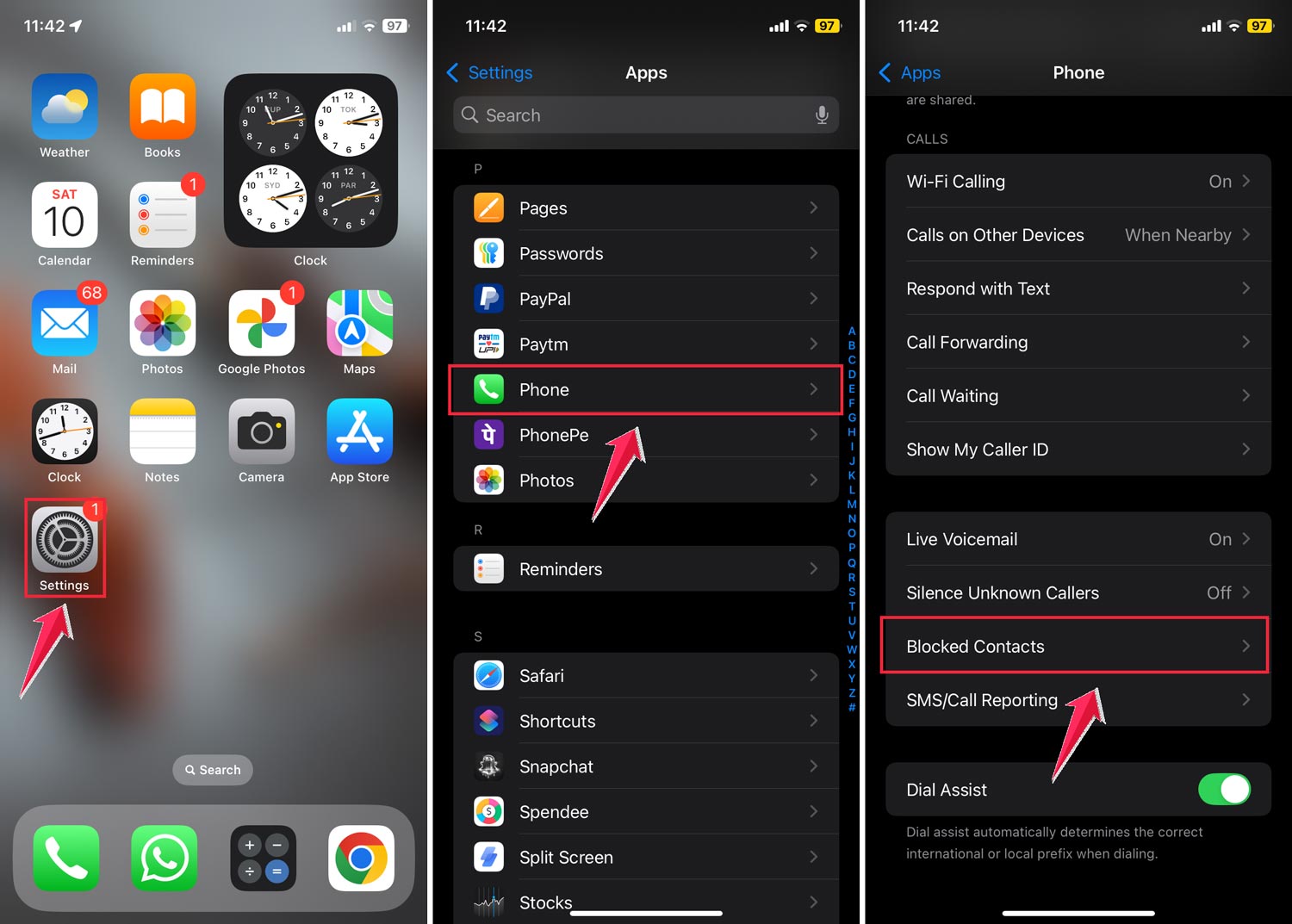
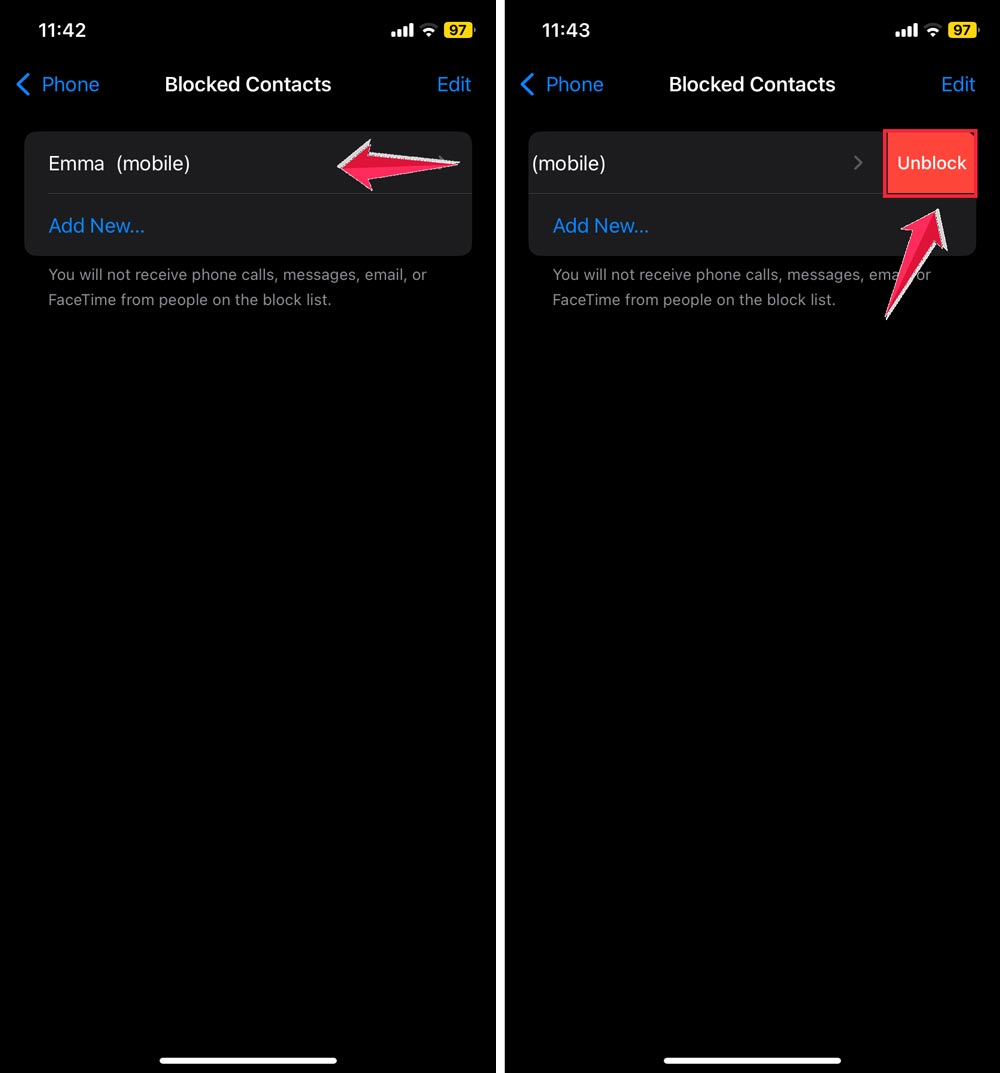
If you see the number you’re trying to call on this list, you can unblock it by swiping left and tapping “Unblock”.
4. Remove and reinsert your SIM card
For iPhones with physical SIM cards, sometimes the issue can be with the SIM itself. Here’s what to do:
- Turn off your iPhone.
- Use the SIM eject tool to open the SIM tray.
- Take out the SIM card and check for any visible damage.
- If it looks okay, put it back in and turn on your iPhone.
If you have an iPhone 14 or newer model, you might be using an eSIM instead of a physical SIM card.
In this case, you can’t physically remove it, but you can try resetting your cellular settings in the “Settings” app.
5. Reset your network settings
If you’re still having trouble, resetting your network settings can often help.
Be aware that this will erase your saved Wi-Fi passwords and other network preferences. Here’s how to do it:
- Go to “Settings” on your iPhone.
- Tap “General”.
- Scroll down and tap “Transfer or Reset iPhone”.

- Tap “Reset”, then “Reset Network Settings”.

You’ll need to enter your passcode to confirm. After the reset, your iPhone will restart, and you’ll need to reconnect to Wi-Fi networks.
6. Update your iOS
Making sure your iPhone is running the latest version of iOS can often resolve call issues. Here’s how to check for updates:
- Go to “Settings” on your iPhone.
- Tap “General”, then “Software Update”.
- If an update is available, tap “Download and Install”.
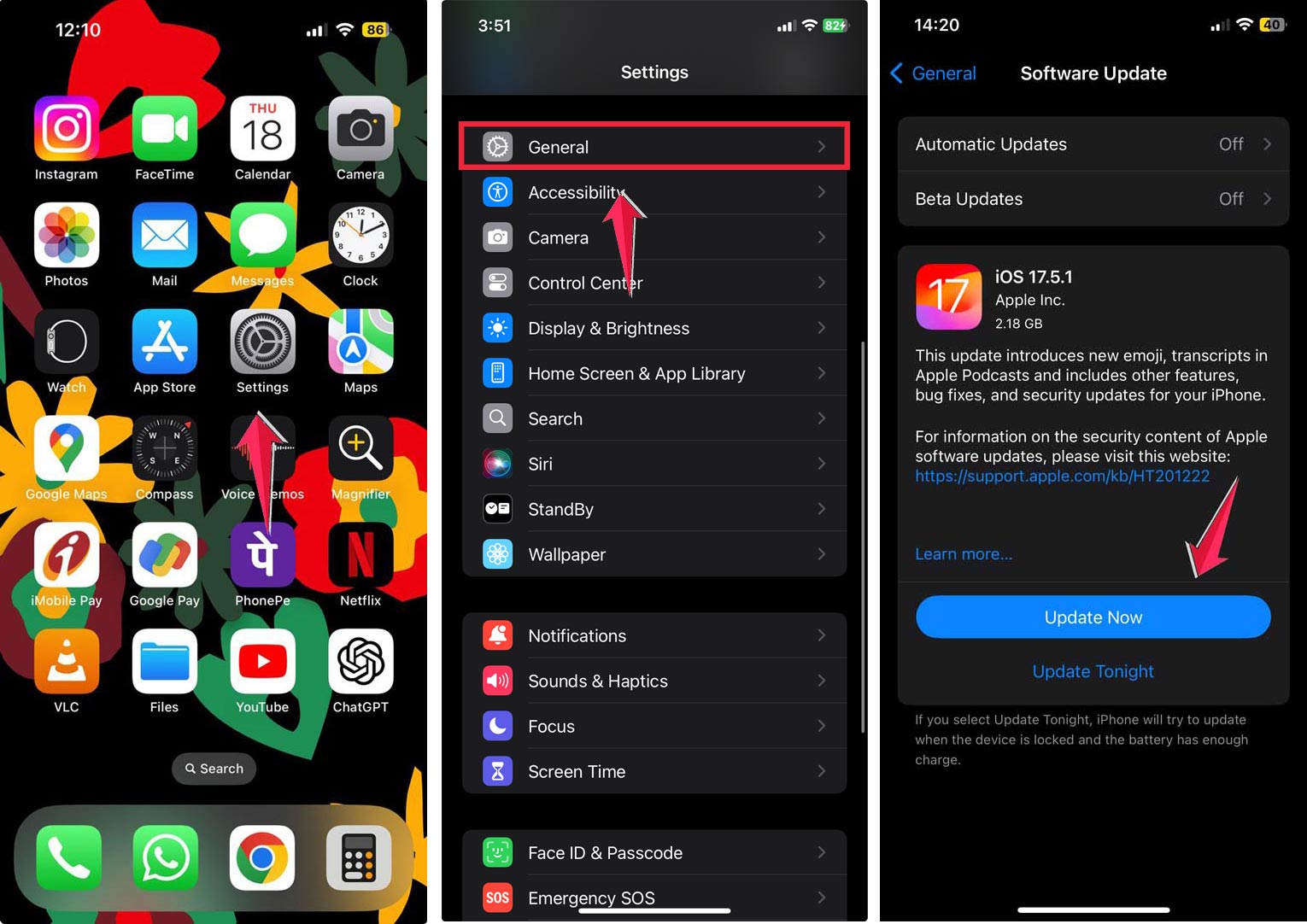
Keeping your iOS up to date ensures you have the latest bug fixes and improvements.
7. Check for carrier settings updates
Sometimes, your cellular carrier might release updates that can improve your phone’s connectivity. To check for these:
- Go to “Settings” on your iPhone.
- Tap “General”, then “About”.
- If an update is available, you’ll see a prompt to update your carrier settings.

These updates can often improve your calling experience.
8. Contact your carrier
If you’ve tried all these steps and you’re still having issues, it might be time to reach out to your carrier.
They can check for any account issues or network outages that might be affecting your service.
You can usually contact your carrier through their customer service number, their website, or their dedicated app. They might be able to:
- Check your account status.
- Look for network outages in your area.
- Provide specific troubleshooting steps for their network.
Remember, most call failures can be resolved with these simple steps. If you’re still having trouble, don’t hesitate to reach out to Apple Support or visit an Apple Store for more help.
The takeaway
When your iPhone calls keep failing, it can be incredibly frustrating. But don’t worry. Because in most cases, you can resolve this issue without needing professional help.
The simple steps we’ve discussed, like toggling Airplane Mode, restarting your iPhone, or checking your network settings, can often get your calls working again.
It’s a common misconception that call failures always indicate a serious problem with your phone or your carrier’s network.
In reality, many call issues are temporary and can be fixed with these basic troubleshooting steps.
By trying these solutions yourself, you can often save time and avoid unnecessary trips to the Apple Store or your carrier’s shop.
Remember, technology isn’t perfect, but it’s usually fixable. If you encounter call failures, stay calm and work through these steps methodically.
Most of the time, you’ll be able to resolve the issue on your own. And if all else fails, don’t hesitate to reach out to your carrier for additional support.
With a little patience and the right approach, you can keep your iPhone running smoothly and stay connected with the people who matter most.