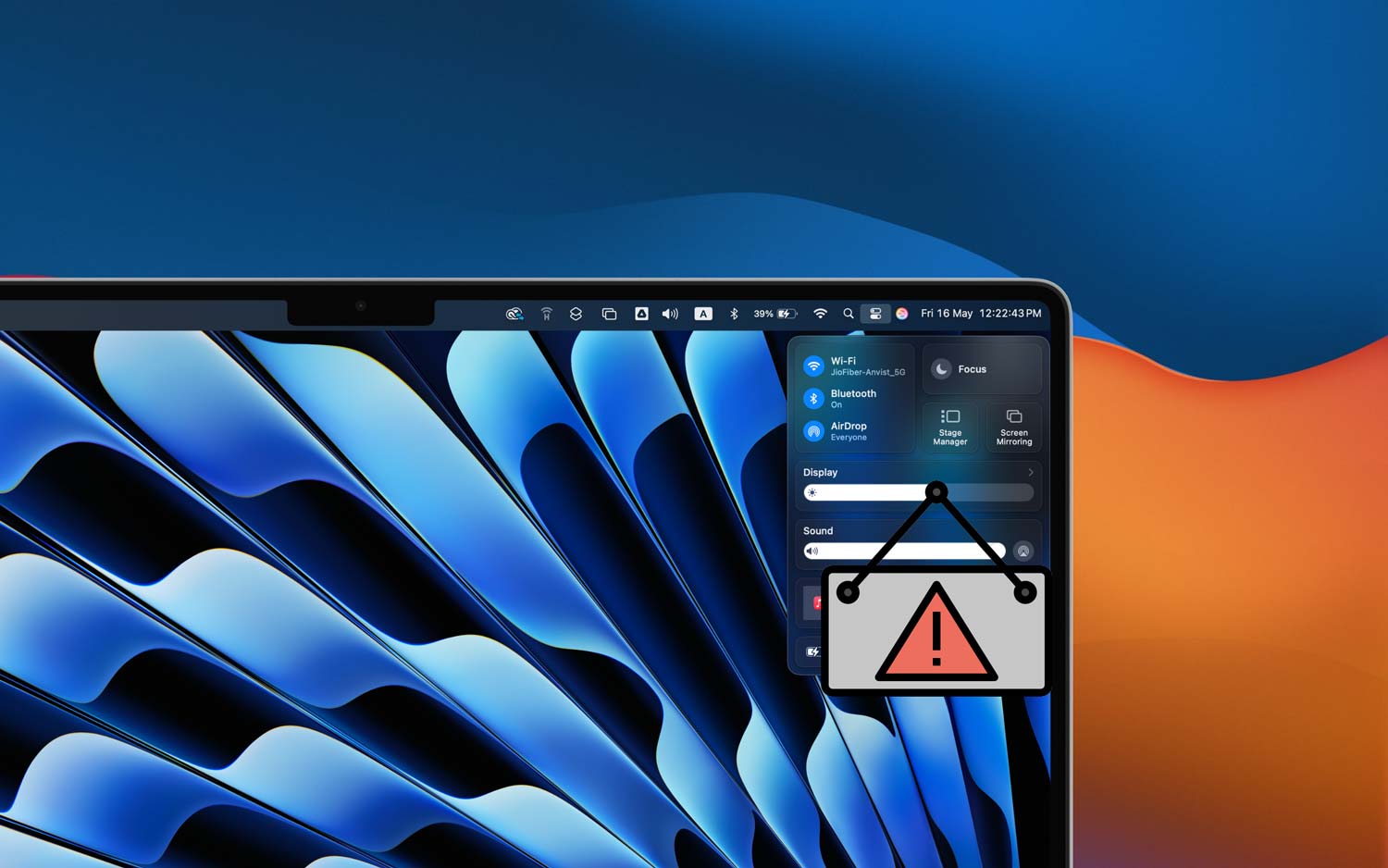
Ever sat down to get some work done, only to find your MacBook screen is just way too bright or way too dark? Yeah, not fun.
It throws off your focus, strains your eyes, and honestly, it’s just annoying. One moment, everything’s fine, and the next, your screen is stuck and won’t adjust the brightness no matter what you press.
So, what’s really going on here? Well, it could be a few things. Sometimes it’s just a quick system glitch. Other times, your macOS needs an update, or maybe your function keys aren’t working. There’s even a chance a sneaky app is messing things up in the background.
But here’s the good news—you don’t need to be a tech wizard to fix this. I’m going to walk you through simple steps to get your screen brightness back under control.
We’ll start with the easiest stuff and move up from there. Ready? Let’s get into it.
What Could Be Causing Your MacBook Brightness Problem
Before we jump into the fixes, let’s quickly go over some common reasons why your MacBook’s brightness might not be working right. Knowing what’s causing it makes it easier to fix.
1. System glitches can mess with brightness.
Sometimes your Mac just doesn’t act right. A small glitch in the system can stop brightness from adjusting properly. It’s not a big deal and usually clears up with a quick restart or reset.
2. If your macOS is outdated, expect issues.
Running an older version of macOS? That could be the problem. Updates often fix bugs, including ones that mess with your display. So if your system’s behind, it’s time for a check.
3. Hardware trouble might be the reason.
Your MacBook has light sensors that help adjust brightness. If those sensors are broken or the display is damaged, it might not respond the way it should. It’s rare, but it happens.
4. Function keys might not be working right.
Those F1 and F2 keys on your keyboard? They control brightness. If they’re not working, your screen won’t adjust. A quick check in your settings can confirm if they’re active.
5. Third-party apps can cause conflicts.
Got any apps that claim to manage brightness or screen settings? They might be interfering. These apps can take over your display settings and mess things up without you even realizing it.
Now you know what might be going on. Let’s move on to the actual fixes and get your screen brightness back where it should be.
Brightness Adjustment Not Working on MacBook – Fix
Alright, now let’s fix this. I’m going to walk you through a few easy steps. Just follow along, and we’ll get that brightness working again.
#1 Make Sure Your Function Keys Are Active
First things first—let’s see if your function keys are actually set up to adjust brightness.
- Open System Preferences.
- Click on Keyboard.
- Make sure the box that says “Use F1, F2, etc. as standard function keys” is not checked.
If it’s already unchecked, try checking it and then unchecking it again. Sometimes that little toggle resets things.
#2 Update Your macOS
Still stuck? Let’s make sure your system is up to date.
- Click the Apple Menu.
- Go to System Preferences > Software Update.
- If there’s an update waiting, click Install.
This step alone fixes a lot of small bugs—including display issues—so it’s worth doing even if you’re not sure.
#3 Reset the SMC (System Management Controller)
This one’s a bit more advanced, but don’t worry—I’ll guide you.
If your MacBook has a T2 chip:
- Shut down your MacBook completely.
- Press and hold Control + Option + Shift on the left side of the keyboard.
- While holding those down, press the Power button.
- Keep holding all keys for 7 more seconds, then release.
Now turn your MacBook back on and check the brightness again. This resets low-level settings that control things like the display.
#4 Adjust Your Display Settings Manually
Still no luck? Let’s try adjusting the settings yourself.
- Open System Preferences.
- Click on Displays.
- Look for the Brightness slider. Try moving it manually.
- Also, check if “Automatically adjust brightness” is turned on.
Sometimes the auto-adjust setting turns off without warning. If it’s off, turn it back on and see if that helps.
#5 Restart Your MacBook
I know—it sounds way too simple. But trust me, restarting your Mac can clear out a lot of weird temporary bugs.
- Click the Apple Menu.
- Select Restart.
Once it boots back up, give the brightness keys another try.
#6 Check for Conflicting Apps
Some apps try to manage your screen brightness for you—and not always in a good way.
- Go to System Preferences > Users & Groups.
- Click on your user name.
- Select Login Items.
- Look through the list of apps. If you see anything related to brightness or screen control, click the minus (–) button to remove it.
After that, restart your Mac and test the brightness again. This step often solves the issue when nothing else works.
With these fixes, you should see your brightness controls working again. If not, don’t worry—we’ve still got a few more tricks up our sleeve.
Extra Tips to Keep Your MacBook Running Smoothly
Now that you’ve handled the main problem, let’s go over a few quick tips to keep your MacBook happy and healthy.
1. Keep your system clean. Clear out old files, apps you don’t use, and system junk. You can use Disk Utility or a cleanup app to do this. A clean system works better and faster.
2. Watch for background apps. Some apps run in the background and hog resources. Open Activity Monitor and see what’s running. If something looks suspicious, close it.
3. Use auto-brightness smartly. Auto-brightness is great, but only if it works. If it feels off, adjust it in your Display settings. You can even turn it off and manage brightness manually if you prefer.
4. Back up your data regularly. Use Time Machine or a cloud backup. This way, if something goes wrong during a fix, your stuff is safe.
5. Keep your Mac cool. Overheating can mess with performance. Don’t block the vents, and clean out dust now and then. Your Mac will thank you.
These little habits go a long way in preventing future issues—including brightness problems.
The Takeaway
So, your MacBook’s brightness wasn’t working, and it was driving you nuts. I get it. But now, you’ve got all the tools to fix it. From checking your function keys to updating macOS and even resetting the SMC—you’ve done the work.
A lot of people think small issues like these mean something’s broken. But really, it’s often just a simple setting or a quick restart that solves everything. And don’t forget—third-party apps can sneak in and take control of things without you noticing. It’s always good to double-check.
At the end of the day, your Mac should work for you, not against you. Keep things updated, clean, and cool—and you’ll avoid most of these hiccups in the future.
If this guide helped you out, or if you have any other questions, feel free to drop a comment below. I’m here to help!