Your MacBook Pro’s login password is more than just a way to access your computer. It’s the key that unlocks many important features on your Mac.
You need it to log in, approve updates, use iCloud Keychain, autofill payment information in Safari, and change app privacy settings in System Settings.
But what happens if you forget this important password? Don’t worry – you’re not locked out of your MacBook Pro forever. There are several ways to reset your password, and the easiest usually involves using your Apple ID.
However, what if your Mac isn’t connected to an Apple ID? In this article, you’ll learn how to regain access to your MacBook Pro, even without a password or Apple ID. Let’s explore your options and get you back into your Mac.
How To Unlock Your MacBook Pro Without Password Or Apple ID
Your MacBook Pro’s login password is more than just a way to access your computer. It’s the key that unlocks many important features on your Mac. You need it to log in, approve updates, use iCloud Keychain, autofill payment information in Safari, and change app privacy settings in System Settings.
But what if you forget this important password? Don’t worry – you’re not locked out of your MacBook Pro forever. There are several ways to reset your password, and the easiest usually involves using your Apple ID.
However, what if your Mac isn’t connected to an Apple ID? In this article, you’ll learn how to regain access to your MacBook Pro, even without a password or Apple ID. Let’s explore your options and get you back into your Mac.
#1 Use Another Admin Account on Your Mac
If you share your Mac with others, like family members, and one of them has an admin account, you’re in luck! Here’s how you can regain access to your account using theirs:
- Log in to the Mac with the other admin account.
- Go to the Apple menu and select “System Settings”.
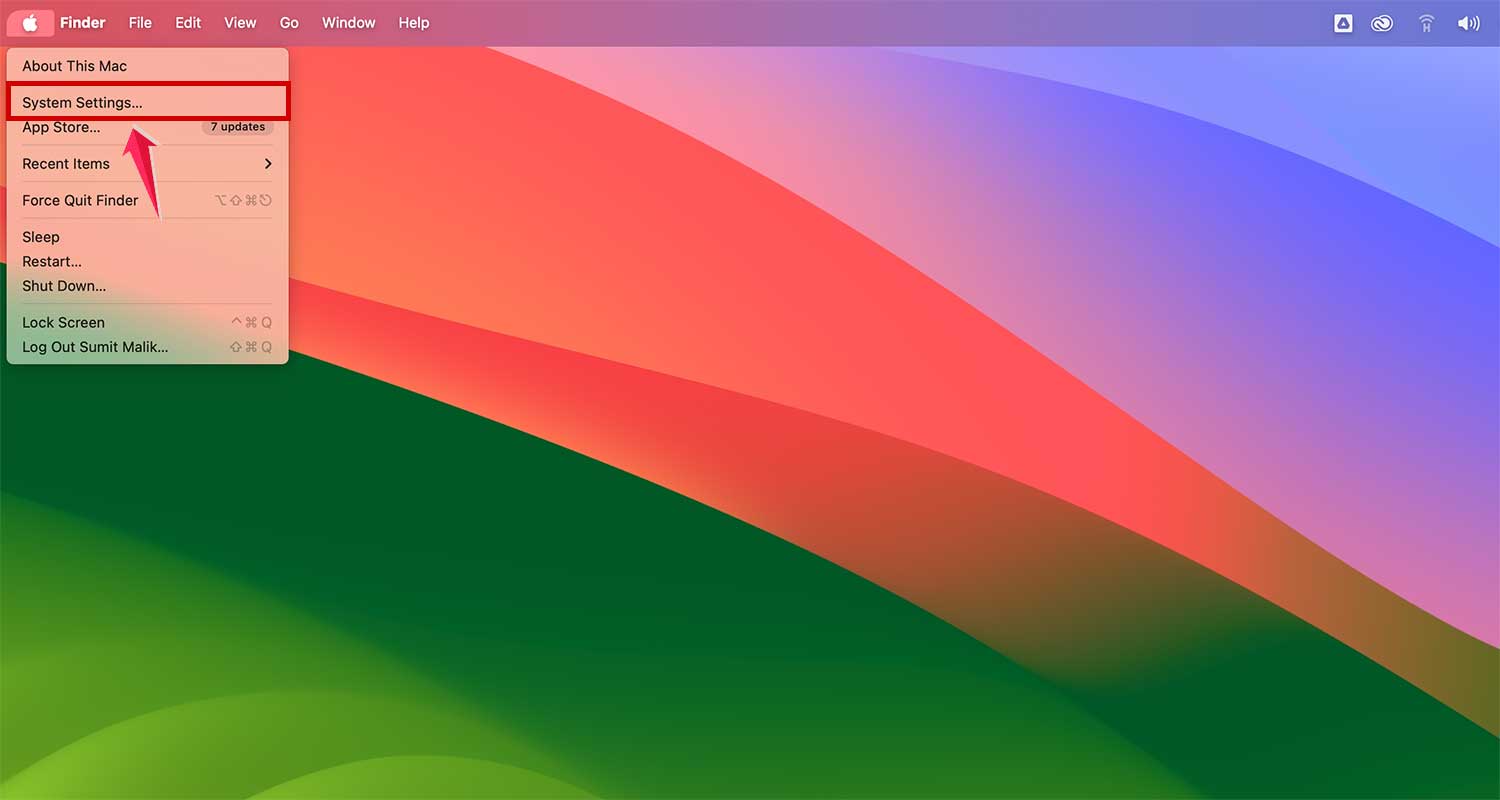
- In the sidebar, choose “Users & Groups”.
- Find your username, click the ‘i’ icon
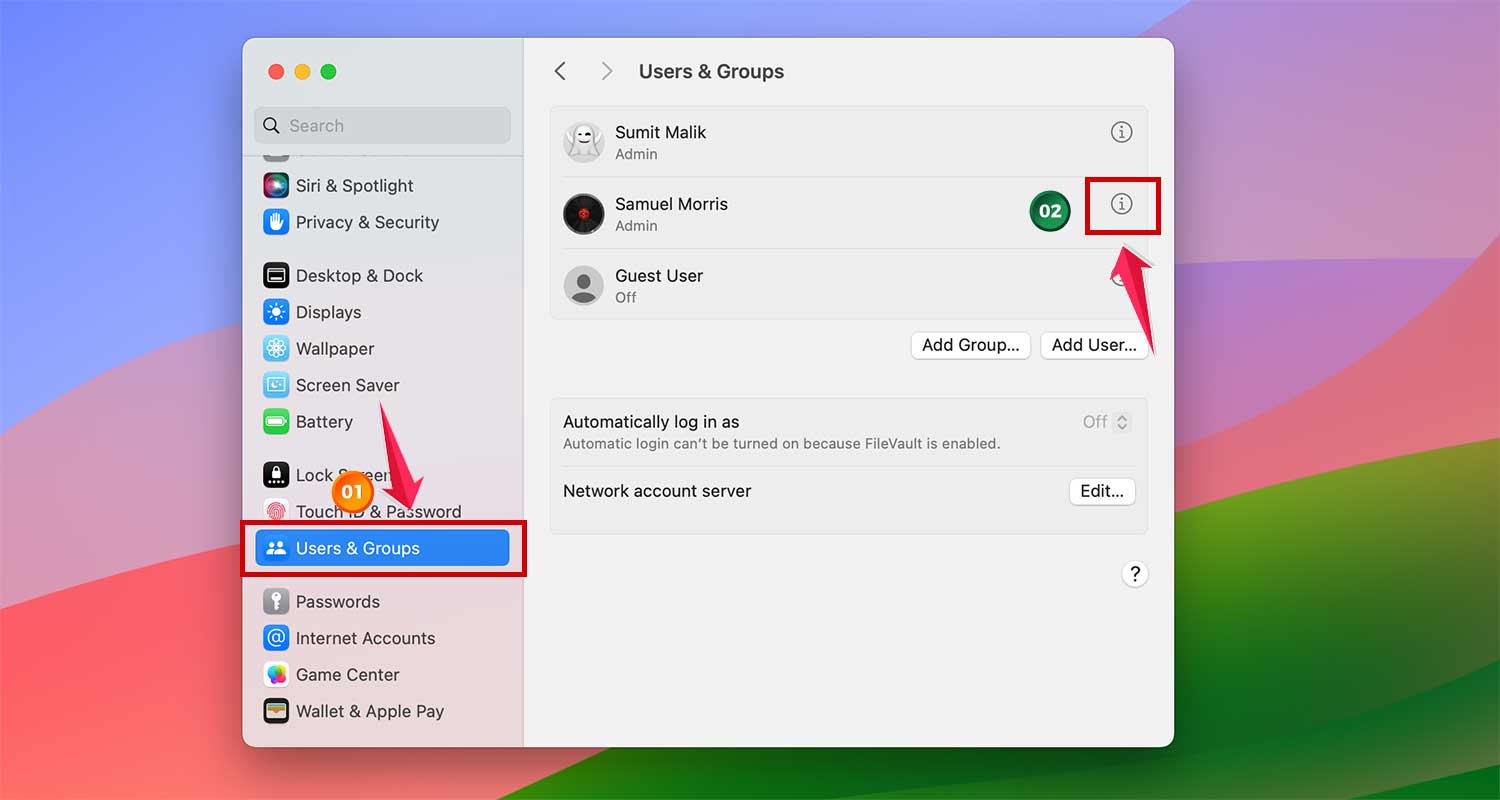
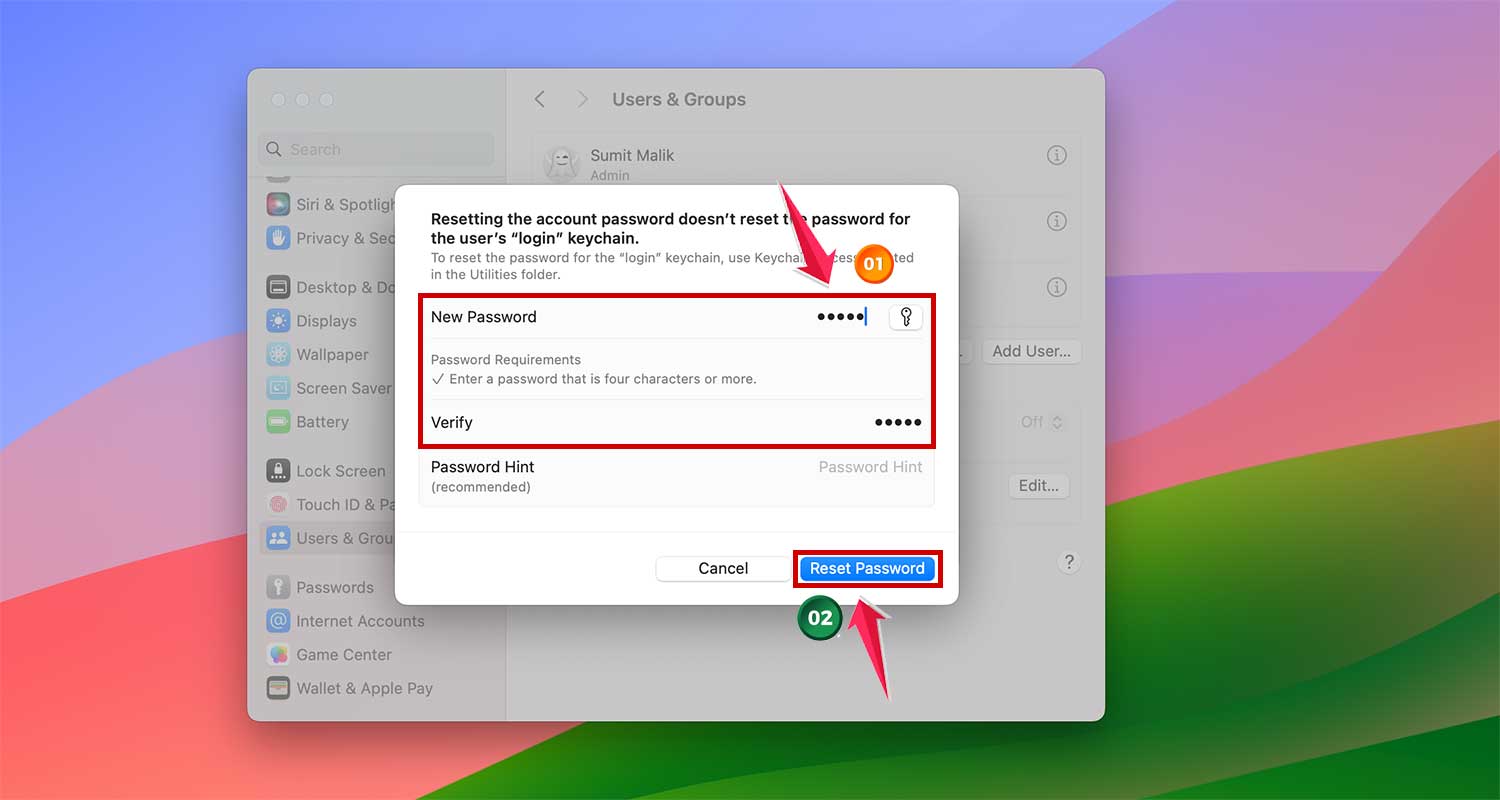
- Then select “Reset” next to the password section

- Enter the new password and retype it in the Verify box to confirm.
- Click “Reset Password” to finalize.
- Return to the Apple menu and select “Log Out”.

- Log back in with your username and the newly set password.
Just like that, you’re back in control of your Mac!
#2 Use FileVault Recovery Key
If you’re the only admin on your Mac but you’ve enabled FileVault, you still have a way to reset your password using the FileVault Recovery Key. This is a series of letters and digits provided when you first activated FileVault, given as an alternative to using your Apple ID for account recovery.
Here’s how to use your FileVault Recovery Key to reset your password:
- Try to log in to your Mac with a password.
- After failing three times, you’ll see a message suggesting you “Restart and show password reset options” – click it.
- Wait for your Mac to restart and then choose the option to use the FileVault Recovery Key.
- When prompted, type in your FileVault Recovery Key.
- If there are multiple user accounts, select the username for which you want to change the password.
- Enter the new password and confirm it.
- Follow the on-screen instructions to complete the password change.
- Once done, click “Restart” to apply the changes.
#3 Use the Password Reset Assistant
If you can’t use a FileVault Recovery Key or don’t have one, your next option is to use the Password Reset Assistant. This method requires booting your Mac into recovery mode and using the Terminal. Here’s how you can do this, even if you’re not sure about your Apple ID:
For Mac with Apple Silicon:
- Shut down your Mac.
- Hold down the power button until you see the startup options.
- Click “Options” to enter Recovery Mode.
For Intel-based Mac:
- Shut down your Mac.
- Press and hold Command-R right after pressing the power button until you see macOS Utilities.
Once in Recovery Mode:
- Select “Utilities” from the menu and choose “Terminal”.
- In the Terminal, type “resetpassword” and press Return.
- If asked for an admin password you’ve forgotten, click “Forgotten all passwords?”.
- In the Reset Passwords window, select “Deactivate Mac”, then confirm.
- Type your new password and click “Next”. If you have multiple user accounts, set passwords for each.
- After setting the passwords, click “Exit”.
- Restart your Mac from the Apple menu and log in with your new password.
This method lets you reset your password and get back into your Mac without losing your data.
#4 Erase Your Mac (Last Resort)
Using the “Erase your Mac” option is definitely a last resort. This method will completely wipe all data and settings from your Mac. If you have a recent backup, especially a Time Machine backup, you can restore your data fairly easily. If not, think carefully before taking this drastic step.
Here’s how to erase your Mac:
- Shut down your Mac.
- Boot into recovery mode:
- For Macs with Apple Silicon, hold down the power button until you see startup options.
- For Intel-based Macs, press and hold Command-R right after pressing the power button until you see macOS Utilities.
- In recovery mode, select “Recovery Assistant” from the menu bar and choose “Erase this Mac”.
- Confirm by choosing “Erase Mac” again.
- If your Mac restarts with a flashing question mark, turn it off and boot into recovery mode once more.
- Select “Reinstall macOS” from the macOS Utilities menu.
In Conclusion To
Losing your Mac password isn’t the end of the world. You have several options to regain access, from using another admin account to completely resetting your Mac. The key is to choose the method that best fits your situation.
Remember, regular backups are your best friend – they can save you a lot of hassle if you ever need to reset your Mac. With these tools in your pocket, you can face password issues confidently and keep your Mac secure and accessible.
What do you think about this conclusion? Does it capture the main points of the article? Is there anything you’d like to add or change? Your feedback can help make this closing section even more helpful for your readers.