Ever updated your iPhone and suddenly your AirPods sound like they’re whispering? You’re not imagining it. This is something a lot of people run into right after updating their iOS. One minute your music is loud and clear, and the next, it’s barely there.
This kind of change can really throw you off. Whether you’re walking, working out, or just relaxing, low volume can ruin the experience. And let’s be honest, nobody wants to mess with their vibe when they’re listening to their favorite song or podcast.
The good news? This isn’t a permanent problem. It usually happens because some settings shift around after the update. Sometimes it’s a bug, and sometimes it’s just your iPhone being a little too smart for its own good.
But don’t worry. You don’t need to panic or start thinking your AirPods are broken. There are a few easy things you can check and fix. Let’s walk through what causes this and how you can get your volume back where it belongs.
What Causes Low Volume on AirPods After an iOS Update?
Let’s break this down. After an update, your iPhone may quietly change some settings. You don’t always notice right away, but your AirPods sure do. Here’s what might be going on.
#1: Your iOS settings changed
Sometimes, the update tweaks how your iPhone handles sound. It might change volume limits, sound balance, or other small settings. You may not have touched anything, but your phone did. So, it’s worth checking those settings first.
#2: Bluetooth got a little buggy
Bluetooth connections aren’t perfect. After an iOS update, your AirPods might not connect as cleanly as before. This can cause low audio or delayed sound. A quick disconnect and reconnect can often fix it.
#3: Audio balance shifted
Ever feel like the sound is louder in one ear? That could be because the audio balance slider moved during the update. When that happens, the overall volume might feel lower or off-center. It’s a simple fix, but easy to miss.
#4: Volume limit reset
Your iPhone has a feature that limits how loud your music can go. After an update, this setting can reset without warning. If that happens, your AirPods will sound quieter even if your volume is all the way up.
Now that you know what might be causing the issue, let’s go fix it. Stick with me—this won’t take long.
How to Fix Low Volume on AirPods After iOS Update
Alright, let’s get into the real stuff. You’re here because your AirPods are quiet, and you want them loud again. I’ve got you. Here are the fixes that actually work. Try them one by one, and your sound should be back in no time.
#1: Check the Volume Limit Setting
Let’s start with the easiest fix. Sometimes your phone just decides to turn down the max volume. You didn’t do it, but it happens.
Here’s how to fix it:
- Open the Settings app.
- Scroll down and tap on Sound & Haptics.
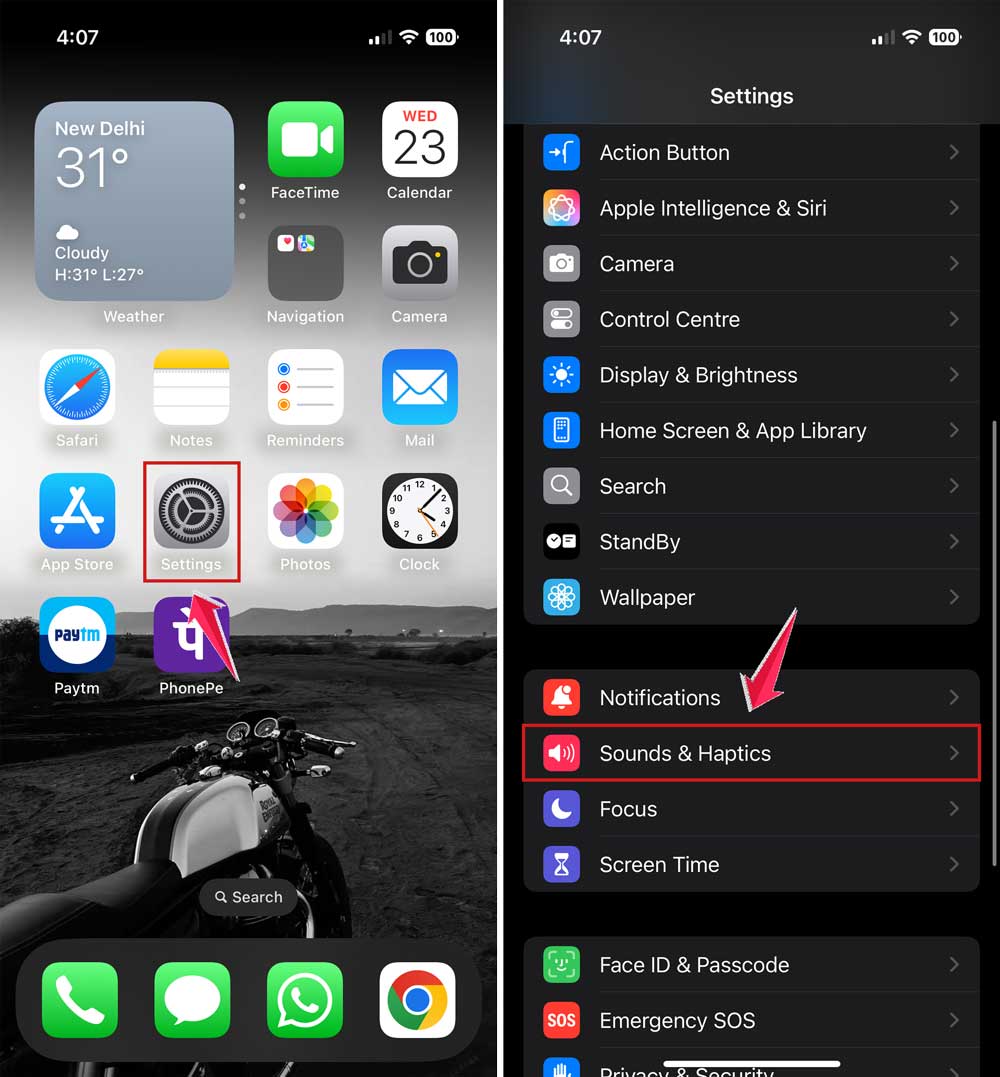
- Look for Volume Limit. If it’s on, turn it off or slide it to the max.

That’s it. If this was the issue, your AirPods should sound louder right away.
#2: Reset Your AirPods
Still quiet? Let’s give your AirPods a little reset. It’s like a fresh start, and it helps more than you’d think.
Here’s what to do:
- Put your AirPods in their case.
- Leave the lid open.
- Press and hold the button on the back of the case until the light flashes amber, then white.
- Go to your iPhone’s Bluetooth settings and reconnect your AirPods.
Now try playing something again. Better? Let’s keep going just in case.
#3: Fix the Audio Balance
Sometimes the volume feels off because it’s louder on one side. That’s the balance setting acting up. Let’s center it.
Here’s how you do it:
- Open Settings.
- Tap on Accessibility.
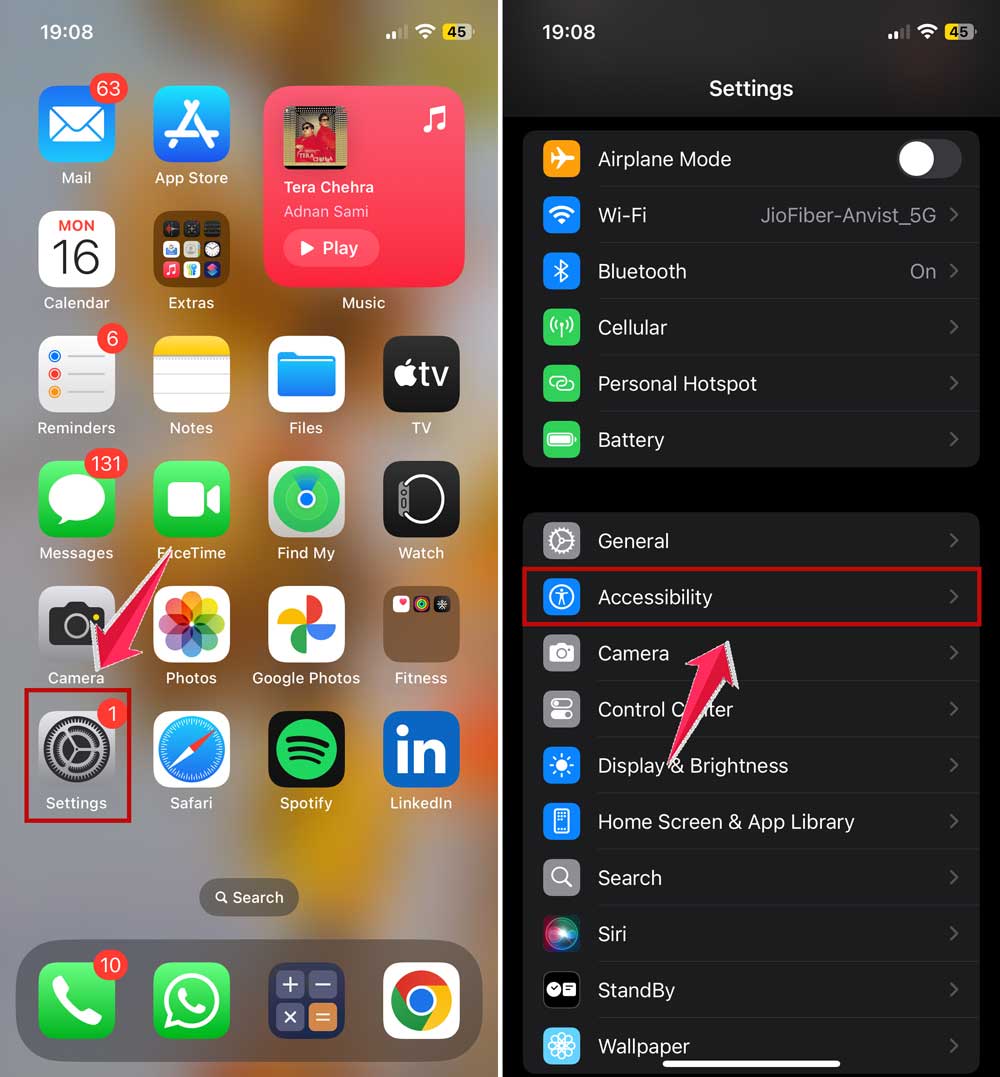
- Scroll to Hearing and tap Audio/Visual.
- Adjust the Balance slider so that it’s in the center.

That should even out the sound and boost the volume a bit more.
#4: Update AirPods Firmware
Your iPhone probably updated, but your AirPods might not have. If they’re running older firmware, they might not work as well.
Here’s how to update them:
- Connect your AirPods to your iPhone.
- Keep both devices close together.
- Make sure they’re both connected to Wi-Fi.
- Put your AirPods in the case and leave it open nearby.
After a while, your AirPods should update automatically. You can check the firmware version in the Bluetooth settings and compare it online to see if it’s current.
#5: Restart Your Devices
I know—this sounds way too simple. But seriously, restarting works more often than you’d think. It clears out glitches and resets things behind the scenes.
Here’s what to do:
- Turn off your iPhone and then turn it back on.
- Put your AirPods back in their case and close the lid.
- Wait a few seconds, then take them out and reconnect.
Give it a go. If your sound is back, you’re good to go. If not, don’t worry—we’ve got more tips.
Other Things You Can Try
Sometimes the fix isn’t in the settings—it’s in the little things. Let’s go over a few more quick checks.
1. Keep Your AirPods Clean
Dust and gunk can block the sound. You might not see it, but it’s there. Use a soft, dry cloth to wipe your AirPods. Check the speaker mesh and gently clean it if needed. This alone can make a huge difference.
2. Try a Different App
Still not getting full volume? Try playing music from a different app. Sometimes the issue is only with one app. If another app sounds fine, you’ve found the culprit.
3. Look for Physical Damage
Take a close look at your AirPods and the case. Any cracks or dents? Something stuck inside? Even a small issue can mess with sound. If you see something off, that might be your answer.
4. Have You Tried a Manual Update?
If your AirPods didn’t update automatically, try again using the steps above. Keeping both your iPhone and AirPods up to date helps avoid bugs and glitches.
5. Contact Apple Support
If nothing works, don’t be shy—reach out to Apple Support. They deal with this stuff all the time and can walk you through the next steps or check for hardware issues.
The Takeaway
So, your AirPods started whispering after that iOS update. Annoying? Yes. But now you know it’s usually something small—like a volume limit or a weird Bluetooth glitch. The best part? Most of these fixes only take a few minutes.
Start with the easy stuff: volume limit, audio balance, and a quick reset. Then move on to firmware updates or a restart. Still not working? Try cleaning them or testing other apps. And if all else fails, Apple’s there to help.
You’ve got this. Your music, your podcasts, your calls—they’re coming back loud and clear. If you’ve got any questions or want to share what worked for you, leave a comment below. I’d love to hear from you!