Did your Mac use to greet you with that familiar chime every time it turned on? And now, it’s just… silent? Yeah, that can feel a little weird.
You’re not the only one wondering what happened. That sound isn’t just noise. It’s your Mac’s way of saying, “All good here.”
So, when it’s gone, it can feel like something’s off. You might even start to worry, thinking something’s broken or not working right.
But hey, don’t jump to conclusions just yet. There’s a good chance it’s something small, like a setting that got changed without you knowing.
In this guide, we’ll walk through exactly why that chime might be gone and how you can bring it back.
Whether it’s a quick volume check or a tiny reset, we’ll cover it all. So let’s not waste time. Let’s figure this out together and get that sound back where it belongs.
What could be stopping the startup sound?
#1 Your Mac might be muted
Let’s start with the basics. If your Mac isn’t making a sound at startup, the volume might just be turned down or muted.
It happens more often than you think. Maybe you muted it before shutting it down, or maybe it was quiet from a previous setting.
So, before anything else, just check that little speaker icon at the top of your screen. Make sure the volume is up and mute is off. If it’s already up and still no sound. Don’t worry, we’ve got more to check.
#2 A recent macOS update might have changed something
Have you updated your Mac recently? Some macOS updates turn off the startup chime by default. Yep, without even asking you. It’s frustrating, but it’s fixable.
After an update, your sound settings may be reset or changed. That’s why it’s important to go back in and double-check everything, especially after installing a new version of macOS.
#3 There could be a hardware issue
Okay, let’s be real. This isn’t super common. But it does happen. If your speakers aren’t working at all, even during normal use, then the startup chime won’t play either. That could mean a hardware issue with your Mac’s internal speakers.
But don’t panic just yet. We’ll test the speakers in the “fixes” section below, so hang tight.
#4 PRAM or NVRAM settings might be off
Your Mac stores some important settings like speaker volume and display resolution. These are stored in something called PRAM or NVRAM. Sometimes, these settings get scrambled or messed up.
When that happens, your Mac might forget to play the startup sound. But the good news? You can reset these settings pretty easily. It sounds technical, but I’ll walk you through it step by step.
Fixes & Solutions: Bringing Back Your Mac’s Startup Sound
Alright, now that you know what could be causing the silence, let’s fix it. We’ll start with the easiest solutions first and work our way up. You don’t need to be a tech expert. Just follow along, and we’ll take care of it together.
#1 Check your volume settings
Let’s not overthink it. Sometimes it really is just the volume.
Take a second to check your Mac’s volume level. Click the speaker icon in the menu bar at the top-right of your screen.
If the sound is muted, click to unmute it. If the volume is low, slide it up.
Also, give this a try:
- Play a song or video. Can you hear anything?
- If yes, your speakers are working.
- If no, we’ll look at other options next.
#2 Update your macOS and sound settings
If your Mac recently updated, it might have changed your sound settings. Let’s make sure everything’s current and set up right.
Here’s how to check for updates:
- Click the Apple icon in the top-left corner of your screen.
- Select “About This Mac”.
- Click “Software Update”.
- If an update is available, click “Update Now”.
Once updated, do this:
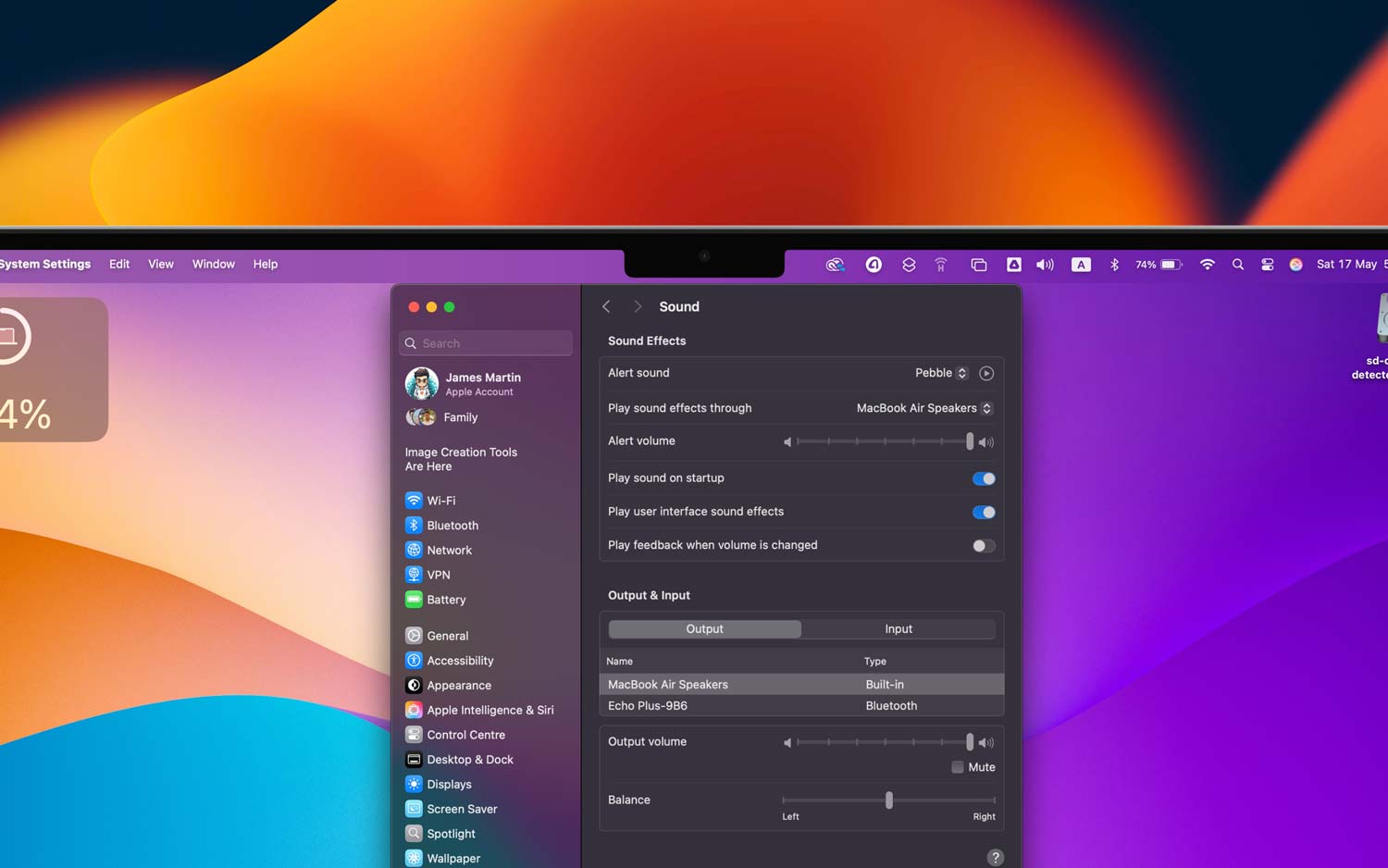
- Go to System Settings (or System Preferences in older macOS).
- Click Sound.
- Make sure the option for “Play sound on startup” is turned on.
If it’s already on and you still don’t hear anything, let’s keep going.
#3 Reset PRAM/NVRAM
This might sound complicated, but it’s actually simple. And it works wonders for issues like this.
Here’s how you reset it:
- Turn off your Mac.
- Turn it back on and immediately press and hold: Command + Option + P + R.
- Keep holding the keys for about 20 seconds.
- Release the keys after the second startup sound or when the Apple logo appears and disappears twice.
This resets your system’s little memory chip that stores volume and other settings. After this, your startup chime might magically return.
#4 Test your speakers
Still no sound? Let’s make sure your speakers are working.
Try this:
- Open a music app or YouTube video.
- Play something with sound.
- Can you hear anything?
If yes, your speakers are fine. If not, try plugging in headphones or external speakers. If those work, your internal speakers may be the issue.
Still nothing? It might be time to let a technician take a look. But don’t give up yet. We’re not done.
#5 Enable the chime manually using Terminal (optional)
This step is for those who don’t mind using Terminal. It’s a little advanced, but if you’re up for it, here’s what to do:
- Open Terminal (find it in Applications > Utilities).
- Type this command: sudo nvram StartupMute=%00
- Press Return.
- Enter your password when prompted and press Return again.
That command tells your Mac to unmute the startup chime. Restart your Mac and listen for that sweet sound.
Extra Tips to Keep the Chime Working
1. Keep macOS updated regularly
I know, updates can be annoying. But they help more than they hurt. Updating your Mac often means you get bug fixes, performance improvements, and yes, even sound fixes.
So, check for updates every now and then. It could save you from future issues.
2. Back up your sound settings
This isn’t something most people think about, but it helps. Take a screenshot or jot down your current sound preferences.
If something changes later, you’ll know what to compare it to. It’s a small thing now that can save you time later.
3. Make checking volume a habit
Before you shut down or restart your Mac, just glance at the volume. Is it turned up? Is mute off?
It takes two seconds and can save you from wondering where your startup chime went the next morning.
4. Try customizing your sound alerts
Want to have a little fun? Head into your Mac’s System Settings and explore the sound alerts. You can change the alert tone, adjust volumes, and more. Sometimes, just tweaking these settings helps fix other sound-related issues too.
5. Use external speakers if needed
If your Mac’s built-in speakers aren’t doing the job, plug in external ones. Or use headphones. This can help you work around hardware issues and still hear your startup sound loud and clear.
The Takeaway
So there you have it. Your Mac’s startup chime might be missing, but it’s usually nothing major.
Most of the time, it’s just a setting that needs to be fixed or reset. We’ve walked through all the common causes and plenty of easy fixes. You know we have checked from checking volume to resetting PRAM/NVRAM.
If none of these work, then it might be a hardware thing. But don’t stress. Apple Support is always there if you need them.
For now, give these steps a go and see if you can bring that sound back. It’s a small thing, but it makes a big difference when your Mac greets you with that familiar chime.
Got any questions or something didn’t work? Drop them in the comments below! I’m here to help.