Ever wished you could use some great Mac apps on your Windows computer? You’re not alone. Many Windows users find themselves in this situation, but don’t worry – you’ve got options.
I’m here to guide you through some practical ways to run Mac programs on your Windows PC. You don’t need to buy a new computer or be a tech expert. With a few simple techniques, you can access those Mac-only apps you’ve been missing.
Let’s explore how you can bridge the gap between Mac and Windows, making your computer experience more versatile and enjoyable.
How to Run Mac Programs on Windows: Three Solutions
Ever wanted to use Mac apps on your Windows computer? You’re not alone. While Macs are great, not everyone can buy one just for a few apps.
Don’t worry, though – you’ve got options. Let’s explore three clever ways to get those Mac programs running on your Windows PC.
1. Look for a Windows Version or Alternative
Before diving into complex solutions, let’s start with the basics:
- Search online: Type the app’s name plus “Windows version” into Google. For example – “TextEdit + Windows Version“. You might be surprised at what you find.
- Check the app’s website: Sometimes, developers offer Windows versions without much fanfare.
- Contact the developers: They might have a Windows version in the works or a beta you can try.
- Look for alternatives: If there’s no Windows version, search for “Windows alternative to [app name]“. You might discover a great substitute.
2. Set Up a Virtual Machine
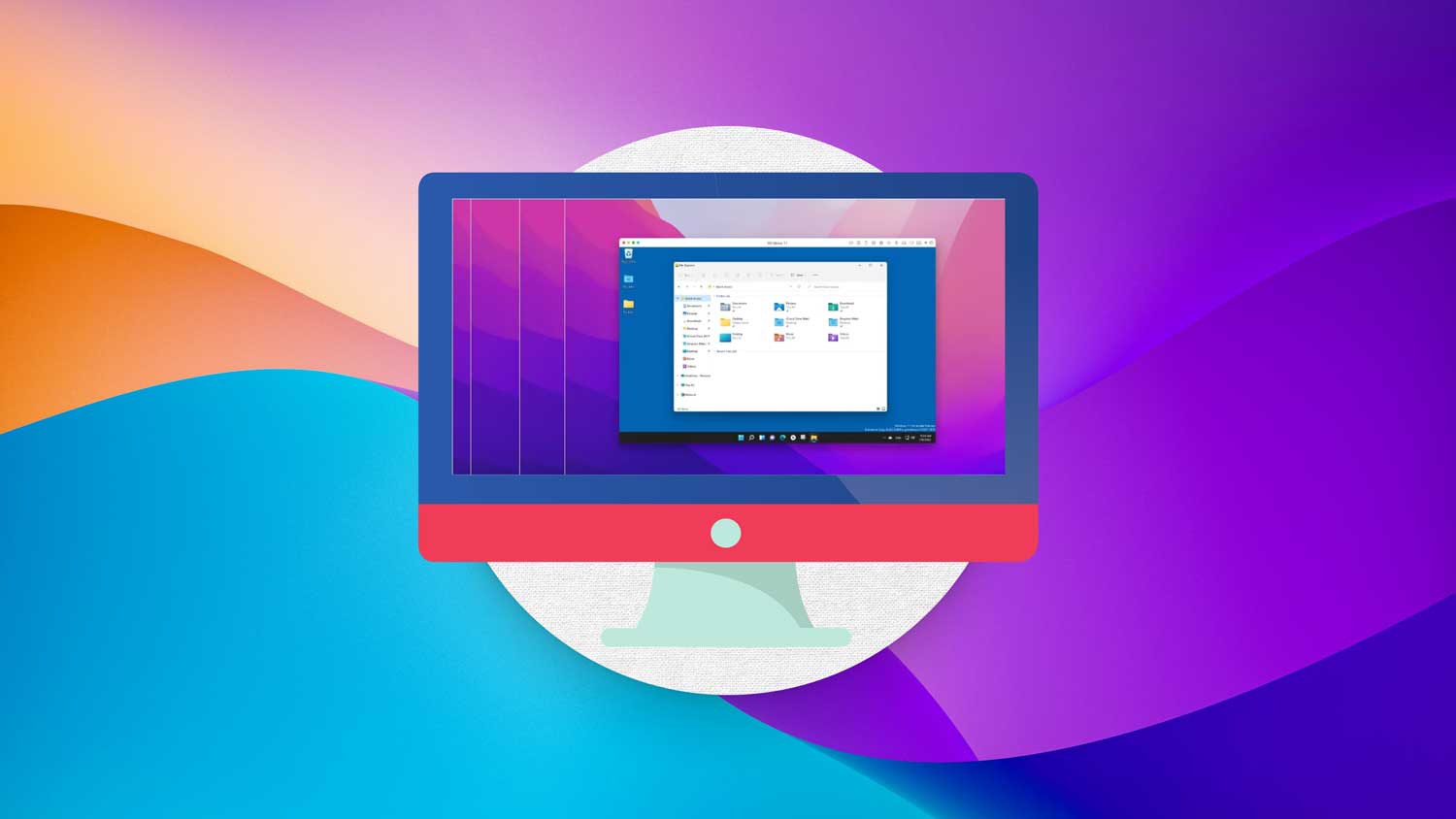
A Virtual Machine (VM) is like running a Mac inside your Windows PC. Here’s what you need to know:
- You’ll need software like VirtualBox or VMware to create your VM.
- Once set up, you can install macOS and run Mac apps as if you’re using a real Mac.
- Setting up a VM takes some effort, but there are plenty of online guides to help you.
- Your VM’s performance depends on your PC’s power. A newer, faster PC will give you a smoother experience.
3. Try a Cloud Service
Cloud services are becoming increasingly popular, offering a unique way to run Mac apps:
- Cloud VMs run on remote servers, so you access them through your browser or a special app.
- Your internet speed is crucial for good performance with cloud VMs.
- They’re often not free, but many offer trial periods. Popular options for Mac apps include Mac Mini Vault and Mac In Cloud.
- Cloud VMs are great if you don’t want to rely on your PC’s hardware, but remember to factor in the costs.
Each of these methods has its pros and cons. The best choice for you depends on which apps you need, how often you’ll use them, and your budget. With these options, you can enjoy the best of both worlds – Windows and Mac – without breaking the bank.
How to Choose the Best Method for Running Mac Apps on Windows?
When it comes to using Mac apps on your Windows PC, you’ve got a few options. Let’s break down how to pick the best one for you:
#1 Start with the simplest solution
First, check if there’s a Windows version of the Mac app you want. This is the easiest way to go:
- It’s quick and straightforward – just download and use.
- You don’t need any special technical skills.
- It’s usually the most stable option.
#2 Consider a Virtual Machine (VM) on your PC
If there’s no Windows version, think about setting up a VM:
- This option is better if you’re comfortable with technology.
- Your PC’s power matters – a newer, faster computer will run a VM more smoothly.
- It’s a good choice if you need to use several Mac apps regularly.
#3 Look into Cloud VMs
Cloud VMs can be a great middle ground:
- They’re easier to set up than a local VM.
- You’ll need to pay for the service, so consider your budget.
- Think about how often you’ll use it – if it’s frequent, the cost might be worth it.
Remember, there’s no one-size-fits-all answer. The right choice depends on your specific needs and situation. Whether you go for a simple Windows alternative, set up a VM, or opt for a cloud service, you’re now equipped to make an informed decision.
In Conclusion To
Bridging the gap between Mac and Windows opens up new possibilities for your computing experience. Whether you choose a Windows alternative, set up a virtual machine, or opt for a cloud service, you’re now equipped to make an informed decision.
Remember, technology is about finding creative solutions, so don’t let platform differences limit you.
We’d love to hear your thoughts! Have you tried any of these methods? Do you have other tips for running Mac apps on Windows? Share your experiences in the comments below. Your insights could help others facing similar challenges. Let’s continue learning and exploring together!