When you’re working with multiple desktops or screens on your Mac, you might find that your Dock isn’t always where you expect it to be. This can be a bit confusing, especially if you’re used to seeing it in a particular spot. But don’t worry – there are ways to manage this and make your Mac work better for you.
Your Dock is like a home base for your favorite apps and files. You might want it always visible, or maybe you prefer it to hide until you need it. You can have it at the bottom of your screen, or even on the side if that works better for you.
If you use more than one desktop or screen, you might wonder why your Dock only shows up on one of them. Or maybe you’ve noticed it jumping around and you’re not sure why.
Let’s talk about how your Dock behaves across different desktops and screens, and how you can set it up to suit your needs. We’ll explore some tricks to make sure you can always find your Dock when you need it, no matter which desktop or screen you’re using.
Is it possible to show the Dock on all screens on Mac simultaneously?
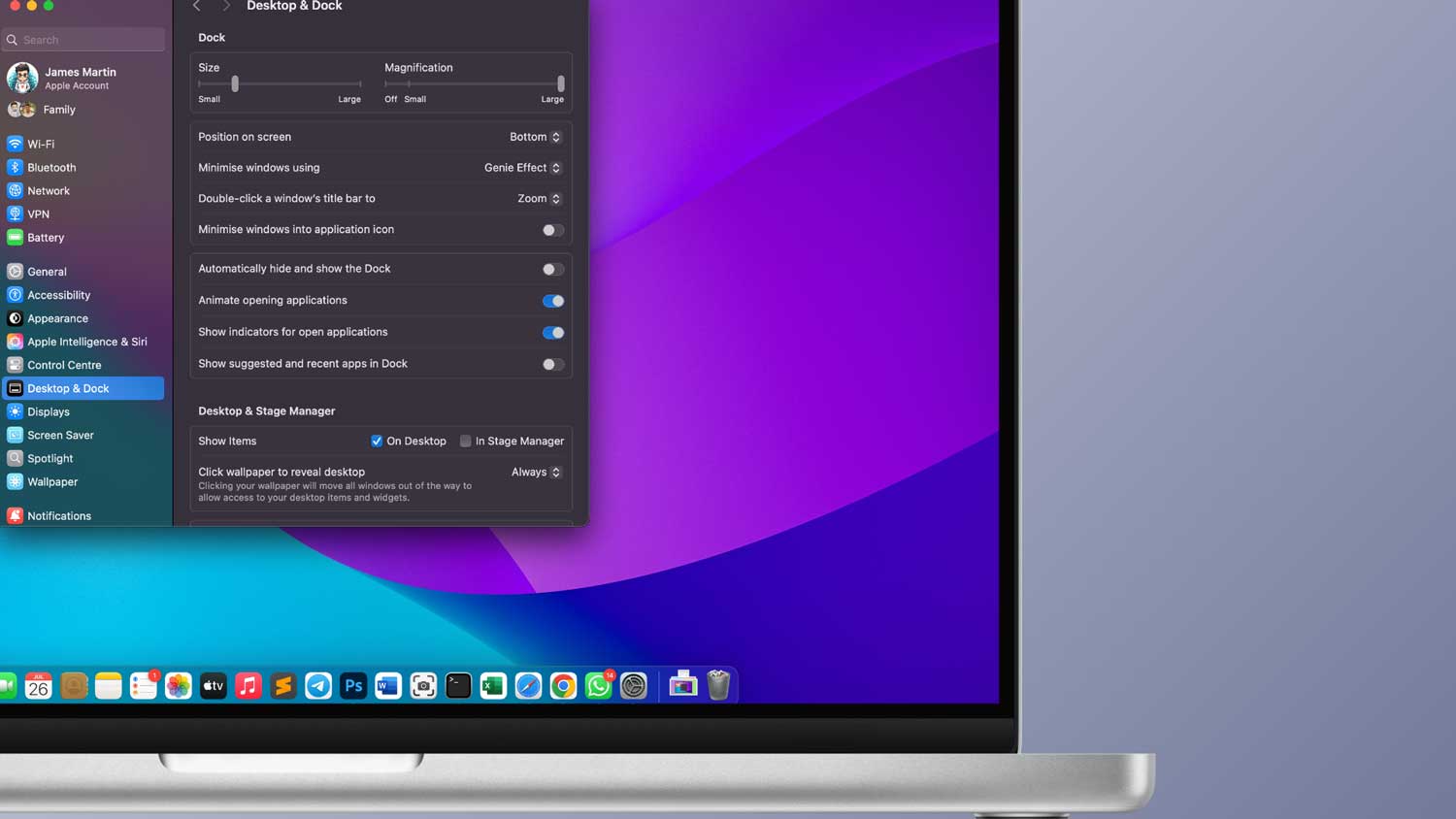
When you’re trying to make the most of your multi-screen setup on your Mac, you might wonder if you can have the Dock appear on all your connected monitors. It’s a reasonable question, and you’d probably start by looking in the “Desktop & Dock” part of your System Settings to find this option.
But here’s the thing: there’s no direct setting to make the Dock show up on all your screens at the same time. You can change where the Dock sits on your screen, make it hide and show automatically, and even adjust how it looks when you open apps or minimize windows. However, you can’t make the Dock stretch across all your displays.
You might think, “Well, maybe it’s in the Displays section of System Settings.” But if you look there, you won’t find an option to put the Dock on all screens either. This can be a bit frustrating if you were hoping to have easy access to your Dock no matter which screen you’re working on.
So, while you can customize your Dock in many ways, having it appear on all screens at once isn’t something your Mac can do out of the box.
How to show the Dock on all screens on Mac
Even though you can’t have the Dock on all your screens at once, you can still move it around easily. Here’s how you can manage your Dock across your multiple displays:
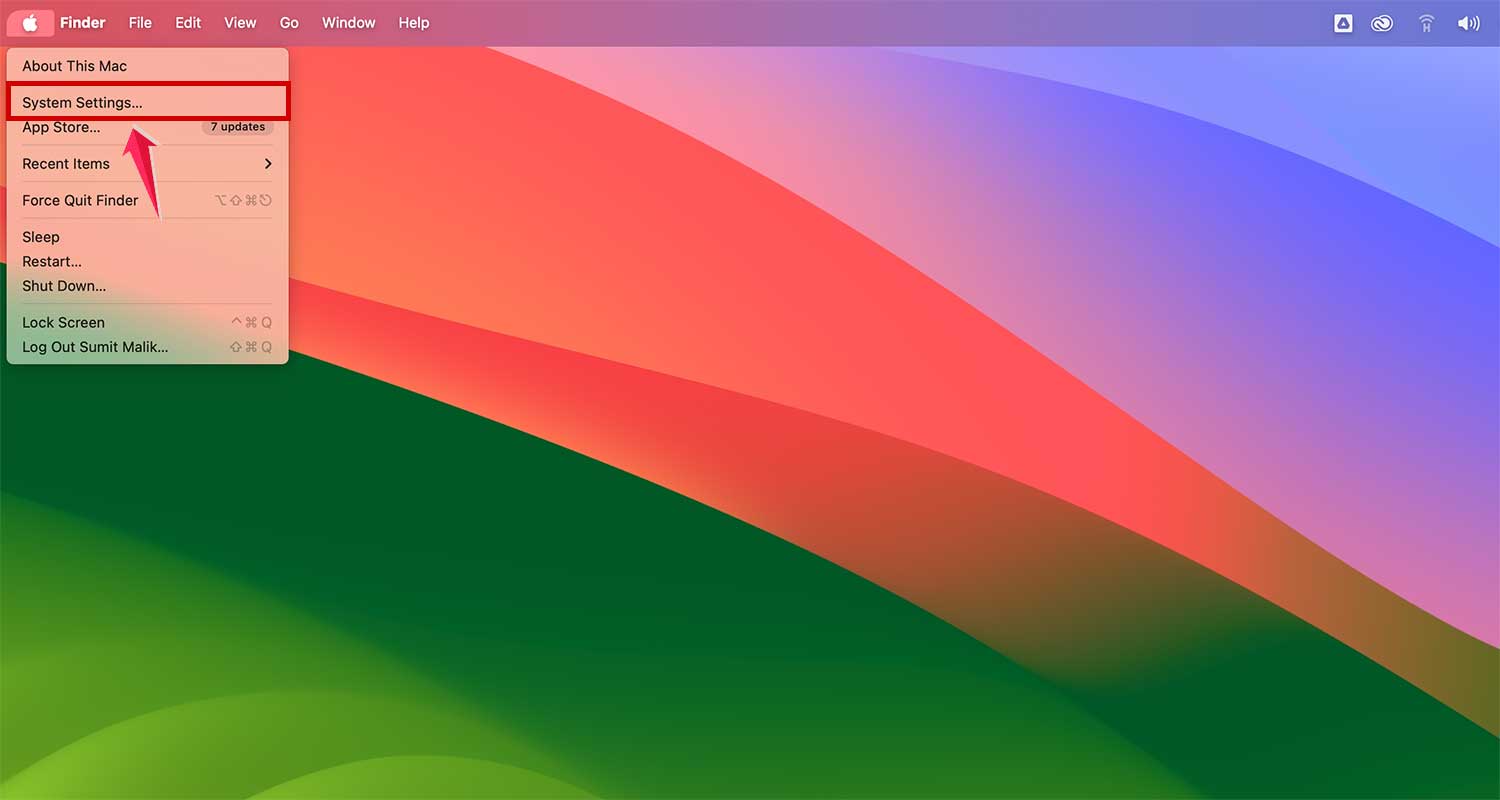
- Open your System Settings by clicking the Apple menu and choosing “System Settings.”
- Go to the Displays section and click on “Arrange.”

- Set your main display. Look for the white bar at the top of the screen thumbnails.
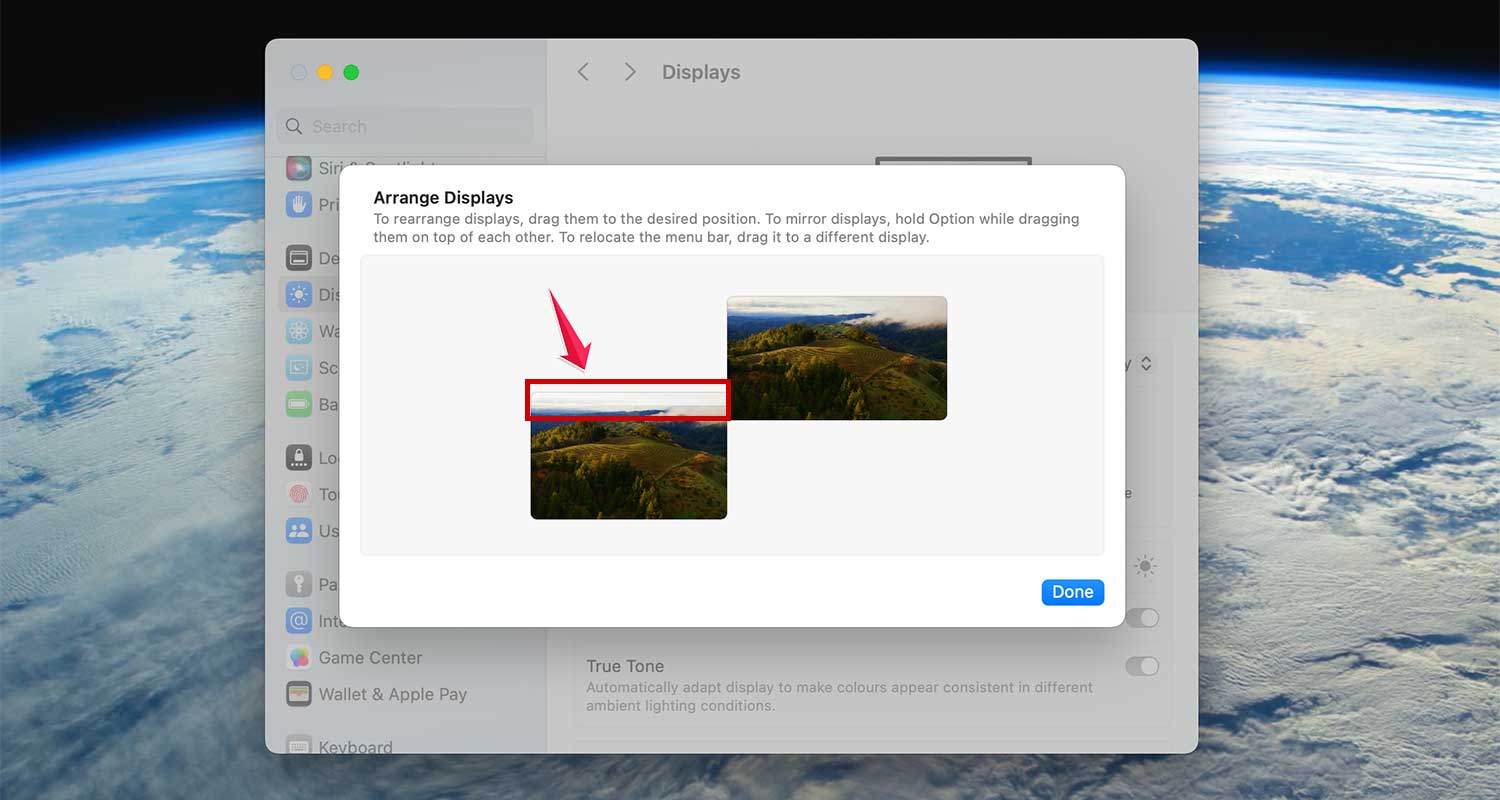
- Click and drag this bar to the screen where you want your Dock to appear. This screen will be your main display, and it’s where your Dock will show up.

- Move the Dock to another screen. If you want to move the Dock later, just drag the menu bar to a different screen in the system settings.
If you want a quicker way to move your Dock without going into settings, try this:
Move your mouse to the bottom of the screen where you want the Dock to appear. Keep moving it down, and your Dock should slide over to that screen. But remember, this only works if your Dock is at the bottom of your screen.
This method gives you control over which screen shows your Dock. It’s not the same as having the Dock on all screens, but it’s a handy way to move it around when you need to.
What Do To If The Dock Has Accidentally Moved To Another Screen
Sometimes your Dock might jump to a different screen when you didn’t mean for it to. This can be annoying, especially if changing settings doesn’t fix it. Here’s how you can get your Dock back where you want it:
If your Dock suddenly appears on the wrong screen, try moving your mouse to the bottom of the screen where you want the Dock. Push the mouse a bit further down, and your Dock should move there. This works best if your Dock is set to be at the bottom of your screen.
Adjust your Dock settings:
- Click on the Apple menu and open “System Settings.”
- Find and click on “Desktop & Dock.”
- If your Dock is on the side of your screen, change the “Position on screen” setting to “bottom.” This will help with the quick moving method.
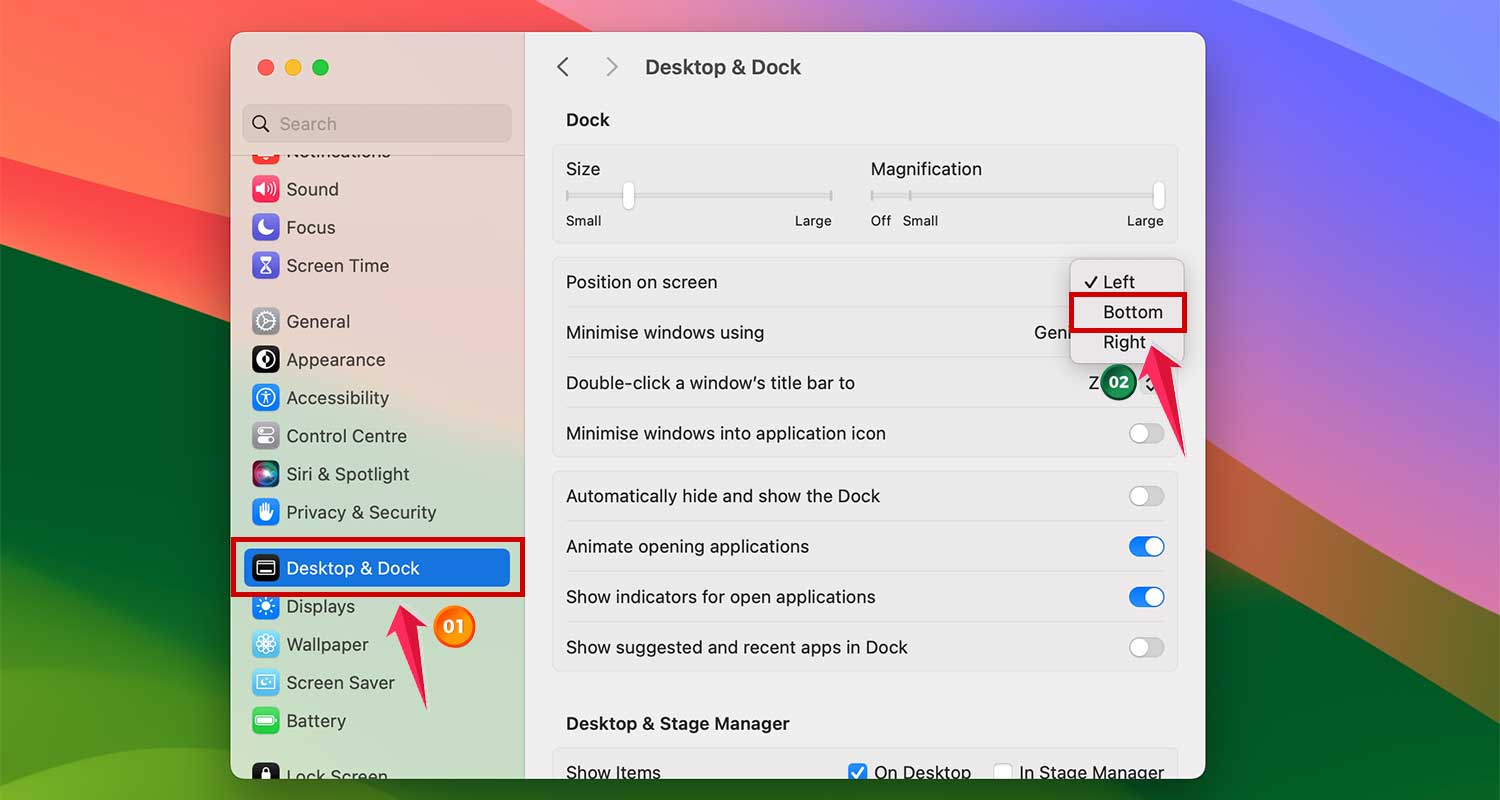
If moving your Dock doesn’t work, try turning off the “Automatically hide and show the Dock” option. Sometimes this setting can make it harder to move your Dock.

And, if your Dock keeps moving on its own, it might be because your Mac is having trouble figuring out which screen is the main one.
Make sure all your cables are plugged in properly. You can also try turning your monitor off and on again.
In Conclusion To
Making your Mac work well with multiple screens can really help you get more done and enjoy using your computer.
Even though you can’t have the Dock on all screens at once, knowing how to move it around and fix it when it jumps to the wrong screen is important.
By using your system settings and some quick mouse tricks, you can set up your screens just the way you like them.
Don’t forget to keep your Mac clean and running smoothly too. With these tips, you can create a workspace that works great for you and keeps up with everything you need to do.