Are you ever stuck with a .rar file on your iPhone, wondering how to unlock its contents?
Whether they come from friends, family, or colleagues, these compressed files can be tricky.
Luckily, as an iPhone enthusiast, I’ve discovered some straightforward methods to open these files effortlessly.
Let’s explore how you can manage .rar files smoothly on your device.
Can You Open .rar Files in the ‘Files’ App?
Ever curious about whether you can crack open those mysterious .rar files directly in the ‘Files’ app on your iPhone?
Despite Apple’s claim that it’s straightforward, I found that it didn’t quite pan out on my iPhone 13.
But don’t fret! I’ve discovered a clever workaround using the Shortcuts app.
Let’s dive into the magic of shortcuts and make those .rar files accessible. Once you get the hang of it, the Shortcuts app on iPhone can unlock a whole range of powerful tasks beyond just .rar files.
How to Use the Shortcut Method on iPhone for Opening .rar Files:
Apple might suggest that opening .rar files in the Files app is a breeze, but let’s face it, sometimes things don’t go as planned.
Here’s how to sidestep those hurdles and unlock your files using the Shortcuts app:
- Start by tapping the magical ‘+’ icon in the Shortcuts app.
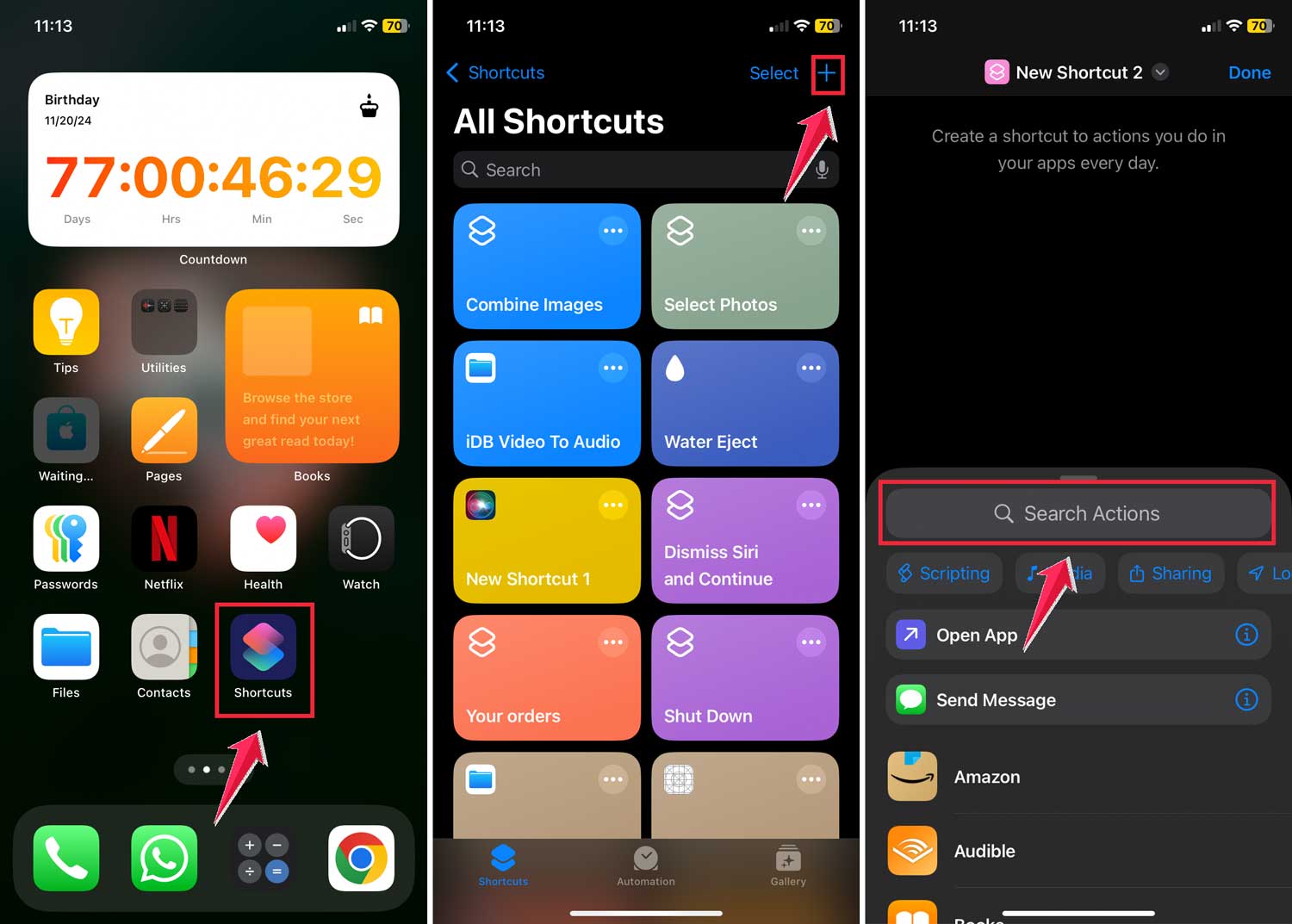
- Search for ‘File’ in the app then select Scan Document and add it to your shortcut.

- Next, sprinkle in the ‘Extract Archive’ action.
- Don’t forget to add a ‘Save File’ action to ensure you save your extracted files safely.
- Hit ‘Done’ to finish setting up your shortcut. When you run it, it’ll prompt you to select a location for your extracted files.

How To Open .rar Files After Creating a Shortcut:
- Access the Shortcut Settings: Tap the ellipsis (three dots) next to your shortcut. This takes you into edit mode.
- Swap the File: In the shortcut canvas, tap on the existing file to swap it out for a new one. Update, save, and run your shortcut to open another .rar file effortlessly.

Third-Party Apps and Websites to Open .rar Files on iPhone
Let’s take a look at these convenient solutions that can save you time and effort.
Third-Party iPhone Apps for Handling .rar Files:
- iZip: Your Digital Wizard: Think of iZip as your digital wizard, ready to handle .rar files with just a snap of its fingers. Simply download the app, select your file, and watch as it effortlessly works its magic.
- WinZip: The Zip Master: Meet WinZip, the master of zipping and unzipping on your iPhone. It’s not just about zipping; this app skillfully manages .rar files, ensuring your files are in expert hands.
- Documents: Your Virtual File Hero: The Documents app is like the superhero of file management. It not only opens .rar files but also organizes them efficiently, making file management a breeze.
Online Tools to Access .rar Files
- Archive Extractor: Archive Extractor is an online tool that makes opening .rar files straightforward. Upload your file to this website, and it quickly unravels the contents for you, all within your web browser.
- CloudConvert: CloudConvert acts like a digital alchemist, transforming your .rar files into more accessible formats with ease. This tool is perfect for fast, efficient, and hassle-free file conversions.
In Conclusion To
And there you have it, tech lovers! We’ve just simplified the maze of opening .rar files on your iPhone. Whether you fancy shortcuts or prefer app magic, mastering these files is now a breeze.
From the clever use of the Shortcuts app to powerful allies like iZip, WinZip, and Documents, we’ve got all bases covered. Forget the frustration of compressed files. These tools make it easy and efficient.
For online ease, Archive Extractor and CloudConvert are your go-to options, swiftly transforming and managing files right from your browser. You can also save converted files in a specific format, such as PDFs or images, right on your device.
Choose your favorite method. Be it native apps, dynamic third-party tools, or online wizards. Your iPhone is now fully equipped to tackle .rar files effortlessly.
Wave goodbye to confusion and hello to seamless digital experiences. Dive into your digital adventures with confidence and let your iPhone do the heavy lifting. Happy exploring!