Your iPad’s stuck on the progress bar, huh? It’s like watching paint dry… but even worse. You’re just sitting there, staring at the screen, waiting for something—anything—to happen.
I know exactly how frustrating that can be, especially when you need your iPad working again ASAP.
So, what’s the deal here? Well, your iPad’s frozen during a restore. Instead of fixing old problems, it’s now giving you a brand-new headache. And it’s not just about waiting anymore. You probably feel stuck yourself.
Why does this even matter so much? Simple. Your iPad isn’t just a gadget. It’s your work tool, your entertainment center, your way to stay connected. Without it, everything feels like it’s on pause.
But hey, don’t worry. Seriously, take a breath. We’ve got your back. There are a few easy steps you can follow to break free from that annoying progress bar.
Let’s dive in, fix this together, and get your iPad back to normal!
Why is your iPad stuck on the restore progress bar?
Alright, let’s dig into why your iPad is acting up. Knowing the cause makes fixing it way easier.
1. Check your connections first
Cables and ports can be sneaky troublemakers. If your USB cable is damaged or the port is dirty, your iPad might not restore properly. It’s basic, but super important.
Take a minute. Double-check your cable. Make sure everything’s plugged in snug and secure. If you spot any frays or bends, grab another cable if you can.
2. Software glitches are real
Sometimes, it’s not you. It’s the software. iOS or apps can have tiny bugs that cause big problems. Your iPad might just be tripping over a glitch during the restore.
Restarting the process can sometimes shake things loose. It’s like giving your iPad a little tap on the back.
3. Running out of storage is a problem
Low storage space can slam the brakes on your restore. If your iPad’s almost full, it might not have enough room to finish restoring.
Take a look. If you can, clear out some old apps, photos, or files. Freeing up space could be the magic fix you need.
4. Time to update your software
Old software is like using an outdated GPS. It just doesn’t work right anymore. If your iTunes or iPad isn’t updated, things can get messy.
Always keep both updated. New updates fix bugs and make restores smoother. Trust me, it’s worth the few minutes.
5. Watch out for faulty restore files
Sometimes, the backup you’re using to restore can be broken. If the file’s corrupted or incomplete, your iPad will throw a fit and get stuck.
If you suspect that’s the case, try restoring from another backup. It could save you a major headache.
Alright, now that you know what might be wrong, let’s move on to fixing it!
iPad Stuck on Restore Progress Bar – What to Do
Now, let’s roll up our sleeves and get your iPad back in action. Follow these steps carefully. I’ll walk you through it like we’re sitting together.
#1 Check your connections
First things first. Let’s make sure your cable and ports aren’t causing trouble.
Take a moment and do this:
- Unplug your iPad from the computer.
- Inspect the USB cable closely. Look for any frays, bends, or damage.
- Try plugging the cable into another USB port on your computer.
- Still nothing? Try using a different cable if you have one.
You don’t need fancy tools. Just your eyes and a little patience.
#2 Restart the restore process
Sometimes, a simple restart can work wonders.
Here’s what you should do:
- Disconnect your iPad from the computer.
- Close iTunes or Finder completely.
- Wait for a minute, then reconnect your iPad.
- Open iTunes or Finder again and restart the restore.
It’s like giving your iPad a second chance to behave.
#3 Update iTunes and your iPad
Old software? Big no-no. Let’s fix that.
On your computer:
- Open iTunes.
- Click on Help > Check for Updates.
- Install any available updates.
On your iPad:
- Go to Settings > General > Software Update.

- If there’s an update, download and install it.
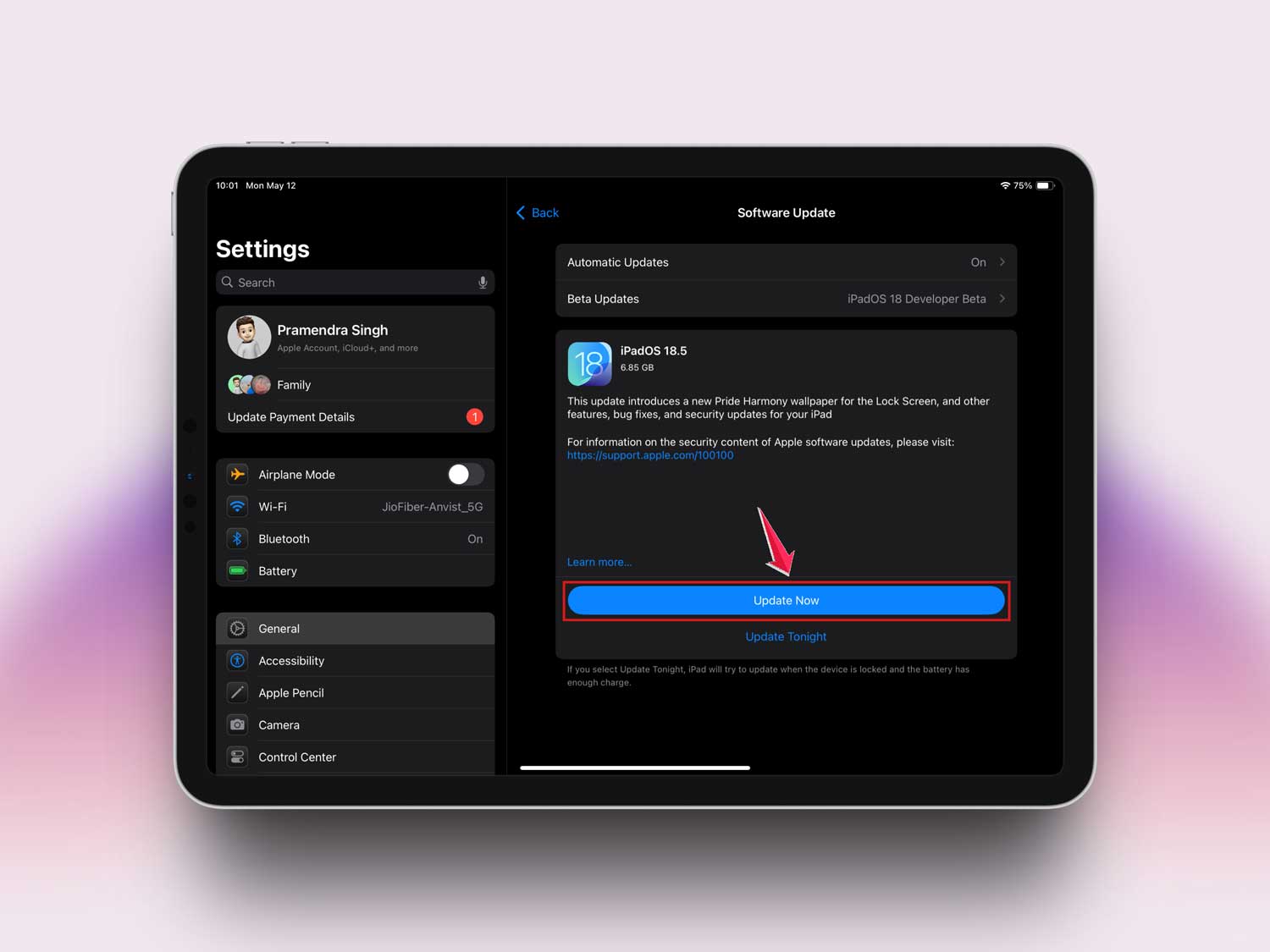
Once both are updated, reconnect and try restoring again.
#4 Use recovery mode
If your iPad’s still stuck, don’t worry. Recovery mode is your superhero.
Here’s how you put your iPad into recovery mode:
- Connect your iPad to your computer using a good cable.
- Open iTunes or Finder on your computer.
- Quickly press and release the Volume Up button, then the Volume Down button.
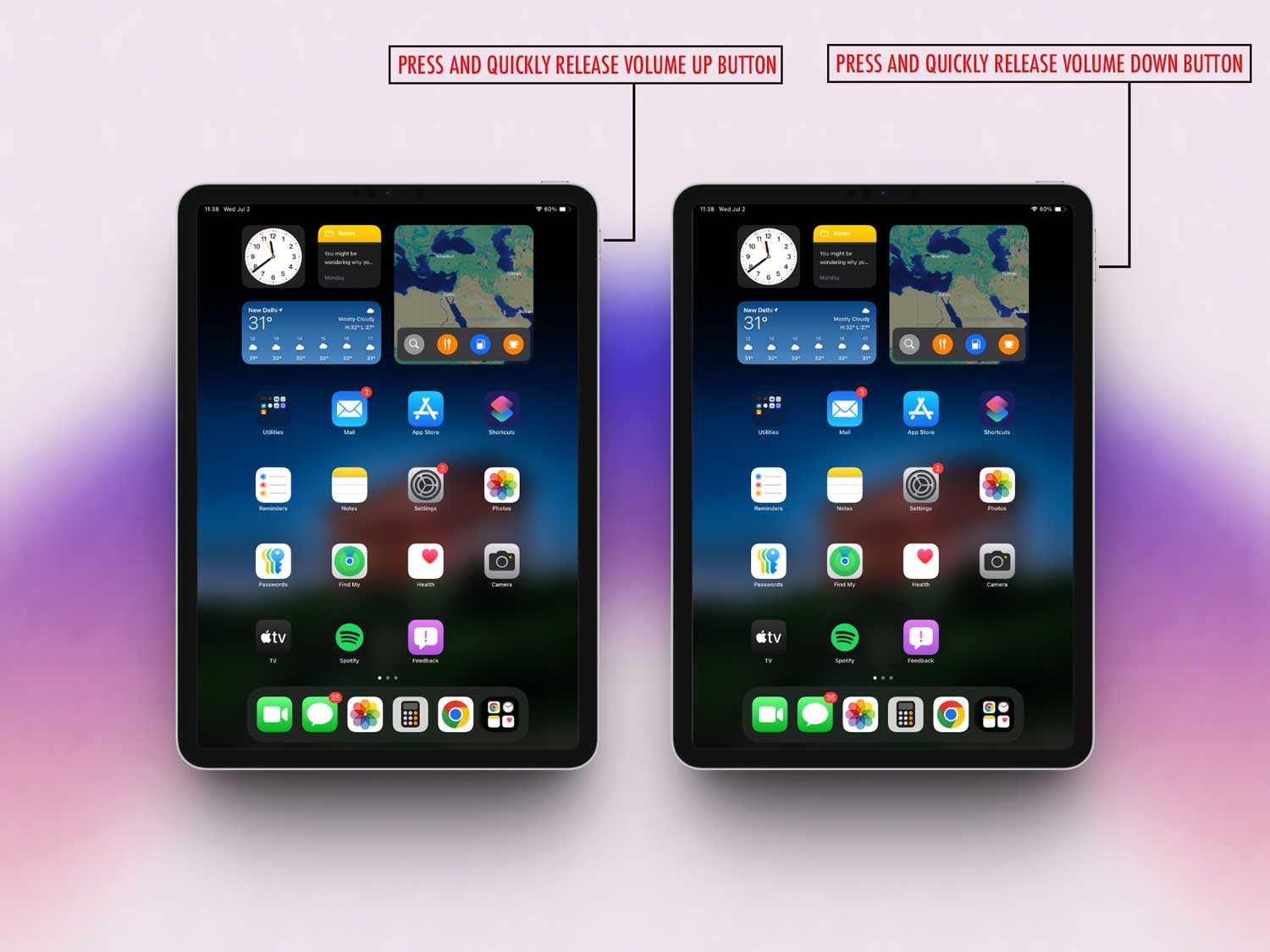
- Press and hold the Top button until you see the recovery mode screen.

Once you’re in recovery mode, you’ll get options to restore or update. Choose restore and let it work its magic.
#5 Free up some space
Storage problems can sneak up on you. Let’s clear out the junk.
Here’s what you can do:
- Go to Settings > General > iPad Storage.
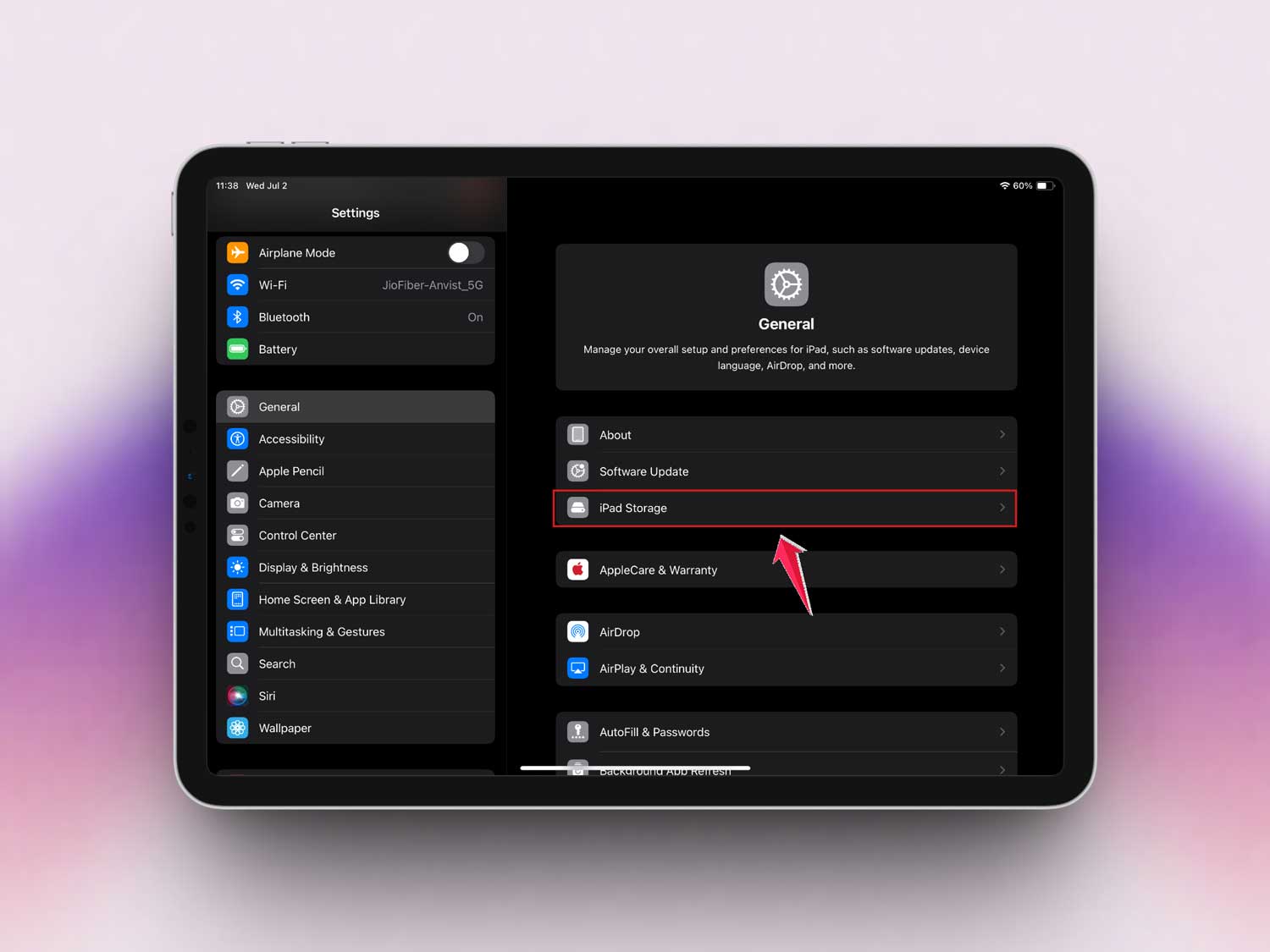
- Check what’s taking up the most space.
- Delete apps, videos, or files you don’t need right now.
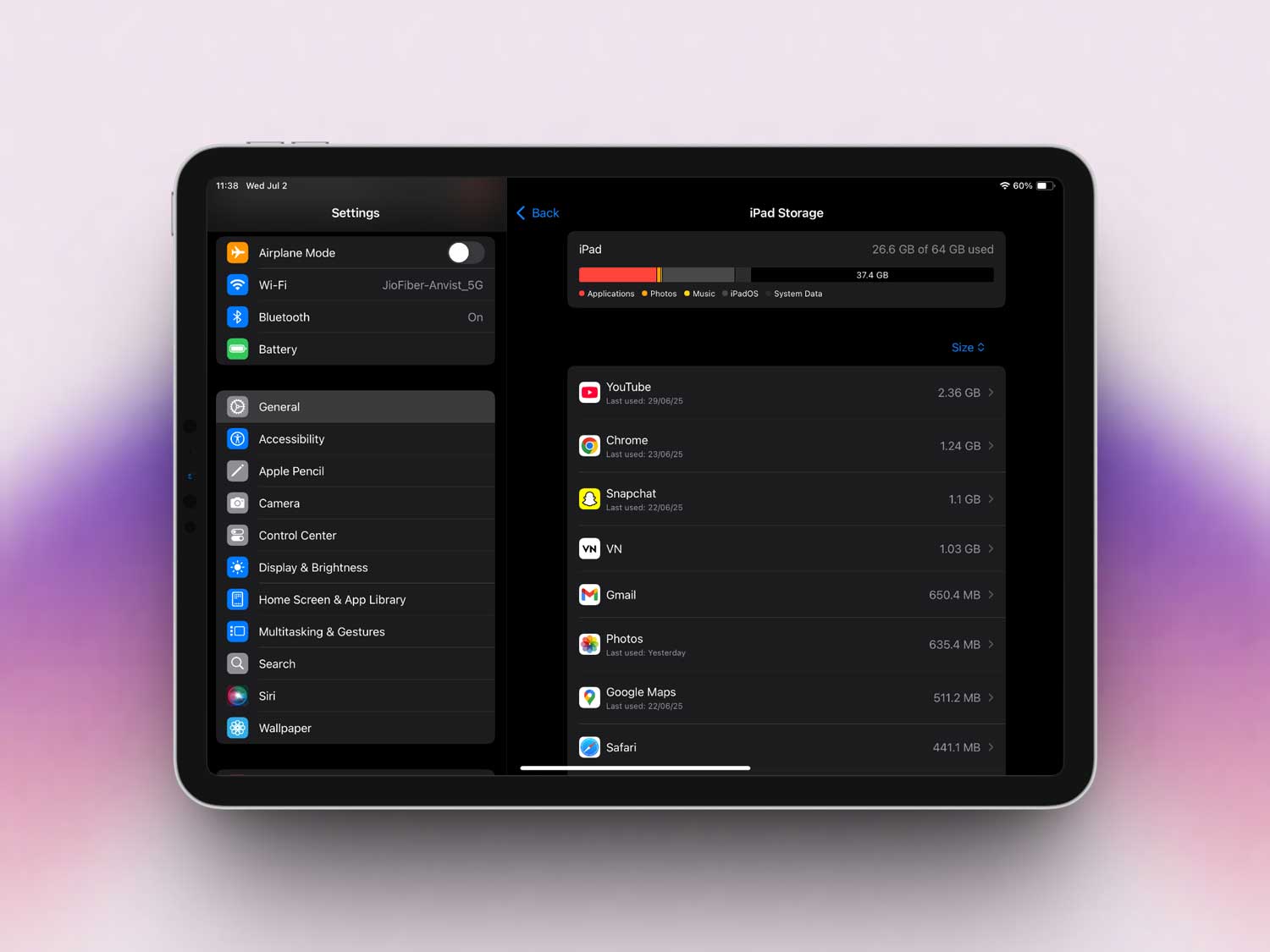
A little spring cleaning can make a big difference.
#6 Try a different computer
Believe it or not, sometimes the problem isn’t your iPad. It’s the computer.
If you have another computer around, do this:
- Install the latest iTunes on the second computer.
- Connect your iPad and try restoring it there.
Sometimes, a fresh environment is all your iPad needs to get back on track.
Phew! That was a lot, but you’re doing great. If you’re still stuck, don’t worry. We’ve got a few more tips coming right up.
Extra tips to keep your iPad healthy and happy
1. Back up regularly for peace of mind
Let’s be real. Tech problems happen when we least expect them. That’s why backing up your iPad regularly is a lifesaver.
It’s like having a safety net. Even if something goes wrong, your precious photos, files, and memories are safe.
2. Give Apple Support a call
Sometimes, even after trying everything, the issue is just too stubborn. And that’s okay.
That’s what Apple Support is for. They have tools and tricks that you and I don’t. Don’t hesitate to give them a call or book an appointment.
3. Consider professional repairs if needed
If nothing works and your iPad still won’t cooperate, a professional repair might be the way to go.
Visit an official Apple Store or a certified repair center. They’ll take a deeper look and fix things the right way.
4. Keep calm and carry on exploring
Tech issues can be super frustrating. I get it. But staying calm helps you think clearly and avoid making things worse.
One step at a time, and you’ll get through it. Promise.
The Takeaway
When your iPad’s stuck on that annoying progress bar, it feels like time stands still. But remember, most of the time, it’s nothing too serious.
Start by checking your connections. Then, make sure your software is up to date. If that doesn’t work, try a fresh restore using recovery mode or even a different computer.
Don’t fall for the myth that your iPad is “broken forever.” Most of the time, it’s fixable with just a little patience and the right steps.
Stay calm, follow these tips, and you’ll be back to scrolling, streaming, and staying connected in no time.
Let us know in the comments if these steps helped you out!