Is your MacBook running out of power faster than it used to? Don’t worry, you’re not alone. All MacBooks have batteries that gradually lose their capacity over time.
But here’s some good news: you can easily check your battery’s health to stay on top of any power issues.
In this guide, you’ll learn how to perform a quick “Battery Health Check” on your MacBook. We’ll walk you through some simple steps to see how your battery’s doing and what that means for your Mac’s performance.
Whether you’ve just unboxed your new MacBook or you’ve been using one for years, this information will help you keep your device running smoothly.
Ready to become a MacBook battery expert? Let’s dive in!
What is a Mac battery cycle?
A battery cycle is like a full day in your MacBook’s battery life. Here’s what you need to know:
Think of a battery cycle as using up all your MacBook’s battery power and then fully recharging it. It’s important to understand that this doesn’t have to happen all at once. For example, if you use 50% of your battery one day and 50% the next, that counts as one full cycle.
Your MacBook is designed to handle about 1,000 of these cycles before you might notice a significant drop in battery performance. That’s quite a lot of use!
How quickly you go through these cycles depends on how you use your MacBook:
- If you keep your MacBook plugged in most of the time, you’ll go through cycles more slowly.
- If you often use your MacBook on battery power, you’ll complete cycles more quickly.
How to Check Your MacBook’s Battery Cycle Count
Curious about how many cycles your MacBook’s battery has gone through? Here’s a simple way to find out:
- Look for the Apple menu in the top left corner of your screen.Then click on it and Choose “About This Mac”

- Now click on “More Info”
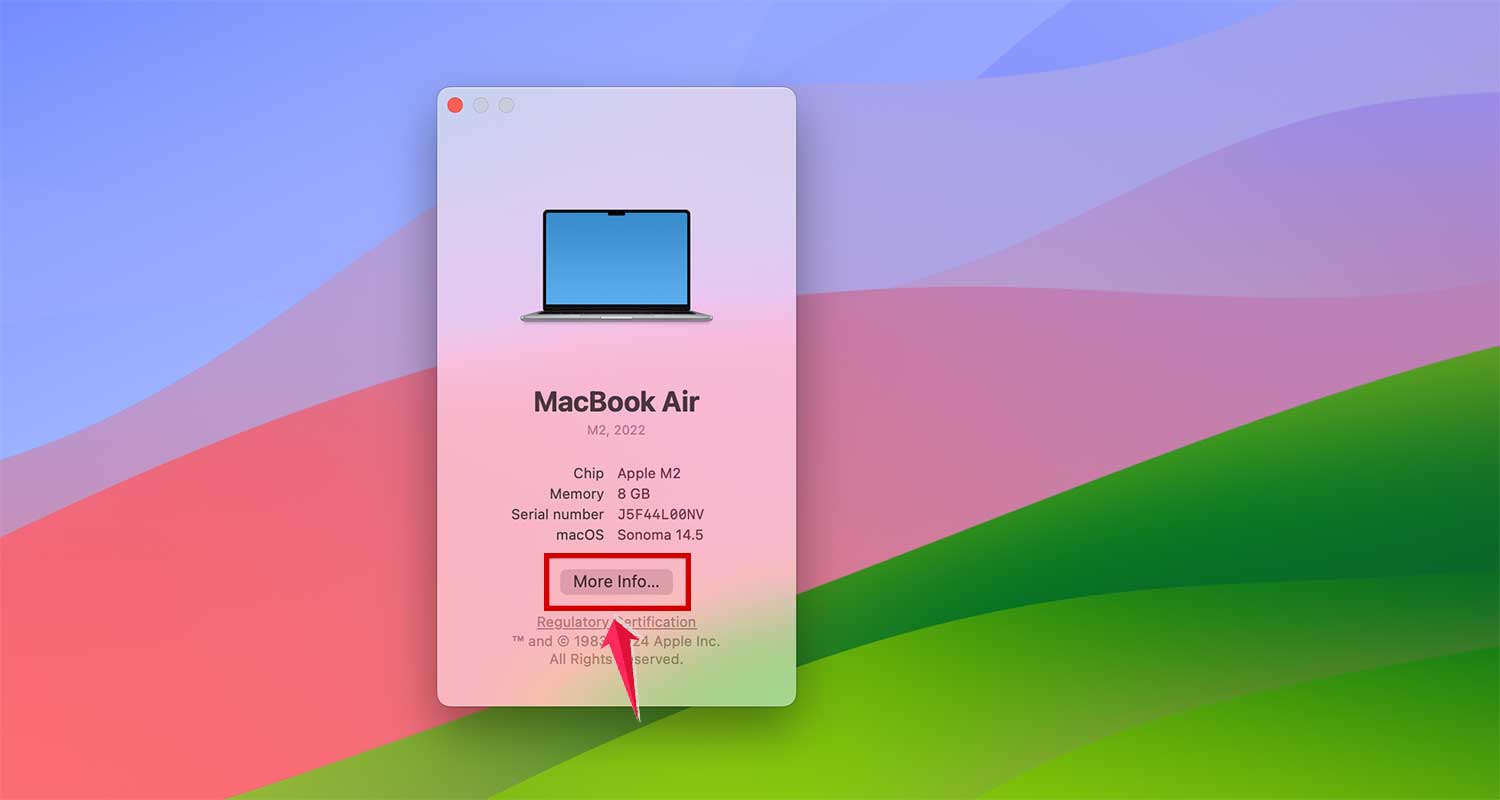
- Then click on “System Report”.

- In the new window that opens, find “Hardware” on the left side and click on “Power”.
- Now, look for “Cycle Count” under the “Health Information” section.

The number you see here tells you how many cycles your battery has completed so far. It’s like a mileage counter for your battery.
Apple provides information on the maximum cycle count for different MacBook models. When your battery reaches this number, it might still work, but you may notice it doesn’t hold a charge as long as it used to.
How to Test Your MacBook’s Battery
The simplest way to check your MacBook’s battery performance is to compare how long it actually lasts to the estimated time shown. For example, if your Mac says you have two hours left, see if it really lasts that long. Just keep in mind that battery estimates aren’t always spot-on – they often tend to be a bit optimistic.
For a more detailed look, especially if you’re using a newer macOS version, you can check out the Battery Health section. Here’s how:
- Open System Settings
- Click on Battery
- Look for the info (i) icon next to Battery Health and click on it

- It will show various options including your Battery Condition, Maximum Capacity. Here you can also turn on/off Optimized Battery Charging.

If you have an Intel-based Mac, you’ll see an option called Manage Battery Longevity. This feature is designed to extend your battery’s overall lifespan, but it might slightly reduce how long your Mac can run on a single charge. You can try turning it on and off to see how it affects your battery life.
To really put your battery through its paces, try this:
- Charge your MacBook to 100%
- Use it normally with the Manage Battery Longevity setting turned on
- Next time, try the same thing with the setting turned off
This way, you can see how different settings affect your battery performance in real-world situations. Remember, the goal isn’t just to get the longest possible battery life today, but to keep your battery healthy for the long haul.
Does Your Mac Model Make a Difference?
You bet it does! The age and model of your Mac can have a big impact on how many battery cycles it can handle before you start to notice a dip in performance.
Let’s break it down by Mac model:
- Most MacBook Pro and MacBook Air models from 2009 to 2023 are designed to handle about 1000 cycles.
- The same goes for MacBook models from 2009 to 2017.
- Some older models from 2008 and 2009 have lower cycle counts:
- Around 500 cycles for certain MacBook, MacBook Pro, and MacBook Air models
- About 300 cycles for even earlier versions
Here’s something to keep in mind: older Macs typically aren’t as energy-efficient as the newer ones. This means they might not last as long on a single charge compared to more recent models.
How to improve Mac battery health?
Want your MacBook’s battery to last longer and perform better? Here are two effective strategies:
1. Enable Low Power Mode
MacOS features a handy tool called Low Power Mode that’s designed to extend your battery life by reducing power consumption. Here’s how to activate it:
- Navigate to System Settings through the Apple menu, Siri, or Spotlight.
- Click on Battery.
- Select Low Power Mode and choose “Always” from the drop-down menu.

By enabling this mode, your Mac conserves energy, which can significantly prolong your battery’s lifespan.
2. Manage Power-Draining Apps
Power-hungry apps can drain your battery faster than you might expect. To improve battery health:
- Identify and quit power-draining apps that are not in use. You can see which apps are consuming the most energy by checking the Energy section in Activity Monitor.
- If there are apps you rarely use and they’re draining power, consider quitting them to save battery life. Select an app and Simply tap on “X” to quit.

These steps not only help in extending your battery’s life but also enhance the overall performance of your Mac. Try these tips to keep your MacBook running efficiently and your battery health in top shape!
3. Adjust Screen Brightness
Balancing screen brightness is key for battery conservation. Brighter screens consume significantly more power. To adjust the brightness to an optimal level:
- Open System Settings via the Apple menu, Spotlight, or Siri.
- Navigate to Displays.
- Adjust the brightness using the slider.
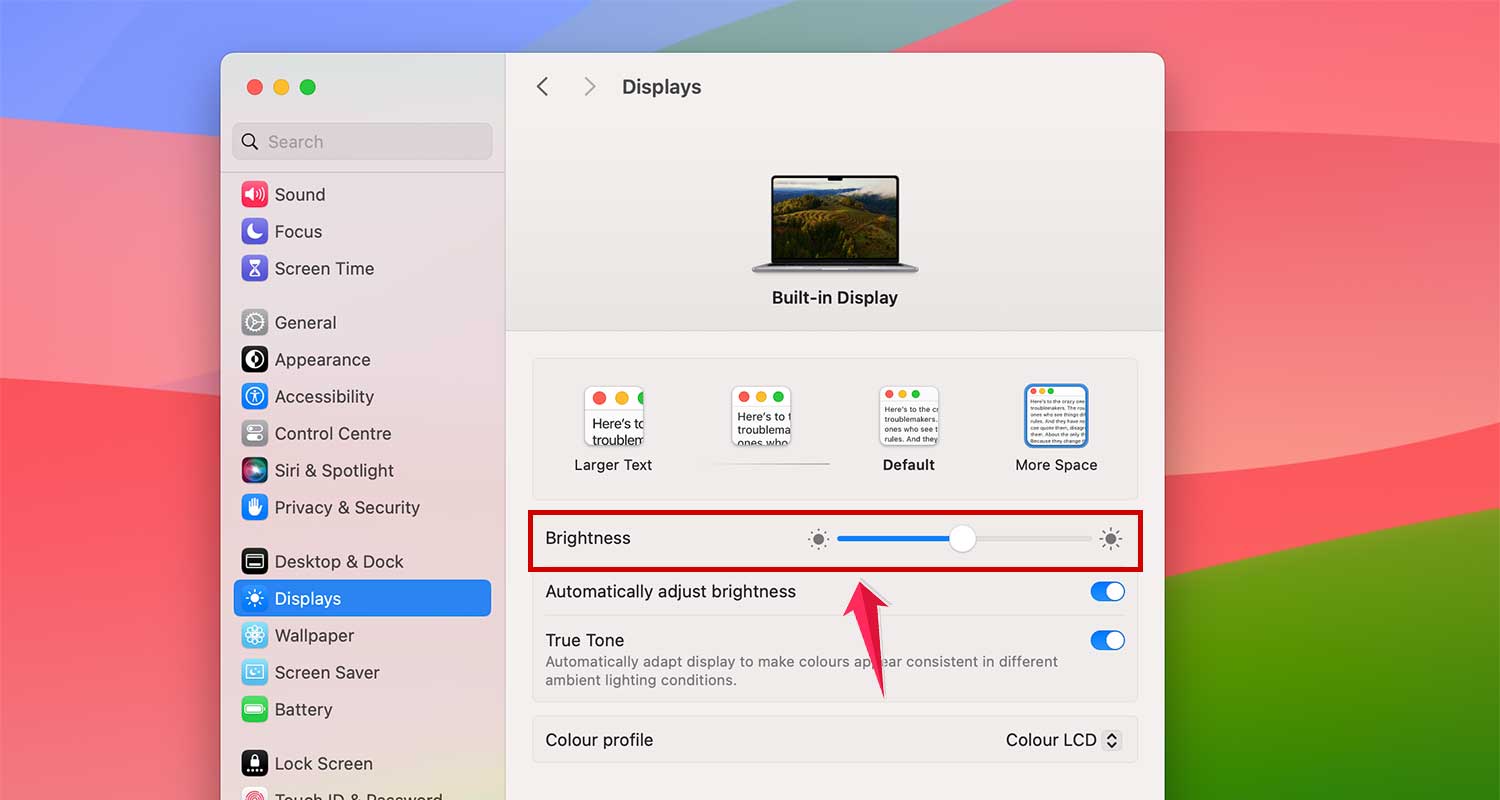
- On MacBooks, you can also use the Touch Bar or the F1 and F2 keys (or F14 and F15 on desktop Macs) to fine-tune the screen brightness according to your environment and activity.
Adjusting your screen brightness not only saves battery but also adapts to your lighting conditions, making for a more comfortable viewing experience.
4. Keep macOS Updated
Staying updated with the latest macOS software is crucial. New updates often bring enhancements in battery management and overall system efficiency. Here’s how to ensure your Mac is up-to-date:
- Click the Apple icon in the top toolbar and open “System Settings”
- Select General > Software Update.

- If an update is available, it will be displayed here. If not, it shows “Your Mac is up to date”. Always back up your data before updating to protect your files.
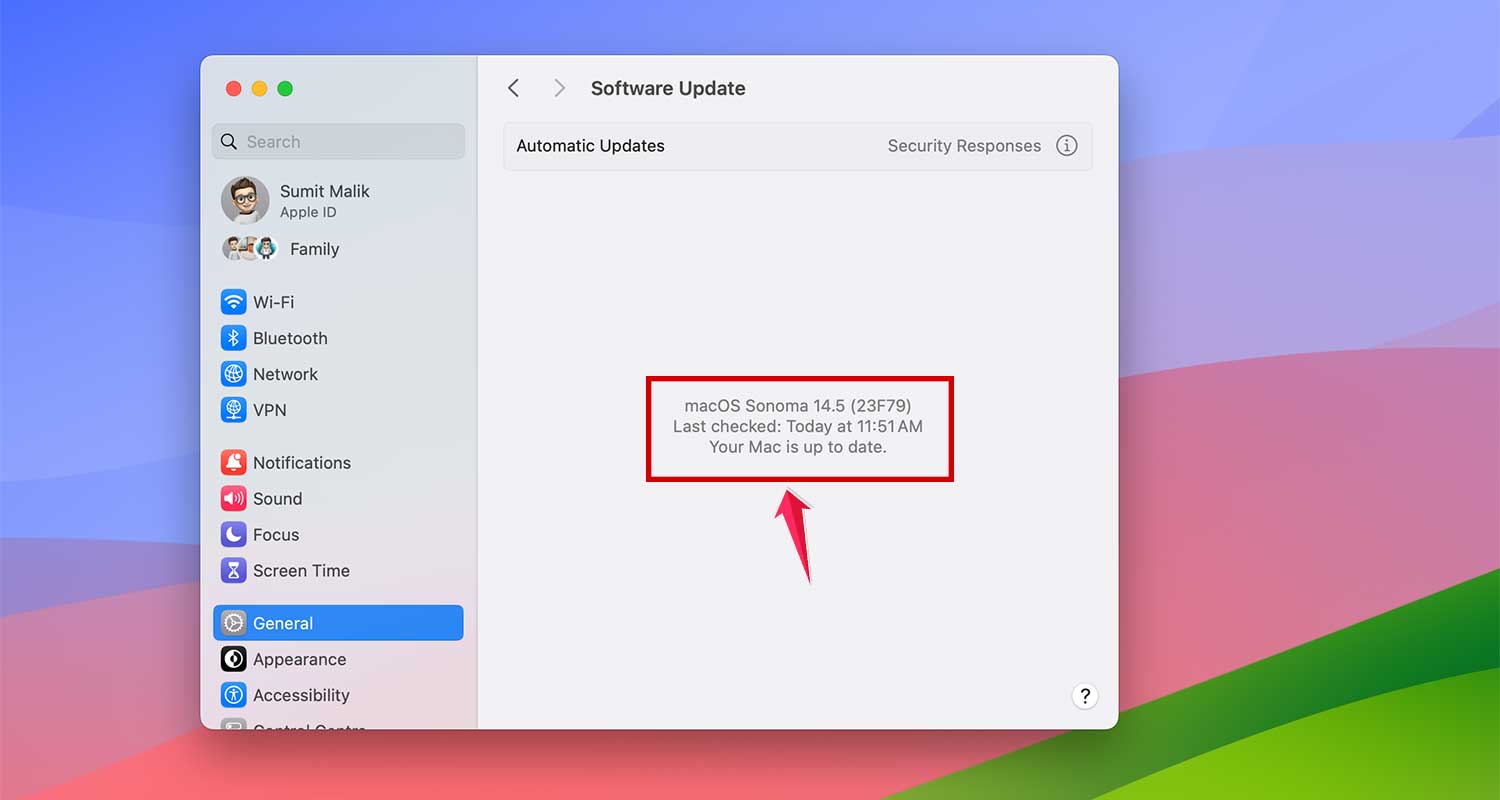
Updating your macOS can lead to improved battery health, more efficient processing, and access to the latest features that enhance your overall Mac experience. Make sure to keep your system current to get the most out of your device’s capabilities.
Conclusion
In conclusion, taking care of your MacBook’s battery isn’t just about extending its daily life; it’s about maximizing the overall longevity and efficiency of your device.
By understanding battery cycles, checking your battery’s health, and implementing practical steps such as enabling Low Power Mode, managing resource-intensive apps, adjusting screen brightness, and keeping your macOS updated, you can significantly enhance your MacBook’s performance.
Each of these strategies is designed to help you get the most out of your MacBook, whether you’re navigating through daily tasks or managing intensive work sessions. Remember, a well-maintained MacBook isn’t just about smooth operation today—it’s about ensuring peak performance for years to come.
So, take these simple steps to heart, apply them regularly, and watch your MacBook stay energetic and efficient, just like it was on day one. Here’s to enjoying a seamless and productive experience with your trusty MacBook!