You know that feeling when you need to wake someone up, but their iPhone is on silent. You keep calling, texting, trying everything, and nothing works.
It’s even worse if it’s urgent, like an important meeting or a flight.
Don’t worry. There are ways to make an iPhone make noise even if it’s on silent or Do Not Disturb.
You just need to know the right tricks. Some work instantly. Some you can set up in advance, so this never becomes a problem again.
Let’s go through every method that actually works so you can get their attention fast.
Quick things you can try right now
If you can’t change their settings beforehand, start with these. They can sometimes break through silent mode.
1. Call them repeatedly
Most people don’t know this, but iPhones have a feature called Repeated Calls. If someone calls twice within three minutes, the second call might go through even in Do Not Disturb.
If you’re trying to wake them, call once. Wait a minute. Call again. If they have that setting turned on, the phone will ring the second time.
You can tell them later to check it’s on.
They can go to Settings → Focus → Do Not Disturb → Allow Repeated Calls and make sure it’s enabled.
2. Send spaced-out messages
Sometimes, the vibration or the screen lighting up is enough to wake a light sleeper. Instead of sending one long text, send short ones every few minutes. That way, their phone keeps lighting up and buzzing.
This won’t always work for heavy sleepers, but it’s worth a shot if you can’t do anything else.
3. Try another messaging app
If they use WhatsApp, Messenger, or Telegram, send them a message there. Some people keep notifications on for one app even if their iPhone is on silent for regular texts.
If you’re lucky, that ping might get through.
The best method is if you can prepare in advance
If you ever have access to their iPhone before you actually need to wake them, set this up. It’s called Allow Alerts, and it’s the most reliable way to get through silent mode.
Here’s how you (or they) can set it up so your calls always ring, no matter what:
- Open Settings.
- Tap Focus.
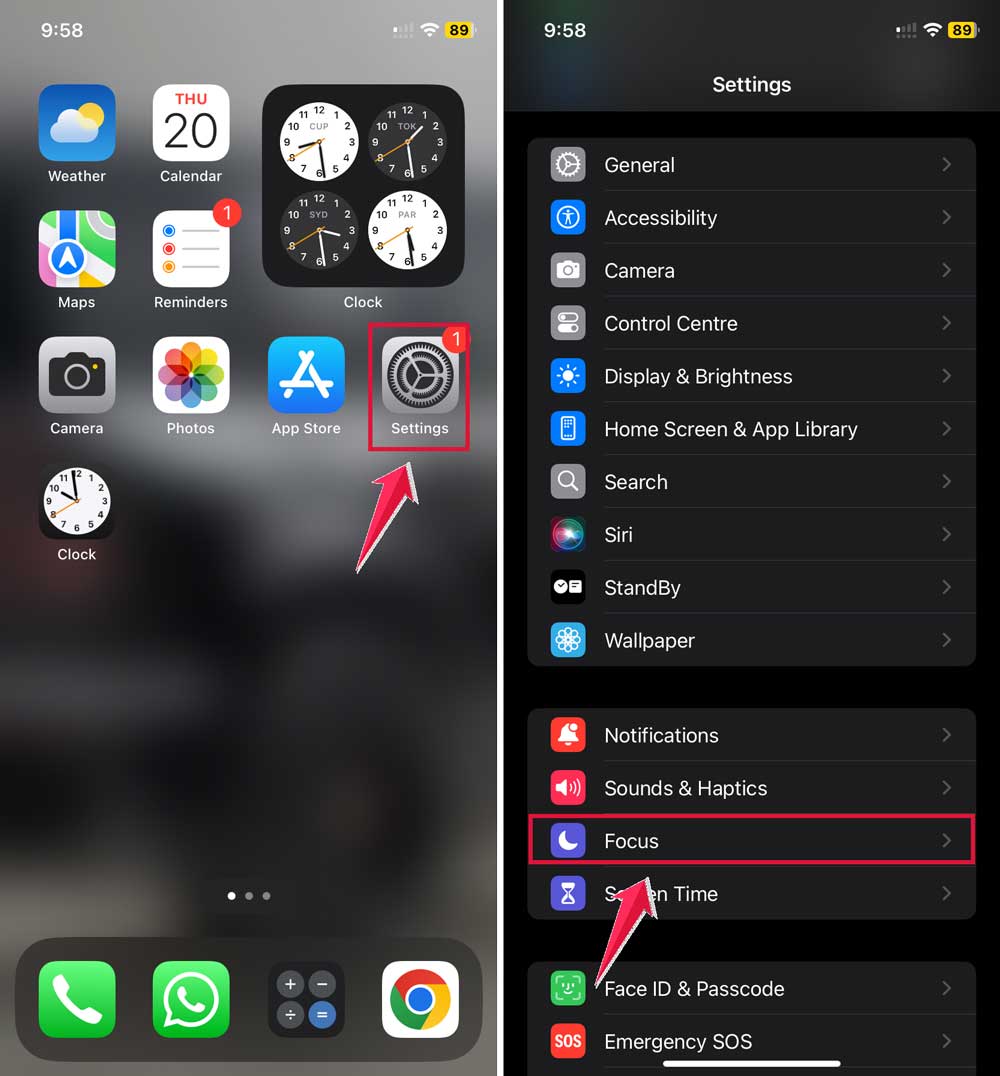
- Select Do Not Disturb.
- Tap People.
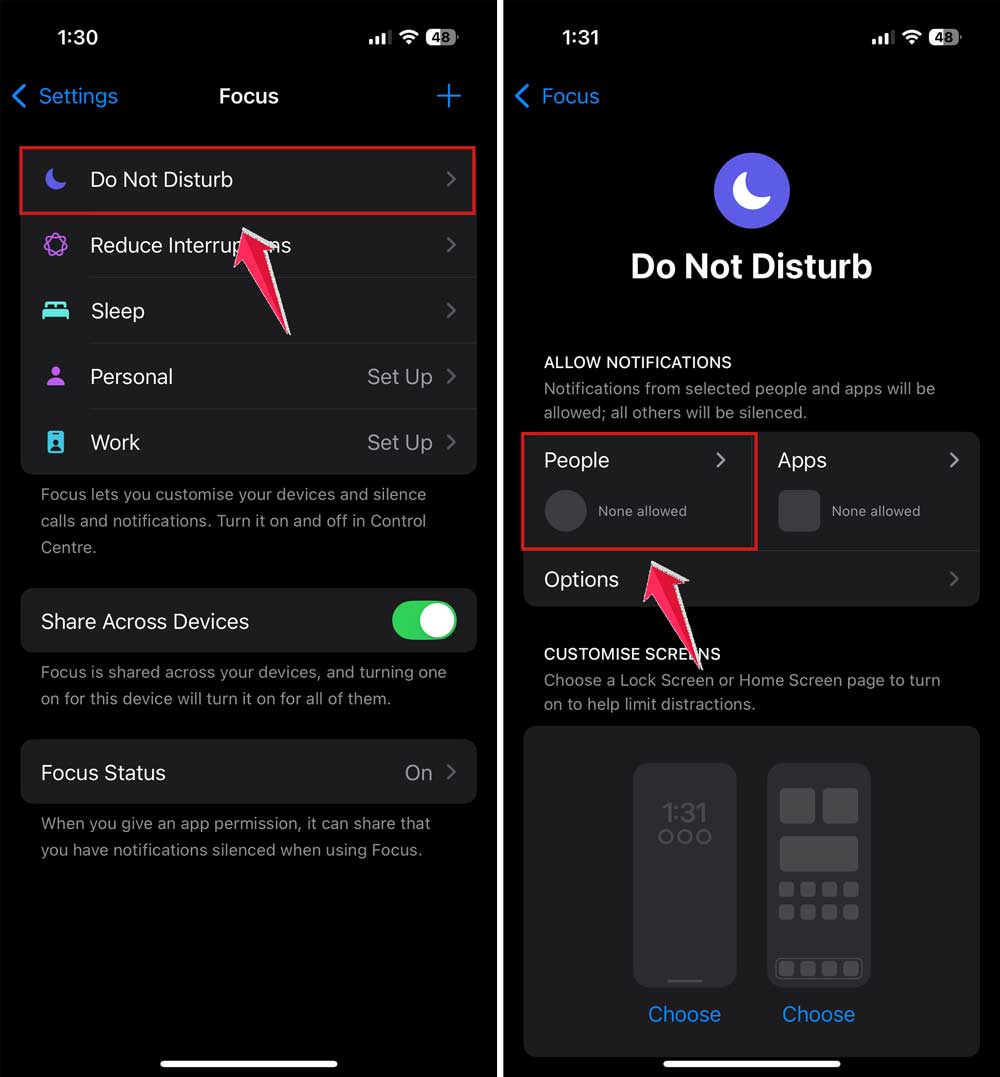
- Tap Add Contact (+).
- Choose your phone number from their contacts.

- (Optional) Change your ringtone on their phone to something very loud.
Once this is done, your calls will always ring through, even if the phone is on silent or Do Not Disturb.
If you have someone who’s always oversleeping, this is the trick you want.
Make their iPhone play a loud sound with Find My
If they have Find My iPhone enabled, you can make their phone play a loud noise for two minutes straight.
This works even in silent mode. The only catch is that you need to either have their Apple ID login or be in their Family Sharing group.
Here’s how you do it:
- Open the Find My app on your device. You can also go to iCloud.com/find.
- Sign in with their Apple ID.
- Tap Devices.
- Select their iPhone.
- Tap Play Sound.
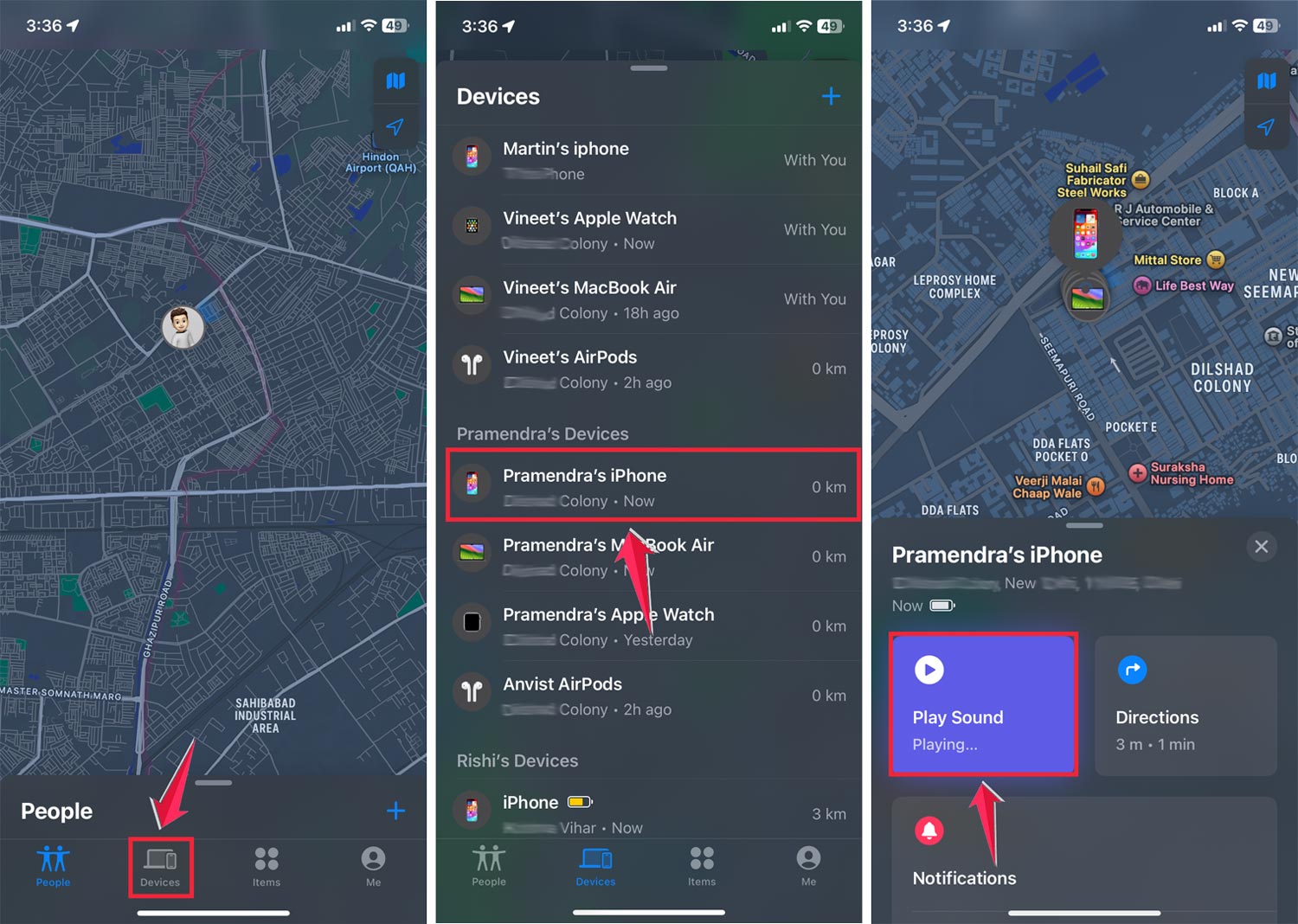
Their phone will start ringing loudly until they pick it up.
This is also handy if they’ve misplaced their phone around the house.
Use the Emergency SOS feature only in real emergencies
Emergency SOS is powerful, but it’s not something to use unless you really need to. When you activate it, the iPhone calls local emergency services automatically. It also sends an alert to emergency contacts.
That means you can add yourself as their emergency contact and then trigger the feature on their phone if something is urgent. But be careful. Misuse can cause unnecessary panic.
If you ever set this up, here’s what they (or you) need to do:
- Open the Health app on their iPhone.
- Tap their profile picture.
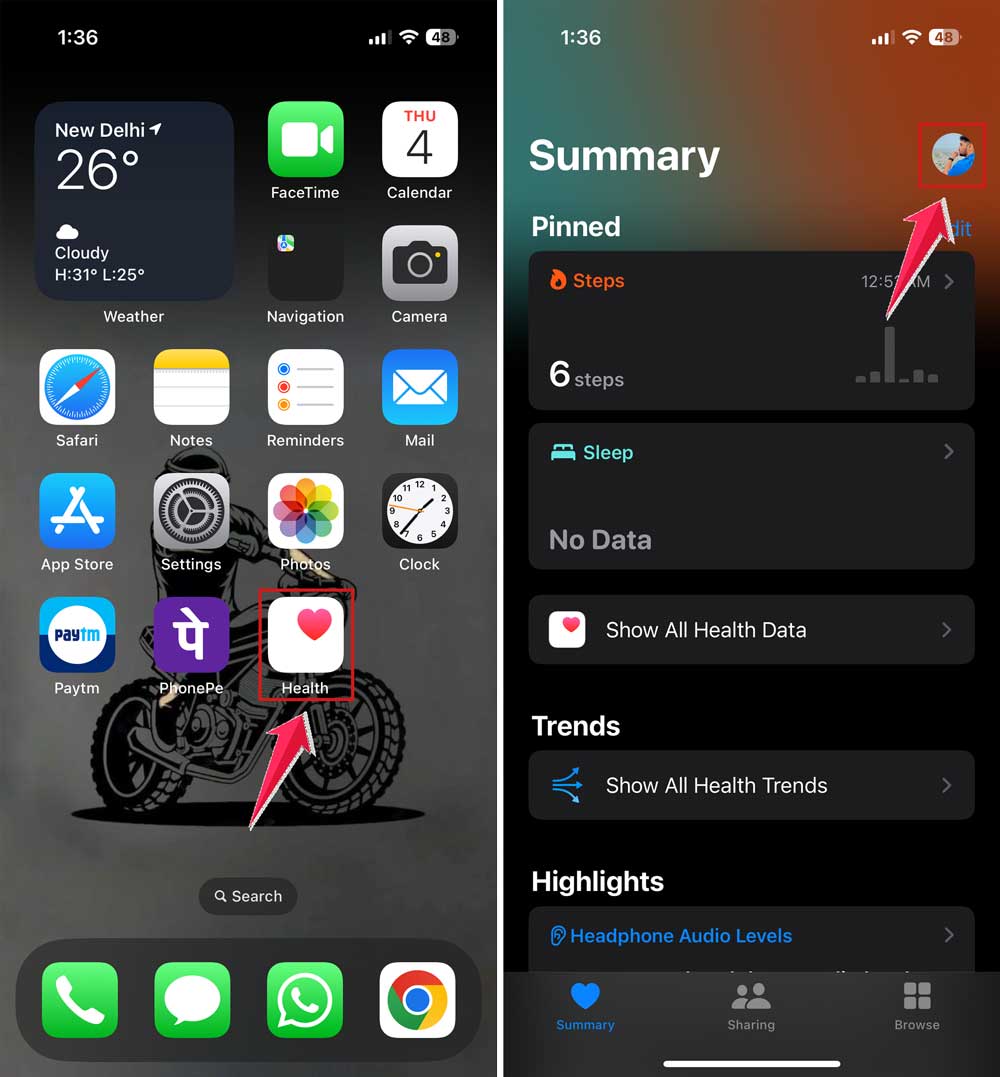
- Select Medical ID and tap Add next to Emergency Contacts.

- Now tap on Add Emergency Contact and add yourself as an Emergency Contact.

Once you’re on that list, they’ll get a loud alert if the SOS is triggered. But again, keep this for real emergencies only.
If nothing else works
Sometimes, none of the tech tricks will work. In that case, you might need to be more creative. If they live with someone else, call that person and ask them to wake them up.
If you can plan ahead, ask them to leave their phone on vibrate and put it on a wooden table. The vibration will be much louder and might wake them up.
And if it’s truly urgent, use a landline or another contact method. The goal is to get them up without crossing boundaries.
Can you send an alarm without apps?
The short answer is no. You can’t make someone else’s iPhone set an alarm without their permission or an app like Galarm. Apple’s privacy rules are strict, and that’s a good thing for protecting people’s devices from unwanted control.
If you want the next best thing, set up Allow Alerts or have them add you to their Repeated Calls. That way, you have at least one guaranteed method to get through.
Set things up now so this never becomes a problem again
The best time to fix this is before it’s a problem. If you know you’ll need to wake someone in the future, help them set things up in advance.
Add yourself to their Allow Alerts list. Make sure Find My iPhone is turned on. Install an alarm-sharing app like Galarm. Check if Repeated Calls is enabled.
It takes five minutes, and you’ll never be stuck wondering how to wake them again.
The takeaway
Waking someone up when their iPhone is on silent can be frustrating, but you have options. For quick tries, call them repeatedly, send spaced-out texts, or use another messaging app. If you can prepare ahead, set up Allow Alerts so your calls always ring.
When you have access, Find My and Galarm are great tools. Emergency SOS should only be used for real emergencies.
The smartest move is to set things up now so you never have to struggle later. That way, when it’s time to wake them, you’ll know exactly what to do. And they’ll thank you for it later.