So, you’re trying to see your family member’s location, but for some reason, it’s just not showing up? I get it. It’s frustrating.
You’re not the only one going through this. This happens to a lot of people, and luckily, it’s usually something simple that we can fix.
When the location doesn’t load, it feels like you’re left in the dark.
Maybe you’re just checking in to make sure they’re safe, or maybe you’re trying to meet up and need to know where they are.
Either way, having access to their location brings peace of mind. That little dot on the map means a lot when it comes to staying connected.
The good news? In most cases, it’s not a big problem. You don’t need to be a tech expert to fix it.
I’m going to walk you through some easy steps, the kind of stuff you can do right now.
No stress, no complicated tech talk. Just you, me, and a few quick checks to get things working again.
What could be causing the issue?
1. Location sharing might be off
Let’s start with the basics. Sometimes, people turn off location sharing and forget about it.
It could’ve been by accident or on purpose, and then they just forget to turn it back on. Ask your family member to check if they’ve disabled it. If so, it’s a quick fix.
2. Your network might be acting up
Yeah, network problems are more common than we’d like. Spotty Wi-Fi or weak mobile data can mess with location updates.
Ask your family member to check their connection. A quick restart or toggling airplane mode can often clear it up.
3. The app might be outdated
Apps need updates to stay smooth. If the app you’re using hasn’t been updated in a while, it could be the reason you’re not seeing the location.
Head over to the App Store and check for updates. It only takes a minute.
4. Phone settings could be blocking location
Sometimes, the phone’s own settings get in the way. Maybe the app doesn’t have permission to access the location anymore.
Ask your family member to double-check their location access settings. It’s easy to miss, but once fixed, it can solve the issue right away.
5. Try restarting the phone
It sounds too simple, right? But restarting the phone can clear out little bugs that might be causing the issue.
It’s a go-to fix that works more often than you’d think.
How to fix the “Can’t see family member’s location” issue
Alright, now let’s go step-by-step and fix this for good. Stick with me here. We’ll go through the most effective fixes first.
I’ll explain everything like we’re sitting together, figuring this out.
#1 Make sure location sharing is on
This is the first thing to check. If location sharing is off, nothing else will work. Ask your family member if they remember turning it off.
Or maybe they didn’t even know it was off.
Here’s how to check:
- Open the Settings on their phone.
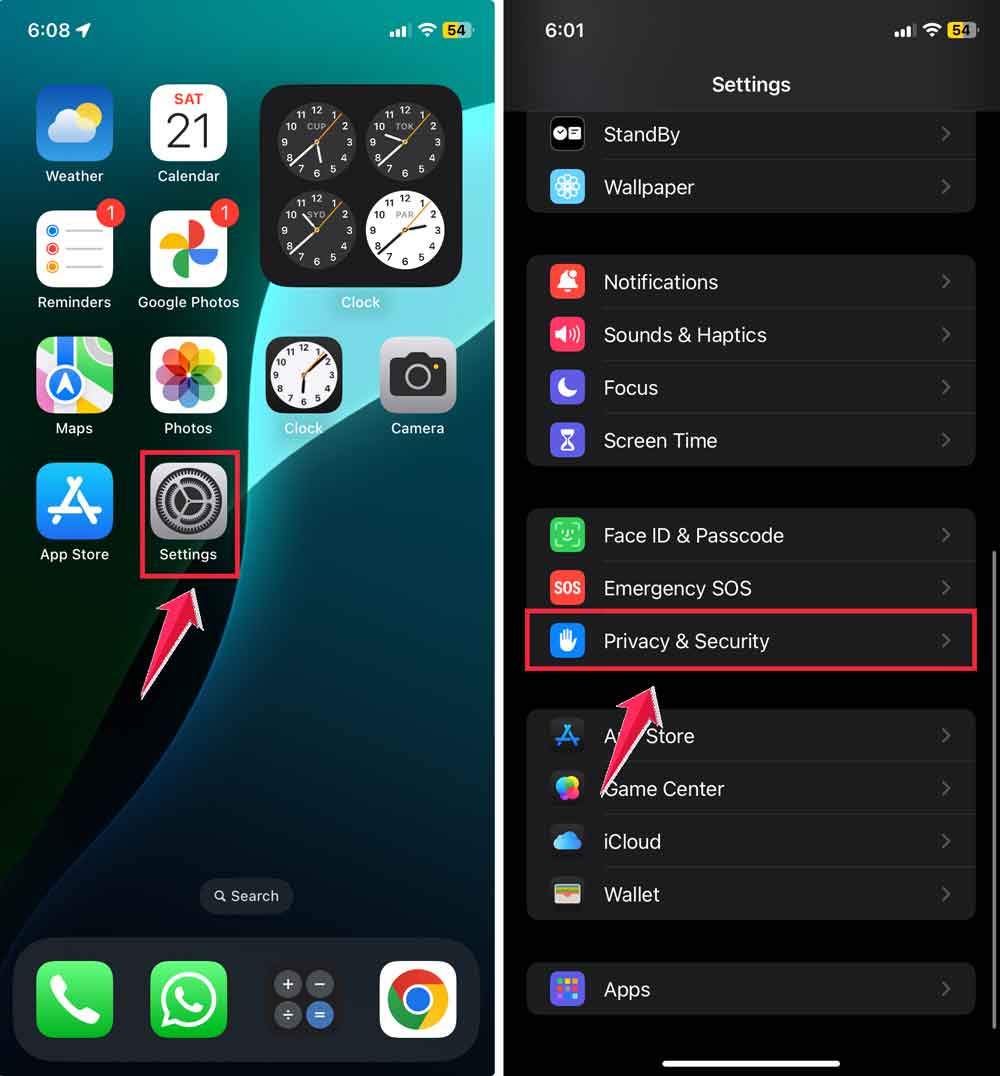
- Find the location-sharing option (this could be under Privacy or a specific app like Find My).
- Make sure it’s turned on for the app you’re using.
Just doing this alone often fixes the problem.
#2 Check the network connection
Location updates need a good internet connection. If the connection’s weak or drops, it can cause delays or stop updates entirely.
Ask your family member to:
- Check if their Wi-Fi or mobile data is working.
- Try turning on airplane mode for a few seconds, then turning it off again.
- If that doesn’t help, restart the phone.
This refreshes the connection and often brings things back to normal.
#3 Update the app to the latest version
Outdated apps can be buggy. Developers often fix location-related issues in updates, so it’s worth checking.
Here’s what to do:
- Open the App Store or Google Play Store.
- Search for the app you’re using for location sharing.
- If there’s an Update button, tap it.
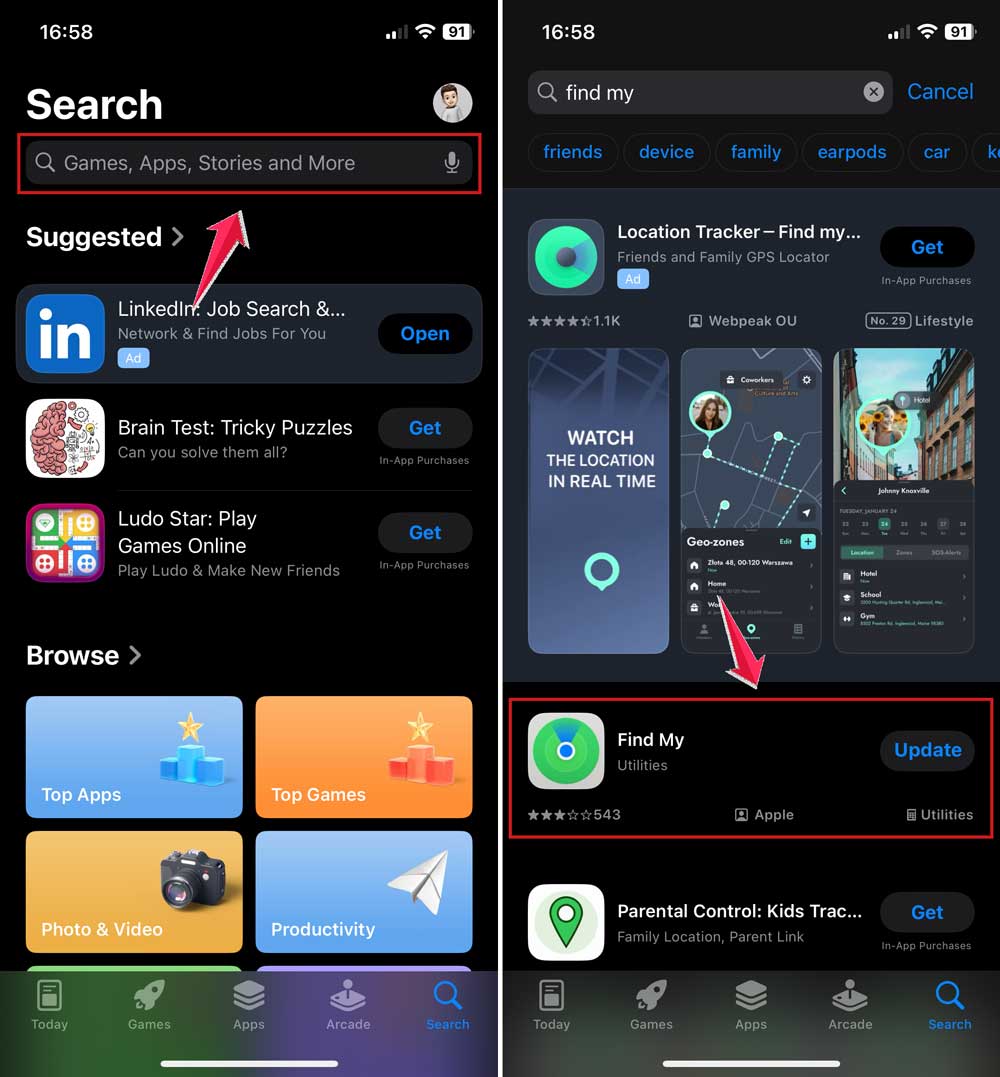
Once updated, open the app and check if the location shows up.
#4 Review phone settings and permissions
Even if location sharing is on, the app might not have the right permissions. Let’s fix that.
Ask your family member to:
- Go to Settings on their phone.
- Tap on Privacy or Apps (depends on the phone).
- Select the app.

- Then check if Location Access is set to Always or While Using.
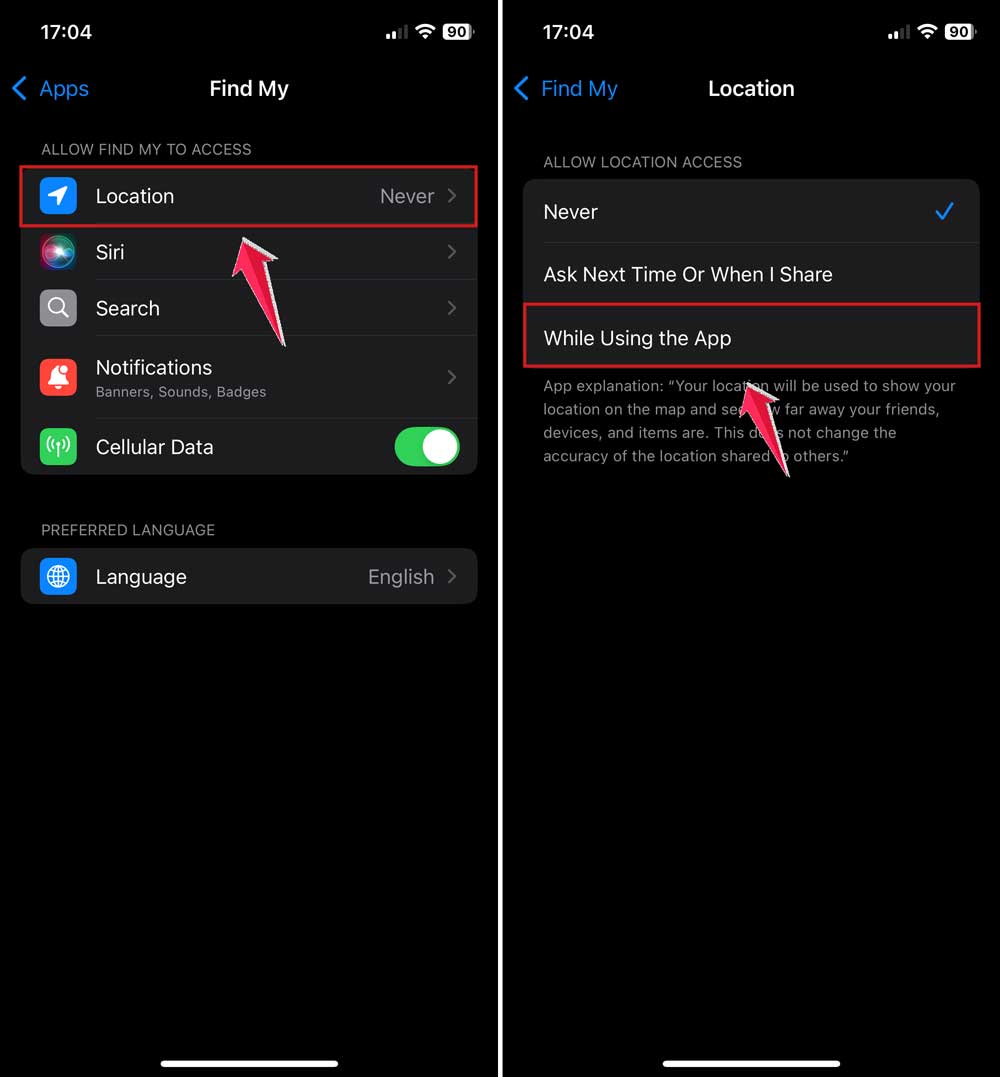
Also, make sure Battery Saver mode isn’t on. It can block background updates like location sharing.
#5 Restart the phone
Simple, but powerful. Restarting clears up background glitches that could be causing the issue.
Just ask them to:
- Hold the power button until the restart option shows up.
- Tap Restart or Slide to Power Off.
- Wait a few seconds, then turn it back on.
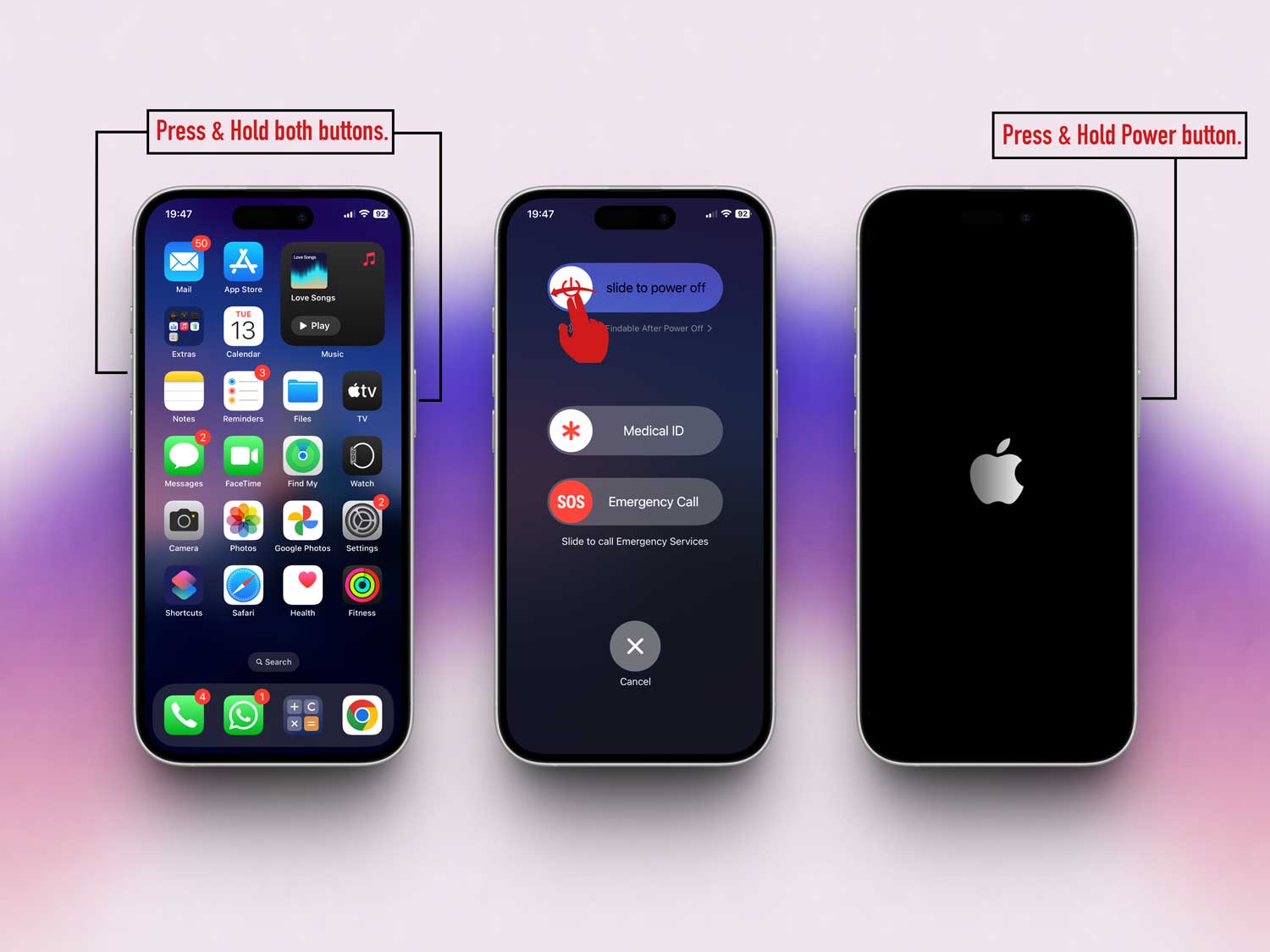
Once the phone restarts, open the app again and check the location. This works more often than you’d expect.
Other things you should try
1. Try using a different app
If nothing’s working, maybe the app is the problem. Try using another app that supports location sharing.
This helps figure out if it’s just the app or something else going wrong. Apps like Google Maps, Life360, or even WhatsApp can help you test this.
2. Both phones need location services on
This one gets missed a lot. Both your phone and your family member’s phone need to have location services turned on. If even one of you has it off, it won’t work.
So, double-check both devices:
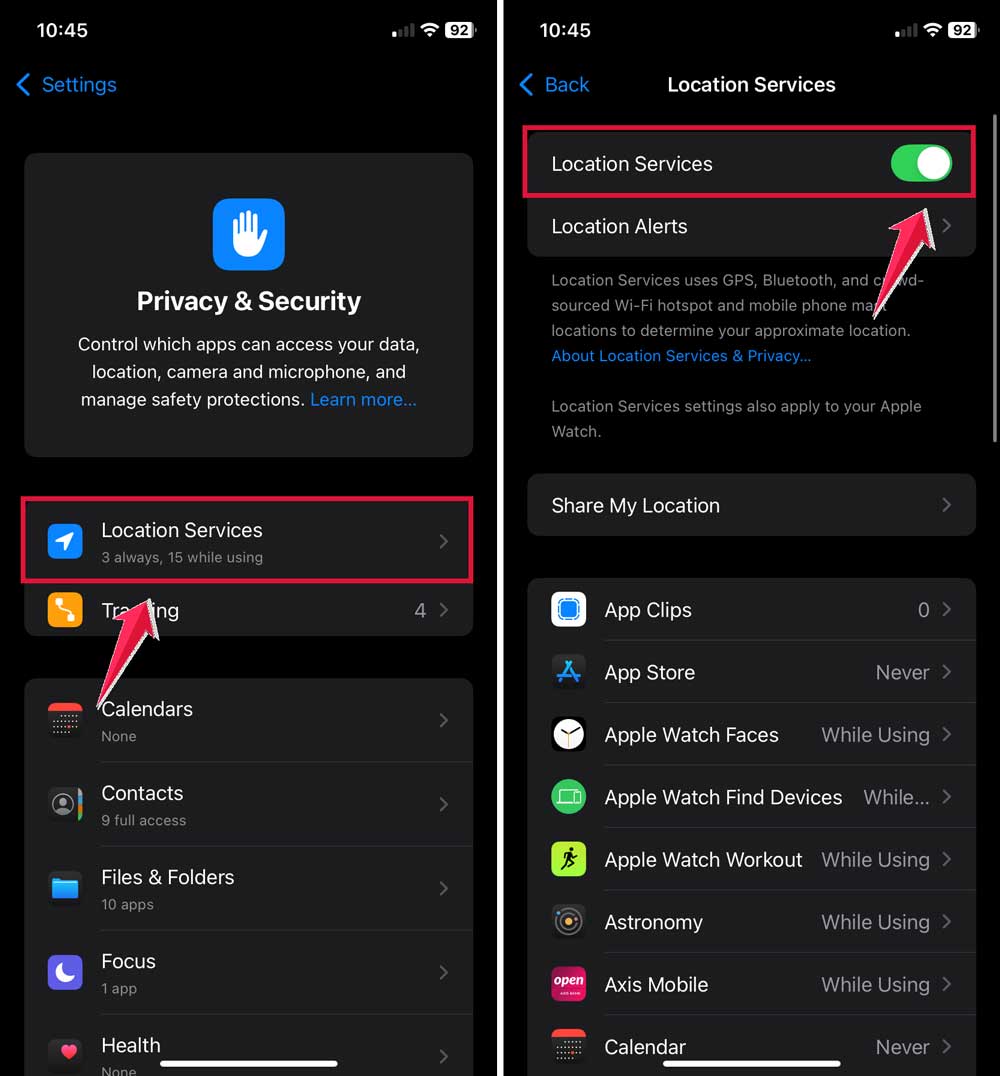
- Go to Settings >Privacy & Security > Location Services.
- Make sure the toggle is ON.
3. Check the privacy settings
Some phones have extra privacy settings that can block location sharing. Go into those settings and make sure nothing is stopping the app from working properly.
Take your time and go through all the options related to location, app access, and background activity.
4. Look at app permissions again
If your phone or app has recently been updated, some permissions might’ve changed. Go back into your settings and check if the app still has permission to use your location. If not, enable it again.
5. Still not working? Contact support
If you’ve tried everything and it’s still not showing the location, it might be time to contact the app’s support team.
They can give you answers that are specific to your device or app version. It’s easy to reach out. Most apps have a support option right in the settings or website.
The takeaway
So, you couldn’t see your family member’s location, and that’s never fun. But now, you’ve got a full list of things to check.
Most of the time, it’s something small. Like location sharing being off or the app needing an update.
We walked through each step together. From checking settings, to restarting the phone, to even trying a different app. These fixes are easy and doable.
And hey, if one thing doesn’t work, the next one might. You’re not stuck, and you’re definitely not alone in this.
Try out the steps we talked about, and you’ll likely have that location showing again in no time. If you’re still stuck, don’t give up. Apple Support is always there to help.
Did these tips help you? Let us know in the comments!