Imagine this: You’re ready to snap the perfect shot, capturing a breathtaking scene or a special moment.
You press the shutter button, eager to see your masterpiece, but…oh no! The result is a blurry mess. Frustrating, isn’t it?
Before you reach for that cleaning cloth, thinking it will magically clear things up, let’s take a closer look at why your iPhone camera might be giving you grief and explore some effective fixes to enhance your photography skills.
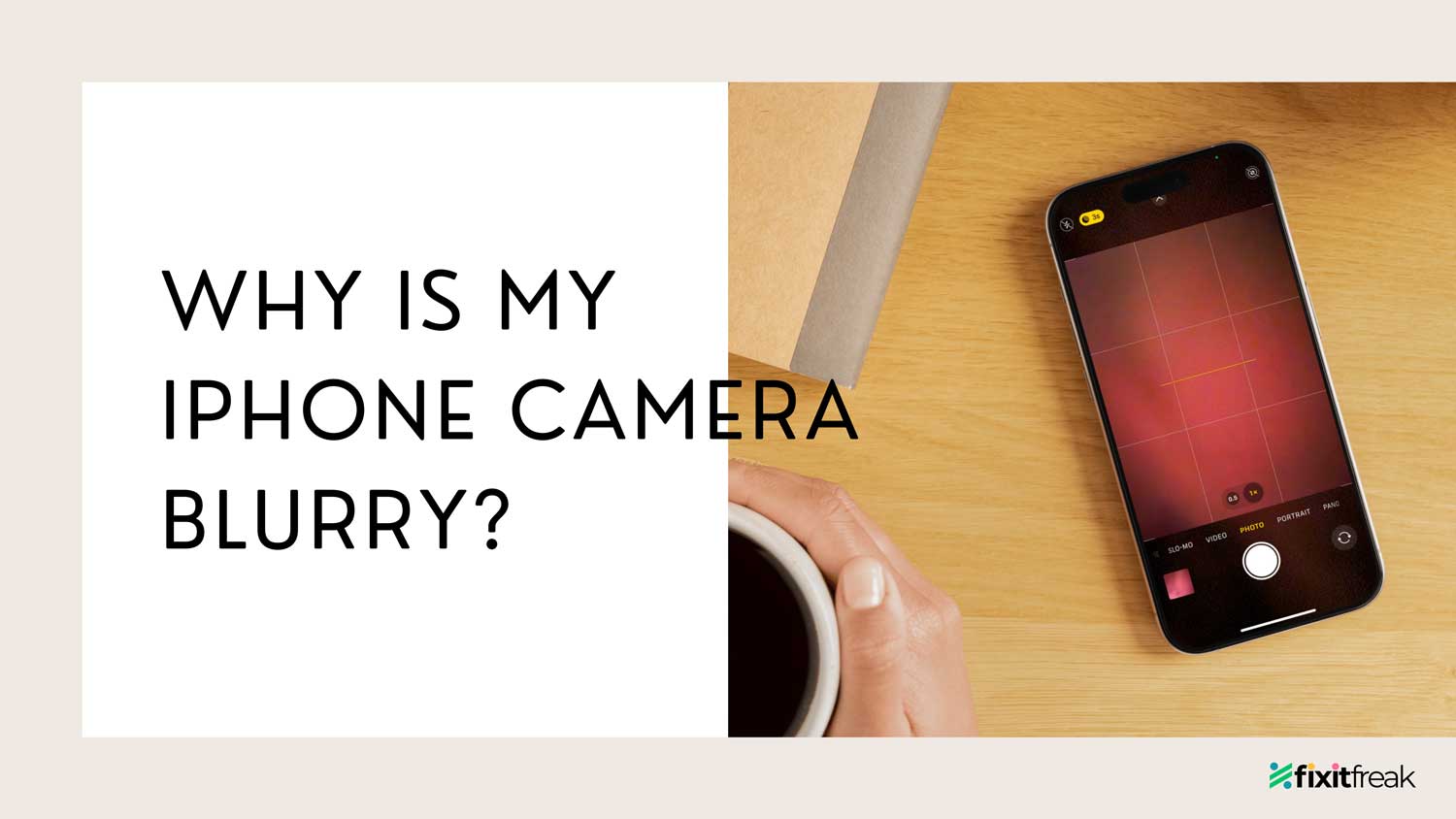
Why Is My iPhone Camera Blurry?
Got a blurry photo issue with your iPhone? It’s not just about the age of your phone, though that can play a big part.
Here’s a simpler breakdown of why your iPhone’s camera might be acting up and how to fix it.
Common Causes of a Blurry iPhone Camera
- Old Tech Trouble: If your iPhone’s been around the block a few times, its camera might not be as sharp as it used to be.
- Software vs. Hardware Issues: Sometimes the problem isn’t about the camera itself, but about the software or the internal hardware not working together well.
- Case or Screen Protector Problems: That extra protection on your iPhone might be messing with your camera’s ability to take clear photos.
- Dust on the Lens: Even a little bit of dust can make a big difference. A dirty lens can be the reason for those fuzzy photos.
- Water or Drop Damage: If your phone has had a nasty fall or a swim, it could have hurt the camera.
How to Fix Blurry Camera iPhone?
Here’s how to get your iPhone camera back to taking crisp photos!
1. Remove Non-Apple Screen and Camera Lens Protectors
Sometimes, the simplest solutions make the biggest difference. Let’s start by looking at any non-Apple screen or camera lens protectors you might be using.
- Step 1: Think Back: When did your photos start getting blurry? Was it after you put on a new screen protector or lens cover?
- Step 2: Spot the Issue: These protectors might be obscuring your camera’s view. They can sometimes cause photos to look foggy or blurry.
- Step 3: Try Without Them: Remove any protectors and take a few test shots. Notice any improvements? If your photos are clearer, you’ve found your culprit!
2. Address Software Problems
If removing the protectors didn’t help, there might be a software issue causing the blurriness.
- Step 1: Think About Updates: Have there been any recent iOS updates or new apps that might be affecting your camera?
- Step 2: Update Your iPhone: Go to your settings and check for updates.
- Step 3: App Check: Look at your installed apps. Are there any that could be interfering with your camera?
Once you’ve resolved the blur, consider tweaking the best camera settings on your iPhone for even better results.
3. Close And Reopen The Camera App
- If your camera usually works fine and just started acting up, it could be a simple glitch.
- On your home screen, swipe up from the bottom and pause halfway. This will show you all the open apps. Find the camera app and swipe it up to close it.
- Restart The Camera App Now: Give it a moment, then open the camera app again. Try taking a photo or video to see if the problem is fixed. And once you’ve nailed a clear shot, why not edit your iPhone photos like a pro?
4. Restart Your iPhone
Restarting your iPhone can help clear out any minor software issues that might be affecting your camera.
- Hold and Slide: Press and hold the power button and one of the volume buttons at the same time until you see the power off slider on your screen.
- Swipe to Silence: Slide the power off slider to the right. This will turn off your iPhone, giving it a well-deserved break.
- Wait it Out: Let your iPhone be off for about 30 seconds. This brief pause allows the system to reset.
- Press to Power: Press and hold the power button again until the Apple logo appears, signaling that your iPhone is waking up.

5. Install Pending iOS Updates
If the restart didn’t do the trick, we’ll turn our attention to the digital brains of the operation. iOS updates.
- Settings: On your iPhone, go to the Settings app.
- General Selection: Tap on General.
- Hunting Updates: Select Software Update.
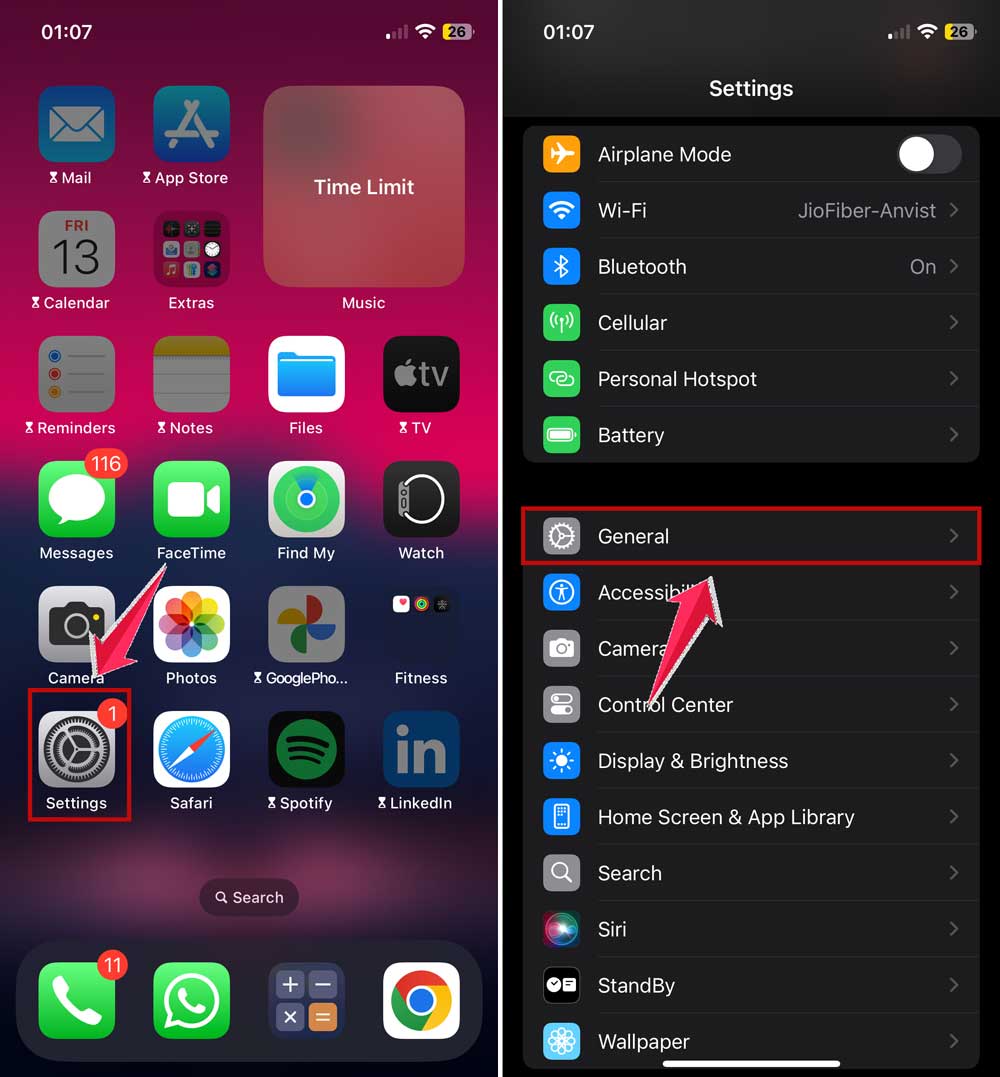
- Update Discovery: If there’s an update available, press Download and Install.
- Restart Ritual: After the update is installed, restart your iPhone to make sure all new changes are properly set up.

6. Reset All Settings
Sometimes, a clean slate is all your iPhone needs to shake off the blurry blues.
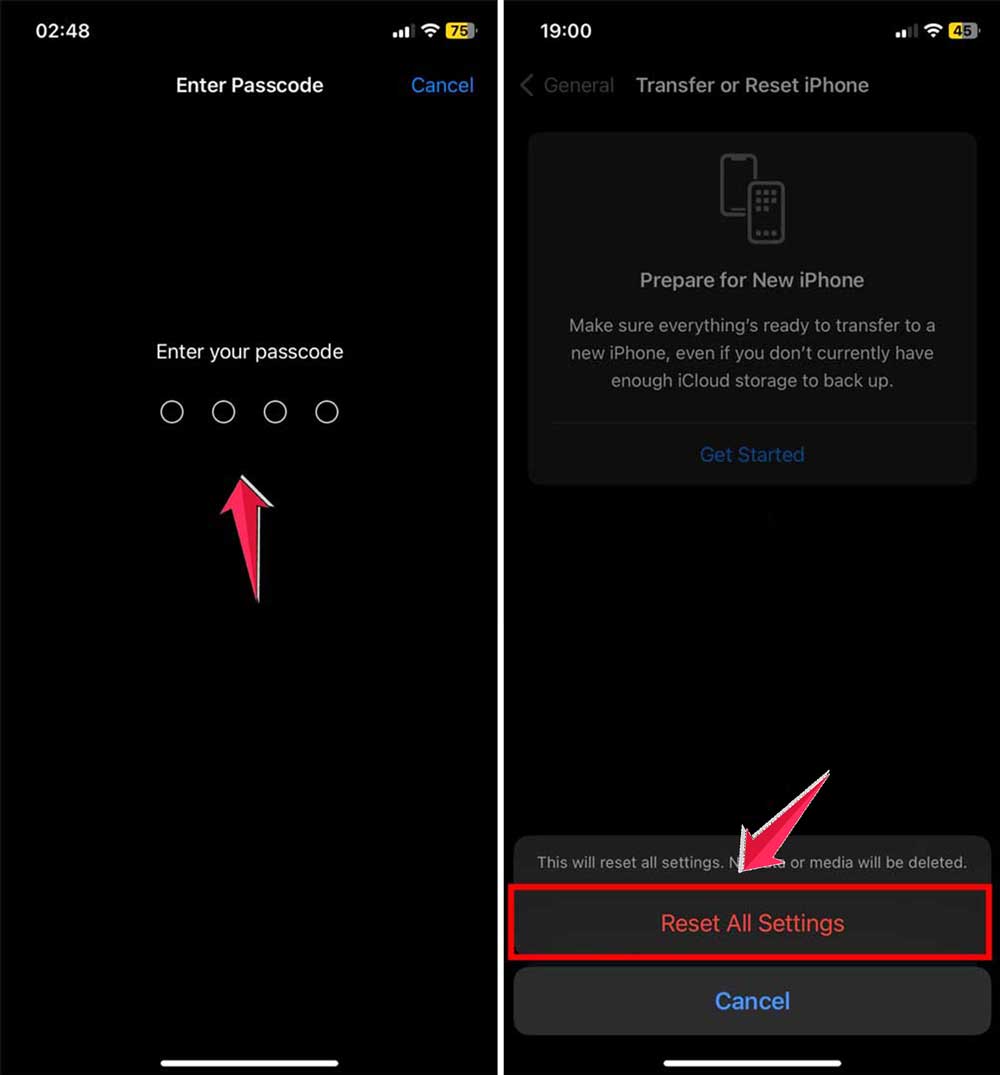
- Home Base: From your Home screen, open the Settings app.
- General Expedition: Tap on General.
- Transfer or Reset: Scroll down and select Transfer or Reset iPhone.
- Touch and Confirm: Choose Reset All Settings from the reset options.

- Passcode Pledge: If prompted, enter your passcode.
- Commit to Reset: Confirm your choice to reset all settings. This will start the process.
If resetting all settings didn’t work, try to specifically reset your iPhone camera settings.
In Conclusion To
We’ve tried a bunch of tricks to fix your iPhone’s blurry camera, but if it’s still not snapping clear photos, it might be time for expert help.
If our tips haven’t fixed the blur, there might be a deeper issue with the hardware that’s tough to fix on your own.
Time to visit the Genius Bar at your local Apple Store. Their tech experts are great at solving tricky problems and can help get your camera back in top shape.
We’ve seen how tiny tweaks can make a big difference, and sometimes, you just need a pro’s touch.
So head on over to the Genius Bar and get ready to capture your moments in perfect clarity. Here’s to sharp, vibrant photos!