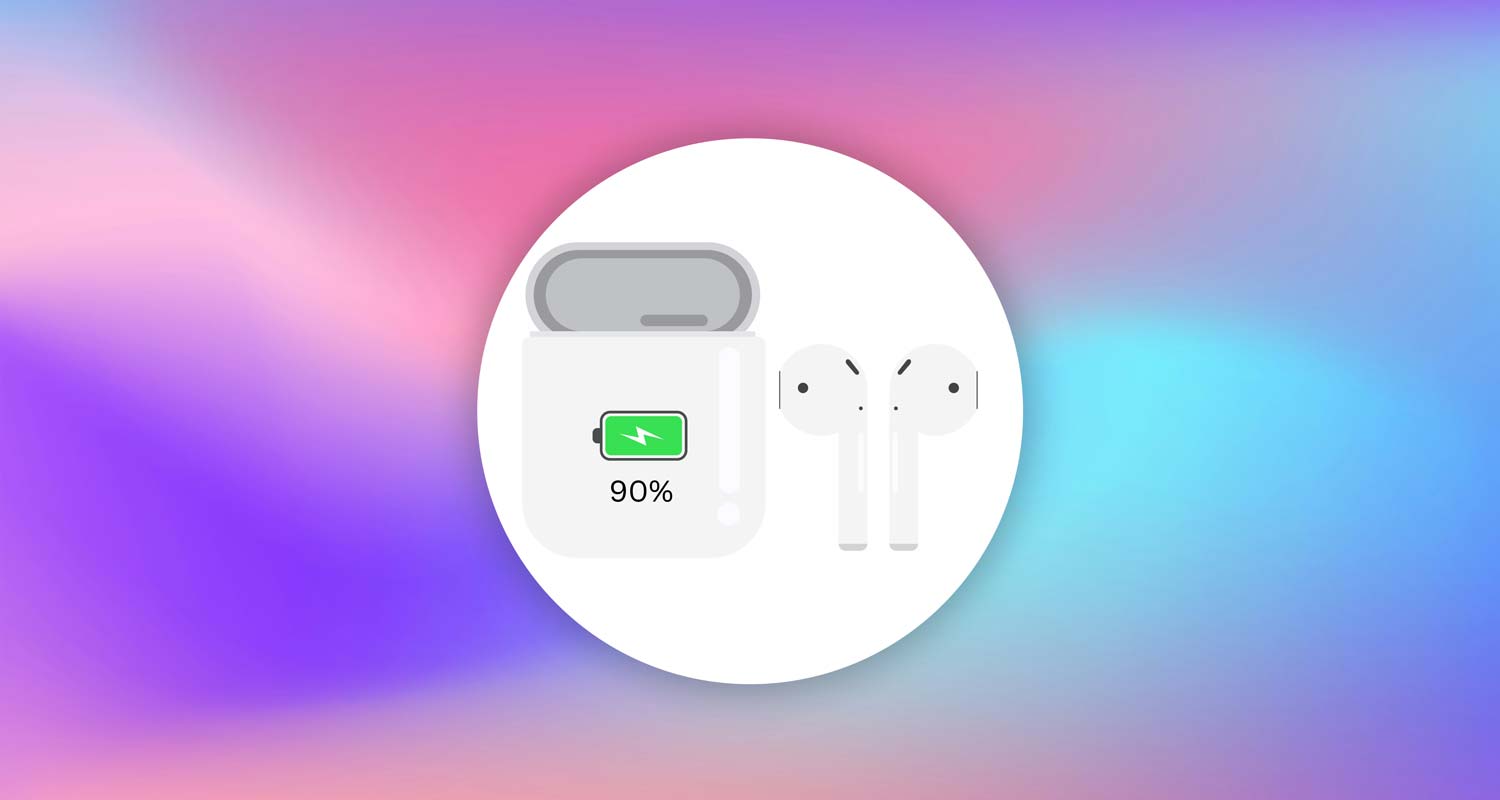
Ever opened your AirPods case, ready to listen to music, and suddenly noticed that your phone only shows the battery percentage for one AirPod? Yeah, that moment of confusion can be frustrating. You pause, look again, and wonder—where’s the other one?
This happens more often than you might think. And don’t worry, it’s not just your AirPods acting up. It could be something really simple that’s causing it.
Maybe your phone is having a hard time connecting to both AirPods. Or maybe one of them isn’t charging properly. Either way, it’s a small issue that usually has a quick fix.
Knowing the battery level of both AirPods is super helpful, especially when you’re heading into a long phone call, a podcast binge, or a workout session. You don’t want one AirPod to die halfway through, right?
The good news? You don’t need to panic. I’ve put together some easy-to-follow tips that will help you see both battery percentages again.
Let’s figure this out together, step by step. You’ll be back to enjoying your music with both ears in no time.
What causes only one AirPod to show battery percentage?
Sometimes, this issue is caused by how you use your AirPods. Other times, it’s a small glitch or a connection problem. Let’s go through the most common reasons so you know what might be going on.
1. Unbalanced usage can drain one AirPod faster
If you often use just one AirPod—maybe for calls or quick listens—then that side will naturally lose battery faster.
Over time, it might start showing up alone in the battery info. Try using both AirPods equally to keep things balanced.
2. Bluetooth connection might be unstable
Bluetooth is great when it works, but it can be a little moody. If the connection isn’t strong between your phone and both AirPods, your phone might only show the battery for one of them. Make sure both AirPods are close to your phone and not blocked by anything.
3. Software glitches can mess with the display
Like any other gadget, your phone or AirPods can sometimes glitch. If the battery info isn’t showing correctly, a small software hiccup could be the reason. Keeping your iPhone and AirPods updated can help fix this.
4. Dirt or debris might be blocking the charge
It sounds silly, but a little dust in the charging case can stop one AirPod from charging. If one AirPod isn’t fully charged, your phone might not recognize it properly. A gentle cleaning can go a long way here.
So now that you know the common reasons, let’s get into the fixes. Don’t worry, I’ll walk you through each one.
Fixes & Solutions: Seeing Battery % Only for One AirPod?
Alright, ready to fix this? I’ll keep it simple and walk you through each fix. Most of these are quick, and you’ll be back to normal in just a few minutes.
#1 Make sure both AirPods are connected
Let’s start with the basics. Sometimes, one AirPod just doesn’t connect properly.
Here’s what you can do:
- Open the AirPods case next to your iPhone.
- Wait a second. You should see both AirPods and the case battery levels.
- If you only see one, take both AirPods out of the case and put them back in.
- Then, close the lid, wait 10 seconds, and open the case again.
This simple move can help both AirPods reconnect properly.
#2 Reset your AirPods
If the first step didn’t work, don’t worry. A reset can often fix weird connection issues.
Here’s how to reset your AirPods:
- Put both AirPods in the case and close the lid.
- Wait for about 15 seconds.
- Open the lid. On the back of the case, press and hold the setup button until the light flashes amber, then white.
- On your iPhone, go to Settings > Bluetooth.

- Tap the (i) icon next to your AirPods and select “Forget This Device”.
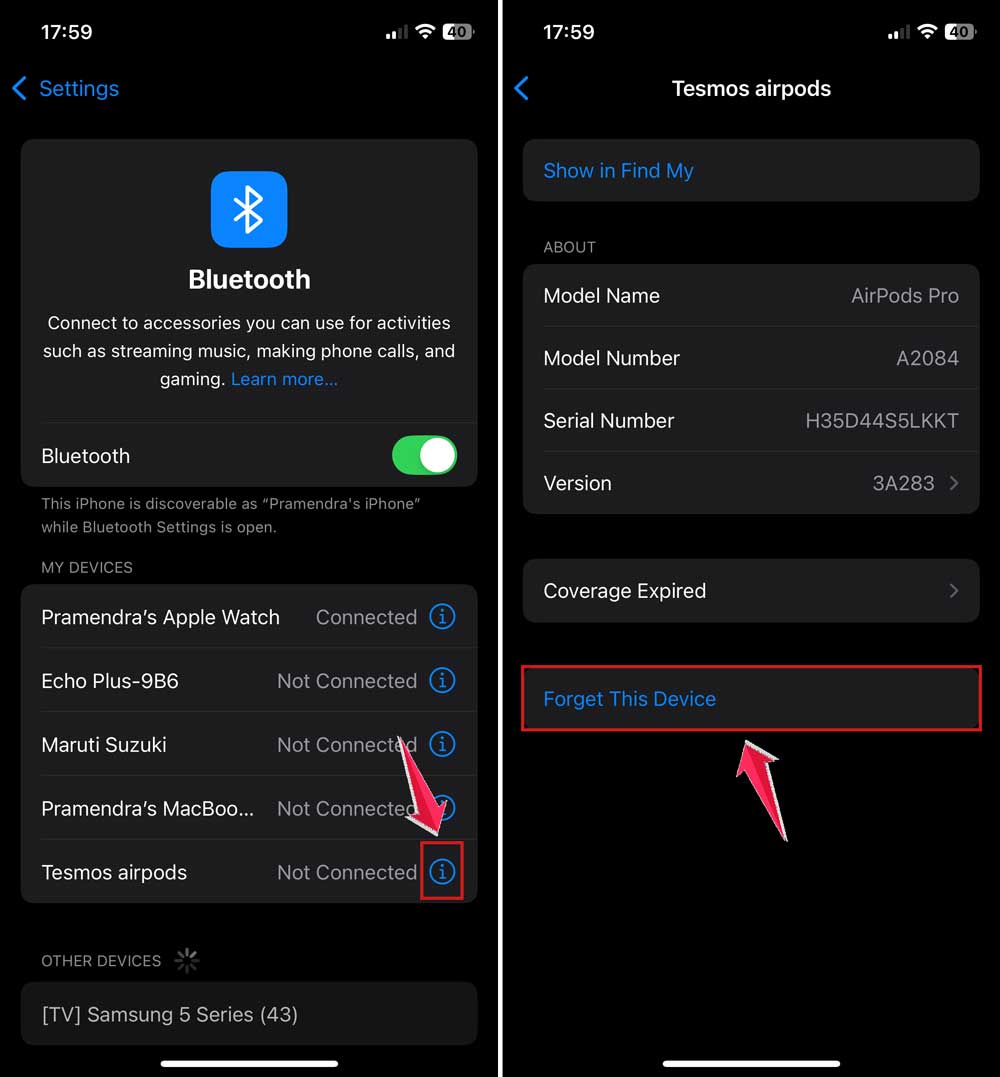
- Now, re-pair your AirPods by opening the case near your phone and following the on-screen instructions.
This gives your AirPods a clean start, which often helps fix battery display issues.
#3 Update your iOS and AirPods firmware
Software updates can fix all sorts of small bugs. If your phone or AirPods are outdated, they might not show battery levels correctly.
Here’s how to check for updates:
- On your iPhone, go to Settings > General.

- Then tap on Software Update.
- If there’s an update available, tap “Download and Install”.

- For AirPods, the firmware updates automatically when:
- They’re in the charging case.
- The case is plugged in.
- Your iPhone is nearby and connected to Wi-Fi.
Just leave your AirPods like that for a while, and they’ll update on their own.
#4 Clean your AirPods and charging case
Dust can hide in the charging spots and cause problems. If one AirPod isn’t charging properly, it might not show up on your battery screen.
Here’s what to do:
- Use a soft, dry cloth to gently wipe your AirPods.
- Check the inside of the case, especially the charging slots.
- If you see dirt, use a dry cotton swab or a small soft brush to clean it out.
- Avoid using water or alcohol.
Even a little bit of dirt can block the connection, so clean carefully.
#5 Unpair and repair your AirPods
Still not working? Let’s try removing and re-adding your AirPods. It’s like refreshing the connection.
Here’s how:
- Go to Settings > Bluetooth on your iPhone.
- Tap the (i) next to your AirPods and select “Forget This Device”.
- Put your AirPods back in the case and close the lid for 30 seconds.
- Open the lid and press the setup button until the light flashes white.
- Hold the case near your iPhone and follow the prompts to reconnect them.
This usually clears up any glitches and helps your phone recognize both AirPods again.
More Tips to Keep Your AirPods Working Right
Here are a few extra things you can do to make sure this doesn’t happen again.
1. Add a battery widget to your home screen
Want to check your AirPods’ battery without opening the case?
- Just add the battery widget to your iPhone’s home screen.
- Press and hold anywhere on the home screen.
- Tap on the Edit in the top-left corner.
- Then tap on the Add Widget.

- Scroll down and select Batteries, then add the widget.
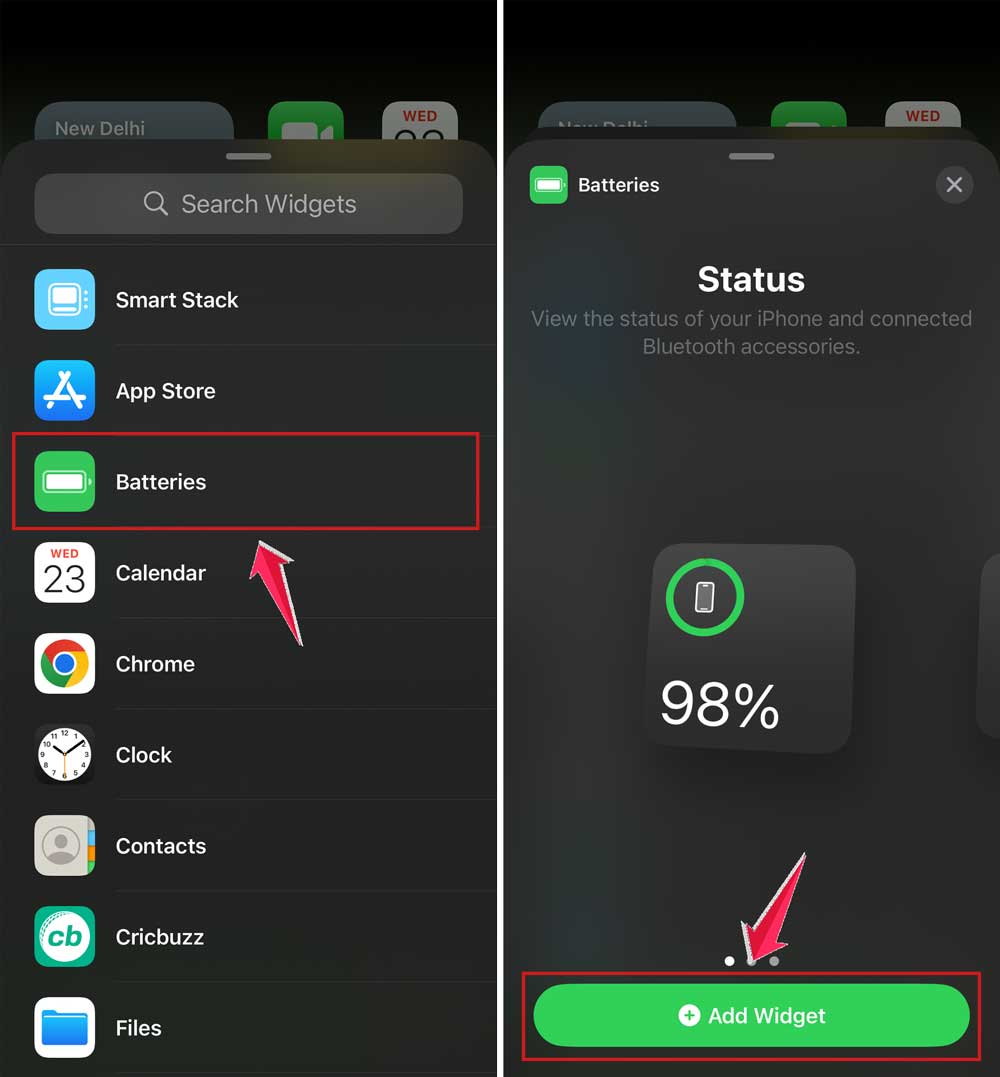
Now you can always see the battery levels with one glance.
2. Keep your AirPods dry
Moisture can cause charging issues. Always store your AirPods in a dry place.
If they get wet:
- Dry them gently with a soft cloth.
- Don’t charge them right away. Let them air-dry first.
3. Use both AirPods evenly
Try not to use just one AirPod all the time. Switching between ears or using both at once helps keep the battery drain even.
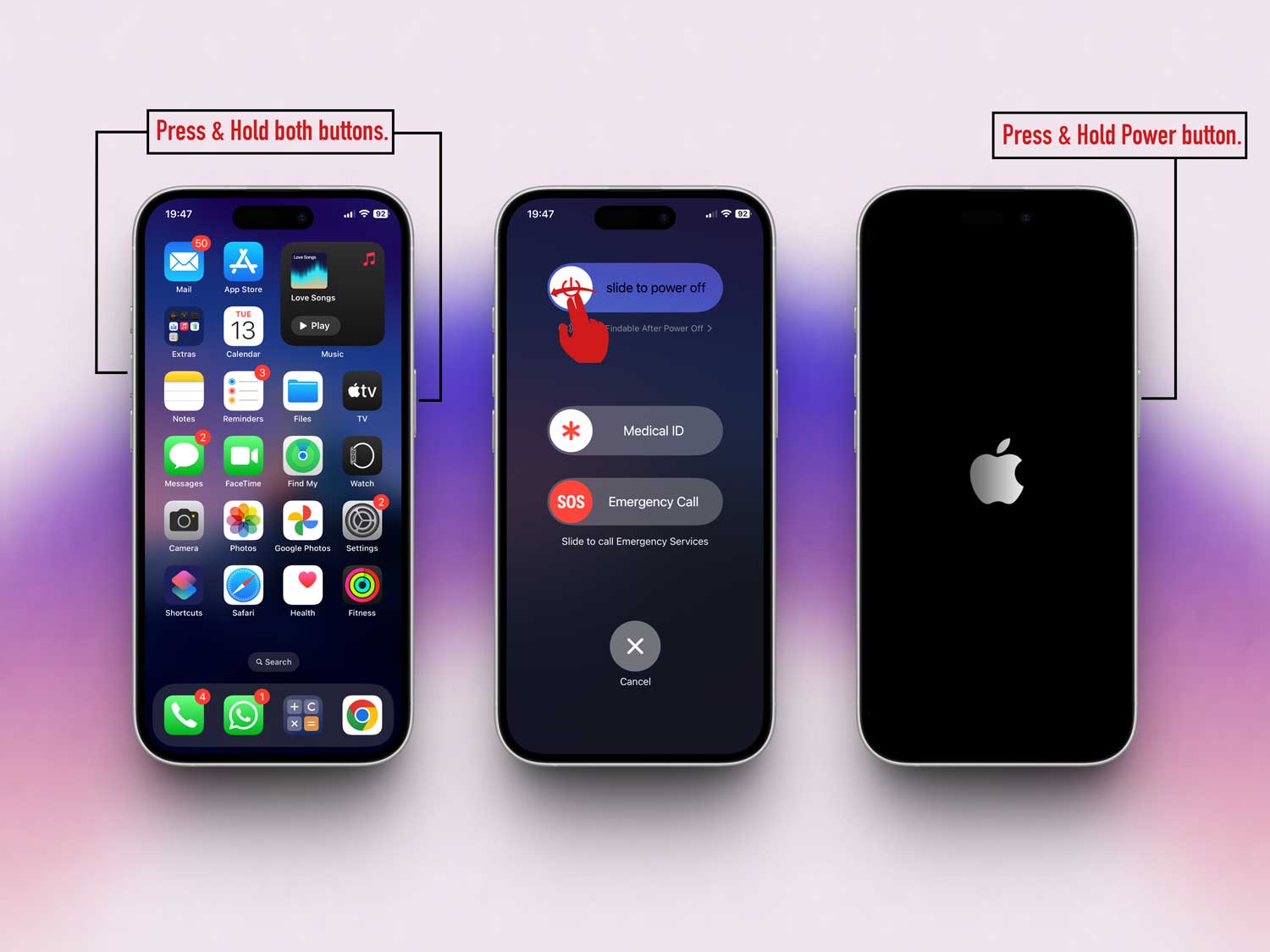
4. Restart your iPhone once in a while
If your AirPods aren’t showing up right, your phone might be the issue. A quick restart can fix that.
Just press and hold the side button and one of the volume buttons, then slide to power off. Turn it back on after a few seconds.
The Takeaway
So, we figured out why your iPhone might only be showing the battery for one AirPod—and more importantly, how to fix it.
Whether it’s a simple connection hiccup, a bit of dirt, or a software glitch, now you’ve got all the tools you need to fix it fast.
Remember these key tips: reset your AirPods when things feel off, keep them clean, and always update your iPhone’s software. These small steps go a long way in keeping your AirPods working like new.
And hey, don’t forget to use that battery widget—it really does help.
If you’ve tried everything and it’s still not working, it might be a hardware issue. In that case, visiting an Apple Store or reaching out to Apple Support is your best bet.
Hope this helped! Got your own tip or still stuck? Drop a comment below—I’d love to hear from you.