Ever wonder where those suspicious-looking emails disappear to on your iPhone? They’re likely tucked away in your spam folder.
This handy feature acts like a filter, keeping potentially unwanted messages out of your main inbox.
Your iPhone decides what goes into the spam folder based on a few factors.
It might spot certain words that often appear in junk mail, or it could recognize email addresses with a history of sending spam. Think of it as your phone’s way of sorting the mail before it reaches you.
While most spam emails aren’t worth your time, you might occasionally want to check this folder.
Maybe you’re doing some digital spring cleaning, or you’re worried an important message got mislabeled.
If you’ve ever wondered, “How do I find the spam folder on my iPhone?”, you’re in the right place.
Let’s walk through how to locate and manage your spam folder, step by step.
Why Is My Spam Mail Not Showing on iPhone?
Sometimes, you might notice that spam emails aren’t appearing on your iPhone. Don’t worry, there are a few common reasons for this:
- Your “email settings” might be configured to hide spam messages on your iPhone.
- Your email provider could be working behind the scenes to filter out spam before it even reaches your device.
- Occasionally, there might be a technical issue preventing spam messages from being delivered to your iPhone.
- You may have accidentally deleted your Mail app or spam folder without realizing it.
Understanding these possibilities can help you troubleshoot if you’re not seeing spam messages where you expect them.
How to Find the Spam Folder on Your iPhone?
Let’s walk through how to access the spam folder for different email providers on your iPhone:
#1 Find Gmail Spam Folder
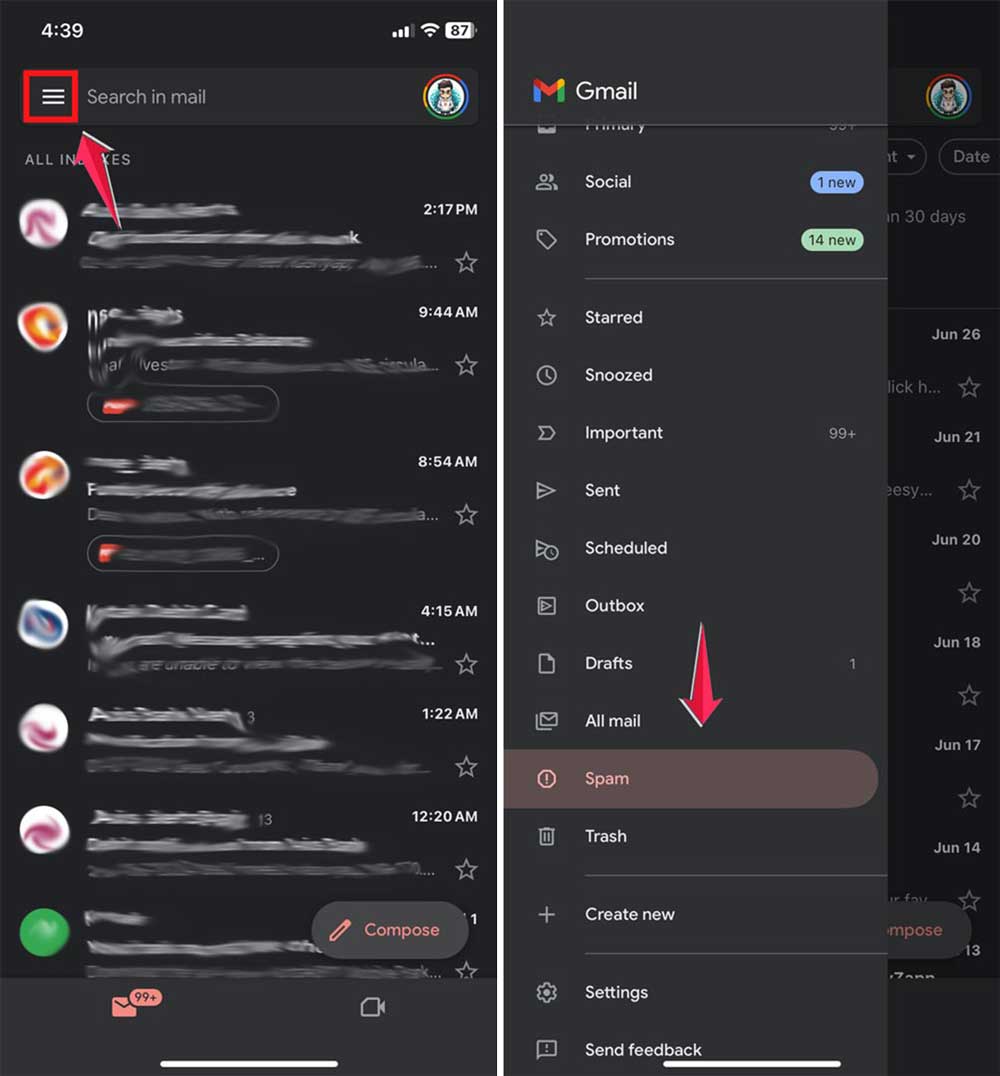
- Open the Gmail app on your iPhone.
- Tap the menu icon (three lines) in the top-left corner.
- Scroll down and tap “Spam” (with an exclamation mark).
If you can’t find the spam folder:
- Tap the menu icon, then “Settings“.
- Under “Accounts“, tap your email address.
- Make sure the “Spam Folder” option is checked.
To delete spam emails:
- Tap “Empty Spam Now” to remove all spam emails.
- To delete a single email, press and hold it, tap the three dots in the top-right, then “Delete Forever“.
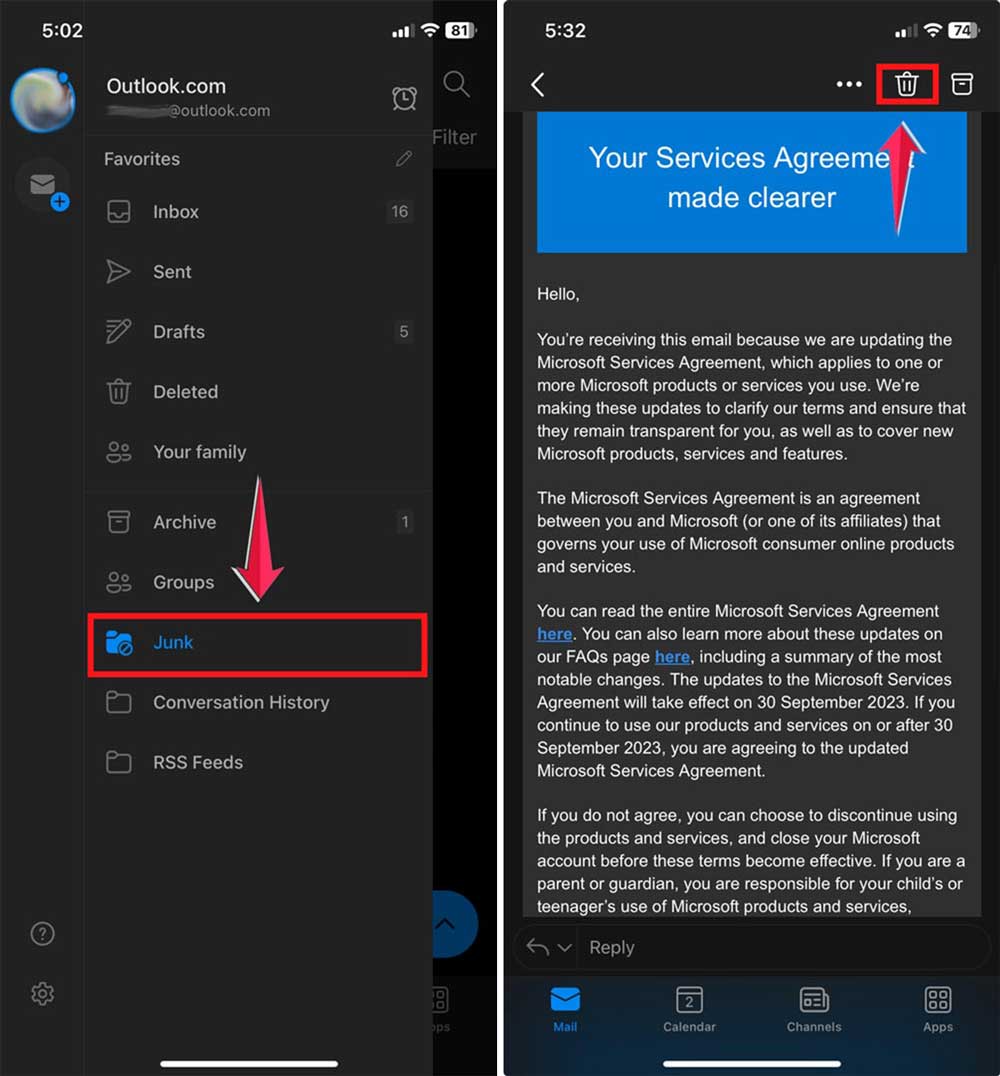
#2 Find Outlook Junk Mail Folder
- Open the Outlook app on your iPhone.
- Tap the menu icon in the top-left corner.

- Scroll down to find the “Junk Email” folder.
- To delete emails, tap the trash icon in the top-right corner.
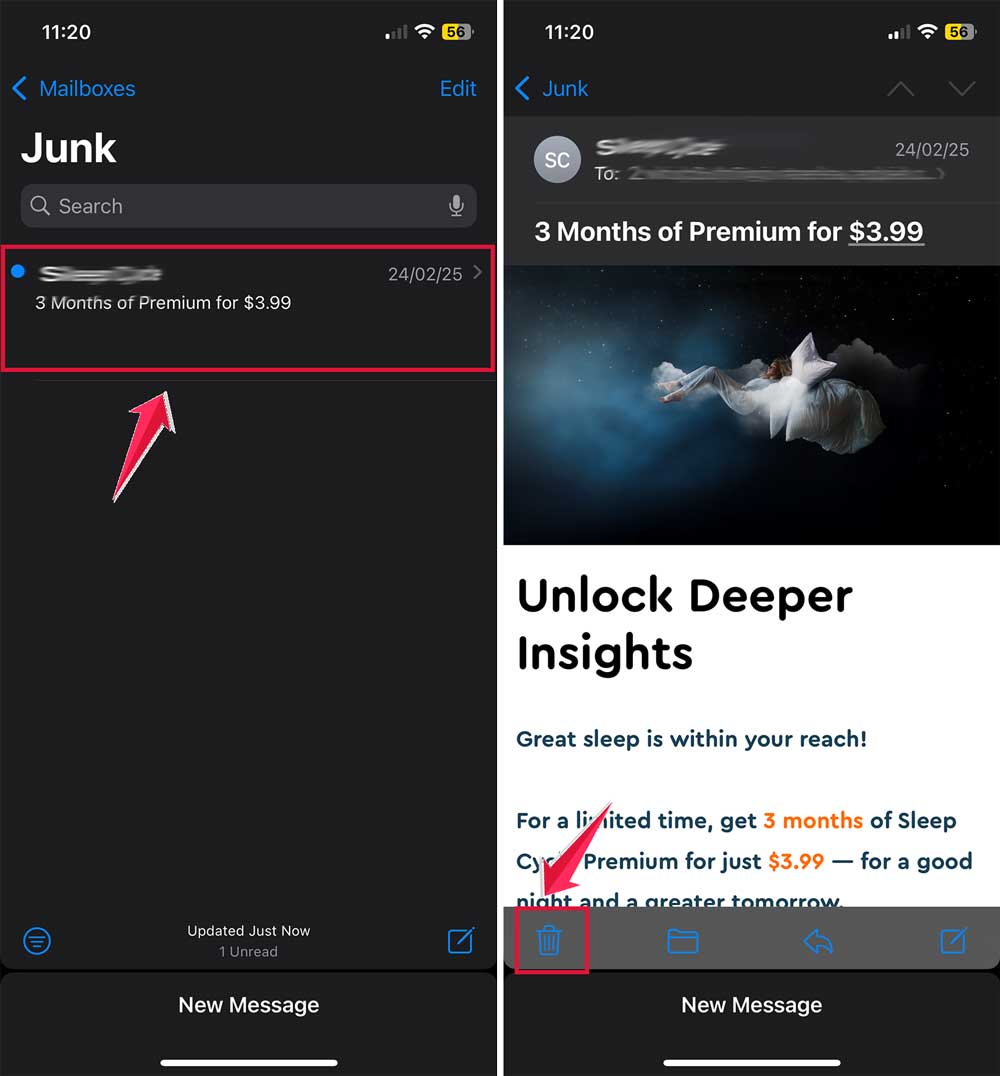
#3 Find iCloud Mail Junk Folder
- Open iCloud Mail on your iPhone.
- Look for the “Junk Folder” usually located below “Trash“.

- Open junk messages to review, delete, or move legitimate emails back to your inbox.
Remember, each email provider handles spam a bit differently, but these steps should help you find and manage your spam folder on your iPhone.
Wrapping Up
Let’s recap what we’ve covered about handling spam on your iPhone:
We explored why spam emails might not always be visible on your device. Sometimes, it’s due to your settings, while other times, your email provider is working hard to keep your inbox clean.
Now you’re equipped to take charge of your email. Whether you want to keep your inbox spam-free or make sure important messages haven’t been mislabeled, you’ve got the know-how to manage your iPhone’s spam folder effectively.
Remember, a tidy inbox leads to a more organized digital life. Happy emailing!