Ever hit ‘hide alerts’ on iMessage and wondered if the other person could tell you muted them?
You’re not alone! With each iOS update, your iPhone packs in more intriguing features, making it smarter but sometimes a bit more complicated to understand.
Today, let’s unravel one of those subtle features that might have left you puzzled: the “hide alerts” option in iMessage.
So, grab your iPhone, and let’s dive into this mystery together. Do they know, or do they not? Let’s find out!
Does “Hide Alerts” Notify the Person You’re Messaging?
Good news! When you tap that “hide alerts” button for a chat, your iPhone plays it cool. It doesn’t send any sort of alert or notification to the person you’re texting. They are totally in the dark about it. So, you can choose to mute a conversation and keep it just between you and your iPhone.
It’s not just about not sending notifications; your phone also doesn’t put up any signs or indicators on the other person’s phone. This means you can use the “hide alerts” feature super discreetly. It’s like having an invisible mode for your texts.
Here’s something to think about, though. If you’re not replying to messages or taking longer to respond because you’re not getting notifications, the person might start to wonder if you’ve muted them. But relax; your iPhone won’t snitch on you! It’s all about how you handle the conversation.
So, “hide alerts” is your secret ally for managing your messages on your terms, without letting the other person in on your little secret.
How To Enable The Hide Alerts Feature For A Conversation?
Got a chat on iMessage you want to mute? Let’s walk through how to easily switch the “hide alerts” feature on and off for any conversation.
It’s super simple and you’ve got not just one, but three different ways to do it!
Method 1: Quick Hold and Mute
- Press and Hold: Find the chat you want to mute in your Messages app.
- Select “Hide Alerts”: A menu will pop up. Just tap “Hide Alerts,” and voila, no more notifications from that chat!

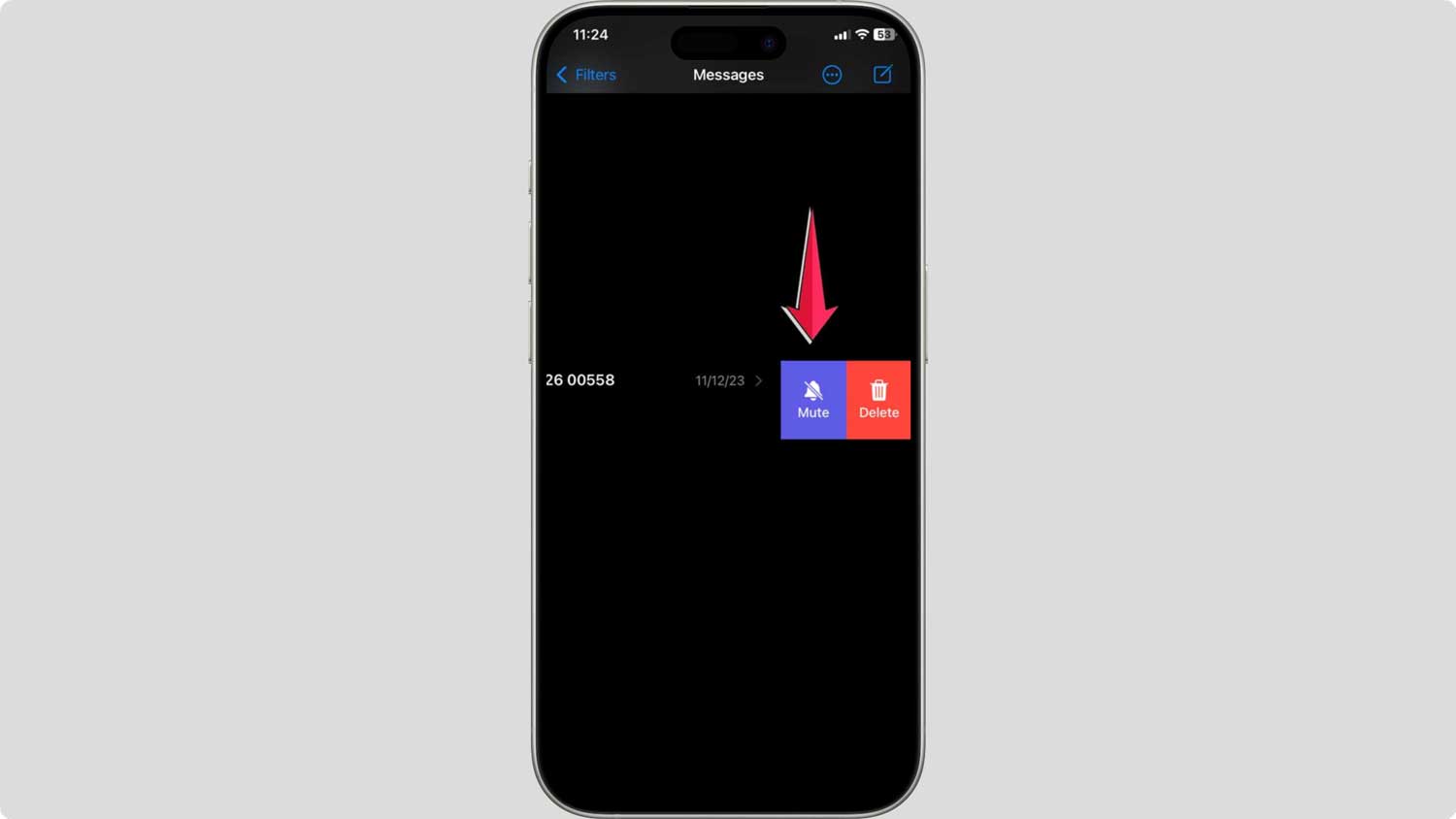
Method 2: Swipe to Silence
- Swipe Left: On the conversation, you want to mute, just swipe left.
- Tap the Bell Icon: You’ll see a little bell icon with a line through it. Tap it, and the chat is muted. Easy, right?
Method 3: Dive into the Chat Settings
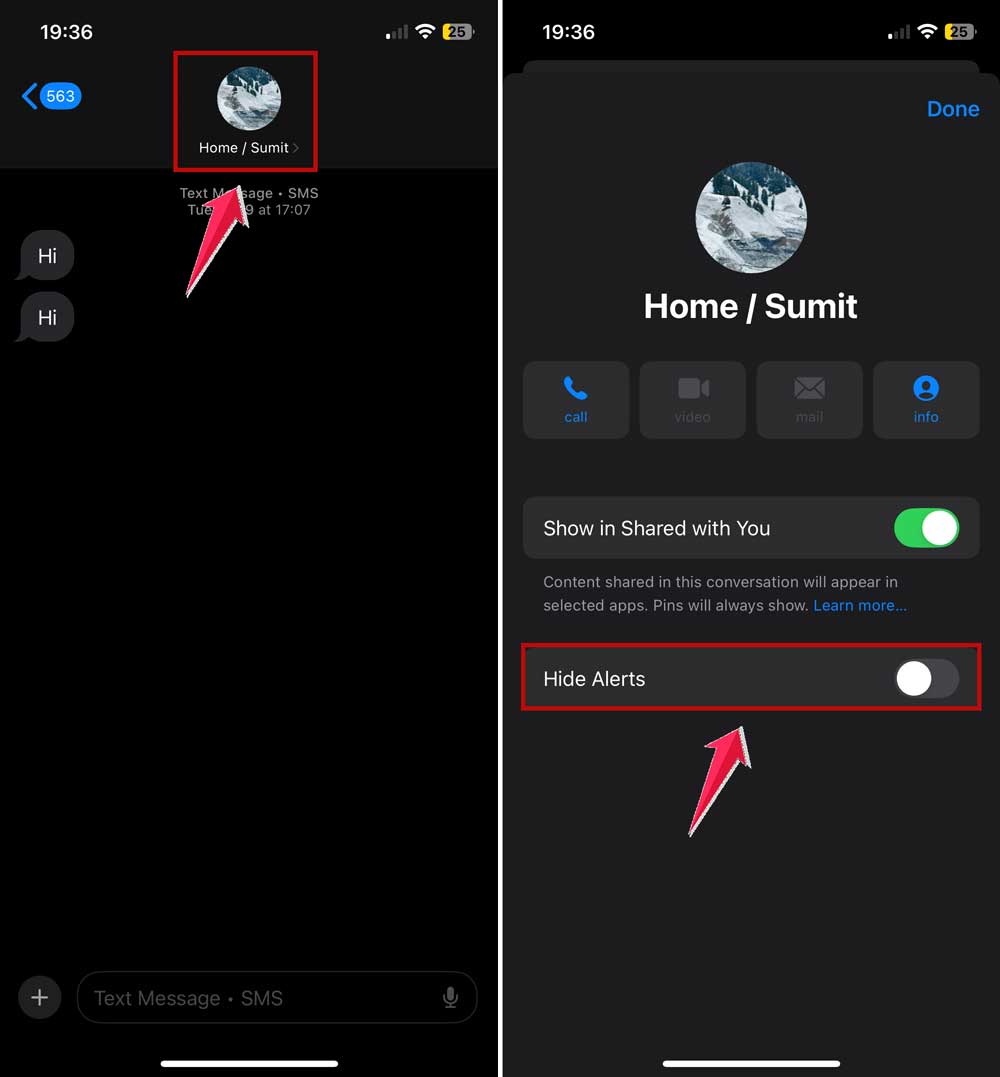
- Open the Conversation: Tap on the chat you want to mute.
- Tap the Contact’s Name or Photo: You’ll find this at the top.
- Toggle “Hide Alerts”: You’ll see a slider. Just flip it to green (on), and you’re set.
Pro Tip: If you want to silence texts but still receive calls, check if Do Not Disturb is turning on by itself. That’s a different feature!
How To Turn Off Hide Alerts Feature For A Conversation?
Changed your mind? No problem! Just redo any of the methods above.
The options you see will now let you turn the alerts back on. So, whether you want to mute or unmute, you’re just a few taps away.
Method 1: Press, Hold, and Reveal
- Hold and Unhide: Find the muted conversation in your Messages app. Press and hold on the conversation until a menu appears.
- Choose to Unhide Alerts: From the menu, select “Show Alerts” again to toggle it off. The notifications for this chat will resume immediately.

Method 2: Swipe to Reactivate
- Swipe to the Conversation: Navigate to the conversation you want to unmute and swipe left.
- Tap the Bell Icon: You will see a bell icon, possibly with a slash through it indicating it’s muted. Tap this icon to turn notifications back on.
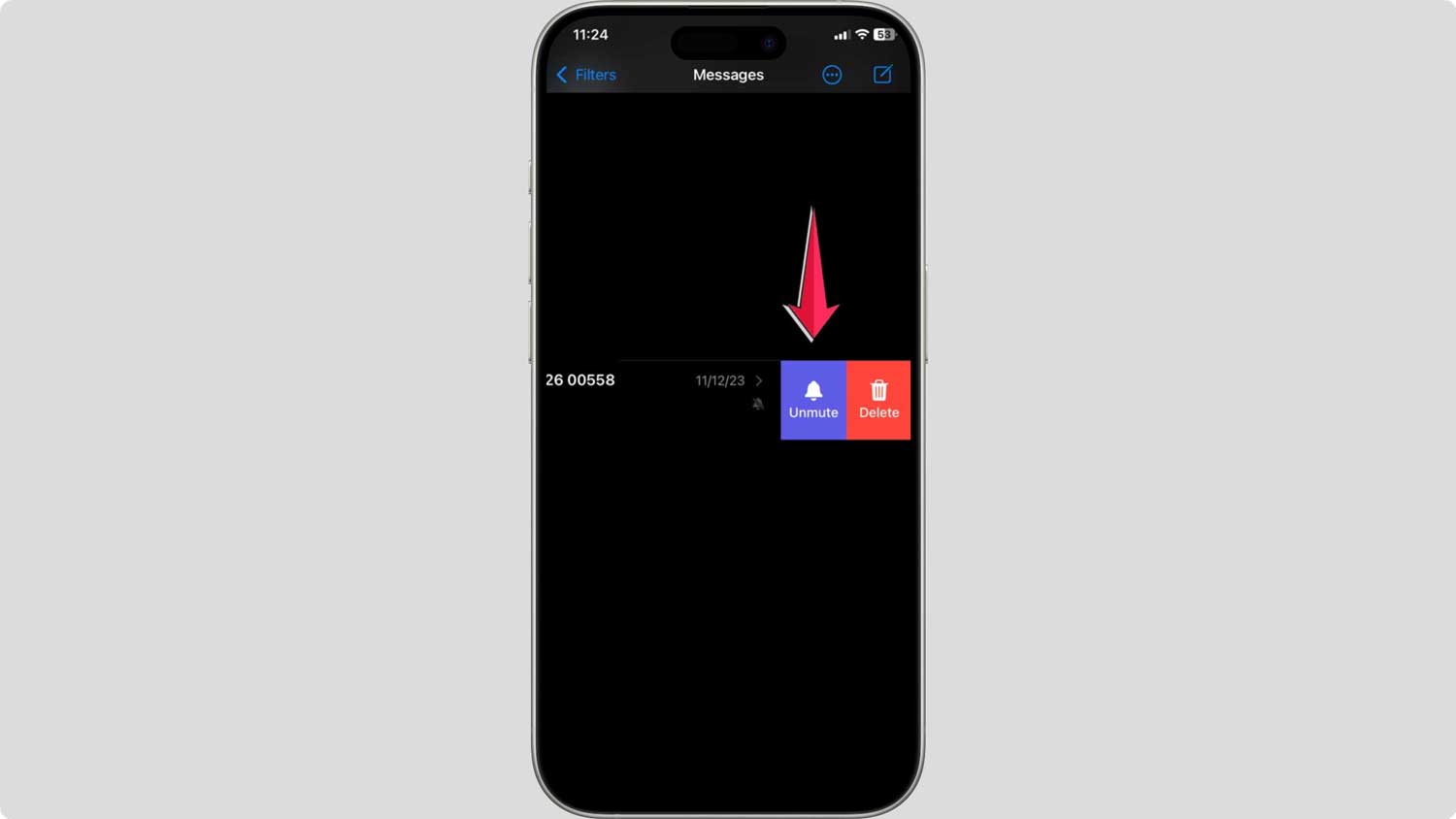
Method 3: Through Chat Settings
- Access the Conversation: Open the iMessage conversation you wish to adjust.
- Tap the Contact’s Name or Photo: You’ll find this option at the top of the conversation.
- Toggle Off ‘Hide Alerts’: A slider will appear, showing the ‘Hide Alerts’ as active. Flip this switch to off (grey), and you’ll start receiving notifications again.
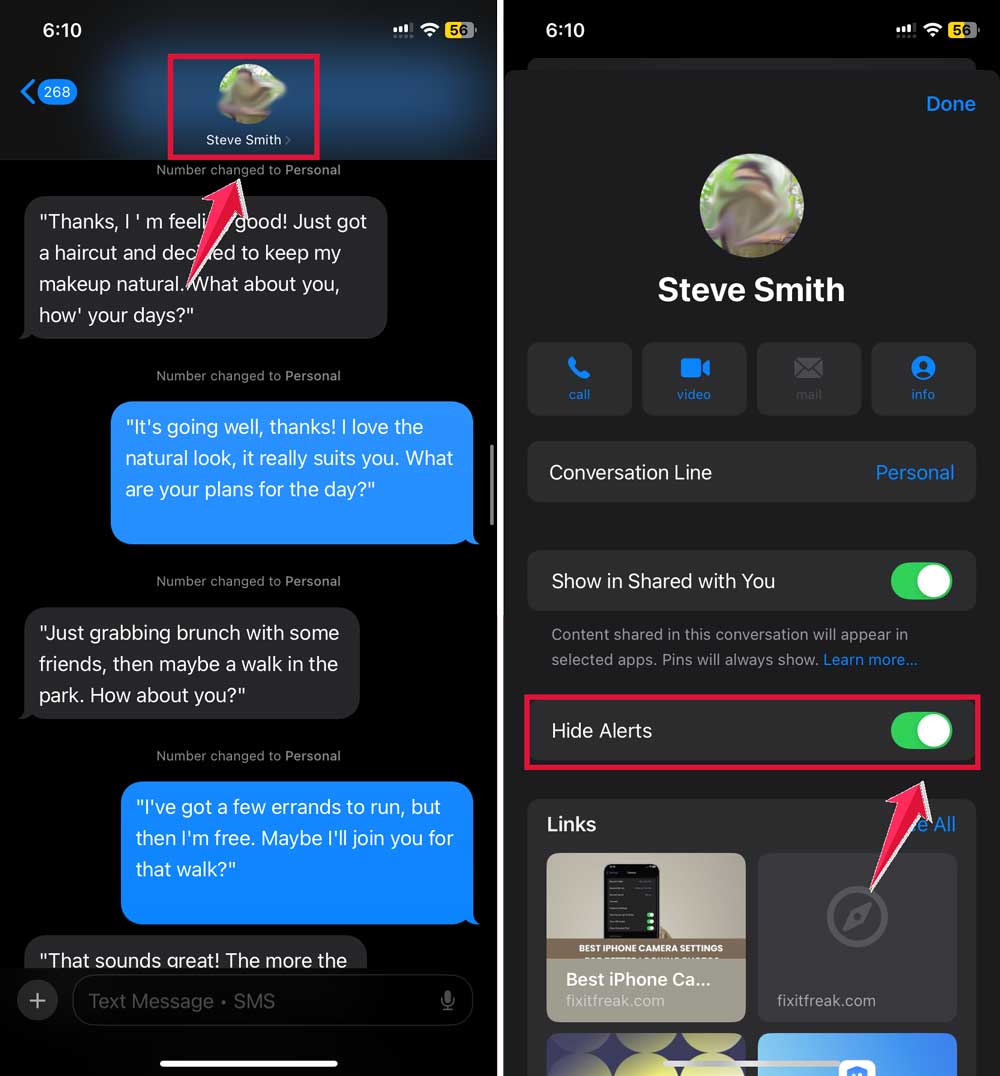
Remember, all three methods do the same thing, so just pick the one that feels most comfortable for you. Your iMessage, your rules!
Will You Receive Calls When You Use the Hide Alerts Feature?
Yes, you will still receive calls when you use the “hide alerts” feature in iMessage.
This feature only silences the text notifications from a specific contact, so if they call you, your phone will ring as usual.
This applies to regular calls and calls made through apps like WhatsApp or FaceTime.
This applies to regular calls and calls made through other apps like WhatsApp. So, “hide alerts” only affects messages, not calls!
Hide Alerts vs. Do Not Disturb (Focus Mode). What Is the Difference?
“Hide Alerts” and “Do Not Disturb” (also known as Focus Mode in recent iOS versions) are both useful features on your iPhone, but they serve different purposes and operate in distinct ways.
Hide Alerts:
- Specific to Conversations: Hide Alerts is applied to individual message threads in apps like iMessage or SMS. When you activate Hide Alerts for a conversation, you won’t receive any notifications (like sound or banner alerts) from that particular chat, but your device will still receive the messages silently.
- Does Not Affect Calls: Even if you have Hide Alerts enabled for a text conversation, you will still receive phone calls from that contact.
Do Not Disturb (Focus Mode):
- Device-Wide Setting: Do Not Disturb silences all incoming calls, alerts, and notifications on your phone. It’s a broader setting compared to Hide Alerts.
- Customizable: You can customize Do Not Disturb to allow calls from certain contacts or repeated calls to break through. In recent iOS updates, this feature has been expanded into what is now called Focus Mode, which includes more detailed customization like allowing notifications from specific apps or during certain times.
- Schedule or Manual Activation: You can set Do Not Disturb to activate on a schedule (like during your sleeping hours) or manually turn it on when needed.
In Conclusion To
So, now you know! When you use the “hide alerts” feature in iMessage, the other person won’t have a clue that you’ve muted them.
It’s a handy little feature for when you need a break from notifications without causing any awkwardness.
Whether you’re in a meeting, catching some z’s, or just need a moment of peace, “hide alerts” have got your back, discreetly keeping your phone quiet.
Got any stories or tips about using ‘hide alerts’? Drop us a comment below! We’d love to hear how you use this feature in your daily life.