Safari is your Mac’s built-in web browser, designed to help you explore the internet with ease. But sometimes, you might notice it’s not working as smoothly as it should. Maybe it’s running slow, crashing, or having trouble loading certain websites. When this happens, giving Safari a reset can often solve these issues.
In the past, resetting Safari was as simple as clicking a button. However, newer versions of macOS have removed this option. So what can you do if you need to give Safari a fresh start?
Don’t worry! You’ve got options. In this guide, we’ll walk you through two effective methods to reset Safari on your Mac. These techniques will help you clear out any problems and get your browser running smoothly again.
Ready to give your Safari browser a tune-up? Let’s get started with some simple steps that anyone can follow, even if you’re not tech-savvy.
How To Manually Reset Safari on Mac?
Sometimes, your Safari browser needs a fresh start to work its best. While there’s no single “reset” button anymore, you can still give Safari a clean slate by following a few simple steps.
It’s important to know that resetting Safari will remove some of your personalized data, including bookmarks, saved passwords, and web data.
If there’s anything you want to keep, make sure to save it somewhere safe first.
Step 1: Clear Safari’s Cache
- Open Safari
- Click “Safari” in the top menu and select “Settings”

- Go to the “Advanced” tab
- Check the box next to “Show Features fro Web developers” if it’s not already checked
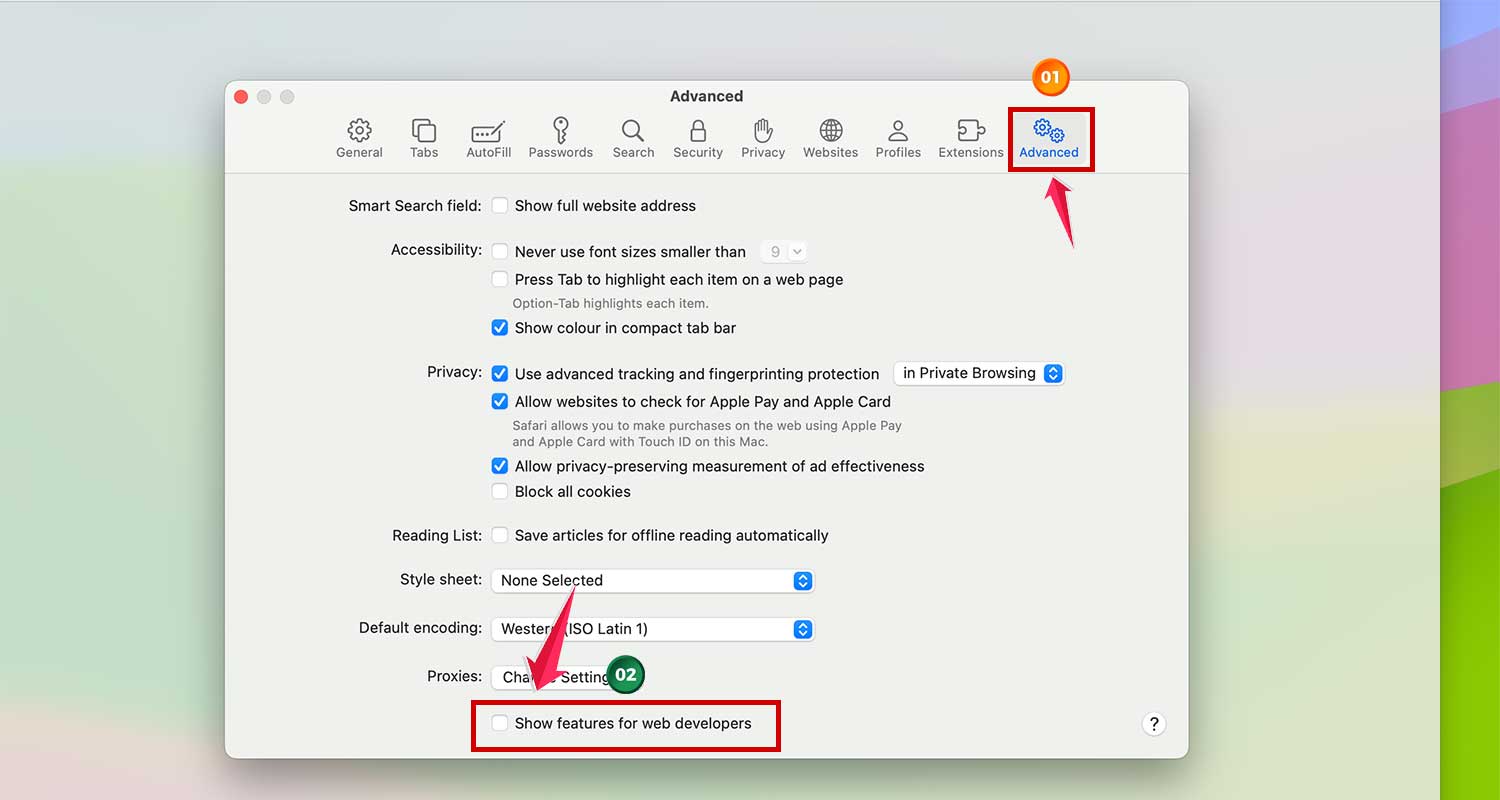
- Click “Develop” in the top menu, then select “Empty Cache” (or use the shortcut Alt + Command + E)

Step 2: Delete History and Cookies
- Click “History” in the top menu
- Select “Clear History”

- Choose how far back you want to clear in the drop-down menu
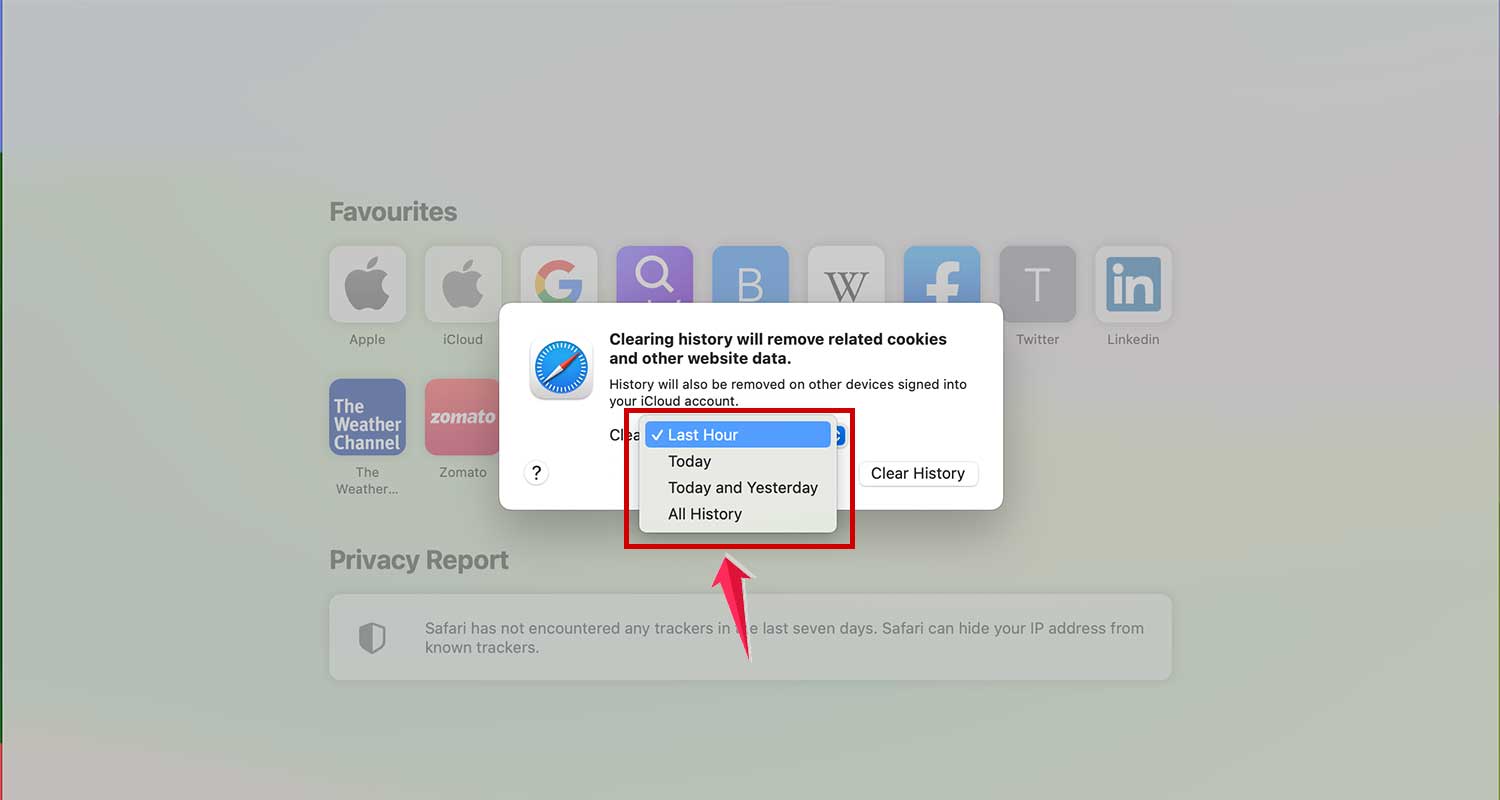
- Click “Clear History” to confirm
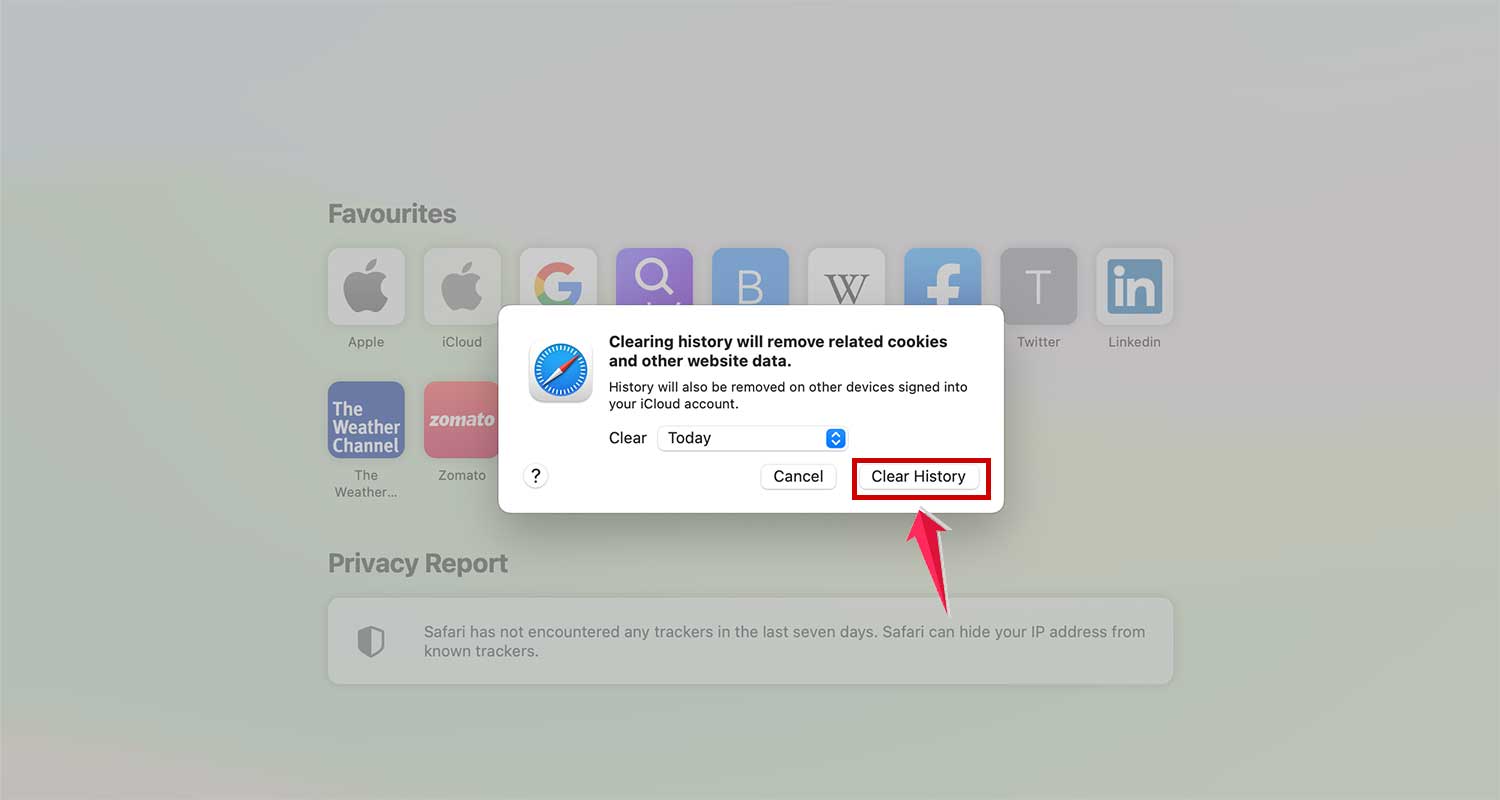
Remember, this might log you out of some websites you’re currently signed into.
Step 3: Disable Extensions
- Go to “Safari” > “Settings” > “Extensions”
- Uncheck the box next to any extension you want to disable
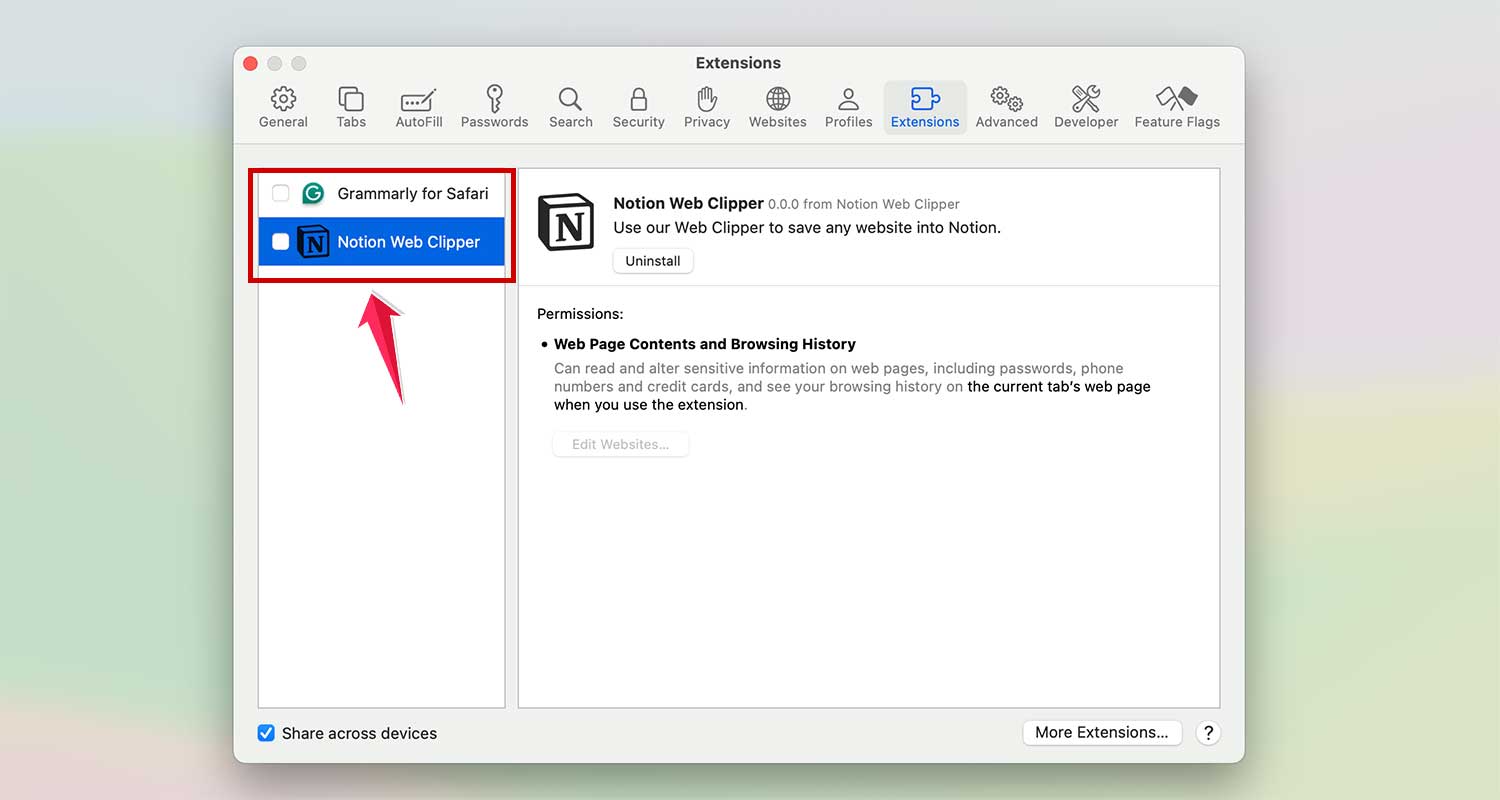
- To remove an extension completely, click “Uninstall” and follow the prompts
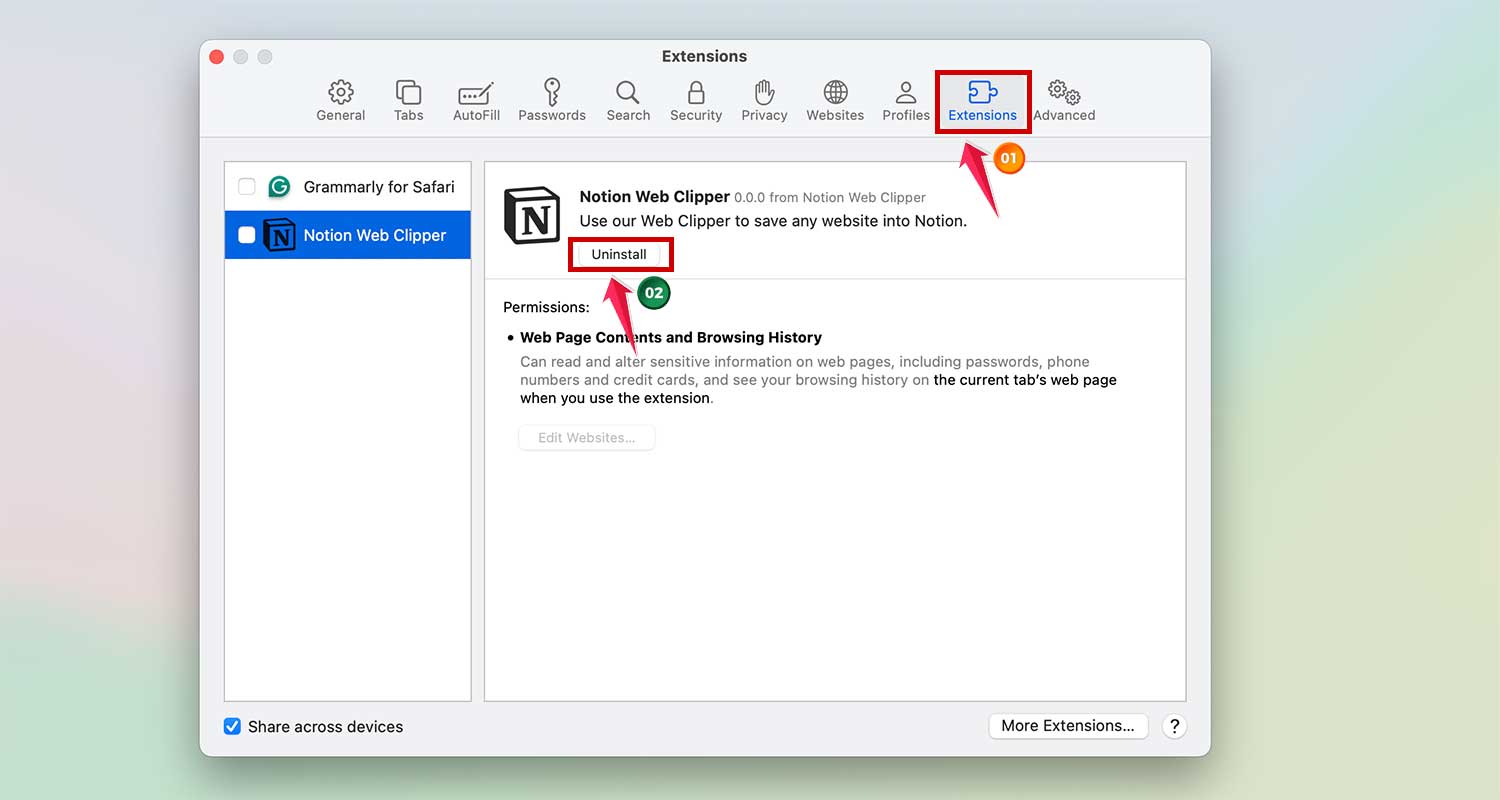
Step 4: Turn Off Plugins
- Go to “Safari” > “Settings” > “Security”
- Uncheck the boxes.

Step 5: Remove Safari-Related Files from Your Library
This step is a bit more advanced, so take your time:
- Press Shift + Command + G on your desktop
- Type “~/Library” and press Enter

- Find the “Safari” folder and look for any plugin-related files
- Move these files to the Trash
- Repeat this process with “/Library” not “~/Library” this time.
You’ve just given Safari a thorough clean-up. Your browser should now run much smoother.
Remember, if you ever feel unsure about deleting files, it’s okay to skip that step. The most important parts are clearing your cache, history, and disabling extensions.
How to Reset Safari on Mac Using Terminal
Did you know there’s a powerful tool on your Mac called “Terminal”? It’s like the secret control room of your computer. If you’re comfortable using it, you can use Terminal to refresh Safari. Let’s go through the process step by step:
- Make sure Safari is completely closed.
- If Safari won’t close normally, click the Apple icon at the top and choose “Force Quit”.

- Find “Terminal” using Spotlight (the magnifying glass icon) or Launchpad (the rocket icon).
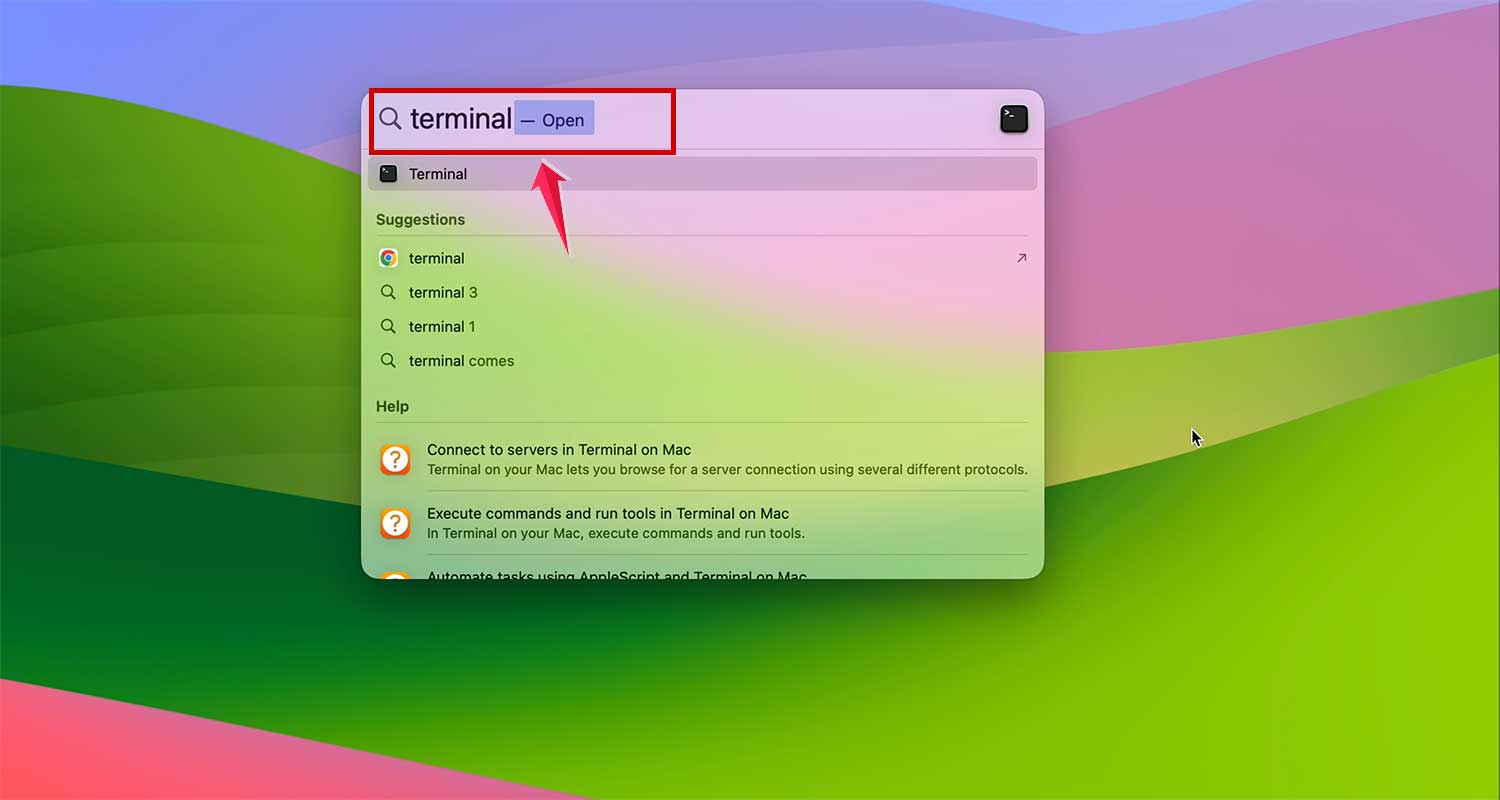
- Now, you’ll need to enter specific commands into Terminal to reset Safari.
⚠️ Warning: The commands we’re using (especially “rm -rf“) are very powerful. Think of them like advanced settings. If used incorrectly, they can cause problems. Always be careful and make sure to copy and paste the commands exactly as shown.
Copy and paste these commands into Terminal one by one:
mv ~/Library/Safari ~/Desktop/Safari-`date +%Y%m%d%H%M%S`
rm -Rf ~/Library/Caches/Apple\ -\ Safari\ -\ Safari\ Extensions\ Gallery
rm -Rf ~/Library/Caches/Metadata/Safari
rm -Rf ~/Library/Caches/com.apple.Safari
rm -Rf ~/Library/Caches/com.apple.WebKit.PluginProcess
rm -Rf ~/Library/Cookies/Cookies.binarycookies
rm -Rf ~/Library/Preferences/Apple\ -\ Safari\ -\ Safari\ Extensions\ Gallery
rm -Rf ~/Library/Preferences/com.apple.Safari.LSSharedFileList.plist
rm -Rf ~/Library/Preferences/com.apple.Safari.RSS.plist
rm -Rf ~/Library/Preferences/com.apple.Safari.plist
rm -Rf ~/Library/Preferences/com.apple.WebFoundation.plist
rm -Rf ~/Library/Preferences/com.apple.WebKit.PluginHost.plist
rm -Rf ~/Library/Preferences/com.apple.WebKit.PluginProcess.plist
rm -Rf ~/Library/PubSub/Database
rm -Rf ~/Library/Saved\ Application\ State/com.apple.Safari.savedState
The “rm -rf” command is particularly powerful. Please use it with caution. It’s recommended that you copy and paste the above commands exactly, without any changes, to avoid accidentally damaging other system files.
Once you’ve entered all these commands, you’ve essentially told your Mac to clean out all the old and unnecessary Safari data.
Wrapping It Up
Well, there you have it! You’ve just learned how to give Safari on your Mac a fresh start. By now, your browser should be running much smoother, just like when you first started using it.
If you’ve followed these steps and Safari still isn’t behaving quite right, don’t worry. Sometimes, the solution is as simple as updating your macOS. This can give Safari the latest version it needs to work at its best.
Remember, these methods can help solve many common Safari issues like slow performance, crashes, or problems loading certain websites.
Did you find this guide helpful? If so, feel free to share it with friends or family who might also need to freshen up their Safari browser. You never know who might be struggling with similar issues!