You just unlocked your iPhone and noticed something strange. Safari is gone. You didn’t delete it. You didn’t hide it. But it’s just… not there.
Don’t panic. You’re not the only one this has happened to.
With the latest iOS and iPadOS updates, customizing your home screen is easier than ever. But that also means you can accidentally move or hide apps like Safari without realizing it.
The good news? Safari isn’t deleted. You can’t delete Safari from your iPhone or iPad. It’s still there. You just need to bring it back where you want it.
Let me show you how.
Why Safari disappeared from your home screen
You didn’t do anything wrong. This usually happens for one of three reasons.
Either you moved the Safari icon into a folder, swiped it to a different page, or hid it from your home screen without meaning to.
In some cases, Safari might be restricted by your Screen Time settings. But even then, it’s still on your device.
You’re not locked out. You’re not the only one. And you can fix this in less than a minute.
Start by checking your App Library
Every app on your device lives in the App Library. Even if you remove one from your home screen, it stays there.
So if you want to find Safari quickly, do this.
- Keep swiping left on your home screen until you reach the App Library.
- At the top, you’ll see a search bar.
- Type Safari. You’ll see the Safari icon pop up in the results.

- Now let’s bring it back. Hold it and drag it on the Homepage.

Add Safari back using the quick method
This is the fastest way to return Safari to your home screen.
- Tap and hold the Safari icon in the App Library. Now, when the menu appears, tap Add to Home Screen.

That’s it. Safari is now back where it belongs.
Still not seeing that option? Let me show you another method.
Drag Safari from App Library to your home screen
Sometimes the Add to Home Screen option doesn’t show. But don’t worry. You can still drag it manually.
Here’s how:
- Tap and hold Safari in the App Library until it lifts slightly.
- Keep holding and dragging it to the left. Continue dragging until you reach your home screen.
- Drop it where you want it. top row, dock, or wherever feels right.
Want to move it later? Just tap and hold again, and move it around while the icons wiggle.
What if Safari isn’t showing up in search?
If Safari doesn’t appear when you search in the App Library, it might be hidden by Screen Time restrictions.
Here’s how to check:
- Open the Settings app.
- Tap on Screen Time.
- Tap Content & Privacy Restrictions.
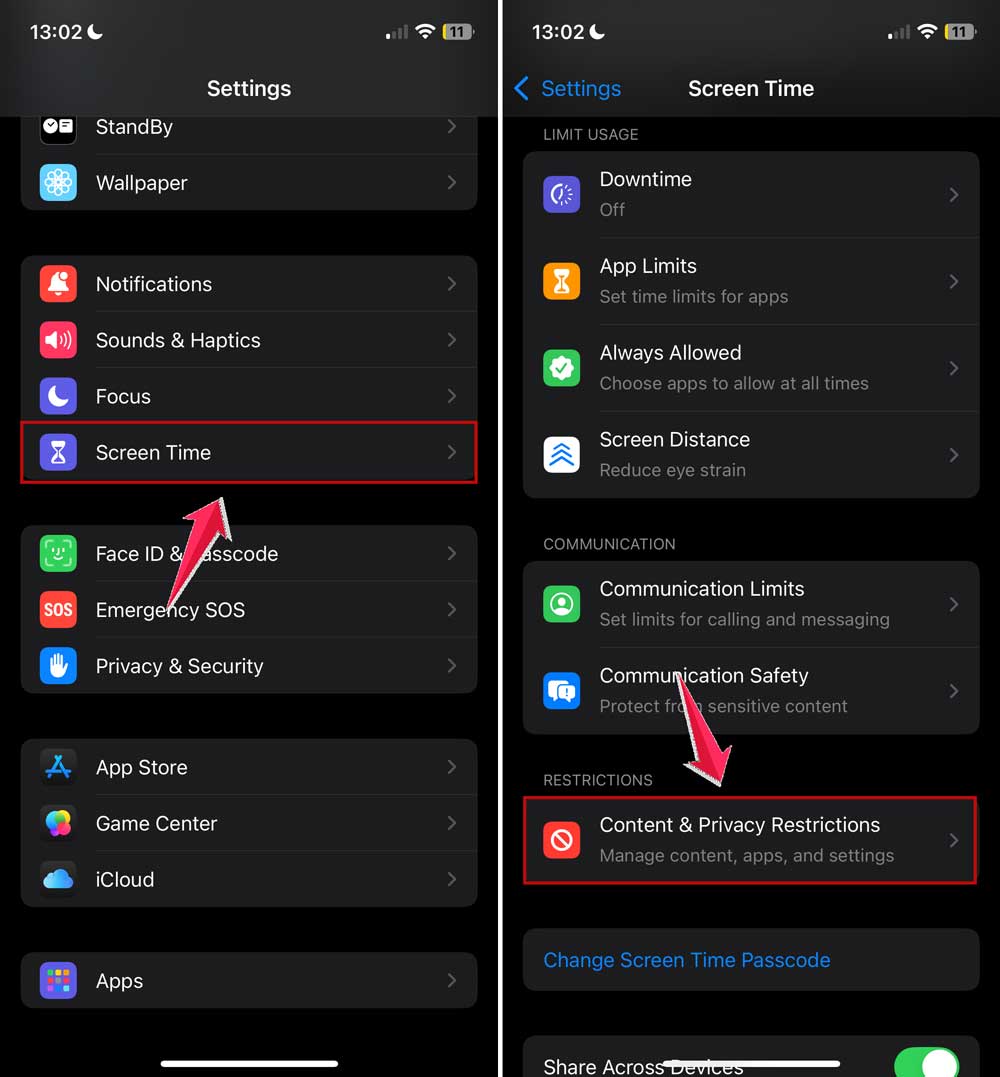
- Tap Allowed Apps.
- Ensure the switch next to Safari is on.
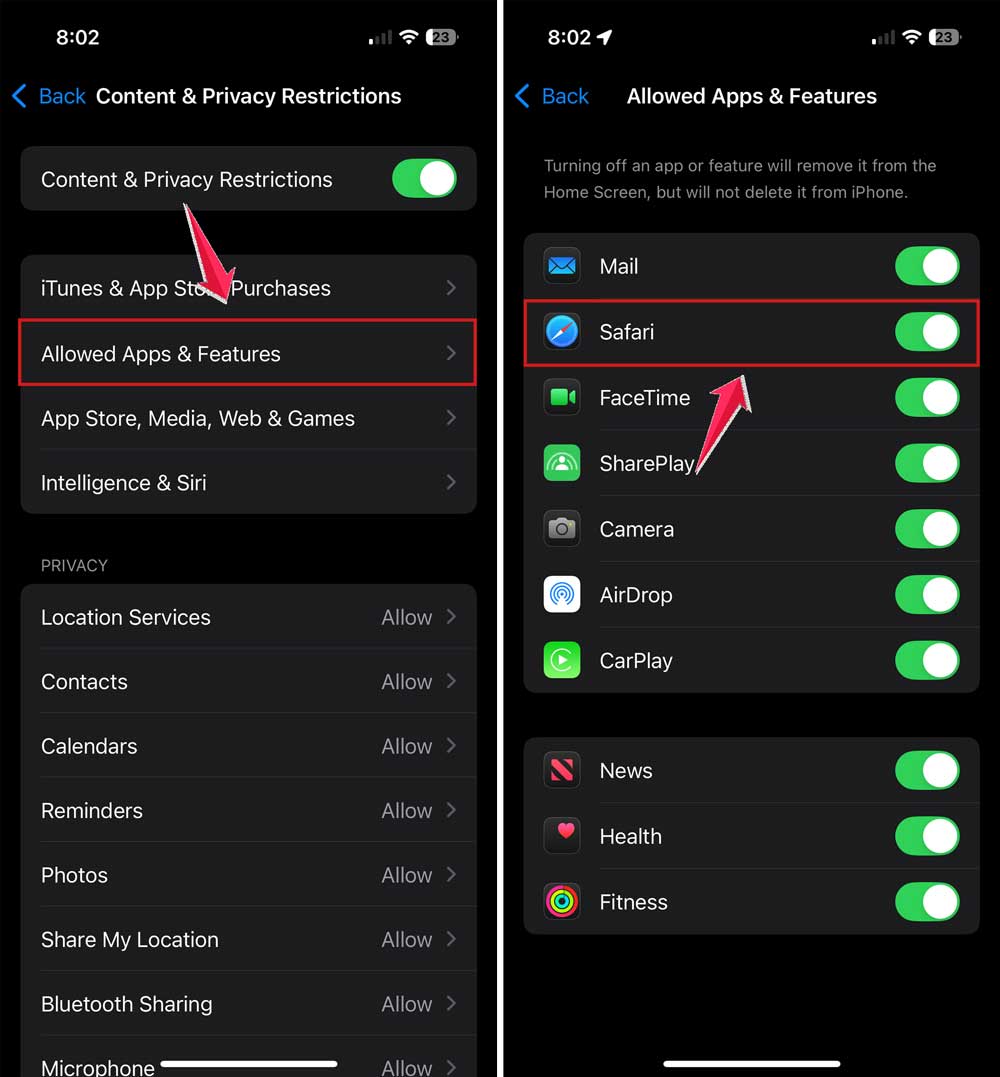
If it was turned off, you’ve found the reason. Once you enable it again, Safari will return.
Now go back to the App Library and search again. It should be there now.
Reset your home screen layout if nothing else works
If you’ve tried everything and still can’t find Safari, you can reset your home screen layout to its original state.
Just know this will undo all your custom app arrangements and folders. But it will bring Safari back to its original spot.
Here’s how to do it:
- Open Settings.
- Tap General.
- Tap Transfer or Reset iPhone.

- Tap Reset.
- Choose Reset Home Screen Layout.
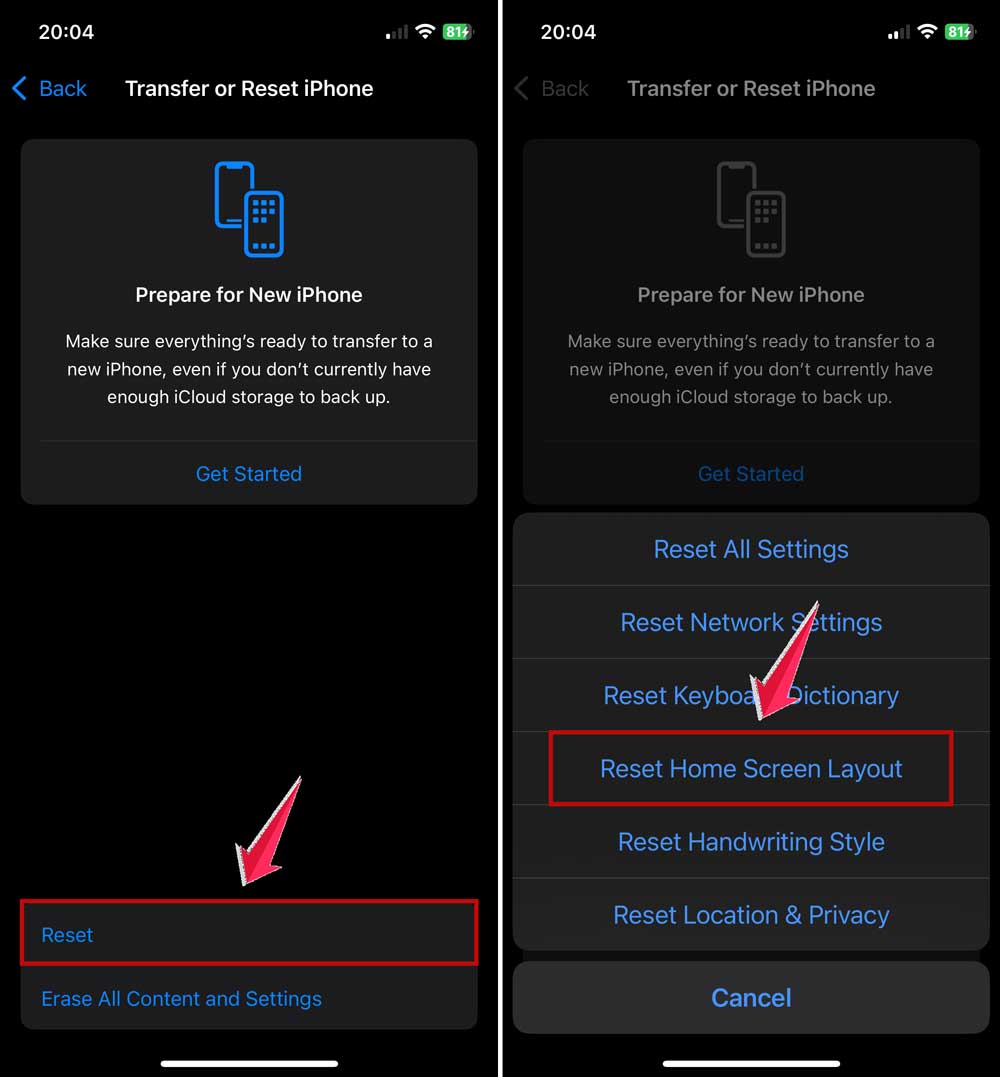
- Confirm when asked.
Your home screen will go back to the way it looked when your iPhone was new. And Safari will be right there again.
A few extra tips while you’re at it
Now that Safari is back, you might want to do a little cleanup.
Move it to your dock if you use it often. That way it’s always within reach.
You can also press and hold the icon and choose Edit Home Screen to rearrange your layout more easily.
Want to take it a step further? Change your wallpaper. Clean up extra apps. Maybe even set up rotating backgrounds to keep things fresh every day.
The more your phone feels like you, the more enjoyable it becomes to use.
What if Safari still feels buggy or missing features?
Sometimes the Safari app can feel off even after you bring it back. If it’s slow, glitchy, or won’t open links correctly, you might need to refresh it.
You can’t reinstall Safari the same way you reinstall other apps, but you can try this:
- Go to Settings.
- Scroll down and tap on Apps.

- Then tap on Safari.
- Now tap on Clear History and Website Data.

This clears cached files and refreshes Safari without deleting your history or settings.
Once it’s done, open Safari again and see if it works better.
Remember, Safari never actually disappears
It might feel like it’s gone, but it’s not.
You can’t delete Safari. It’s part of iOS. Even if it’s not on your home screen, it’s always somewhere on your device. Either in the App Library or restricted in settings.
So if it ever goes missing again, just come back to this guide and walk through the steps.
It’ll take you less than a minute to fix.
The takeaway
Losing Safari from your iPhone or iPad home screen is annoying. But it’s not permanent, and it’s usually easy to fix.
Whether you use the App Library, Spotlight, or reset your layout. You have options. And now you know exactly where to look.
This is one of those iPhone tricks every user should know. Because apps may disappear, but they’re rarely gone for good.
Now that Safari is back where you want it, maybe it’s a good time to clean up your home screen a bit. Move your favorite apps around. Tuck away the ones you don’t use. And make your phone work better for you.
Still have questions? Ask below. And if this helped you, let someone else know. They might be missing Safari too, and just don’t realize how easy it is to fix.