Remember when your Mac’s storage seemed endless? Over time, you might find that space disappearing faster than expected. Don’t worry – there’s a simple solution.
iOS files, related to your iPhone or iPad backups, might be taking up more space than you realize. The good news? You can safely remove many of these to free up space.
Whether you’re a long-time Mac user or new to Apple, you’ll learn how to manage your storage better and give your Mac more breathing room.
Ready to reclaim some of that precious hard drive space? Let’s dive in!
Are iOS Files on Your Mac Safe to Delete?
The short answer is: yes, it’s generally safe.
But let’s take a closer look before you start deleting.
Removing any files from your computer always comes with a bit of caution. It’s like cleaning out a cluttered drawer – you want to be sure you’re not tossing anything important. In the case of iOS files on your Mac, the risk is usually minimal.
These files are taking up space, and that’s probably why you’re here. Getting rid of them typically won’t cause any problems for your Mac. Your computer won’t crash or start behaving strangely if you remove them.
But might you need these files later? If there’s even a small chance, you might want to back them up first. You could use a USB drive or a cloud storage service for this.
What Are iOS Files On Mac?
These files are basically backups of your other Apple devices – your iPhone, iPad, or Apple Watch. When you connect these devices to your Mac for a backup, you’re creating a copy of all the data on that device. It’s a great way to keep your information safe, but it can also eat up a lot of space on your Mac over time.
Think of it this way: if you have an iPhone with 32 GB of storage that’s half full, backing it up to your Mac might create a file between 8 and 16 GB. Now imagine doing this multiple times, or with multiple devices. You can see how quickly your Mac’s free space can disappear!
The good news is that deleting these backup files can free up a lot of space quickly. But don’t worry – this doesn’t mean you should stop backing up your devices to your Mac. It’s still a smart and convenient way to protect your data.
What you can do is manage these backups more effectively. Try keeping only the most recent or necessary ones. Remember, having a backup on your Mac makes it easy to restore your phone if needed. But you’ve got other options too, like using iCloud, which can help keep your Mac’s storage from filling up so quickly.
Where are They Located?
If you’re wondering where these iOS backup files are hiding on your Mac, don’t worry. I’ll walk you through the process step by step:
- Click on the Apple logo in the top left corner of your screen.
- Select “About This Mac” from the dropdown menu.

- In the new window that appears, click on the “More Info”
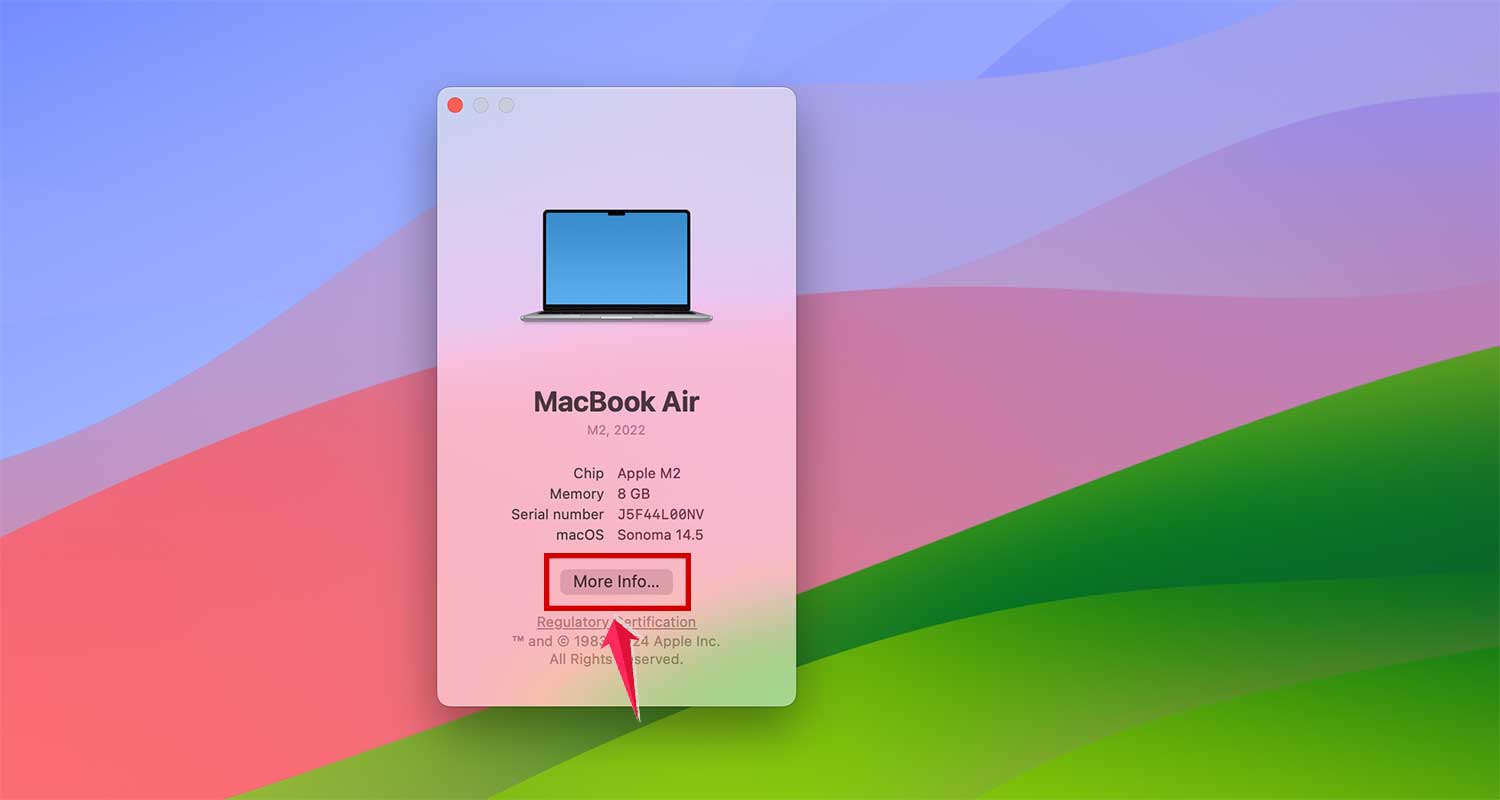
- Then scroll down and click on the “Storage Settings“.

This will open up a new window showing different categories of files on your Mac. Look for the category labeled “iOS Files” on the left side. Each category shows how much space it’s using, so you can see at a glance how much room these iOS files are taking up.
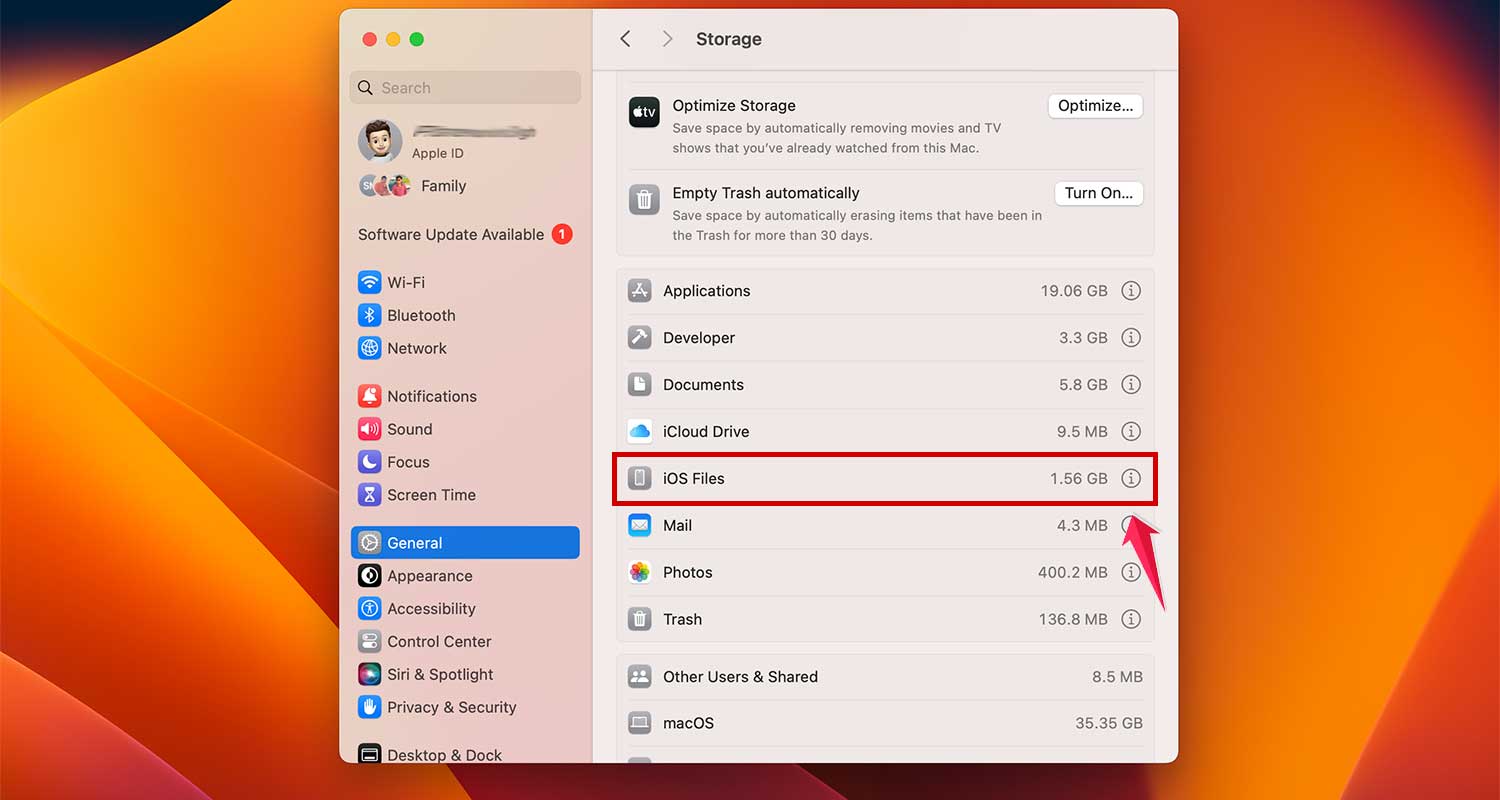
When you click on “iOS Files” you’ll see a list of each file and how much space it’s using. This gives you a clear picture of which backups are the largest and might be worth removing.
How to Decide Which iOS Backups to Keep
Before you start deleting, it’s important to think about which backups you actually need. This decision is personal and depends on your specific situation. Here are some tips to help you decide:
- Old Backups: If you have backups that are over a year old and your device is working fine, you probably don’t need them. This is especially true if you’ve made more recent backups.
- No Recent Backup? If you don’t have a recent backup, now’s a good time to create one before deleting older ones.
- Backups of Old Devices: If there are backups for devices you no longer own, those are usually safe to remove.
- Cloud Backups: If you’ve moved your newer backups to iCloud or another cloud service, you likely don’t need the old ones on your Mac.
Think about how useful each backup might be. Ask yourself: “Will this help if I need to restore my device?” If the answer is yes, keep it. But there’s no need to hang onto very old backups, especially for devices you don’t use anymore.
How to Delete iOS Files On Your Mac?
Clearing out old iOS files from your Mac is a straightforward process. Just follow these steps, and you’ll free up space in no time:
- Click on the Apple symbol in the top left corner of your screen and select “About This Mac”.
- Tap on “More Info”
- In the “About This Mac” window, click on the “Storage Settings”
- In the new window, look for and click on the “i” button next to the iOS Files category on the left side.
- Choose the file(s) you want to remove.
- Click the Delete button to move them to the trash.

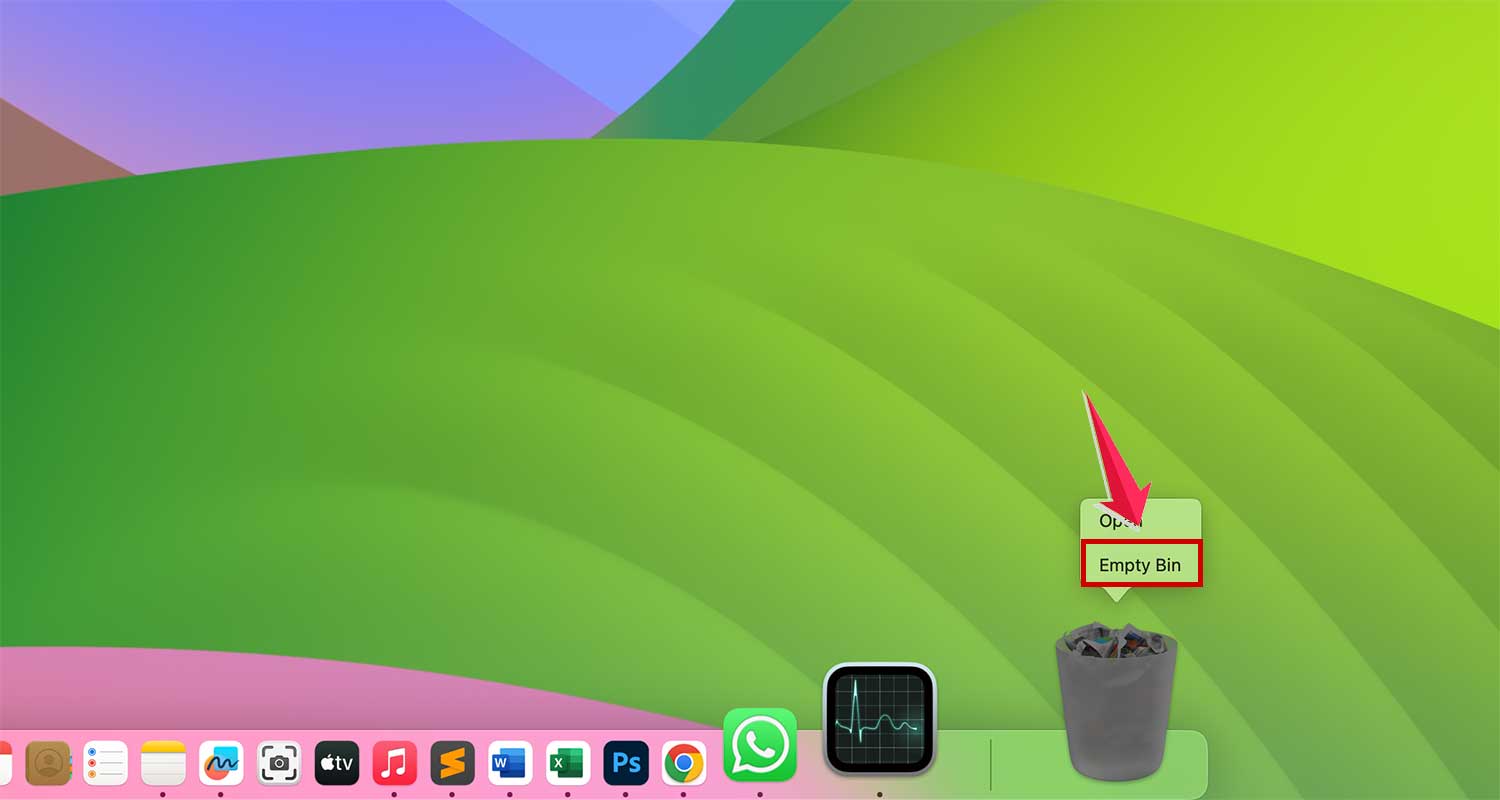
- Remember to Empty your Bin to permanently remove these files from your Mac.
If you don’t see an iOS section or any iOS files in the Manage storage area, there’s no need to worry. It simply means you don’t have any backup files stored on your system currently.
And if you’re looking for tips on using your Mac to back up your iPhone, you can always get detailed guidance from Apple Support.
In Conclusion To
As you set out to tidy up your Mac and make room for new things, remember that the iOS backup area is a great place to start. It’s like finding a hidden closet full of stuff you forgot you had!
Before you begin your digital decluttering, take a moment to consider each file. Make sure you’re not deleting anything you might need later. It’s all about balance – keep the backups that are still useful and let go of the ones that have served their purpose.
By doing this, you’re not just cleaning up; you’re optimizing your Mac’s storage to work better for you. It’s like giving your digital space a breath of fresh air, making room for new memories and experiences.
Happy cleaning, and enjoy the extra space on your Mac! Have you found this guide helpful? Do you have any questions about managing your iOS files? Feel free to share your thoughts or experiences in the comments below.