Have you ever taken a great photo, only to notice an unwanted object ruining the shot? You’re not alone.
A recent survey found that 68% of smartphone users wish they could easily remove distracting elements from their pictures. Well, if you have an iPhone 13 or newer, you’re in luck!
Your iPhone comes with a handy feature called Object Eraser. It’s like a magic wand for your photos, allowing you to remove unwanted items with just a few taps.
Whether it’s a photobomber, a stray trash can, or any other distracting element, this tool can help you clean up your images in no time.
If you want to go beyond object removal, you can also blur something in a picture on iPhone to keep the focus where it matters.
In the past, editing objects from photos required complex software and lots of patience. But now, thanks to advances in AI technology, your iPhone can do the heavy lifting for you.
In this article, you’ll learn how to use the Object Eraser feature step by step. We’ll walk you through the process, from opening your photo to saving your newly edited masterpiece.
So, get ready to transform your good photos into great ones. Let’s dive in and discover how easy it is to remove those pesky unwanted objects from your iPhone photos!
Does your iPhone have a photo eraser function?
Yes, your iPhone does have a way to erase unwanted objects from your photos. It’s a neat feature that can help you improve your pictures without needing complicated editing software. Here’s what you need to know:
Your iPhone comes with a built-in tool called Markup. This tool includes an eraser function that you can use to remove things from your photos.
Kind of like a digital paintbrush and eraser combo. It’s like having a digital eraser right in your pocket!
To use this feature, you’ll need to:
- Open the Photos app.
- Select the photo you want to edit.
- Tap the Edit button.
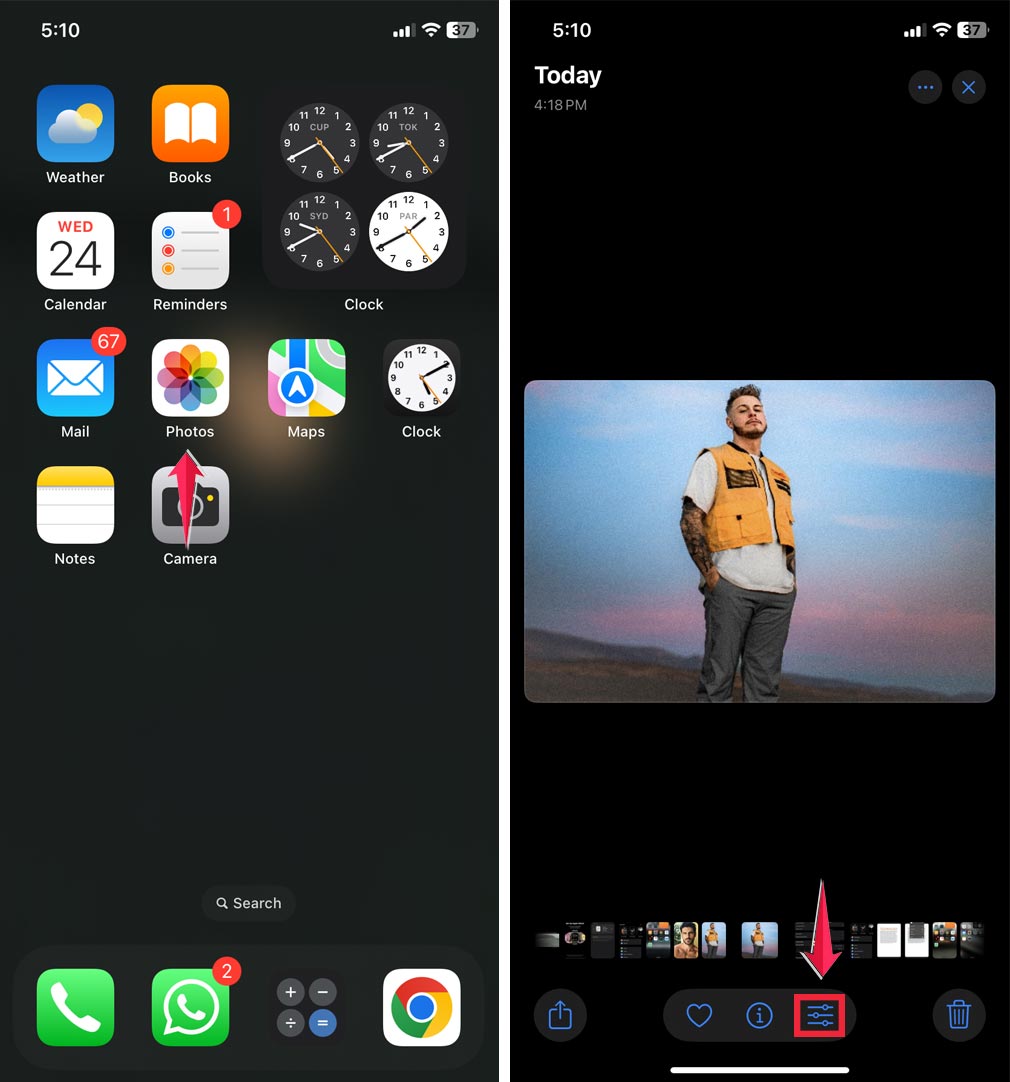
- Use the Markup tool to access the eraser.
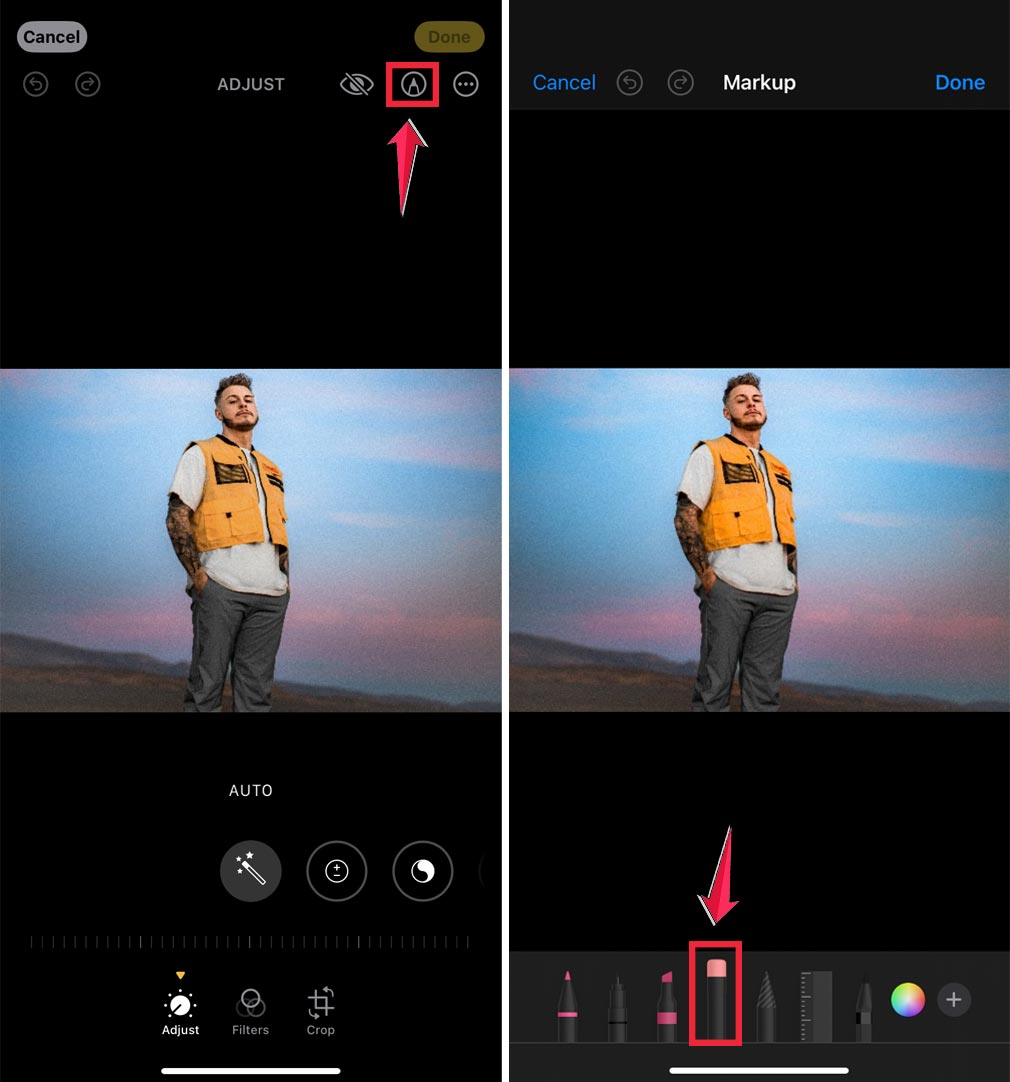
The process is pretty straightforward, but it might take a little practice to get it just right.
Don’t worry if you make a mistake. You can always undo your changes or start over.
How to remove objects from your iPhone photos
Ever taken a great photo only to notice something you wish wasn’t there? Don’t worry!
Your iPhone has a cool feature to help you remove unwanted objects from your pictures. Let’s walk through how to do it:
A step-by-step guide to removing objects:
- Open your Photos app and select the picture you want to edit.
- Tap the Edit button in the top right corner.
- Look for the Retouch tool at the bottom of the screen and tap it.
- Zoom in on the object you want to remove by pinching the screen with two fingers. This makes it easier to work on small details.
- In the bottom left, you’ll see a Brush button. This is your eraser tool.
- Choose the right brush size for the object you’re removing. Small objects need a smaller brush, larger ones need a bigger brush.
- Gently swipe your finger over the unwanted object. You’ll see it turn red as you do this.
- When you’re done, lift your finger. Your iPhone will work its magic and try to blend the area with the surrounding background.
- If you’re not happy with the result, don’t worry! You can tap Revert to undo your changes and try again.
This works well alongside other tools like burst photos, which help you capture multiple shots and pick the best one.
How to copy an object from a picture on your iPhone
Got a cool object in one of your photos you want to show off? Your iPhone 13 has a feature that lets you do just that.
Here’s how to copy an object from your picture:
Steps to copy an object from your photo:
- Open the Photos app and find the picture with the object you want to copy.
- Tap the Edit button in the top right corner.
- Look for the square icon (it’s the Crop/Rotate tool) and tap it.
- At the bottom, you’ll see an option called Freeform. Tap that.
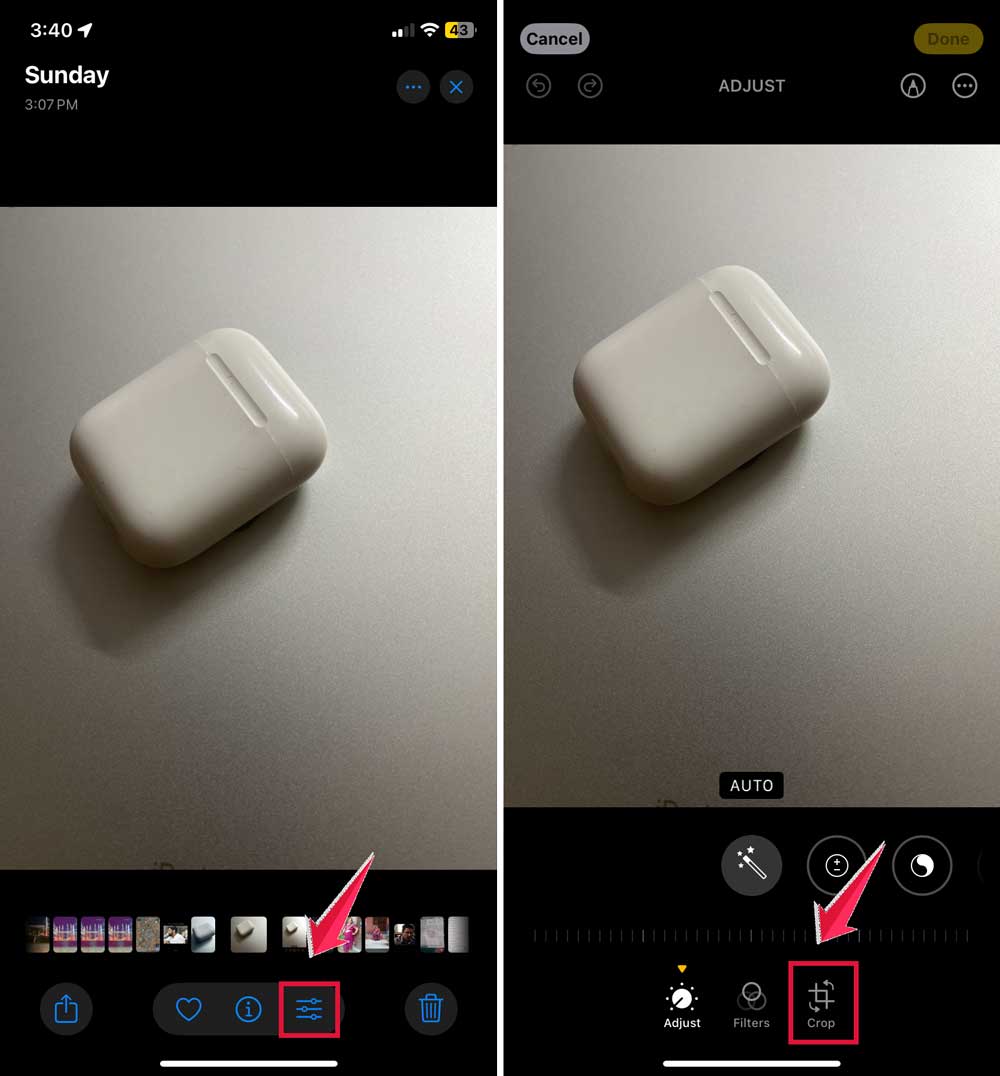
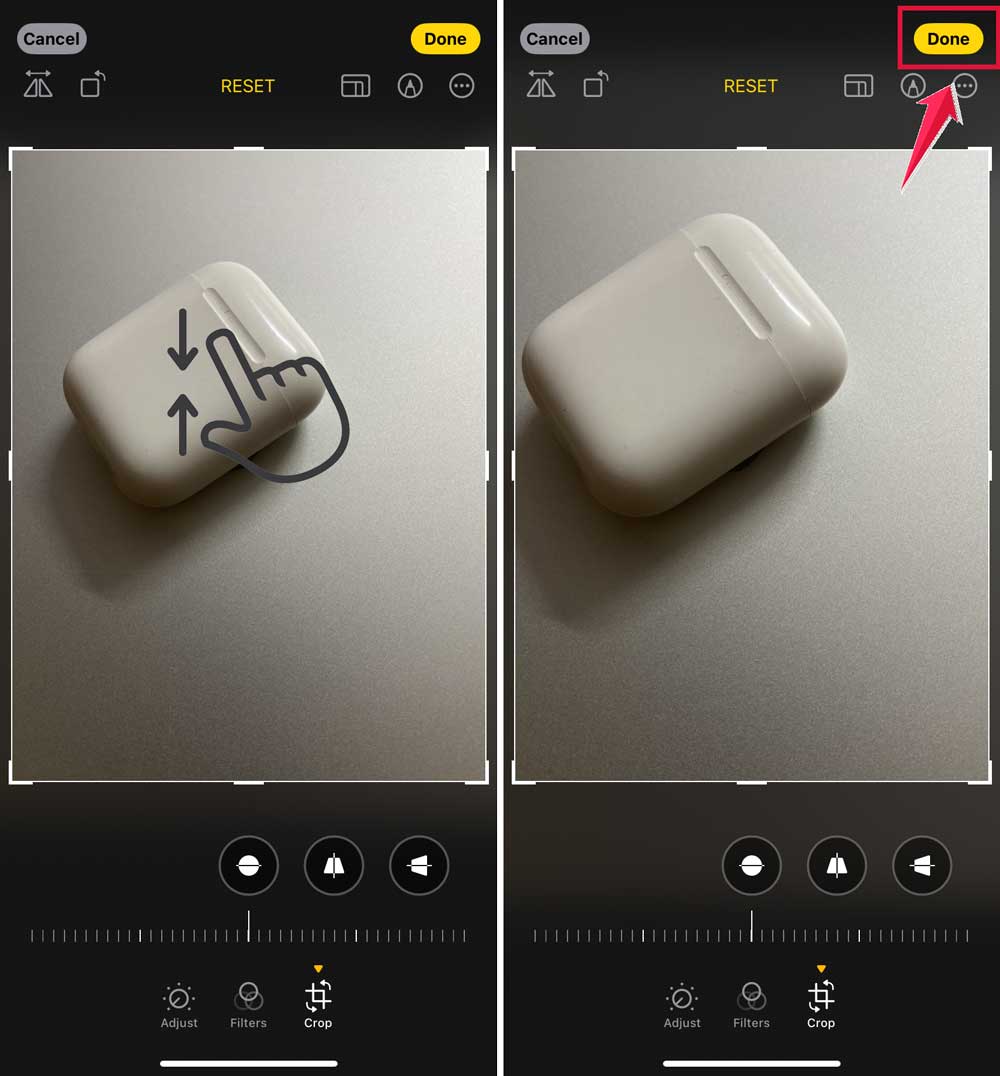
- Using your finger, draw a line around the object you want to copy. It’s like tracing the outline of the object.
- When you’ve finished outlining the object, tap Done, then tap Save to keep your changes.
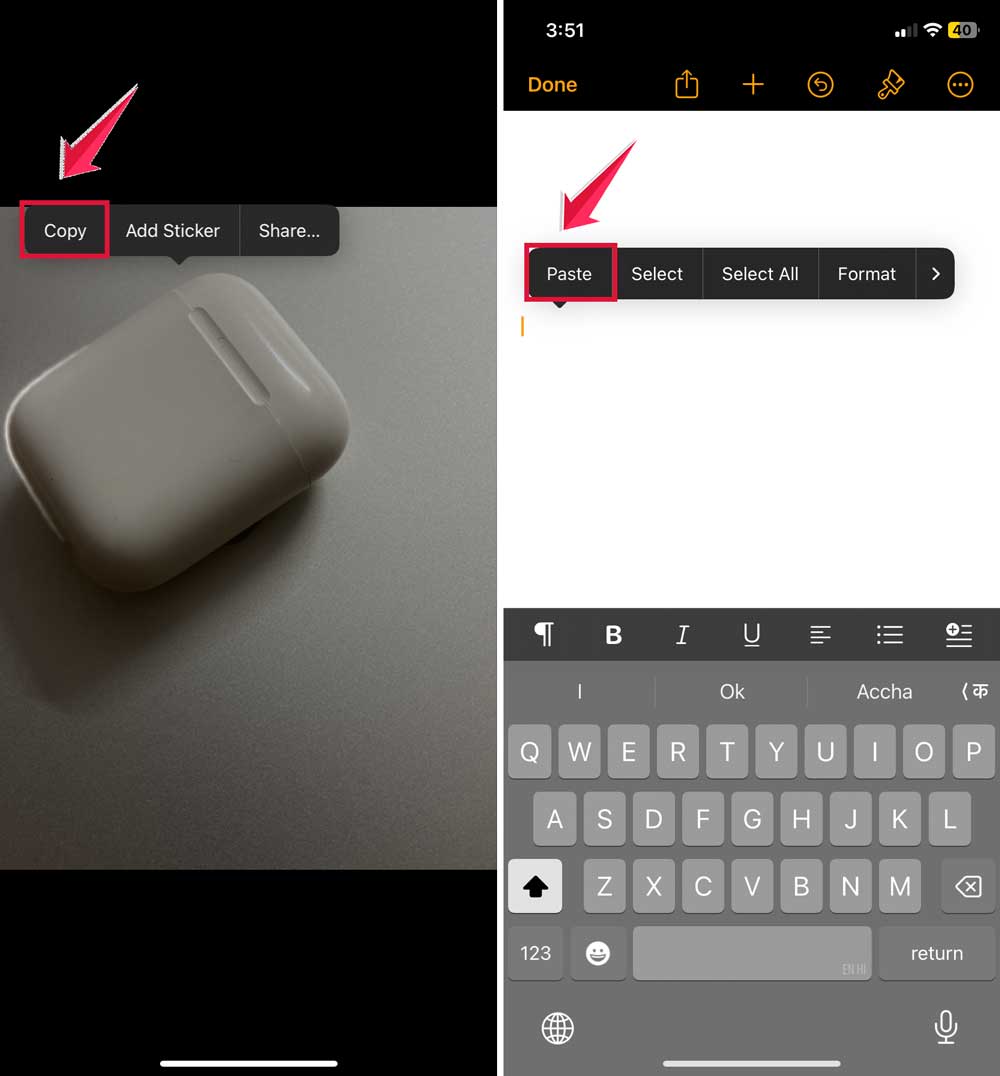
- To use the copied object, go to the app where you want to place it. Tap and hold on the screen until you see a Paste option, then tap it.
Once you’ve copied an object, you can even save your photo as a PDF if you want to share it in a more formal format or include it in documents.
Does the latest iPhone have an object eraser?
Yes, the latest iPhone models, including the iPhone 15 series, come with a feature called “Object Eraser”.
This tool is more advanced than the previous “Smart Retouch” and makes removing unwanted elements from your photos even easier. Here’s how to use it:
- Open your Photos app and select the picture you want to edit.
- Tap the Edit button in the top right corner.
- Look for the “…” (More) button at the top right and tap it.
- From the menu that appears, select “Object Eraser”.
- Use your finger to highlight or circle the object you want to remove.
- The iPhone will automatically remove the selected object and fill in the space.
- If you’re satisfied with the result, tap “Done” to save your changes.
This new Object Eraser feature uses advanced AI technology to intelligently remove objects and fill in the background.
It works best for removing small to medium-sized objects from your photos.
How to use the Magic Eraser feature
The Magic Eraser is a powerful tool that can remove specific colors or objects from your photos.
While it’s not a built-in feature on iPhones, you can find it in photo editing software like Adobe Photoshop. Here’s use the Magic Eraser in Photoshop:
- Open your photo in Photoshop.
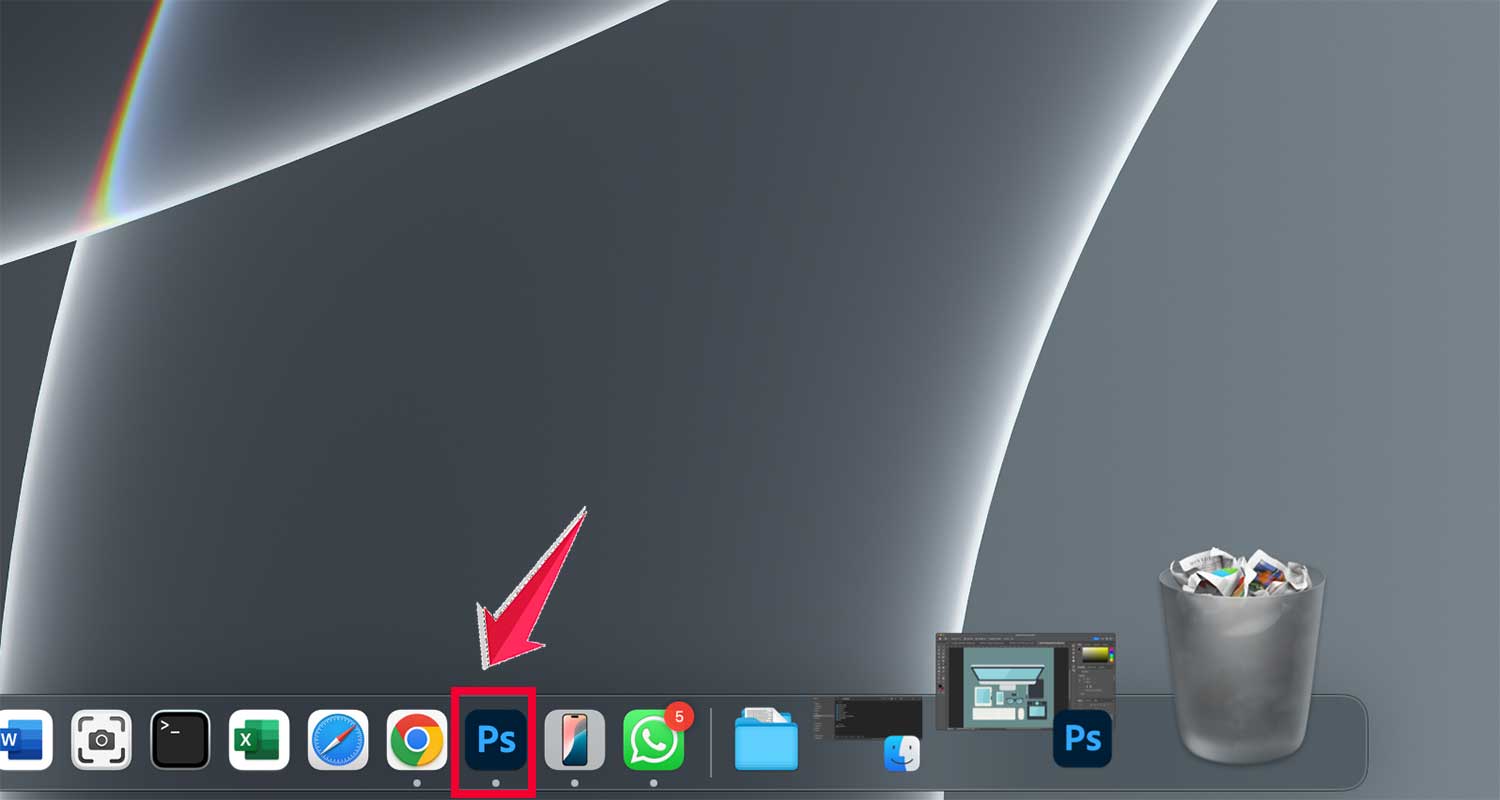
- Find the Magic Eraser Tool in the toolbar. It usually looks like an eraser icon.
- Set the Tolerance in the top options bar. This controls how sensitive the tool is. Higher numbers erase more colors, lower numbers are more selective.
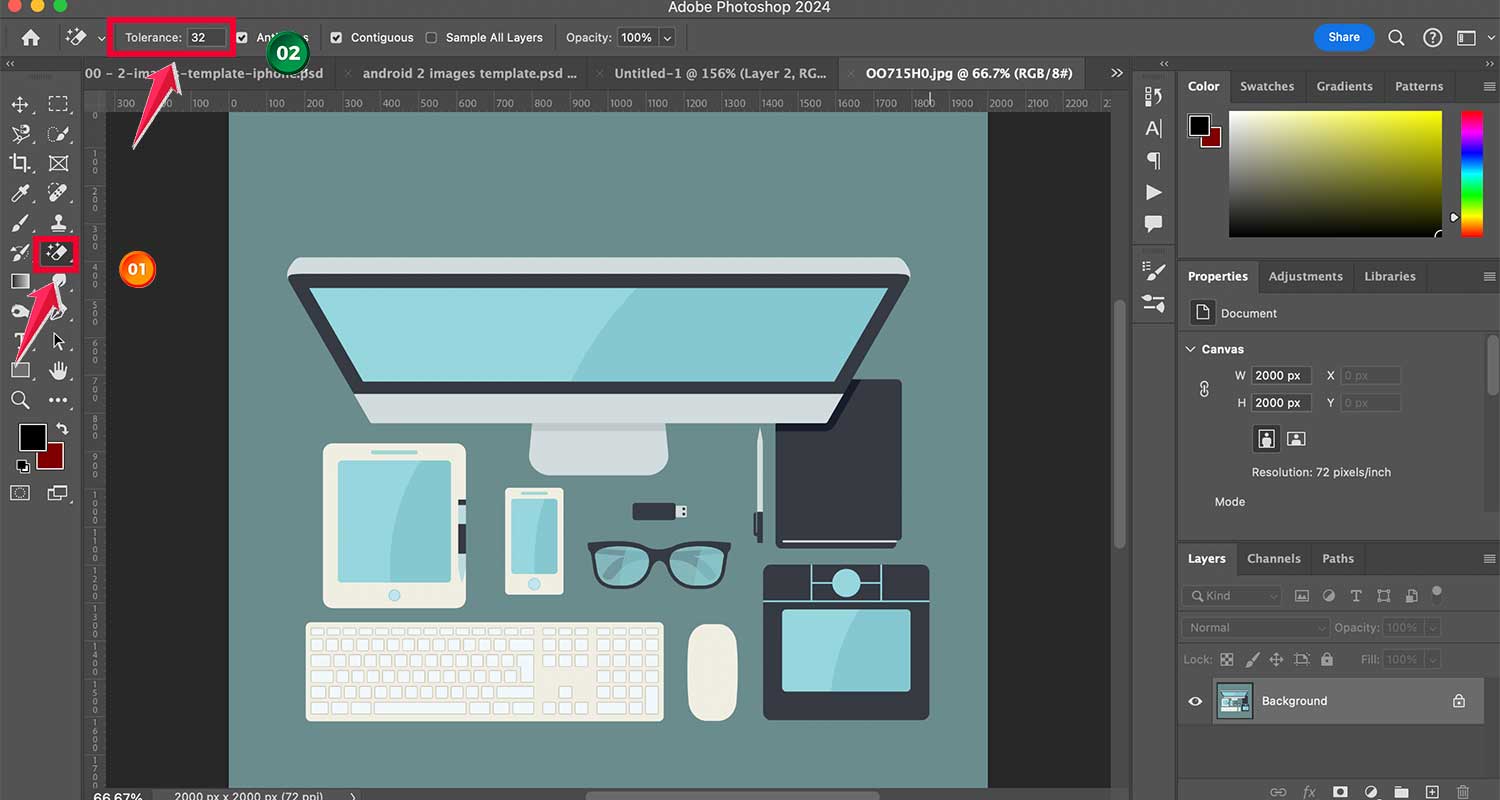
- Click or swipe over the area you want to erase. The Magic Eraser will try to remove similar colors.
- If you make a mistake, use the Undo button or the History Panel to go back a few steps.

- Once you’re happy with the result, save your edited photo.

Remember, the Magic Eraser can be tricky to use. It might sometimes remove parts of the image you want to keep. It’s always a good idea to keep a backup of your original photo.
While iPhones don’t have a Magic Eraser tool, they do have a similar feature called Object Eraser. This tool uses AI to remove objects from your photos. To use it:
- Open your photo in the Photos app.
- Tap Edit, then the More (…) button.
- Select Object Eraser.
- Highlight the object you want to remove.
- Your iPhone will automatically erase it.
Whether you’re using Photoshop or your iPhone’s built-in tools, these features can help you clean up and improve your photos. Just remember to practice and be patient. It might take a few tries to get the hang of it!
How to use the Object Eraser on your phone
Have you ever taken a great photo only to find an unwanted object ruining the shot? Good news! Many modern smartphones come with a feature called Object Eraser. Here’s how to use it:
Steps to use Object Eraser:
- Open your photo gallery and select the picture you want to edit.
- Tap the Edit button. It often looks like a pencil or slider icon.
- Look for the Object Eraser tool. Depending on your phone, it might be called “object remove” or “heal”.
- Use your finger to circle or tap the object you want to remove.
- Your phone will process the image. After a moment, the object should disappear.
- Review your photo carefully. You might need to make adjustments for the best results.
Remember, the Object Eraser works best on smaller objects and simpler backgrounds. It might struggle with complex scenes or large objects. Not happy with how the object is erased?
Sometimes a camera glitch or poor quality can interfere. In that case, you might want to reset your iPhone’s camera to ensure it’s functioning optimally.
For Android users, the process might vary depending on your phone brand. Samsung users, for example, can find this feature in the Gallery app under “Object eraser“.
How to remove unwanted objects from photos
Want to clean up your photos by removing distracting elements? Here’s how you can do it using Adobe Photoshop, one of the most powerful tools for photo editing:
Step-by-step guide to object removal:
- Open Adobe Photoshop and load the photo you want to edit.
- Select the unwanted object using tools like the Lasso or Magic Wand.
- Press the Delete key to remove the selected object.
- Use the Clone Stamp tool to fill in the empty space left behind. This tool lets you “copy” parts of your photo to cover gaps.
- Apply the Healing Brush tool to blend and smooth the edited area, making it match the surrounding parts of the image.
- Save your edited photo as a new file to preserve the original.
Remember, removing objects can be tricky, especially with complex backgrounds. It might take some practice to get natural-looking results.
If you don’t have Photoshop, many smartphones now offer similar features:
- On iPhones, use the Object Eraser tool in the Photos app.
- On Samsung phones, look for Object Eraser in the Gallery app.
- Other Android phones might have similar features under different names.
These built-in tools use AI to make object removal easier, though they might not be as precise as Photoshop for complex edits.
Whether you’re using Photoshop or your phone’s built-in tools, the key is patience and practice.
Start with simple edits and work your way up to more complex removals. With time, you’ll be able to significantly improve your photos by removing unwanted elements!
The takeaway
In today’s digital world, your photos do more than just capture memories. They tell your stories. But sometimes, those stories include elements you’d rather not keep. That’s where the magic of photo editing comes in.
With tools like Adobe Photoshop and even the built-in features on your smartphone, you now have the power to refine your photos just the way you want them.
These tools are like having a digital eraser and paintbrush all in one. They allow you to perfect your captured moments, making sure your photos reflect your memories exactly as you want to remember them.
Remember, photo editing is a skill. It takes practice, but with time, you’ll be able to transform your good photos into great ones. Don’t be afraid to experiment. You might be surprised at what you can achieve!
So go ahead and dive into the world of photo editing. Play around with different tools and techniques. Soon, you’ll be crafting images that not only capture moments but also spark the imagination.