Did you know that the human eye blinks about 15 to 20 times per minute? That’s a lot of split-second moments you could miss!
But don’t worry. Your iPhone has a fantastic feature to help you capture those fleeting instances.
Have you ever tried to photograph a fast-moving subject, like a bird in flight or your child’s first steps, only to end up with a blurry mess?
It’s frustrating when you miss that perfect shot because you can’t press the button at just the right moment. This is where Burst mode comes to the rescue.
Burst mode on your iPhone lets you take multiple photos in rapid succession with a single tap. It’s like having a mini movie camera in your pocket, ready to capture every split second of action.
Whether you’re trying to snap a photo of a lightning strike or your dog’s silly expression, Burst mode increases your chances of getting that ideal shot.
In this guide, you’ll learn all about Burst mode. What it is, how it works, and how to use it effectively. By the end, you’ll be ready to capture life’s fast-paced moments like a pro.
How to Take a Burst Photo
Burst mode is a powerful tool that lets you capture multiple photos in quick succession. It’s perfect for those times when you want to make sure you don’t miss a moment. Here’s how you can use it:
- Open the Camera app.
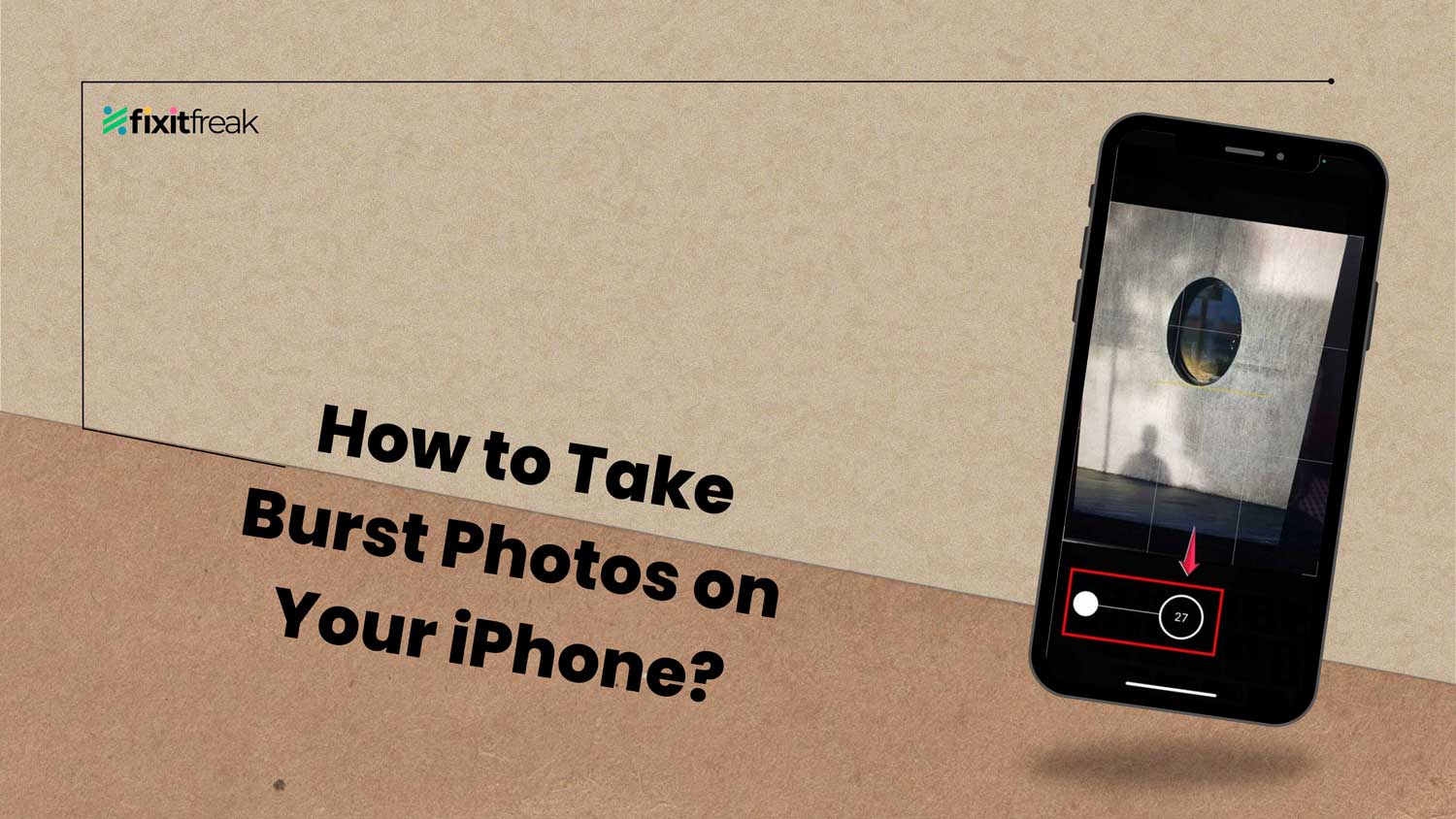
- To start taking burst photos, swipe the Shutter button to the left and hold. Release your finger when you’re done capturing.

- Next, tap the photo thumbnail to review your shots.
- Hit Select to view all the captures.

- You’ll see gray dots under suggested photos, which are typically the clearest shots, but feel free to choose any that catch your eye.
- Tap the circle in the lower-right corner of each photo you want to keep.
- Press Done when you’re finished selecting. You’ll then decide if you want to keep all the burst photos or just your selected favorites.

Taking scrolling screenshots is another underrated iPhone trick. It’s great for capturing full-page images, especially when you’re snapping web pages or messages.
Burst mode can truly transform your photo-taking experience, turning fleeting moments into memorable snapshots.
I’ve captured some of my best photos using Burst mode, and I highly recommend giving this fantastic feature a try for dynamic and spontaneous shots!
When to use Burst mode and tips for better photos
Now that you know how to use Burst mode, you might be wondering when it’s best to put this feature to work.
Well, Burst mode really shines when you’re trying to capture fast-moving subjects. Think about those times you’ve tried to photograph your kids playing sports or a bird taking flight. Burst mode is perfect for these situations.
It’s also great for group photos where someone always seems to blink at the wrong moment. And if you’re shooting in tricky lighting conditions or trying to catch spontaneous moments, Burst mode can be a real lifesaver.
But how can you make sure you’re getting the best shots possible? Here are a few tips to help you out. First, try to hold your iPhone as steady as possible while shooting.
This will help keep your photos sharp and clear. If you’re working in low light, you might want to blur parts of the background afterward to draw focus to your subject or rotate your photos for better composition during editing.
Don’t be afraid to experiment with different angles and compositions. Sometimes the most interesting shots come from unexpected perspectives.
And here’s a pro tip: try to anticipate the action and start your burst just before the key moment. This way, you’re more likely to catch that perfect split-second shot.
Remember, the more you practice with Burst mode, the better you’ll get at using it. So why not give it a try next time you’re out and about? You might be surprised at the amazing moments you can capture!
The takeaway
Burst mode on your iPhone is a powerful tool that can help you capture those “blink and you’ll miss it” moments. It’s all about taking multiple photos in quick succession, giving you a better chance of getting that perfect shot.
To use Burst mode, just swipe left on the shutter button and hold. Your iPhone will start snapping photos rapidly. After you’re done, you can review the photos and pick out the best ones. It’s that simple!
Remember, Burst mode is especially useful for fast-moving subjects, group photos, or tricky lighting situations. Don’t be afraid to experiment with different angles and try to anticipate the action. The more you practice, the better you’ll get.
So next time you’re trying to photograph something quick or unpredictable, give Burst mode a try. You might be surprised at the amazing moments you can capture. Happy shooting, and enjoy exploring this fantastic feature on your iPhone!
We’d love to hear about your experiences with Burst mode. Feel free to share your best shots in the comments below!