Ever tried to copy something on your iPhone or iPad—and nothing happens? Yeah, it’s frustrating. One minute you’re trying to copy a message or a photo, and the next… nothing pastes.
You’re not alone. This happens to a lot of people, especially if you’re still getting used to how things work on iOS.
So, what is the clipboard anyway? Think of it like a temporary holding area on your device. When you copy something—text, an image, or a link—it goes there.
Then, when you paste, it pulls that item from the clipboard. But if the clipboard isn’t working right, you won’t be able to paste anything at all.
Now, why does this even matter? Well, we’re all juggling between apps—maybe copying an address from a message into Maps, or sharing a quote from Safari into Notes.
Without a working clipboard, you’d have to retype everything. And honestly, who has time for that?
The good news? Fixing clipboard issues is usually super simple. Whether it’s a small glitch, a setting that’s off, or just not knowing the right gestures, I’ve got you covered. Let’s walk through it together and get your copy-paste game back on track.
What causes clipboard issues on iPhone or iPad?
Sometimes, the clipboard just doesn’t cooperate. But don’t worry—most of the time, it’s not a big deal. Let’s look at why this might be happening.
1. New to iOS or Unfamiliar with Gestures
If you’re new to iPhones or iPads, it’s totally normal to feel a bit lost. All the swiping, tapping, and holding—it takes a little getting used to. The clipboard works best when you know the gestures, like how to select text or copy an image. Once you get the hang of it, it’s easy.
2. Software Glitches or Bugs
Even the best tech has hiccups. Sometimes, your clipboard might not work because of a small glitch. Maybe your phone needs a quick restart, or there’s a software update waiting. These bugs can make copied items disappear or stop pasting altogether. Annoying? Yes. But totally fixable.
3. Restrictions or Settings in the Way
There’s also a chance your settings are stopping the clipboard from working smoothly. Maybe you’ve got privacy settings or screen time restrictions blocking clipboard access. Or maybe something got switched off by accident. It happens. A quick look through your settings can often fix it.
So, if you’re running into any of these issues, relax. We’ll go through the fixes step by step. You don’t need to be tech-savvy—just follow along, and you’ll be copying and pasting like a pro in no time.
How to Use the Clipboard on iPhone and iPad
Alright, now let’s get into the good stuff—fixing the clipboard and making sure it works the way it should. I’ll walk you through everything in a simple, clear way. Let’s go.
#1: Master the Gestures for Copying
First things first—you need to know how to copy properly. This sounds basic, but if the gesture isn’t done right, nothing gets copied.
Here’s what you do:
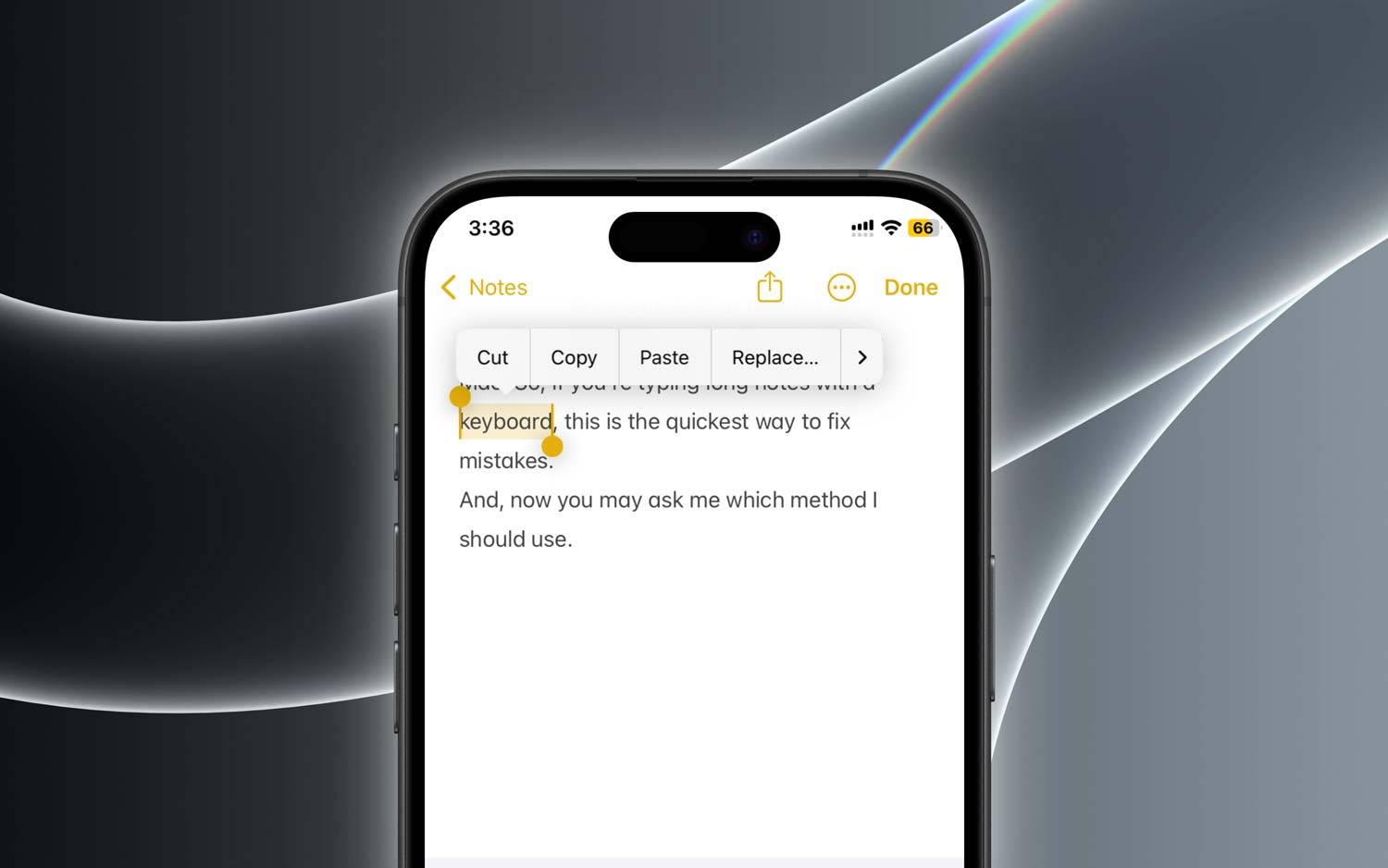
- Copying Text: Tap and hold on a word until the selection handles appear. Drag them to highlight the full text you want. Then tap Copy from the menu that pops up.
- Copying Images: Tap and hold the image. When the menu appears, tap Copy.
If it doesn’t work the first time, don’t stress. Try again slowly. With a little practice, it becomes second nature.
#2: Pasting Content Correctly
Now that you’ve copied something, let’s paste it. This part is just as easy, but you need to make sure you’re doing it the right way.
Try this:
- Pasting Text or Images: Tap and hold in the spot where you want to paste. When the menu appears, tap Paste.
- Make sure the cursor is active before you paste. If it’s not blinking, tap the screen to activate it first.
- Only one thing at a time: Remember, the clipboard only holds one item. If you copied something new, the old one is gone.
If paste doesn’t show up, go back and copy again. That usually does the trick.
#3: Troubleshoot Common Clipboard Problems
Still having trouble? Let’s fix it. Here are a few things you can try to get everything working again.
First, restart your device:
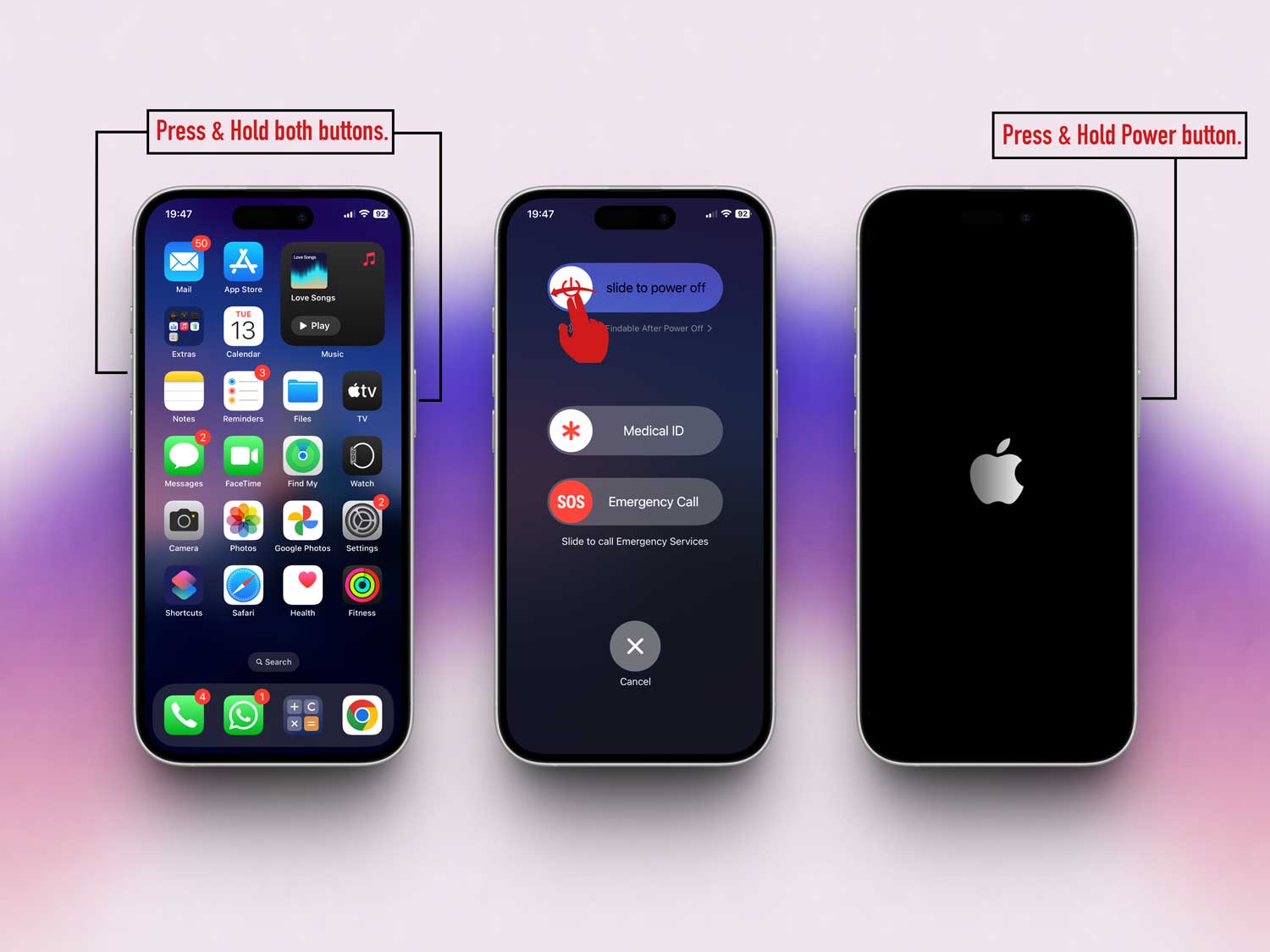
- Press and hold the Power button and either Volume button until the slider appears.
- Slide to power off.
- Wait a few seconds, then press and hold the Power button again to turn it back on.
Next, check for software updates:
- Open the Settings app.
- Tap General.

- Then, Software Update.
- If an update is available, tap Update Now.

Still not working? Try force quitting the app:
- Swipe up from the bottom of the screen and pause in the middle.
- Swipe left or right to find the app you’re using.
- Swipe up on the app to close it, then reopen it and try again.
Sometimes all it takes is a quick restart or update to make things work again.
#4: Adjust Your Settings
If the clipboard is still giving you trouble, your settings might be the reason. Let’s check a few things.
Make sure apps have clipboard access:
- Go to Settings.
- Tap Privacy & Security.

- Look over the permissions for apps that use the clipboard.
Also, check if Handoff is enabled (important if you’re copying between Apple devices):
- Go to Settings.
- Tap General.
- Then AirPlay & Continuity.
- Turn on Handoff.

Tweak these settings, and chances are your clipboard will start behaving again.
#5: Know the Power of Universal Clipboard
Did you know you can copy something on your iPhone and paste it on your iPad? It’s called Universal Clipboard. Super helpful if you use more than one Apple device.
Here’s what you need:
- Make sure both devices are signed into the same Apple ID.
- Turn on Bluetooth and Wi-Fi on both devices.
- Enable Handoff in Settings > General > AirPlay & Continuity.
Once set up, just copy on one device and paste on the other. No extra steps needed.
#6: Consider Clipboard Management Apps
Wish you could save more than one thing at a time? Clipboard management apps help with that. They let you keep a history of what you’ve copied, so you don’t lose something important.
Apps like Paste or Copied are worth checking out. Just remember—these apps may need access to your data, so always review their privacy policy before using.
#7: Keep Your Clipboard Secure
Your clipboard sometimes holds sensitive info. Like passwords or private messages. It’s smart to clear it when you’re done.
Here’s a quick tip: just copy something harmless, like “Nothing here.” That overwrites whatever was there before.
It’s a small step, but it helps protect your privacy.
#8: Play Around with Text Shortcuts
There’s another cool trick—Text Replacement. It’s not the clipboard, but it saves time. You can set shortcuts for things you type often.
To set it up:
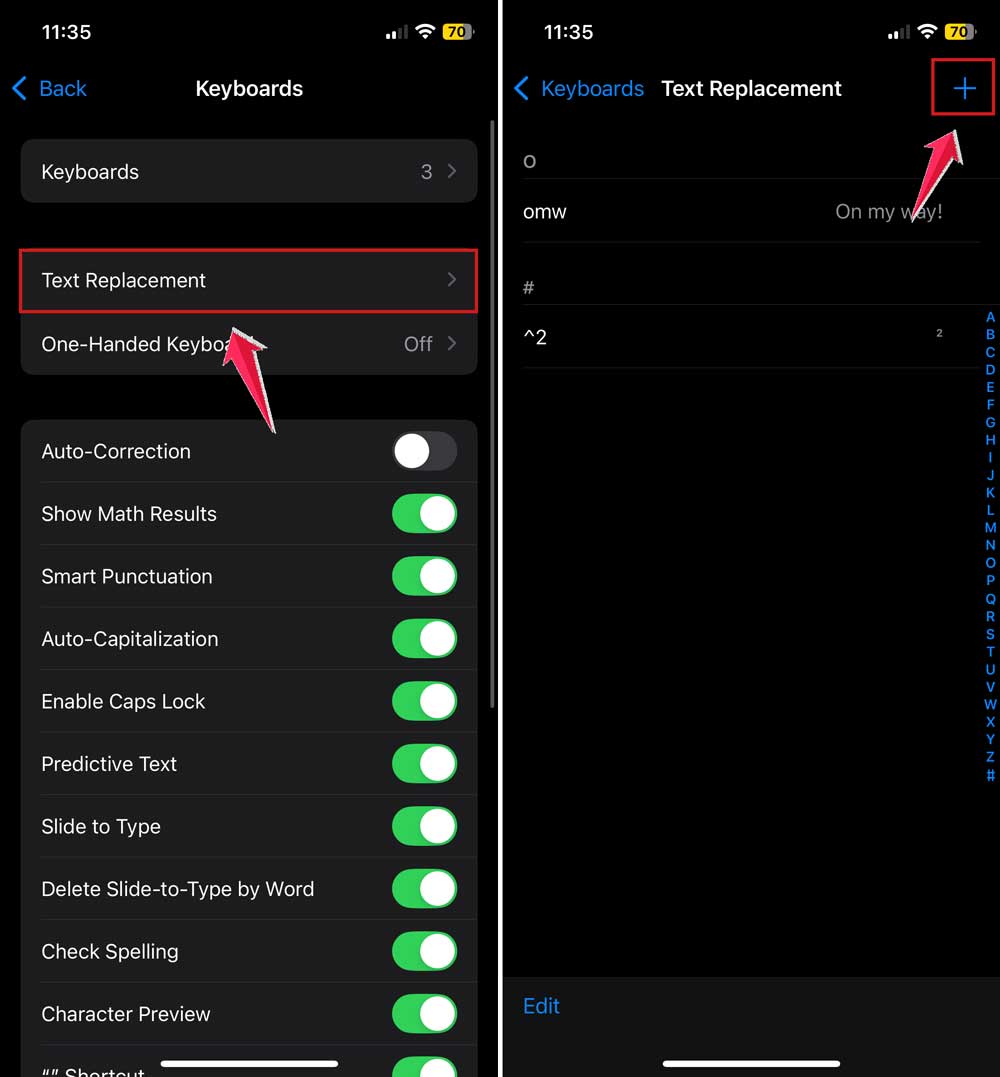
- Go to Settings.
- Tap General > Keyboard.

- Then Text Replacement.
- Tap the + sign to add a new shortcut.
For example, type “addr” and have it expand to your full address. Super handy.
The Takeaway
Clipboard problems can be a pain, but they’re usually easy to fix. Whether it’s a gesture you’re still learning, a setting that needs adjusting, or just a quick restart, now you’ve got the tools to handle it.
We covered everything from how to copy and paste the right way, to fixing bugs, checking settings, and even using advanced features like Universal Clipboard. You also learned how to stay private and save time using shortcuts and clipboard apps.
One last tip: if copy-paste doesn’t work, don’t panic. Just copy again, restart the app, or check your settings. It’s usually something small.
Now you’re ready to use your clipboard like a pro. Give these tips a try, and if you’ve got questions or want to share your own tricks, drop a comment below. I’d love to hear how it worked out for you!