Hey there! If you’re looking to turn off AirPlay on your iPhone, you’re in the right place. I’m going to show you how to do this in a super simple way.
Turning off AirPlay means your iPhone won’t be able to link up with devices that work with AirPlay, like speakers or TVs, unless you want it to.
Sometimes, you might find your phone connecting to these devices without you even realizing it. That’s because of something called ‘Automatic AirPlay streaming‘.
But don’t worry, I’ll guide you through how to stop this from happening.
By the end of this article, you’ll know exactly how to turn off AirPlay, whether you’re in an app or just using your iPhone’s control center. Ready? Let’s get started!
How to Turn Off AirPlay on iPhone: 7 Different Ways
#1 Turn Off AirPlay on iPhone from Media Player
Turning off AirPlay directly from your media player while enjoying a video on your iPhone is super easy. Here’s how to do it:
- Tap the AirPlay Icon: Spot the AirPlay icon. It looks like a TV with a triangle at the bottom. On the media player within the app you’re using. Just give that icon a quick tap.
- Choose ‘Turn off AirPlay’: Once you tap the icon, a menu will appear from the bottom of your screen. From here, simply select the ‘Turn off AirPlay’ option.
#2 Turn Off AirPlay on iPhone from Control Center’s Media Player
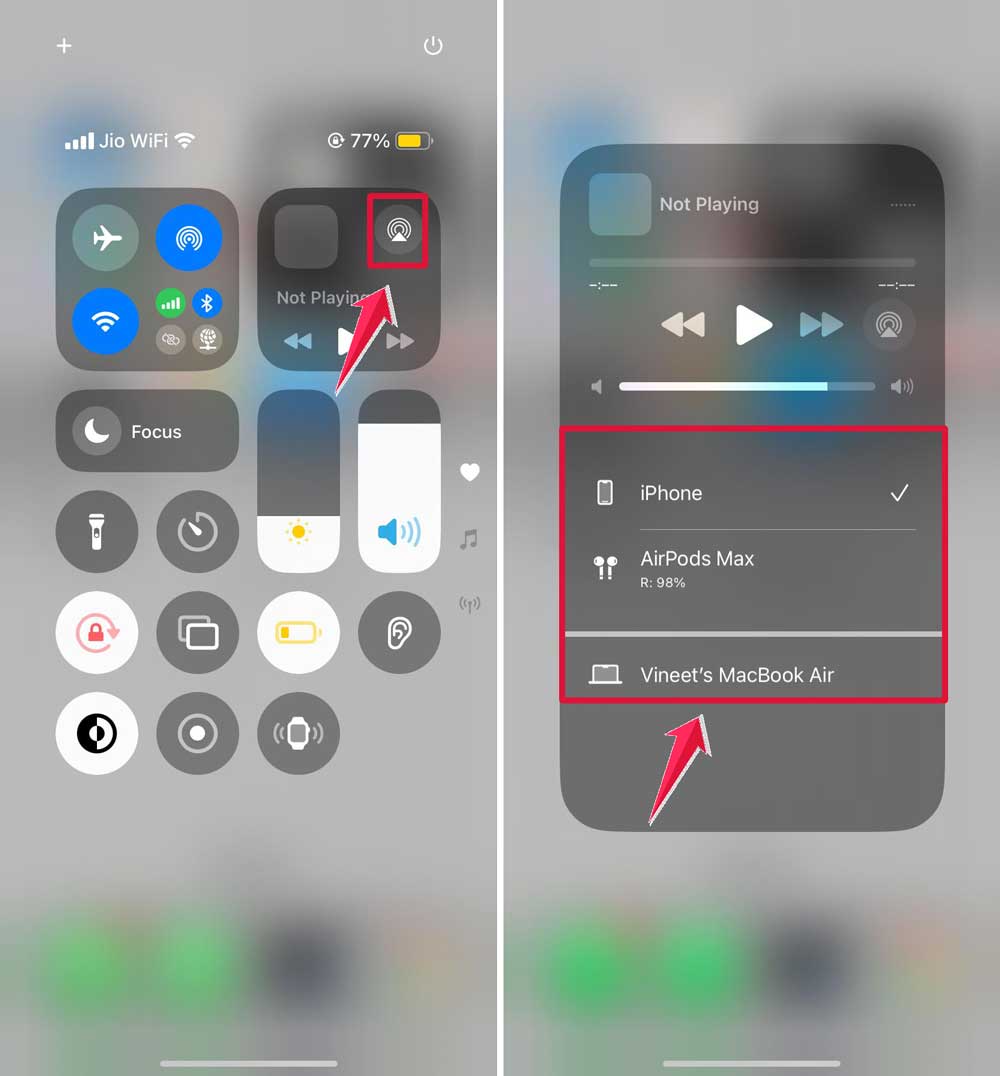
To stop your iPhone from sending music or any audio to other devices via AirPlay, simply use the Control Center. Here’s a quick guide based on your iPhone model:
- Open the Control Center: Swipe down from the top of your screen.
- Go to the Music Widget: In the Control Center, find the Music widget. Tap on the AirPlay icon, which looks like a TV with a triangle at the bottom.
- Select Your iPhone: A list of devices will appear under ‘Speakers & TVs,’ showing where your audio can be played. Tap on your iPhone’s name to keep the audio playing only on your iPhone and disconnect from any other devices.

#3 Turn Off Screen Mirroring from the Control Center
Turning off screen mirroring from your iPhone is straightforward and helps you keep your screen display private when needed. Here’s how you can do it from the Control Center:
- Access the Control Center:Swipe down from the top of the screen.
- Find the Screen Mirroring Icon: Look for the Screen Mirroring icon in the Control Center. It’s usually quite prominent.
- See AirPlay-Connected Devices: Tap on the Screen Mirroring icon to display a list of devices currently connected for mirroring your iPhone’s screen.
- Choose the Device to Disconnect: Select the device you want to stop mirroring your screen to from the list.
- Stop Mirroring: Tap on ‘Stop Mirroring’ after selecting the device.

#4 Turn Off AirPlay from Apple Music App on iPhone
Turning off AirPlay within the Apple Music app on your iPhone is a breeze, and it ensures your music stays private when you want it to. Here’s a quick guide to help you do just that:
- Open the Apple Music App: First, grab your iPhone and launch the Apple Music app. Head to the playback screen where your music is currently playing.

- Look for the AirPlay Icon: Check for the AirPlay icon near the bottom of the screen. It looks like a TV with a triangle at the bottom.
- Tap on the AirPlay Icon: Tap this icon to view more options regarding your current AirPlay connections.
- Find Your Device List: After tapping the AirPlay icon, a new screen will pop up displaying a list of devices under the ‘Speakers & TVs’ tab.
- Disconnect Your iPhone: Simply tap on your iPhone’s name in the list to stop casting your music to other devices.

#5 Turn Off AirPlay on iPhone Via Apple TV App
Streaming movies or TV shows on your iPhone using the Apple TV app and want to turn off AirPlay? It’s really easy! Here’s a step-by-step guide to help you out:
- Spot the AirPlay Button: While you’re immersed in your movie or TV show in the Apple TV app, glance at the bottom left corner of your screen. If AirPlay is active, you’ll notice the AirPlay icon (a TV with a triangle) highlighted in blue. Tap on this icon to manage your AirPlay settings.
- Check the Overflow Menu: Once you tap the AirPlay button, a menu will appear listing all the connected devices under the ‘Speakers & TVs’ tab.
- Choose Your iPhone: In the list of devices, simply select your iPhone.
#6 Turn Off AirPlay on iPhone Lock Screen
Here’s a simple step-by-step guide on how to do it:
- Streaming Content via AirPlay: If you’re currently streaming something using AirPlay (like music or a video), you can manage this setting right from your lock screen.
- Find the AirPlay Icon: On your lock screen, next to the name of what you’re streaming, you’ll find the AirPlay icon. It looks like a TV with a triangle at the bottom. Go ahead and tap this icon.
- Check the Overflow Menu: After tapping the AirPlay icon, a menu will appear. This menu will display the name of the AirPlay device you’re connected to, listed under the ‘Speakers & TVs’ tab.
- Select Your iPhone: In this menu, simply tap on your iPhone.
#7 Disable Automatic AirPlay on iPhone & iPad
Here’s a straightforward guide on how to turn off this feature:
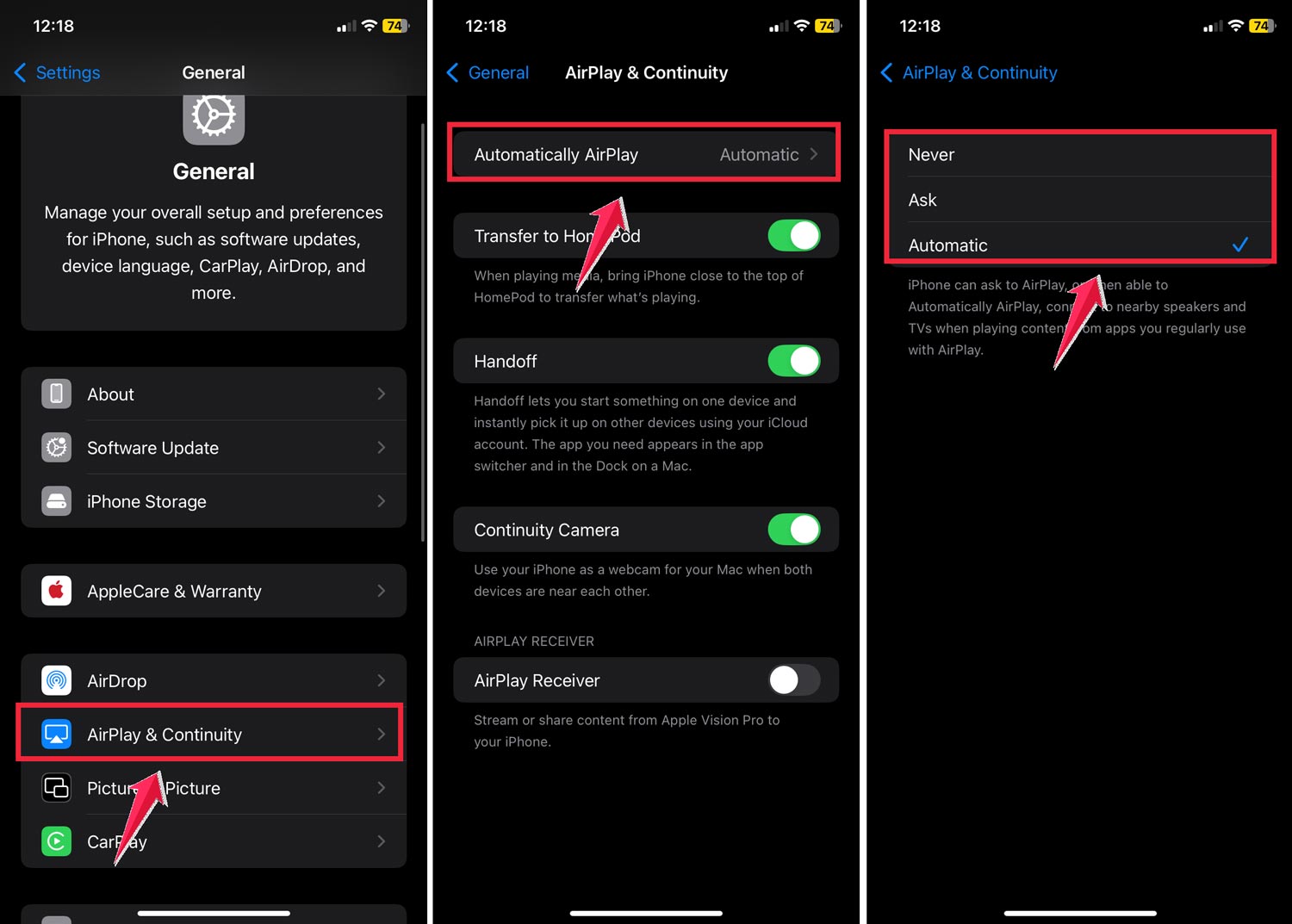
- Open Settings: Start by grabbing your iPhone or iPad and opening the ‘Settings’ app, identifiable by the gear icon.
- Go to General: Scroll through the Settings menu until you find ‘General’ and tap on it.

- Find AirPlay & Handoff: Within ‘General’, look for the ‘AirPlay & Continuity’ option.
- Select Automatically AirPlay to TVs: In the ‘AirPlay & Handoff’ settings, you will see an option labeled ‘Automatically AirPlay to TVs’. Tap on this to adjust how your device handles automatic AirPlay connections.
- Choose ‘Never’: To prevent your device from automatically connecting to AirPlay-compatible TVs, select ‘Never’.
In Conclusion To
And there you have it! You’ve mastered the ins and outs of managing AirPlay on your iPhone.
We’ve tackled everything from turning off AirPlay across various apps and settings, such as the media players, Control Center, Apple Music app, Apple TV app, and even directly from the lock screen.
Plus, you’ve learned how to disable automatic AirPlay to ensure your streaming activities remain private and under your control.
These steps empower you to dictate when and how your iPhone connects with other devices, allowing you to enjoy music and TV shows or share your media just the way you want. Always remember that you have full control over these settings.
Keep these tips handy for a quick refresher anytime you need them. Happy streaming, and make the most out of your iPhone’s capabilities!