So, you’re trying to take a screenshot on your Mac, but it’s just not working. Frustrating, right? Don’t worry—you’re not the only one going through this.
A lot of Mac users, especially those who are new, find screenshots a little confusing at first.
Here’s the thing: screenshots are super useful. You can save something interesting you found online, show someone an issue you’re facing, or just keep a visual note.
But if you don’t know the right key combo or something’s off in your settings, it can feel like a puzzle.
The good news? Once you learn the shortcuts and get used to a few tricks, you’ll be snapping screenshots like a pro in no time.
Let’s go step by step and make this simple. I’ll show you how to fix it, what to try, and how to make it all work just the way you want.
Ready? Let’s get into it and make screenshots easy again.
Why Screenshots Might Not Work on Your Mac
Okay, before we start pressing keys, let’s talk about why your screenshots might not be working in the first place. It’s usually something small—and easy to fix.
1. Are you new to Mac?
If you’ve just switched from Windows or another system, I get it. Everything feels a bit different. Even simple stuff like taking a screenshot can be confusing at first.
You may be used to a “Print Screen” button or a tool popping up. But with Mac, it’s all about key combinations. It’s not hard—you just need to know what to press. And once you do, it becomes second nature.
2. Using the Wrong Key Combo
This happens a lot. You press some keys, nothing happens, and you’re left staring at your screen, wondering what went wrong.
Maybe you pressed Command + Shift + R instead of the actual shortcut. It’s easy to mix them up. Don’t worry—I’m going to walk you through the correct ones step by step.
3. macOS is Outdated
Sometimes, it’s not you—it’s your system. If your macOS is out of date, that could mess with how screenshots work. Some features or shortcuts might not show up at all.
So, make sure your Mac is running the latest version. Updates don’t just fix bugs, they can bring in better features and fix shortcut issues, too.
Once you’ve checked these things, we can move on to the fun part: actually taking screenshots.
How to Take a Screenshot on Mac With Keyboard
Alright, let’s fix this. I’ll go over the main ways you can take a screenshot using just your keyboard. It’s easier than you think—and I promise, you’ll remember these after a few tries.
#1 Press These Keys for a Full Screenshot
Let’s start simple. Want to capture everything on your screen?
Just press: Command + Shift + 3

That’s it. Your Mac will instantly take a screenshot of the entire screen and save it to your desktop. You’ll even hear a camera shutter sound (unless your sound is off). Easy, right?
#2 Capture Only Part of Your Screen
Sometimes, you don’t need the whole screen—just a small section.
Here’s what to do: Command + Shift + 4

Your mouse pointer will turn into a little crosshair. Now:
- Click and drag over the area you want to capture.
- Let go when you’ve selected what you need.
And boom—you’ve got a screenshot of just that part. Super handy when you want to focus on one thing.
#3 Screenshot Just One Window
Let’s say you only want to capture a single window—nothing else.
Here’s how:
- Press Command + Shift + 4
- Then tap the Spacebar
Your pointer will turn into a camera icon. Now:
- Hover over the window you want to capture.
- Click it.
That window will be saved as a screenshot. No background, no clutter—just what you need.
#4 Copy Screenshot to Clipboard Instead of Saving
Don’t want to save the screenshot to your desktop? Just want to paste it somewhere right away?
Here’s the trick:
- Hold the Control key while using any of the screenshot shortcuts above.
For example:
- Control + Command + Shift + 3 for full screen

- Control + Command + Shift + 4 for selected area

Now your screenshot goes straight to your clipboard. You can paste it into a message, email, or document without saving it first.
#5 What If Shortcuts Don’t Work?
Okay, you’ve tried the right keys, but still nothing happens. Let’s check a few things.
First, make sure keyboard shortcuts for screenshots are turned on:
- Open System Settings.

- Go to Keyboard.
- Click on Keyboard Shortcuts.
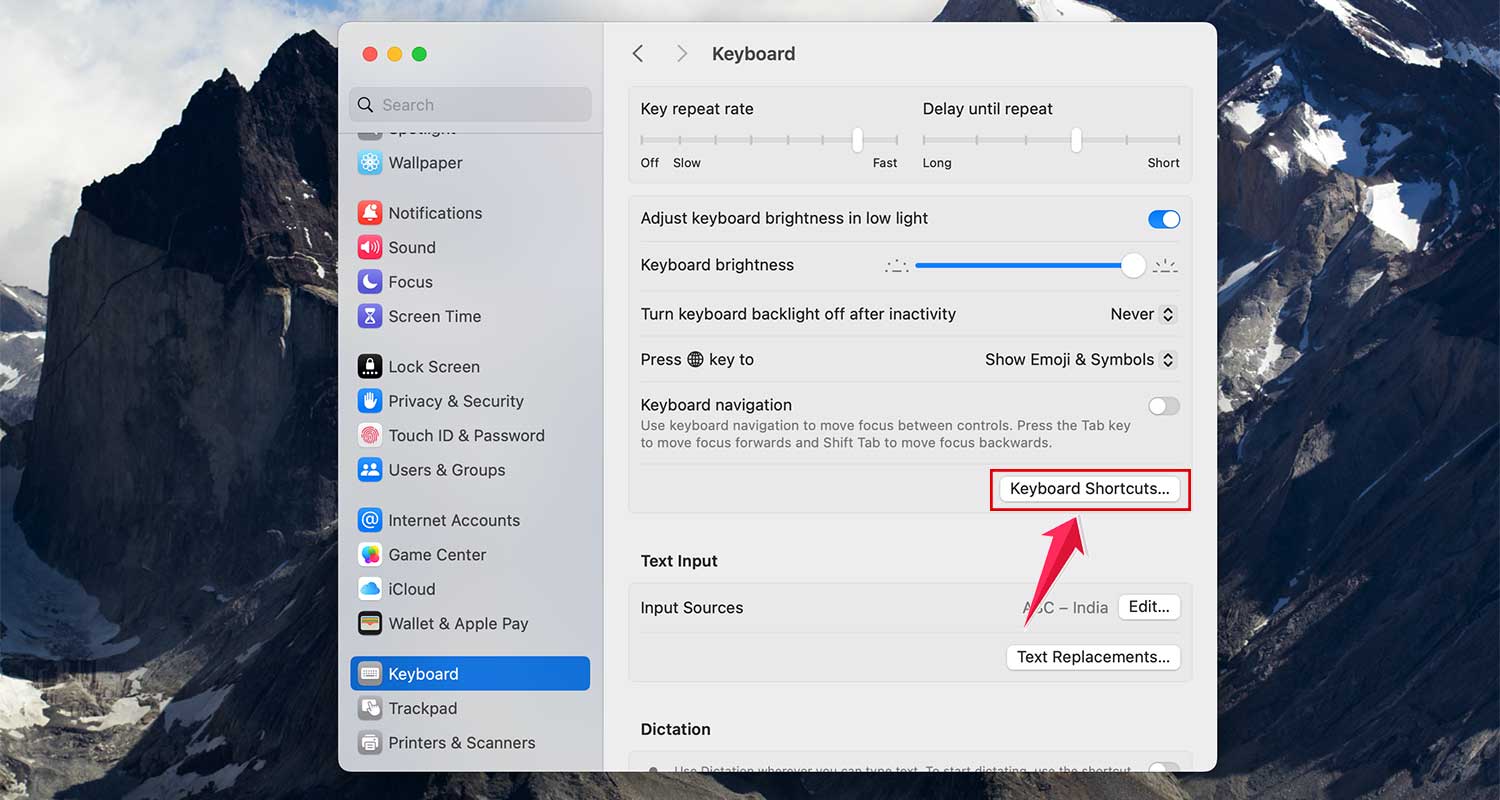
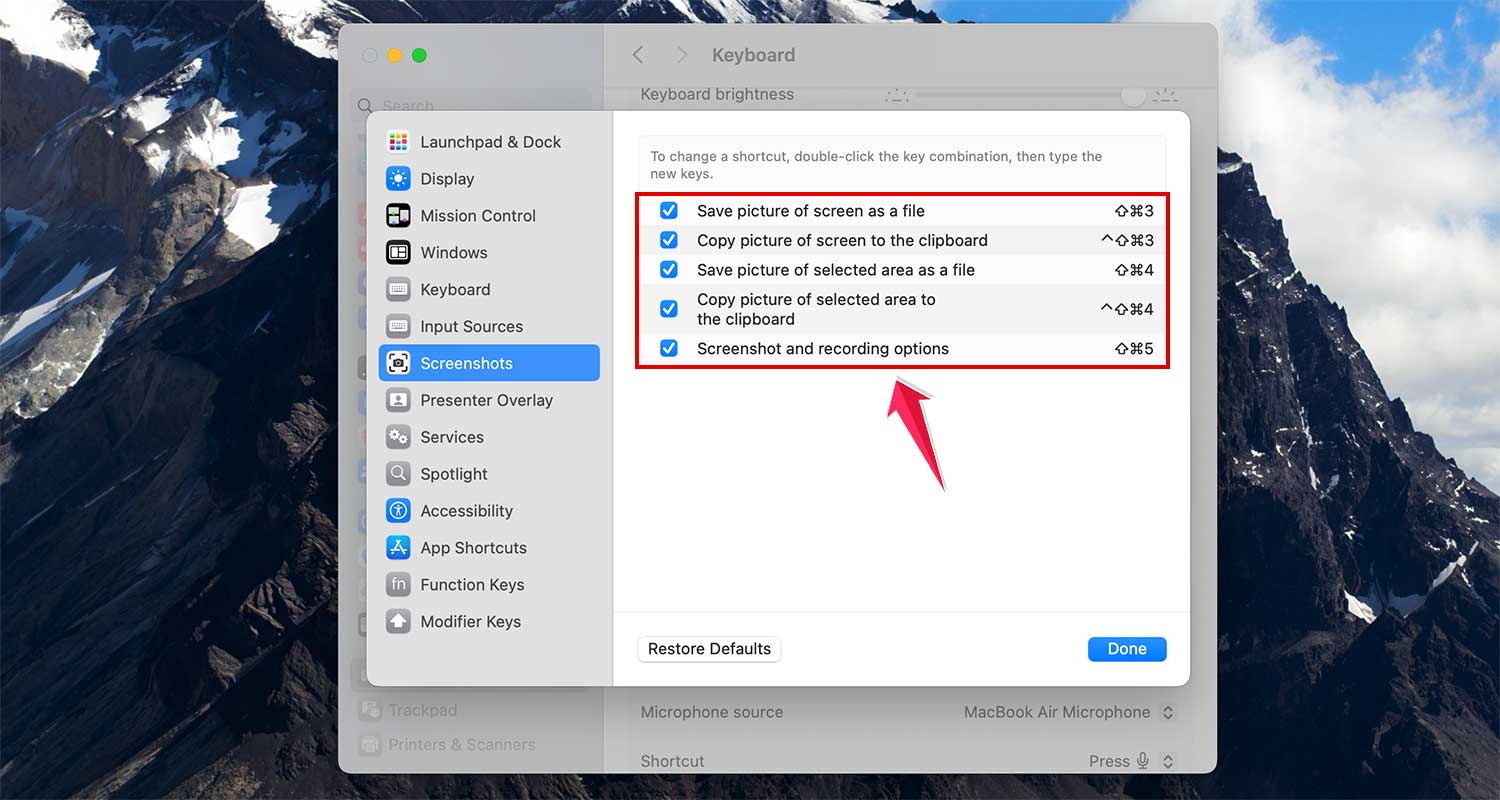
- Select Screenshots from the list.

- Make sure all the options are checked.
Still not working? Try restarting your Mac:
- Click the Apple icon in the top-left corner
- Select Restart

- Wait for it to reboot and try the shortcuts again
If it works now, great! If not, we might need to look deeper, but this fixes most issues.
Extra Tips to Master Screenshots on Your Mac
Now that you’ve got the basics down, let’s take it a step further. These tips will help you get even more out of your screenshots.
1. Tweak Your Screenshot Settings
Want to change where your screenshots are saved? Or remove that shadow from window captures?
Here’s how:
- Go to System Settings.
- Click on Keyboard > Keyboard Shortcuts.
- OR open the Screenshot app with Command + Shift + 5 and click on Options
From here, you can change the save location, set a timer, and more.
2. Use the Screenshot App for More Control
Press Command + Shift + 5 and you’ll open the built-in Screenshot app.

This lets you:
- Choose between full screen, selected window, or selected area
- Record your screen
- Set a timer before the screenshot
- Pick where to save your image
It’s a great tool when you want more options than just a quick shortcut.
3. Keep Your Screenshots Organized
Is your desktop getting messy with all those screenshots?
Here’s a quick fix:
- Open Finder
- Create a new folder (right-click and select New Folder)
- Name it something like “Screenshots.”
- Move all your screenshots there
You can even set your Mac to save screenshots directly to that folder using the Screenshot app’s Options menu.
4. Try Third-Party Screenshot Apps
If you want more features—like editing, adding arrows, or blurring stuff—check out apps like Snagit or CleanShot X.
They’re great if you need to mark things up or make tutorials. But if you’re just taking simple screenshots, the built-in tools are usually enough.
5. Copy and Paste Screenshots Anywhere
Remember that Control trick from earlier? It’s a lifesaver.
Use it whenever you want to:
- Copy a screenshot
- Paste it right into an email, message, or document
- Skip saving it to your desktop
This keeps your workspace cleaner and saves time.
The Takeaway
So, let’s wrap this up. Taking screenshots on your Mac doesn’t have to be confusing or frustrating.
Once you learn the shortcuts—like Command + Shift + 3 for full screen or Command + Shift + 4 for a selected area—it becomes second nature.
And don’t forget, holding Control copies the screenshot to your clipboard. That’s a great way to skip saving files and just paste wherever you want.
With a few tweaks and a little practice, you’ll be taking clean, organized screenshots in no time. So go ahead—try out these shortcuts today and see how much easier it makes your workflow.
If you’ve got a question or tip of your own, drop it in the comments. I’d love to hear how it’s going for you!