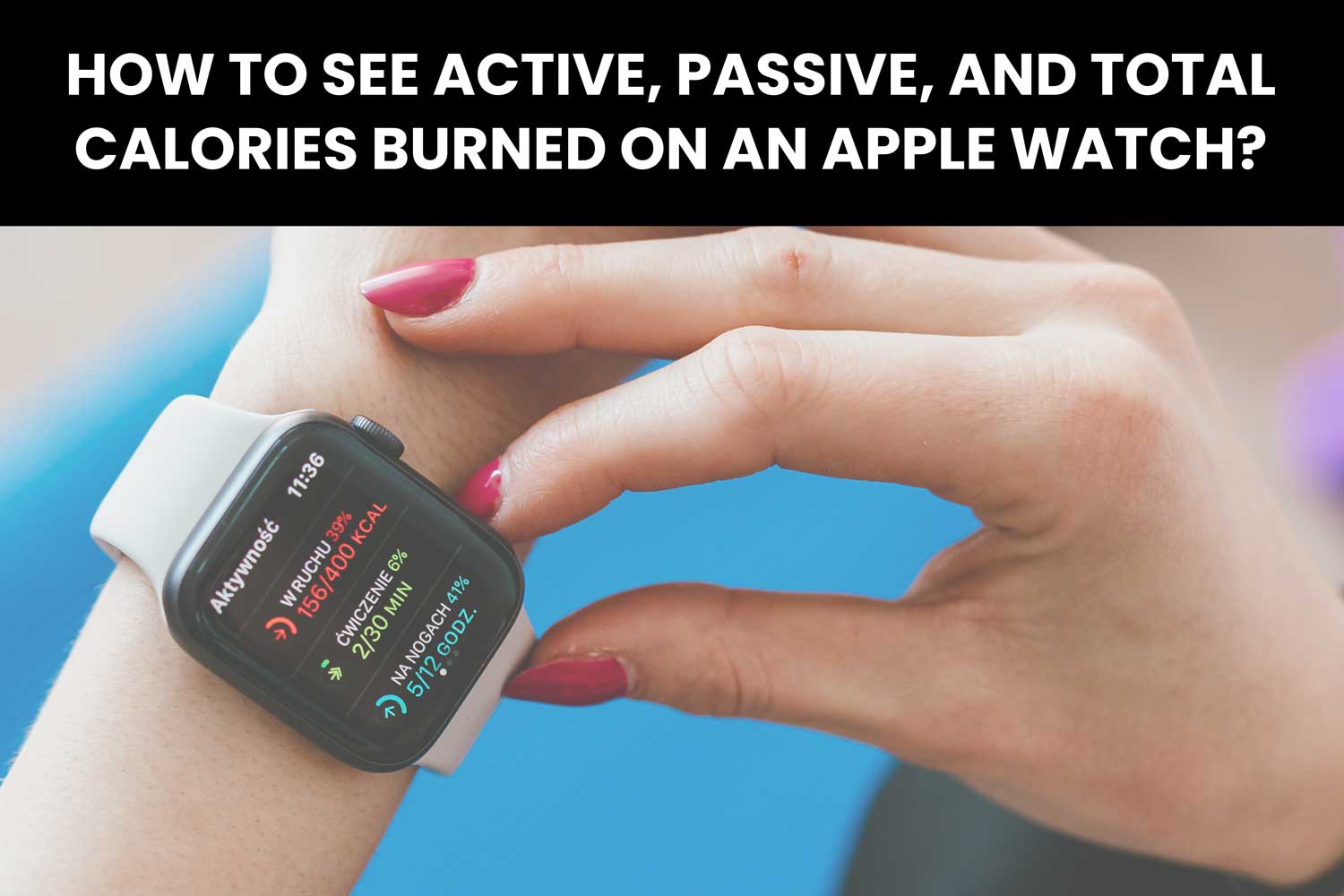
Did you know that your body burns calories every single moment, even while you’re just sitting still?
And with your Apple Watch, you can track not just the calories burned through exercise but also the ones your body uses naturally. Pretty amazing, right?
But let’s be honest. Finding and understanding all this data isn’t always straightforward.
You’ve got active calories, passive calories, and total calories to keep track of. And if you’re here, you’re probably wondering where to find this information and what it actually means.
Here’s the good news: you don’t need to be a tech genius to figure it out. By the time you finish reading this, you’ll know exactly how to check your calories burned and use that data to improve your health and fitness.
So, grab your watch, and let’s get started!
What do active, passive, and total calories mean?
If you’ve ever been confused by terms like active, passive, or total calories, don’t worry. I’ll break it down in a way that’s easy to understand.
1. Active calories
These are the calories you burn when you’re moving. It doesn’t matter if you’re walking to the fridge, running a marathon, or cleaning the house.
Every bit of activity adds to your active calories. Your Apple Watch calculates this by using your heart rate and motion sensors.
Here’s the thing: active calories are about your effort. They don’t include the energy your body uses to simply stay alive. That’s why your Move ring focuses only on this number. It tracks how much you’re burning through activity alone.
2. Passive calories
Now, even when you’re lying on the couch, your body is working behind the scenes. This is where passive calories come in. They represent the energy your body uses to do things like breathe, digest food, and keep your heart beating.
This is called your basal metabolic rate (BMR), and your Apple Watch estimates it based on your age, height, weight, and gender. Make sure your personal details in the Health app are accurate, or your passive calorie numbers might be off.
3. Total calories
Finally, let’s look at the big picture: total calories. This is simply the sum of your active and passive calories. It tells you how much energy you’ve burned in a full day, whether you’re moving, sitting, or sleeping.
You can only find your total calories on the Fitness app on your iPhone, not directly on your watch. If you’re trying to manage your weight or plan meals, this number is the most important. It gives you the full picture of your daily energy use.
How to find active calories on your Apple Watch
Let’s face it, you didn’t buy an Apple Watch just to tell the time. You got it to track your fitness, right?
And here’s the thing. Finding your active calories is one of the easiest things you can do on your watch. Don’t worry, I’ll walk you through it step by step.
- First, open the Activity app. You know the one with the colorful rings? Tap on it.
- Next, scroll down. Use the Digital Crown or just swipe up on the screen.
- Look for your Move goal. Right there, you’ll see how many active calories you’ve burned so far today. Simple, isn’t it?

Here’s what you can do to make this even easier. Add the Activity complication to your watch face. That way, you’ll see your active calories at a glance.
No swiping, no scrolling. Think about it, one glance, and you’re motivated to move more.
How to see passive and total calories on your iPhone (iPhone required for this)
You can’t see passive or total calories directly on your Apple Watch. Annoying? Maybe a little. But don’t worry, your iPhone has all the details you need. Let me show you how.
- Open the Fitness app on your iPhone. It’s the one with those same colorful rings you see on your watch.
- Tap on the Activity rings at the top of the screen. This will open a more detailed view of your daily activity.
- Look at the bottom left corner. There, you’ll find your total calories burned for the day. Everything from movement to just being alive.

If fitness tracking isn’t working properly on iPhone, try these steps to troubleshoot and refresh the app’s data.
How to calculate passive calories
Just take the total calories you just found. Subtract your active calories (from your Move goal). The number you’re left with? That’s your passive calories. The energy your body burns naturally.
Passive Calories = Total Calories – Active Calories
Let me share this in the table form to help you understand this better.
| Total Calories (cal) | Active Calories (cal) | Passive Calories (cal) |
|---|---|---|
| 2,400 | 600 | 1,800 |
| 2,100 | 700 | 1,400 |
| 2,800 | 1,000 | 1,800 |
| 2,500 | 800 | 1,700 |
Example Calculation:
If your total calories for the day are 2,400 and your active calories (Move goal) are 600, here’s how it works: 2,400 – 600 = 1,800 passive calories.
You should keep your age, height, and weight in mind to calculate your passive calories more accurately.
Tracking calories helps you live a balanced life
You know, it’s good if you are tracking these calories.
Tracking calories isn’t just for athletes or people who love the gym. It’s for anyone who wants to stay active and feel good.
Knowing how many calories you burn can help you make smarter choices about eating and moving. Let’s talk about why this is so helpful.
1. Knowing how many calories you burn makes meal planning easier
Ever feel unsure if you’re eating too much or too little? When you know your total calorie burn, it’s easier to plan your meals.
If you’ve burned a lot of calories, it’s time to refuel with more food to keep your energy up.
On slower days, when you’re less active, you can adjust and eat smaller portions to avoid overeating. It’s a simple way to keep your energy balanced without guessing.
2. Tracking your calories helps you set realistic goals
If you have a specific goal. Like losing weight, building muscle, or staying the same. Tracking your calorie burn makes everything clearer.
Want to lose weight? Just eat slightly fewer calories than you burn. Looking to gain muscle?
Make sure you eat a bit more than you burn each day. Having real numbers to work with helps you stay focused and makes your progress feel easier to measure.
3. Looking at your calorie trends helps you improve
When you track your calories over time, you’ll start to notice patterns. Are you more active on certain days, like weekends? Do busy weekdays make you less active?
If you see that your activity levels are dropping, you can make small changes to get back on track. Over time, these adjustments help you improve your habits and stay consistent with your goals.
How to get accurate calorie data
Your Apple Watch is pretty smart when it comes to tracking calories. But if you want the numbers to be as accurate as possible, you’ll need to tweak a few things. Here’s how to make sure your calorie data is spot-on:
1. Keep your personal details updated
This is a big one! Your Apple Watch calculates calories based on your age, height, weight, and activity level.
- Open the Health app on your iPhone.
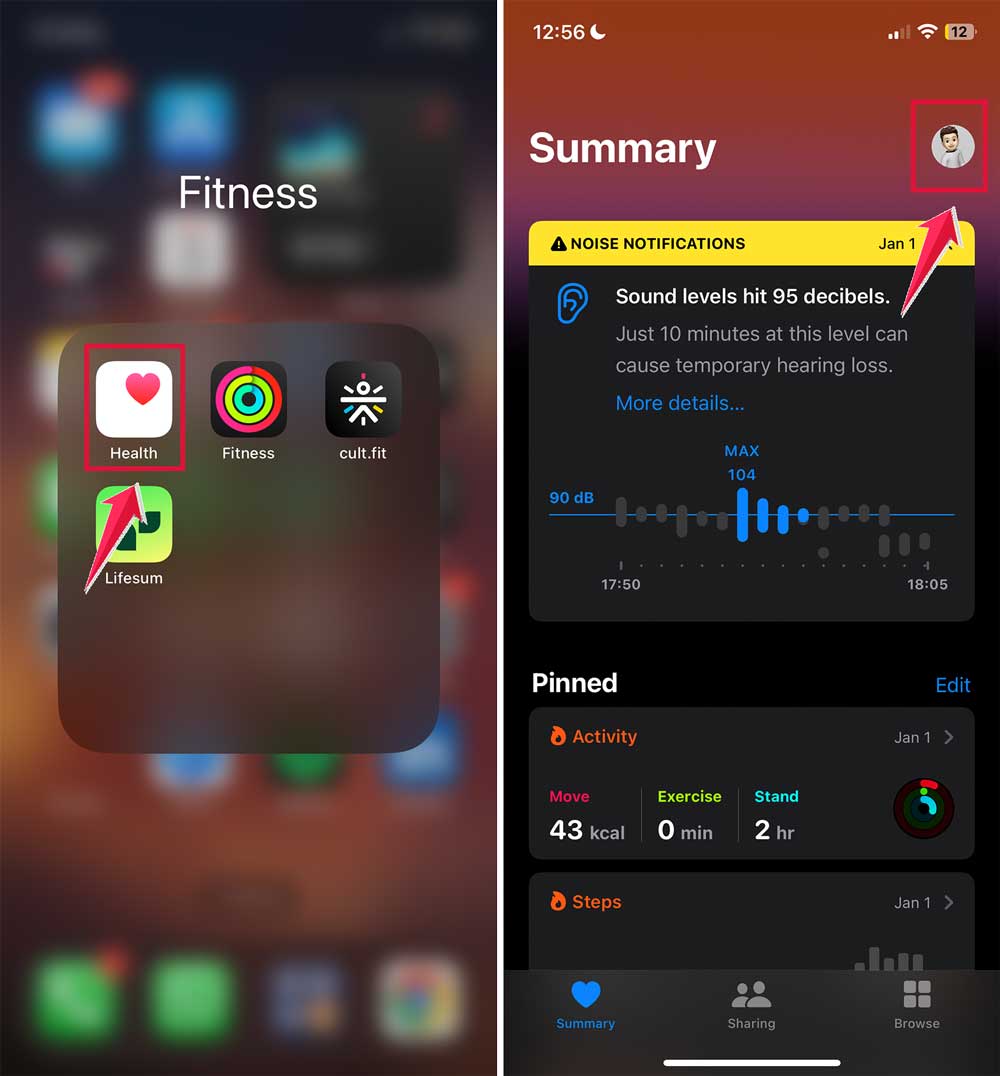
- Double-check that all your details are correct and up to date.
- Even small changes, like weight loss or gain, can affect calorie tracking.
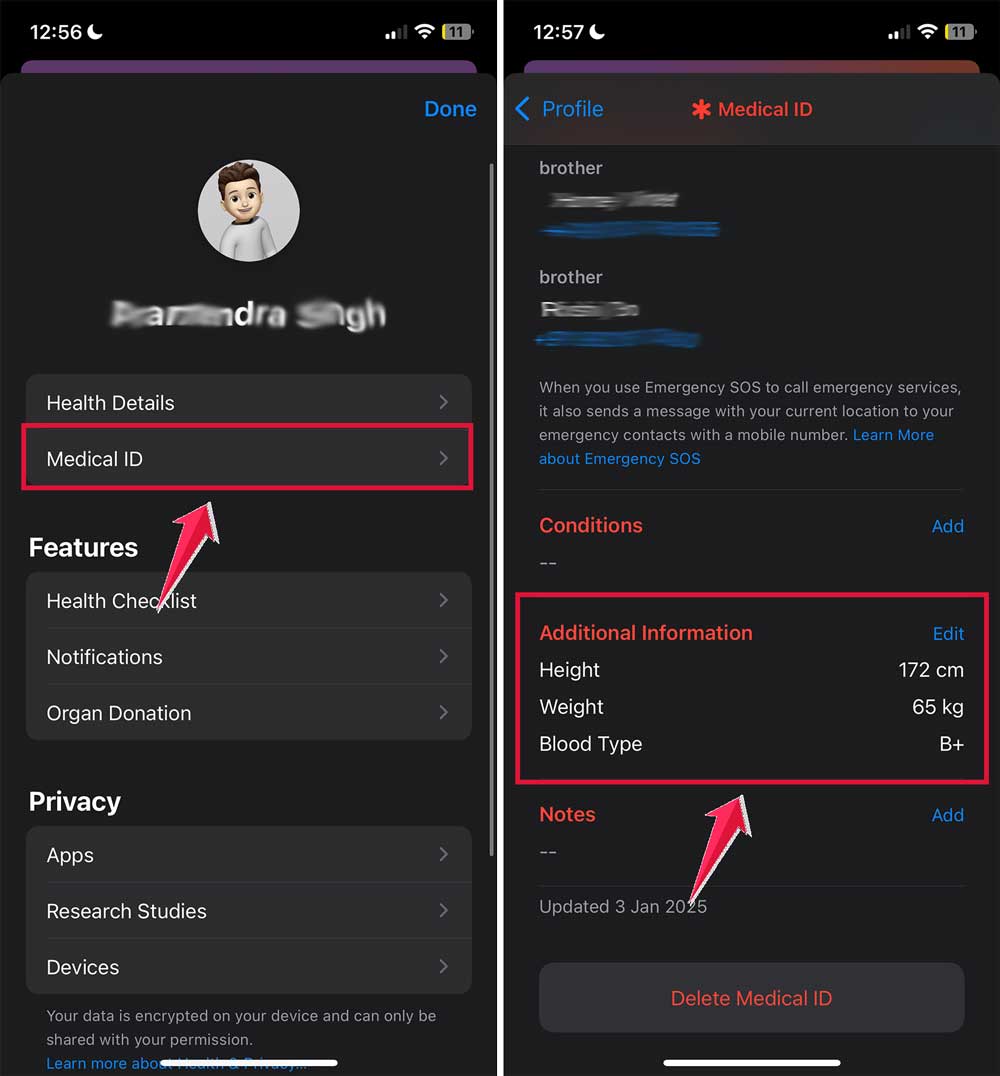
Think of it as giving your watch the right tools to do its job.
2. Wear your watch the right way
For accurate tracking, your watch needs to sit snugly on your wrist.
- Make sure it’s not too loose, so the sensors can properly read your heart rate.
- But don’t make it too tight. Comfort matters too!
The better the fit, the more reliable the data.
3. Use the correct workout types
When you start a session, pick the right activity type. Missed one? You can manually add workouts if something didn’t track.
- Running? Select “Outdoor Run” or “Indoor Run.”
- Cycling? Choose “Outdoor Cycle” or “Indoor Cycle.”
- Even walking or yoga has its own options.

Your watch uses this information to fine-tune its calorie calculations.
4. Check your watch regularly
Don’t wait until the end of the day to check your numbers.
- Open the Activity app throughout the day to see how you’re doing.
- Keeping an eye on your progress keeps you motivated and ensures you’re on track.
A quick glance here and there makes a big difference.
How Apple Watch calculates your calories
Your watch uses science and a mix of smart sensors to give you those numbers. Let’s talk about how it works.
1. Basal Metabolic Rate (BMR)
First up, there’s your BMR, which stands for basal metabolic rate. This is how many calories your body burns just to keep you alive. Yep, even when you’re sleeping, breathing, or just sitting still, your body is using energy.
Your Apple Watch uses the details you entered, like your age, weight, height, and gender, to calculate this. So, even if you’re not moving a muscle, calories are being burned.
2. Heart Rate Monitoring
Your heart rate plays a big role in calorie tracking, especially when you’re active. The watch tracks how fast your heart is beating during movement. The harder your heart works, the more calories you’re burning. Simple, right?
So, whether you’re running, walking, or doing a workout, your watch uses your heart rate to figure out how much energy you’re using.
3. Motion Sensors
Your watch doesn’t stop at heart rate. It also watches how you move. Built-in motion sensors, like accelerometers, track all your physical activity. Even the little things, like fidgeting or waving your hands, count.
This makes your calorie data more accurate because it combines movement with heart rate. It’s like having a tiny fitness coach on your wrist.
4. How everything works together
Your BMR is the baseline, your heart rate adds info about intensity, and your motion sensors track every move. Together, these give you your active calories and total calorie burn.
How to use this data for a healthier lifestyle
Now that you know where to find your calorie data, here’s how to make it work for you:
- Adjust activity for your goals. Want to lose weight? Focus on burning more active calories through movement. Maintaining weight? Keep your activity level in balance with what you eat.
- Track your progress over time. Check weekly trends in the Fitness app. Spot patterns in your activity and make small adjustments to improve your habits.
- Stay motivated with daily goals. Closing your Activity rings feels great. Use them to build a routine, stay active, and celebrate small wins.
Your Apple Watch makes it simple to live a healthier life. Just use the data and start making smarter choices today!
The takeaway
Your Apple Watch isn’t just a gadget. It’s your daily companion for better health. By understanding and tracking your active, passive, and total calories, you can make smarter choices about your diet, activity, and lifestyle.
We’ve covered how to find this data and use it to set realistic goals, plan meals, and monitor trends over time. It’s easier than you think to take control of your fitness.
A common misconception is that calorie tracking is only for athletes, but it’s for everyone who wants balance and wellness.
So, why not start today? Use your Apple Watch to guide you toward a healthier, more active lifestyle. Let me know in the comments if this helped you!