Imagine you’ve just taken a great photo, but when you look at it, it’s sideways. Frustrating, right? You’re not alone. Millions of iPhone users face this issue every day.
You might be wondering, “How do I fix this quickly?” Well, you’re in the right place. Your iPhone has a built-in solution that’s easy to use, even if you’re not tech-savvy.
In this guide, you’ll learn how to rotate your photos using the Photos app on your iPhone. Whether it’s a family picture, a scenic landscape, or a snap of your lunch, you’ll be able to correct its orientation in just a few taps.
By the time you finish reading, you’ll know exactly how to get your pictures looking just right. No more tilting your head to view those sideways photos!
How to rotate a picture on your iPhone
Now, let’s walk through the updated steps to rotate your photo:
- Open the Photos app on your iPhone.
- Find and tap on the photo you want to rotate.
- Look at the bottom of your screen. You’ll see several icons there.
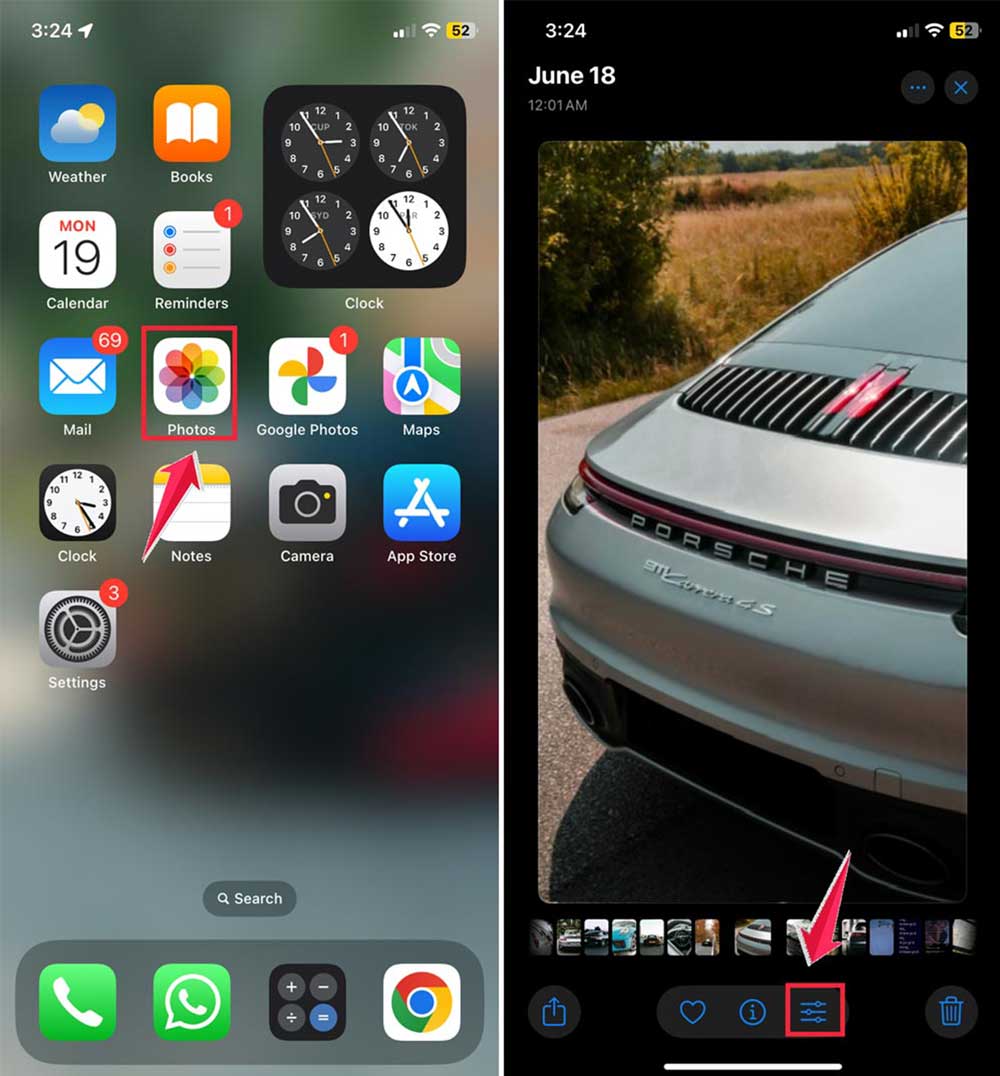
- Tap the icon that looks like three sliding bars (it’s next to the “i” button). This opens your editing tools.
- At the bottom of the screen, you’ll see a row of thumbnails. These are different versions of your photo. Above them, you should see editing icons.
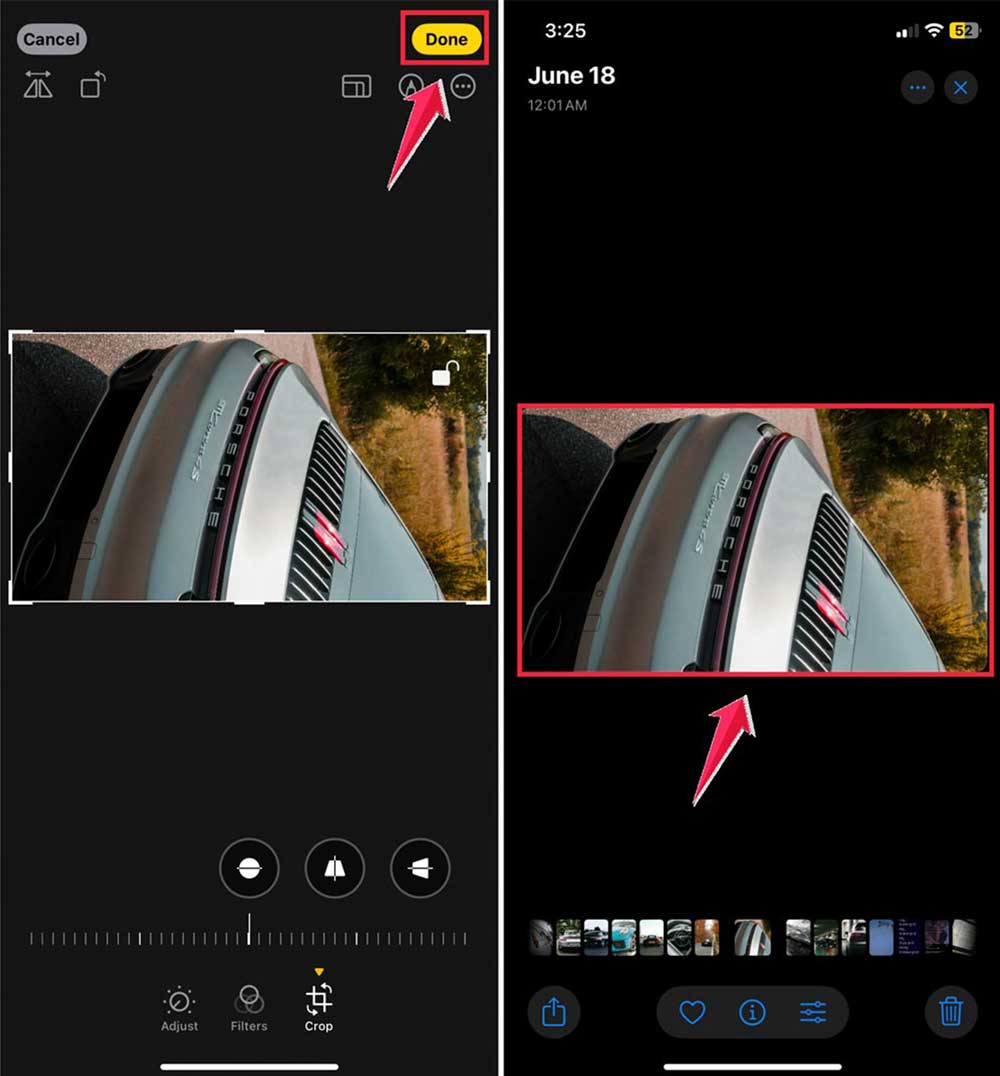
- Tap the icon that looks like a square with arrows around it. This is your Rotate-Crop tool.

- Now, look for a circular arrow icon at the top left of your screen. That’s your rotate button. Tap it as many times as needed to get your photo oriented correctly.
- Once you’re happy with how it looks, tap Done in the bottom right corner to save your changes.
Want to go further? You can also blur part of an image right from your iPhone.
The takeaway
Now that you’ve got the hang of rotating photos on your iPhone, you’re ready to tackle any sideways snapshots in your collection. Isn’t it great how easy it is?
Remember, the key is to tap that editing icon (the one with three sliding bars) and use the rotate tool. Whether it’s a family photo or a landscape shot, you can fix its orientation in seconds.
Don’t worry if you make a mistake. You can always undo your changes or start over. The Photos app is forgiving like that.
Here’s a pro tip: get in the habit of checking your photos right after you take them. If you spot a rotation issue, fix it on the spot. It’ll save you time later when you’re scrolling through your memories.
So go ahead, dive into your photo library, and start rotating. You’ll be amazed at how much better your pictures look when they’re all facing the right way.