Is your Mac taking forever to start up? Does it feel sluggish when you’re trying to work? The culprit might be hiding in plain sight: startup items.
These are programs that automatically launch when you turn on your Mac, and they can really slow things down.
You can easily take control of these startup items and get your Mac running smoothly again. Let’s dive in and learn how to manage these programs to give your Mac a much-needed speed boost.
What Are Startup Apps and Why Should You Care?
Startup apps, also called login items, are programs that automatically start running when you turn on your Mac. Think of them as eager employees who show up to work before you even arrive.
While some of these apps are helpful, like those that check for updates or protect your computer, others might be slowing down your Mac without you even realizing it.
Here’s why startup apps matter:
- They can slow down your Mac’s startup time.
- They use up valuable system resources (like memory and processing power) even when you’re not actively using them.
- Sometimes, apps you’ve deleted leave behind startup items that try to launch non-existent programs, causing unnecessary errors.
By managing these startup apps, you can definitely make your Mac start up faster and improve overall performance.
Ready to give your Mac a speed boost? Let’s look at how you can take control of these startup apps and get your computer running smoothly again.
How to Control Your Mac’s Startup Programs
Want to speed up your Mac? One of the best ways is to manage the programs that start up when you turn on your computer. Here’s how you can do it:
For newer Macs (running macOS Ventura or later):
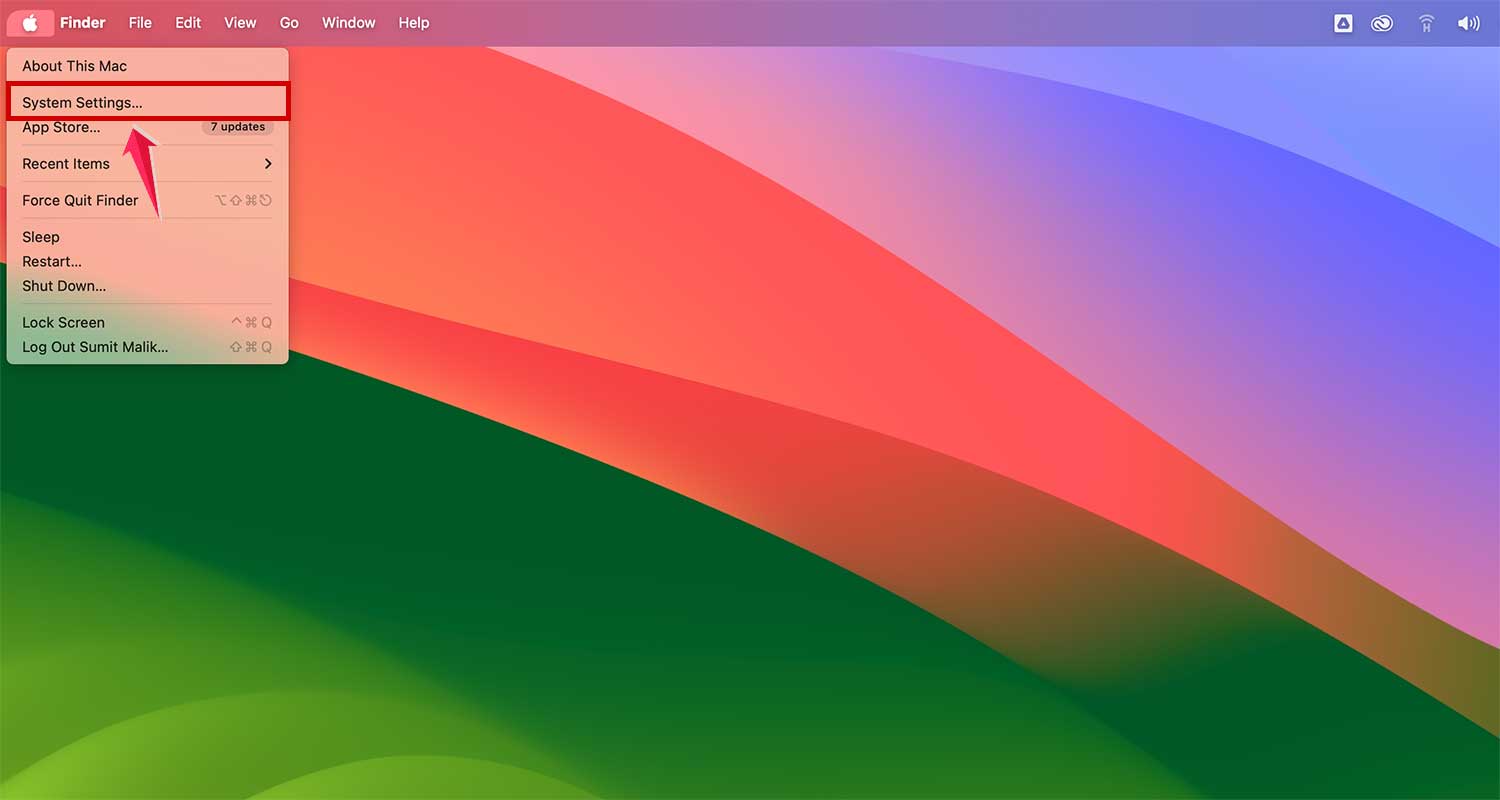
- Open your System Settings.
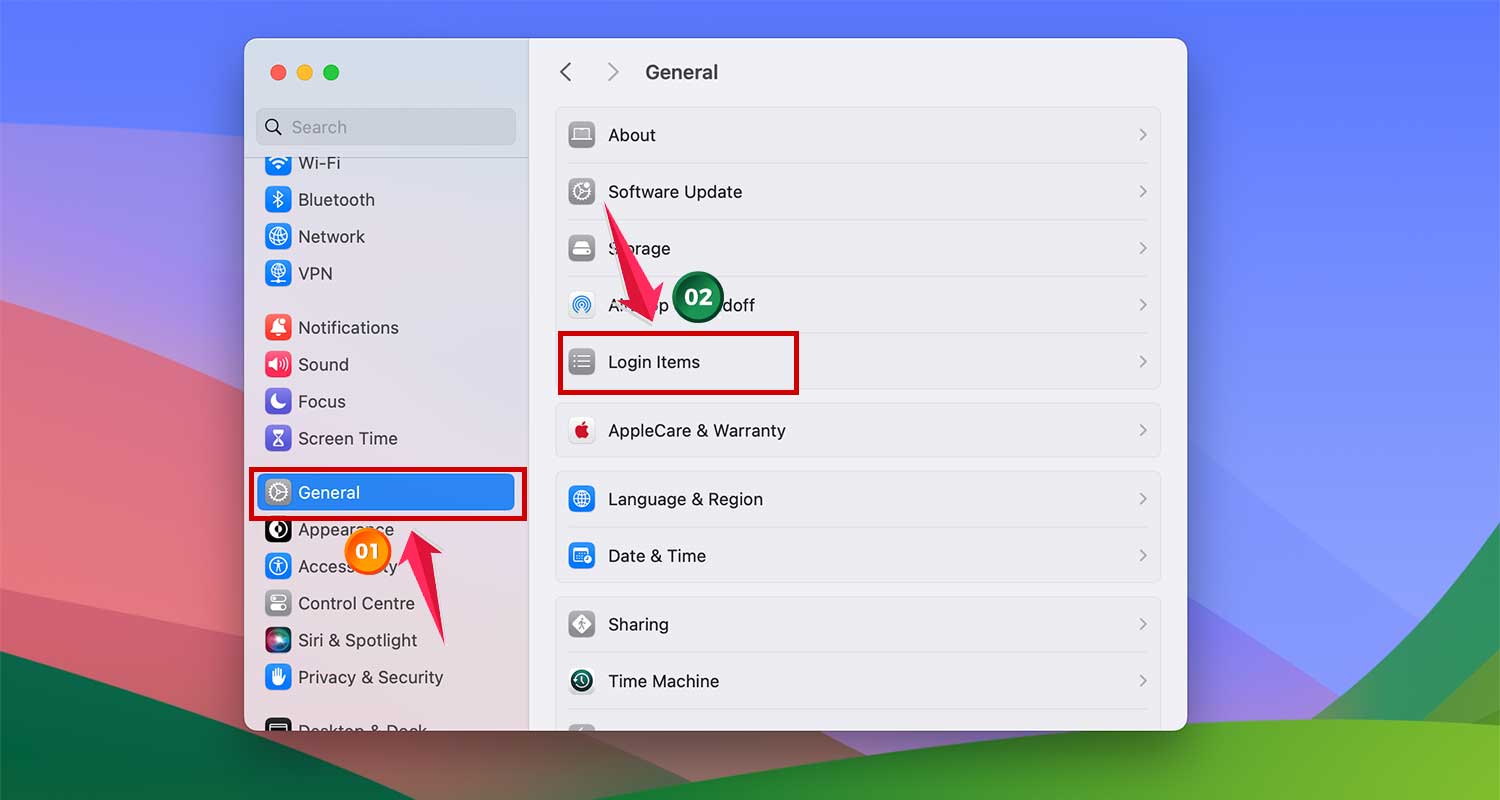
- Look for General, then click on Login Items.
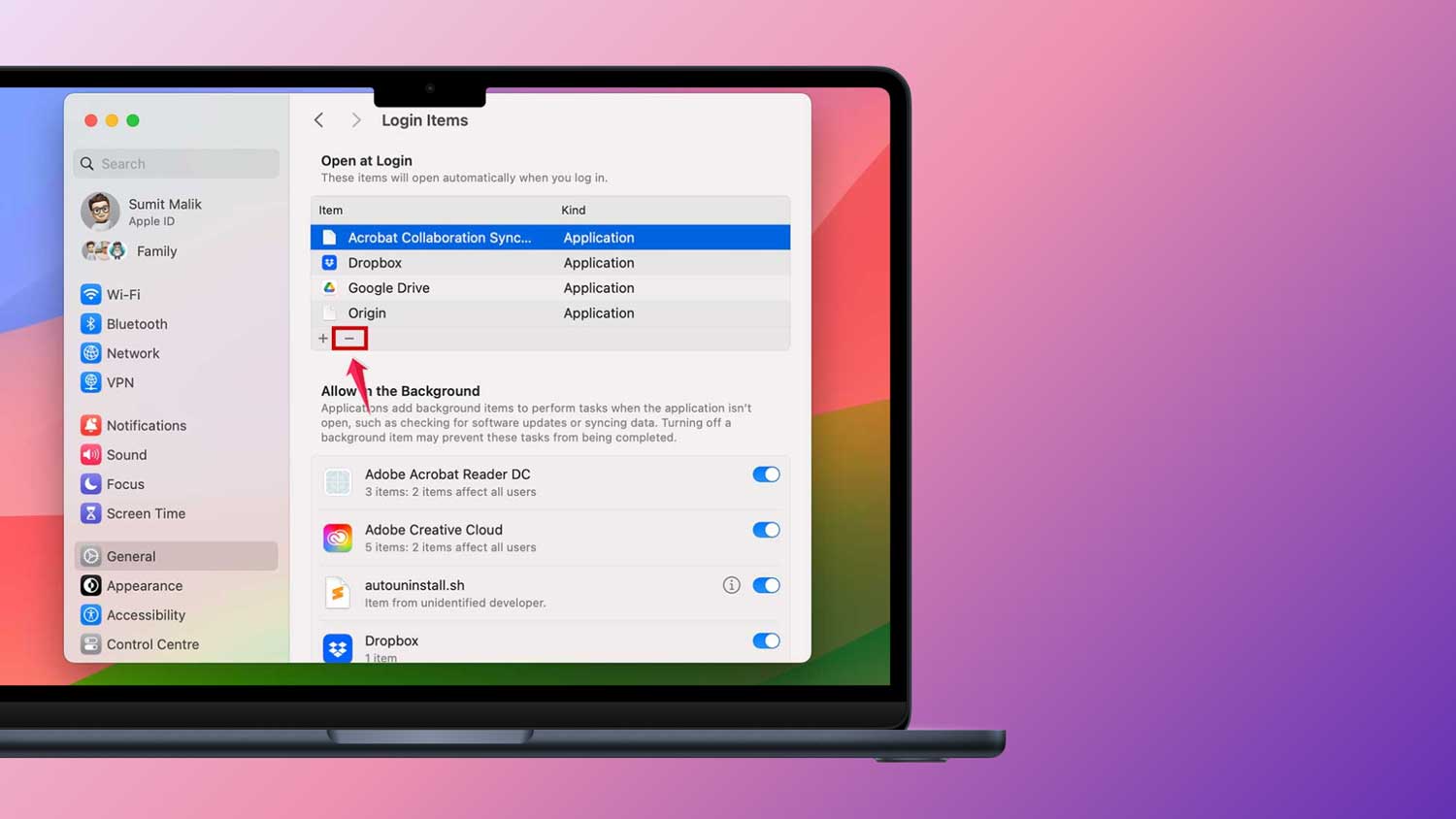
- To remove an app from startup, select it and click the minus (-) sign.

- If you want to add an app back, click the plus (+) sign and choose the app.

- When you’re done, restart your Mac to see the changes.

While you’re there, take a look at the Allow in the Background section. You can turn off any apps you don’t want running when you’re not using them.
For older Macs (before macOS Ventura):
- Go to System Preferences, then Users & Groups.
- Click on your name.
- Select Login Items.
- Uncheck any app you don’t want to start up automatically.
You might need to click the lock icon and enter your password to make changes.
How To Manage Startup Items From The Dock
Did you know you can manage your startup apps without digging through system settings? That’s right, you can do it right from your Dock! Here’s how:
- Look for the app you want to control in your Dock.
- Right-click (or Control-click) on the app’s icon.
- In the menu that pops up, hover over Options.
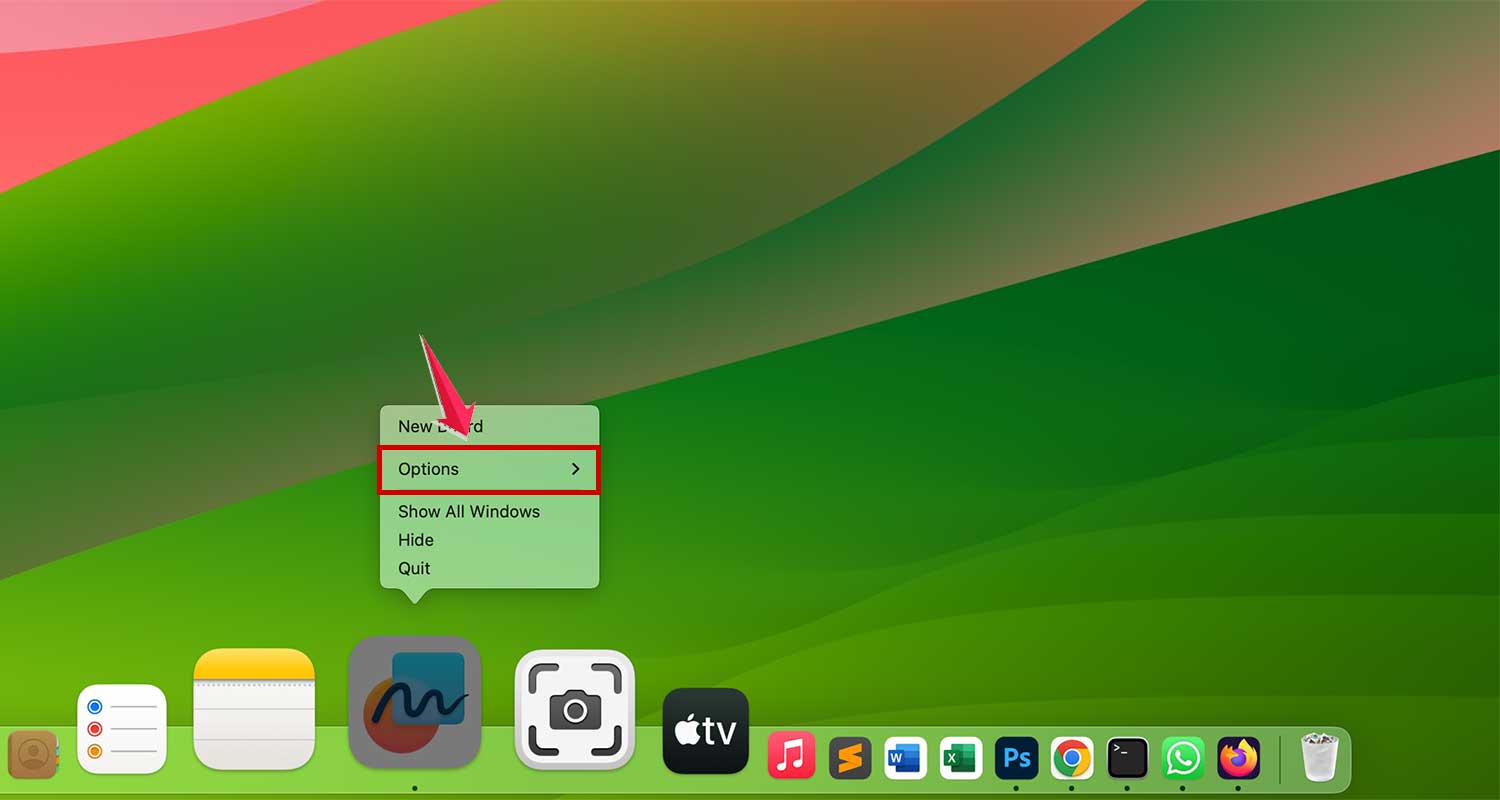
- You’ll see Open at Login. Here’s what to do:
- Want the app to start when you turn on your Mac? Make sure it’s checked.
- Don’t want it to start automatically? Just uncheck it.

By tweaking these settings, you’re telling your Mac which apps are important enough to start right away and which ones can wait until you need them.
How to change startup items in Library folder
Let’s talk about some behind-the-scenes players in your Mac’s startup process: daemons and launch agents. These aren’t standalone apps, but rather parts of other programs that run in the background. For example, the Chrome browser has a Chrome Updater that falls into this category.
Caution: We’re about to venture into some important folders on your Mac. Always be careful when removing files from these areas. If you’re not sure about something, it’s best to do a quick online search before deleting it.
Here’s how you can manage these hidden startup items:
- Open Finder and click on Go in the top menu.
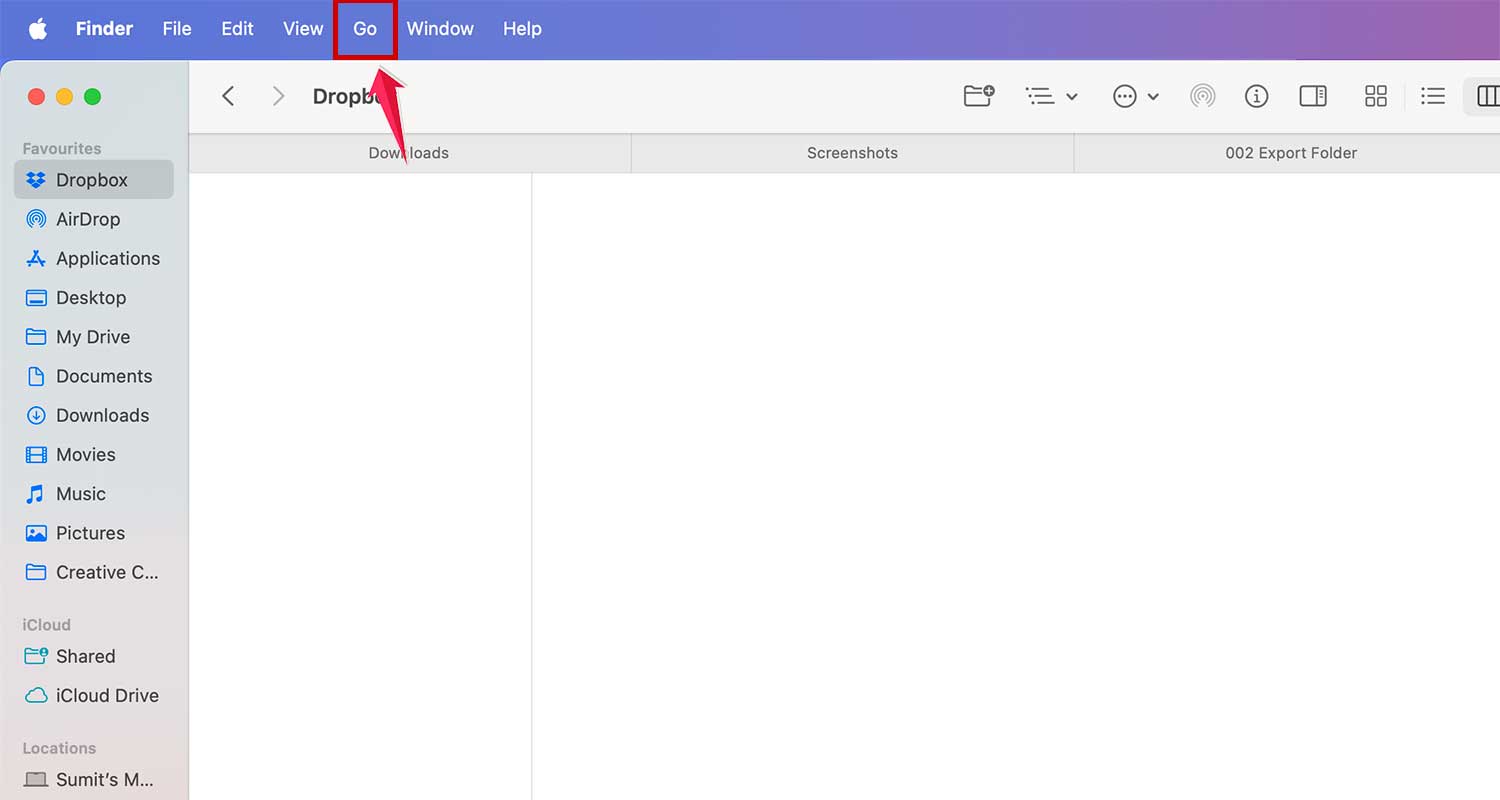
- To check different startup areas, copy and paste these paths into the “Go to Folder” field:
- For general startup items: “
/Library/StartupItems“ - For launch daemons: “
/Library/LaunchDaemons“ - For launch agents: “
/Library/LaunchAgents“
- For general startup items: “
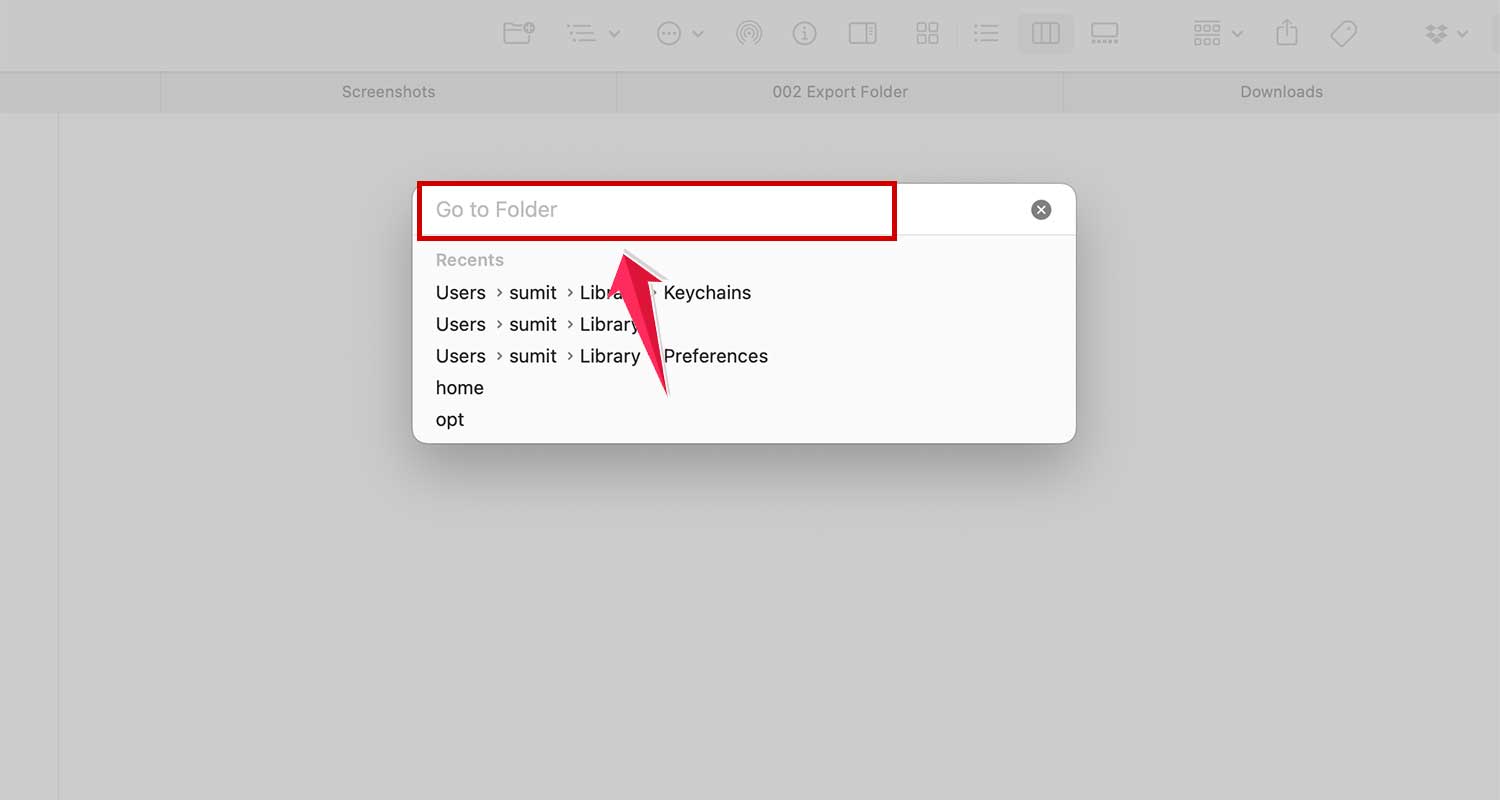
- In each folder, you’ll see files that control how certain apps behave when your Mac starts up. Only remove items you’re absolutely sure about.
There are also system folders you should know about:
- “
/System/Library/LaunchDaemons“: This contains essential system files. It’s best to leave this folder alone unless you have a very good reason to change something. - “
/System/Library/LaunchAgents“: You probably won’t need to remove anything here, but it’s good to know where it is if you’re troubleshooting a startup problem.
By cleaning up these areas, you might see your Mac perform better. Just remember: if you’re not sure about a file, it’s safer to leave it be. Your Mac’s smooth operation is worth a little extra caution!
Which Apps Should You Keep at Startup?
Here’s a simple rule of thumb: if an app doesn’t make your life easier right from the get-go, it probably doesn’t need to start up with your Mac.
Think about it this way:
- Keep: Apps that you use every day as soon as you turn on your Mac.
- Remove: Apps that you only use occasionally or can easily open when you need them.
But here’s an important exception: don’t remove security apps like your antivirus software. These apps work best when they’re always running, keeping your Mac safe from the moment it starts up.
By being selective about your startup apps, you’re doing your Mac a big favor. Fewer apps at startup means your Mac can boot up faster and run smoother. It’s like decluttering your digital workspace – you’ll be amazed at how much quicker everything feels!
In Conclusion To
Taking charge of your Mac’s startup items is like giving it a fresh start every day. By keeping only the essentials and trimming away the extras, you’re setting the stage for a faster, smoother experience.
Remember, it’s not about removing everything – it’s about finding the right balance for you.
Why not take a few minutes now to review your startup items? Your Mac might just thank you with a noticeable speed boost!
Have you tried managing your startup items? Share your experience in the comments below!