Are you still holding onto an old Yahoo email account? You’re not alone. Many people forget about their old email accounts, but it’s important to clean up your digital footprint. If you’ve used your Yahoo account for other online services or shared personal information through it, leaving it active could put your privacy at risk.
Don’t worry, though. Deleting your Yahoo account is simpler than you might think. In this guide, you’ll learn how to permanently remove your Yahoo email account and protect your online privacy. Let’s get started on securing your digital presence.
Why Delete A Yahoo Email Account?
Security is the main reason to consider removing your old Yahoo email account. Here’s why: if you’ve used this email to sign up for other websites and one of those sites gets hacked, your inactive Yahoo account could become a target for scammers. This puts you at risk of fraud or identity theft. By deleting unused accounts, you’re taking an important step to improve your digital security.
How To Improve Your Privacy?
Deleting your Yahoo account is a good start, but there’s more you can do to protect your privacy, especially if you use a Mac:
Clear your digital tracks. You should regularly clear your browser’s cache and cookies. This helps keep your browsing history private.
Review your device permissions. It’s a good idea to check which apps can access your camera, microphone, and screen recording. Do this periodically to make sure you’re comfortable with the permissions you’ve granted.
Manage your Wi-Fi connections. Your Mac keeps a list of Wi-Fi networks you’ve connected to before. Some of these might be public networks that aren’t secure. Your device could automatically connect to these, potentially putting your data at risk. It’s worth reviewing and removing any networks you don’t trust.
How to delete your Yahoo email account permanently
If you want to completely remove your Yahoo account, just deleting it from your devices isn’t enough. You need to delete it directly from Yahoo’s servers. Here’s how you can do that:
Delete your Yahoo account
- Go to Yahoo’s account deletion page using any web browser.
- Enter your username and password. You might need to provide additional verification.

- Read the information on the next page carefully. If you’re sure you want to proceed, click on “Continue to delete my account“.
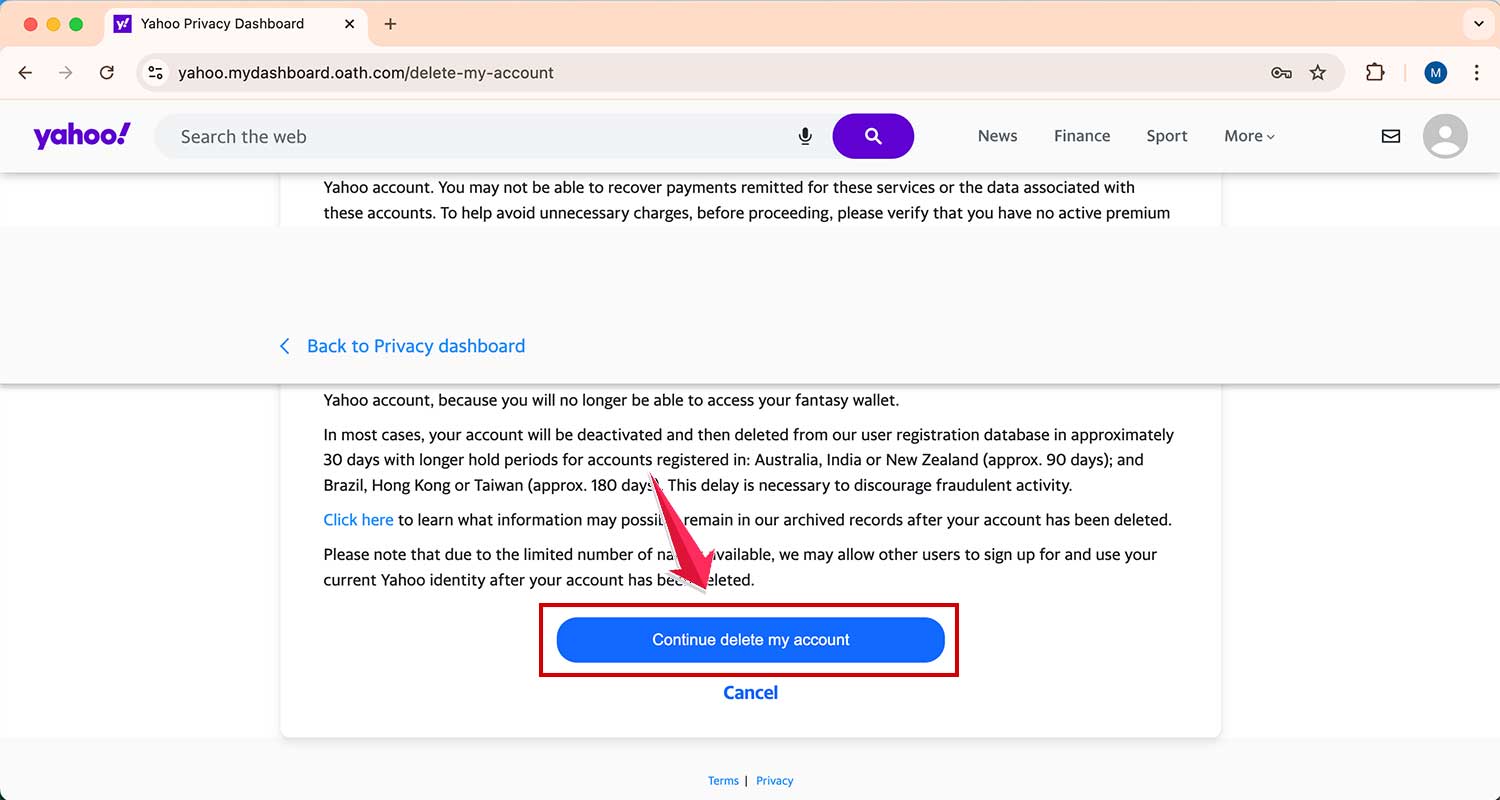
- To confirm, type in your email address and select “Yes, delete this account“.

Once you’ve confirmed, your account will be deactivated immediately. Full deletion can take anywhere from 30 to 180 days, depending on where you live. During this time, you can still recover your account if you change your mind.
Reactivate your Yahoo account
If you’ve had second thoughts, you can reactivate your account:
- Visit mail.yahoo.com and try to log in.

- Follow the instructions you see on the screen to reactivate your account.

Remember, any emails sent to you while your account was deactivated won’t be recoverable.
Delete a BT Yahoo account
If you’re in the UK and have a BT Yahoo account through BT broadband, the process is a bit different:
- Log into your BT account or go to BT’s support pages.
- You’ll need to contact BT support directly to get help deleting your account.

By following these steps, you can make sure your Yahoo account is permanently deleted or reactivated, whichever you prefer.
How to remove a Yahoo account from your Mac
If you want to tidy up your digital space, removing unused email accounts from your Mac is a good start. Here’s how to remove your Yahoo account from the Mail app:
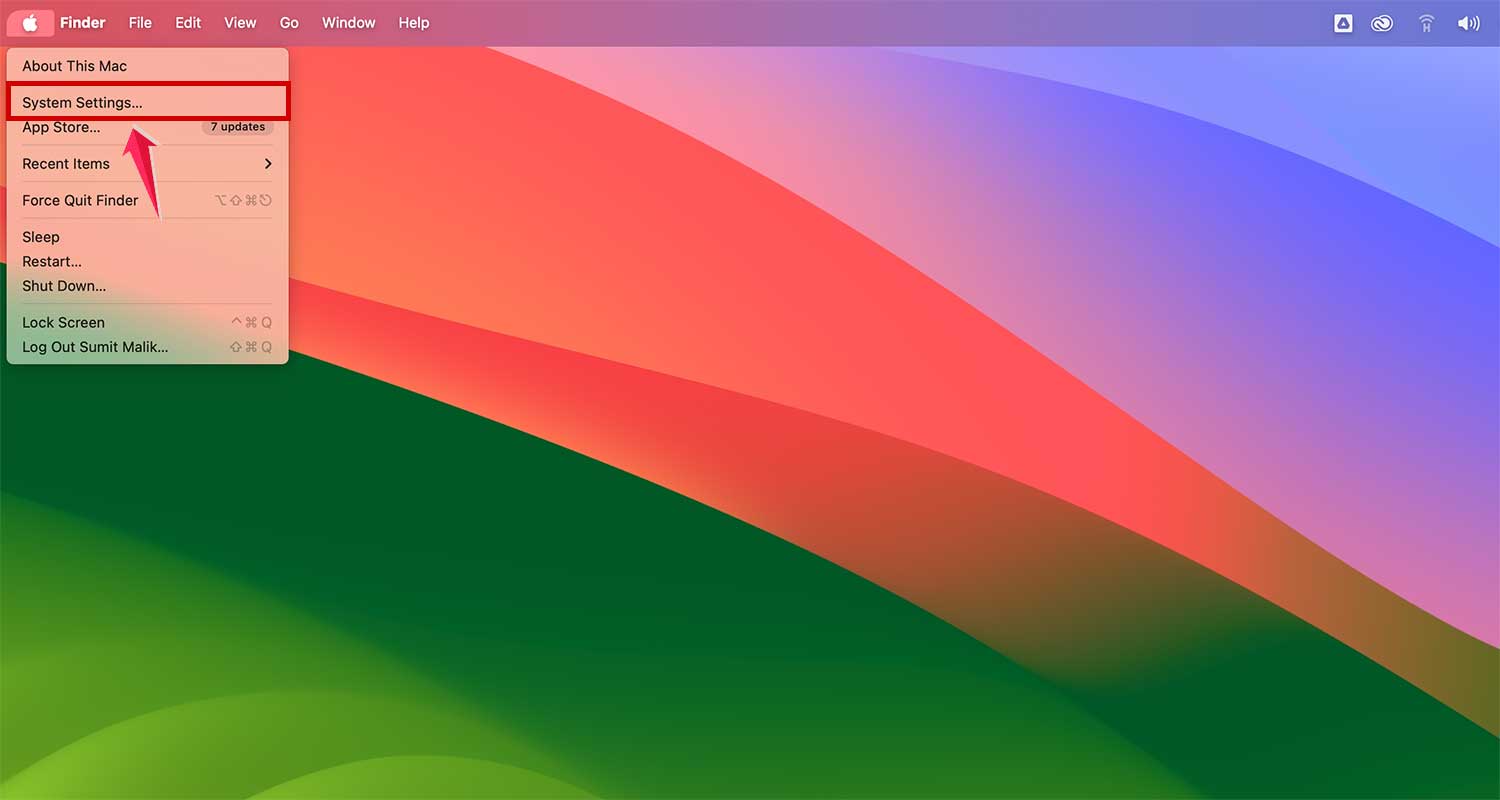
- Click the Apple menu at the top left corner of your screen and select System Settings.
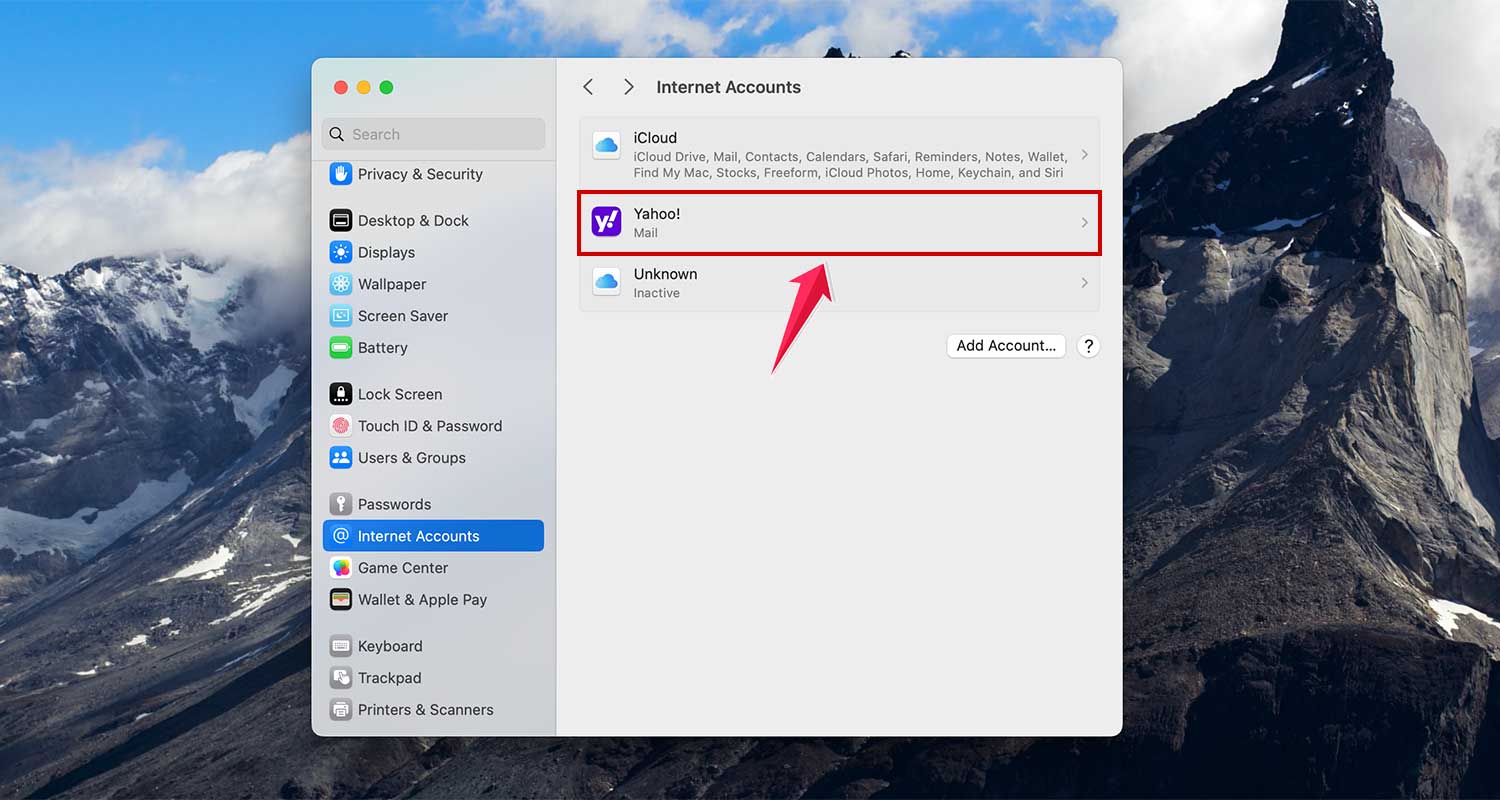
- Find and click on Internet Accounts. You’ll see a list of all email accounts linked to your Mac.

- Select your Yahoo account from the list.
- Click Delete Account.

- Follow the on-screen instructions to confirm and completely remove the account.
Remember, this process will only disconnect your Yahoo account from the Mail app. It won’t delete the account from Yahoo’s servers.
Uninstalling Apps on Your Mac Properly
While removing your Yahoo account doesn’t require uninstalling any apps, you might want to remove unused applications, like third-party email clients. Here’s how to do it correctly:
- Locate the App: Open your Finder and go to the Applications folder.

- Use an Uninstaller: If the app has its own uninstaller, use it. This ensures all associated files are removed.

- Manual Removal: If there’s no uninstaller, you can drag the app to the Trash. To remove leftover files:
- Open Finder, click Go on the menu bar and select Go to Folder.

-
- Type “~/Library/” and search for folders or files named after the app. Be careful what you delete to avoid removing important files.

-
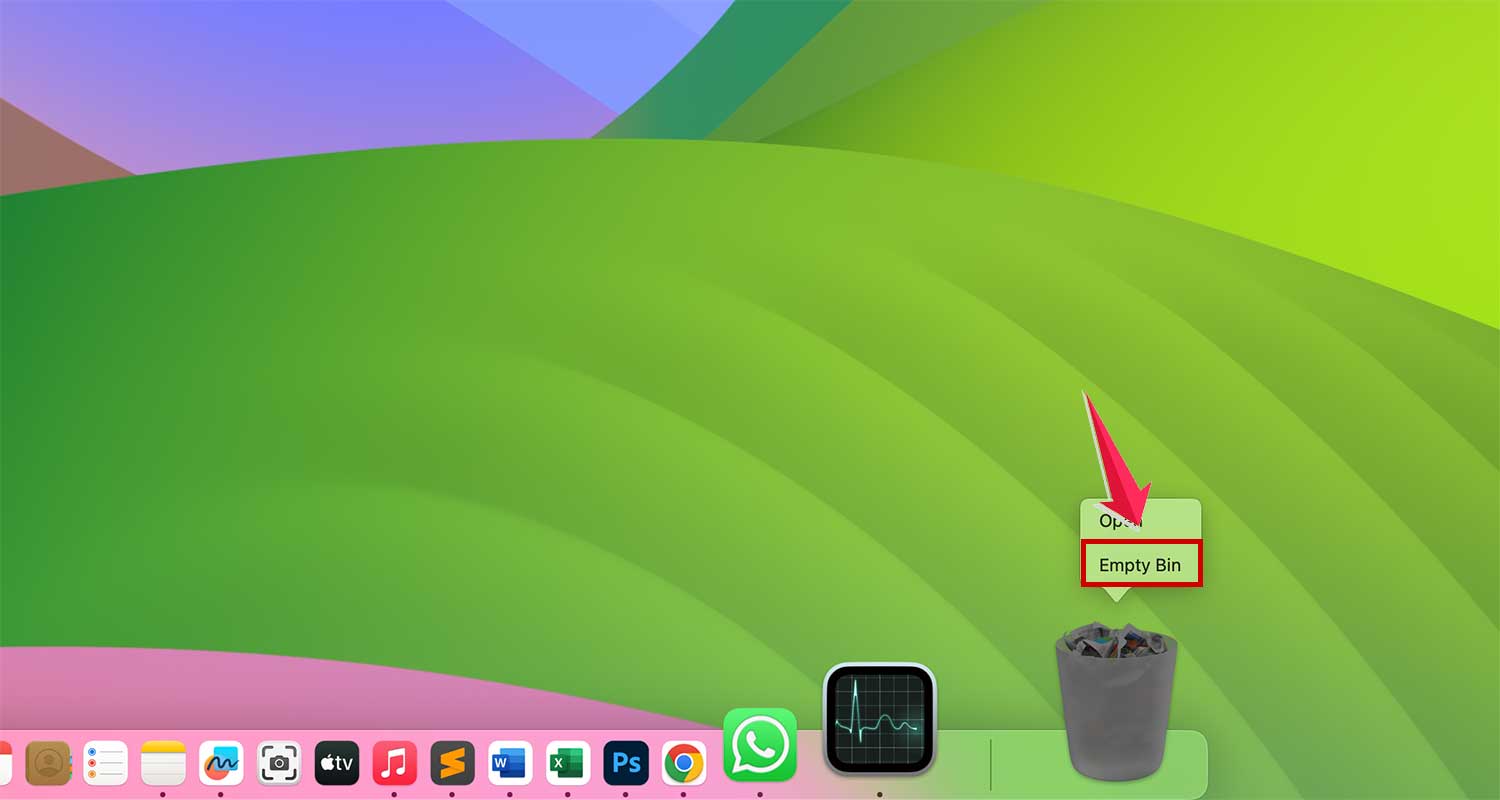
- Empty your Bin to complete the uninstallation.
In Conclusion To
Keeping your digital life clean and secure is an ongoing process, but it’s well worth the effort. By taking steps like deleting old Yahoo accounts and removing unused apps from your Mac, you’re protecting yourself from potential security risks.
Remember, it’s always better to be proactive about your online safety. Regular digital cleanups can help keep your personal information secure and your devices running smoothly.
We’d love to hear your thoughts on this topic. Have you recently cleaned up your digital accounts? Do you have any tips to share? Let us know in the comments below!