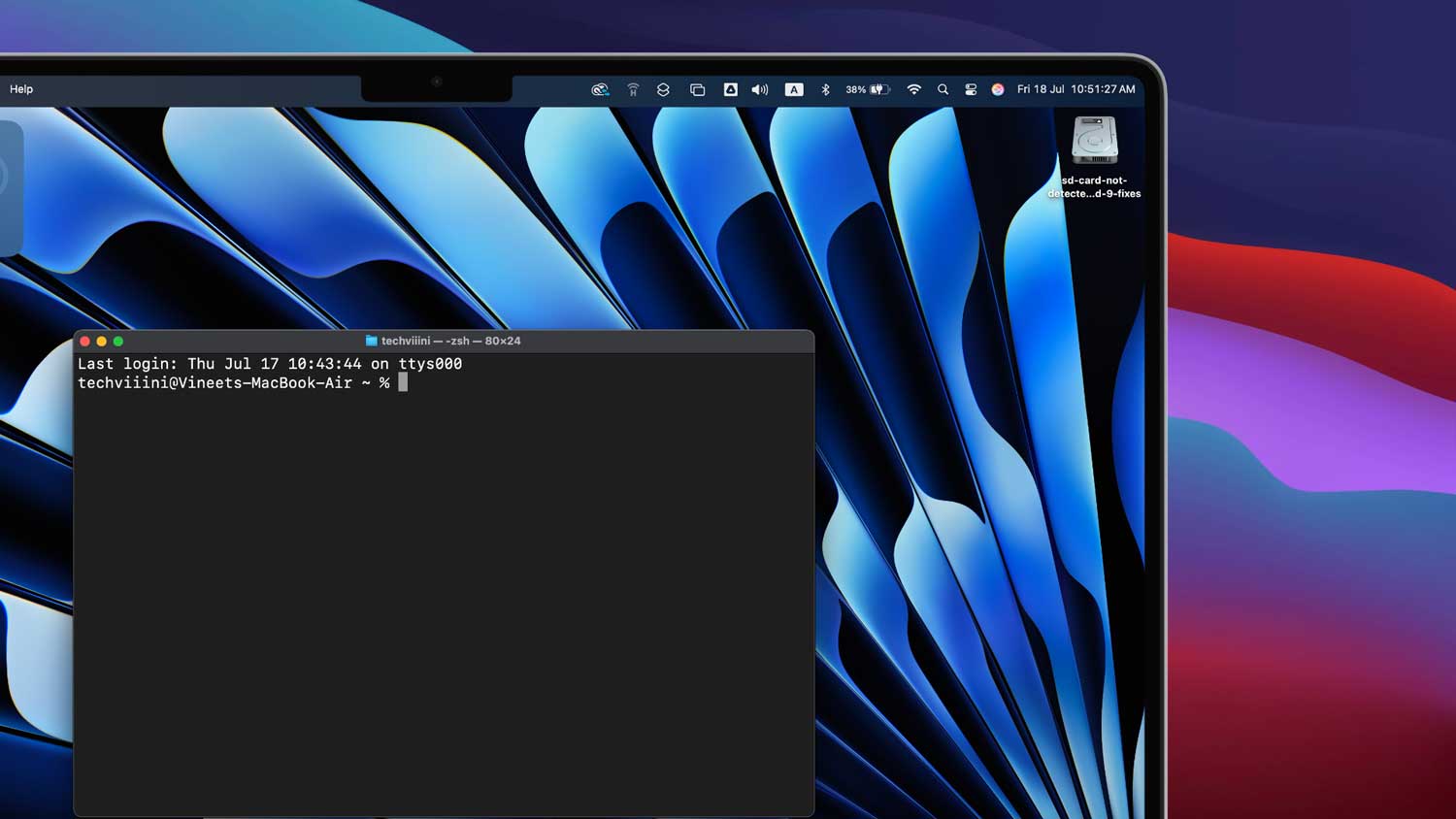
Are you ready to tap into the full potential of your Mac using the Terminal app? Whether you’re a total beginner or just need a refresher, you’ve come to the right place!
Terminal might sound intimidating, but it’s actually quite straightforward. Think of it as just another app on your Mac. Just a couple of clicks and you’re set to go—really, it’s that easy! Once you get comfortable with Terminal, you can even use it for cool stuff like transferring files.
In this guide, I’ll walk you through a few foolproof ways to open Terminal, tried and tested by myself and countless other Mac lovers. Ready to get started? Let’s jump right in!
How to Open Terminal on Mac?
Now that you’ve got the basics down let’s explore more ways to launch Terminal on your Mac.
Think of these methods as different keys to unlock the same powerful tool!
1. Use The Spotlight To Launch Terminal
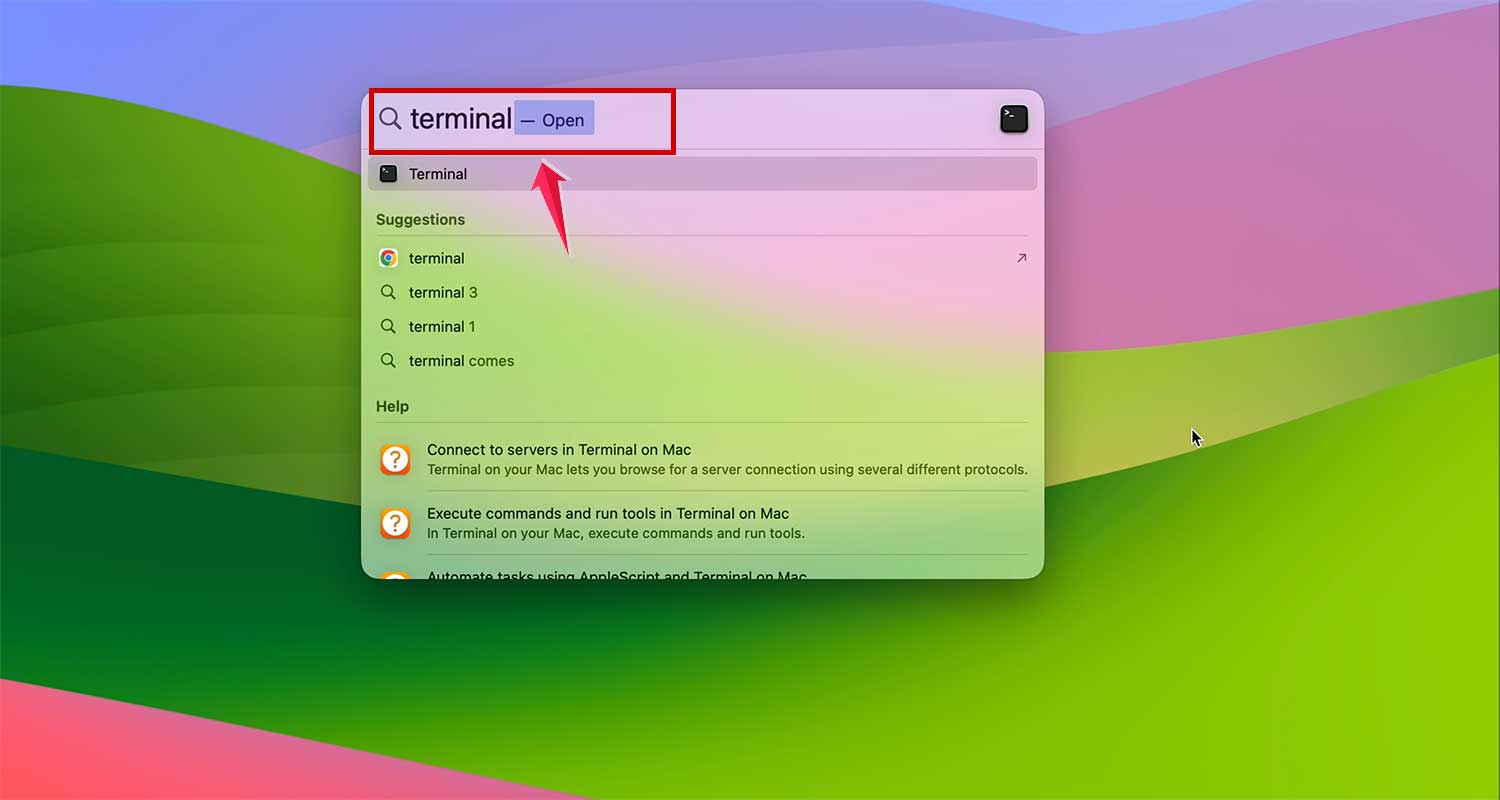
First up, meet Spotlight—your Mac’s powerful search feature. To open Spotlight, you can either:
- Click the magnifying glass icon at the top right of your screen.

- Hit Command + Space Bar on your keyboard.

Once Spotlight is open, just type “Terminal” into the search box. You’ll see a list of suggestions pop up, with “Terminal.app” usually at the top. Click on it, and voilà, you’re ready to dive into the command line world!
2. Find Terminal In LaunchPad
- Step 1: Click the LaunchPad icon in the dock at the bottom of your screen. It’s your quick access tool for all your apps.

- Step 2: Use the search field at the top to type “Terminal.”
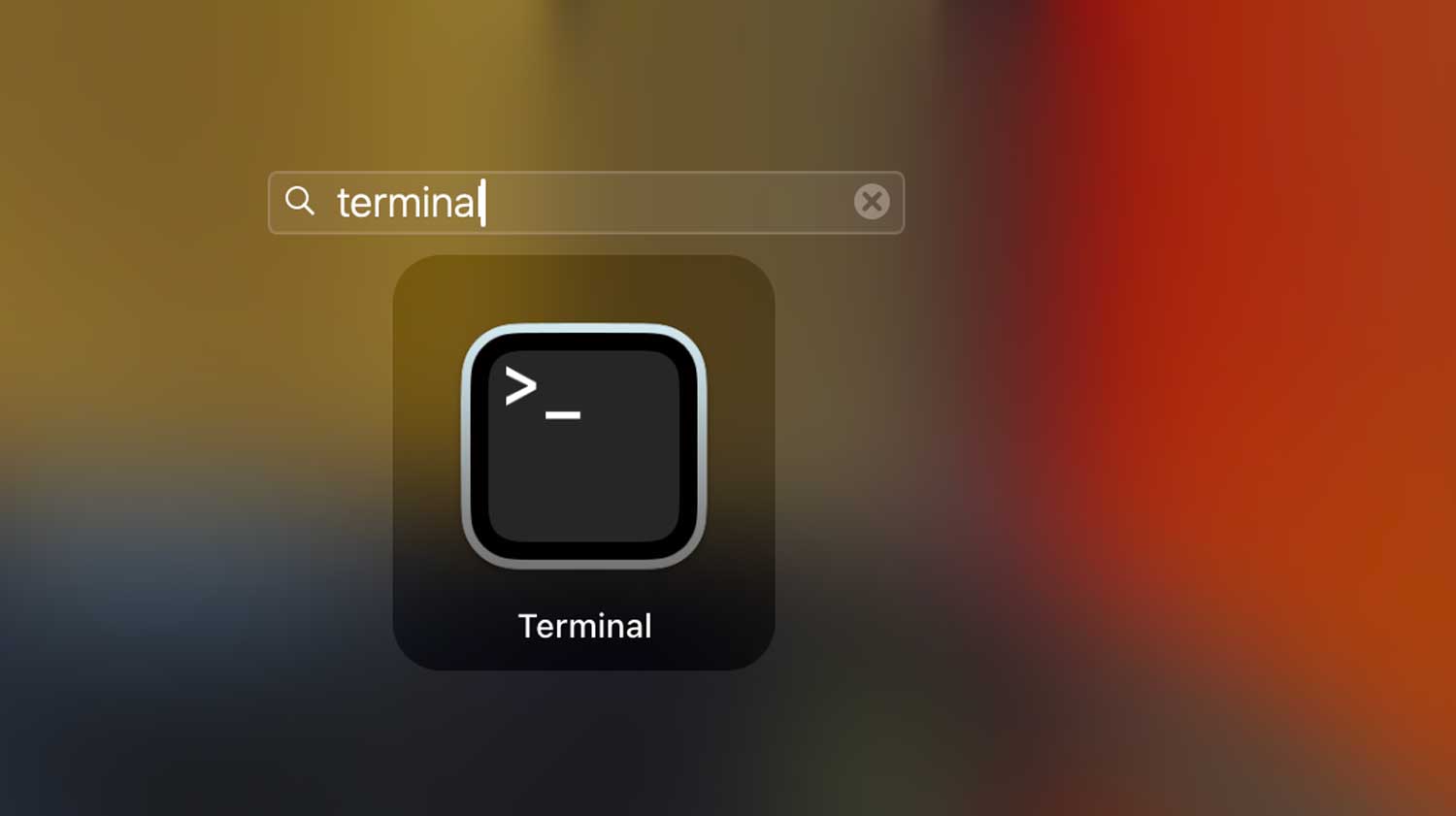
- Step 3: Click on Terminal when it appears. Simple as that!

3. Terminal Is Already Present In The Dock
If you use Terminal frequently, you might already have it pinned in your dock. Just click the Terminal icon there, and you’re good to go! By the way, did you know you can customize your dock to show on all your screens?
4. Using Finder > Applications
- Step 1: Open Finder from your dock and click on “Applications” on the left.

- Step 2: Then scroll down and open the “Utilities” folder. Sometimes, finding the Utilities folder can be tricky, but it’s packed with useful tools.

- Step 3: Find “Terminal” and double-click to start your Terminal session.

5. Chat with Siri
If you have Siri enabled, simply say, “Siri, start Terminal.” It’s like having a personal assistant for your Mac tasks!
6. Create Your Own Shortcut
For those who frequently use Terminal, creating a shortcut can be a game-changer.
You can add a Terminal shortcut to your desktop or dock for quick access, just like keeping a favorite book handy.
Need a guide? Look up how to create shortcuts on your Mac for detailed steps.
Conclusion
Opening the Terminal on your Mac can be as easy as using the quick Spotlight search, accessing through LaunchPad, finding it via Finder, or simply asking Siri.
Think of it as having various doors leading to the same exciting room!
Mastering how to open the Mac Terminal is your first step on a thrilling tech adventure. It marks the beginning of your journey with a powerful tool that opens up immense possibilities on your Mac.
I hope the methods I’ve shared have simplified the process for you and encouraged you to start exploring this incredible application.
Remember, the Terminal is more than just a program; it’s a portal to mastering and enhancing your Mac experience. You can even use it to check how well your Mac is performing.
So why wait? Dive in, experiment, and discover how Terminal can maximize your Mac’s potential!