Ever tried plugging in your USB drive to your Mac and it just sits there doing nothing? Frustrating, right? You’re not alone.
One of the most common reasons this happens is because your USB drive isn’t formatted in a way your Mac understands. That’s where formatting comes in.
Think of formatting like giving your USB a fresh start. It clears out all the junk, fixes any weird errors, and makes it work better with your Mac.
Whether you’re using it to back up files, move stuff between computers, or just keep things organized, it works better when formatted the right way.
Now, you’ll probably hear some terms like FAT32, ExFAT, and APFS. Don’t let those names scare you. Each one is just a different way of setting up your USB so your Mac (and sometimes Windows) can read and write to it without any hiccups.
In this guide, I’ll walk you through why formatting matters, when you should do it, and how to get it done without breaking a sweat. Stick with me, and you’ll have that USB working like new in no time.
Why Formatting Your USB Drive Helps
1. Free Up Space and Fix Errors
When your USB drive is full of random files or acting weird, formatting can totally help. It wipes everything clean and fixes any little bugs that might be causing issues. Basically, you’re starting fresh. No more random errors or files you forgot about years ago.
2. Make It Work with Your Mac
Ever plugged in a USB and your Mac just ignores it? That usually means the format isn’t right. Macs don’t always like the way USBs are set up from other systems. A quick format in the right file system makes it fully compatible. After that, it should show up right away.
3. Fix File System Problems
Sometimes your USB has a file system that your Mac just doesn’t like. Maybe it’s been used on a Windows PC or a smart TV. Formatting helps fix that. Once you reformat it in a Mac-friendly way, it should work smoothly again.
4. When USB Isn’t Recognized
If your Mac doesn’t recognize the USB at all, it might feel like it’s broken. But hang on. Most of the time, it just needs to be formatted. Once that’s done, your Mac will pick it up and you’ll be back to saving files in no time.
So, if your USB is acting up or just needs a fresh start, formatting is a solid fix. Let’s walk through exactly how to do that next.
How to Format a USB Drive on Mac (FAT32, APFS, ExFAT)
Alright, let’s roll up our sleeves and get into it. I’ll guide you through formatting your USB drive the right way. It’s easier than it sounds, and once you do it once, you’ll be a pro.
#1 Back Up Your Files First
Before we do anything, stop for a second. Formatting will erase everything on your USB. So, if you’ve got anything important on there—photos, documents, whatever—move it somewhere safe first. Trust me, you don’t want to skip this.
#2 Format in FAT32 (for Mac and Windows)
This is a great choice if you’re using the USB on both Mac and Windows. It works with pretty much everything, but just know it has a 4GB file size limit.
Here’s how to do it:
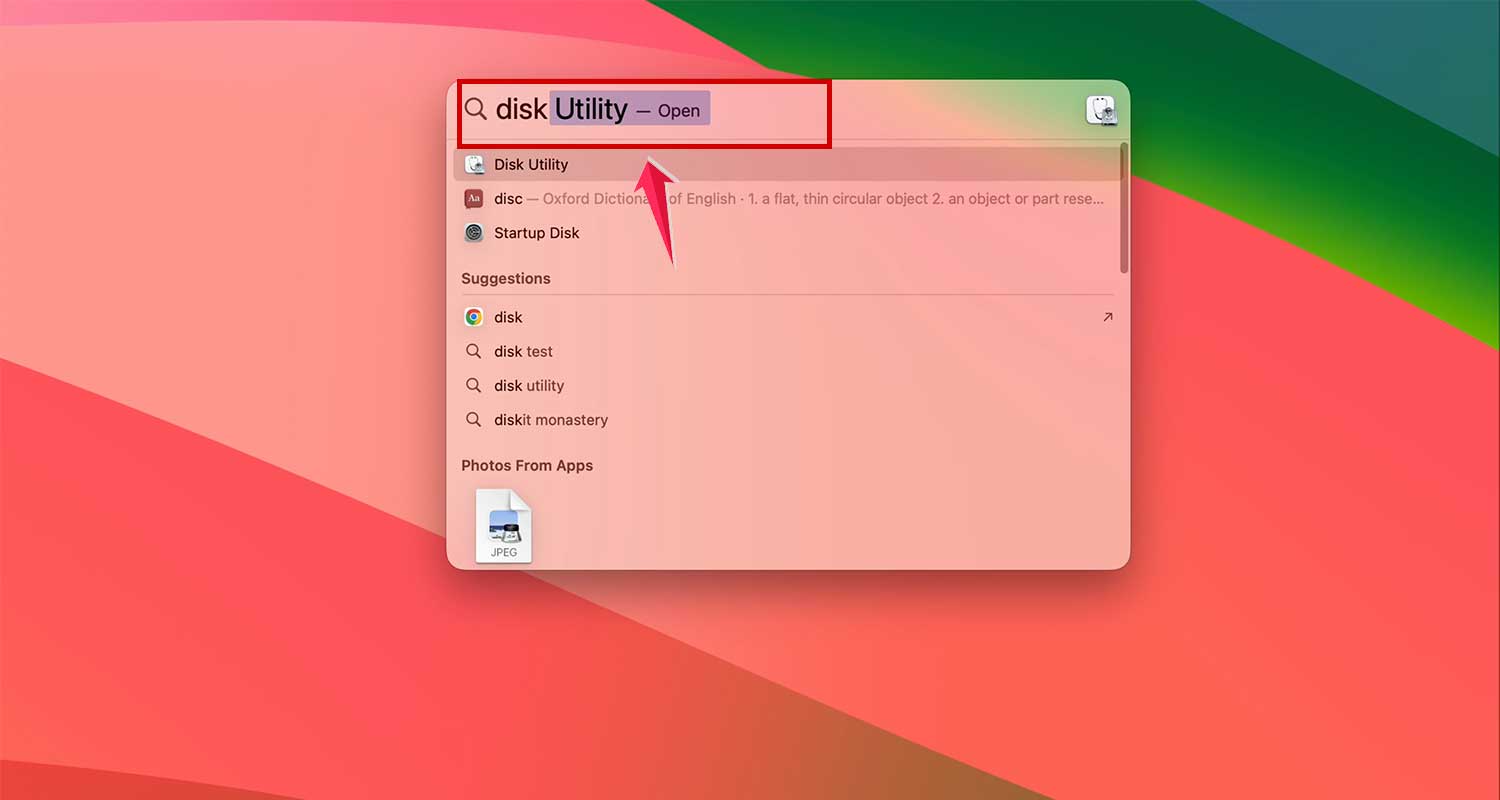
- Open Disk Utility on your Mac. You can find it using Spotlight (just press Command + Space and type “Disk Utility”).
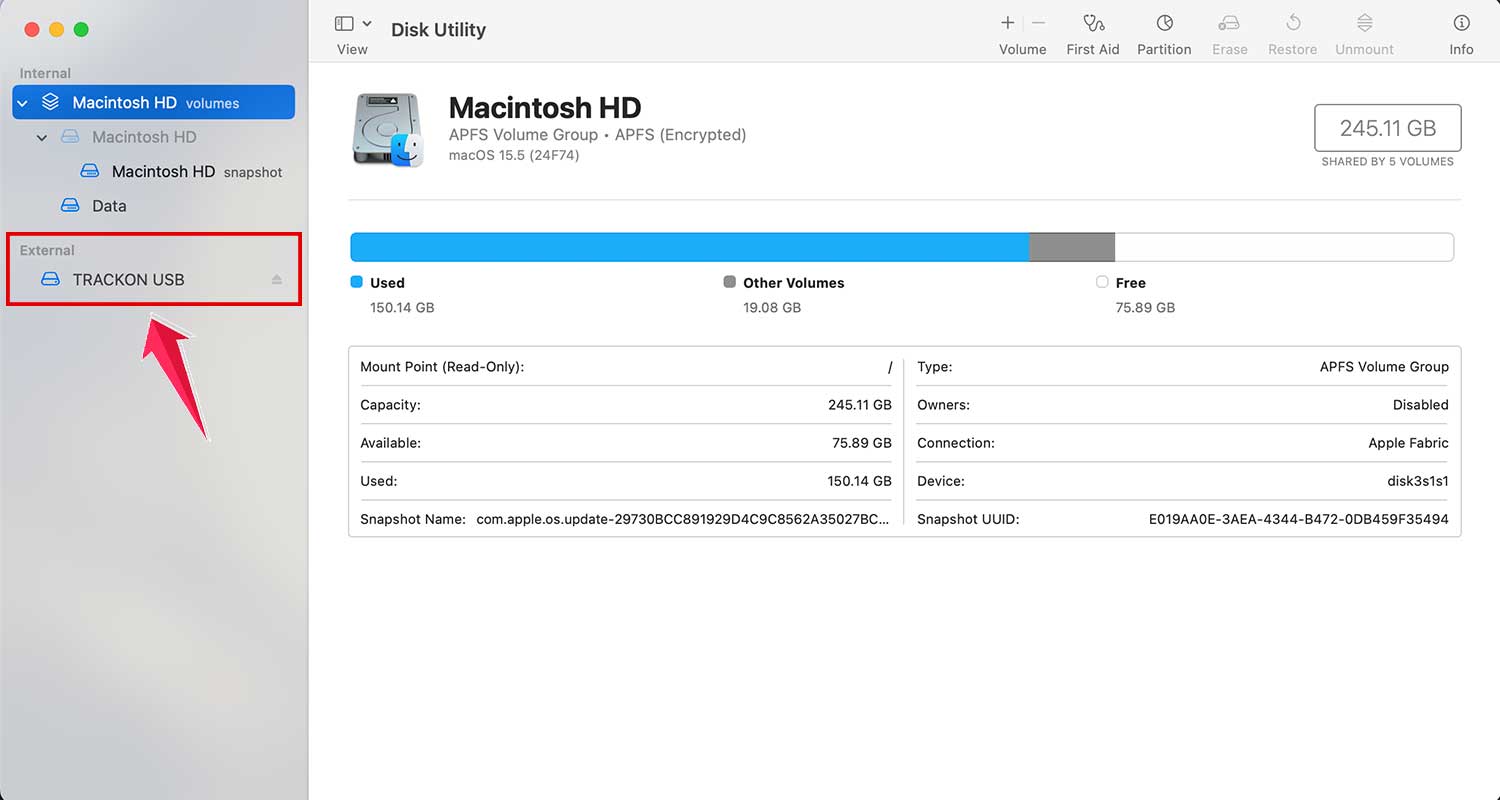
- Select your USB drive from the list on the left.
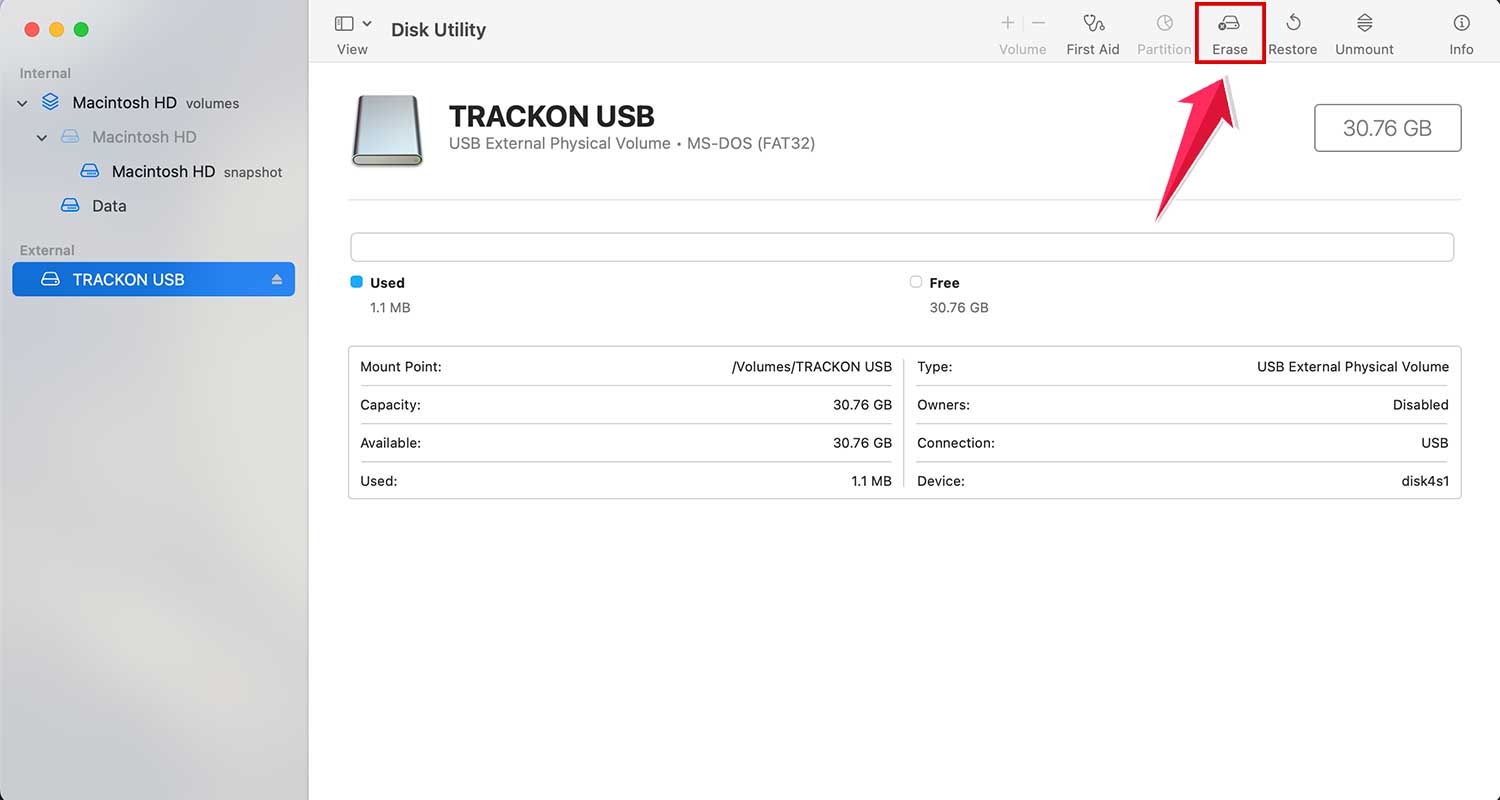
- Click on Erase at the top.
- From the format options, choose MS-DOS (FAT).

- Give your drive a name if you want.

- Click Erase to start formatting.

Done! Your USB is now in FAT32 format and ready to go.
#3 Format in APFS (for Mac Only)
This one’s for you if you’re only using the USB with Apple products. It’s fast and modern, but not readable by Windows.
Here’s what to do:
- Open Disk Utility.
- Select your USB drive.
- Click Erase.

- Choose APFS from the format list.
- Click Erase again.
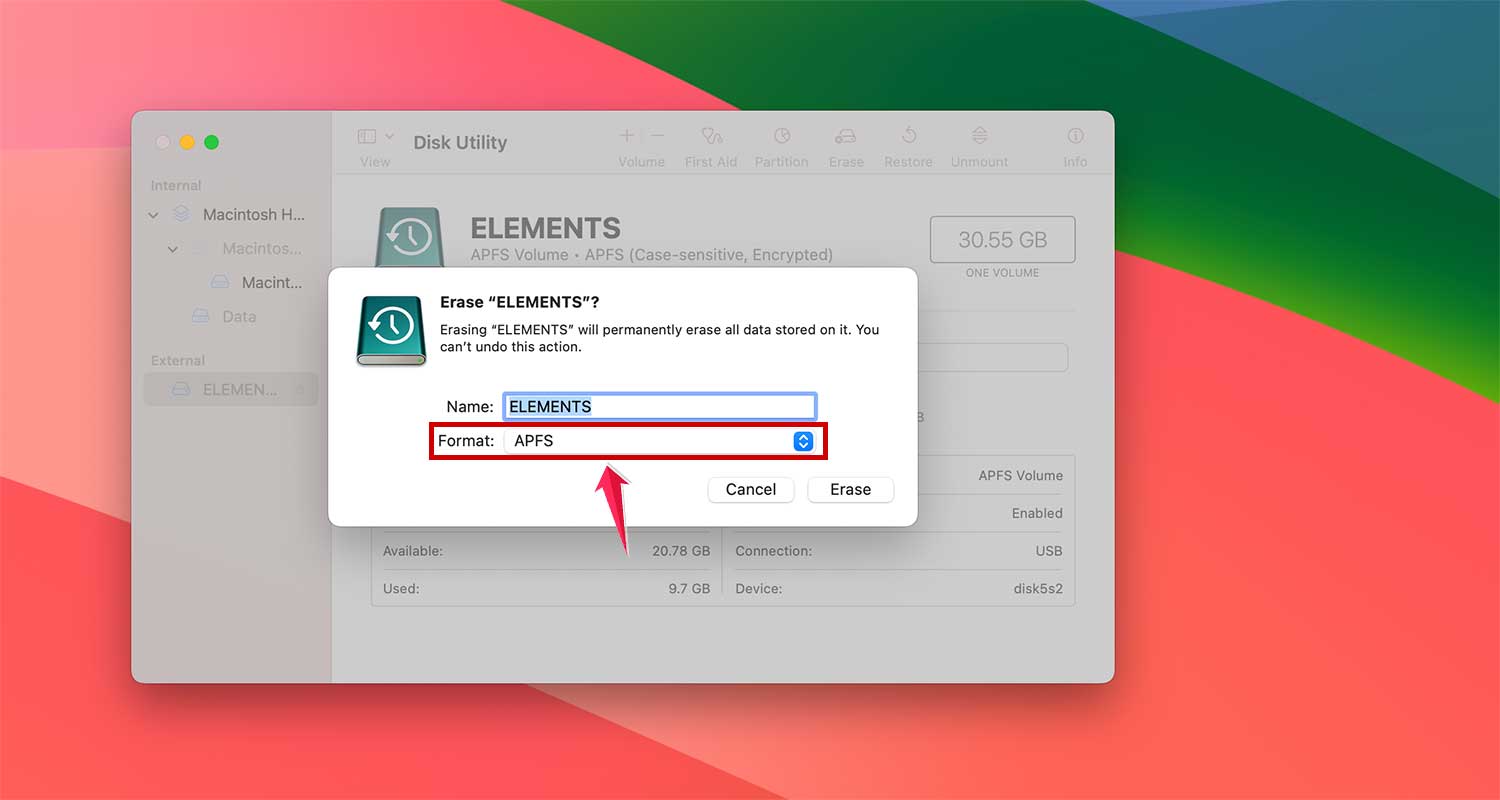
That’s it. Your USB is now formatted in APFS and optimized for your Mac.
#4 Format in ExFAT (Best for Large Files)
Need to store big files or use the drive on both Mac and Windows? Go with ExFAT. It has no 4GB file limit and works across systems.
Follow these steps:
- Open Disk Utility.
- Select your USB drive.
- Click on Erase.
- Choose ExFAT from the format options.

- Click Erase to finish.

Now, your USB is ready for big files and cross-platform use.
Extra Tips for a Smooth USB Experience
#1 Make Sure the Format Matches Your Needs
Not all formats work with all devices. If you’re planning to use the USB with both Macs and PCs, go with ExFAT.
If it’s just for Macs, APFS gives you better performance. Double-check this before you format.
#2 Keep USB Names Short
When naming your USB, don’t go overboard. Keep it short and use only letters and numbers. It helps avoid issues and makes it easier to find your drive later.
#3 Got Problems? Try These Fixes
Sometimes, things still don’t go as planned. Here’s what you can try:
- Use a different USB port on your Mac.
- Swap out the USB cable if you’re using one.
- Restart your Mac and open Disk Utility again.
If your USB still won’t show up, it might be faulty. Try using a different USB drive to test.
#4 Keep a Spare USB Around
It’s always smart to have a backup USB. If one doesn’t work, try another. This helps you figure out if the issue is with the drive or your Mac.
#5 Check for macOS Updates
Sometimes your Mac just needs a little update to recognize new drives. Go to the Apple menu, open System Settings, and check for updates. Install anything available and try again.
These tips can save you time and frustration. A little prep goes a long way when dealing with USB issues.
The Takeaway
So, your USB wasn’t working on your Mac, and now you know why. It usually comes down to the format. Whether you choose FAT32, ExFAT, or APFS, each has its own job.
Just remember—back up your files first. That step saves you from losing anything important.
Once you format your USB the right way, it should show up, work fast, and let you move files without any trouble.
If you ever run into problems again, just come back to this guide. You’ve got all the steps right here.
Now, take a deep breath and give it a try. You’ve got this. And hey—if this helped, leave a comment below and let me know how it went!