So, you tried installing an app on your iPhone, and boom—this message pops up: “Unable to Install App.” Annoying, right? You’re not alone.
This happens to a lot of people, and I get how frustrating it can be.
You just want to download an app—maybe it’s a new game, something for work, or just something fun—and your phone decides to act up.
This message usually shows up when your iPhone can’t finish the download or installation process.
It could be because of a bad internet connection, not enough storage, outdated software, or even a small glitch with your Apple ID. Sometimes, it’s the App Store itself having a bad day.
But don’t worry. I’ve got your back. In this guide, I’ll walk you through the most common reasons why this happens and show you how to fix them step by step.
You don’t need to be a tech expert—I’ll keep everything super simple and easy to follow. Let’s fix this together so you can get back to enjoying your iPhone the way you want.
Common reasons why apps won’t install on your iPhone
Before we jump into the fixes, it helps to know what might be causing the issue. Here are a few things that could be going on behind the scenes.
1. Your iOS might be outdated.
Apps often need the latest version of iOS to work properly. If your iPhone is running on an older version, some apps might not install at all.
2. You might be out of storage.
Your phone needs space to install new apps. If it’s full of photos, videos, and other apps, there’s just no room left. Clearing out some space can help.
3. Your internet connection might be weak.
A poor Wi-Fi signal or unstable mobile data can cause downloads to fail. You need a solid connection to install apps from the App Store.
4. There could be a problem with your Apple ID.
If you’re not signed in properly or there’s a glitch with your Apple ID, the App Store might not let you install anything.
5. The App Store itself might be down.
Yes, even Apple has bad days. If their servers are having issues, your downloads might fail. It’s rare, but it happens.
Now that you know what might be going on, let’s get into the step-by-step fixes. We’ll start with the easiest ones first.
How to Fix “Unable to Install App” on iPhone?
Let’s go through each fix one by one. I’ll keep it simple and guide you like a friend would. You don’t have to try everything at once—just go step-by-step and see what works.
#1 Make sure your iPhone is updated
Sometimes, the issue is just that your iOS is too old for the app you’re trying to install. Let’s check if there’s an update available.
Here’s how you can do it:
- Open Settings.
- Tap General.
- Tap Software Update.
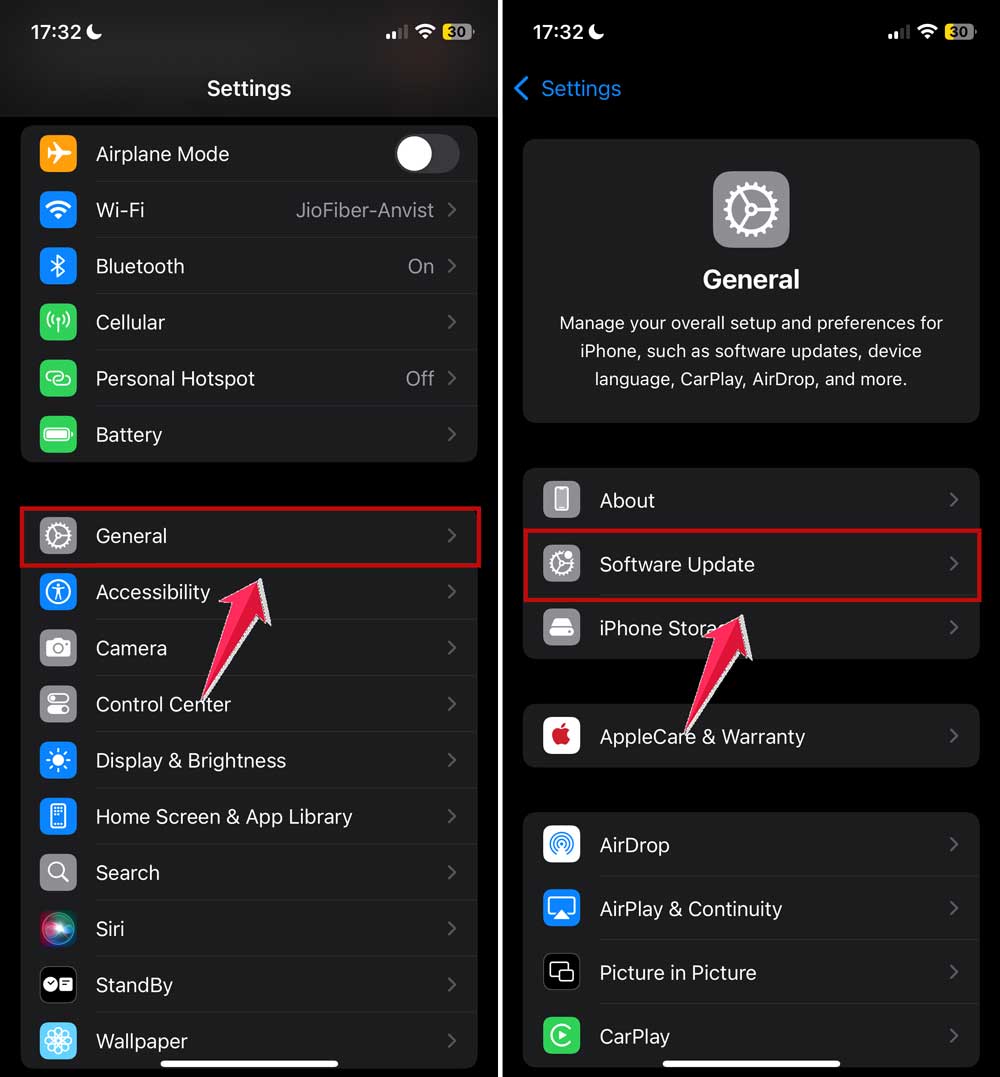
If you see an update, go ahead and install it. This can often fix the issue right away.
#2 Clear up some storage space
Apps need room to install. If your iPhone is full, the app just won’t go through. It’s time for a quick cleanup.
Here’s what to do:
- Go to Settings.
- Tap General, then tap iPhone Storage.
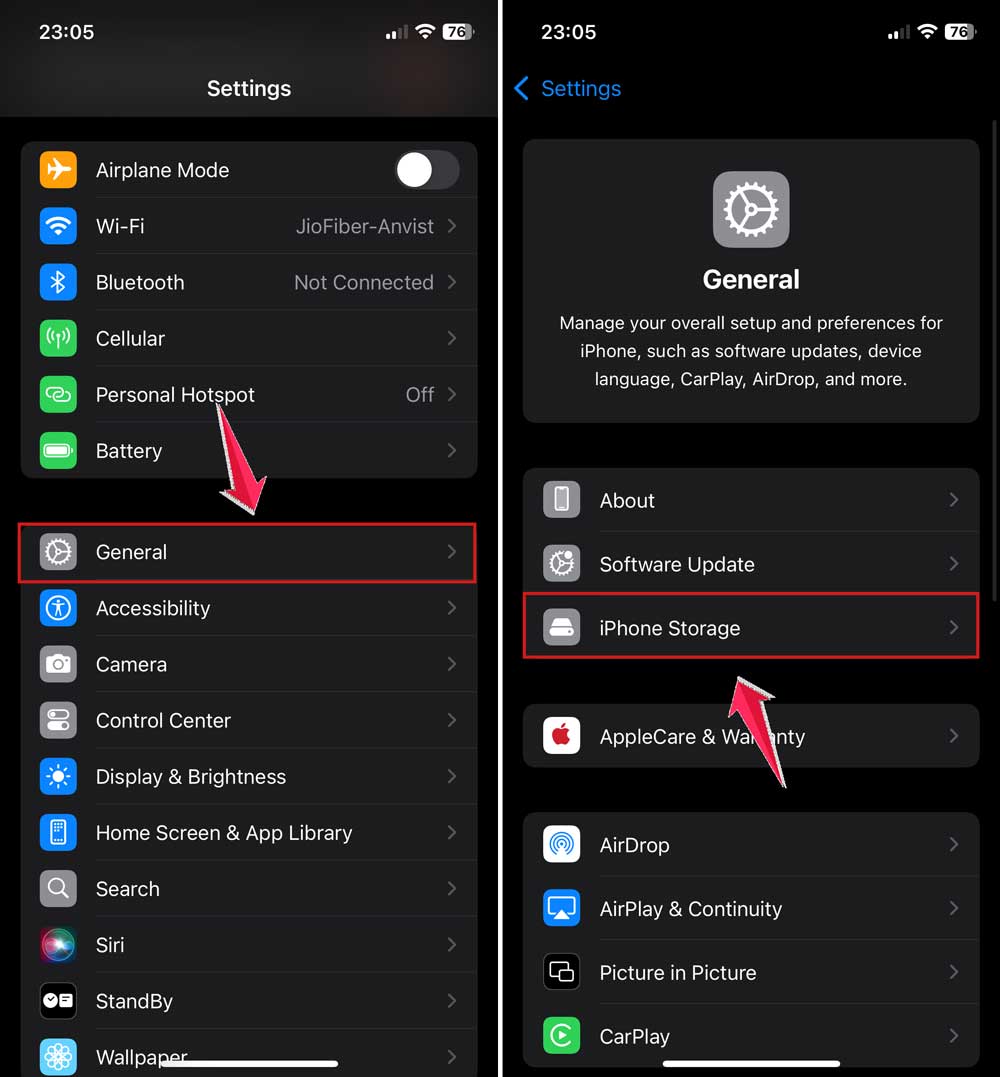
You’ll see what’s taking up space. Delete anything you don’t need—old apps, large videos, or photos you’ve already backed up.
#3 Check your internet connection
Your app might not be installing because your internet is too slow or unstable. Let’s test your connection.
Try this:
- Switch between Wi-Fi and cellular data.
- Open Safari or YouTube and see if things are loading quickly.
If your connection is slow, restart your router or get closer to it. That small move might help.
#4 Sign out and back into your Apple ID
Your Apple ID might just need a refresh. Signing out and back in can fix small glitches.
Do this:
- Open Settings.
- Tap your name at the top.
- Scroll down and tap Sign Out.

- Then sign back in with your Apple ID.
Once you’re signed in again, try downloading the app.
#5 Restart your iPhone
I know it sounds basic, but restarting your iPhone can actually solve a lot of problems. It clears out temporary bugs and refreshes your system.
Here’s how:
- Press and hold the power button until you see the “slide to power off” option.
- Slide it, wait a few seconds, and turn your phone back on.
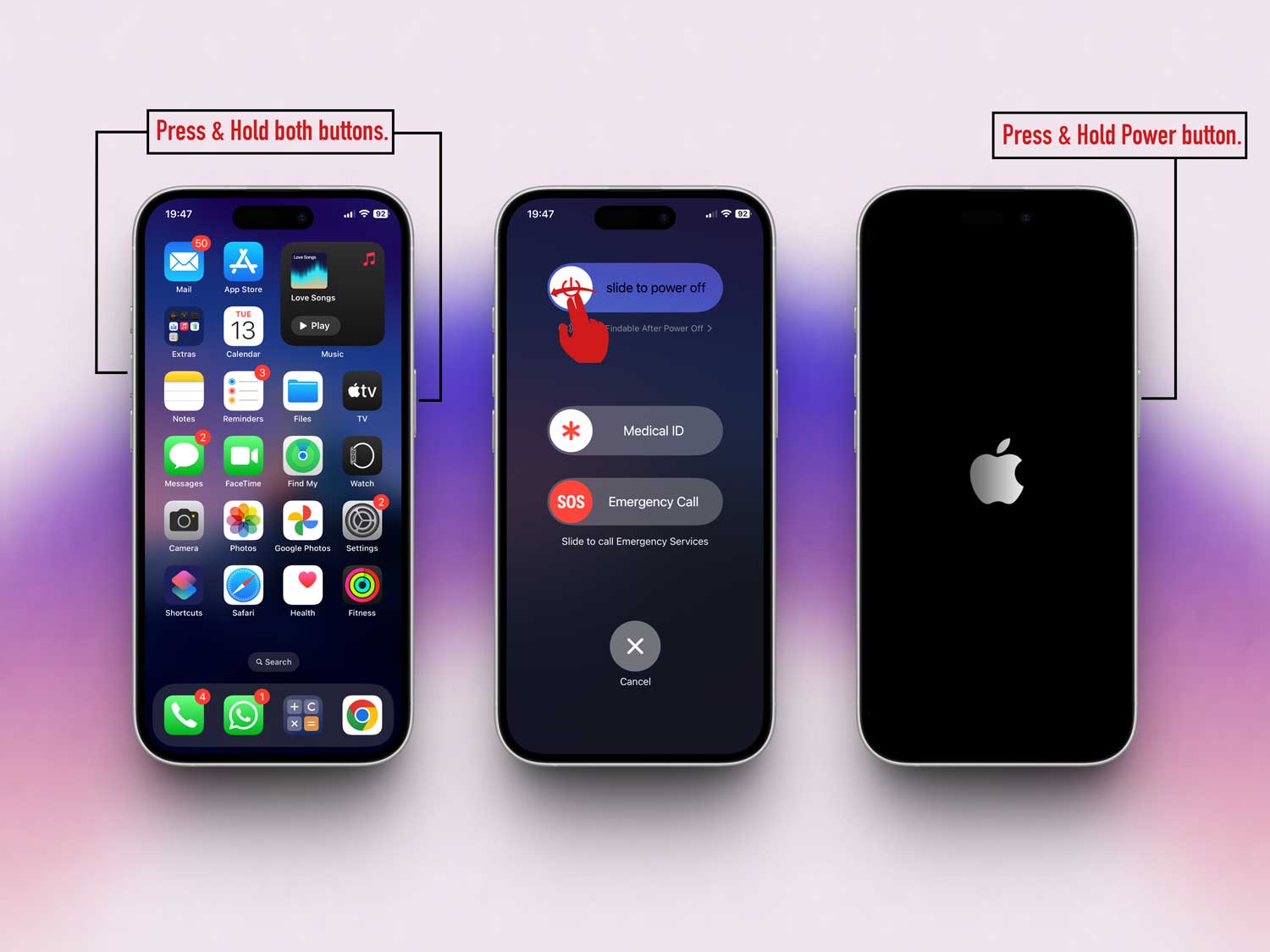
Once it powers back up, try installing the app again.
#6 Close and reopen the App Store
Sometimes the App Store just needs a quick reset. If it’s acting up, this might help.
Here’s what to do:
- Swipe up from the bottom of your screen (or double-click the home button) to open the app switcher.
- Find the App Store and swipe it up to close it.

- Reopen the App Store and try installing the app again.
It’s a small step, but it can make a big difference.
Extra Handy Tips to Try If You’re Still Stuck
Still no luck? Don’t worry—we’ve got a few more tricks up our sleeve.
1. Check Apple’s System Status page.
Go to Apple’s System Status page online and look for the App Store. If it’s not green, the problem might be on Apple’s side. Wait a bit and try again later.
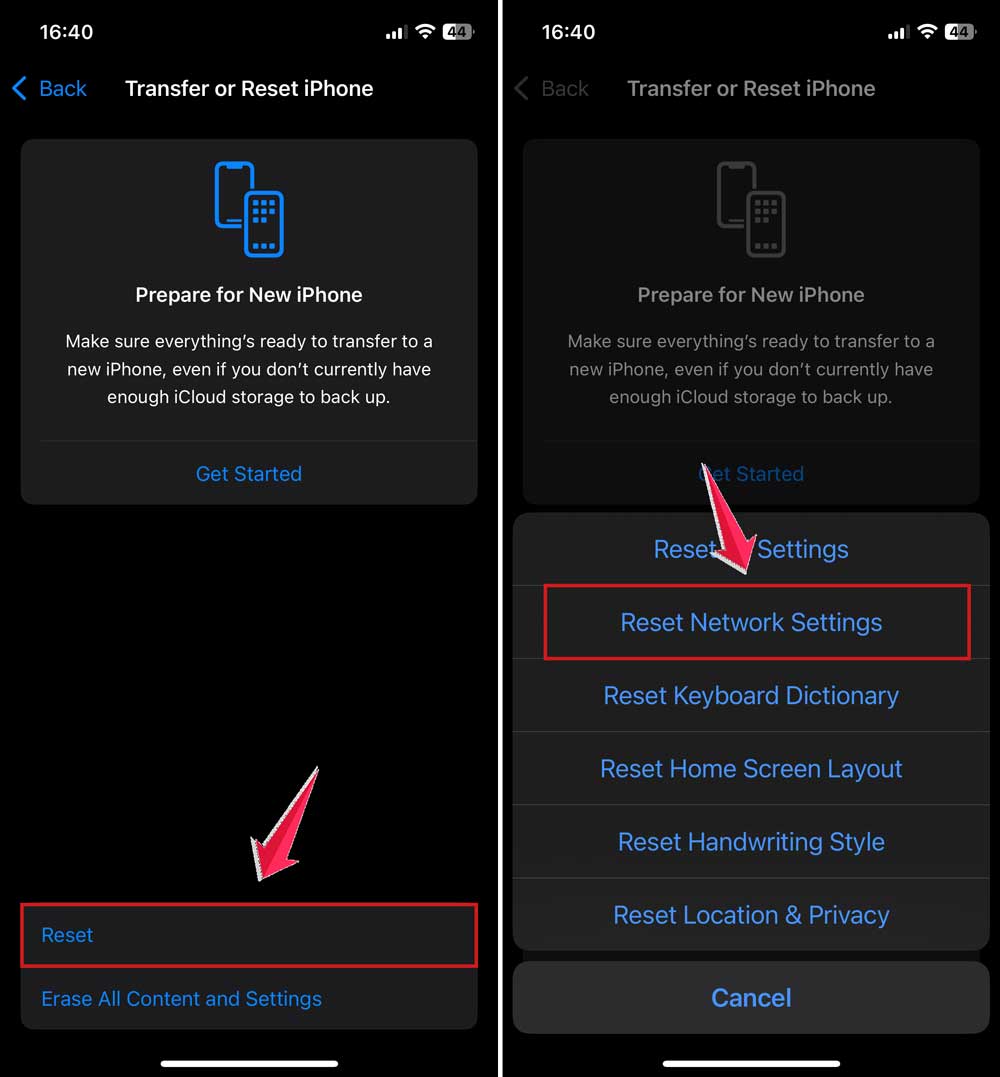
2. Reset your network settings.
This can fix weird internet issues. Just go to Settings > General > Transfer or Reset iPhone > Reset > Reset Network Settings. Keep in mind, this will erase saved Wi-Fi passwords, so have those ready.
3. Try a different Apple ID.
If you have a friend or family member who’s okay with it, try using their Apple ID to install the app. Just sign out of yours and sign in with theirs from Settings.
4. Turn off VPN or proxy.
If you’re using a VPN, it could be blocking the App Store. Go to Settings > VPN & Device Management and turn off any active VPNs.
5. Reach out to Apple Support.
If nothing else works, contact Apple Support. They’re helpful and can guide you through more advanced solutions.
The Takeaway
So, your iPhone says “Unable to Install App,” and it’s driving you nuts. I get it. But the good news? Most of these issues are simple to fix.
You’ve now got a bunch of ways to tackle this—from checking your iOS version, to freeing up space, to making sure your internet connection is solid.
Sometimes, it really is just a tiny thing causing the problem. A full storage. A weak signal. Or maybe a little glitch in your Apple ID.
Try the steps we’ve talked about, one by one. Most people find that one of these fixes does the trick.
And if not? You’ve still got options. Apple Support is always there. You’re not stuck—and you’re definitely not alone.
Go ahead, give these a shot, and let me know how it goes. Still stuck or found a trick I didn’t mention? Drop a comment—I’d love to hear from you!