You know that moment when you’re trying to share your location but it’s just not working?
Ugh, it’s frustrating, right? Especially when that little button is greyed out and won’t do anything. It’s like your phone is just saying, “Nope, not today.”
So, what’s going on here? Simply put, the Share My Location feature is acting up.
And when it does, it usually happens at the worst time, like when you’re trying to meet someone or check on a loved one. We depend on this feature more than we realize.
If you can’t share your location, you could miss out on important things like safety alerts or keeping in touch with someone who really needs to know where you are.
That greyed-out button could be caused by a few simple things, like settings being turned off, software not being updated, or restrictions you didn’t even know were on.
But don’t worry. You’re not stuck. I’m going to walk you through some easy steps to fix it.
Let’s figure this out together and get your location sharing back up and running.
Why is Share My Location Greyed Out?
Alright, let’s talk about what might be causing this annoying problem. That greyed-out button isn’t random. There’s always a reason behind it. And once we find it, we can fix it.
1. Your Device Settings Might Be Off
First things first. Let’s check your settings. If Location Services or Share My Location is turned off, the feature just won’t work. It’s easy to miss, especially after an update or if someone else used your phone.
2. Update Your Software
Outdated software can mess with features like this. If your phone hasn’t been updated in a while, that might be why the location sharing isn’t working. Updates often fix small bugs that cause big problems.
3. Parental or Device Restrictions Could Be Blocking It
If you’re using a shared phone or a device with Screen Time settings, restrictions could be turned on. These can block location sharing without you even realizing it.
4. Privacy Settings Might Be Too Tight
Sometimes your phone is trying to protect your privacy a little too hard. If your privacy settings are too strict, they can stop location sharing altogether.
5. Apple ID Might Be Acting Up
Yep, even your Apple ID can affect this. If you’re not signed in properly, or if there’s a glitch, it could mess with your location-sharing ability. A quick sign out and back in can usually fix that.
Now that we’ve covered the possible causes, let’s move on to the actual fixes. Stick with me. We’re going to solve this.
How to Fix Share My Location When It’s Greyed Out
Alright, friend. Let’s roll up our sleeves and fix that greyed-out button. I’ll walk you through each fix, one step at a time.
Most of these are quick, and you don’t need to be a tech expert to do them.
#1 Make Sure Location Services Are Enabled
This is the first thing you should check. If Location Services is turned off, nothing that uses your location will work. Let’s make sure it’s on.
Here’s how to check:
- Open the Settings app.
- Tap Privacy & Security.
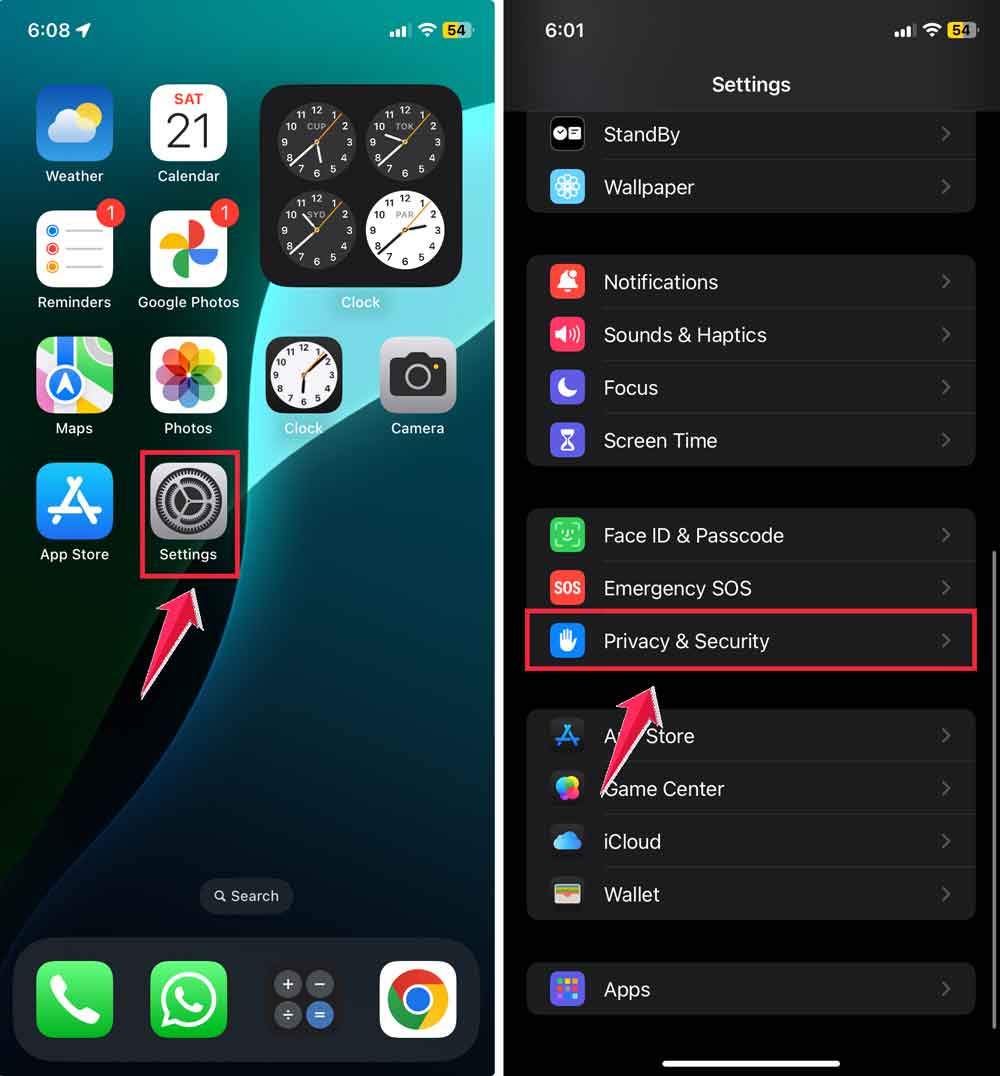
- Tap Location Services.
- Make sure the switch is turned on.
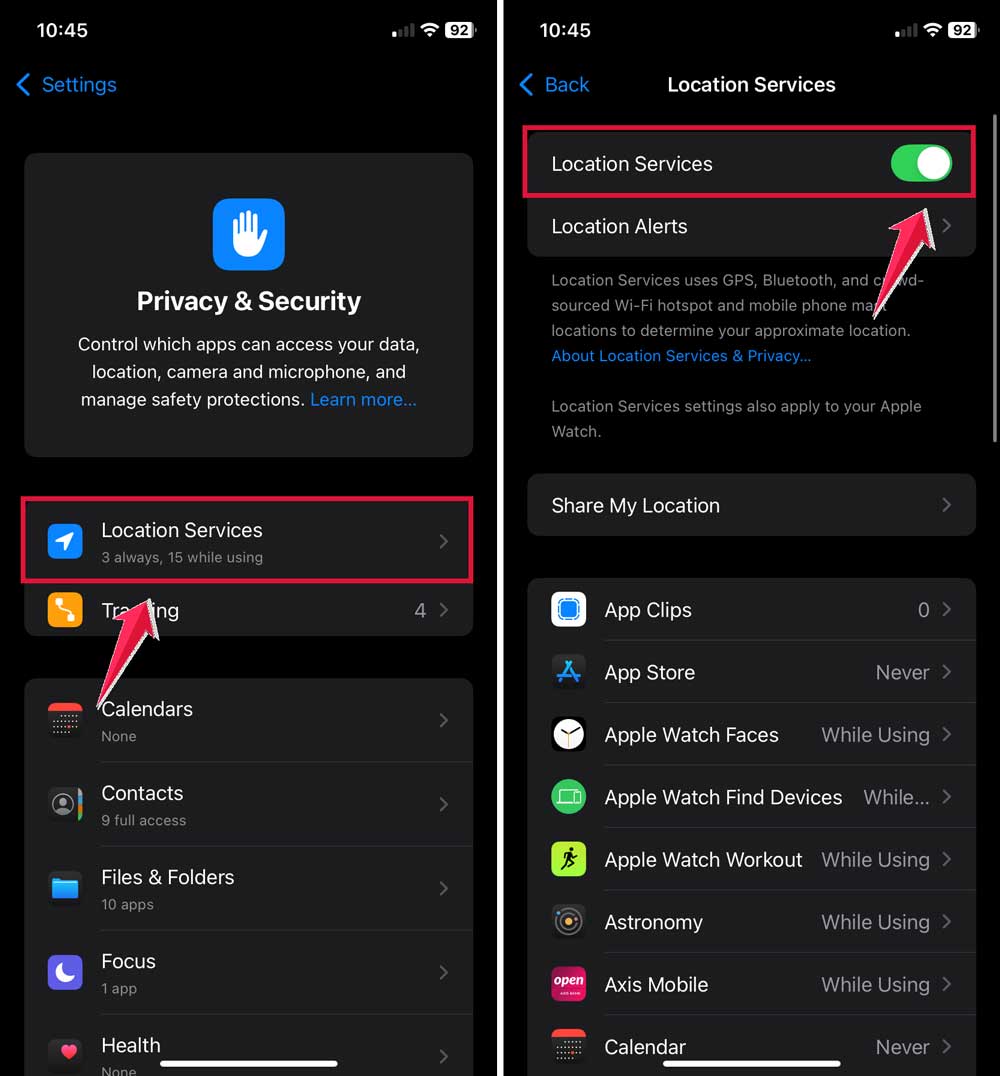
If it was off, turning it on could fix the issue right away.
#2 Keep Everything Up to Date
Software updates are more helpful than you think. They fix bugs, improve performance, and sometimes solve weird issues like this one.
To update your iPhone:
- Go to Settings.
- Tap General.

- Tap Software Update.
- If an update is available, tap Download and Install.

Once your phone is updated, check if the location sharing option is working again.
#3 Double-Check Screen Time Restrictions
Restrictions can be sneaky. You might not even remember setting them up. But if Location Sharing is restricted, that button will stay greyed out.
Here’s what to do:
- Open Settings.
- Tap Screen Time.
- Tap Content & Privacy Restrictions.
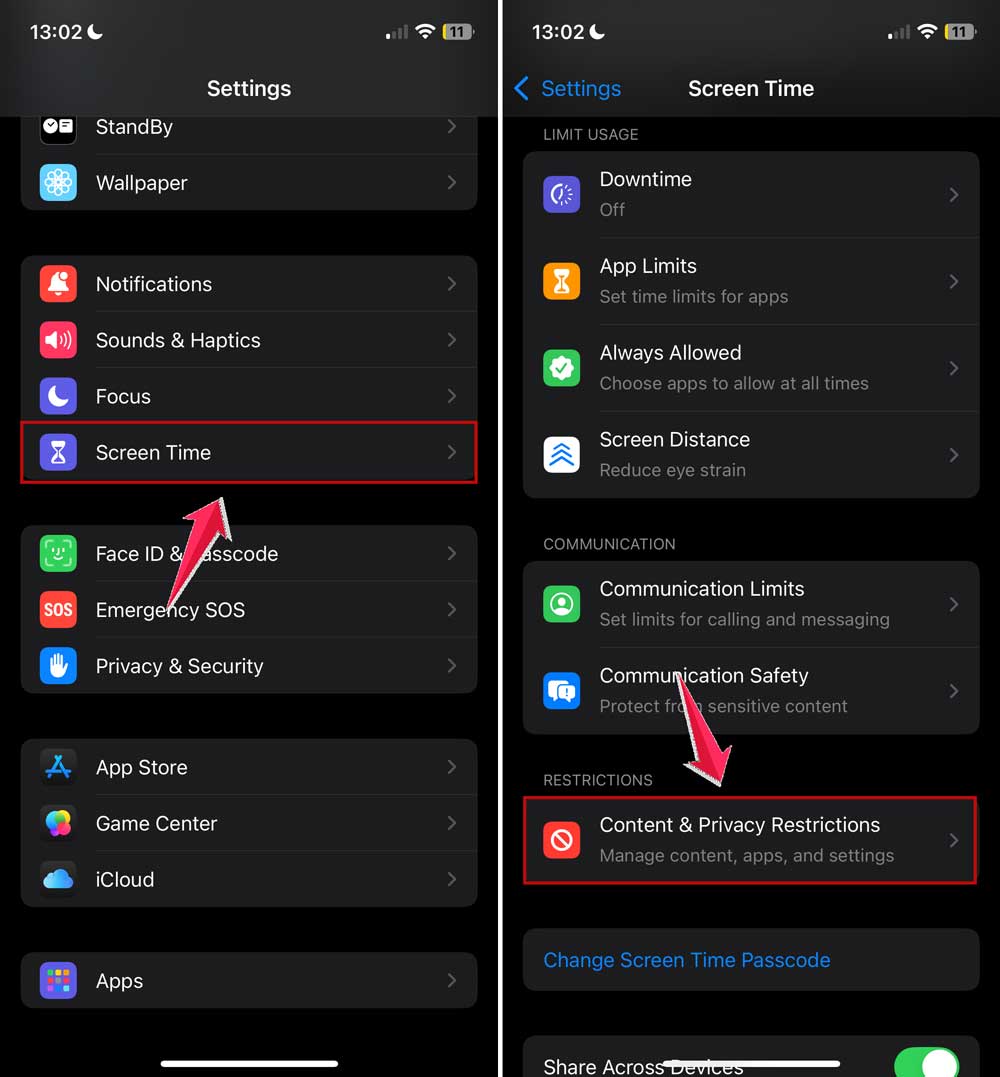
- Tap Location Services.
- Make sure it’s set to Allow.
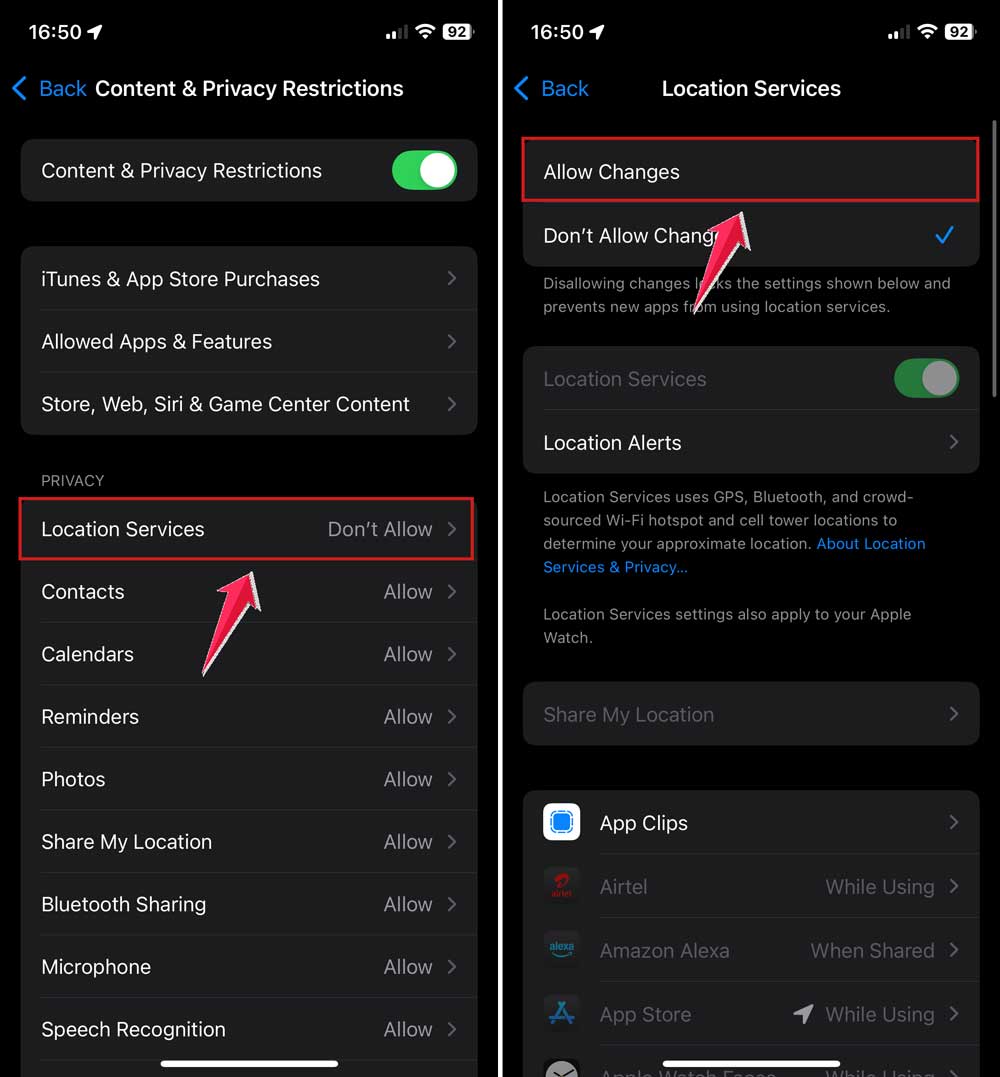
If it wasn’t allowed, changing this setting should fix the problem.
#4 Verify Your Apple ID
This one’s easy to overlook. If your Apple ID isn’t logged in properly, the feature won’t work. Let’s make sure that’s not the issue.
To check:
- Open Settings.
- Tap your name at the top.

- Make sure you’re signed in with your correct Apple ID.
If something seems off, sign out and then sign back in. That refresh can work wonders.
#5 Reset Network Settings
If nothing else works, resetting your network settings might help. It clears out old settings that could be causing issues. Don’t worry. It won’t delete your stuff, but you’ll need to reconnect to Wi-Fi afterward.
Here’s how to do it:
- Open Settings.
- Tap General.
- Tap Transfer or Reset iPhone.

- Tap Reset.
- Select Reset Network Settings.

Give your phone a minute to reset, then try sharing your location again.
Extra Tips to Make Sure Location Sharing Works Smoothly
Alright, let’s add a few more quick tips to make sure everything keeps working the way it should.
1. Turn Off Low Power Mode
When your phone is in Low Power Mode, it tries to save energy by turning off certain features, including location sharing. To turn it off:
- Go to Settings.
- Tap Battery.
- Switch off Low Power Mode.

2. Restart Your Phone
Sometimes, all your phone needs is a fresh start. A quick restart can clear out glitches and get things working again.
- Press and hold the power button and volume up button.
- Slide to power off.
- Wait a few seconds, then turn it back on.
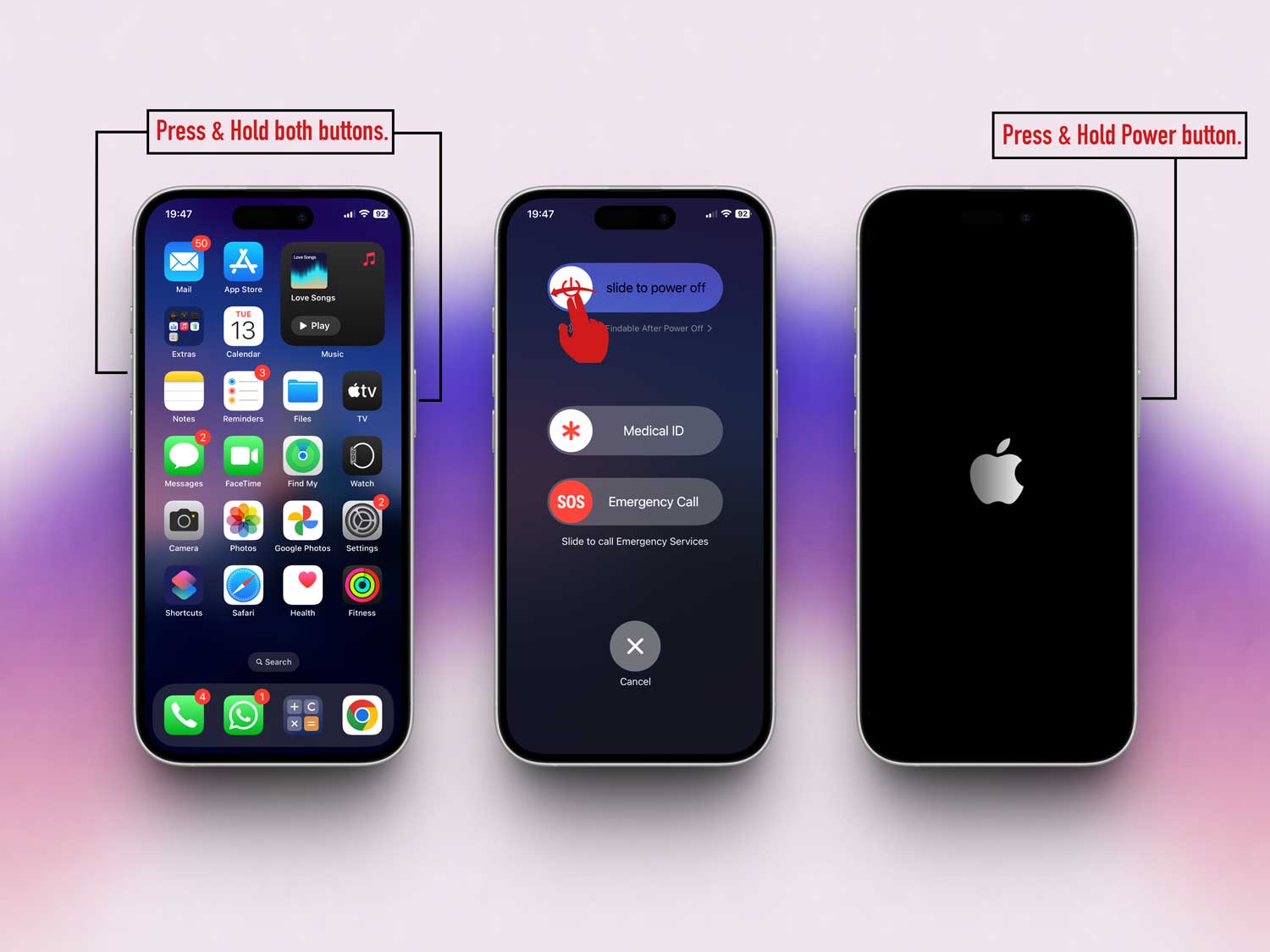
3. Check for Carrier Settings Update
Your carrier may push updates that help your phone connect better and work smoother. To check:
- Go to Settings.
- Tap General.
- Tap About.

If there’s an update, you’ll see a prompt. Just follow the instructions to install it.
The Takeaway
So, there you have it. Fixing the Share My Location greyed-out issue isn’t as scary as it seems.
Most of the time, it’s just a small setting or update that needs your attention. Start by checking if Location Services is turned on.
Then, go through each step we talked about. From making sure your software is up to date to checking your Apple ID and restrictions.
Don’t get discouraged if it doesn’t work right away. Just take it one step at a time. You’ve got this.
And, if you’ve tried everything and it’s still not working, leave a comment below. I’d love to help you out and see what else we can try together.
Got questions, tips, or just want to share what worked for you? Drop a comment below. I’d love to hear from you!