Your Mac is a fantastic machine, known for its brilliance and reliability. But let’s face it, even the best technology needs some care over time.
You might start to notice your Mac slowing down, apps freezing up, or everything taking a bit longer to load.
In this article, we’ll explore why your MacBook might be slowing down and share ten helpful tips to get it running smoothly again.
Whether you’re using your Mac for work, study, or fun, a faster computer makes everything better. So, let’s dive in and learn how to give your Mac the boost it needs!
Remember, you don’t need to be a tech expert to follow along. We’ll keep things simple and guide you through each step.
By the end of this article, you’ll have the knowledge to speed up your Mac and keep it running like new. Ready to get started? Let’s jump right in!
Why is Your Mac Running Slow?
It’s a common issue many Mac users face. As technology advances, browsers and apps demand more memory. Plus, the media files we love to keep – photos, videos, and documents – can quickly fill up your hard drive. Here’s a quick look at what might be slowing down your MacBook:
- Heavy data and media files. These could be using up about half of your Mac’s storage capacity.
- Unnecessary apps. They might be taking up another third of your space.
- Browser data. This could be occupying the remaining fifth of your storage.
9 Effective Ways to Speed Up Your Slow Mac
#1 Clean Up Background Processes
Is your Mac struggling with basic tasks? It might be running too many things in the background. Here’s what you can do:
- Open the Activity Monitor (find it in Applications > Utilities).

- Look at the Memory tab to see which programs are using the most RAM.
- Click on the % CPU column to sort processes by CPU usage.
- Close any non-essential apps you’re not using, especially those using a lot of memory or CPU.
- Pay attention to browser processes, as they can be resource-heavy.

Remember, don’t close anything you’re not sure about – it might be important for your Mac to run properly. If you’re unsure, a quick internet search about the process name can help you determine if it’s safe to close.
#2 Cool Down Your Mac
If your Mac feels hot, it might slow down to protect itself. This is called thermal throttling. Try these steps:
- Move your Mac away from direct sunlight or heat sources.
- Ensure your Mac has proper ventilation – don’t use it on soft surfaces that can block air vents.
- Close unnecessary browser tabs – they can use a lot of power.
- Turn off browser extensions you don’t need.
- Use Activity Monitor to find and close apps that are using a lot of CPU power.
- Consider using a cooling pad for your MacBook if it frequently overheats.
#3 Check for Malware
Sometimes, unwanted software can slow down your Mac. Use a trusted antivirus program to scan your Mac and remove any malware it finds. Some reliable options include:
- Malwarebytes for Mac
- Bitdefender Virus Scanner for Mac
- Avast Security for Mac
These programs offer free versions that can help you detect and remove most malware threats.
#4 Manage Your Storage
Having too many files can slow down your Mac. Here’s what you can do:
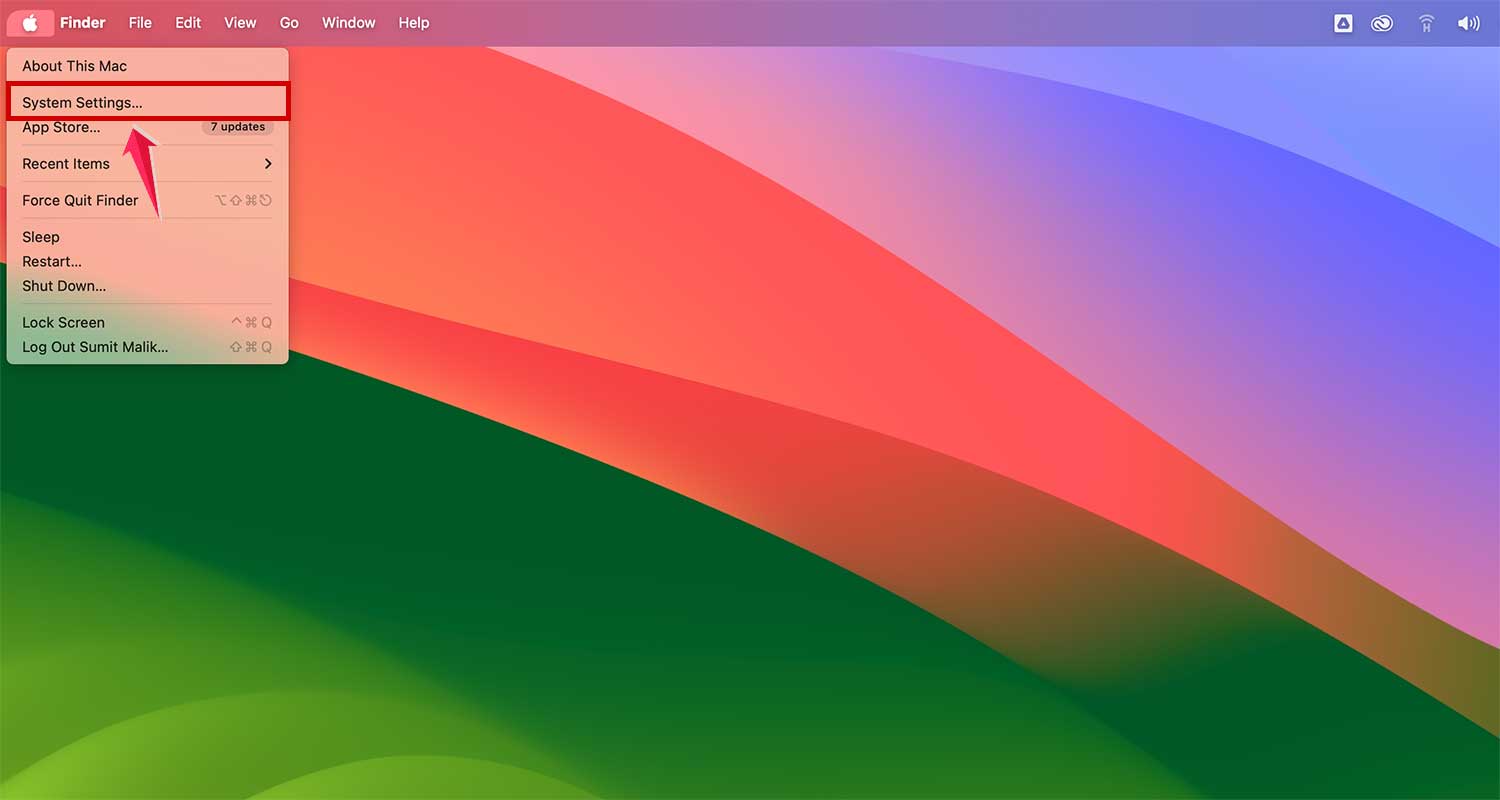
- Go to Apple menu > System Settings
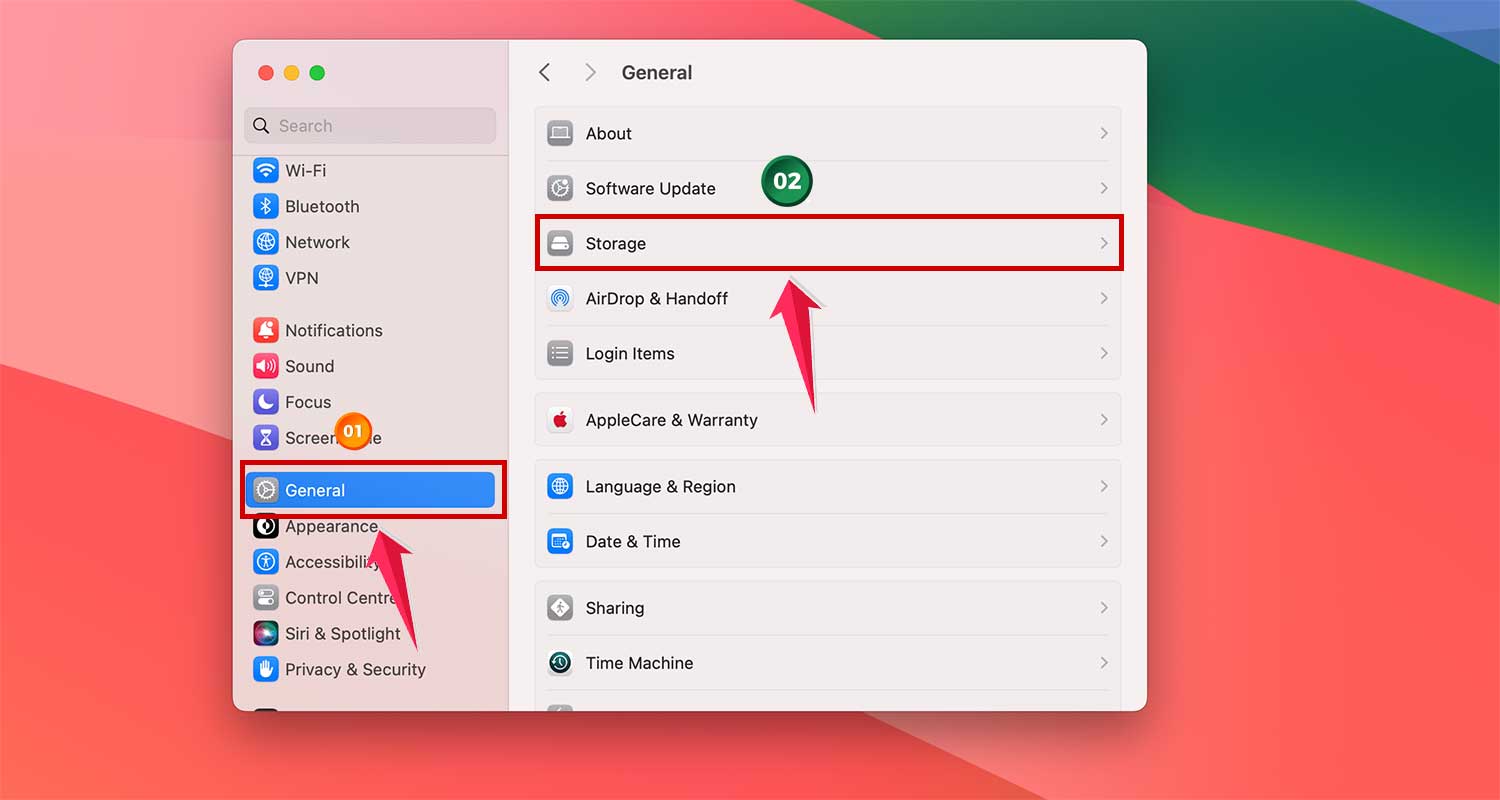
- Then go to General > Storage
- Use iCloud to store files you don’t need immediate access to.
- Click on “Optimise” and Enable Optimize Mac Storage to automatically remove locally stored Apple TV shows and movies when storage is needed.

- Delete large files you don’t need anymore, like old movies or downloads.
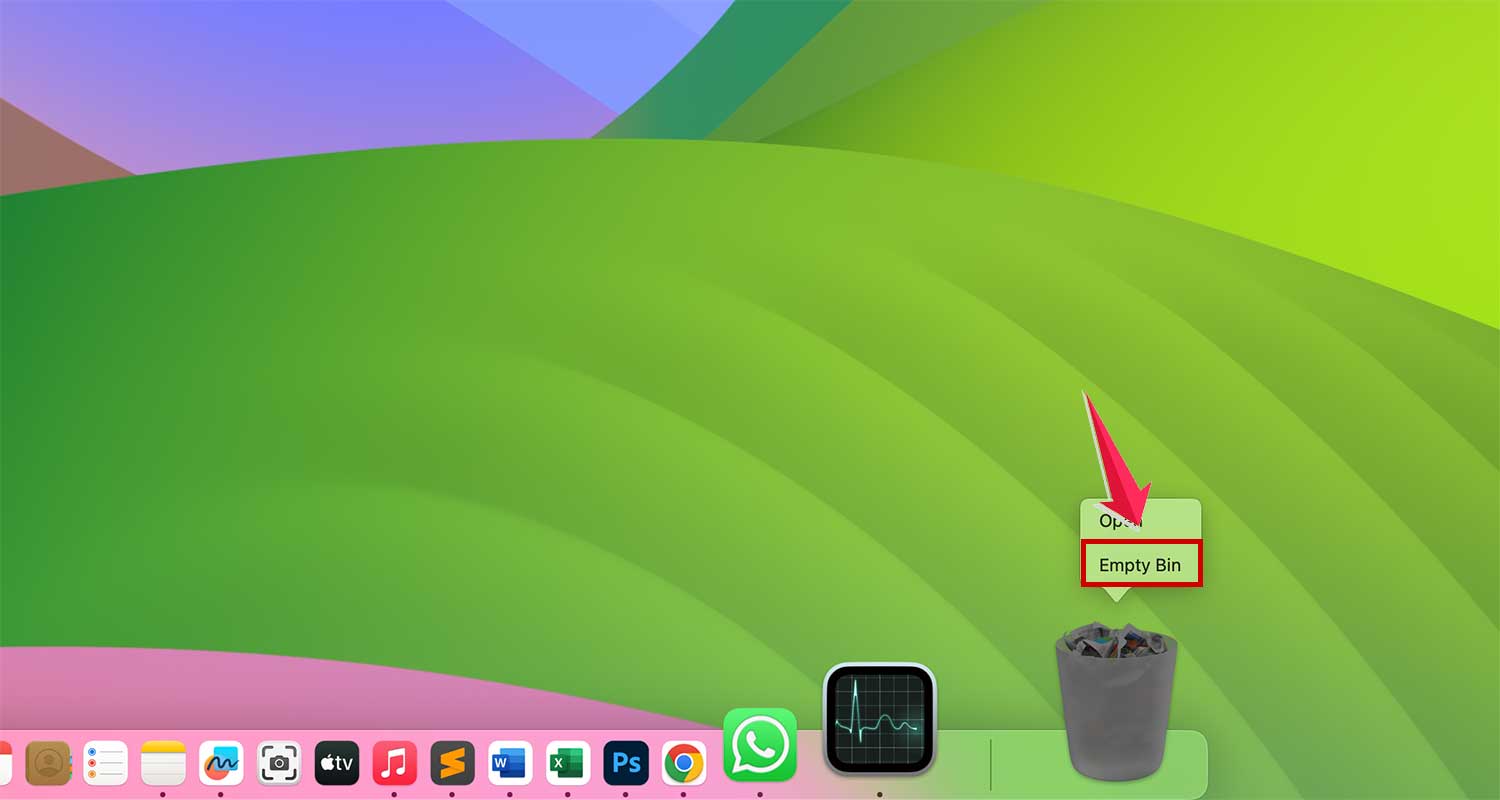
- Empty your Bin regularly.
- Consider using a third-party disk space analyzer like DaisyDisk to visualize your storage usage.
#5 Free Up RAM
RAM helps your Mac run apps smoothly. If you’re running low, try this:
- Open Terminal (Press Command + Space and search Terminal, Press Return).
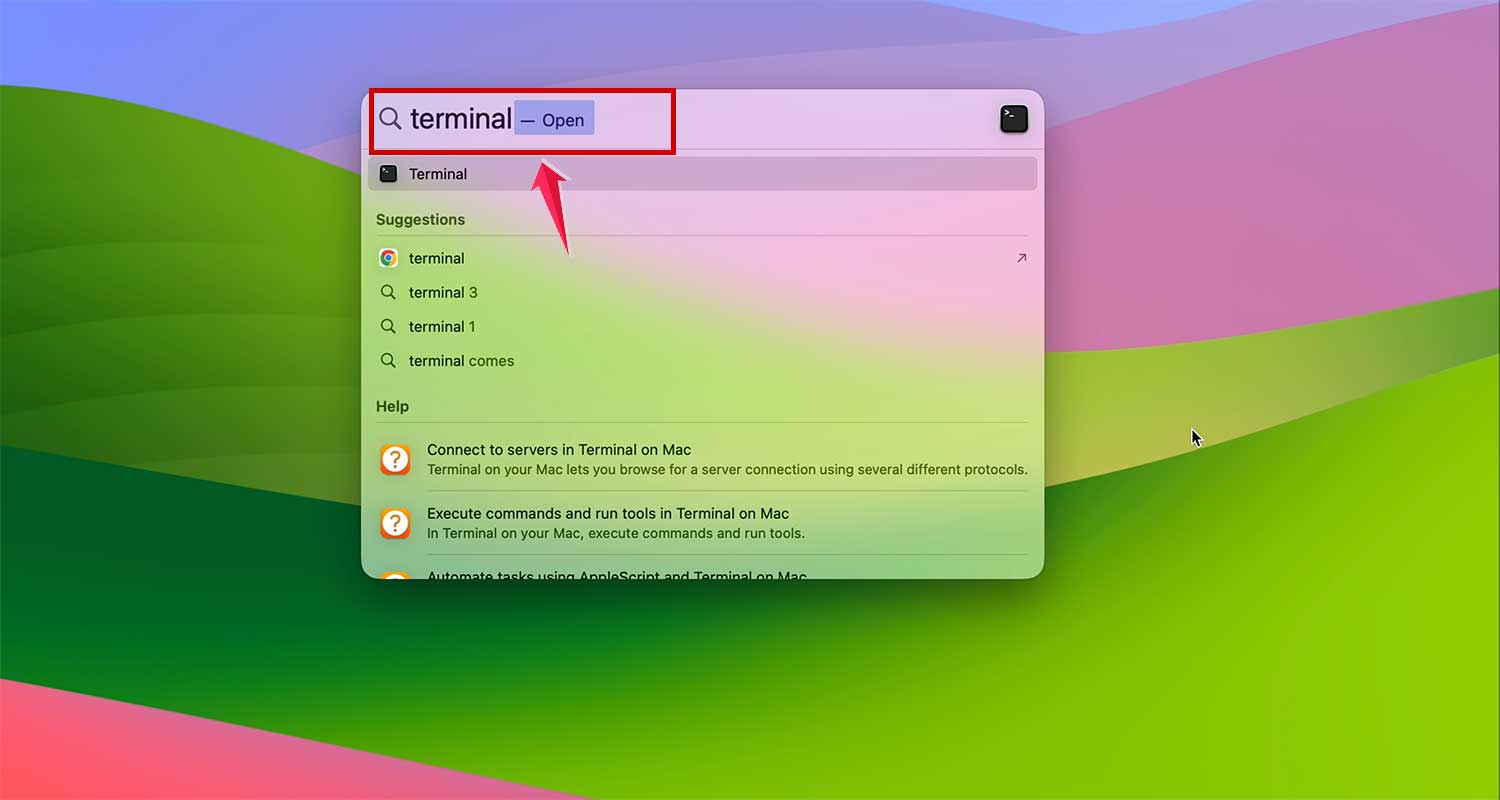
- Type
sudo purgeand press Return. - Enter your password when asked.
This clears out unused memory and can make your Mac feel faster. For a more user-friendly approach, consider using apps like Memory Clean 3, which can help manage your RAM with a simple interface.
#6 Improve Your Internet Connection
Sometimes, a slow internet connection can make your Mac feel slow. Try these tips:
- Use a wired ethernet connection if possible for more stable speeds.
- Move closer to your Wi-Fi router or consider a Wi-Fi extender for better coverage.
- Reset your router if you’re having connection issues.
- Close browser tabs you’re not using.
- Consider upgrading to a newer Wi-Fi standard (like Wi-Fi 6) if your current setup is old.
- Use your Mac’s built-in Wireless Diagnostics tool to identify and solve Wi-Fi issues.
#7 Remove Unused Apps
Apps you don’t use can take up space and slow down your Mac. Here’s how to remove them:
- Go to your Applications folder.
- Find apps you don’t use and right-click & move them to the Bin.
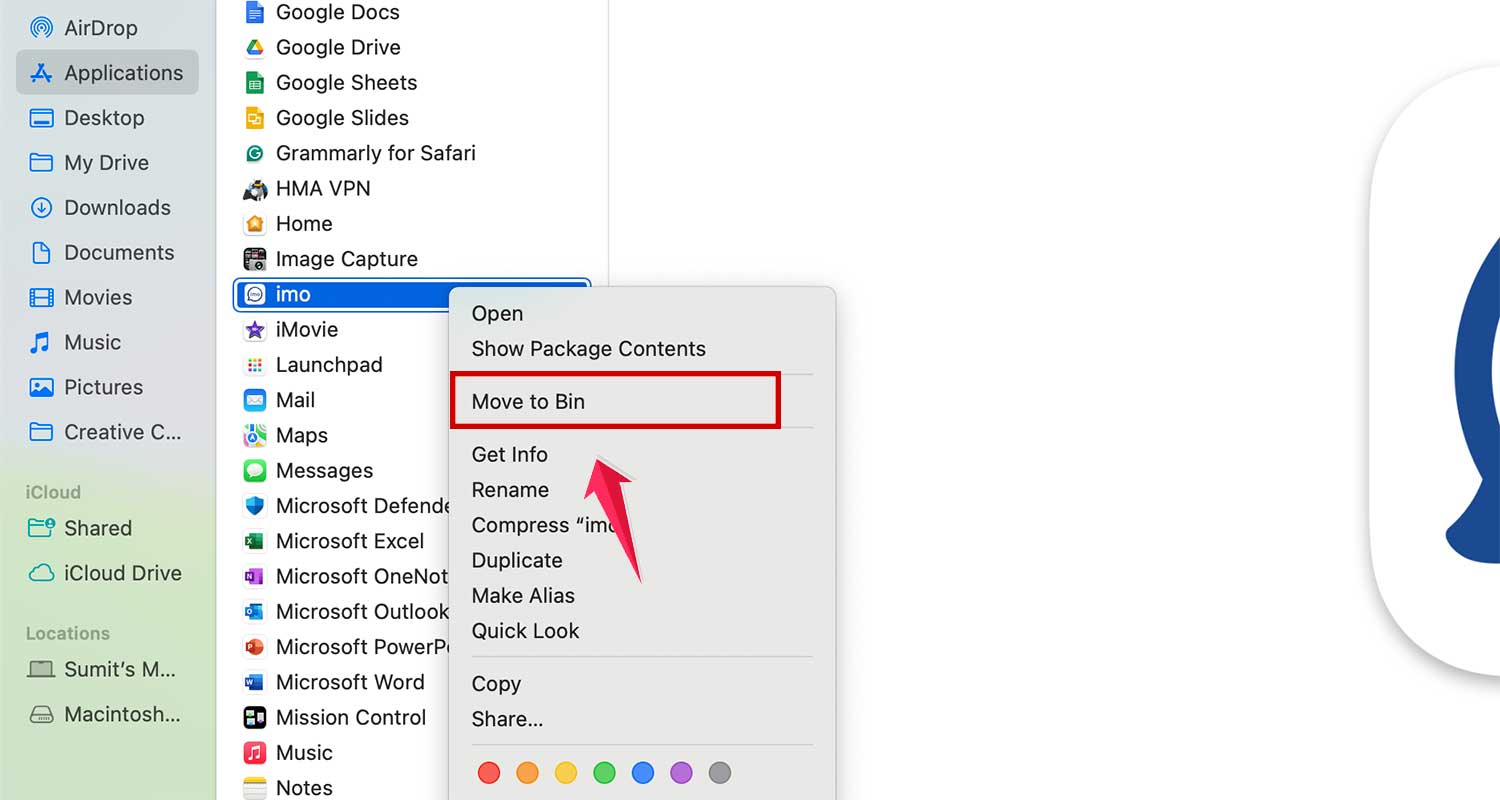
- Empty the Bin to completely remove them.
- Consider using the built-in storage management tool to find and remove large apps.
#8 Control Startup Apps
Too many apps starting when you turn on your Mac can slow it down. Here’s how to fix that:
- Go to System Settings > General > Login Items.
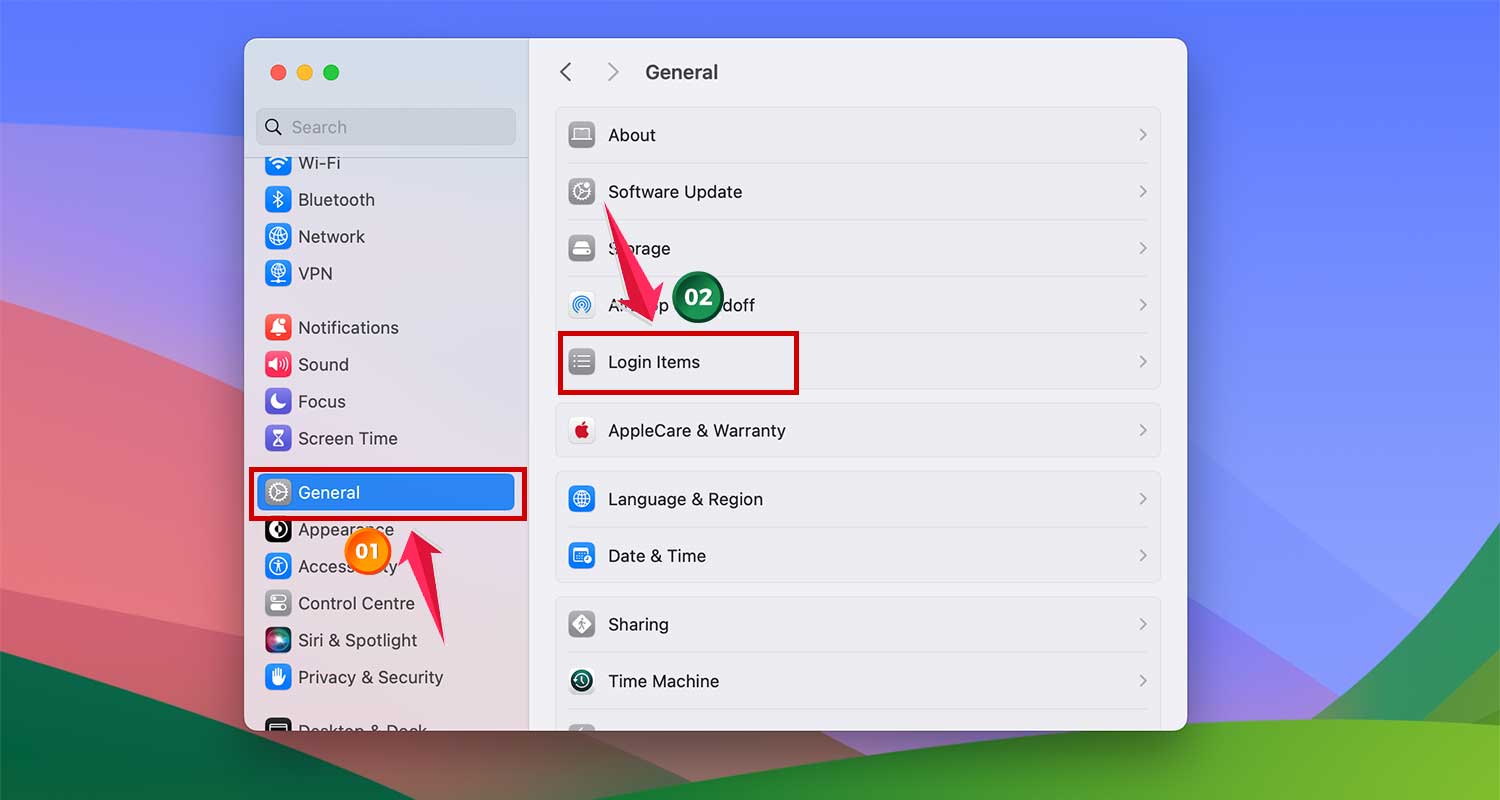
- Look at the list of apps that start automatically.
- Turn off any apps you don’t need to start right away.
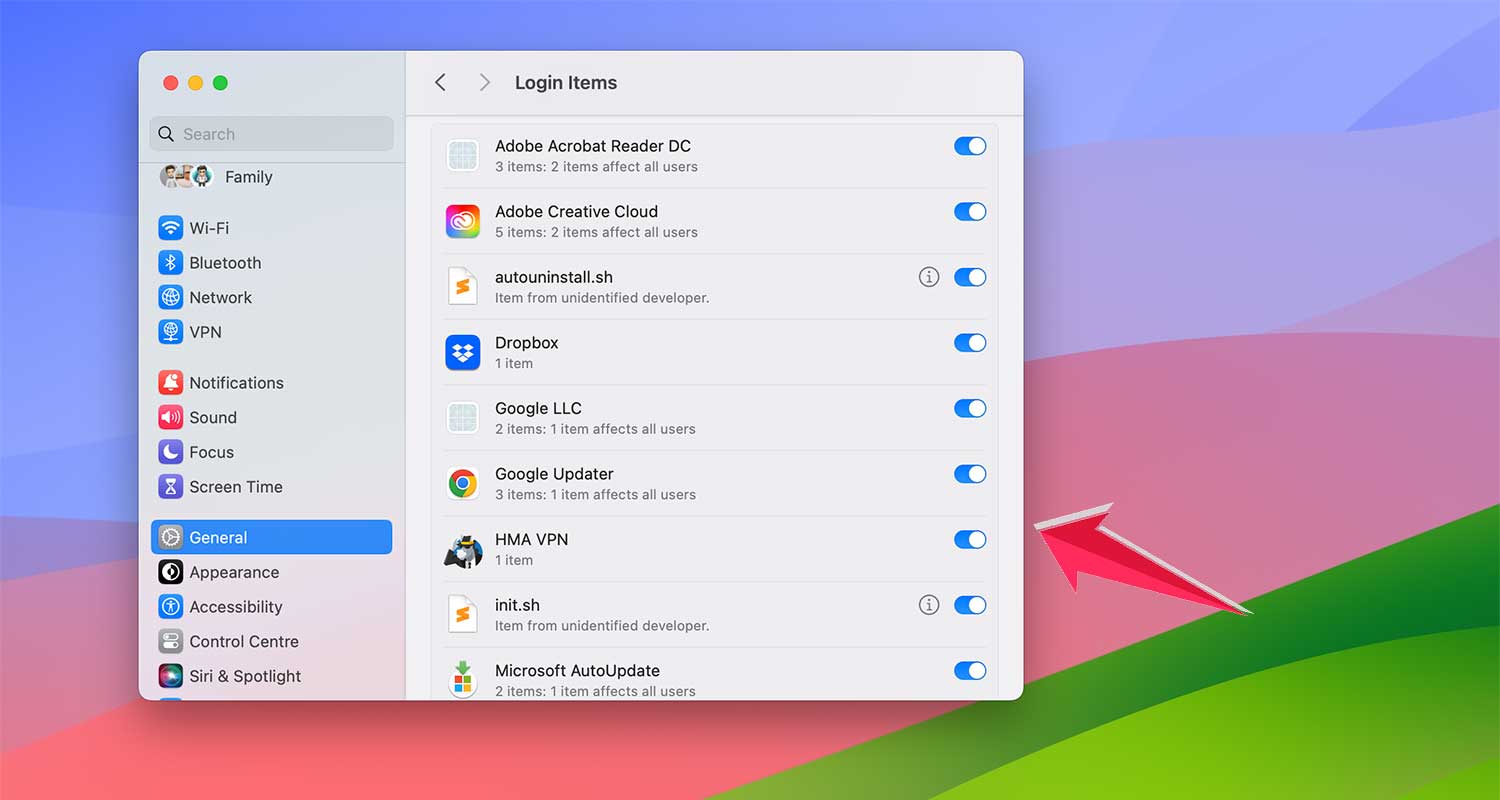
- Check for hidden login items as well, which might not appear in this list.
- Use a tool like EtreCheck to get a comprehensive list of all items that load at startup.
#9 Reduce Visual Effects
Fancy animations can slow down your Mac. Try these settings:
- Go to System Settings > Desktop & Dock.
- Turn off options like “Magnification” and “Animate opening applications”.

- Change “Minimize windows using” to “Scale effect” instead of “Genie effect”.

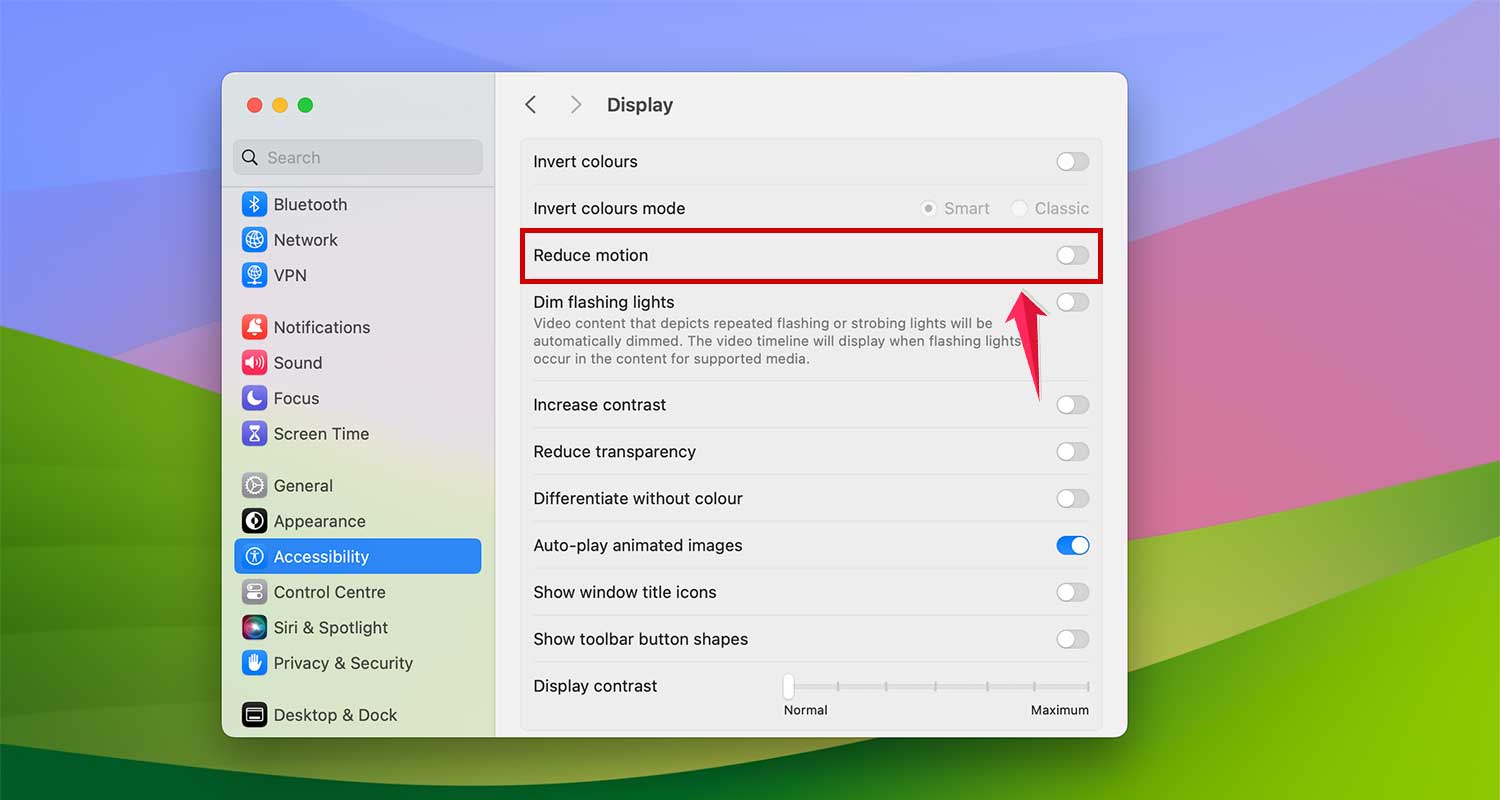
- In Accessibility settings, go to Display.

- Now Enable “Reduce Motion”.
- Consider using a simpler wallpaper, as complex images can use more resources.
Final Thoughts
By applying these nine simple strategies, you can breathe new life into your Mac without costly upgrades. Regular maintenance is crucial for optimal performance.
From managing background processes to optimizing storage and reducing visual effects, each step contributes to a smoother experience. Remember, a well-maintained Mac serves you better and longer.
We’d love to hear from you! Have you tried any of these methods? Which worked best for you? Do you have any additional tips to share? Your experiences and insights could help other Mac users. Please leave a comment below and join the discussion!