Is your iPhone giving you a headache because you can’t hear callers unless you’re on speaker? Don’t worry, you’re not alone.
This frustrating issue affects many iPhone users, and it can make private conversations nearly impossible.
Picture this: You’re trying to take an important call in a crowded place, but you can’t hear a thing unless you switch to speakerphone.
Suddenly, everyone around you becomes an unwilling audience to your conversation. Not ideal, right?
There are several reasons why this might be happening to your iPhone. It could be a simple software glitch, a settings issue, or even a hardware problem.
In this article, we’ll walk you through some quick and easy steps to get your iPhone’s audio working properly again.
Whether you’re tech-savvy or not, you’ll find simple, straightforward fixes that you can try immediately.
So, let’s get started and get you back to enjoying clear, private phone calls on your iPhone.
How to fix your iPhone when you can’t hear callers without putting on speaker
Let’s fix that frustrating iPhone issue where you can’t hear callers without using the speaker. It’s a common problem, but don’t worry. We’ve got some solutions for you.
Fix 1: Restart your iPhone
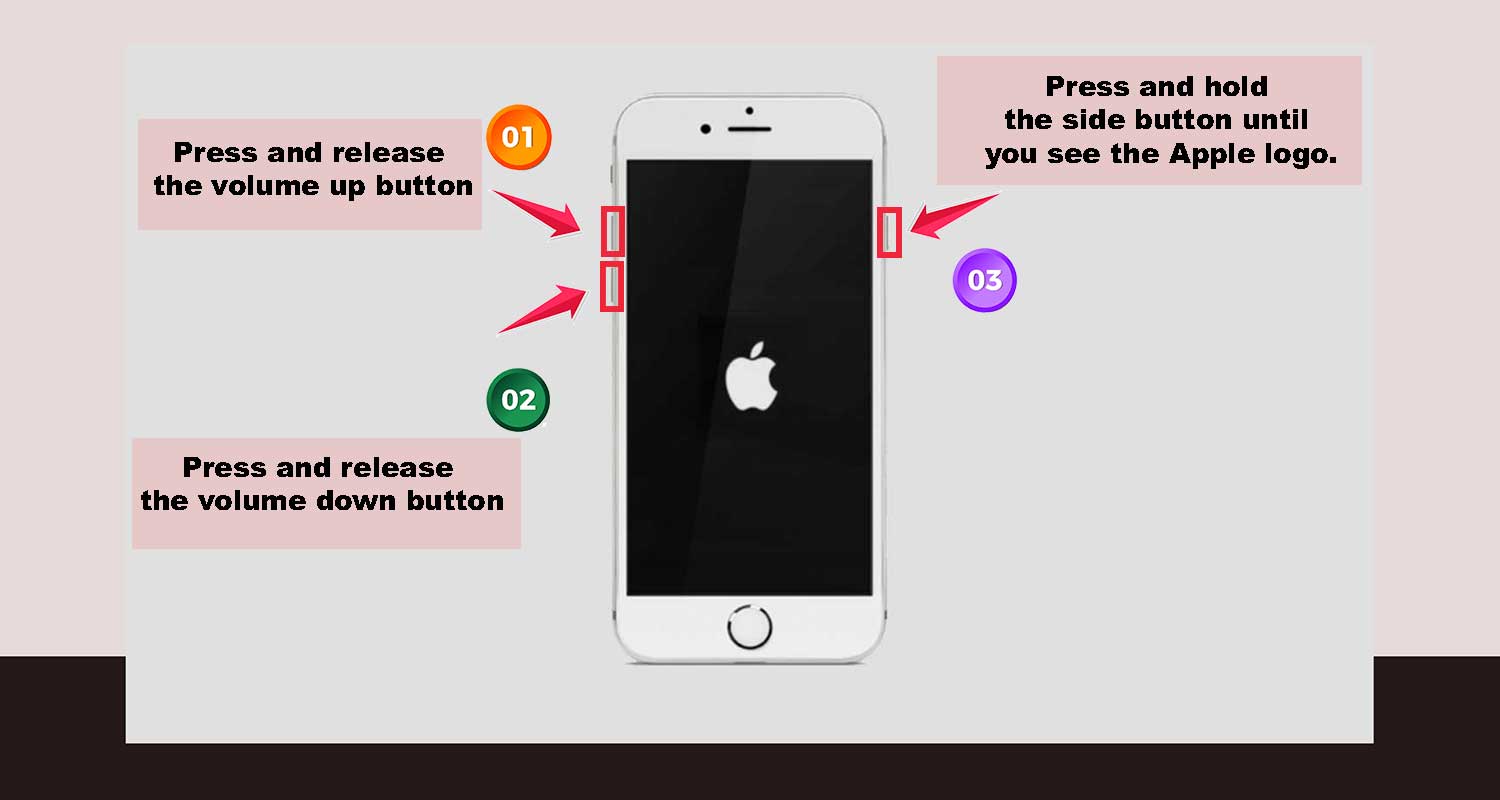
Sometimes, your iPhone just needs a quick reboot. Here’s how you can do a force restart:
For iPhone 8 and newer models:
- Press and release the volume up button.
- Press and release the volume down button.
- Press and hold the side button until you see the Apple logo.
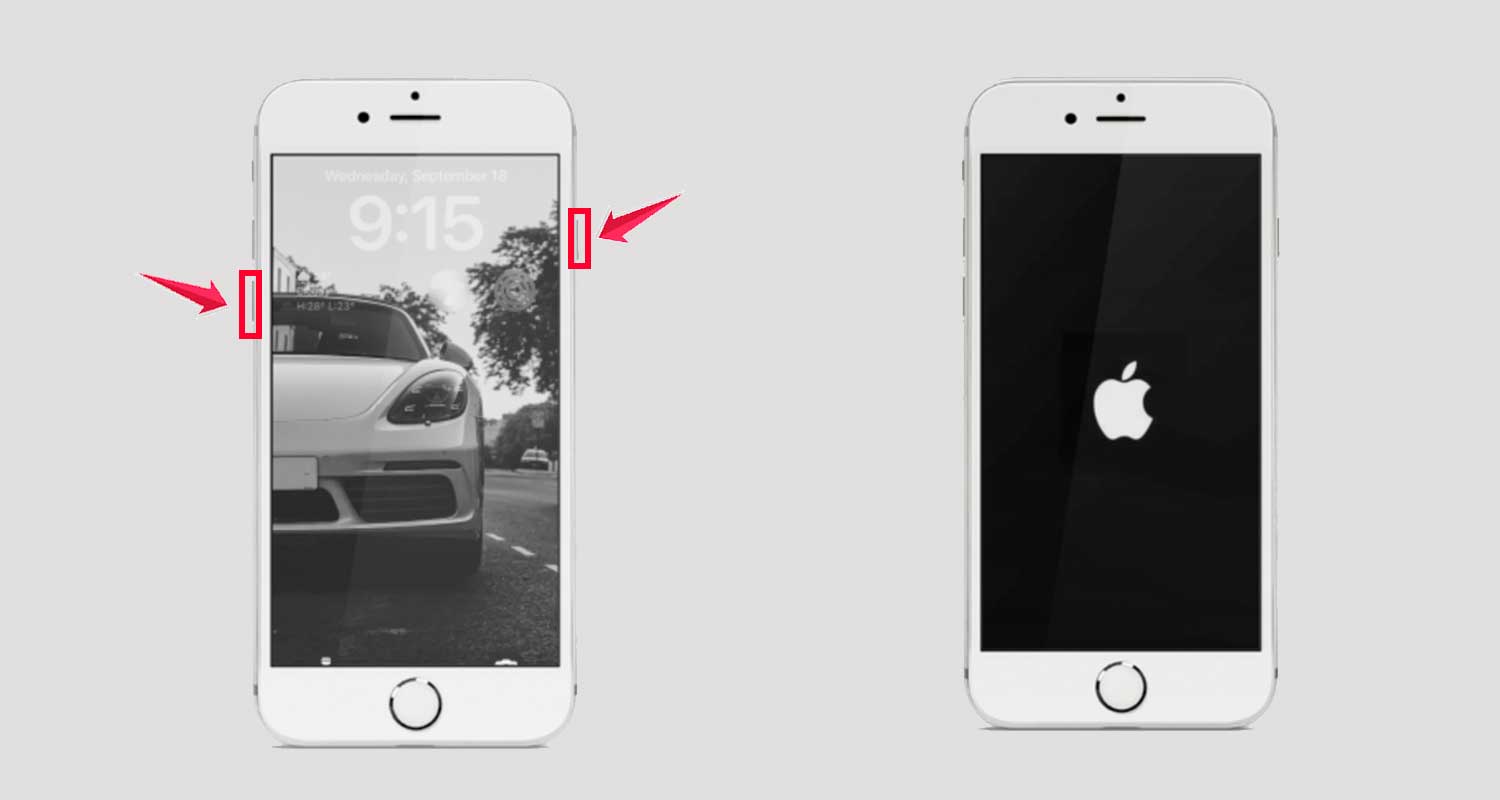
For iPhone 7:
- Press and hold both the volume down button and the power button.
- Keep holding until the Apple logo appears.
For iPhone 6s or SE (1st generation):
- Press and hold both the home button and the power button.
- Release when you see the Apple logo.

Fix 2: Check your Bluetooth connections
Your iPhone might be trying to send audio to a paired Bluetooth device. Here’s how to check:
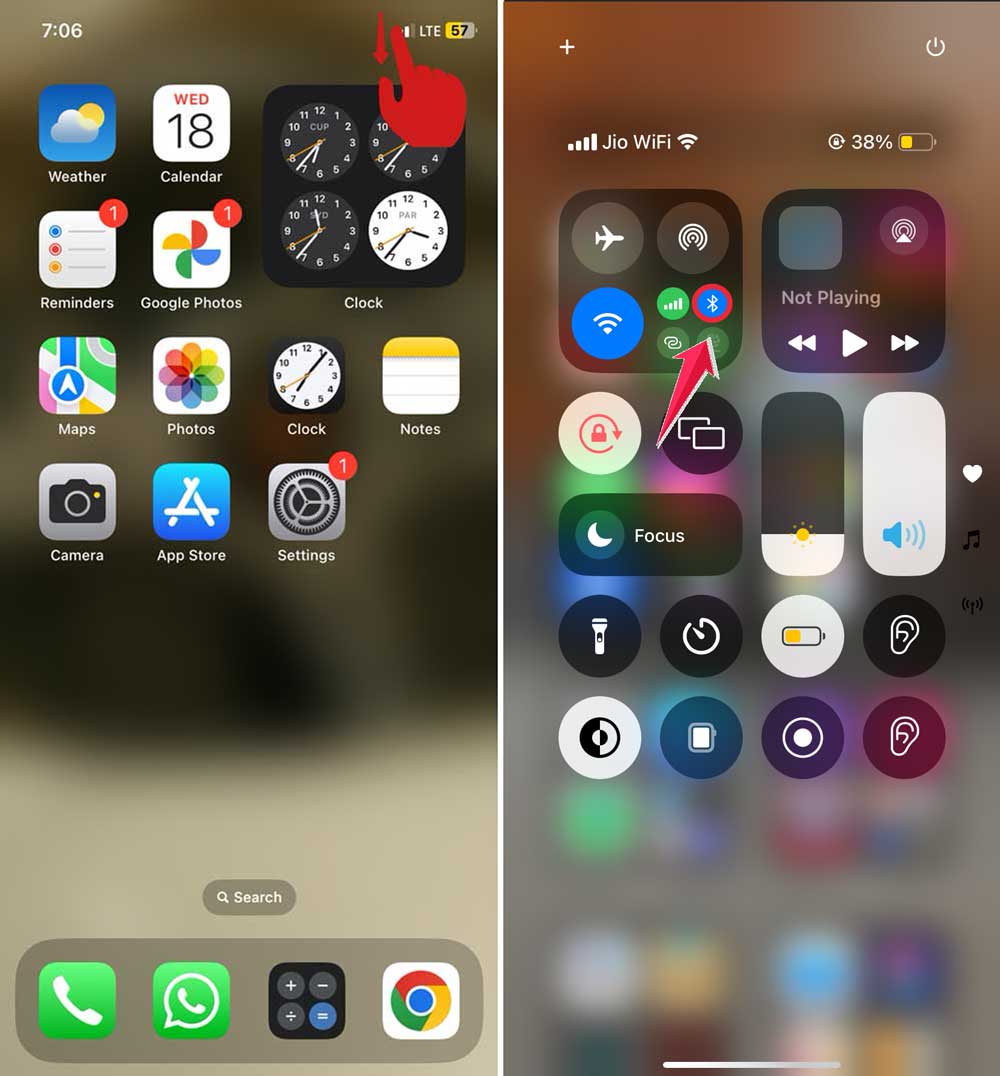
- Open the Control Center by swiping down from the top-right corner (or up from the bottom on older models).
- Look for the Bluetooth icon. If it’s blue, tap it to turn it off.
- Try making a call to see if you can hear the caller now.
Fix 3: Adjust your accessibility settings
Sometimes, your iPhone’s audio settings need a tweak:
- Go to “Settings” on your iPhone.
- Tap on “Accessibility“.

- Find and tap on “Audio/Visual“.
- Turn off “Phone Noise Cancellation“.

- Go back to “Accessibility” and tap on “Hearing Devices“.
- Turn on “Hearing Aid Compatibility“.

Fix 4: Clean your iPhone’s earpiece
Dust and debris can muffle the sound. Here’s how to clean it safely:
- Use a soft, dry cloth to gently wipe the earpiece.
- If needed, use a soft-bristled brush (like an old toothbrush) to carefully remove stubborn dirt.
- You can also try using a small puff of air to blow away any particles.
Fix 5: Check if your iPhone is stuck in headphone mode
Sometimes, your iPhone might think headphones are plugged in when they’re not. This is a known issue when iPhones get stuck in headphone mode:
- Try restarting your iPhone.
- If that doesn’t work, try plugging in headphones and then unplugging them.
- If the problem persists, you might need to clean your headphone jack (if your iPhone has one) or visit a service center.
Fix 6: Reset your iPhone
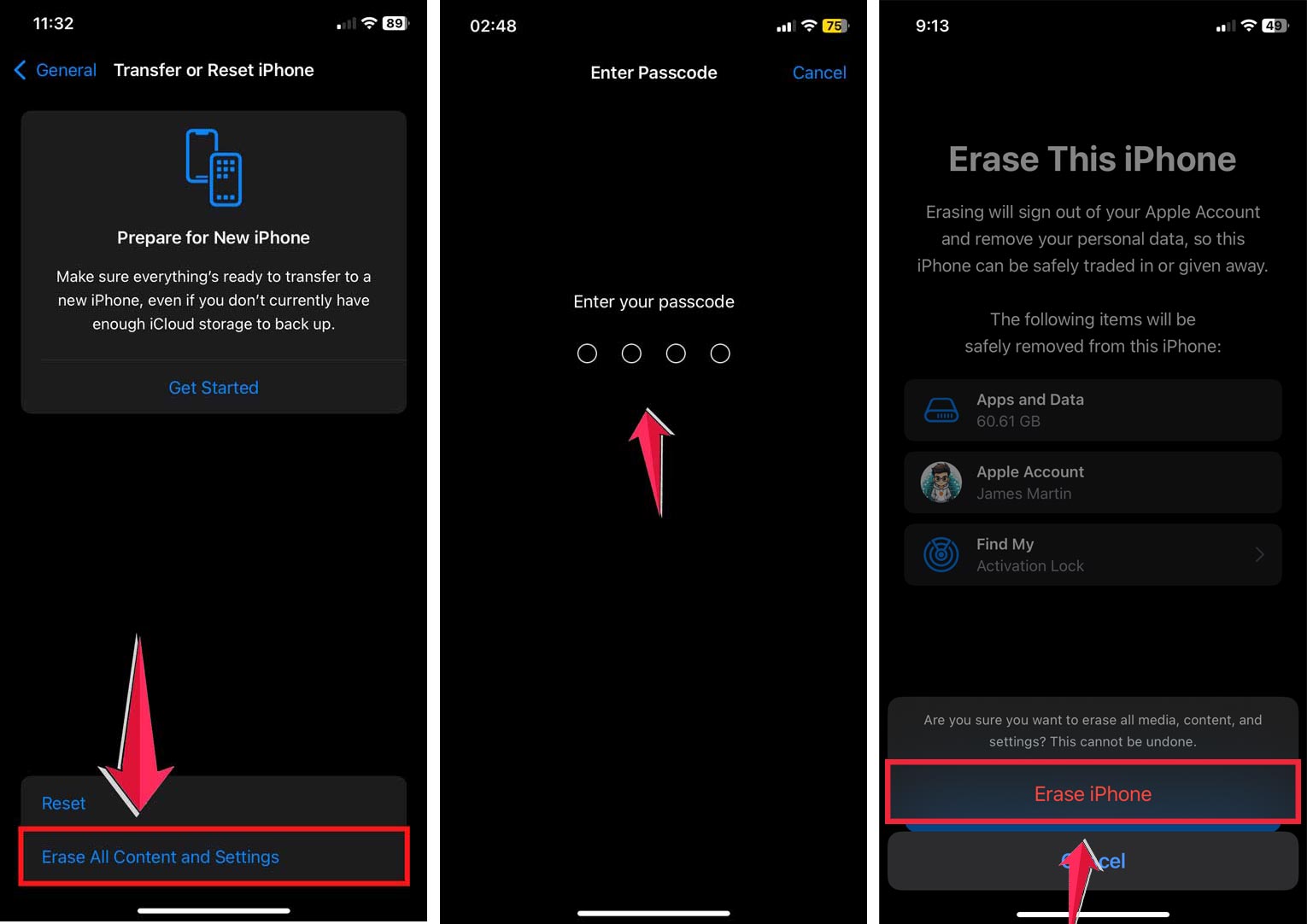
If nothing else works, you might need to reset your iPhone. Remember, this will erase all your data, so back up your device first:
- Go to “Settings” > “General” > “Transfer or Reset iPhone“.

- Tap “Erase All Content and Settings“.
- Follow the prompts to complete the reset.
Fix 7: Update your iOS
- Go to “Settings” > “General” > “Software Update.”
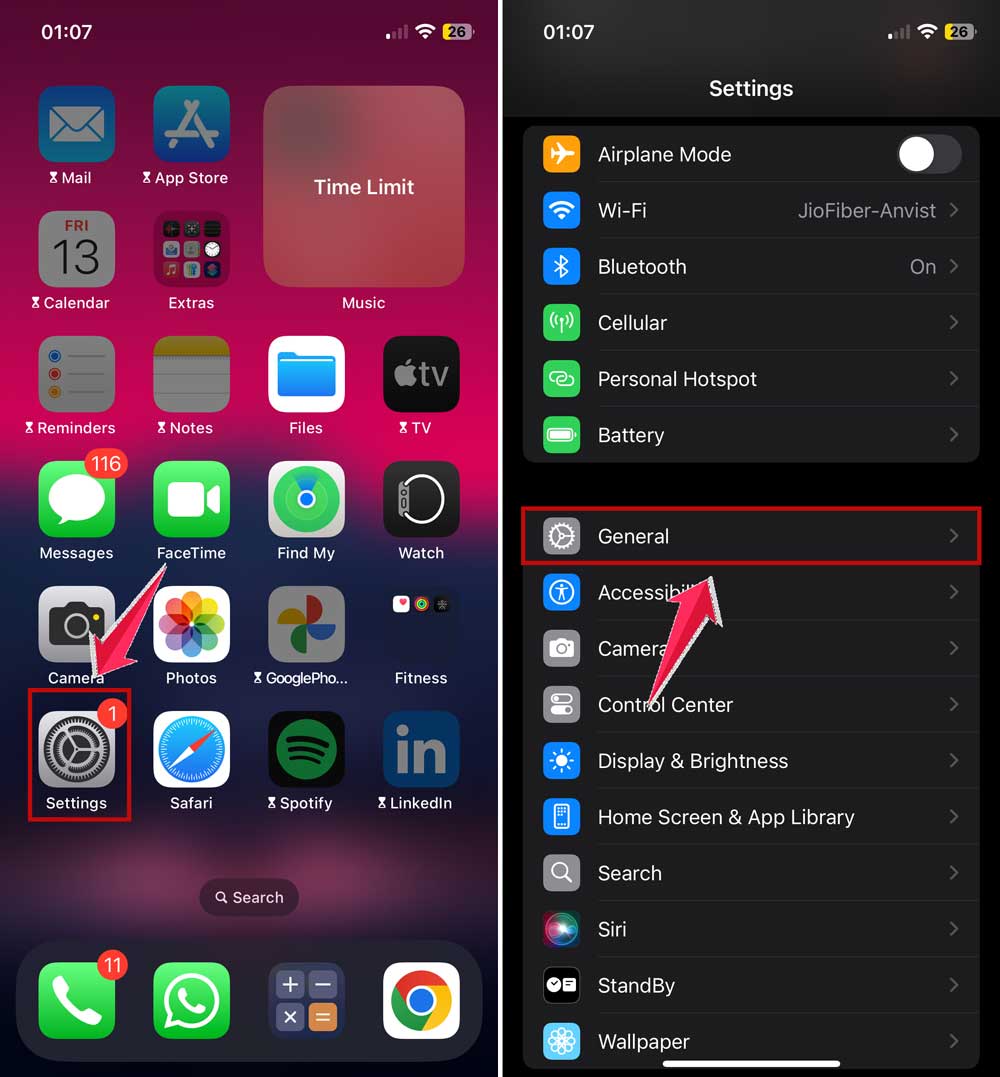
- If an update is available, download and install it.
- Make sure your iPhone is connected to Wi-Fi and has enough battery life before updating.

Fix 8: Check for Damaged SIM Card
- Power off your iPhone.
- Remove the SIM card carefully.
- Check for any visible damage or debris. A damaged SIM could trigger errors like iPhone says no SIM card installed, which affects calls too.
- Clean the SIM card gently with a soft, dry cloth.
- Reinsert the SIM card and turn on your iPhone.
Fix 9: Disable Phone Noise Cancellation
- Go to “Settings” > “Accessibility” > “Audio/Visual.”
- Toggle off “Phone Noise Cancellation.”
Fix 10: Check Call Audio Routing
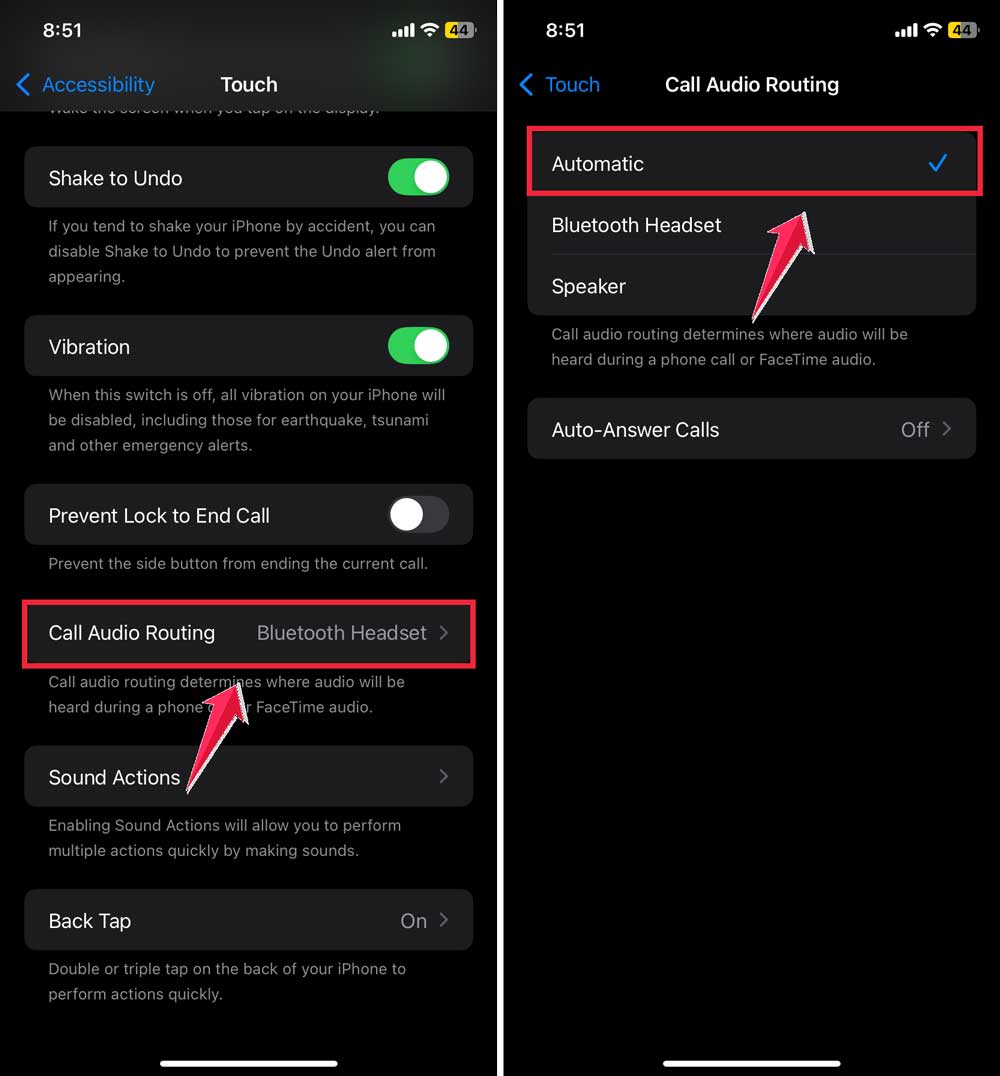
- Go to “Settings” > “Accessibility” > “Touch“.

- Scroll down to “Call Audio Routing“.
- Make sure it’s set to “Automatic” or “Receiver“.
Fix 11: Disable Bluetooth Low Energy Audio
- Go to “Settings” > “Accessibility” > “Audio/Visual“.
- Toggle off “Bluetooth Low Energy Audio“.
Fix 12: Reset Network Settings
- Go to “Settings” > “General” > “Transfer or Reset iPhone“.
- Click on “Reset“.
- Tap “Reset Network Settings“.
- Enter your passcode if prompted.

Resetting network settings can also help fix iPhone call failures that might be related to audio issues.
If you’ve tried all these steps and you’re still having trouble, it might be a hardware issue. In that case, it’s best to take your iPhone to an Apple Store or authorized service provider for professional help.
Remember, these fixes are meant to solve software-related issues.
If your iPhone has physical damage or a hardware problem, you’ll likely need professional repair services.
The takeaway
When your iPhone won’t let you hear callers unless you’re on speaker, it can be really annoying. But don’t worry. There are several ways to fix this problem.
We’ve covered a range of solutions, from simple restarts to adjusting settings and cleaning your device.
Remember, sometimes the easiest fix, like restarting your iPhone or checking your Bluetooth connections, can solve the problem.
If those don’t work, try cleaning your earpiece or adjusting your accessibility settings.
Many people think they need to rush to a repair shop as soon as they have this issue. But as you’ve seen, there are plenty of things you can try at home first. These fixes often work and can save you time and money.
If you’ve tried all these steps and still can’t hear your callers, don’t get discouraged. It might be time to visit an Apple Store or authorized service provider. They have the tools and expertise to tackle more complex issues.
We’d love to hear your thoughts! How did these fixes work for you? Share your experience in a comment below.