Ever been watching a video and suddenly notice that the sound from your AirPods doesn’t match the lips on the screen? So annoying, right? It’s like watching one of those old movies where the voice and mouth don’t line up. Not fun at all.
This problem is called audio lag. It happens when there’s a delay between what you’re seeing and what you’re hearing. Even a small delay can mess up your whole experience, whether you’re watching a movie or chatting with someone on a video call.
Now you might be thinking, why does this even happen? Well, it’s usually because of small issues like a bad wireless connection, your device getting a little too old, or even your AirPods running low on battery. Sometimes, it’s just a pesky software bug causing trouble behind the scenes.
But don’t worry — you’re not stuck with it. I’m here to help you fix it quickly. Stick with me, and we’ll get your AirPods back in perfect sync. Let’s jump into it!
What causes AirPods audio to lag?
Alright, before we fix it, let’s understand what’s going wrong. Knowing the cause helps you fix it faster.
1. Wireless connection can be tricky
Sometimes it’s just the Bluetooth connection acting up. You know how your phone sometimes struggles between Wi-Fi and mobile data?
AirPods can have those little hiccups too. A weak or jumpy Bluetooth signal can cause the sound to lag behind the video.
2. Older devices aren’t always best friends
If you’re using an older phone or tablet with your AirPods, they might not be the perfect match. Compatibility issues can pop up.
Older devices might not handle the latest AirPods features well, and that’s when you start noticing delays.
3. Keep your AirPods fully charged
Batteries don’t last forever, and when they get low, performance drops too. A low battery can easily cause audio delays.
Keeping your AirPods charged up can save you from a lot of frustration.
4. Software bugs like to sneak in
Sometimes, it’s not your AirPods or your phone. It’s the software messing things up.
Outdated apps or system software can have bugs that cause lag. Keeping everything updated helps avoid these sneaky problems.
Now that you know what could be causing the lag, let’s move on to the fun part — fixing it!
How to get your AirPods in sync
Alright, now that we know the causes, let’s fix the problem step-by-step. I’m going to walk you through the easiest solutions first.
#1: Check your Bluetooth connection
Sometimes a fresh connection is all you need. If the Bluetooth connection is weak, your AirPods won’t sync properly.
Here’s what you can do:
- Open your device’s Settings.
- Tap Bluetooth and find your AirPods.

- Tap the little “i” next to your AirPods name.
- Choose Forget This Device.
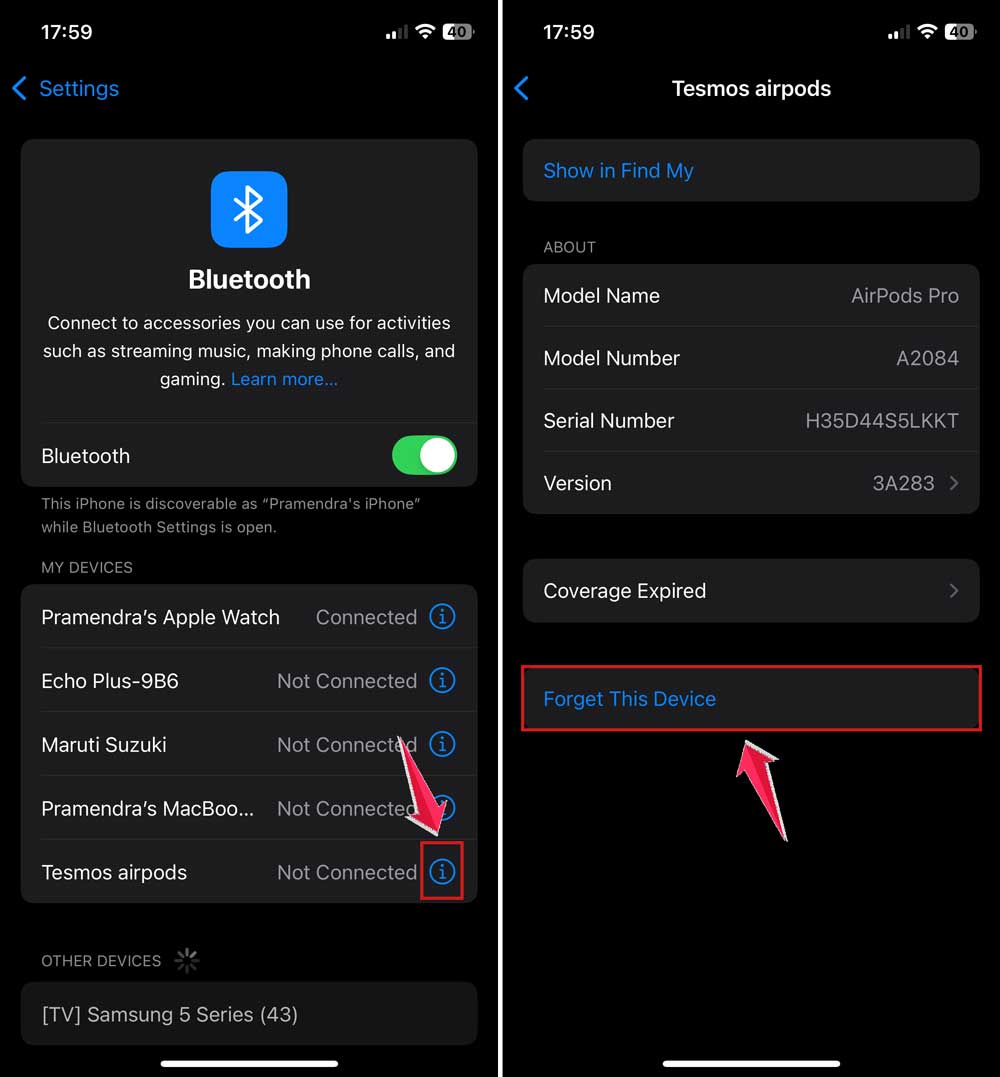
Now, turn off Bluetooth, wait for about 10 seconds, and turn it back on. Reconnect your AirPods. This refreshes the connection and often fixes the lag.
#2: Update your devices
Using old software can cause a ton of problems, including sound lag. Let’s make sure everything is updated.
Here’s how you check for updates:
- Go to Settings on your phone or tablet.
- Tap General.

- Then tap on Software Update.
- If you see an update available, tap Update Now.

Also, make sure the apps you use for watching videos (like YouTube, Netflix, or FaceTime) are updated too. Bugs love old apps!
#3: Reset your AirPods
Sometimes your AirPods just need a fresh start. Resetting them can clear out any small glitches causing the delay.
Here’s how:
- Put your AirPods back into their charging case.
- Keep the lid open, and press and hold the setup button on the back of the case.
- Hold it until the status light flashes amber and then white.
Now, reconnect them to your device as if they’re brand new. Easy, right?
#4: Restart your device
I know it sounds basic, but restarting your phone or tablet can fix a lot of random glitches, including audio lag.
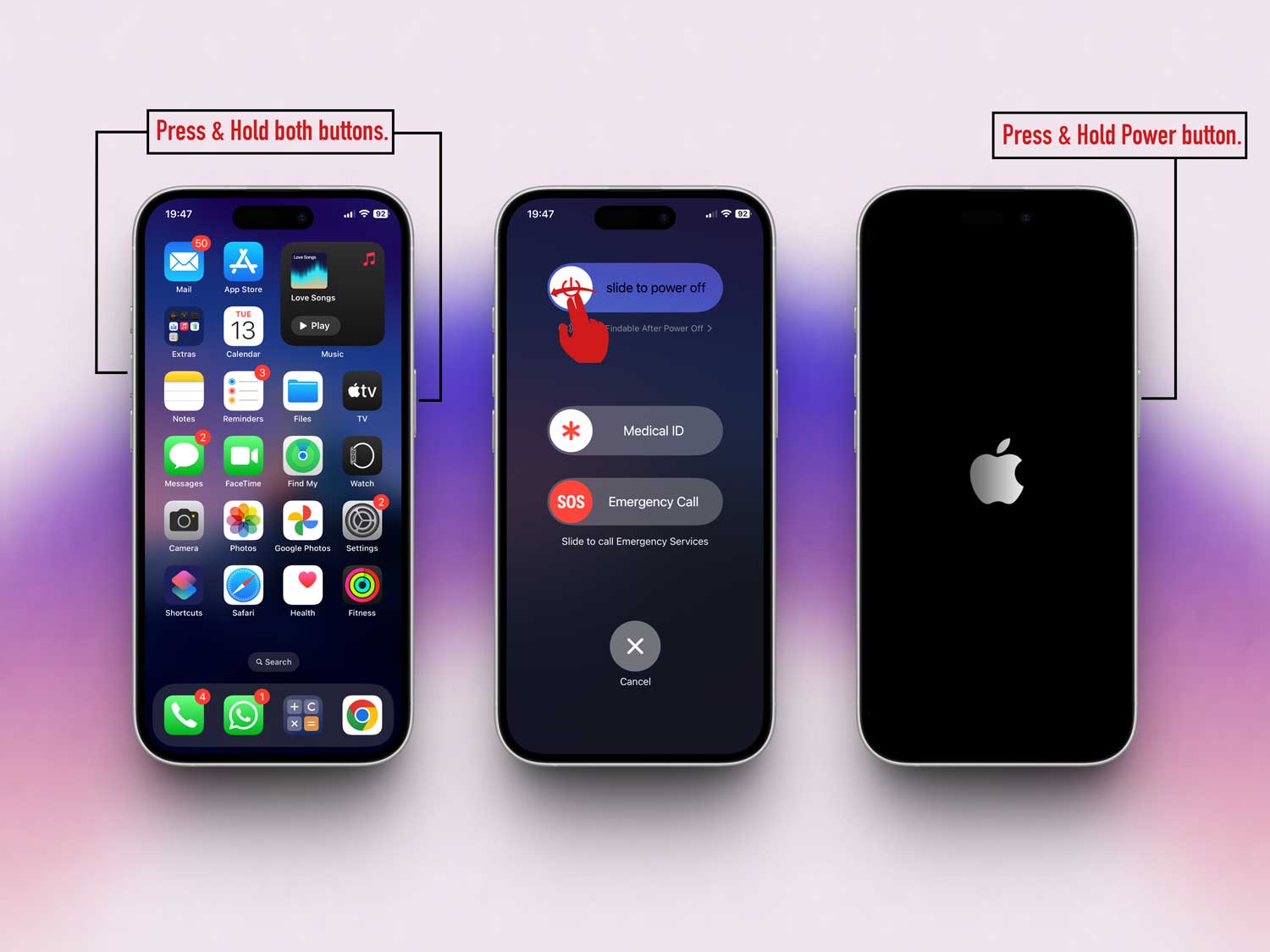
Just press and hold the power button, then tap Restart. After your device boots back up, connect your AirPods again and check if the lag is gone.
#5: Test with other apps
Sometimes the problem isn’t with your AirPods or your phone — it’s the app you’re using. Let’s figure that out.
Here’s what you can do:
- Open a different app, like YouTube or Netflix.
- Play a video and see if the audio still lags.
If the lag only happens in one app, try updating or reinstalling that app. Sometimes apps just need a little refresh too.
Alright, those are the main fixes! But wait — I’ve got a few more tips that can help you keep everything running smoothly.
Extra Tips to Keep Your AirPods Syncing Perfectly
These little tricks can make a big difference if you want your AirPods to stay in perfect sync.
#1: Keep your AirPods charged
Never let your AirPods drop too low on battery. When they’re running out of juice, things start to lag and glitch.
If you notice any weirdness, pop them back into their case for a quick charge. Trust me, it helps.
#2: Minimize interference around you
Got a lot of Bluetooth devices around you? That can mess with your AirPods.
Try moving away from other gadgets or turning off unnecessary Bluetooth devices nearby. Keeping the space clear helps your AirPods stay connected better.
#3: Stay close to your device
Bluetooth signals can only go so far. If you walk too far from your phone or tablet, you’ll start seeing (and hearing) problems. Keep your device close — it seriously makes a difference.
#4: Regularly clean your AirPods
A little dirt can cause big problems. Wipe your AirPods gently with a soft, lint-free cloth. Keeping them clean helps the sound stay clear and strong. Plus, clean AirPods just feel nicer.
#5: Update your AirPods’ firmware
Yes, your AirPods get updates too! Make sure they’re running the latest firmware.
You can check by connecting them to your iPhone, going into Settings > Bluetooth, tapping the “i” next to your AirPods, and checking the firmware version.
If an update is available, your AirPods will update automatically when connected and charging near your iPhone.
The Takeaway
Audio lag with AirPods is a real pain, but it’s usually easy to fix.
We talked about checking your Bluetooth connection, updating your devices, resetting your AirPods, and even testing different apps to find the problem.
Remember, it’s not always your AirPods’ fault. Sometimes it’s just an outdated app or a little bug in the system.
With a few quick steps, you can get everything back in perfect sync.
Give these tips a try and see the difference. Your audio and video deserve to match perfectly.
Got another question or a tip that worked for you? Drop a comment below — I’d love to hear from you!