Did you know that over 100 million people worldwide use an Apple Watch to track their fitness? That’s a lot of workouts being monitored!
But sometimes, things don’t go as planned when you’re logging your exercise. Just like how you might need to adjust your messaging settings, you may need to tweak your workout data too.
Have you ever finished a great workout only to realize your Apple Watch didn’t track it properly? Don’t worry, you’re not alone. This is a common issue that many Apple Watch users face.
The good news is that you can fix this problem. Your Apple Watch and iPhone work together to give you a complete picture of your fitness journey.
With a few simple steps, you can edit your workout time, add missing workouts, or even delete accidental entries. This means you’ll always have an accurate record of your exercise efforts.
In this guide, we’ll walk you through the process of editing your Apple Watch workouts. By the end, you’ll be able to keep your fitness data spot-on, helping you stay motivated and on track with your health goals.
How to edit an Apple Watch workout time
While you can’t completely change your workout data on Apple Watch, you can make some small tweaks. Here’s how to do it:
- Open the “Health” app on your iPhone.
- Look for “Show All Health Data” and tap on it.
- Scroll down until you find “Workouts” and select it.

- At the bottom of the page, tap on “Show All Data”.
- Find the workout you want to change and tap on it.
- Scroll to the bottom, where you’ll see “Related Samples”.
- Here, you can adjust things like “Total Active Energy”, “Average Heart Rate”, or “Total Distance” for walking or running workouts. Just tap on what you want to change, then hit “Edit” in the top-right corner.

- Make your changes, then tap “Done” when you’re finished.

Remember, you can’t drastically change your workout data. For example, you can’t suddenly double your calorie burn. But you can make small adjustments, like tweaking the distance, if you forget to stop your workout right away.
This way, you can keep your workout records accurate and consistent with your actual exercise. It’s all about having a true picture of your fitness journey!
Remember, accuracy is key in fitness tracking, just as it is in other features of your Apple Watch.
How to manually add an Apple Watch workout
Sometimes, it’s easier to add a new workout than to fix one that didn’t record properly. Here’s how you can manually add a workout:
- Open the “Health” app on your iPhone.
- Tap on the “Browse” tab at the bottom.
- Find and select “Activity”.
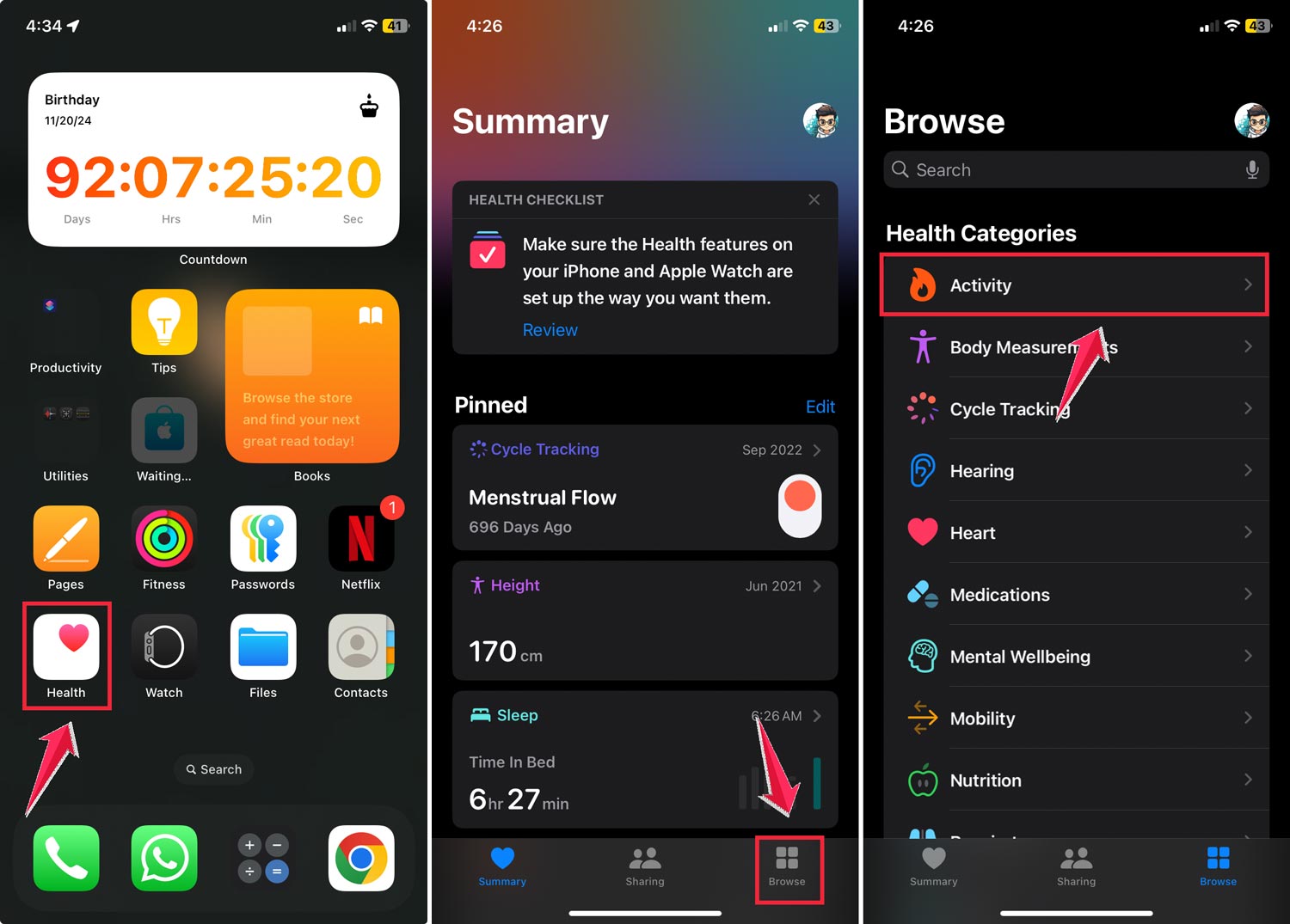
- Scroll down until you see “Workouts” and tap on it.
- Look for “Add Data” in the top-right corner and tap it.
- Now you can fill in your workout details:
- Choose your “Activity Type”
- Set the “Start” and “End” times
- Enter your “Calories” burned (if you know them)
- For cardio workouts, you can add the “Distance” too
- When you’re done, tap “Add” in the top-right corner.

That’s it! Your new workout will show up in your list and you’ll be able to see it in the Apple Fitness app too.
This method is great when you’ve done a workout but forgot to track it with your watch. It helps keep all your fitness data in one place, giving you a complete picture of your activity. Speaking of keeping things in order, did you know you can also manage your browsing data to keep your device running smoothly?
How to remove a workout from your Apple Watch
Sometimes, you might want to delete a workout that was recorded by mistake or has incorrect information. Here’s how you can do it:
Using the Fitness app:
- Open the “Fitness” app on your iPhone.
- Tap on “Summary,” then select “Sessions,” and finally choose “Workouts.”

- Find the workout you want to remove and swipe left.
- Tap the “Delete” button that appears.
- You will have three options:
- “Delete Workout & Data”: This removes everything, including health data.
- “Delete Workout Only”: This keeps the health data but removes the workout record.
- “Cancel”: This stops the deletion process.

Using the Health app:
- Open the “Health” app on your iPhone.
- Tap the “Browse” tab at the bottom.
- Select “Activity”.
- Scroll down to “Workouts” and tap it.
- At the bottom, tap “Show All Data”.
- Tap “Edit” in the top-right corner.

- Find the workout you want to delete. Tap the red circle next to it, then tap “Delete”.

Deleting workouts helps keep your fitness data accurate. It’s especially useful if you’ve manually added a correct workout and want to remove the old, incorrect one.
Remember, it’s all about having a true picture of your activity, so don’t be afraid to clean up your data when needed!
Accurate data is crucial, whether it’s for your fitness tracking or for monitoring your device’s battery health.
The takeaway
Keeping track of your workouts with your Apple Watch isn’t always perfect. Sometimes you might forget to start or stop a workout, or an app might not work right. But don’t worry. You can fix these problems!
You can change, add, or remove workouts using your iPhone. While you can’t change everything (like how many calories you burned), you can adjust things like how long you worked out or how far you went.
This helps make sure your fitness records match what you actually did.
The best thing to do is to remember to start and stop your workouts at the right time. But if you make a mistake, now you know how to fix it. These tips work for all Apple Watches, no matter which one you have.
Your fitness journey is all about you, and having the right information can help you stay motivated. So go ahead and make these changes when you need to.
It’s all about keeping track of how you’re doing and celebrating your progress!
And remember, just as you keep your fitness data up-to-date, it’s important to ensure your device is always properly charged for your next workout.
We’d love to hear about your experiences with fixing Apple Watch workouts. Leave a comment below!