Your Apple Watch is a great tool for tracking your fitness progress. It helps you keep an eye on your workouts and stay motivated.
But sometimes, you might need to remove a workout from your records.
Maybe you accidentally started a workout, or perhaps you want to clean up your data.
Don’t worry. It’s easy to do this using either the Health app or the Fitness app on your iPhone.
Let’s walk through how you can manage your workout records and keep your fitness data accurate.
How to Delete Workouts on Apple Watch Using the Fitness App
You might wonder if you can delete a workout directly from your Apple Watch.
While your watch is great at recording your workouts, you can’t actually delete them on the device itself. You’ll just need to use your iPhone to do it.
Here’s how you can remove a workout using the Fitness app:
- Open the Fitness app on your iPhone.
- Tap on the Sessions”.
- Look for the “Workouts” section.

- Find the workout you want to remove and swipe left on it.
- You’ll see a “Delete” option. Tap on that.
- You’ll have a choice: you can delete the whole workout and all its data, or just remove the workout entry.

If you prefer, you can also use the Health app to make similar changes. Remember, your watch syncs its data with your iPhone, so any changes you make in the app will update on your watch too.
How to Delete a Workout on Apple Watch Using the Health App
If you prefer a simpler way to manage your workouts, or if you don’t have the Fitness app, you can use the Health app on your iPhone. And if something’s missing, you can also learn how to add workout to Apple Watch manually.
While it doesn’t show as much detail as the Fitness app, it still lets you delete workout records.
Here’s how you can do it:
- Open the Health app on your iPhone.
- In the Summary tab, tap “Show All Health Data”.
- Scroll down until you find “Workouts” and tap on it.
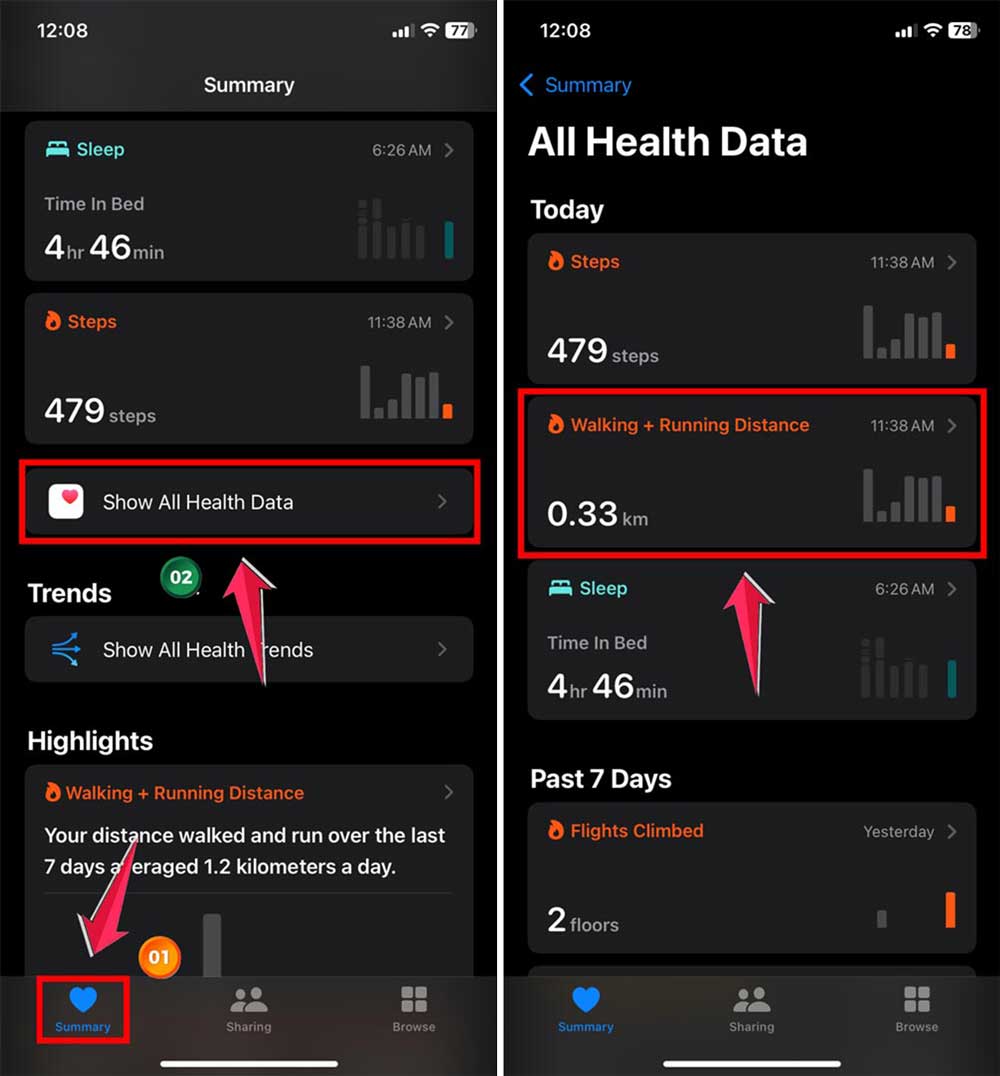
- At the bottom of the list, tap “Show All Data”.
- Pick the workout you want to look at.
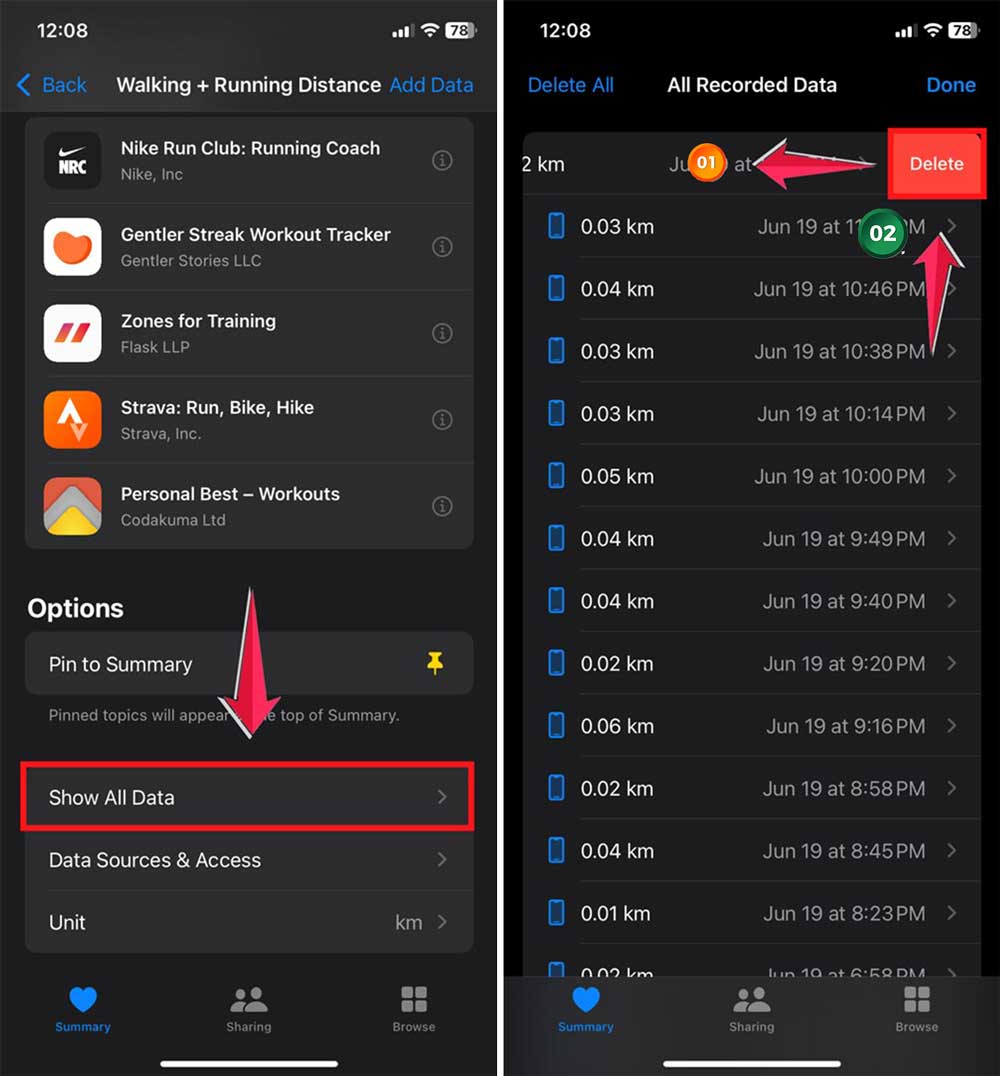
- Swipe left on the workout you want to remove and tap “Delete”.
- You can choose to delete just the workout log or both the workout and its data.
Or if the workout time just needs a tweak, check out how to edit workout time on Apple Watch. This method is straightforward and works well if you want a quick way to manage your workout data.
The Health app shows you the date, time, and how long your workout was, along with the type of workout and what data it recorded.
Remember, you can also pause your Apple Watch workout without using your hands. This gives you more control over your fitness tracking, making it easier to manage your activities.
By using either the Fitness app or the Health app, you can keep your workout records accurate and up-to-date.
It’s all about finding the method that works best for you.
In Conclusion To
Now you know how to easily manage your workout data on your Apple Watch. Whether you prefer the detailed view in the Fitness app or the simpler approach of the Health app, you’ve got options.
With these tools at your fingertips, you can keep your fitness records accurate and up-to-date.
Being able to delete workouts from your Apple Watch using your iPhone gives you full control over your fitness data.
This means you can focus on what really matters. Achieving your health goals. You can keep the useful information and remove anything that isn’t.
Your Apple Watch is a powerful tool that adapts to your fitness journey. And if something seems off, here’s how to fix Apple Watch not tracking steps.
It’s there to support you, whether you’re fine-tuning your workout routine or just keeping your data tidy.
Remember, the goal is to make your fitness tracking work for you. So use these tips to keep your workout records in shape, just like you’re keeping yourself in shape!