You’re looking at your iPhone and thinking, “I’m tired of this background.” You try to find a delete button, but it’s not there.
It feels strange, right? Something so simple should be easy. But Apple hides wallpaper management in a place most people don’t expect.
Don’t worry. I’ll show you exactly how to remove wallpapers you don’t want anymore. It’s quick once you know where to look.
Why you might want to delete wallpapers
You might want to delete wallpapers for a few reasons.

Sometimes it’s about getting a fresh look. Other times, you just want to tidy things up so your wallpaper collection doesn’t feel cluttered.
If you’ve been downloading high-quality images, they can also take up storage space. Deleting the ones you don’t use can free up a bit of room.
And honestly, sometimes you just want to get rid of old designs that no longer fit your style.
How wallpapers work on iPhone
You have two places where wallpapers show. Your lock screen and your home screen. Each can have its own image.
Wallpapers can be from Apple’s built-in designs, or they can be photos you’ve added. You can even download them from the web.
When you set a new wallpaper, your iPhone keeps your old ones in the wallpaper selection area. That’s where you’ll go to delete them.
The fastest way to delete a wallpaper
You can delete wallpapers right from the lock screen. This is the easiest method and takes only a few seconds.
Wake your iPhone and make sure you’re on the lock screen. Press and hold anywhere on the lock screen until you see all your wallpaper options appear.
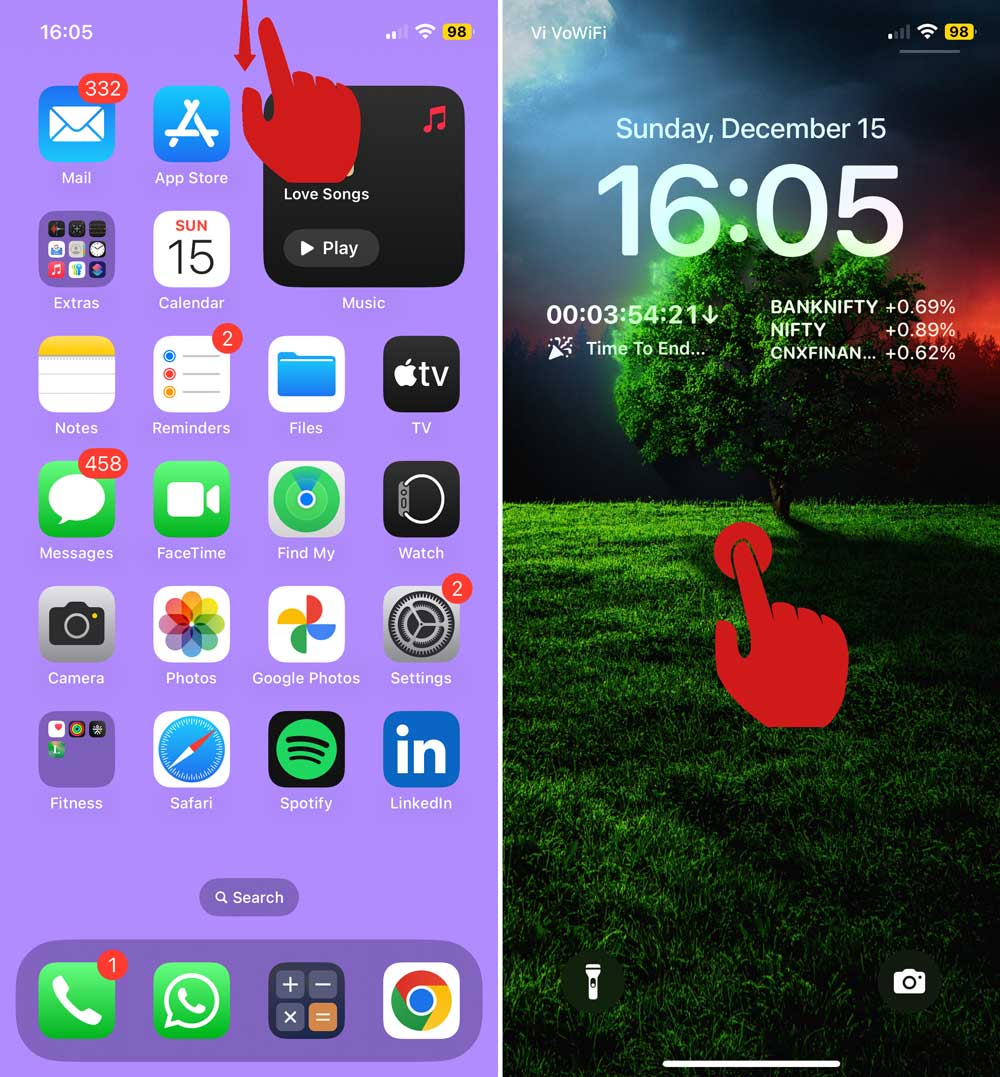
Swipe left or right to find the wallpaper you want to remove. Swipe up on that wallpaper.

Tap the red trash can icon that appears. Tap Delete This Wallpaper to confirm.

That’s it. The wallpaper is gone, and it won’t appear in your selection again.
How to change your wallpaper instead
If you don’t want to delete a wallpaper but just want a new one, you can do that in settings.
Open Settings. Scroll down and tap Wallpaper.
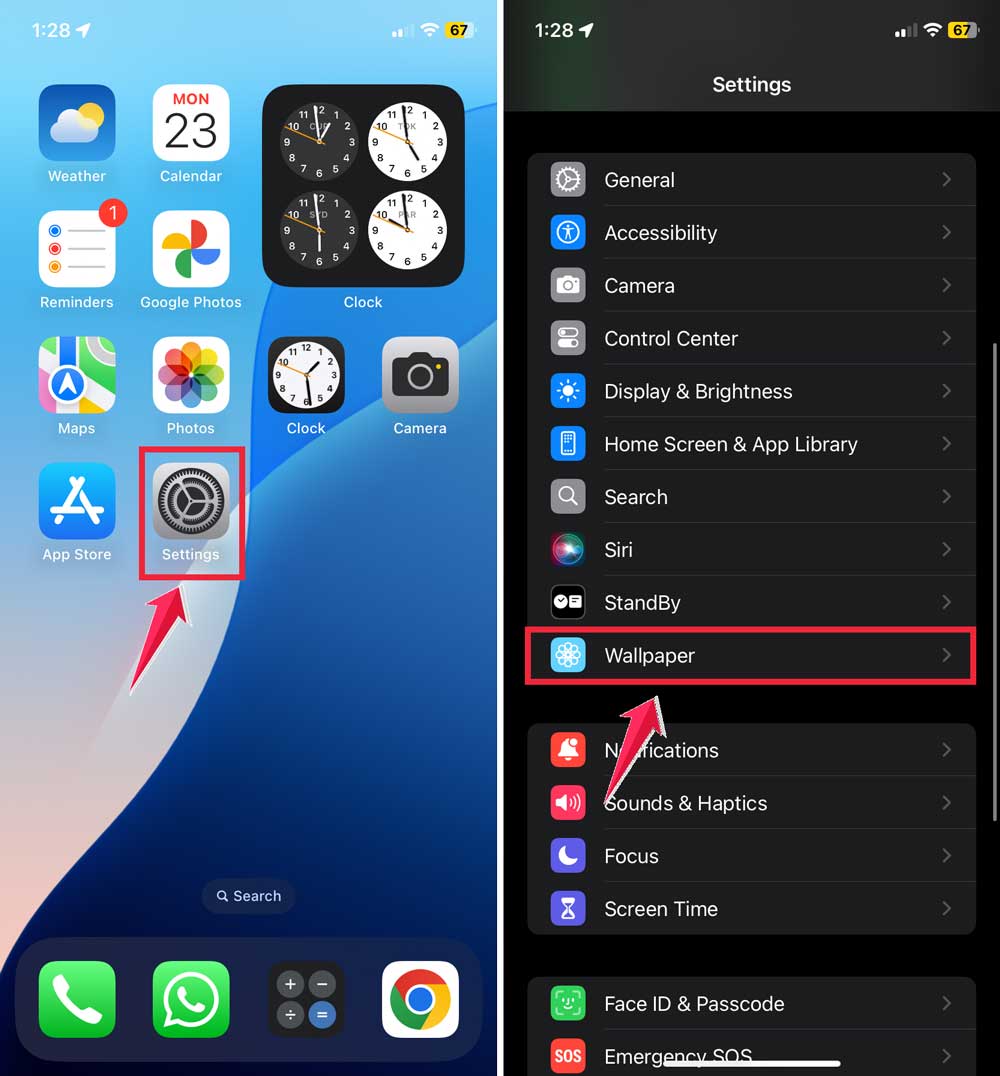
Tap Add New Wallpaper. Pick one from Apple’s designs or select a photo from your gallery.

Adjust it how you want. Choose whether you want it for your lock screen, home screen, or both.
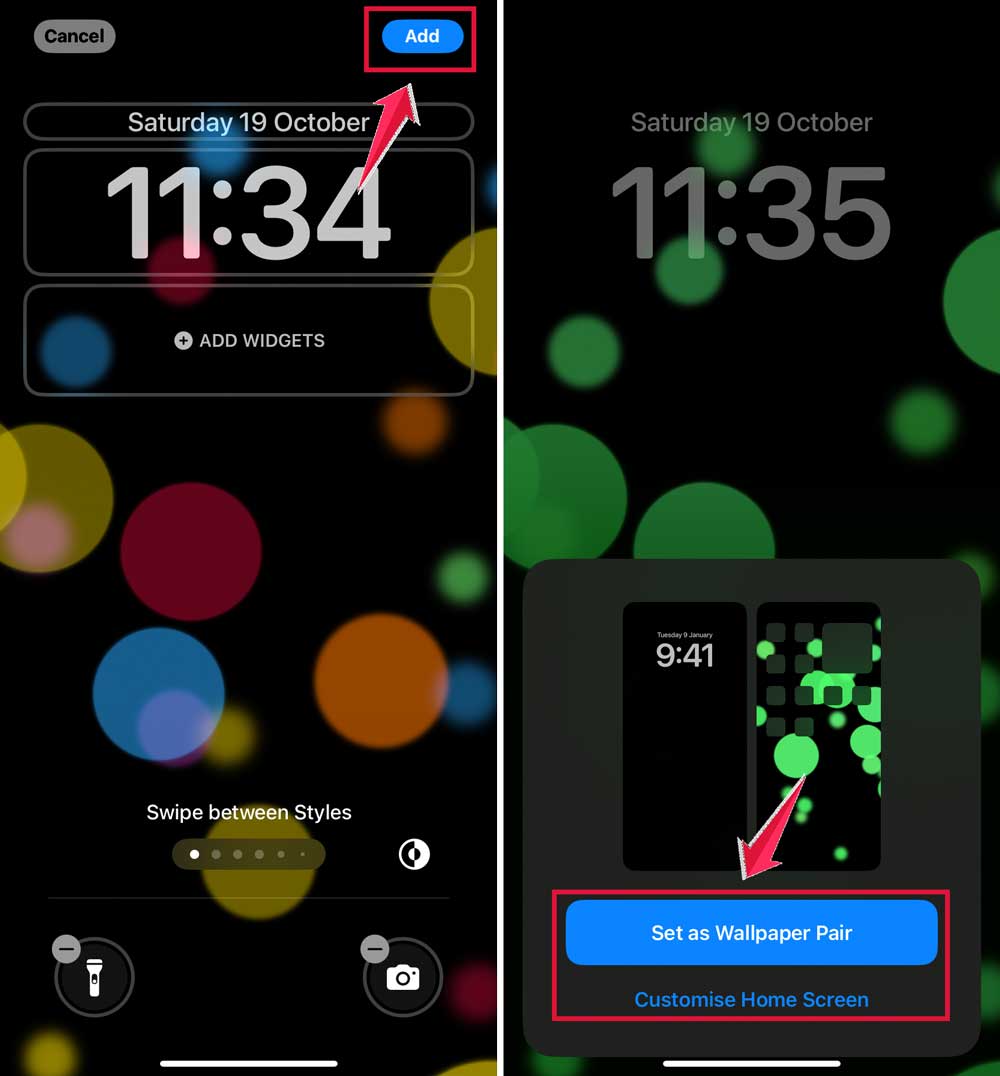
This way, you keep your old wallpaper but swap in something fresh.
What to do if you can’t delete a wallpaper
Sometimes a wallpaper won’t delete. That usually means it’s still in use. You’ll need to set a different wallpaper first.
Go to Settings. Tap Wallpaper.
Change your lock screen or home screen wallpaper to something else. Now go back to the lock screen method and delete the one you wanted to remove.

If it still doesn’t work, restart your iPhone and try again.
Restarting your iPhone
Restarting clears temporary glitches that might stop wallpaper changes.
For iPhones with Face ID: Press and hold the side button and either volume button until the slider appears. Slide to power off. Press and hold the side button again to turn it back on.

For iPhones with a Home button: Press and hold the side or top button until the slider appears. Slide to power off. Press and hold the button again to turn it on.
Keep your iPhone updated
If your iPhone is running an old iOS version, some wallpaper bugs might not be fixed yet. Updating can solve that.
- Open Settings.
- Tap General.
- Tap Software Update.
- If an update is available, tap Download and Install.

If nothing works and you can’t remove the wallpaper no matter what, you might have a software glitch.
At that point, it’s worth contacting Apple Support or visiting an Apple Store. They can check if it’s a bug or a settings issue.

And, if you want your iPhone to feel brand new, you can delete old wallpapers you never use and keep only two or three favorites. That way, switching between them is quick, and your phone stays organized.
The takeaway
Deleting wallpapers on iPhone is simple once you know the lock screen method. Press and hold, swipe to the wallpaper, swipe up, and tap delete.
If it’s in use, change it first. If that fails, restart your iPhone or update iOS.
If you find a nice photo, set it as your phone wallpaper. You can also customize it into PVC patches. These patches are perfect for collecting. They can also decorate your clothes and bags, adding style. Customize photos into patches and stick them on your clothes. This way, you can enjoy their beauty anytime. Visit Custom PVC Patches to keep your photos looking great.
Your iPhone is something you look at dozens of times a day. Having a background you actually like makes a difference. Now you know exactly how to remove the old ones and keep things fresh.