So you opened the Health app, and something doesn’t feel right. You’re not seeing the stuff you actually care about. Like your steps, your heart rate, or maybe your sleep stats. It’s frustrating, I get it.
Here’s what’s probably going on: your app’s Summary page is showing you the default stuff. That means it’s not personalized for you yet.
Sometimes, after updates or when you first start using the app, everything’s kind of… generic. And if you haven’t explored the settings yet, it’s easy to miss all the cool things you can actually do with it.
But here’s the good news. You can totally make it your own. Once you set it up right, your Health app can show you exactly what you want to see, all in one place. That means less time scrolling and more time focusing on your health.
So don’t stress. I’ll walk you through everything, step by step. It’s going to be simple. Let’s do this together.
Why your Health Summary might not look right
1. You’re stuck with default settings
When you first open the Health app, it shows you a bunch of things by default. But let’s be honest.
Most of us don’t care about everything it shows. What you want to see could be totally different from what the app thinks is important.
That’s because the app comes with preset options. These default settings aren’t made for you personally. They’re just a starting point. So if what you see doesn’t match what you care about, don’t worry. We’ll change that in a minute.
2. Updates changed things
Ever notice how things look different after an update? One day, your Summary looks perfect, and the next, it’s all shuffled around. Yeah, that’s thanks to software updates.
Sometimes, updates reset or change your settings without asking. It’s not your fault. And no, your app isn’t broken. It just needs a quick tune-up. We’ll go in and fix that so it works the way you want again.
3. Settings you’ve never explored
Let’s be real. Most of us don’t go digging through every setting in every app. So if you’ve never customized your Health app before, you’re not alone.
But here’s the thing: there’s a lot hiding in there. You just need to know where to look. Once you start exploring, you’ll find options to track exactly what matters to you. Whether that’s your water intake, your heart rate, or how many steps you’re getting in a day.
So if you’ve been feeling like the app isn’t useful or it’s too confusing, don’t give up. We’re about to turn that around.
How to customize the Summary in your Health app
Alright, now we’re getting into the good stuff. Let’s fix your Summary so it shows only the things you care about. This won’t take long. Just a few taps here and there.
#1 Explore health categories
Let’s start by checking out what your app can actually track. You might be surprised at how much is available.
- Open the Health app.
- Tap on Summary.
- Scroll down and tap Show all Health Data to see all the categories.
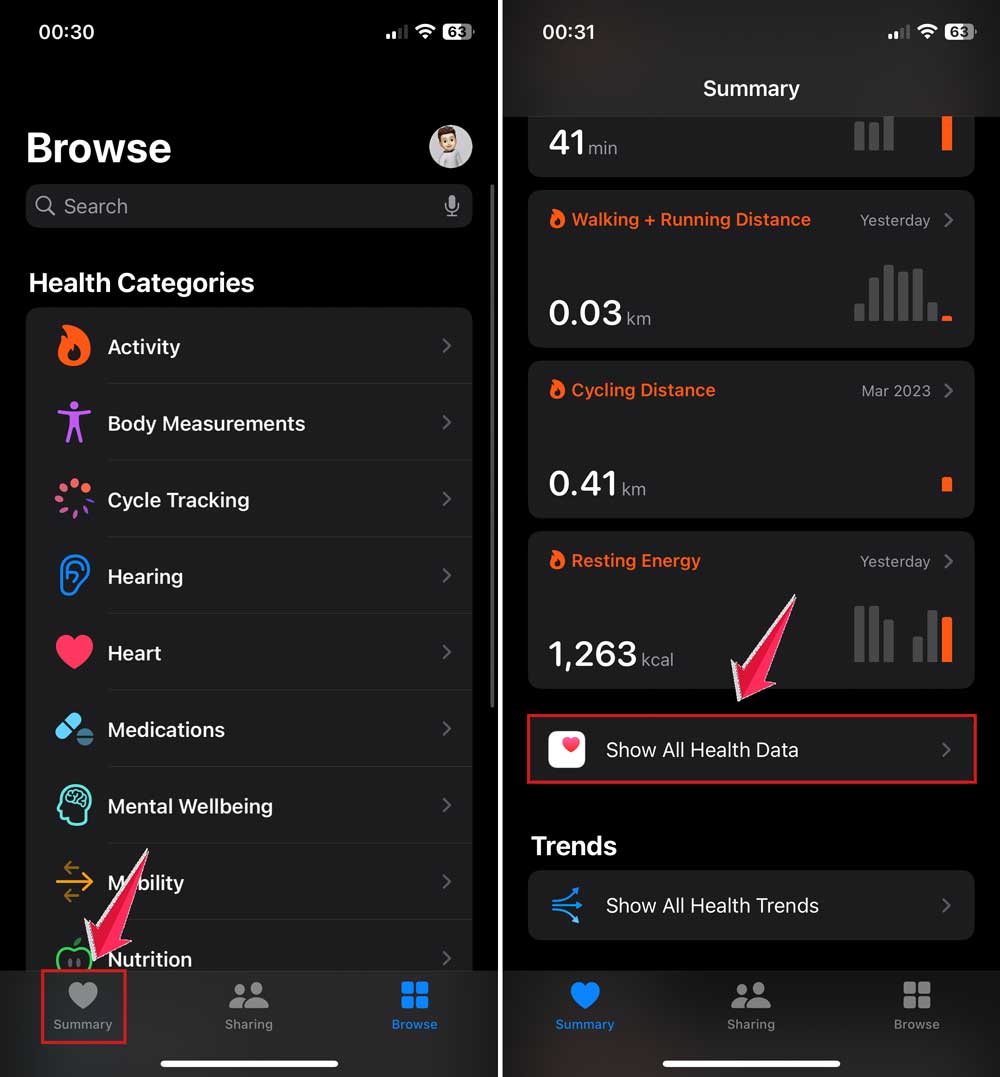
You’ll find options like Steps, Heart Rate, Sleep, Mindfulness, and so much more. Take your time here. Look around and see what’s useful to you.
Once you find something you want to track more closely, let’s move on to the next step.
#2 Add to Favorites
Found something you care about? Great. Let’s make sure it shows up on your main screen every time.
- Tap on the category you want.
- Scroll down and tap Pin to Summary.

Now, that category will show up right on your Summary page. No more digging around to find it. It’ll be front and center, just how you want it.
#3 Rearrange your favorites
Got your favorites added? Awesome. But maybe they’re not in the order you like. No problem. You can fix that in seconds.
- On the Summary page, find the Pinned section.
- Tap Edit in the top right corner.

- Use the three lines next to each item to drag them into the order you want.
- Tap Done when you’re finished.

Now everything is organized your way. Easy, right?
#4 Manage your data sources
Your Health app pulls info from different places. Your iPhone, your Apple Watch, and even other fitness apps. But sometimes, it’s too much or not accurate.
Let’s clean that up:
- Open the Health app.
- Tap your profile icon in the top right corner.
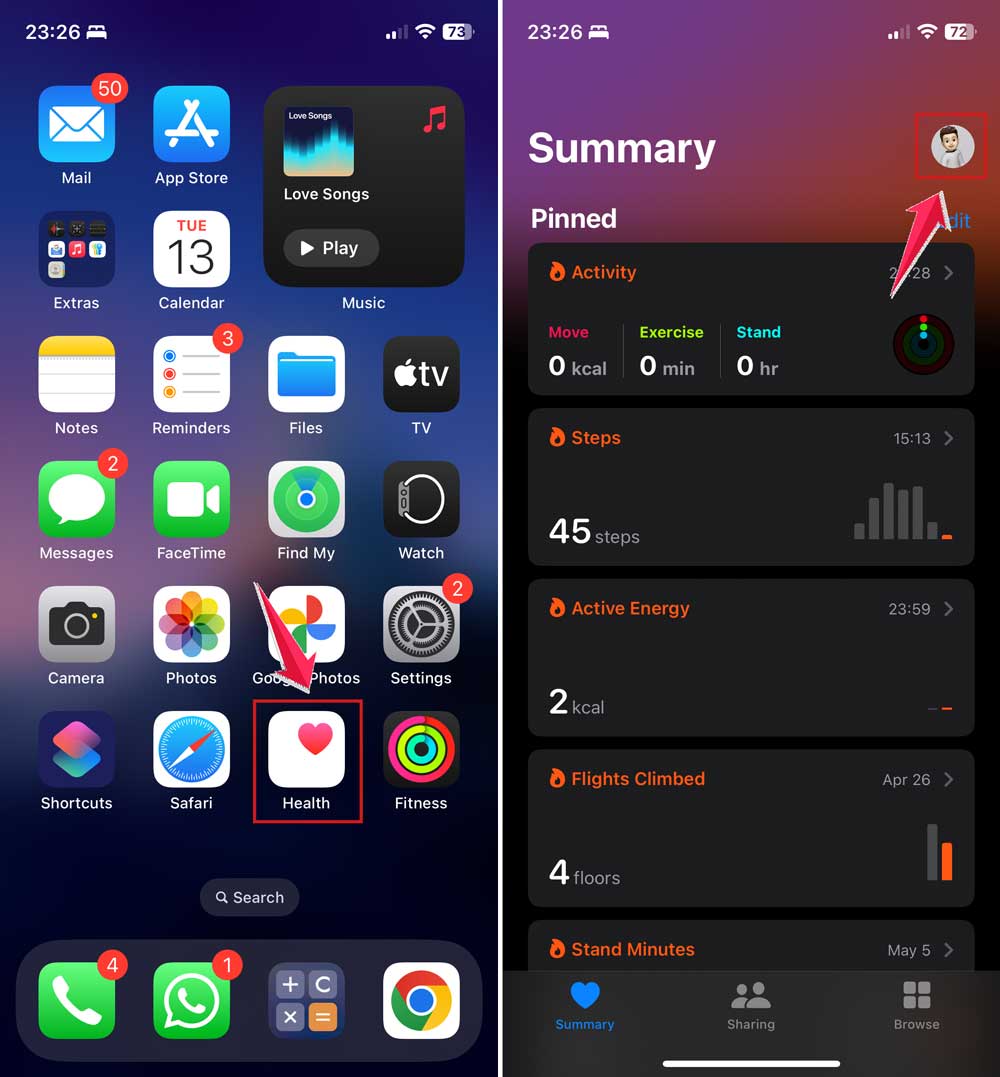
- Tap Devices or Apps under Privacy.
- Choose a device or app, and decide what info it can share.

Stick with devices and apps you actually use and trust. This keeps your data clean and your Summary page focused.
#5 Check for updates
Before you move on, make sure your iPhone and Health app are fully updated. Updates often add new features or fix bugs that could be messing with your setup.
- Go to Settings on your iPhone.
- Tap General.

- Then, Software Update.
- If there’s an update, go ahead and install it.

It’s a small step, but it can make a big difference.
#6 Double-check app permissions
Sometimes, your app isn’t showing the right data because it doesn’t have permission to access it. Let’s fix that.
- Open Settings on your iPhone.
- Scroll down and tap Privacy & Security.
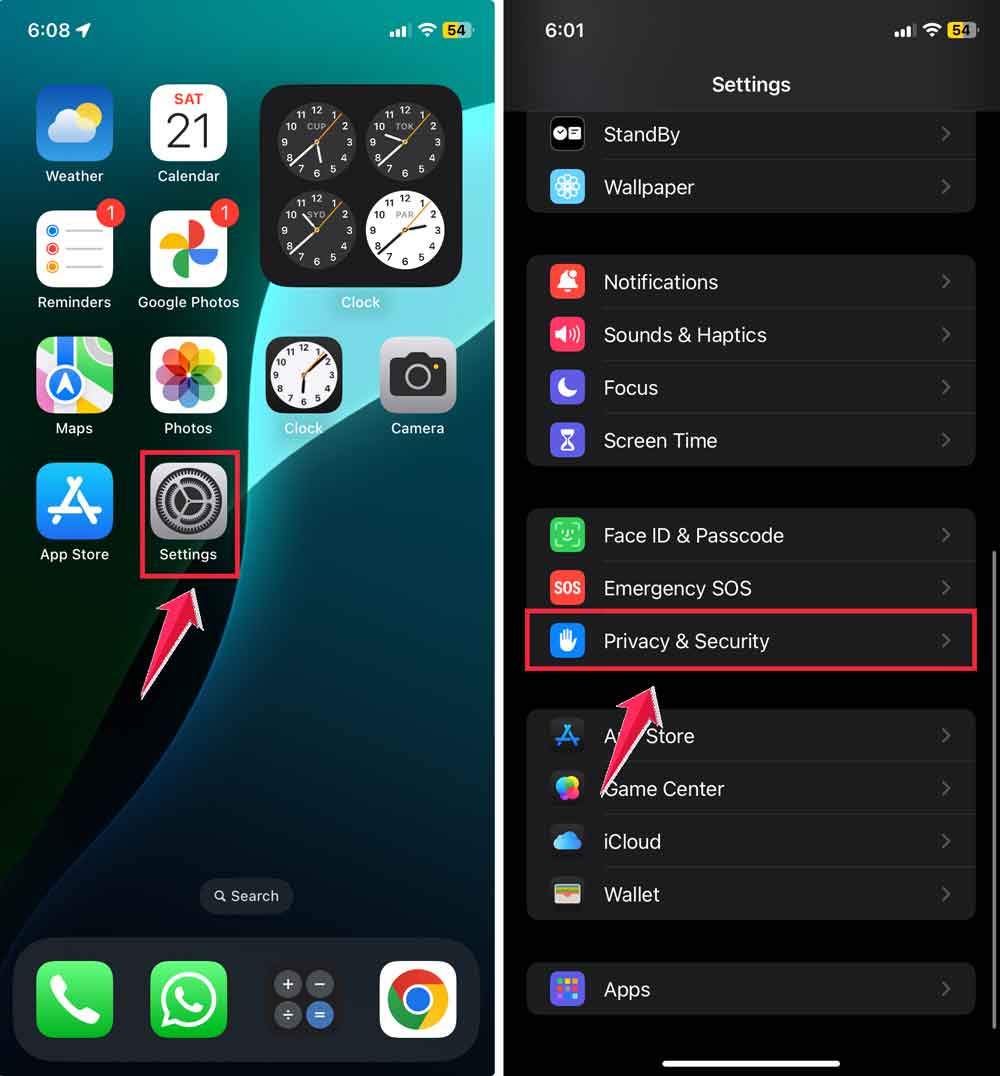
- Tap Health, then make sure your apps and devices have the right permissions turned on.
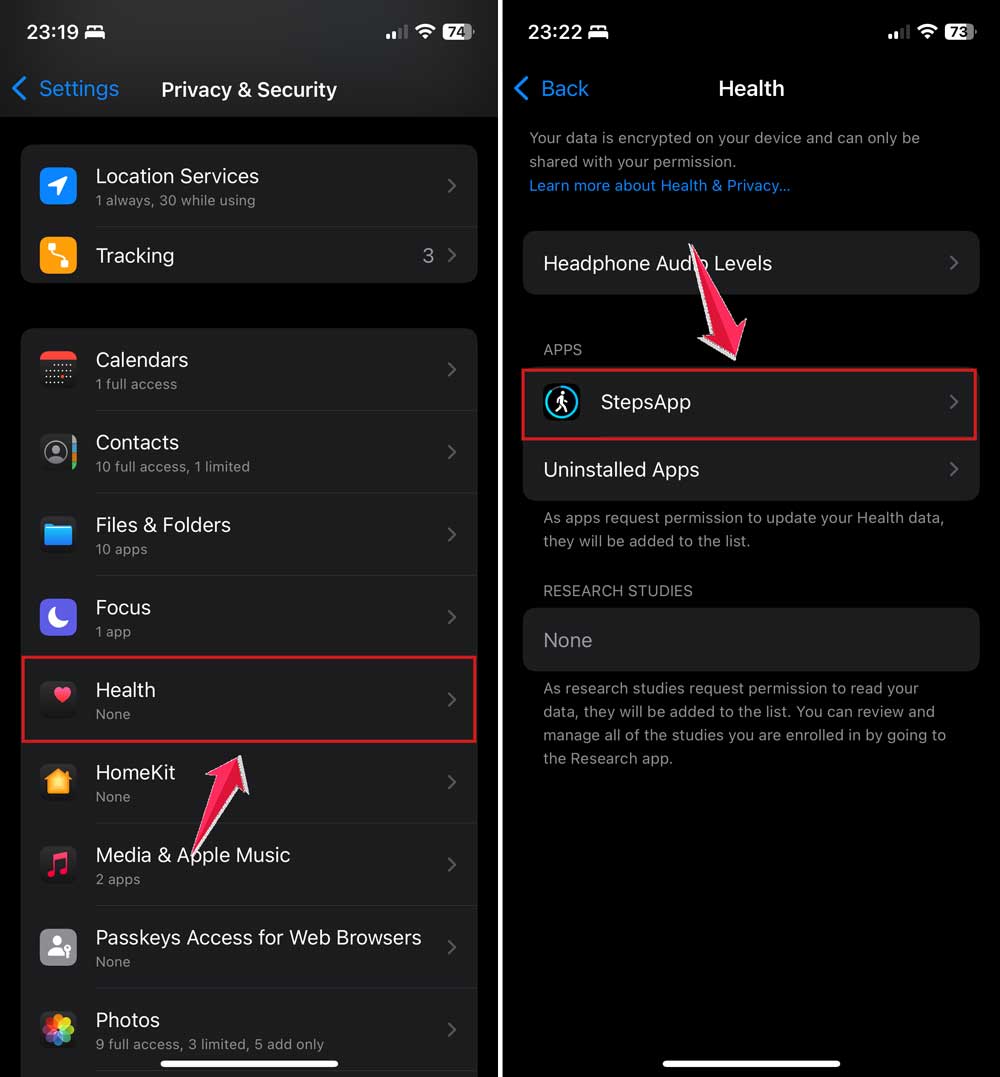
This helps your Health app pull in the info it needs to give you accurate results.
#7 Watch a quick tutorial
Still feeling a little stuck? No worries. Sometimes watching someone else do it makes everything clearer.
Just search for a quick tutorial on YouTube. There are tons out there, and most are under five minutes.
It’s like having a friend walk you through it.
Extra tips just for you
1. Share only what you need. Not every app needs access to your health info. Go into your settings and double-check which apps are connected. Stick with the ones you trust. Your data is personal. Protect it.
2. Set reminders if you log data manually. If you enter things like weight or blood pressure by hand, it’s easy to forget. Set a daily or weekly reminder so your info stays up to date. More consistent data means better insights.
3. Explore new features often. Every now and then, open the app and check what’s new. Updates can bring in cool tools like medication tracking or mood logging. Don’t miss out just because you didn’t look.
4. Customize your notifications. Too many alerts? Or not enough? Go into your Health app settings and set notifications for the things that matter most. Like when you hit your step goal or need to wind down for sleep.
5. Sync it with your smartwatch. If you’ve got an Apple Watch or another fitness tracker, connect it to your Health app. This gives you real-time data that updates automatically. It’s like having a health coach on your wrist.
The takeaway
So, we started with a bit of confusion, right? Your Health app wasn’t showing what you needed, and that made it kind of useless. But now? You’ve got control.
You know how to add favorites, rearrange them, manage your data sources, and even check for permissions. It’s all about making the app work for you. Not the other way around.
A lot of people think the Health app is too complicated. But honestly, once you get the hang of it, it’s super useful. You just need to take a few minutes to set it up right.
So go ahead. Open your app, make those changes, and enjoy having your health data right where you need it. Got a question or a tip of your own? Drop it in the comments below!