Have you ever copied something sensitive on your Mac and worried about where it might end up? You’re not alone. Many Mac users don’t realize that their clipboard can store up to 50 items at a time, potentially keeping information you thought was long gone.
Maybe you’re here because you just copied a password or financial data and want to make sure it’s not lingering in your system. Or perhaps your Mac is acting a bit sluggish, and you’ve heard clearing the clipboard might help. Whatever your reason, you’re in the right place.
Your Mac’s clipboard is more powerful than you might think. It’s just one of the many features that can impact your Mac’s performance.
With features like Universal Clipboard, what you copy on your Mac can show up on your iPhone or iPad. While this is usually helpful, it can also be a privacy concern if you’re not careful.
In this guide, you’ll learn how to clear your clipboard history quickly and easily. Whether you’re looking to protect your privacy or just tidy up your digital workspace, you’ll find simple, step-by-step instructions to get the job done.
What is the clipboard?
The clipboard on your mac is a temporary storage space. When you cut or copy something, it goes directly to the clipboard. It remains there until you paste it elsewhere. By default, your Mac’s clipboard is designed to hold one item at a time. This means when you copy something new, it replaces the previous content.
But your clipboard isn’t just for text. You can use it for various types of content – images, shapes, and even entire files. It’s a versatile tool for managing information on your computer.
For instance, you can use the clipboard to move files around instead of dragging and dropping. It’s a handy trick, especially when you’re organizing your downloads folder.
Simply select a file, press Command-C to copy (or Command-X to cut), then Command-V to paste it in the new location. This can be a real time-saver when you’re organizing your files.
If you use multiple Apple devices, you’ll appreciate the Universal Clipboard feature. This innovative tool allows you to copy content on your Mac and paste it directly onto your iPhone or iPad, and vice versa. It’s all made possible through iCloud connectivity, keeping your devices in sync.
While the basic clipboard holds one item, it’s worth noting that there are third-party applications available that can enhance its functionality. These apps can store multiple items or even create separate clipboards.
However, for now, we’ll focus on managing your Mac’s built-in clipboard effectively. Understanding how it works is key to using it more efficiently and maintaining a tidy digital workspace.
How to clear your Mac’s clipboard
You’ve probably wondered, “How do I make sure my copied information isn’t just sitting there?” Well, it’s simpler than you might think.
Here are a few easy ways to clear your Mac’s clipboard:
1. Copy something new
This is the quickest way. Just copy any random text or image. It will replace whatever was on your clipboard before.
2. Copy a blank space
Open any text document, select a space between words, and copy it. This leaves your clipboard essentially empty.
3. Use the Terminal (for tech-savvy users)
Open the Terminal app (Press Command + Spacebar & search it). If you’re new to Terminal, don’t worry – opening Terminal on Mac is straightforward.
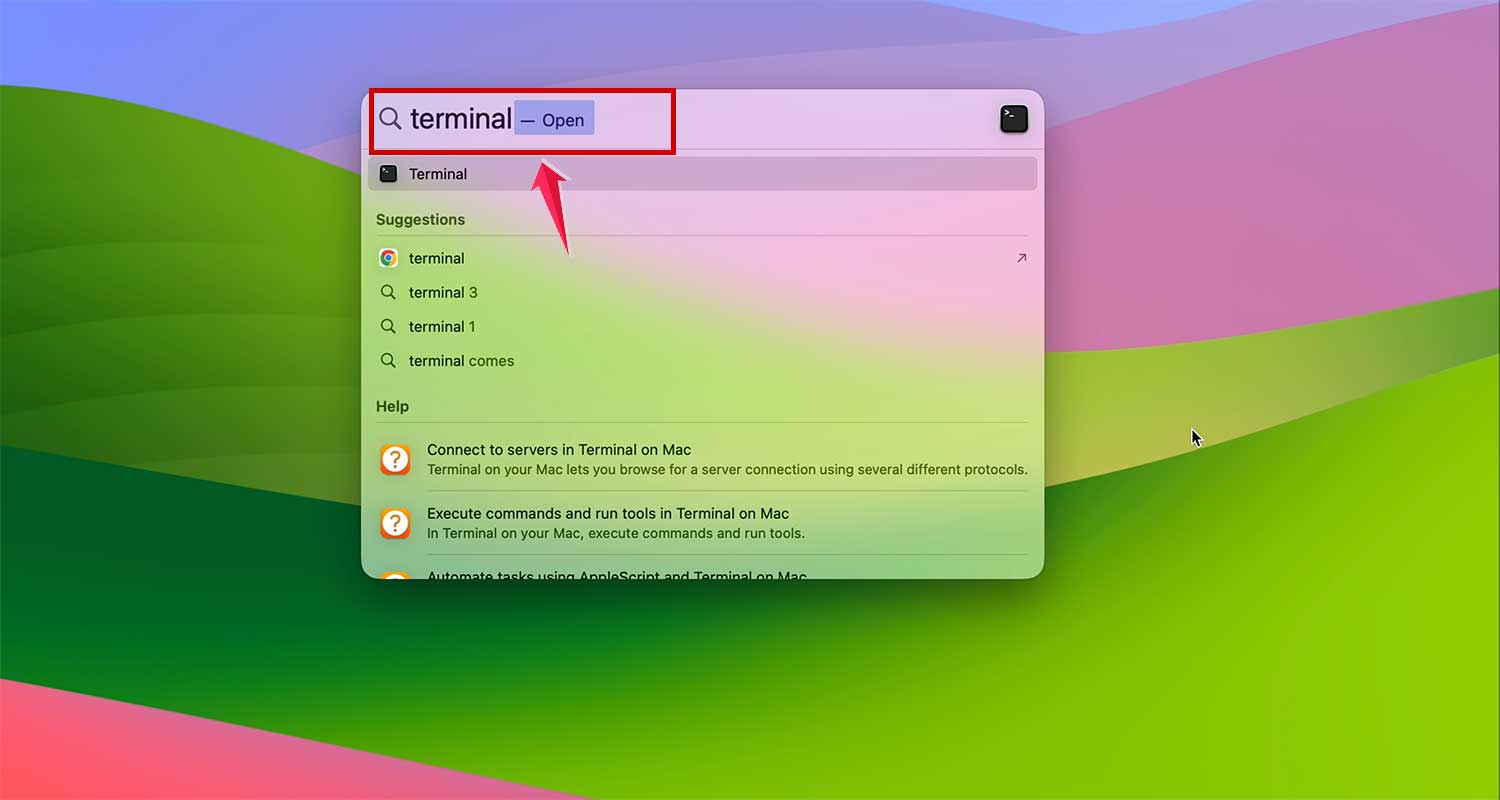
Type pbcopy < /dev/null and press Return.

4. Restart your Mac
If you want a fresh start, restarting your computer will clear the clipboard along with other temporary files.

How to clear your iPhone or iPad clipboard
Wondering how to clear the clipboard on your iPhone or iPad? It’s actually quite simple. Here’s the quickest way:
- Open any app where you can type, like Notes or Messages.
- Type anything – even a single letter or space will do.
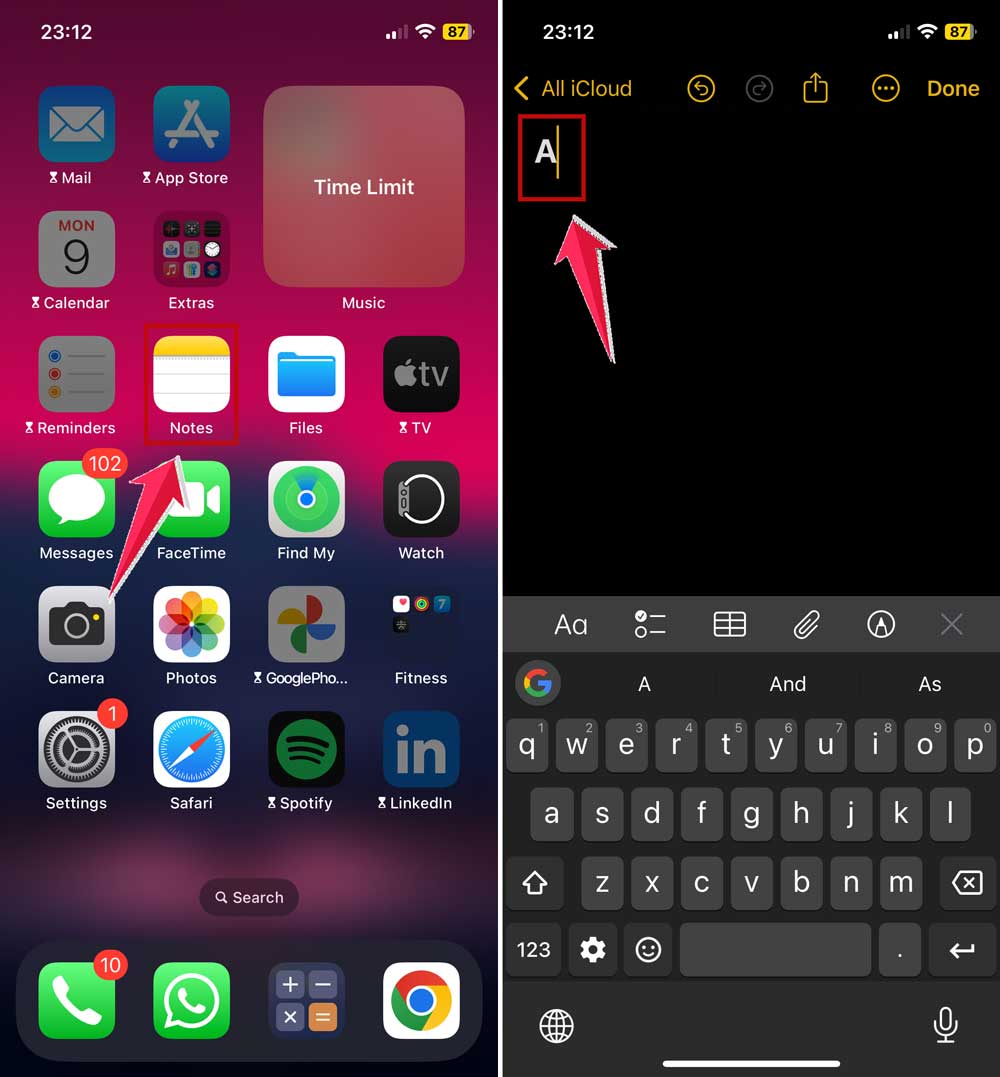
- Select what you’ve typed.
- Tap Copy.
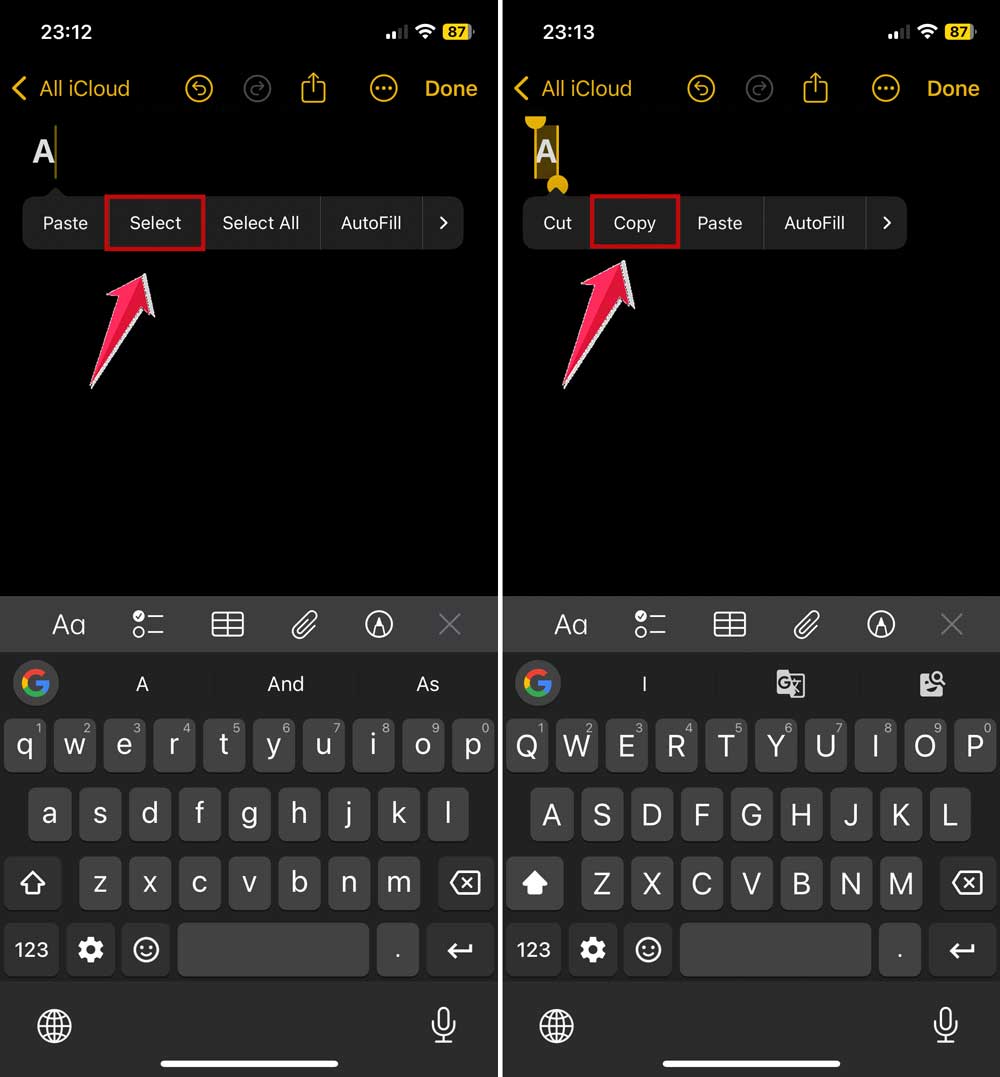
That’s it! You’ve just cleared your clipboard. Whatever was there before has been replaced by what you just copied.
This method works because your iPhone or iPad, like your Mac, only holds one item in its clipboard at a time. When you copy something new, it automatically replaces the old content.
Now, if you use multiple Apple devices, there’s an even more convenient way to manage your clipboard across all of them. It’s called a Universal Clipboard.
Here’s how you can set it up.
1. On your iPhone or iPad
- Go to Settings > General

- Now click AirPlay & Continuity.
- Turn on Handoff.

2. On your Mac
- Click the Apple menu > System Settings > General > AirDrop & Handoff.

- Enable “Allow Handoff between this Mac and your iCloud devices“.
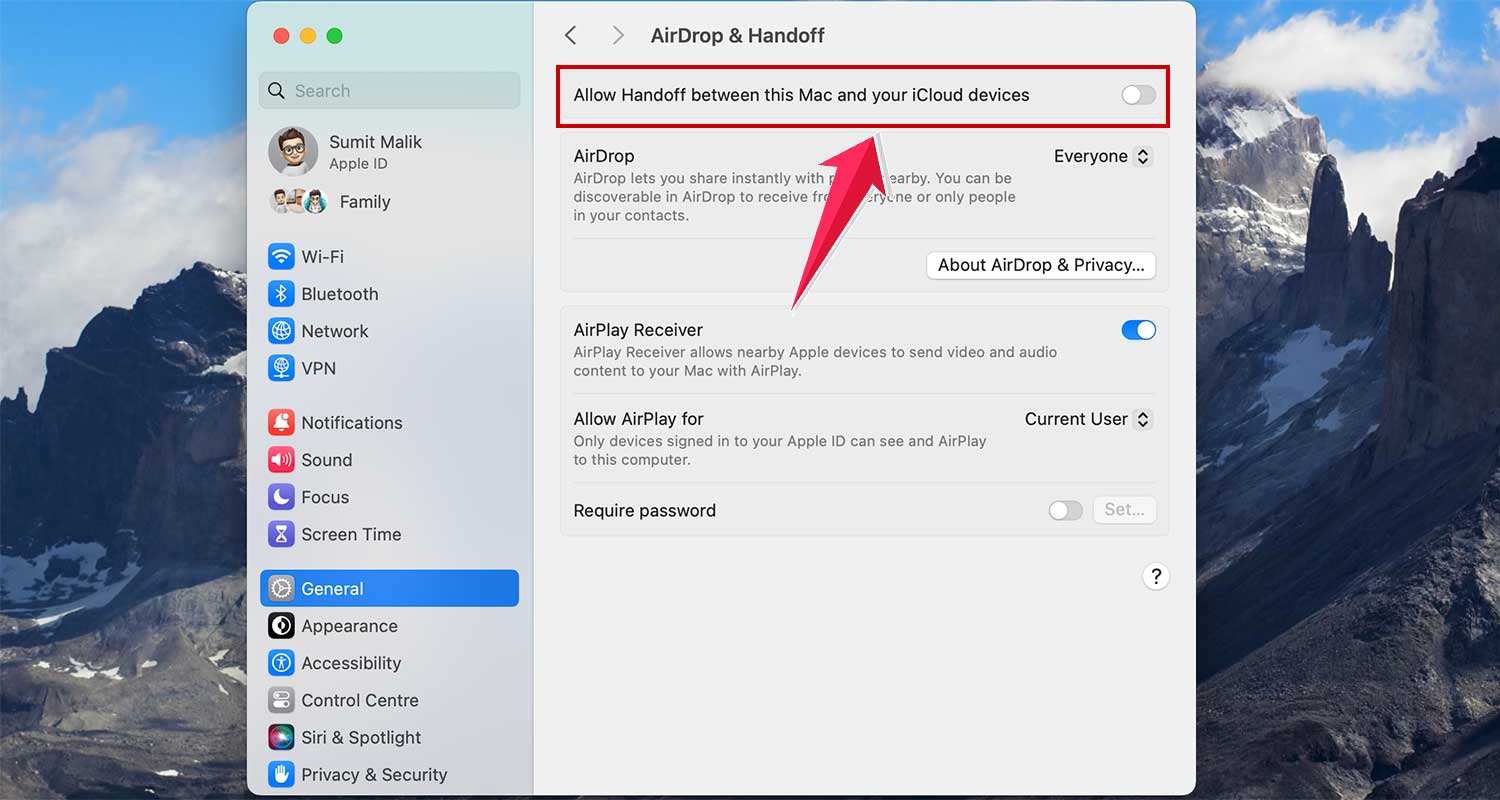
With Universal Clipboard, clearing the clipboard on one device clears it on all your connected Apple devices. It’s a great way to keep your digital workspace tidy and secure across all your devices.
The takeaway
Let’s wrap this up in a way that’s useful for you. Managing your clipboard isn’t just a tech trick – it’s a smart habit that can make your digital life easier and more secure.
Think about it: every time you copy something, it sits on your clipboard until you replace it. This is just one aspect of keeping your Mac clean and optimized.
That’s handy, but it also means your private information could be hanging around longer than you’d like. The good news? Clearing your clipboard is quick and easy, whether you’re on your Mac, iPhone, or iPad.
Here’s the key: get into the habit of clearing your clipboard regularly, especially after copying sensitive stuff. It’s as simple as copying a blank space or any random text. And if you use Universal Clipboard, clearing on one device clears it on all your Apple devices. Pretty neat, right?
Remember, it’s not about being overly cautious – it’s about being smart with your data. So, why not give it a try? Your future self will thank you for this small but mighty digital habit.
What do you think? Is this something you’ll start doing?