Ever noticed how fast your phone fills with photos? Or how does your computer slow down just when you need it?
Your Mac has more apps, larger files, and endless updates. So, even the spacious 1TB SSD can fill up fast.
It might be tempting to upgrade your Mac’s storage. But that can be pricey and isn’t an option for every model.
For instance, boosting your iMac to a 2TB SSD could cost about $1,000, while a 4TB upgrade could reach a steep $1,600. Plus, only some Macs can even be upgraded.
The best approach? Keep regular tabs on your disk space. Doing this simple thing can prevent performance lags. It will keep your Mac ready for your next project or download.
Ready to find out how to easily check and manage your Mac’s storage? Let’s get started!
5 Ways To Check Storage On MacBook?
1. Check MacBook Storage via About This Mac
The easiest method to monitor your MacBook’s storage capacity is through the About This Mac feature.
- Start by clicking the Apple icon in the upper left corner of your screen.
- Select About This Mac.
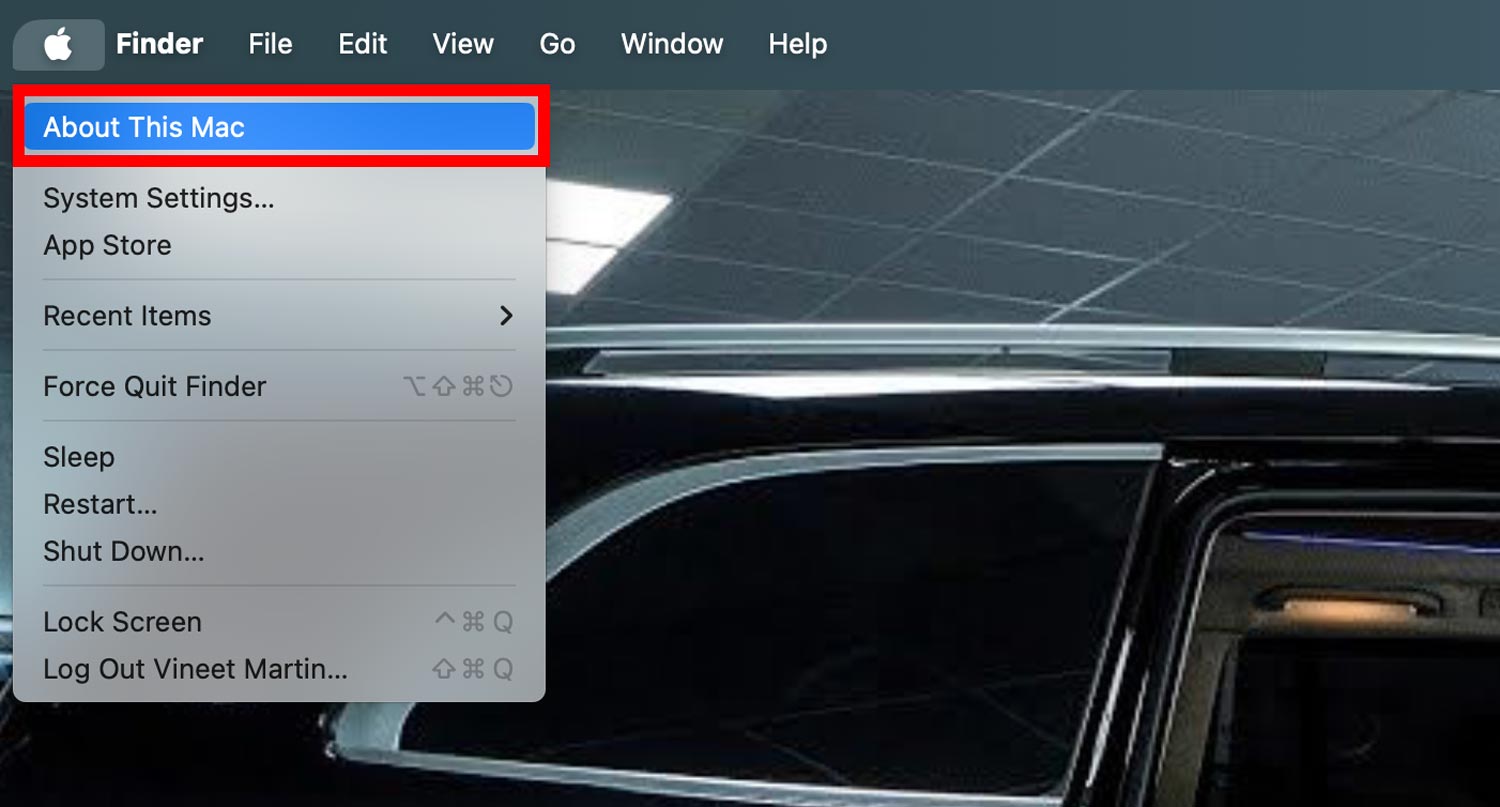
- Click on More Info.

- Choose Storage Settings.
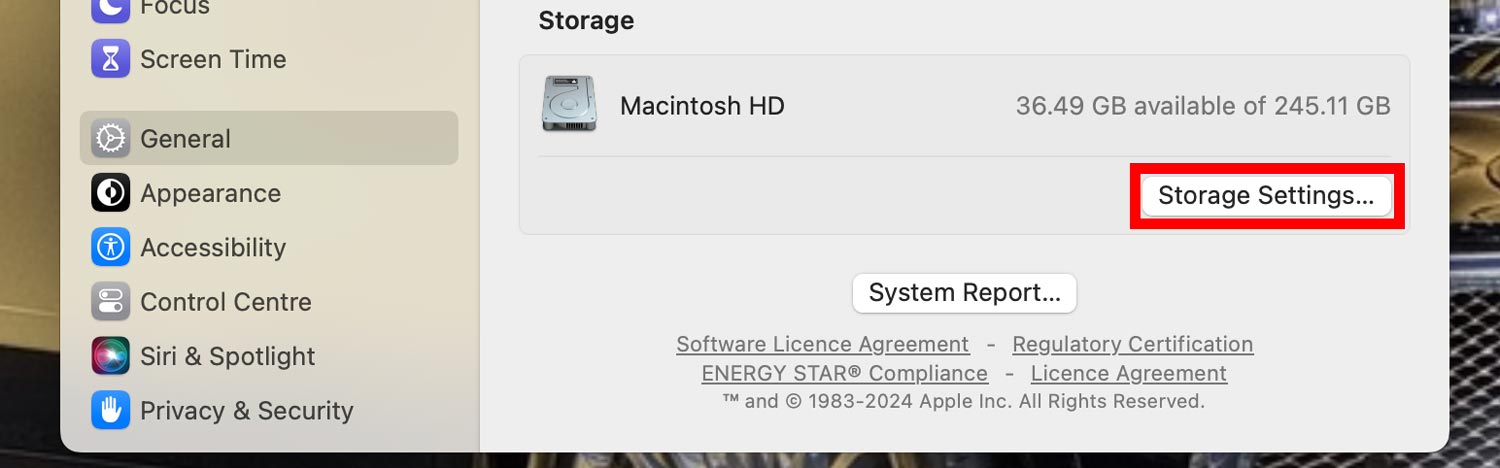
In the Storage tab, you’ll see a detailed breakdown of what’s using up space, including System Data, Documents, Apps, and more, along with the available space.

2. Check Mac Storage via Disk Utility
Disk Utility is another powerful tool built into macOS that helps you manage both internal and external storage devices.
It allows you to format, reformat, and troubleshoot issues with your hard drives.
Here’s how to access and use Disk Utility:
- Open the Finder.

- Navigate to Applications.

- Go to Utilities and select Disk Utility. You can also launch it via Launchpad or ask Siri to open it for you.

- In Disk Utility, select Macintosh HD from the sidebar to view how much storage is used and how much is still available.

This overview provided by Disk Utility is general. If you want more detailed analysis of what’s consuming your Mac’s space, it’s recommended to check the storage via About This Mac as discussed earlier.
3. Check Mac Storage via the Finder
The Finder app not only organizes all your data—like applications, media, documents, and files—but also allows you to check the storage status of your Mac.
Here’s how to use Finder to check your Mac’s storage:
- Click on the Finder icon located in your Dock.
- In the sidebar under Locations, select Macintosh HD.

- Press Command + I to open the Info window.
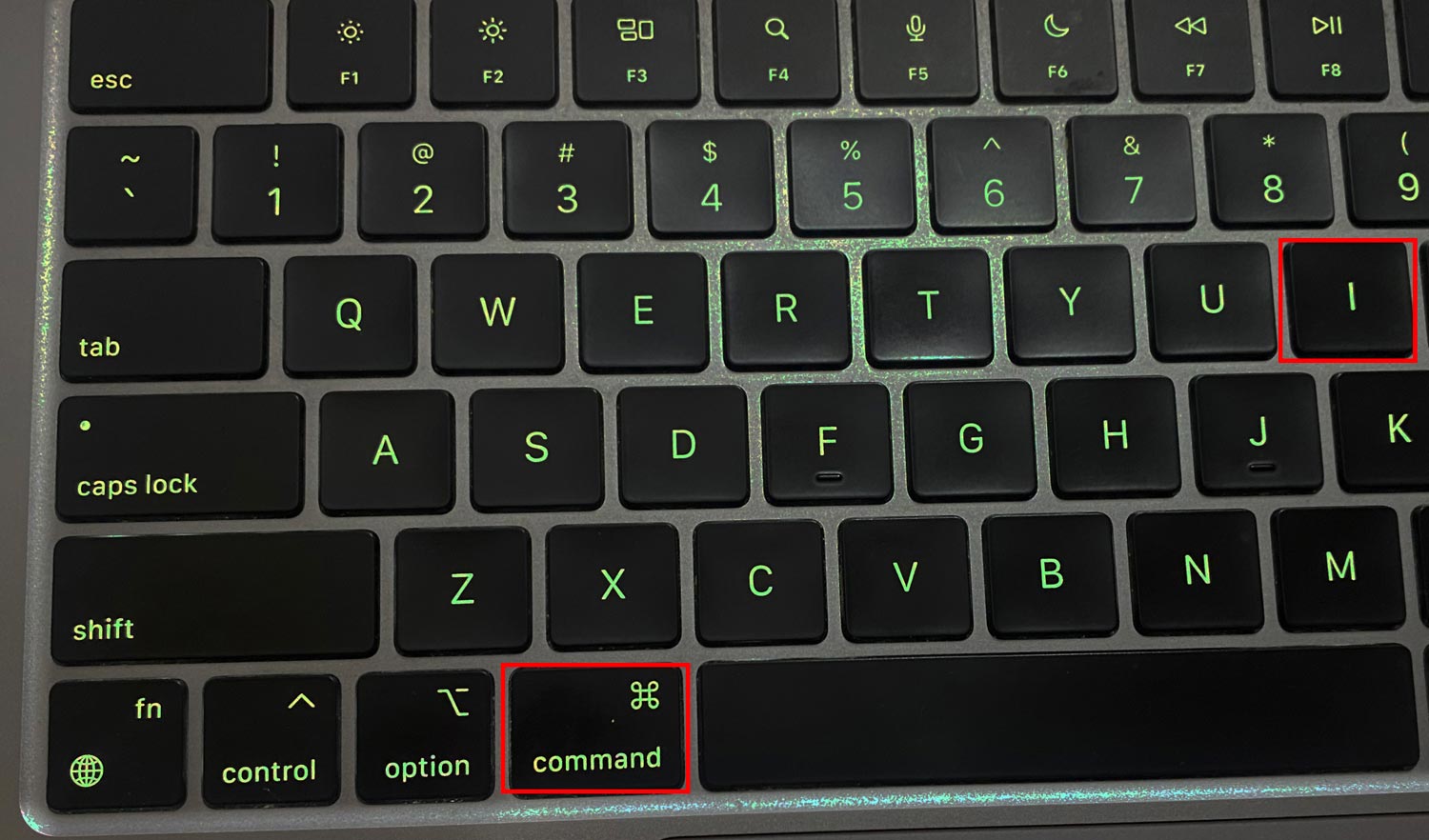
- Within the Info window, click on General to see the capacity, available space, and used storage.
Alternatively, you can control-click or right-click on Macintosh HD and select Get Info.
Similar to Disk Utility, this method provides a general overview of your Mac’s storage.
For more detailed insights, consider using the method described in “Check MacBook Storage via About This Mac.”
4. Use Quick Look on the Desktop
Quick Look is a convenient feature on the Mac that lets you quickly preview files and see storage details directly from your Desktop.
To use it for checking storage, you’ll need to adjust some Finder settings first:
- Open Finder and navigate to Preferences from the menu bar.

- Under the General tab, make sure Hard disks is selected to show them on your Desktop.
- Close the Finder preferences.

Now, simply locate your drive’s icon on the Desktop, click it, and then press the space bar.
This will bring up a Quick Look window showing the total and available space without a detailed breakdown.

5. Run a Terminal Command
For those who are comfortable with command-line tools, using the Terminal to check Mac storage offers a direct and detailed approach.
If you’re new to using Terminal, consider sticking with the previous methods for simplicity. However, if you’re up for it, here’s how to proceed:
- Navigate to Applications > Utilities and open Terminal.

- Type or paste the following command and press Return:
df -h - Focus on the output for
/System/Volumes/Datato see the used and available space for your Mac’s primary storage.

This method provides a comprehensive view of all volumes and their storage statistics, allowing advanced users to analyze their disk usage in detail.
How to Efficiently Manage Storage on Your Mac
Managing storage on your Mac is straightforward, thanks to macOS’s built-in tools designed to help you keep your computer clutter-free.
Depending on the version of macOS you’re using, the process to access these tools varies slightly.
#1 For macOS Ventura and Beyond:
1. Head to System Settings.

2. General > Storage.
3. In this menu, you’ll be greeted by a colorful graph showing how your storage is being used. Below the graph, don’t miss the Recommendations section. Here, macOS suggests several ways to free up space, such as optimizing storage, automatically emptying the trash, and reducing clutter by deleting old files.

#2 For macOS Monterey and Earlier:
- Click the Apple menu > About This Mac > Storage > Manage.
- This action opens the storage management window, where you’ll find various recommendations from macOS on how to optimize your storage. Suggestions might include moving items to iCloud, reviewing and removing large files, or deleting apps and files that are no longer necessary.
Conclusion
Managing storage on your Mac doesn’t have to be a daunting task. With the built-in tools and methods provided by macOS, you can easily monitor and manage your storage space to keep your system running efficiently.
Whether you choose to quickly check your storage via About This Mac, Disk Utility, Finder, Quick Look, or the Terminal, each method offers its unique advantages and level of detail.
Remember, keeping an eye on your storage not only helps in maintaining optimal performance but also ensures that you have enough space for all your important files and applications.
Use the storage management features built into macOS to make informed decisions about what to keep and what to clear, thereby optimizing your Mac’s storage and overall performance.
Stay proactive about your Mac’s storage and enjoy a smoother, faster computing experience!