Is your iPhone compass pointing you in the wrong direction? Don’t worry, you’re not alone. Many iPhone users find themselves in your shoes, wondering why their compass isn’t working correctly when they need it most.
Maybe you’re trying to navigate a new hiking trail, find your way through an unfamiliar city, or simply figure out which direction you’re facing.
Whatever the reason, an inaccurate compass can be frustrating and even potentially dangerous if you’re relying on it for navigation.
In this guide, we’ll walk you through simple steps to improve your iPhone compass accuracy.
You’ll learn how to calibrate your compass, adjust key settings, and avoid common issues that affect its performance.
Why isn’t your iPhone compass working right?
Your iPhone compass might be acting up for a few reasons. Let’s look at what could be causing the problem:
1. Magnetic objects are messing with your compass
Your iPhone uses a tiny sensor called a magnetometer to figure out which way is north. It’s like a miniature version of a regular compass.
The problem is that other magnetic things near your phone can confuse this sensor. Think about all the metal and electronic gadgets around you – they could be throwing your compass off track.
2. Your location services aren’t working properly
For your compass to work well, it needs to know where you are. That’s where your iPhone’s GPS and location services come in. If these aren’t working right, your compass might get confused about which way you’re facing.
3. There’s a glitch in your iPhone’s software
Sometimes, it’s not about the hardware at all. Your iPhone’s software might have a small bug that’s making the compass act weird. It’s like when your computer starts doing strange things for no apparent reason.
4. Your iPhone’s operating system is out of date
If you haven’t updated your iOS in a while, your compass might not be working with the latest improvements. You can update your iOS even without Wi-Fi if needed to get the latest bug fixes.
Remember, your iPhone’s compass is a handy tool, but it’s not perfect. Understanding what might be causing problems is the first step to fixing them. Now that you know what could be going wrong, let’s look at how to fix it.
How to calibrate iPhone compass for better accuracy?
Step 1: Enable compass calibration
The first thing you need to do is make sure your iPhone is set up to calibrate the compass automatically. Here’s how:
- Open the Settings app on your iPhone.
- Tap Privacy & Security.
- Select Location Services.

- Scroll down and tap System Services.
- Find Compass Calibration and make sure it’s toggled on (the switch should be green).
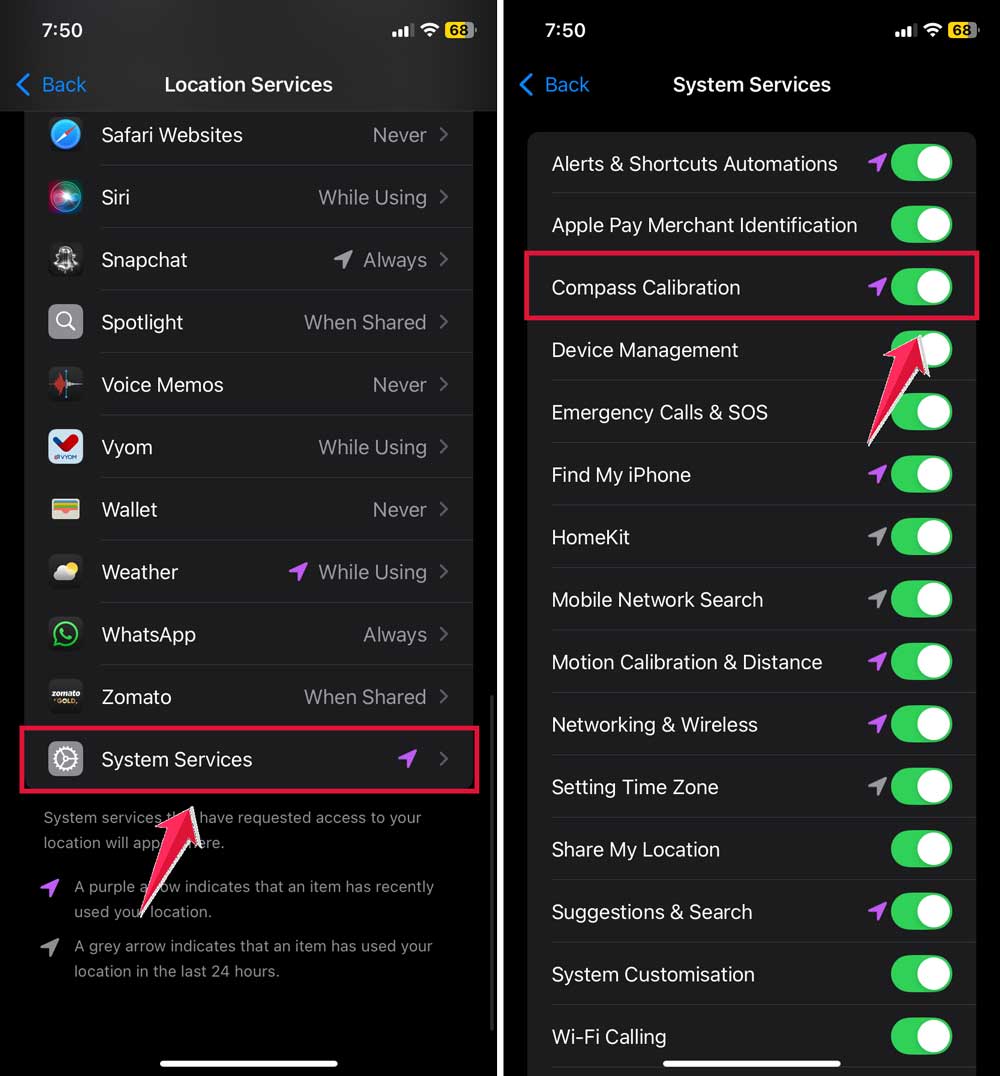
By enabling this setting, your iPhone will automatically calibrate the compass whenever you use it, saving you the trouble of manual recalibration.
Step 2: Turn off True North
While it might seem counterintuitive, turning off the “True North” setting can actually improve your compass accuracy. Here’s how to do it:
- Go back to the main Settings screen.
- Scroll down and tap Compass.
- Toggle off the Use True North switch.

This change makes your iPhone compass use Magnetic North instead of True North. Magnetic North is often more accurate for day-to-day use and can help reduce interference from external factors.
Step 3: Calibrate your compass manually
Even with automatic calibration enabled, you might sometimes need to give your compass a helping hand. Here’s a quick way to manually calibrate your iPhone compass:
- Open the Compass app on your iPhone.
- You’ll see a red ball appear on the screen.
- Tilt your iPhone and move it in a figure-8 motion until the red ball disappears.

This motion helps your iPhone recalibrate its sensors and improve compass accuracy.
Step 4: Keep your iPhone away from magnetic objects
Remember, your iPhone’s compass is sensitive to magnetic fields. To ensure accurate readings, keep your device away from:
- Magnets.
- Metal objects.
- Electronic devices.
- Credit cards with magnetic strips.
Even your Apple Watch or AirPods can interfere with the compass if they’re too close. To get more accurate activity tracking, keep a bit of distance between your iPhone and other electronics during navigation.
Step 5: Update your iOS
Running the latest version of iOS can often resolve compass issues. Here’s how to check for updates:
- Open Settings.
- Tap General.
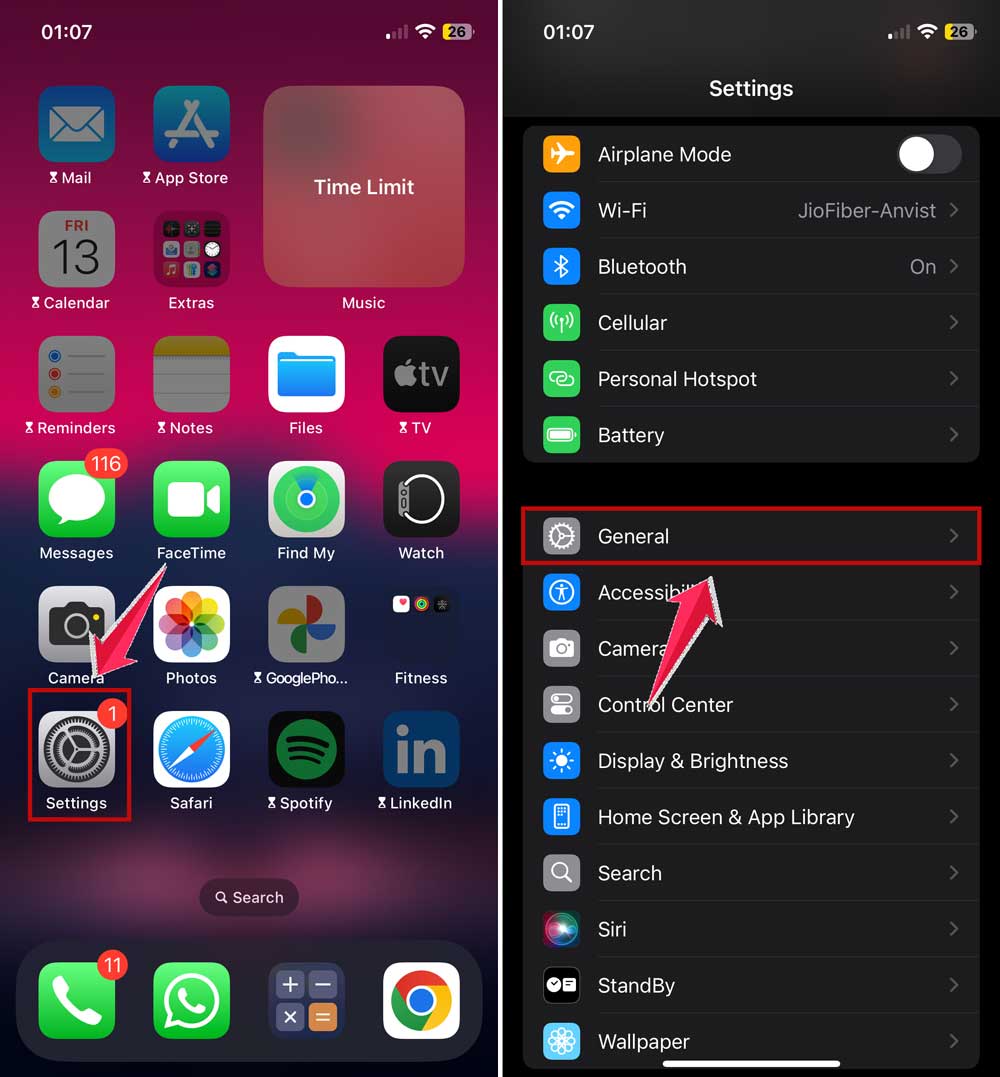
- Select Software Update.
- If an update is available, tap Download and Install.

Keeping your iOS up to date ensures you have the latest bug fixes and improvements for all your iPhone’s features, including the compass.
Step 6: Restart location services
If you’re still having issues, try refreshing your iPhone’s location services:
- Go to Settings > Privacy & Security > Location Services.
- Toggle the Location Services switch off.
- Wait a few seconds, then toggle it back on.

This quick reset can often resolve GPS-related issues that might be affecting your compass accuracy.
Step 7: Restart your iPhone
When all else fails, a good old-fashioned restart can work wonders:
- Press and hold the side button and either volume button until the power off slider appears.
- Drag the slider to turn off your iPhone.
- After your device turns off, press and hold the side button to turn it back on.

A restart can clear out any temporary glitches that might be affecting your compass performance.
Step 8: Seek professional help
If you’ve tried all these steps and your iPhone compass is still not working correctly, it might be time to contact Apple Support or visit an Apple Store.
There could be a hardware issue with your device’s magnetometer or GPS chip that requires professional attention.

How can you make your iPhone compass even more accurate?
Now that you’ve got the basics down, let’s look at some extra tips to make your iPhone compass work even better:
1. Use your compass with maps
Your compass is helpful on its own, but it becomes even more powerful when you pair it with a map. Try using your compass alongside apps like Apple Maps or Google Maps.
This combination gives you a more complete picture of your surroundings.
The compass shows your direction, while the map provides context about where you are and what’s around you. Together, they can help you navigate more accurately and confidently.
2. Be aware of your surroundings
Your environment can have a big impact on your compass accuracy. If you’re inside a building or near large metal structures, your compass readings might not be reliable.
This is because these objects can interfere with the magnetic field your compass uses to determine direction.
For the best results, try to use your compass in open areas when possible. If you’re getting strange readings, take a look around – there might be something nearby throwing off your compass.
3. Make calibration a habit
Just like you might warm up before exercising, it’s a good idea to calibrate your compass before you use it. This is especially important if you’re heading outdoors or relying on your compass for navigation.
A quick calibration can make a big difference in accuracy. Try to make it a habit to calibrate your compass every time you open the app, especially before important trips or outdoor activities.
4. Try out different compass apps
While the built-in compass app on your iPhone is good, there are other apps out there that might work even better for you.
Some of these third-party apps have extra features that could improve your compass accuracy or make it easier to use.
They might offer more detailed readings, better interfaces, or additional tools like inclinometers or altimeters.
Don’t be afraid to explore different options to find the one that works best for you.
5. Learn about magnetic declination
This might sound technical, but understanding magnetic declination can really boost your navigation skills.
Magnetic declination is the difference between true north (the direction to the Earth’s geographic north pole) and magnetic north (the direction your compass points).
This difference varies depending on where you are in the world. By learning about and accounting for magnetic declination in your area, you can get more precise compass readings.
It’s especially useful for activities like hiking or sailing where precise navigation is important.
The takeaway
Now that you’ve learned how to improve your iPhone compass accuracy, you’re ready to navigate with confidence. Remember, a few simple adjustments can make a big difference.
The key steps we’ve covered include enabling compass calibration, turning off True North, and keeping your iPhone away from magnetic interference. These quick fixes can transform your compass from frustrating to reliable.
You might have thought that smartphone compasses just aren’t accurate, but that’s not true.
With proper care and the techniques you’ve learned, your iPhone compass can be a trustworthy navigation tool.
The most important thing to remember is to check and calibrate your compass regularly, especially before you head out on a trip or adventure.
By making this a habit, you’ll always have accurate directions at your fingertips. So go ahead, open that Compass app, and start exploring with confidence!