
Are you wondering if your FaceTime calls are eating up your data plan? You’re not alone.
Many iPhone users are surprised to learn that a 10-minute FaceTime video call can use up to 40 MB of data.
That’s about the same as streaming 20 minutes of music!
If you’re seeing your data disappear faster than expected, FaceTime might be the culprit.
The app uses your cellular data when you’re not on Wi-Fi, which can lead to unexpected charges or hitting your data limit sooner than you thought.
This is especially important if you have a limited data plan or if you’re traveling internationally, where roaming charges can add up quickly.
But don’t worry. You don’t have to give up your FaceTime chats. There are easy ways to manage your data usage while still staying connected with friends and family.
In this guide, we’ll show you exactly how much data FaceTime uses, how to check your own usage, and give you practical tips to keep your data consumption under control.
Whether you’re a FaceTime fan or just an occasional user, we’ve got you covered with all the information you need to FaceTime smartly and avoid any nasty surprises on your next phone bill.
How FaceTime Works
Before we get into the specifics of data usage, let’s briefly explain how FaceTime operates:
- FaceTime is an internet-based service, which means it requires an internet connection to function.
- It can use either Wi-Fi or cellular data to make calls.
- FaceTime does not use your cellular plan’s voice minutes.
Does FaceTime Use Data?
Yes, FaceTime uses data when you’re not connected to Wi-Fi.
Let’s break down how FaceTime uses data in different situations:
1. FaceTime on Wi-Fi
When you’re connected to Wi-Fi, FaceTime uses your internet connection.
This means it doesn’t consume any of your cellular data. You can chat as long as you want without worrying about your data plan.
2. FaceTime on Cellular Networks
If you’re not on Wi-Fi, FaceTime will use your cellular data plan to make calls.
This is when you need to be mindful of your data usage, especially if you have a limited data plan.
FaceTime is smart about how it connects. It will automatically switch between Wi-Fi and cellular data based on what’s available.
FaceTime always tries to use Wi-Fi first to save your cellular data.
How Much Data Does FaceTime Use?
The amount of data FaceTime uses can vary depending on several factors. Here’s a breakdown:
- Video Calls: On average, FaceTime video calls use 3-4 MB per minute.
- Audio Calls: FaceTime audio calls use significantly less, about 0.5-1 MB per minute.
For context, a 10-minute FaceTime video call might use around 30-40 MB of data. However, actual usage can vary based on:
- Call Duration: Longer calls naturally use more data.
- Video Quality: Higher-quality video consumes more data.
- Network Conditions: Poor network conditions may lead to increased data usage as the app tries to maintain call quality.
- Device Type: Newer devices with better cameras might use more data for higher-quality video.
How to Check FaceTime Data Usage
To monitor how much data FaceTime is using on your iPhone:
- Go to Settings > Mobile Service.

- Scroll down to find FaceTime.
- You’ll see the amount of data used by FaceTime below the app name.

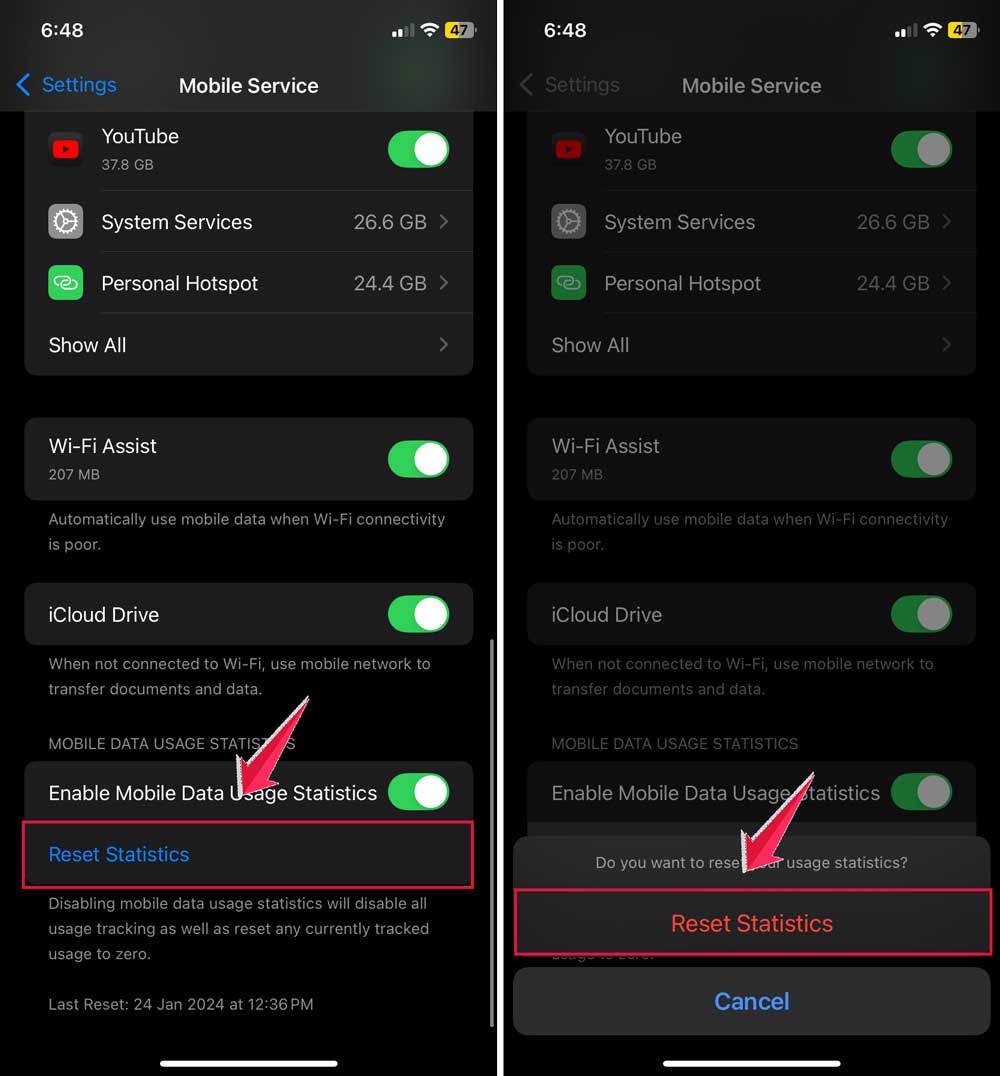
Remember, this number doesn’t reset automatically each month.
To reset it:
- Scroll to the bottom of the Mobile Service page.
- Tap Reset Statistics.
How to reduce FaceTime data usage?
If you’re worried about using too much data on FaceTime, here are some easy ways to cut down:
1. Use Wi-Fi for FaceTime Calls
The best way to save cellular data is to use Wi-Fi for your FaceTime calls.
Whenever you’re at home, work, or anywhere with Wi-Fi, connect to it before making your call. This way, you won’t use any of your cellular data at all.
2. Make FaceTime Work on Wi-Fi Only
You can set FaceTime to only work when you’re connected to Wi-Fi. Here’s how:
- Open your Settings app.
- Tap on Mobile Service.
- Scroll down and find FaceTime.
- Turn off the switch next to FaceTime.

Just remember, if you do this, you won’t be able to make or receive FaceTime calls when you’re not on Wi-Fi.
3. Switch to FaceTime Audio Calls
If you don’t need to see the person you’re talking to, try using FaceTime Audio instead of video.
Audio calls use much less data than video calls, so you can talk longer without using as much data.
4. Lower Your Video Quality
You can make FaceTime use less data by lowering the video quality. Here’s how:
- During a FaceTime call, tap your screen
- Tap the three dots (…) for more options
- Choose Low Data Mode
This will make the video less sharp, but it will use less data.
5. Keep Your Calls Short
The longer you talk on FaceTime, the more data you use. Try to keep your calls shorter if you’re worried about data usage.
6. Close Other Apps
Other apps running in the background can use data and might affect how well FaceTime works. Close apps you’re not using to save data and help FaceTime run better.
7. Update Your iPhone
Make sure your iPhone has the latest iOS version. Newer updates often make apps work better and use less data. To check for updates:
- Go to Settings.
- Tap General.
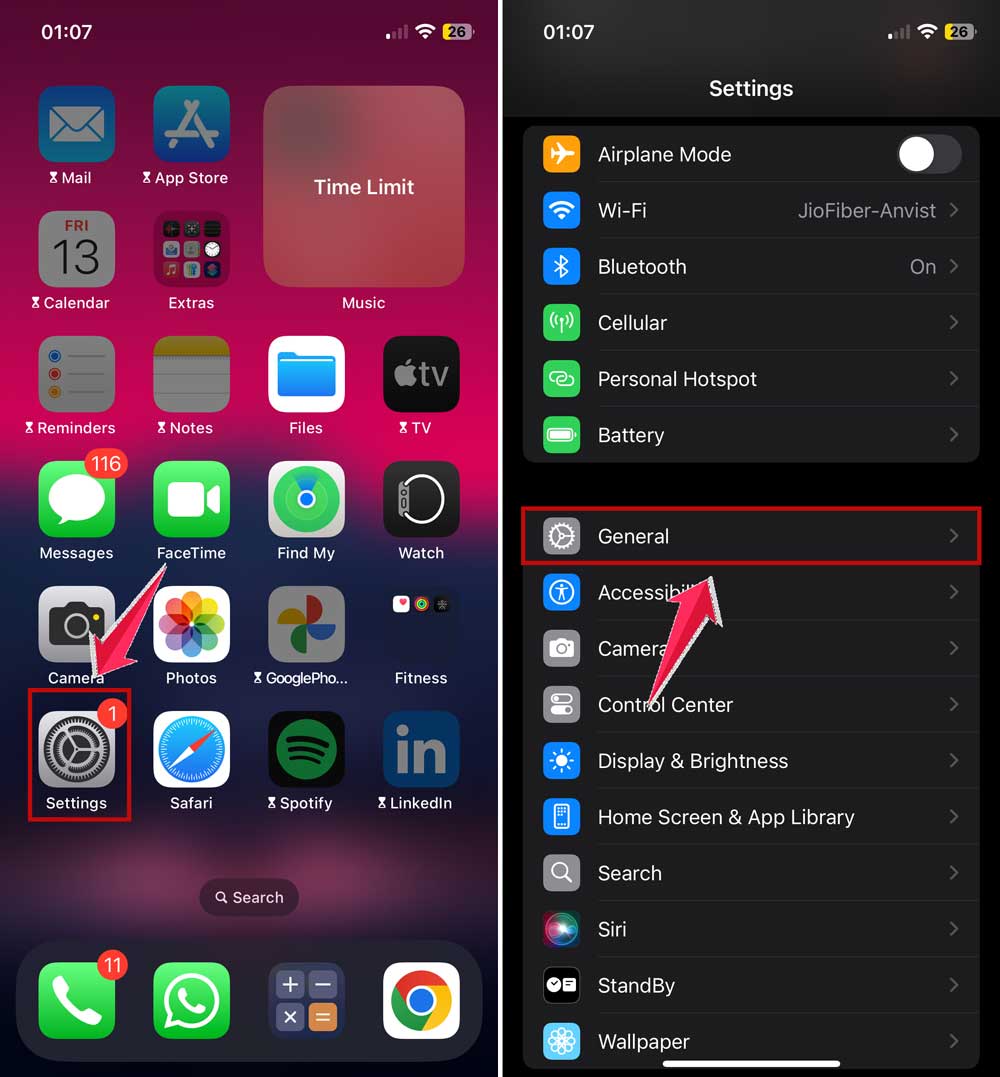
- Tap Software Update.

By following these tips, you can enjoy FaceTime while using less data. It’s all about being smart with how you use the app.
How to use FaceTime while traveling without high data charges?
When you’re traveling to other countries, using FaceTime can get expensive if you’re not careful. Here’s how to keep your data usage and costs down:
1. Know Your Roaming Plan
Before you leave, check with your phone company about international data rates.
Roaming charges can be very high, so it’s important to know what you’ll be paying. Some plans offer special travel packages that can save you money.
2. Find and Use Wi-Fi
Look for free Wi-Fi wherever you go. Many hotels, cafes, and even some public spaces offer free Wi-Fi. Using Wi-Fi for your FaceTime calls means you won’t use any cellular data at all.
3. Get a Local SIM Card
If you’re staying in one place for a while, think about getting a local SIM card. This can be much cheaper than using your home plan abroad. Just make sure your phone is unlocked before you go.
4. Use Airplane Mode When Not Calling
When you’re not using your phone, turn on Airplane Mode. This stops your phone from using data in the background.
Just remember to turn it off when you want to make a call or check your messages.
If you notice FaceTime keeps hanging up by itself, it may be linked to background app settings or data issues.
What are some alternatives to FaceTime?
If you’re looking for other ways to make video calls, especially if you want to use less data or talk to people who don’t have Apple devices, here are some good options:
1. WhatsApp
WhatsApp is a popular app that works on both iPhones and Android phones.
It’s known for using less data than FaceTime for video calls, which can help you save on your data plan. Many people around the world use WhatsApp, so it’s great for international calls too.
2. Skype
Skype has been around for a long time and works on many different devices, including computers.
One handy feature of Skype is that you can call regular phone numbers with it, not just other Skype users.
This can be useful if you need to call someone who doesn’t use video calling apps.
3. Zoom
Zoom became very popular for group video calls. It’s good for talking to several people at once, like for family gatherings or work meetings.
Zoom also lets you lower the video quality, which can help if you want to use less data.
4. Google Meet
Google Meet is another option that works well for both one-on-one chats and group calls.
It’s easy to use and works on different types of phones and computers. If you already use other Google services, Meet might be a convenient choice for you.
These apps give you more options for making video calls, especially when you want to talk to people who don’t use FaceTime.
Each one has its own features, so you can choose the one that works best for you and the people you want to call.
The takeaway
Now that you understand how FaceTime uses data, you can make smarter choices about when and how to use it.
Remember, FaceTime doesn’t use your call minutes. It’s all about data. If FaceTime randomly cuts out, it could be a connectivity glitch.
The easiest way to avoid using cellular data is to use Wi-Fi whenever possible for your FaceTime calls. When you’re out and about, consider switching to FaceTime audio instead of video to save data.
Don’t forget to regularly check your FaceTime data usage in your iPhone settings to stay on top of things.
By being aware of your usage and using these simple strategies, you can keep enjoying FaceTime without worrying about unexpected charges.
So go ahead and make that call to your friend or family member.